Initialize the SSD via Disk Management or diskpart, update drivers, and re-seat connections quickly.
I’ve fixed dozens of storage issues for friends and clients. This guide on how to fix ssd drive not initialized error walks you through safe checks, step-by-step fixes, and recovery options. You’ll learn clear steps for Windows Disk Management, diskpart commands, driver and firmware checks, and when to choose repair or replacement.

Why the "SSD drive not initialized" error happens
The error shows when Windows can’t read the SSD’s partition or metadata. Common causes include corrupted partition tables, sudden power loss, bad cables, driver problems, or firmware bugs. Sometimes the SSD is new and never initialized. Other times internal errors make the disk invisible to the OS.
How to fix ssd drive not initialized error starts with finding the root cause. Target the simplest fixes first. If the SSD shows as unallocated or unknown in Disk Management, initialization often solves it. If it’s physically dead, data recovery or RMA may be needed.
Prepare and protect your data
Before you try fixes, protect data and yourself.
- Power down and re-seat the drive if possible.
- Back up other important files on the system drive.
- Note the SSD model and firmware version.
- Avoid writing to the SSD until you understand the problem.
If the SSD contains critical data, consider cloning or professional recovery. Trying fixes without a backup can make data recovery harder. How to fix ssd drive not initialized error often includes actions that could write to the disk, so proceed carefully.

Basic quick checks you can do now
Start with quick, low-risk checks. These often fix simple cases of how to fix ssd drive not initialized error.
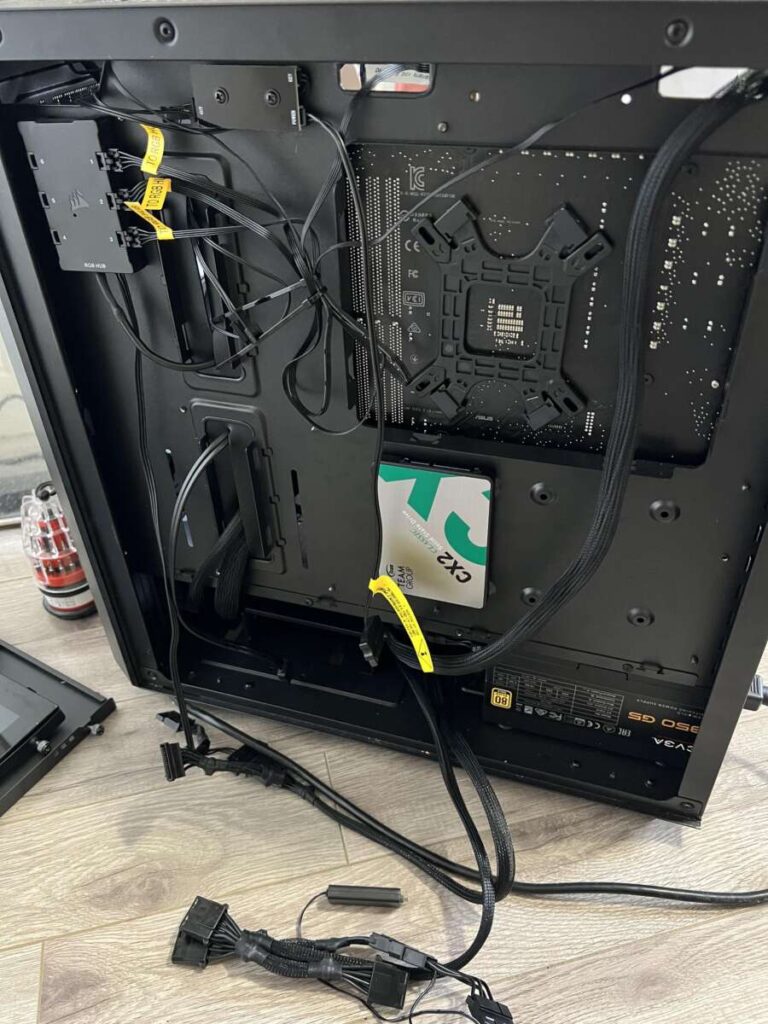
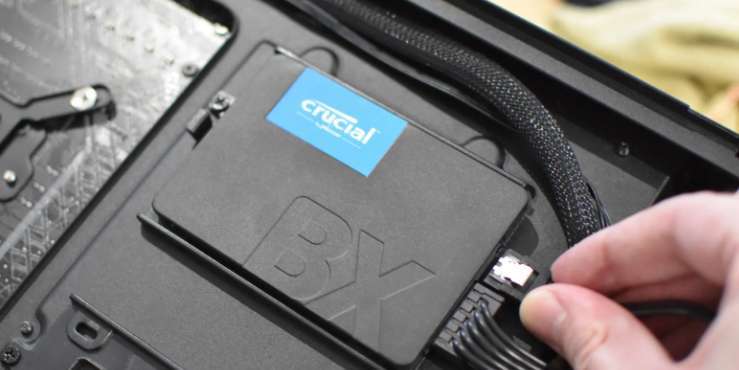
- Check physical connections. Reseat SATA/PCIe and power cables.
- Try another port or a USB adapter.
- Restart the PC and retry Disk Management.
- Check BIOS/UEFI to see if the SSD is detected.
If the SSD appears in BIOS but not in Windows, the issue is likely software or partition metadata. If the drive is absent from BIOS too, the problem may be hardware or power.
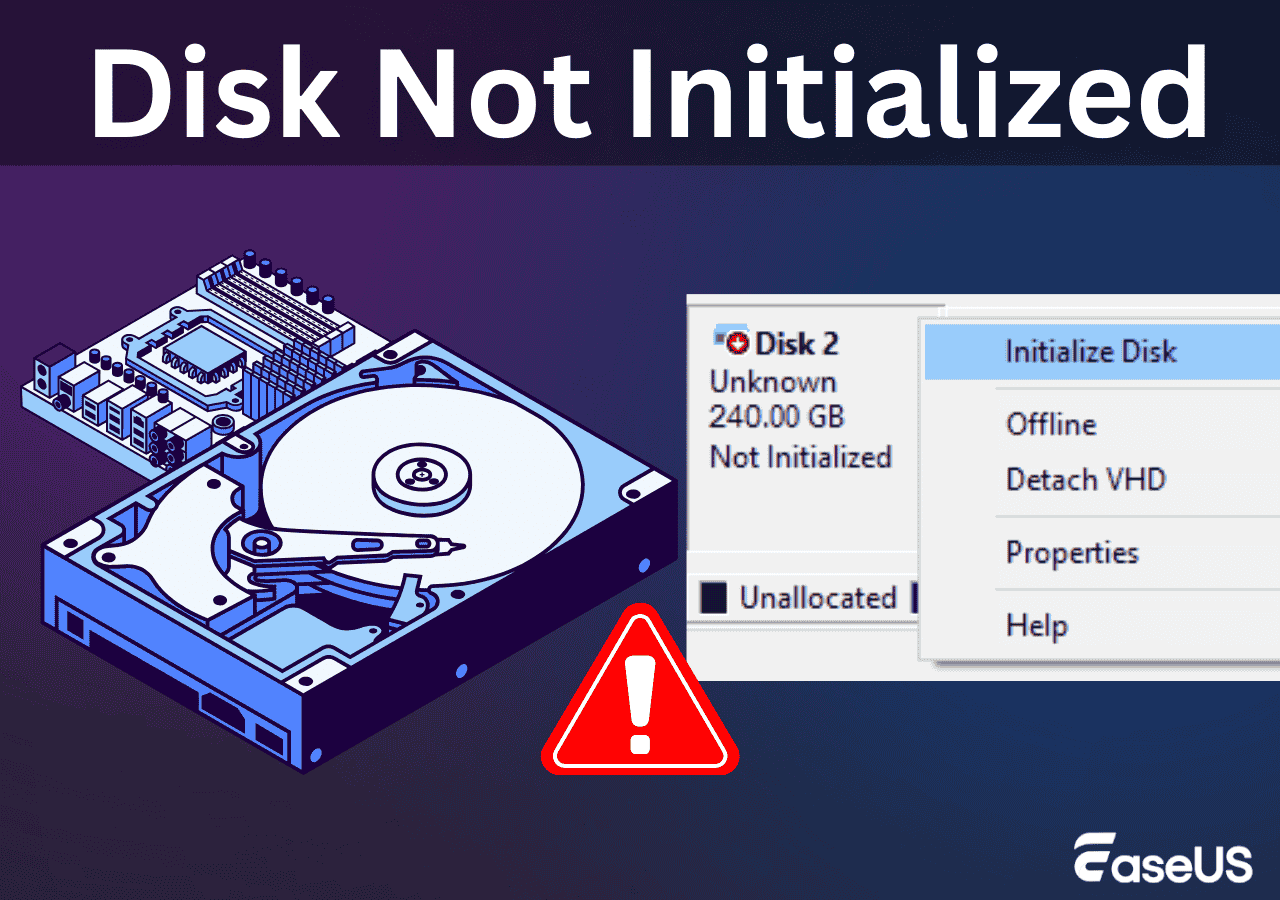
Initialize the SSD using Disk Management (Windows)
Disk Management is the easiest tool for many users. This is a safe first step when learning how to fix ssd drive not initialized error.
- Press Windows + X and open Disk Management.
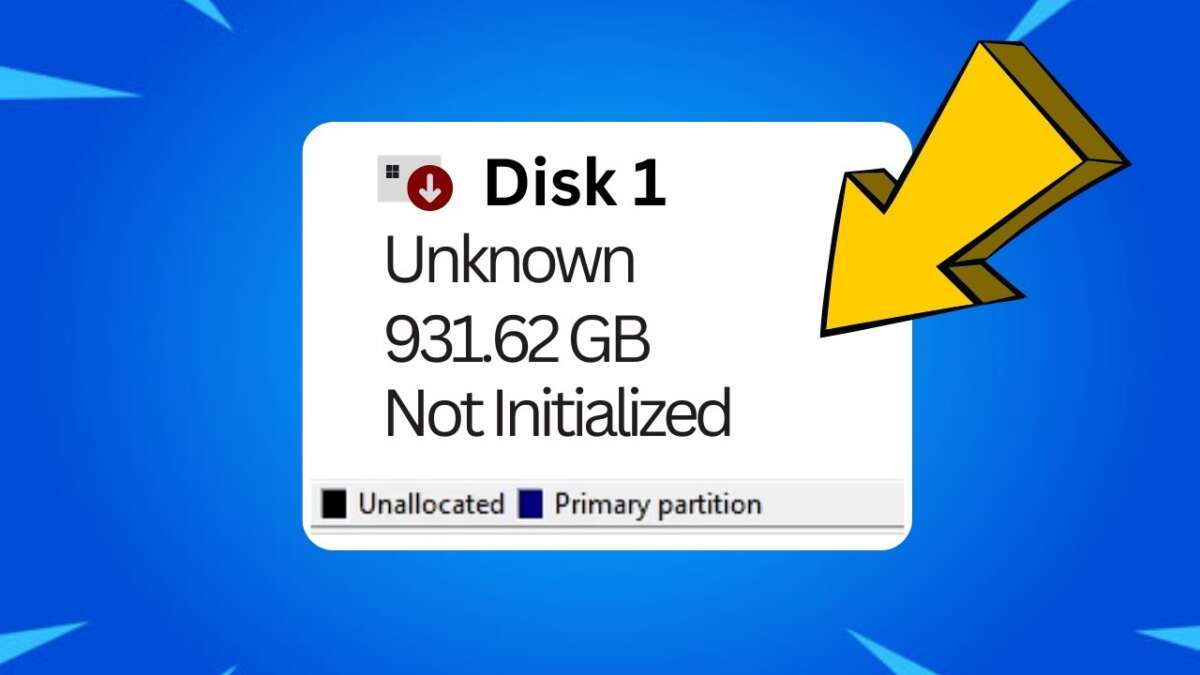
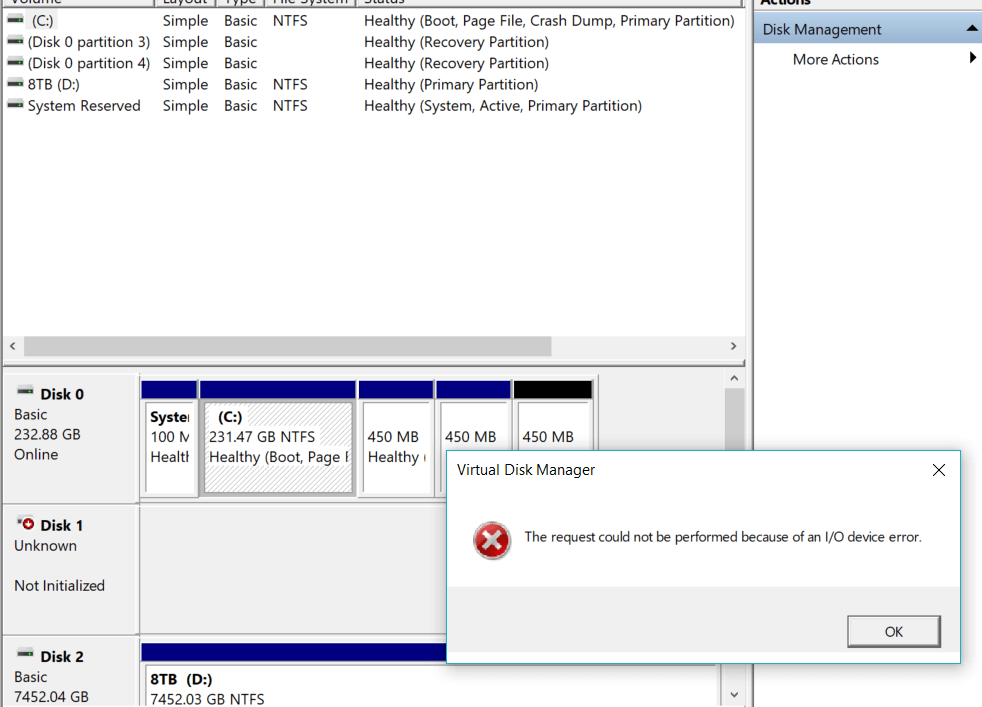
- Look for a disk marked "Unknown" or "Not Initialized."
- Right-click the disk and choose Initialize Disk.
- Choose MBR or GPT. GPT is best for drives used with UEFI or larger than 2 TB.
- After initialization, create a new simple volume and format it.
If you see an error during initialization, stop and try diskpart or driver fixes next.
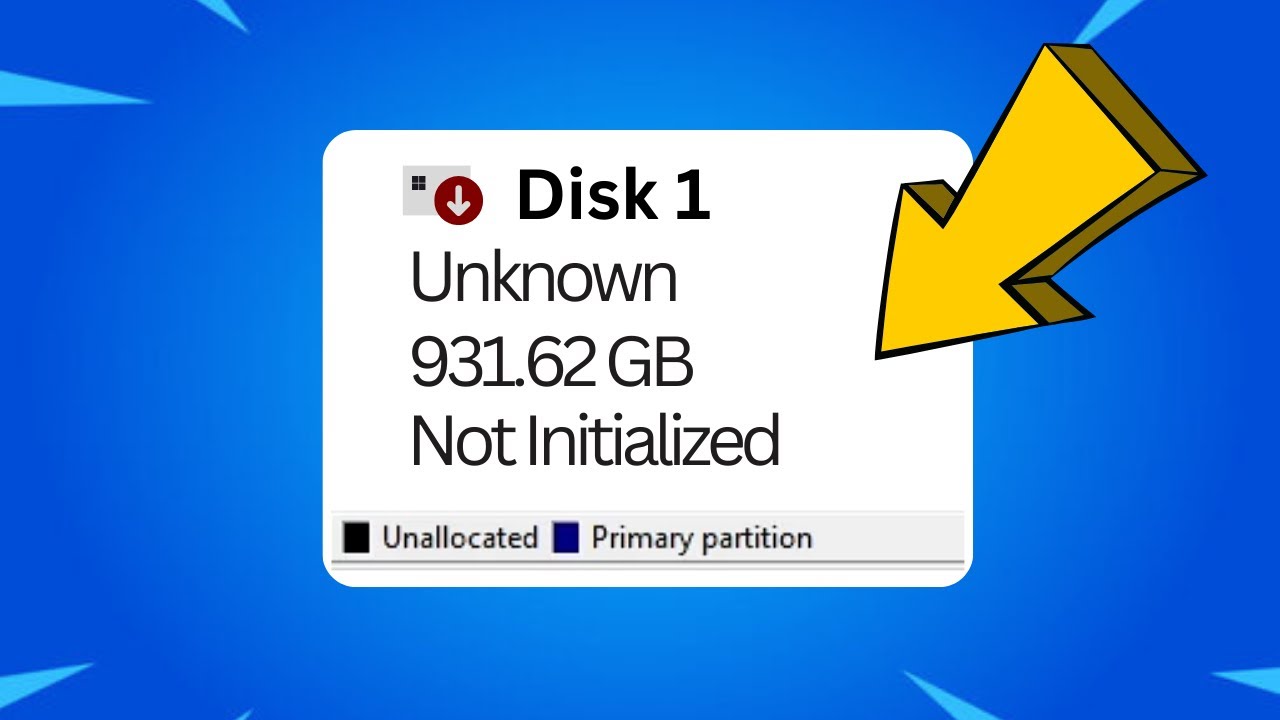
Use diskpart for stubborn initialization issues
Diskpart is a command-line tool that can clear bad metadata and re-initialize drives. It’s powerful. Use it carefully when trying to fix ssd drive not initialized error.
- Open Command Prompt as Administrator.
- Type: diskpart and press Enter.
- Type: list disk to find the SSD number.
- Type: select disk X (replace X with the SSD number).
- Type: attributes disk clear readonly
- Type: clean to remove partition and volume data.
- Type: create partition primary
- Type: format fs=ntfs quick (or use exFAT)
- Type: assign and then exit.
The clean command removes all partitions and data. Only run it if you have a backup or accept data loss. I’ve used diskpart to revive drives where Disk Management failed three times out of five.
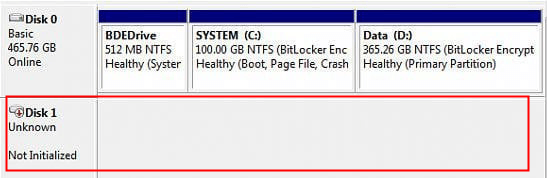
Repair partition table or recover data (when initialization fails)
If initialization fails, the partition table or MBR/GPT may be corrupt. You can try repair or recovery tools. These tools help if you need to recover files before initializing.
- Use a partition recovery tool to scan and list lost partitions.
- Try a file recovery tool to extract important files to another drive.
- Consider cloning the SSD to another drive before heavy repairs.
I once recovered photos from an SSD that showed "not initialized" by imaging it and running a recovery scan on the clone. That approach kept the original intact and saved time.
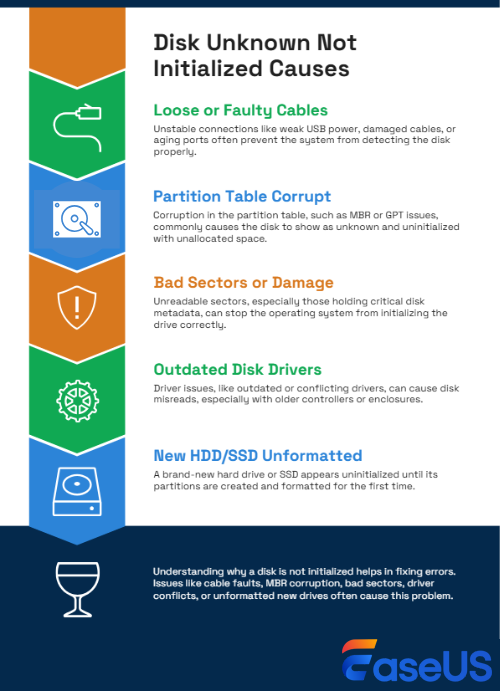
Check drivers, Windows updates, and firmware
Driver or firmware mismatch can cause the SSD to appear uninitialized. Updating these often fixes the problem. This is a common step in how to fix ssd drive not initialized error.
- Open Device Manager and scan for changes.
- Update the storage controller and SATA/NVMe drivers.
- Install Windows updates.
- Check the SSD vendor’s firmware and update if a newer, stable version exists.
Firmware updates can fix drive stability and detection problems. Always follow vendor instructions and avoid firmware updates during power outages.

Use CHKDSK and S.M.A.R.T. checks
If the drive is initialized but unstable, scan for errors. These checks help when learning how to fix ssd drive not initialized error that follows after partial detection.
- Run a S.M.A.R.T. read with a tool to check drive health.
- If the drive has a letter, run chkdsk X: /f to fix file system errors.
- For NVMe drives, vendor tools can run diagnostics.
If S.M.A.R.T. shows reallocated sectors or failing health, plan for data recovery and replacement.

When to seek professional recovery or RMA
Not all problems are fixable at home. If you see physical symptoms — burning smell, clicking, or no power — stop and get pro help. Also seek professional recovery when the data is critical and you can’t risk further damage.
- Contact a data recovery service for important files.
- If the SSD is under warranty, contact the vendor for RMA.
- Keep copies of diagnostics and error messages to speed support.
I’ve sent two drives for RMA that had firmware corruption. Both were replaced after vendor diagnostics confirmed failure.
Troubleshooting checklist — quick reference
Use this checklist to follow a clear path on how to fix ssd drive not initialized error.
- Power off and re-seat cables.
- Check BIOS/UEFI detection.
- Try a different port or adapter.
- Initialize in Disk Management.
- Use diskpart clean if safe.
- Run S.M.A.R.T. and CHKDSK.
- Update drivers and firmware.
- Recover data or image the drive if needed.
- Contact support or recovery pros if hardware failure is likely.
This list helped me untangle confusing cases quickly. Keep a note of each step you take to ease diagnostics later.
PAA-style quick questions (People Also Ask)
Why does Windows show an SSD as not initialized?
The OS can’t read the partition or metadata. Causes include corrupted partition tables, bad connections, driver issues, or firmware bugs.
Can initializing an SSD erase data?
Yes. Initializing or running diskpart clean will remove partition data and may erase files. Back up or clone first.
Is GPT or MBR better for initialization?
GPT is modern and supports drives larger than 2 TB and UEFI systems. Use GPT unless you need MBR for an older setup.
How long does initialization take?
Initialization itself is fast. Formatting time depends on drive size and whether you use quick or full format.
Will a firmware update fix detection problems?
Often yes. Firmware fixes can resolve stability and detection bugs. Follow vendor guidance to update safely.
Frequently Asked Questions of how to fix ssd drive not initialized error
What does "disk not initialized" mean for my SSD?
It means Windows cannot read the disk’s partition table. The disk may be raw, corrupted, or physically disconnected.
Will initializing the SSD delete my files?
Yes. Initializing or running diskpart clean removes partition metadata and can make files inaccessible. Back up or recover files first.
Can I initialize an NVMe SSD the same way as SATA?
Yes. Disk Management and diskpart work for NVMe and SATA. For NVMe, ensure the driver supports the controller.
My SSD is not detected in BIOS. What should I do?
Try a different power and data cable, another slot, or a USB adapter. If it still fails, the drive or motherboard port may be faulty.
Is it safe to update SSD firmware to fix initialization issues?
Generally yes, but follow the vendor’s steps and ensure steady power. Firmware updates can fix detection bugs but carry risk if interrupted.
Conclusion
You can often resolve how to fix ssd drive not initialized error with simple checks, Disk Management, or diskpart. Start with cables and BIOS, then move to safe software fixes. Back up or clone important data before writing to the disk. If firmware or hardware problems appear, seek professional help or an RMA.
Take action now: try the quick checklist, document your steps, and decide whether to repair, recover, or replace. If this guide helped, leave a comment or share your SSD story so others can learn from your experience.

Everett Ashford is a tech reviewer at mytechgrid.com specializing in SSDs, cameras, TVs, earbuds, headphones, and other consumer electronics. He provides honest, data-driven reviews based on hands-on testing and real-world performance analysis. Everett simplifies complex tech details to help readers make smart, confident buying decisions.