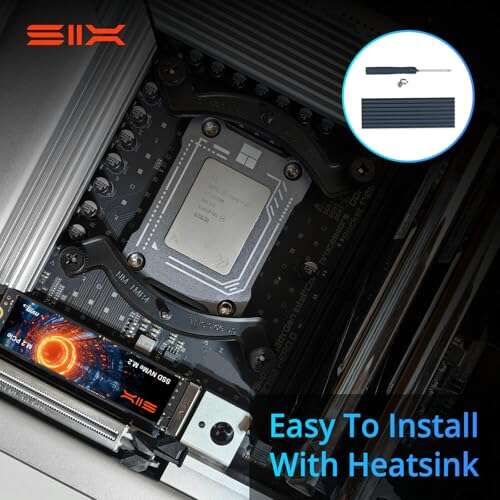
Choose NVMe for speed-focused office workflows; choose SATA for budget, compatibility, and simple upgrades.
I’ve spent years building and upgrading office PCs and servers, and I’ll guide you through exactly how to choose between sata and nvme ssd for office use. This article breaks down performance, compatibility, cost, endurance, and real-life scenarios. Expect clear steps, practical tips, and a checklist you can use today to pick the right drive for your team.

Performance: speed, latency, and what matters most
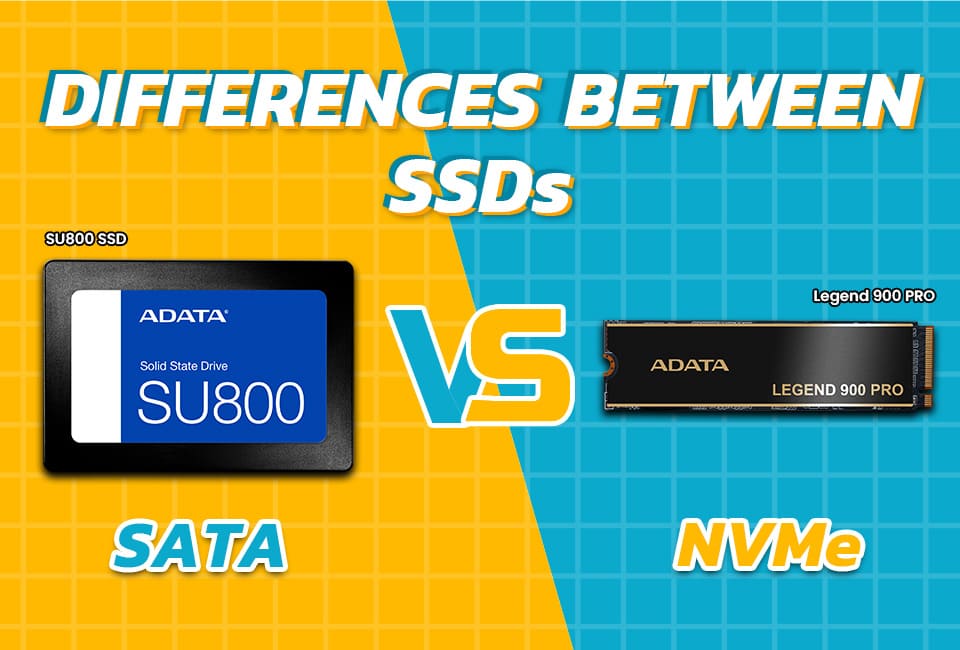
Speed is where NVMe shines. NVMe uses the PCIe bus. It offers much higher read/write speeds and lower latency than SATA drives. For large file moves, heavy multitasking, and fast app loading, NVMe delivers clear gains.
SATA SSDs use the older SATA interface. They top out near 500–600 MB/s. That is fine for everyday office work like email, browsing, and documents. For most users, SATA feels fast compared with old hard drives.
How to choose between sata and nvme ssd for office use comes down to the tasks you run. If users open huge files, run local databases, or use virtual desktops, NVMe saves time. If work is mainly email, spreadsheets, and browser tabs, SATA is a practical choice.
Key performance takeaways
- NVMe: Best for heavy I/O, fast boot, and multitasking.
- SATA: Good for standard office tasks and lower budgets.
- Perceived difference: Small for light tasks; large for heavy tasks.

Compatibility and form factors: will it fit your PCs?
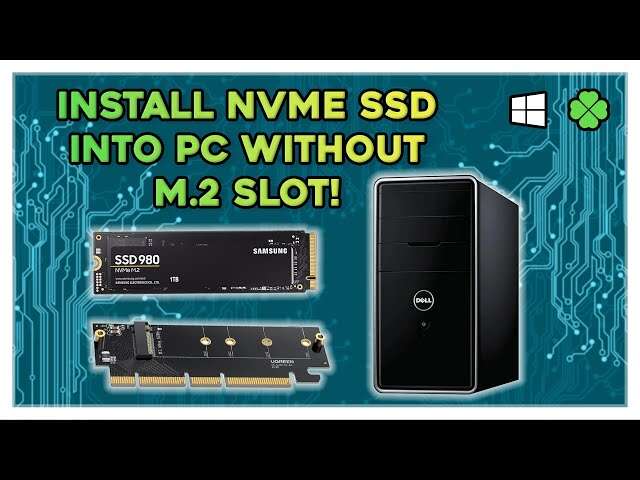
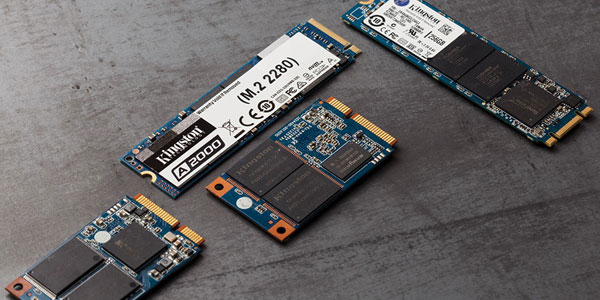
NVMe drives come as M.2 and add-in cards. Most modern motherboards support M.2 NVMe. Older desktops and laptops may lack an M.2 slot or only support SATA M.2. SATA SSDs use a 2.5-inch form factor. They fit nearly every desktop and older laptop with a SATA port.
Before buying, check these items
- Motherboard M.2 slot type: PCIe (NVMe) vs SATA M.2.
- Available physical space in laptops and small desktops.
- BIOS and OS support: older BIOS may need updates for NVMe boot.
- Cables and brackets for 2.5-inch SATA drives.
If you manage mixed hardware, SATA often reduces compatibility headaches. If you are standardizing new builds, NVMe gives better future-proofing.
Capacity, endurance, and drive life
Office files vary. Some users store lots of small files. Others keep medium-size databases. SSD endurance matters when many writes occur daily.
Endurance metrics to check
- TBW (terabytes written): higher TBW means longer life.
- Drive class: consumer vs enterprise. Enterprise SSDs have higher endurance and warranty.
- Over-provisioning and write amplification: affects real-world lifespan.
NVMe drives are available in both high-endurance and consumer models. SATA drives often target consumer market and may have lower TBW for the same price. For a typical office user, a consumer NVMe or SATA drive will last years. For server-like workloads, pick enterprise or high-TBW options.
Cost and value: budget planning for teams
Price per gig matters for fleet upgrades. SATA SSDs are cheaper per GB in many cases. NVMe pricing has dropped, but high-end NVMe still costs more.
Value checklist
- Cost per GB for target capacity.
- Total cost of ownership: longer life and better speed may reduce downtime.
- Volume discounts: buying many drives can change the math.
- Migration labor: NVMe may require BIOS updates or minor setup work.
When budgets are tight and tasks are light, SATA often wins. When time is money and delays matter, NVMe often wins despite higher upfront cost.

Power, heat, and physical concerns
NVMe drives can run warmer and use more power under load. In most office PCs and laptops, heat is manageable. Small thin laptops may throttle NVMe drives under sustained load.
What to watch for
- Thermal throttling in thin laptops.
- Power draw on battery life for mobile users.
- Proper airflow in dense office desktops.
If users are on laptops with long battery life needs, test NVMe models first. For desktops, ensure the case airflow and M.2 heatsinks if needed.

Real-world office scenarios and recommendations
Here are common office roles and what I recommend based on real testing.
-
Administrative assistants and general staff
- Use SATA SSDs for cost savings and wide compatibility.
- 256–512 GB is usually enough.
- Benefit: cheaper upgrades and easy swaps.
-
Power users: analysts, designers, and local app servers
- Choose NVMe for faster load and save times.
- 512 GB or 1 TB helps with large files.
- Benefit: time saved over days adds up.
-
Shared workstations and virtual desktop hosts
- Use NVMe or enterprise-class SATA for endurance and IOPS.
- Consider NVMe arrays for heavy VDI workloads.
-
Mixed fleets and phased upgrades
- Use SATA to upgrade older machines.
- Standardize on NVMe for new purchases to future-proof.
From my experience upgrading 40+ office machines, switching only the power users to NVMe produced the best ROI. Full fleet NVMe made sense when we refreshed all hardware at once.

How to choose: a simple decision checklist
Use this step-by-step checklist to decide how to choose between sata and nvme ssd for office use.
- List user profiles and key apps.
- Measure file sizes and typical workflows.
- Check hardware compatibility and M.2 slots.
- Set budget per machine and total cost limit.
- Choose drive endurance (TBW) based on writes.
- Decide on capacity and buy spares for replacements.
- Test one machine with chosen drive before full rollout.
A pilot test with 5–10 machines helps spot BIOS, thermal, or driver issues early.

PAA-style quick questions
What is the main difference between SATA and NVMe for office PCs?
- NVMe uses PCIe and offers much higher speed and lower latency. SATA uses the older SATA bus and is slower but broadly compatible.
Will NVMe make email and spreadsheets load faster?
- You may notice faster boot and app launch. For email and simple spreadsheets, gains are small.
Is NVMe worth it for laptops used by traveling staff?
- It depends. NVMe improves speed but can use slightly more power. Test battery and heat behavior in the specific laptop model.
How long do office SSDs typically last?
- Most consumer SSDs last many years under normal office use. Look at TBW and warranty for a better estimate.
Can I mix NVMe and SATA drives in the same network of PCs?
- Yes. Mixing is common. Standardize imaging and backup tools to handle both.
Frequently Asked Questions of how to choose between sata and nvme ssd for office use
How much faster is NVMe compared to SATA for typical office tasks?
NVMe can be several times faster in raw throughput and has lower latency. For light office tasks, the perceived speed difference is often small.
Do I need special drivers to use NVMe in Windows?
Most modern Windows versions include NVMe drivers. In some older systems, a vendor driver or BIOS update may be needed for best performance and boot support.
Is SATA still a good choice for older PCs?
Yes. SATA SSDs are reliable, cost-effective, and compatible with older machines. They extend life and give a big speed boost over hard drives.
What capacity should I pick for office users?
For general office work, 256–512 GB is usually enough. Power users and those with large local files should aim for 512 GB to 1 TB.
Will NVMe reduce IT support time and user complaints?
For users with heavy I/O pain points, NVMe reduces wait times and complaints. For light users, the change may not lower support calls.
Conclusion
Choosing the right drive is a practical call. Match the goal to the user. Use SATA for budget and broad fit. Use NVMe for speed, heavy workloads, and future-proofing. Follow the checklist, run a pilot, and pick drive models with clear TBW and warranty terms. Take action: audit your users, test one NVMe and one SATA in the office, and pick the option that best balances time saved and budget. Leave a comment with your setup or subscribe for upgrade templates and rollout guides.

Everett Ashford is a tech reviewer at mytechgrid.com specializing in SSDs, cameras, TVs, earbuds, headphones, and other consumer electronics. He provides honest, data-driven reviews based on hands-on testing and real-world performance analysis. Everett simplifies complex tech details to help readers make smart, confident buying decisions.