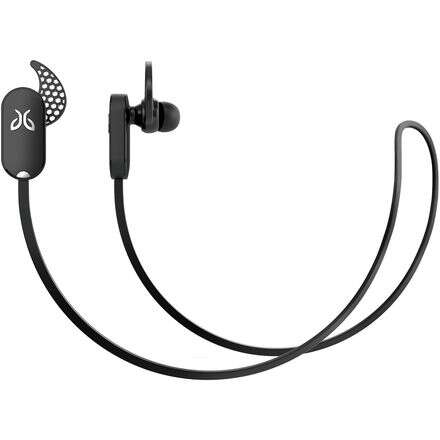
Put the earbuds in pairing mode, enable Bluetooth on your device, and select the Jaybird name.
I’ve paired dozens of Bluetooth headphones in my work and daily life, and I’ll walk you through how to pair Jaybird headphones step by step. This guide covers every major Jaybird model, explains simple fixes for common hiccups, and shares tips from real tests. Read on to get a fast, reliable connection and keep your music flowing.

Why pairing Jaybird headphones matters
Pairing sets a secure wireless link between your device and your Jaybird headphones. Without a stable pairing, you can get skips, dropouts, or no sound at all. Knowing how to pair Jaybird headphones saves time and reduces frustration.
A good pairing also unlocks extra features. You can access equalizer controls, firmware updates, and multi-device pairing on many Jaybird models. These add both audio quality and reliability to your listening.

Before you start: what you need
Prepare these basics before you learn how to pair Jaybird headphones. This makes pairing fast and painless.
- Fully charged Jaybird headphones to avoid interruptions during setup.
- The device you want to pair, with Bluetooth turned on and searching.
- The Jaybird app installed for models that support app features and updates.
- A few minutes of quiet to focus and follow each step.
Step-by-step: how to pair Jaybird headphones with smartphones
These steps work for most Jaybird models, including Freedom, X-series, Vista, and Tarah. Follow them closely.
- Turn on Bluetooth on your phone.
- Put the Jaybird headphones into pairing mode.
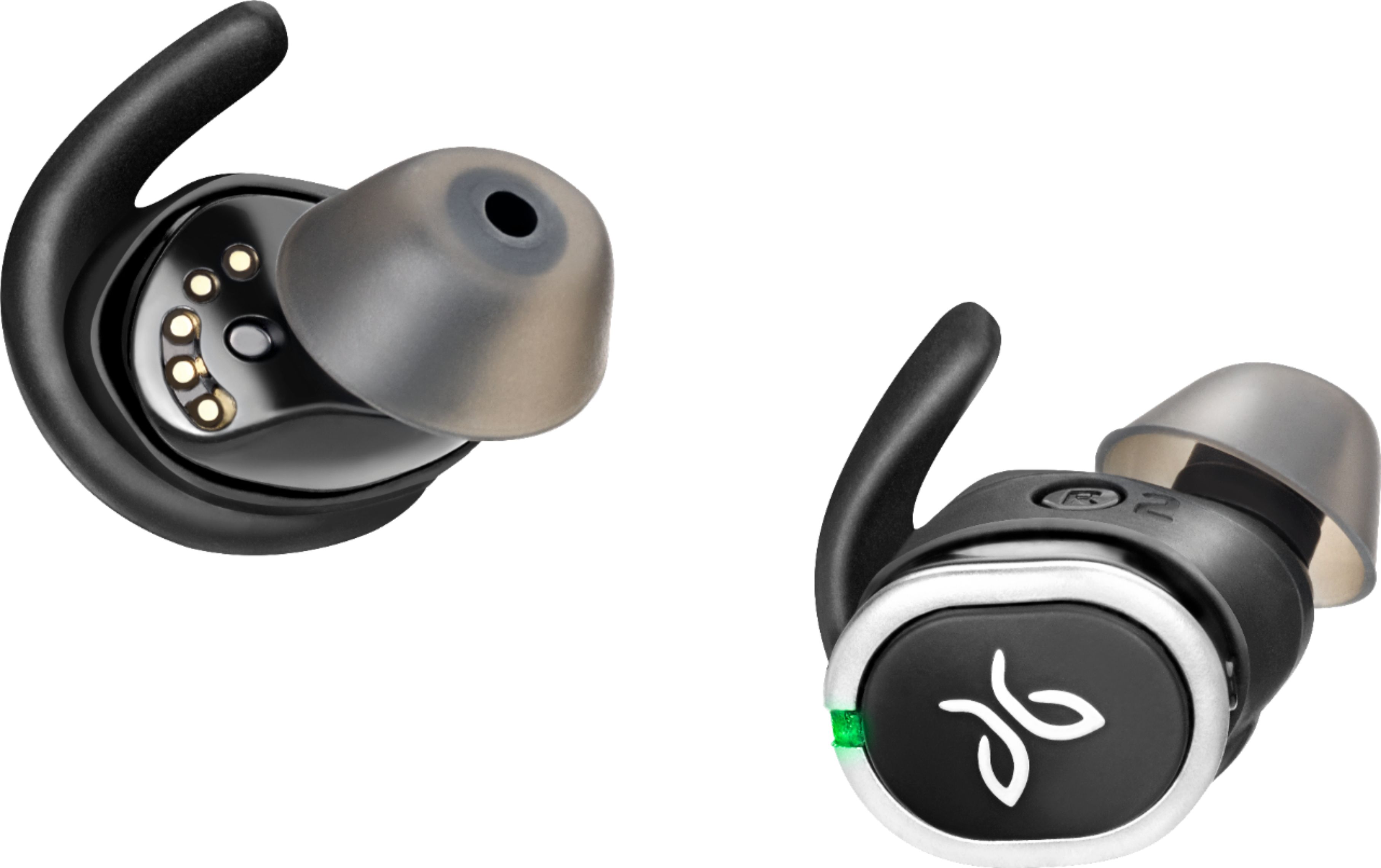
- For many Jaybird earbuds, press and hold the power button until the LED flashes blue and red or the voice prompt says “pairing.”
- For some earbud models, removing them from the case or holding a button for 3–5 seconds triggers pairing mode. Check the tiny LED for flashing light.
- On your phone, open Settings > Bluetooth and wait for available devices.
- Select the device name that starts with Jaybird (for example, “Jaybird X3” or “Jaybird Vista”).
- Wait for the connection confirmation. You may hear a tone or voice prompt saying “connected.”
- Test audio by playing music or a video.
If you plan to use the Jaybird app, open it after pairing to customize sound and check firmware. The app can also guide you through model-specific pairing steps.

How to pair Jaybird headphones with other devices
Pairing can vary slightly by device. Below are clear steps for common platforms.
Windows PC
- Open Settings > Bluetooth & devices > Add device.
- Put the Jaybird headphones in pairing mode.
- Select the Jaybird device when it appears. Confirm pairing if prompted.
Mac
- Click the Bluetooth icon in the menu bar or open System Settings > Bluetooth.
- Put the Jaybird headphones in pairing mode.
- Click Connect next to the Jaybird entry.
Smart TV
- Open your TV’s Bluetooth settings and choose Add or Pair.
- Put the headphones in pairing mode.
- Select the Jaybird name from the TV’s list. Note that some TVs have limited Bluetooth profiles for low-latency audio.
Smartwatch or fitness tracker
- Open the watch’s pairing menu and enable Bluetooth scanning.
- Put Jaybird headphones into pairing mode.
- Select the Jaybird device on the watch. Confirm if needed.
Pairing to multiple devices
- Some Jaybird models support multipoint. Pair to the first device, then enter pairing mode again to add a second device. Check your model’s manual or app for specifics.

Troubleshooting common pairing issues
Even with simple steps, problems can happen. Here are the usual issues and quick fixes for how to pair Jaybird headphones successfully.
My Jaybird headphones won’t enter pairing mode
- Make sure they’re off, then press and hold the power button for at least 3–5 seconds. Try a full power cycle and a longer hold if needed.
My device can’t see the Jaybird headphones
- Turn Bluetooth off and back on. Move closer to the headphones. Restart both the headphones and the device.
The headphones pair but no sound comes through
- Check the phone’s Bluetooth output. Select Jaybird as the audio device in the app or OS. Reboot the app or media player.
Intermittent audio or dropouts
- Reduce interference by moving away from Wi-Fi routers and large metal objects. Unpair other active Bluetooth devices that might conflict.
Resetting the headset
- Factory-reset can clear pairing lists. For many Jaybird models, press and hold the power and volume buttons together for a set time. Consult your manual for the exact reset method for your model.
PAA-style questions
Why won’t my Jaybird headphones pair with my phone?
First, ensure the headphones are in pairing mode and the phone’s Bluetooth is on and searchable. If that fails, restart both devices and remove any old Jaybird entries from the phone’s Bluetooth list.
How long does pairing take?
Pairing usually takes 5–30 seconds once both devices are in pairing mode. If it takes longer, try restarting devices and retrying the steps.

Tips and best practices for reliable connections
I’ve tested Jaybird headphones in gyms, buses, and on runs. These tips helped me keep connections solid.
- Update firmware regularly via the Jaybird app for bug fixes and improved stability.
- Keep devices close during pairing — about 3 feet — to avoid missed discovery.
- Use the app to set a unique name for your headphones if you often see multiple Jaybird devices nearby.
- Turn off unused Bluetooth devices to reduce interference.
- Clean the charging contacts on case-based models to ensure good power and pairing behavior.
Avoid these common mistakes
- Don’t rush pairing while the battery is low. Low power can block pairing mode.
- Don’t assume every device supports the same Bluetooth profiles. TV audio lag or limited control can be due to the TV’s Bluetooth stack.
Maintenance and firmware updates
Keeping firmware current is important for pairing performance. Jaybird issues updates that fix bugs and add features.
How to update
- Install the Jaybird app on your phone.
- Connect your Jaybird headphones.
- The app will show firmware updates if available. Follow on-screen prompts.
Battery care
- Charge per the manual. Avoid letting the battery drain to zero repeatedly.
- Store ear tips and the case in a dry, cool place. Moisture can damage contacts and affect pairing.
When to seek support
- If firmware updates fail repeatedly or units won’t enter pairing mode after a full reset, contact official support or return to the retailer for warranty help.
Frequently Asked Questions of how to pair jaybird headphones
How do I put Jaybird headphones in pairing mode?
Press and hold the power button for about 3–5 seconds until the LED flashes and you hear a pairing announcement. Each model may vary slightly, so check the quick guide if unsure.
Can I pair Jaybird headphones with two devices at once?
Some Jaybird models support multipoint pairing, but not all. Check your model’s specs in the app or manual to confirm multipoint support and setup steps.
Why do my Jaybird headphones pair but have poor audio quality?
Poor audio may come from low battery, interference, or an out-of-date firmware. Update firmware, charge fully, and move closer to your device to test.
How do I reset my Jaybird headphones?
Reset methods vary by model. Commonly, you press and hold specific buttons together for several seconds. Check your model’s manual in the app for exact steps.
My phone won’t find my Jaybird headphones. What should I try first?
Turn Bluetooth off and back on, restart your phone and headphones, and remove old Jaybird entries from your phone’s Bluetooth list. Then retry pairing with the headphones in pairing mode.
Conclusion
You now have clear steps and solid fixes for how to pair Jaybird headphones across phones, computers, TVs, and watches. Follow the steps, keep firmware updated, and use the app for extra control. Try a full reset only when simpler fixes fail, and remember that small habits — like charging and clearing old connections — keep pairing smooth.
Take action now: pair your Jaybird headphones and open the app to check for firmware updates. Leave a comment with your model and issue if you need more help.

Everett Ashford is a tech reviewer at mytechgrid.com specializing in SSDs, cameras, TVs, earbuds, headphones, and other consumer electronics. He provides honest, data-driven reviews based on hands-on testing and real-world performance analysis. Everett simplifies complex tech details to help readers make smart, confident buying decisions.