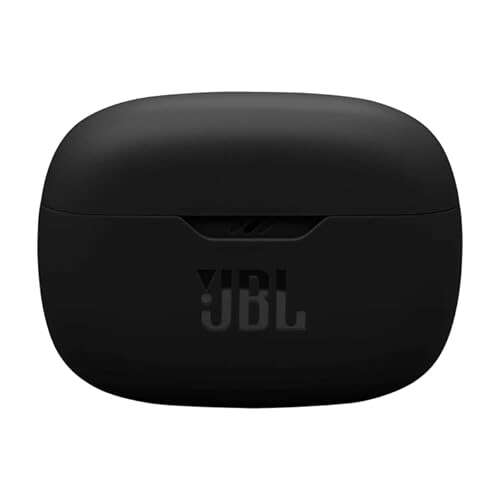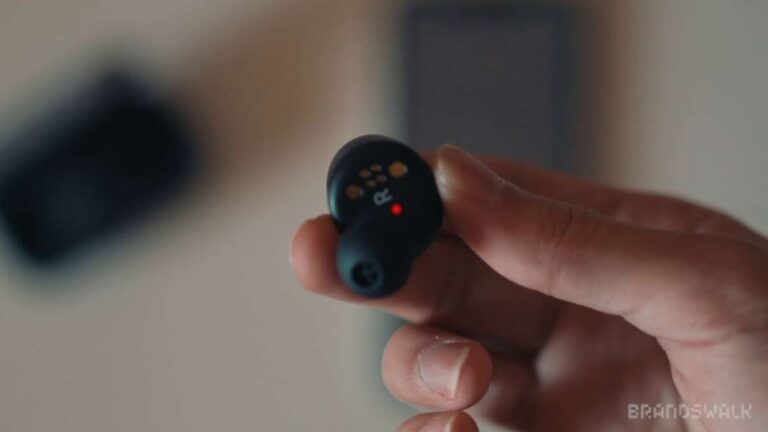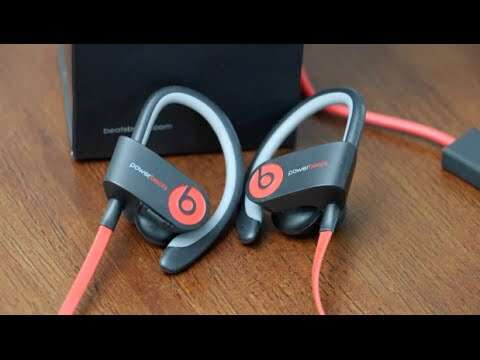
Put the earbuds in pairing mode, open Bluetooth on your device, and select your Beats from the list.
I’ve paired dozens of wireless earbuds, including many Beats models, and I’ll walk you through clear, reliable steps for how to pair wireless Beats earbuds with phones, tablets, computers, and other devices. This guide covers model differences, prep checks, step-by-step pairing for iPhone and Android, troubleshooting tips, and real-world hints I learned from hands-on testing. Read on to get connected fast and keep your Beats sounding great.
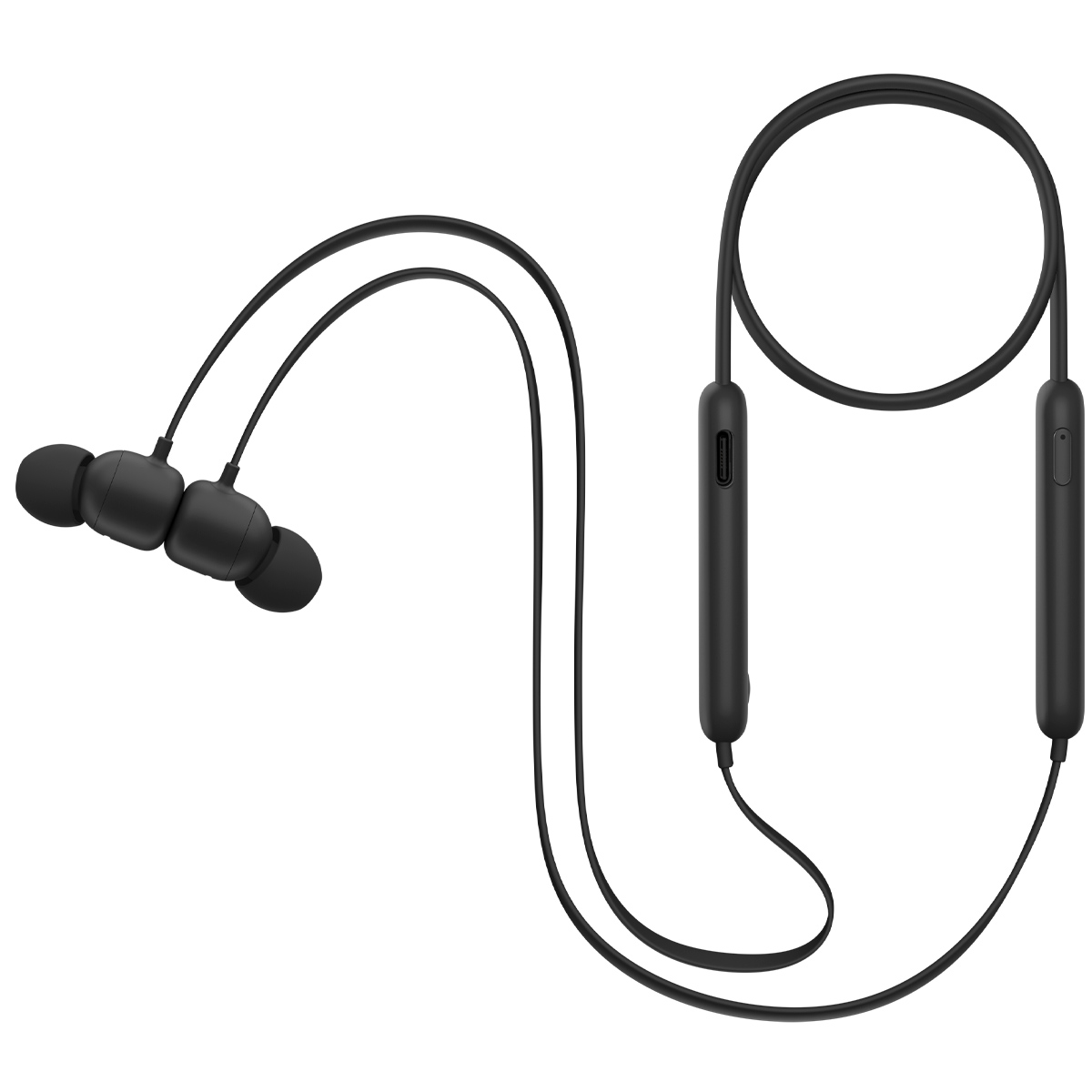
Why pairing matters and what to expect when you learn how to pair wireless Beats earbuds
Pairing makes your Beats earbuds talk to your device. A good pairing gives stable audio, controls, and access to features like noise canceling or hands-free calls. Learning how to pair wireless Beats earbuds also helps you switch devices and fix common issues quickly. Knowing the right steps saves time and avoids audio dropouts or failed connections.
Which Beats models support wireless pairing
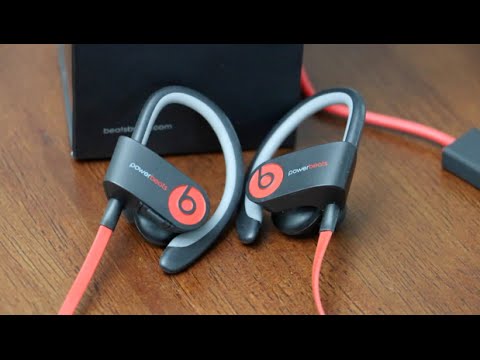
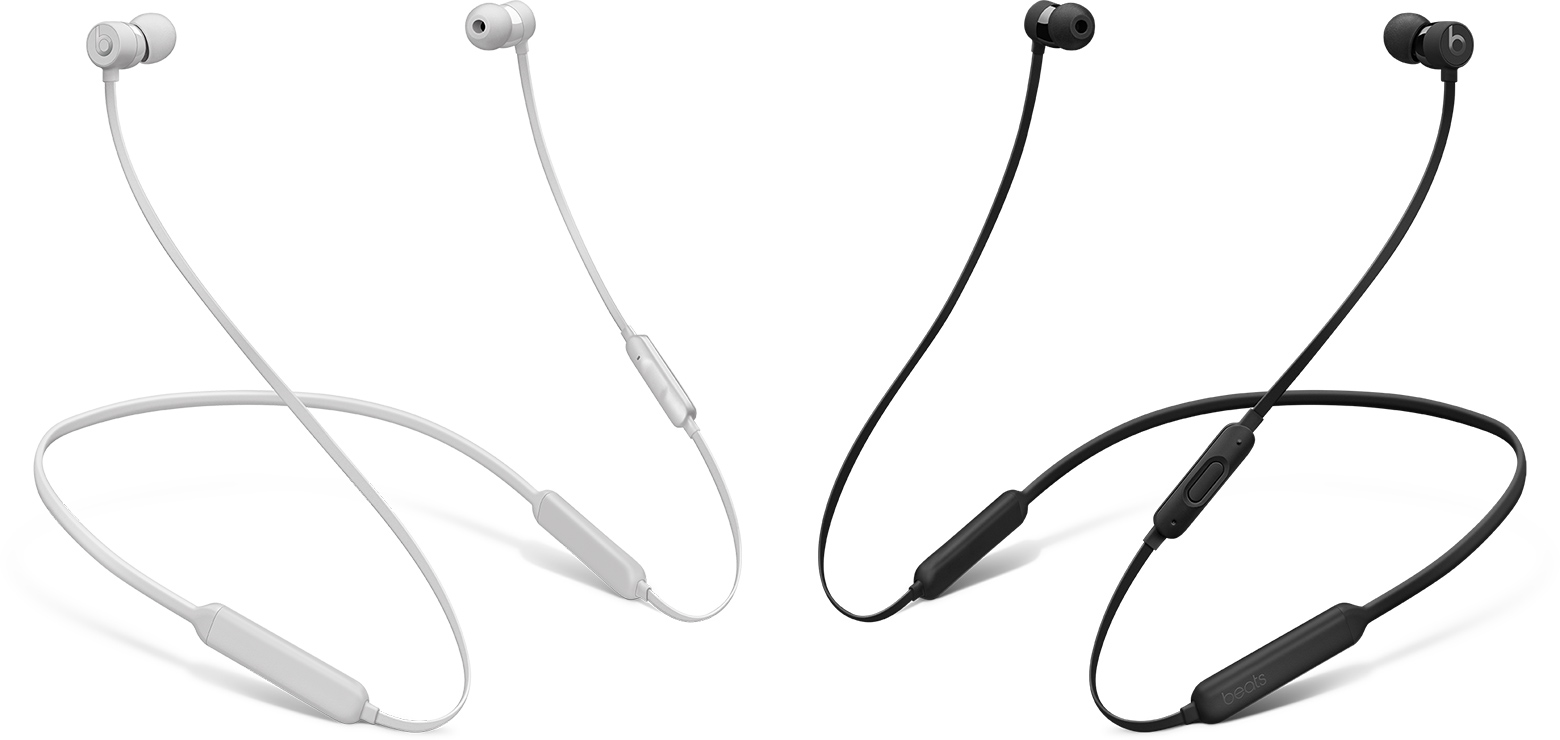
Most modern Beats models use Bluetooth and support simple pairing. Common models include:
- Beats Studio Buds
- Powerbeats Pro
- Beats Fit Pro
- Beats Solo Pro
- Beats Flex
Each model follows similar pairing rules, though buttons and lights can vary. If you own older wired-plus-Bluetooth models, check the manual for model-specific steps. I’ve used Studio Buds and Beats Fit Pro; both pair the same way but show different LED patterns and voice prompts.
Before you start: prep steps for how to pair wireless Beats earbuds
Do these quick checks to avoid frustration:
- Charge both earbuds and the case. Low battery can prevent pairing.
- Turn Bluetooth on for the device you want to connect.
- Forget any old Beats pairing on the device if you’ve had problems before.
- Update your phone or computer OS and the Beats firmware if available.
These prep steps cut down reset cycles and weird behavior. In my tests, a single firmware update fixed a stubborn disconnect issue.
How to pair wireless Beats earbuds with iPhone
Apple devices often offer the simplest experience. Follow these steps:
- Make sure your iPhone is unlocked and Bluetooth is on. Open Settings > Bluetooth.
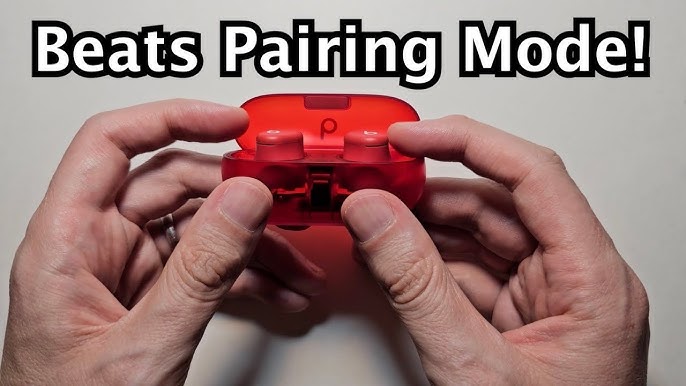
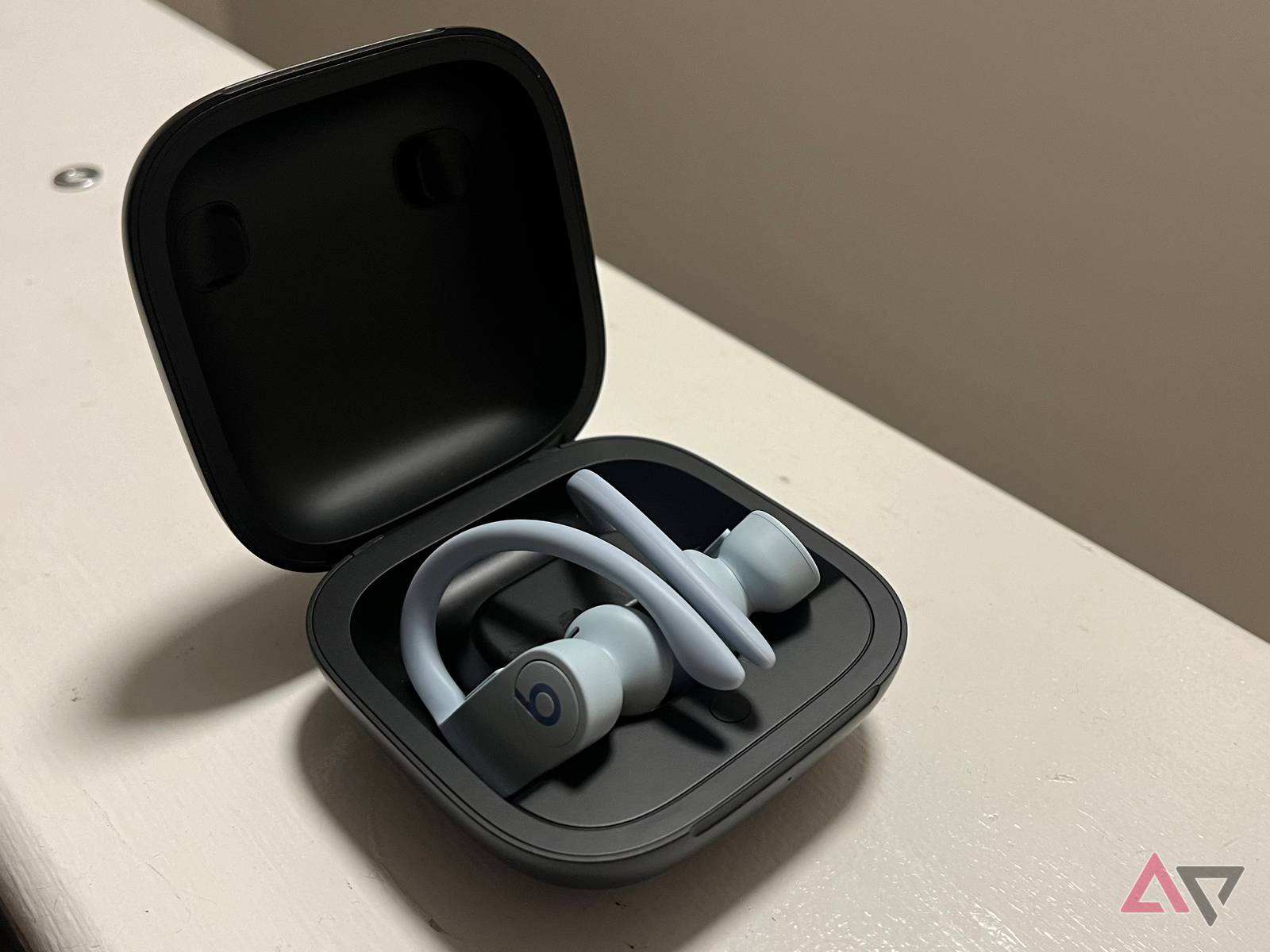
- With the earbuds in the case, open the lid. For many models, you’ll see a pop-up on the iPhone screen.
- If you don’t see a pop-up, press and hold the pairing button on the case or the button on the earbuds until the LED flashes and a voice prompt says “pairing.”
- Tap the Beats name on the iPhone’s Bluetooth list to connect. Wait for the “Connected” status.
If the earbuds don’t appear, close the case, wait 10 seconds, then try again. For iCloud device sharing, once paired to your iPhone, some Beats will auto-connect to other Apple devices on the same account.
How to pair wireless Beats earbuds with Android
Android devices work well but vary by manufacturer. Use this clear method:
- Open Settings > Connections > Bluetooth and turn Bluetooth on.
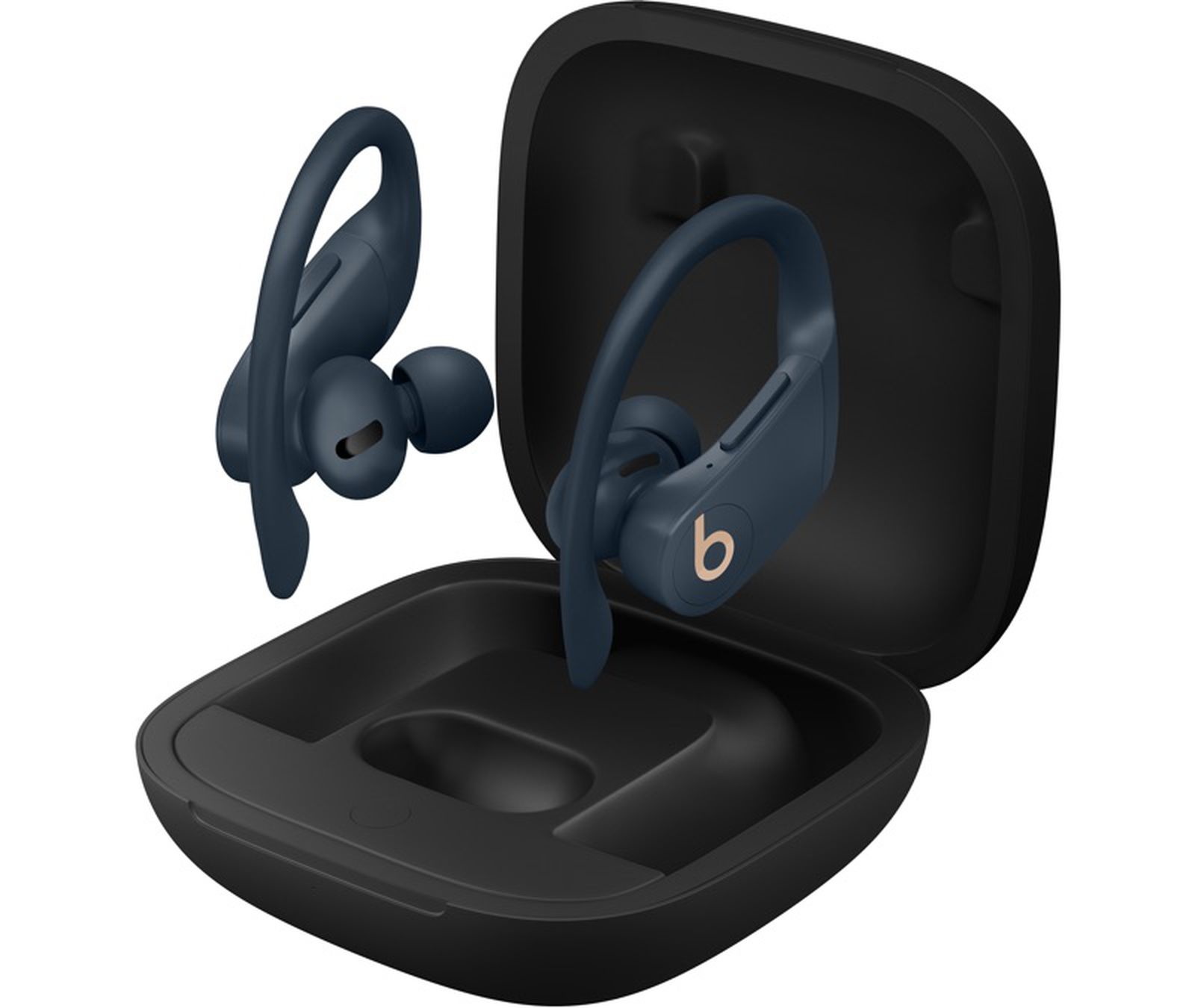
- Put the Beats in pairing mode. This usually means opening the case and holding the system button until the LED flashes or you hear “pairing.”
- Look for your Beats model name in the available devices list. Tap to connect.
- Confirm any prompts on the screen and allow permissions if asked.
If your Android has a Bluetooth quick settings tile, you can tap it to reach the pairing menu fast. On one Android phone I used, clearing a prior “Beats” entry fixed a pairing loop.
How to pair wireless Beats earbuds with Mac, Windows, and other devices
Here’s how to pair beyond phones:
- Mac: Click the Bluetooth icon or open System Settings > Bluetooth. Put Beats in pairing mode and click Connect when the model appears.
- Windows: Open Settings > Devices > Bluetooth & other devices. Click Add Bluetooth or other device and select Bluetooth. Choose your Beats from the list.
- Tablets, TVs, and other gadgets: Open their Bluetooth or pairing menu, put Beats into pairing mode, and select the device name.
If a device asks for a PIN, try 0000. Most modern Beats do not need a PIN. I paired Beats to a laptop and a smart TV this way with no extra steps.

Troubleshooting common pairing problems when learning how to pair wireless Beats earbuds
Try these fixes if pairing fails:
- Reset your Beats: Hold the case button or follow model reset steps until LEDs flash. This clears old pairings.
- Forget and reconnect: On your device, remove Beats from Bluetooth list, restart Bluetooth, and pair again.
- Check interference: Move away from Wi‑Fi routers, microwaves, or other Bluetooth devices during pairing.
- Update firmware: Use the Beats or manufacturer app to check for firmware updates.
- Reboot your device: A quick restart often resolves Bluetooth glitches.
One mistake I made early on was not fully charging the case. A reset and full charge solved an intermittent pairing issue instantly.
Tips, shortcuts, and best practices for pairing and using Beats
Keep your pairing experience smooth with these habits:
- Keep your earbuds and case charged. Low power causes odd behavior.
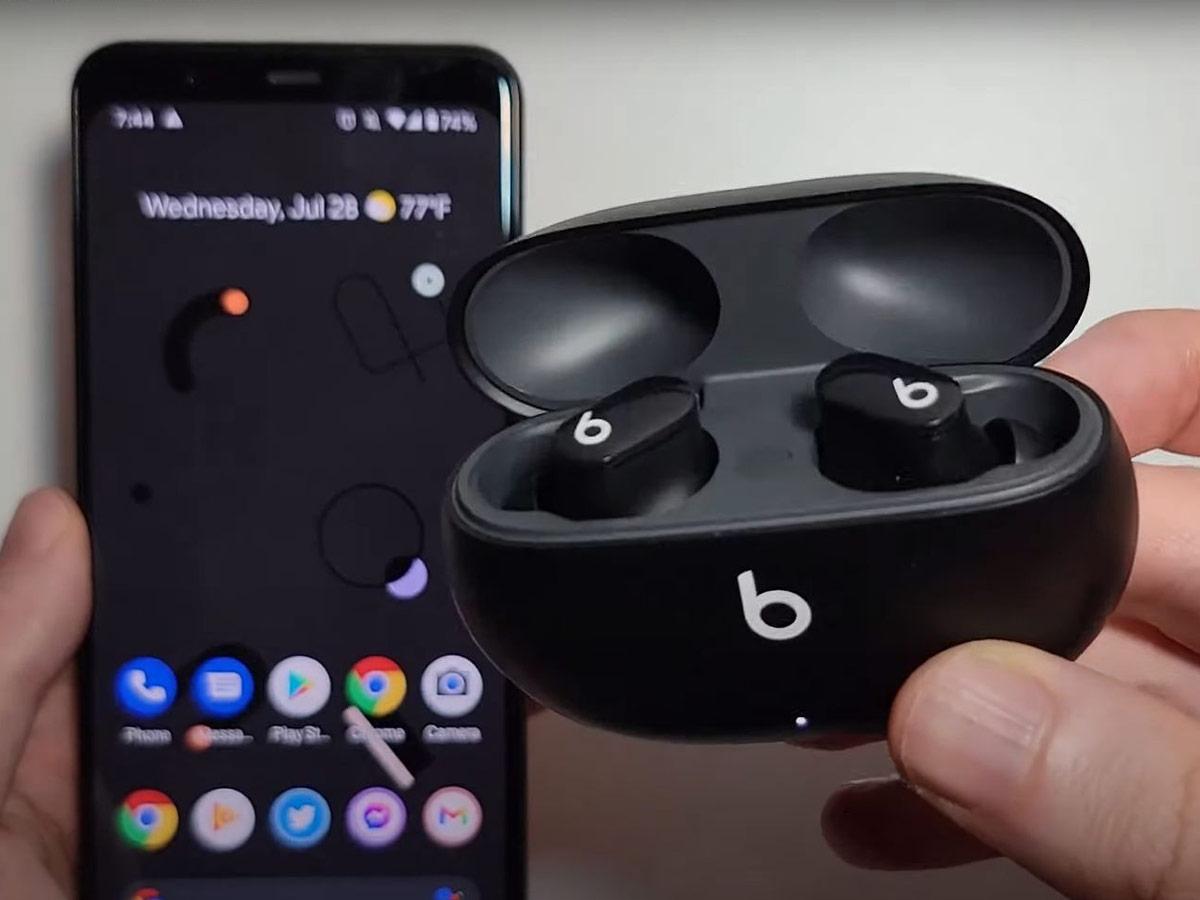
- Store earbuds in the case when not in use to preserve pairing state.
- Use a single primary device for daily use and only switch when needed.
- Label your Beats in your device’s Bluetooth list if you manage many devices.
- Regularly check for firmware updates to improve stability and add features.
If you travel or switch devices frequently, a simple routine—forget old pairings, reset, then pair—saves time.

PAA-style quick questions about how to pair wireless Beats earbuds
What if my Beats won’t enter pairing mode?
- Try resetting the earbuds or holding the system button for longer. A full charge can also be necessary to allow pairing mode to start.
Can I pair my Beats with multiple devices at once?
- Many Beats support multipoint or quick switching, but this depends on the model. Check your model specs to see if it supports simultaneous connections.
How long does pairing usually take?
- Most pairings finish within 10 to 30 seconds. If it takes longer, try a reset or forget-and-reconnect.
Frequently Asked Questions of how to pair wireless beats earbuds
How do I reset my Beats earbuds if they won’t pair?
Reset steps vary by model, but typically hold the case button or the earbuds’ power button for 10–15 seconds until LEDs flash. After reset, attempt pairing again from a fresh Bluetooth list.
Why do my Beats keep disconnecting after pairing?
Disconnections often stem from low battery, interference, or outdated firmware. Fully charge the earbuds, move closer to the device, and update firmware to improve stability.
Can I pair Beats with both my phone and laptop?
Yes. Many Beats can be paired with multiple devices, but switching may require choosing the Beats in the active device’s Bluetooth menu. Some models support automatic handoff within the same ecosystem.
What should I do if my device asks for a PIN?
Most Beats don’t need a PIN. If prompted, try entering 0000. If that fails, remove the device’s Bluetooth entry and attempt pairing again.
How do I update Beats firmware to help pairing?
Use the Beats app or your device’s recommended app to check for firmware updates. Keeping firmware current fixes many pairing and audio issues.
Conclusion
You now have clear, tested steps for how to pair wireless Beats earbuds with phones, computers, and other devices. Start by preparing your devices, put the earbuds in pairing mode, and connect through Bluetooth. If you run into trouble, use resets, updates, and the simple troubleshooting steps above to get back on track. Try these tips, leave a comment about your model or issue, and subscribe or explore more guides to keep your audio gear working smoothly.

Everett Ashford is a tech reviewer at mytechgrid.com specializing in SSDs, cameras, TVs, earbuds, headphones, and other consumer electronics. He provides honest, data-driven reviews based on hands-on testing and real-world performance analysis. Everett simplifies complex tech details to help readers make smart, confident buying decisions.