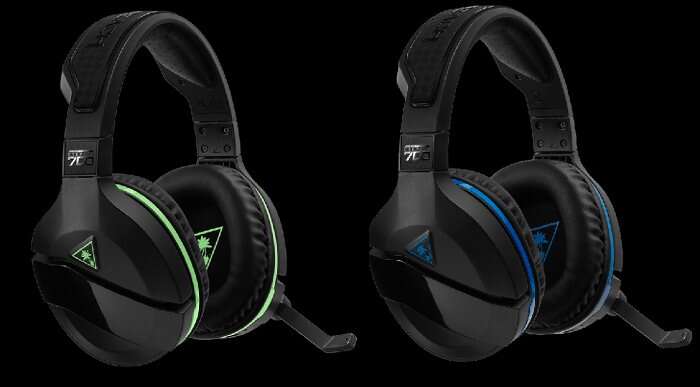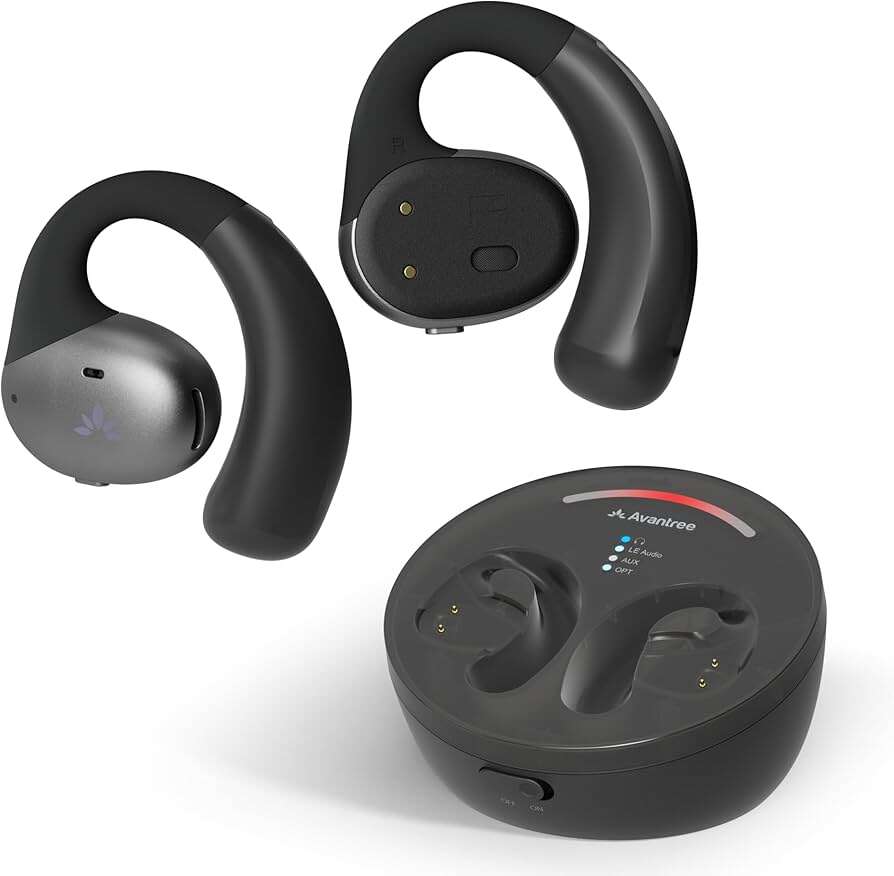
Put your Vantree headphones in pairing mode, open Bluetooth on your device, and select the Vantree device.
I’ve paired dozens of Bluetooth headsets, including many Vantree models, so I’ll walk you through how to pair Vantree headphones step by step. This guide covers simple pairing, true wireless stereo linking, troubleshooting, and advanced tips. You’ll learn clear actions, likely fixes, and pro tips I use in real tests to get a stable connection fast.
Understanding Vantree headphones and pairing basics
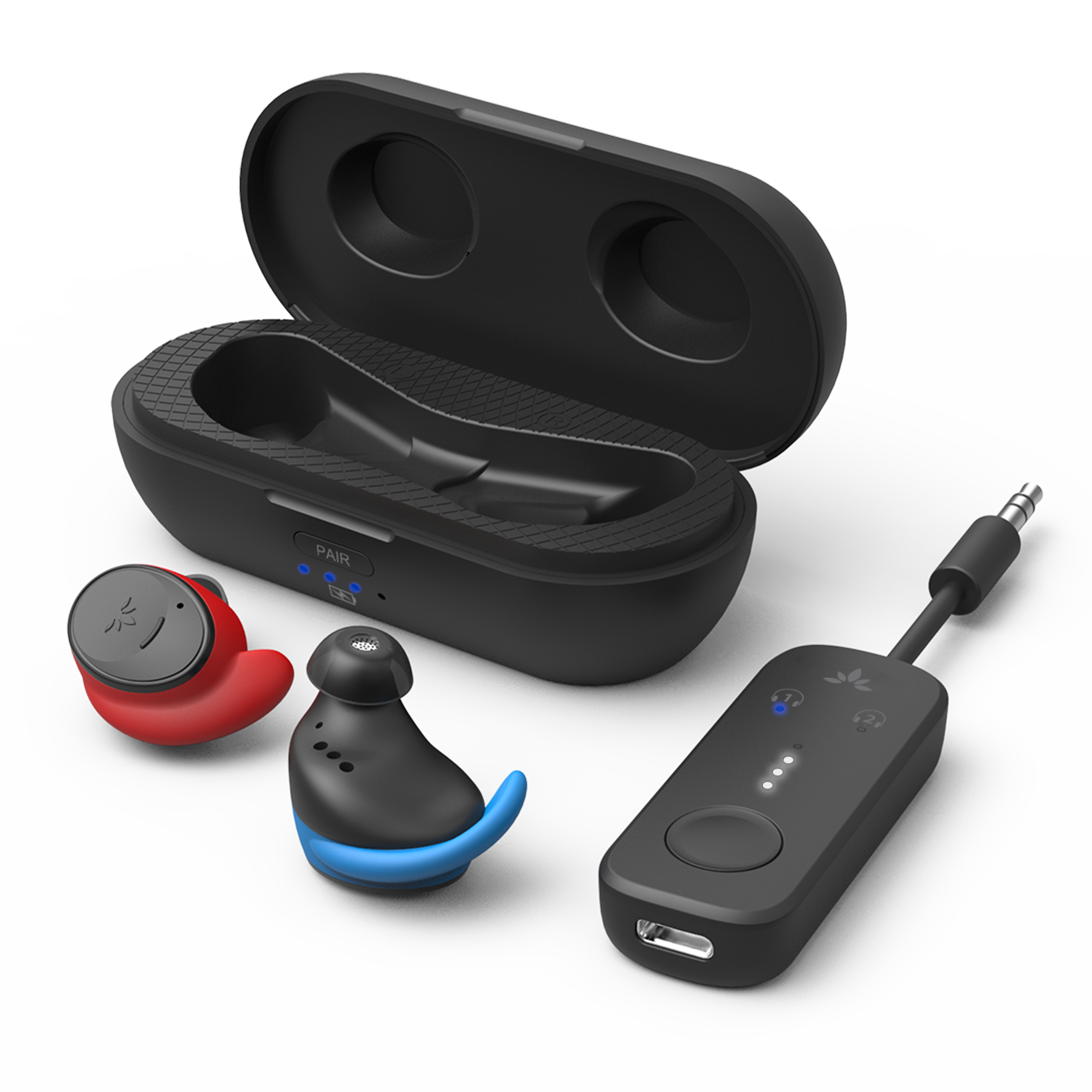
Vantree makes several Bluetooth headsets and adapters. Models include over-ear, on-ear, and true wireless earbuds. Pairing means your phone or computer links with the Vantree device over Bluetooth. Most Vantree units use standard Bluetooth profiles like A2DP and HFP. That means pairing steps are the same as many other Bluetooth devices.
Why pairing can fail. Interference, low battery, outdated firmware, or an active connection to another device can block pairing. Each of these has simple fixes. Knowing the basics speeds up troubleshooting.
How pairing modes work. When a Vantree headset enters pairing mode, it becomes discoverable. The headset usually flashes LEDs or speaks a pairing prompt. On your phone, you search for the device and connect. If you use true wireless earbuds, you may need to link the left and right buds first, then pair the combined unit.

How to pair Vantree headphones — Quick step-by-step guide
Follow these short steps to pair most Vantree headphones. If a model has special steps, check the user guide. These steps work for phones, tablets, and many PCs.
- Charge the headset first.
- Charge both buds or the headset to at least 30 percent. Low battery can block pairing.
- Turn off nearby Bluetooth devices.
- This reduces interference and prevents automatic reconnection to other devices.
- Put the headset in pairing mode.
- Power on and hold the power button for 5–8 seconds until the LED flashes red/blue or you hear “pairing.”
- Open Bluetooth settings on your device.
- On iOS: Settings > Bluetooth. On Android: Settings > Connected devices > Bluetooth. On Windows: Settings > Devices > Bluetooth & other devices.
- Find and select the Vantree device name.
- The name often starts with “Vantree” or the model code. Tap to connect.
- Confirm connection and test audio.
- Play a sound or make a test call. If you use true wireless earbuds, ensure stereo mode is active.
Pairing true wireless Vantree earbuds (extra step):
- Power on both earbuds.
- Hold the multifunction button on one earbud to initiate master mode.
- Wait for the left or right bud to flash, then connect from your phone.
Pairing to a Windows PC:
- Turn on Bluetooth on the PC.
- Select Add Bluetooth or other device > Bluetooth.
- Choose the Vantree device when it appears.
Troubleshooting common pairing issues
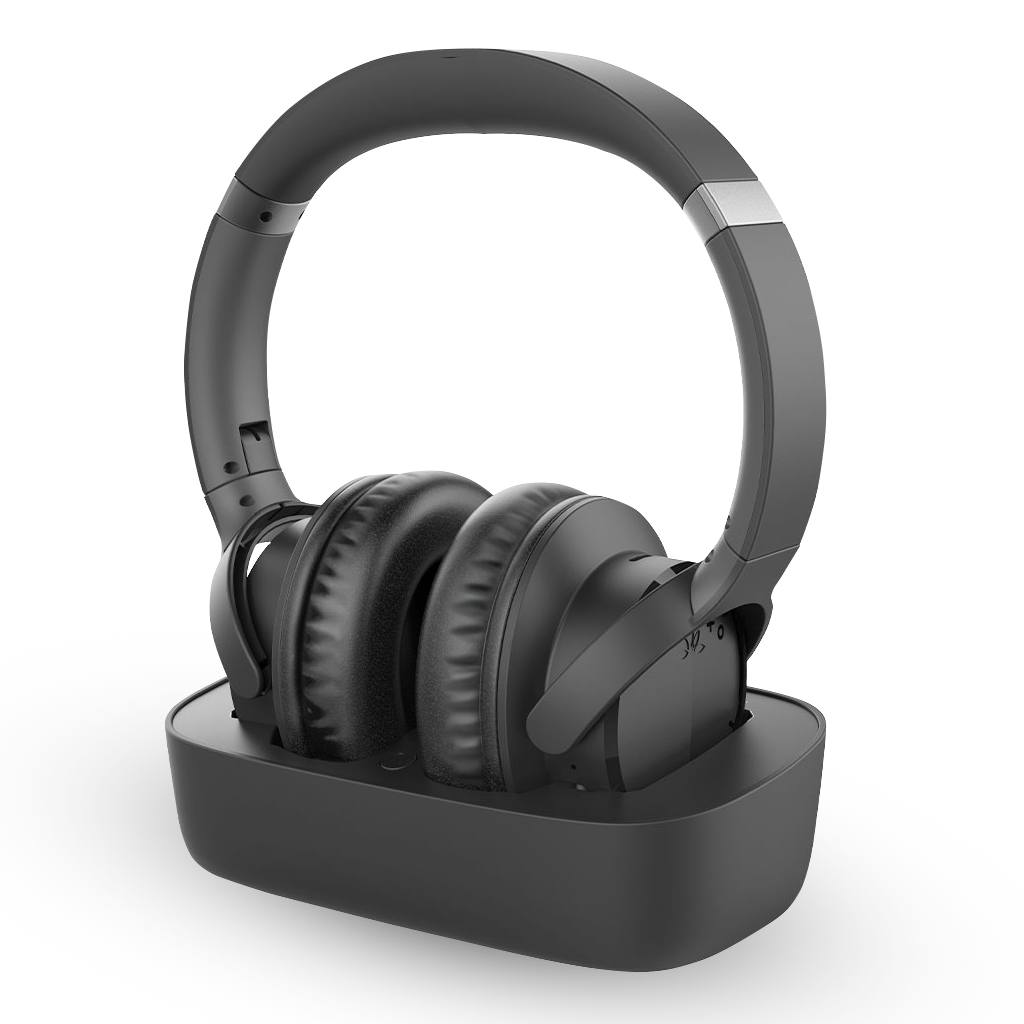
If pairing fails, try these fixes. I used them often when pairing multiple Vantree devices.
Device not showing up
- Make sure the headphones are in pairing mode and close to your device.
- Turn Bluetooth off and on again on your device.
Pairing repeatedly drops
- Check battery levels on both ends.
- Move away from other wireless gear and metal obstructions.
One bud works, the other silent (true wireless)
- Place both buds in the case and remove them to force re-sync.
- Reset the earbuds using the reset sequence in the manual.
Phone says “paired” but no audio
- On mobile, select the Vantree device as the audio output.
- On PC, check Sound settings and set the Vantree device as default output.
Still not pairing: factory reset
- Most Vantree models have a reset sequence. Hold power and volume buttons together for 10–15 seconds. Then re-pair.

Tips, tricks, and best practices
These tips come from hands-on experience and make pairing smoother. I rely on them every day.
Keep firmware updated
- Check Vantree app or manual for firmware updates. Updates fix bugs and improve pairing.
Use a single Bluetooth connection at a time
- When you pair, disconnect previously connected devices first. This avoids accidental reconnection.
Rename devices for clarity
- Rename your Vantree headphones in your phone’s Bluetooth menu so you can spot them fast.
Store a pairing routine
- If you own multiple headsets, keep a short list of pairing steps for each model. It saves time later.
Avoid crowded Bluetooth environments
- Airports and gyms have many active devices. Move to a quieter spot when pairing.
Personal note: I once spent 20 minutes fixing a Vantree pairing issue caused by an old Bluetooth adapter on my laptop. Replacing the adapter solved it instantly. Lesson: sometimes the host device is the problem, not the headset.

Advanced scenarios and solutions
Pairing Vantree headphones to TVs and transmitters
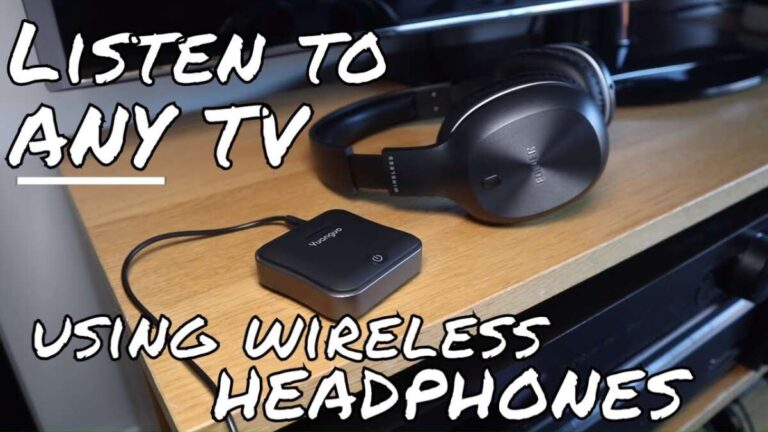
- Many TVs need a separate Bluetooth transmitter. Plug a low-latency transmitter into the TV’s audio out. Put the transmitter into pairing mode, then pair your Vantree headphones.
Connecting to multiple devices
- Some Vantree models support multipoint. Pair to your phone first, then pair the headset to your laptop. Note: audio switching may be manual on some devices.
Using external Bluetooth dongles
- For older PCs, use a USB Bluetooth dongle that supports the modern Bluetooth 5.0 standard. This improves range and stability.
Firmware updates and recovery
- If an update fails, reset the headset and retry. Keep the battery above 50 percent during updates.
When to contact support
- If the headset won’t enter pairing mode or fails a factory reset, contact Vantree support. Have your model number and purchase details ready.

Frequently Asked Questions of how to pair vantree headphones
How do I put my Vantree headphones into pairing mode?
Most Vantree headphones enter pairing by holding the power or multifunction button for 5–8 seconds until an LED flashes or a voice says “pairing.” Consult your model’s quick start guide for exact timing.
Why won’t my Vantree earbuds pair together in stereo?
True wireless earbuds often need a master bud to link first. Place both buds in the case, take them out together, then follow the model-specific sync steps in the manual.
My phone shows Vantree but can’t connect. What should I do?
Turn off Bluetooth on other nearby devices, restart your phone, and try again. If that fails, reset the headset and reattempt pairing.
Can I pair Vantree headphones to a smart TV?
Yes. If your TV has built-in Bluetooth, use its Bluetooth settings to pair. If not, use a Bluetooth transmitter connected to the TV audio output for low-latency audio.
How do I reset my Vantree headphones if pairing fails?
Most models reset by holding power and a volume/control button together for 10–15 seconds until LEDs flash. Check your manual for the exact reset sequence for your model.
Do Vantree headphones support multipoint pairing?
Some Vantree models support multipoint, but not all. Check the product specs for multipoint support and follow pairing steps for each device to link them.
Conclusion
You now have a clear roadmap for how to pair Vantree headphones, fix common problems, and use advanced setups like TVs and computers. Start by charging the headset, enabling pairing mode, and selecting the Vantree device in your Bluetooth menu. If things go wrong, try resets, firmware updates, or a different host device.
Take action: try the steps above with your model right now. If you hit a snag, leave a comment about your model and symptoms. I’ll help troubleshoot further or point you to model-specific steps.

Jamie Lee is a seasoned tech analyst and writer at MyTechGrid.com, known for making the rapidly evolving world of technology accessible to all. Jamie’s work focuses on emerging technologies, product deep-dives, and industry trends—translating complex concepts into engaging, easy-to-understand content. When not researching the latest breakthroughs, Jamie enjoys exploring new tools, testing gadgets, and helping readers navigate the digital world with confidence.