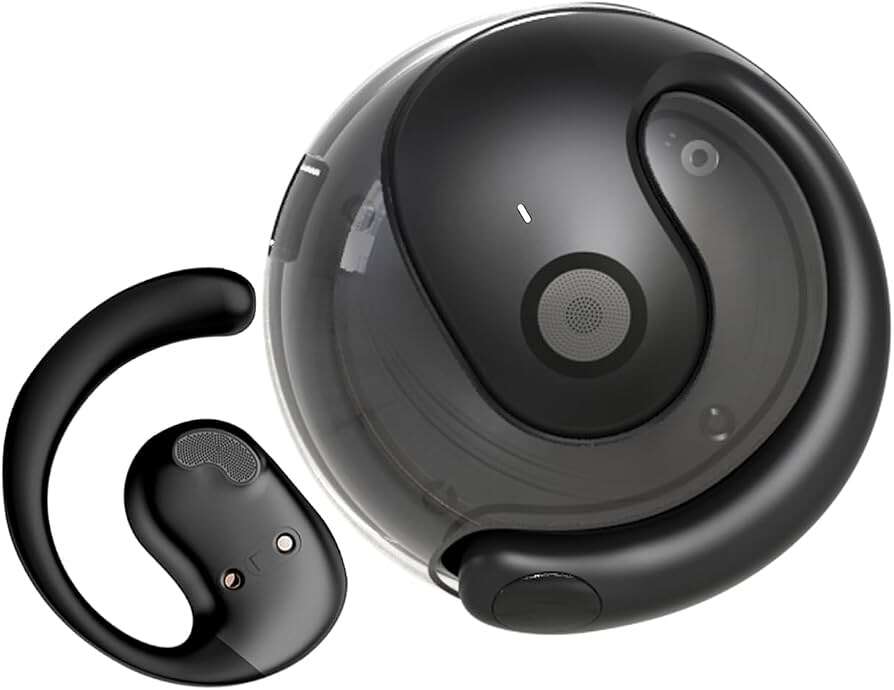
To use OWS wireless headphones, charge them, pair them through Bluetooth, fit them securely, and adjust sound settings.
Learning how to use OWS wireless headphones is simple once you understand their open-ear design. OWS means open wearable stereo, so the speakers sit near your ears instead of sealing the ear canal. This guide explains setup, pairing, controls, charging, sound tuning, safety, and common fixes so you can enjoy clear audio while staying aware of your surroundings.
What Are OWS Wireless Headphones?
OWS wireless headphones are open-ear Bluetooth headphones. They send sound toward your ears without covering or plugging the ear canal. Many models use directional audio, air conduction, or a small speaker unit placed near the ear.
This design is different from in-ear earbuds and noise-canceling headphones. You can often hear traffic, coworkers, doorbells, and other sounds around you while listening to music or podcasts.
The main benefits include:
• Better awareness of your surroundings
• Less pressure inside the ear canal
• More comfort for long listening sessions
• No ear tips that need to fit tightly
• Easy use during walking, office work, and light exercise
OWS headphones also have limits. They may sound less powerful in a noisy place, and nearby people may hear a small amount of sound at high volume. They are not always the best choice for flights, loud gyms, or deep bass listening.

How to Charge OWS Wireless Headphones
Before learning how to use OWS wireless headphones, charge the battery fully. Most models use a USB-C cable, though some older products use a magnetic charging cable or a charging case.
Follow these steps:
- Find the charging port or magnetic charging contacts.
- Connect the supplied cable to a wall adapter, computer, or power bank.
- Check the indicator light.
- Leave the headphones connected until the light shows a full charge.
- Disconnect the cable before wearing the headphones.
A red, orange, or flashing light often means the battery is charging. A green, blue, or solid light may indicate a full charge. Light patterns vary by brand, so check the user manual if the signal seems unclear.
Do not force a USB-C plug into the port. Keep the port dry and free of dust. If the headphones become wet during exercise, dry them before charging. Charging wet electronics can damage the battery or create a safety risk.
In normal use, battery life depends on volume, Bluetooth features, calls, and the model itself. Treat the advertised battery time as an estimate, not a guarantee. High volume and frequent calls usually reduce play time.

How to Turn On OWS Wireless Headphones
Most OWS wireless headphones turn on with a power button. Some models start when you open the charging case or remove them from a case.
To turn them on manually:
- Press and hold the power button for two to five seconds.
- Wait for a sound prompt or flashing indicator.
- Release the button when the headphones start.
- Listen for a message such as “power on” or “pairing.”
To turn them off, press and hold the same button until you hear a power-off message. Some headphones turn off automatically after several minutes without a connection.
If your headphones do not turn on, charge them for at least 15 minutes. Then try a long press again. A dead battery is one of the most common reasons that new users think their OWS headphones are defective.
Avoid pressing every button at once. Many models use short presses for volume and long presses for power. A gentle, controlled press makes the controls easier to learn.

How to Pair OWS Wireless Headphones With a Phone
Bluetooth pairing connects your OWS headphones to a phone, tablet, computer, or another compatible device. The first pairing usually takes less than a minute.
Pair with an iPhone or Android phone
- Turn off Bluetooth on nearby devices that have used the headphones before.
- Turn on the OWS headphones.
- Press and hold the Bluetooth or power button until the indicator flashes.
- Open Settings on your phone.
- Tap Bluetooth.
- Turn Bluetooth on.
- Look for the headphone name in the available devices list.
- Tap the name to connect.
- Accept the pairing request if one appears.
The device name may include the brand, model number, or words such as “Open Ear.” Once paired, the headphones may connect automatically whenever Bluetooth is active.
When learning how to use OWS wireless headphones, pair them with one device first. Trying to connect several devices at the same time can cause confusion. After the first connection works, test music, calls, and the control buttons.
Pair with a Windows computer or Mac
Open Bluetooth settings on your computer and select “Add device” or “Connect.” Put the headphones into pairing mode, then choose them from the list.
After pairing, select the OWS headphones as the sound output device. During a video call, also select them as the microphone and speaker if your computer does not switch automatically.

How to Wear OWS Wireless Headphones Correctly
Correct placement affects comfort, sound quality, and microphone performance. The speaker should sit near the ear opening, not directly inside it.
Use this simple method:
- Identify the left and right sides.
- Place the ear hook or frame over the correct ear.
- Position the speaker beside the ear opening.
- Adjust the angle until voices and music sound clear.
- Move gently to confirm the headphones stay secure.
OWS headphones should feel stable but not tight. If the frame presses behind your ear, adjust the angle or try a different size if the product includes adjustable parts.
A common mistake is wearing open-ear headphones too far away from the ear. The sound may become thin or quiet. Another mistake is placing the speaker directly over the ear opening and expecting the same seal as an earbud. Open-ear headphones depend on position, so small adjustments matter.
For running or cycling, test the fit while moving your head. If the headphones slip, adjust them before starting. Never stop paying attention to traffic or other hazards while making adjustments.
How to Use the Buttons and Touch Controls
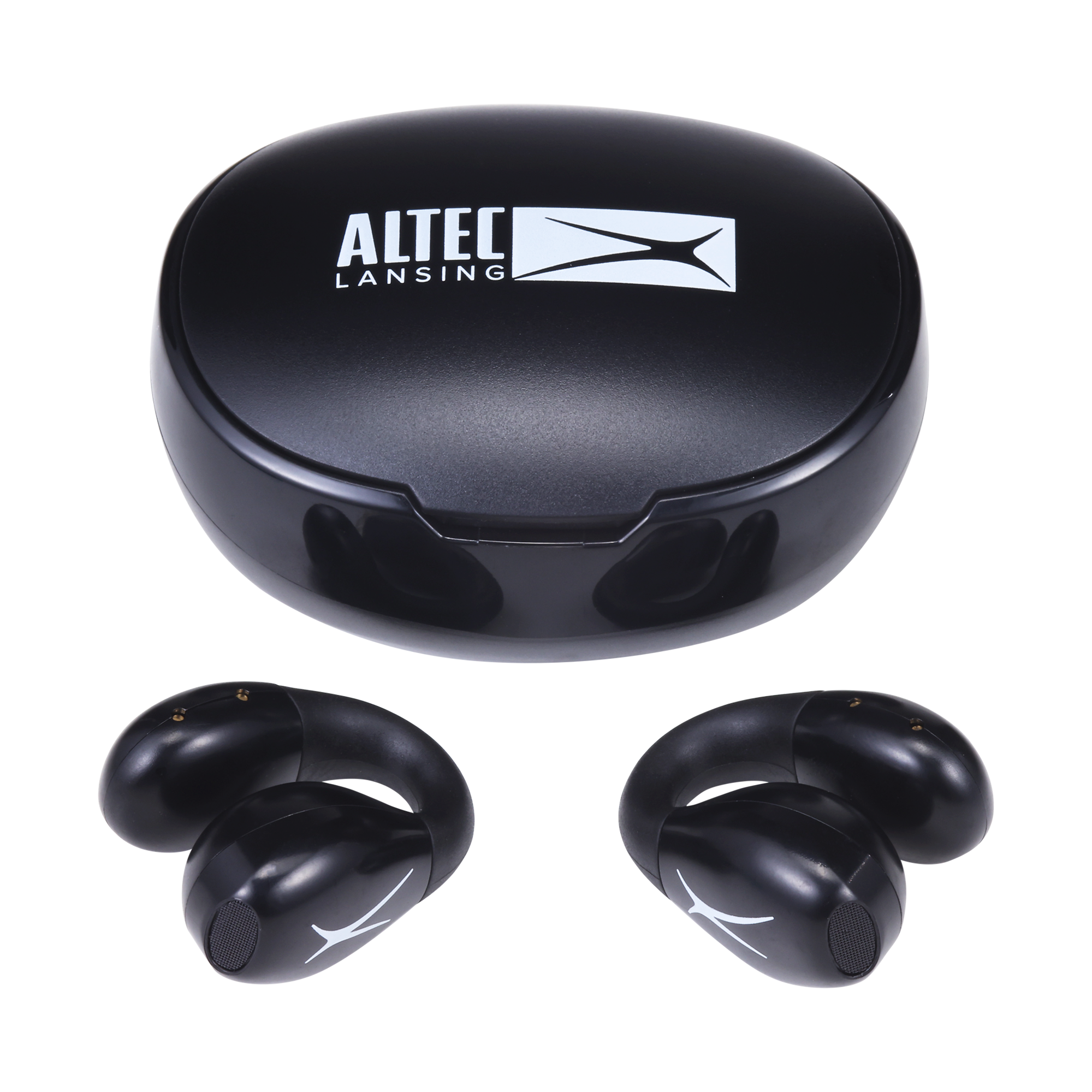
OWS wireless headphones usually include physical buttons, touch panels, or both. Controls vary by model, but these commands are common:
• One press: Play or pause music
• One press during a call: Answer or end the call
• Two presses: Skip to the next track
• Three presses: Return to the previous track
• Press and hold: Turn the headphones on or off
• Short press on a volume button: Raise or lower volume
• Long press on a volume button: Change tracks or activate an assistant
Some models use the left side for volume down and the right side for volume up. Others use touch gestures. Read the included control guide because the same gesture can perform different actions on different headphones.
When learning how to use OWS wireless headphones, test the controls at home first. Play a short podcast and practice pausing, changing tracks, and adjusting volume. This saves time when you are outside.
Touch controls may respond poorly when your fingers are wet, cold, or covered by gloves. Physical buttons often work better during exercise. If accidental taps happen, check whether the companion app allows you to customize or disable touch controls.

How to Adjust Sound and Volume
Open-ear headphones often sound best at a moderate volume in a quiet room. Because they do not block outside noise, some users raise the volume too much in busy places.
Start at a low level and increase it only as needed. A useful rule is to keep the volume low enough that you can still notice important sounds around you. If music sounds harsh, lower the volume and move the speaker slightly closer to the ear.
Your phone may offer an equalizer. You can try:
• More bass for music, if the headphones support it
• Less treble if voices sound sharp
• A podcast or speech mode for spoken audio
• A balanced setting for daily use
Equalizer controls cannot overcome every hardware limit. Open-ear headphones may not produce the deep bass of sealed earbuds because sound escapes into the room. That is a design trade-off, not always a fault.
Many health authorities advise keeping personal audio at a safe level and taking listening breaks. If you notice ringing, muffled hearing, pain, or discomfort, stop listening and reduce future exposure. Seek medical advice if symptoms continue.

How to Use OWS Wireless Headphones for Phone Calls
OWS headphones can be useful for calls because you can hear your voice and nearby sounds. Their built-in microphones pick up your speech and send it to the connected phone.
To make a call:
- Pair the headphones with your phone.
- Open the phone app or answer an incoming call.
- Select the OWS headphones as the audio device if needed.
- Speak toward the microphone area.
- Press the control button to end the call.
Wind, traffic, fans, and crowded rooms can reduce call quality. For the clearest conversation, face away from strong wind and move closer to a quiet wall or indoor space.
If the other person cannot hear you, check microphone permissions on your phone. Also confirm that the headphones are selected for call audio, not only for music. Turning Bluetooth off and on can solve a temporary connection problem.
During testing of open-ear audio products, one lesson stands out: music playback can sound fine while calls still sound poor. Always test the microphone before relying on the headphones for work or an important conversation.
How to Use OWS Wireless Headphones With a Computer, TV, or Car
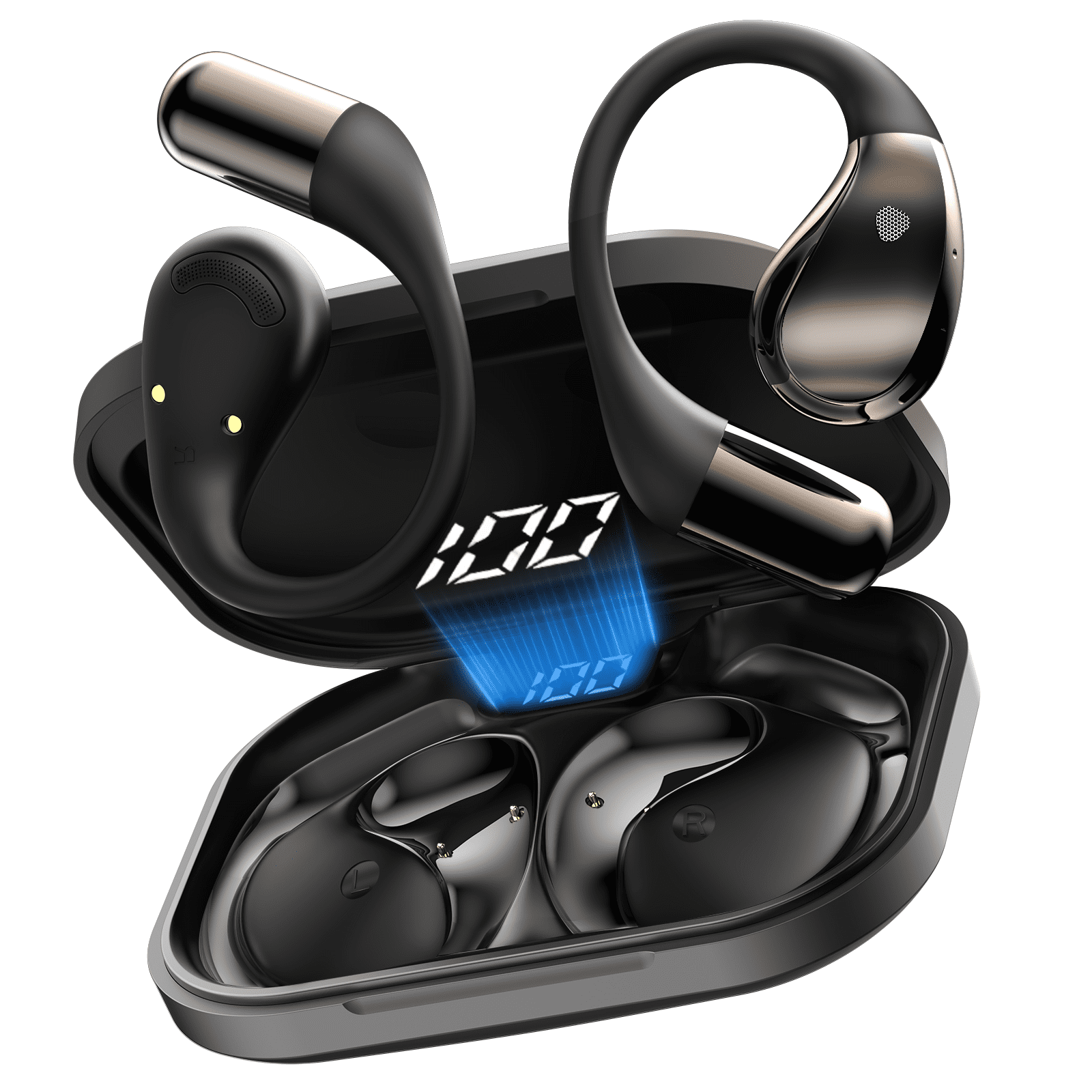
OWS headphones can connect to many Bluetooth devices, but compatibility depends on the device. Phones and computers usually work well. Some televisions need a Bluetooth transmitter, and many cars are designed to connect to phones rather than Bluetooth headphones.
For a computer:
• Open the computer’s Bluetooth menu.
• Put the headphones in pairing mode.
• Select the headphones.
• Choose them as the speaker and microphone.
• Test sound before joining a meeting.
For a TV, open the sound or Bluetooth menu and search for available devices. If the television has no Bluetooth audio support, you may need a compatible transmitter.
Do not connect headphones to a car while driving unless the vehicle system supports safe hands-free use. In many cases, connecting your phone directly to the car is safer and more practical.
Some OWS models support multipoint Bluetooth. This feature lets the headphones connect to two devices at once, such as a phone and laptop. Multipoint can be convenient, but switching between devices may cause short delays or connection conflicts.
How to Fix Common OWS Headphone Problems
Most connection issues have a simple cause. Work through the steps below before assuming the headphones need repair.
Headphones do not appear in Bluetooth settings
• Charge the headphones.
• Turn Bluetooth off and on again.
• Move the headphones close to the phone.
• Put the headphones back into pairing mode.
• Disconnect them from another nearby device.
• Restart the phone or computer.
Only one side produces sound
Check the balance setting on your phone. Make sure the two sides are charged and connected. If the model has a reset process, follow the exact steps in its manual.
Sound keeps cutting out
Bluetooth signals can weaken near thick walls, crowded wireless areas, or large metal objects. Keep the phone within the normal Bluetooth range and avoid storing it in a bag that blocks the signal.
The headphones connect but produce no sound
Open the device’s audio output menu and select the OWS headphones. On a computer, check both the system output and the app’s output settings.
The headphones will not charge
Inspect the cable and power source. Clean charging contacts gently with a dry, soft cloth. Do not use water, metal tools, or sharp objects inside the charging port.
Resetting the headphones
A reset often clears old pairing data. The method may involve holding the power button, both volume buttons, or the case button for several seconds. Because reset methods differ, use the instructions made for your exact model.
How to Care for OWS Wireless Headphones
Good care can extend battery life and protect sound quality. Wipe the headphones with a clean, dry cloth after workouts. Sweat and skin oils can build up around the speaker, buttons, and charging contacts.
Keep these habits:
• Store the headphones in a dry case.
• Avoid extreme heat, such as a parked car.
• Keep the charging port covered when possible.
• Do not bend the frame beyond its intended range.
• Keep firmware updated through the official app, if available.
• Remove the headphones before sleeping.
• Keep them away from children and pets when not in use.
Water resistance is not the same as waterproofing. A rating such as IPX4 may protect against splashes, but it does not mean the headphones can be submerged. Check the product rating before using them in heavy rain.
Battery performance naturally declines over time. If the headphones suddenly last much less than before, check for software updates and background connections. A worn battery may eventually require professional service or replacement.
Safety Tips for OWS Wireless Headphones
The open design helps you hear the world, but it does not make every activity safe. Keep the volume low near roads, crossings, construction areas, and busy public spaces.
Follow these basic rules:
• Do not use headphones at high volume for long periods.
• Do not wear them when you must hear alarms or direct instructions.
• Avoid using them while driving unless local law clearly permits it.
• Keep your attention on traffic when walking or cycling.
• Remove them before entering hazardous work areas.
• Take breaks during long listening sessions.
OWS headphones may improve awareness, but they cannot replace attention. Wind and loud traffic can still cover important sounds. Treat the headphones as an audio tool, not as a safety device.
If you feel ear pain, dizziness, ringing, or hearing changes, stop using the headphones. Persistent symptoms deserve advice from a qualified health professional.
Frequently Asked Questions About How to Use OWS Wireless Headphones
How do I put OWS wireless headphones into pairing mode?
Turn the headphones off, then press and hold the power or Bluetooth button until the light flashes. Open Bluetooth settings on your phone and select the headphones from the available device list.
Why are my OWS wireless headphones not connecting?
They may already be connected to another device, have a low battery, or not be in pairing mode. Charge them, turn off Bluetooth on nearby devices, restart your phone, and try pairing again.
Can I use OWS wireless headphones with an iPhone?
Yes, most OWS wireless headphones work with iPhones through standard Bluetooth. Open Settings, tap Bluetooth, and choose the headphone name.
Can I use OWS wireless headphones with an Android phone?
Yes, Android phones normally support OWS headphones through Bluetooth. Put the headphones in pairing mode, open Bluetooth settings, and tap the correct model name.
How do I control music on OWS wireless headphones?
A single press often plays or pauses music, while volume buttons change the sound level. Some models use double taps or long presses for track changes, so check the control guide for your model.
Are OWS wireless headphones safe for running?
They can be useful for running because they leave the ear canal open. Still, keep the volume moderate, stay alert, and avoid wearing them in places where outside noise must be heard clearly.
Why do my OWS headphones sound quiet?
Open-ear headphones can sound quiet if the speaker is too far from the ear or if outside noise is loud. Adjust the position, check your phone’s volume limit, and avoid raising the volume for long periods.
Can OWS wireless headphones connect to two devices?
Some models support multipoint Bluetooth, while others support only one active connection. Check the product specifications or companion app to confirm whether your model includes this feature.
Conclusion
Learning how to use OWS wireless headphones takes only a few steps: charge them, pair them through Bluetooth, place the speakers near your ears, and learn the button controls. Moderate volume, correct fit, and regular cleaning will improve comfort and sound.
The open-ear design is especially useful when you want music or calls without losing awareness of nearby sounds. Try the setup at home, test the microphone, and adjust the fit before using the headphones outdoors. Explore your model’s manual and companion app for advanced controls, then share your own OWS headphone tips in the comments.

Everett Ashford is a tech reviewer at mytechgrid.com specializing in SSDs, cameras, TVs, earbuds, headphones, and other consumer electronics. He provides honest, data-driven reviews based on hands-on testing and real-world performance analysis. Everett simplifies complex tech details to help readers make smart, confident buying decisions.