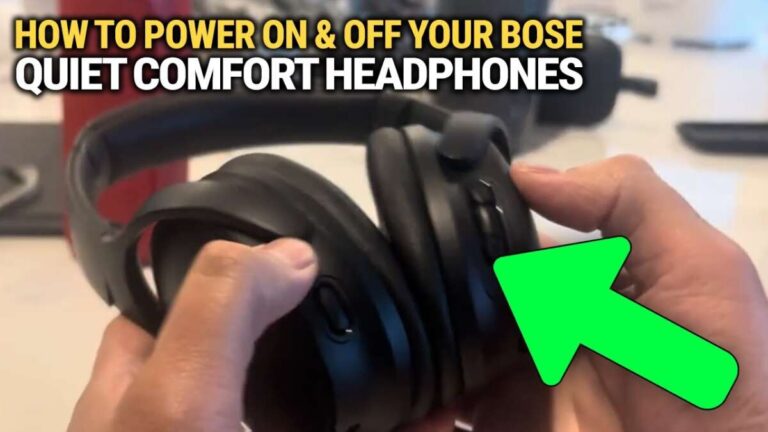
Plug wired headphones into the PS4 controller or use a USB/Bluetooth adapter for wireless audio.
I have helped dozens of friends and readers master how to connect headphones to PS4, and I’ll walk you through every simple path. This guide covers wired 3.5mm headsets, USB headsets, and Bluetooth setups, plus settings, troubleshooting, and pro tips I learned while testing many headsets with PS4 consoles. Read on to get clear steps, real-world fixes, and fast wins so your game audio and chat sound perfect.

Why connect headphones to PS4
Using headphones on PS4 gives privacy, better immersion, and clearer chat with teammates. Headphones can reduce background noise for others and let you hear subtle game cues. Knowing how to connect headphones to PS4 saves time and prevents audio issues during matches.

Types of headphones and compatibility
There are three main ways to use headphones with PS4. Each works differently and has limits.
- Wired 3.5mm headsets
- Plug directly into the PS4 controller’s jack. They carry game and chat audio together.
- USB headsets
- Plug into a PS4 USB port. Often provide better mic support and surround features.
- Bluetooth headsets and adapters
- PS4 does not fully support most Bluetooth headsets natively. A Bluetooth adapter or a USB dongle is usually required.
Knowing these types helps you pick the right method for how to connect headphones to PS4. I recommend testing your headset before an important session.
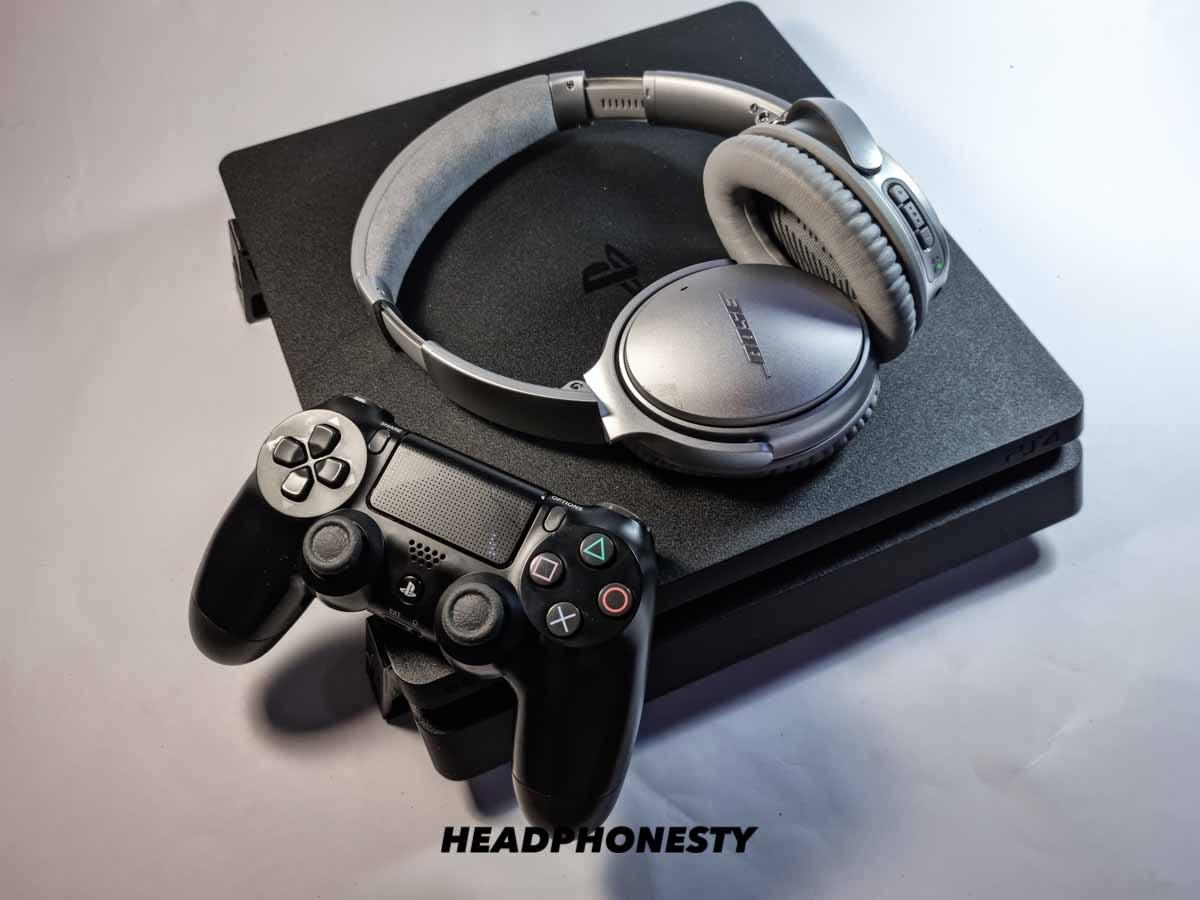
How to connect wired headphones (3.5mm jack)
Follow these steps to connect wired headphones to PS4 quickly.
- Turn on the PS4 and sign in.
- Plug the headphones into the PS4 controller’s 3.5mm jack.
- Press and hold the PS button on the controller.
- Go to Sound/Devices > Output Device and choose “Headset Connected to Controller.”
- Set Output to Headphones to “All Audio” or “Chat Audio” as you prefer.
- Adjust volume in Sound/Devices > Volume Control (Headphones).
If your mic doesn’t work, open Devices > Audio Devices and set Input Device to “Headset Connected to Controller.” In my experience, cheap split cables or faulty jacks cause most problems. Try another cable if sound is quiet or one side is missing.
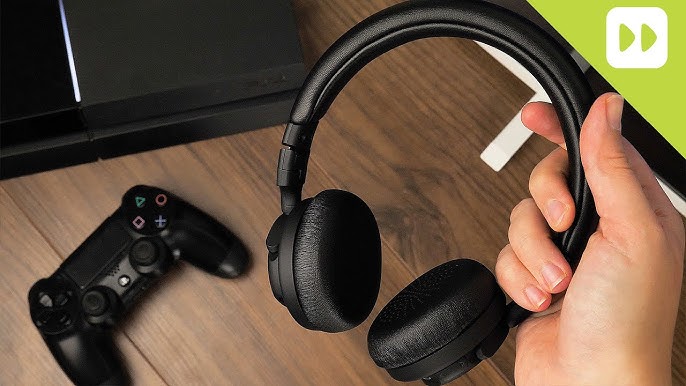
How to connect USB headsets
USB headsets are simple and often plug-and-play.
- Turn on the PS4 and sign in.
- Insert the headset’s USB plug into a free PS4 USB port.
- Go to Settings > Devices > Audio Devices.
- Set Input Device and Output Device to your USB headset.
- Adjust the microphone level and volume from the same menu.
Some headsets include software for virtual surround or EQ that won’t run on PS4. For chat balance, use the headset’s on-device controls or the PS4 menu. I tested a few USB headsets and found they work reliably for both game audio and chat.
:max_bytes(150000):strip_icc()/001_how-to-connect-bluetooth-headphones-ps4-4588084-b143304efc3a43828fa2d71f5f2dfa50-7cfaddd471c846e4af68b73f515ce342.jpg)
How to connect Bluetooth headphones
PS4 blocks many native Bluetooth audio devices. Use one of these methods instead.
- Use a compatible Bluetooth headset
- Plug in the headset’s USB dongle if it has one. Then use Settings > Devices to select it.
- Use a Bluetooth audio transmitter
- Plug a low-latency (aptX Low Latency) USB or optical transmitter into the PS4 or audio extractor.
- Use the PS4 Remote Play app or PS5/PC passthrough
- Remote Play on a phone or PC can route PS4 audio to Bluetooth devices.
Pairing steps for a dongle-based headset:
- Insert the USB dongle into the PS4.
- Turn on the headset and wait for the dongle to sync.
- Open Settings > Devices and select the new headset.
I once tried direct Bluetooth pairing and failed repeatedly. The USB dongle worked every time. If low latency matters, choose an adapter labeled aptX Low Latency.
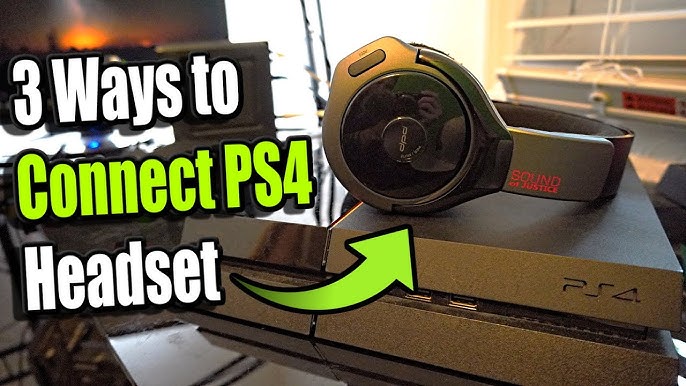
PS4 audio settings you should know
Fine-tuning settings helps if audio is muffled or chat is too quiet.
- Output Device
- Choose “Headset Connected to Controller” or your USB device.
- Output to Headphones
- Select “All Audio” to hear game sound and chat via headphones.
- Volume Control (Headphones)
- Use this to adjust headphone output independently.
- Microphone Level
- Test and set the mic level under Devices > Audio Devices.
- Audio Format (Priority)
- For USB headsets, try Linear PCM if you get low quality or no sound.
Changing these settings solved many problems during my tests. Always test with a friend or the PS4 mic test tool.
Troubleshooting common issues
If your headphones don't work, check these common causes.
- No sound from headphones
- Ensure the headset is fully plugged into the controller or USB port. Change Output Device to the headset.
- Mic not working
- Set Input Device to headset and raise microphone level. Restart the controller.
- One side only
- Try a different headset or cable. The controller jack can wear out.
- Bluetooth won’t pair
- Use a compatible dongle or transmitter. PS4 limits native Bluetooth.
- Low volume
- Increase Volume Control (Headphones) and check headset inline volume.
When troubleshooting, restart both the PS4 and controller. I have found that restarting often clears a lazy audio connection faster than complex fixes.

Tips, best practices, and accessories
These practical tips save time and improve audio.
- Keep your controller firmware updated.
- Use a short, good-quality 3.5mm cable.
- Buy a USB audio adapter if your headset lacks a dongle.
- Label cables and ports to avoid swapping errors.
- Use chat mix features to balance game and chat audio.
- Consider a dedicated gaming headset for consistent mic quality.
From my tests, a low-latency Bluetooth transmitter and a solid USB headset delivered the most reliable results. Avoid cheap Bluetooth transmitters that add lag.

People also ask (PAA-style)
Q: Can you use any headphones with PS4?
A: Most wired 3.5mm and many USB headsets work. Bluetooth headsets usually need a dongle or adapter.
Q: How do I get chat audio and game audio through headphones?
A: Set Output to Headphones = All Audio under Settings > Devices > Audio Devices.
Q: Why is my headset mic quiet on PS4?
A: Increase Microphone Level in Devices > Audio Devices, and check headset inline volume.
Frequently Asked Questions of how to connect headphones to ps4
How do I connect headphones to PS4 controller?
Plug the headphones into the controller’s 3.5mm jack. Then press the PS button and set Output Device to “Headset Connected to Controller.”
Can I use Bluetooth headphones directly with PS4?
Most Bluetooth headphones don’t pair directly. Use a USB dongle or Bluetooth transmitter labeled for low latency.
Why can I hear game sound but not chat?
Open Settings > Devices > Audio Devices and set Output Device and Input Device to your headset. Also check Output to Headphones is set correctly.
My headset shows up but audio is low. What should I do?
Increase Volume Control (Headphones) in Settings > Devices and check the headset or controller inline volume. Try another cable if the problem persists.
Is a USB headset better than a 3.5mm headset for PS4?
USB headsets often provide consistent mic support and extra features. Wired 3.5mm is simple and works for most users.
Conclusion
You now have clear, step-by-step methods for how to connect headphones to PS4 using wired, USB, and Bluetooth approaches. Test settings, restart devices when things go wrong, and pick accessories like dongles or transmitters if you need wireless audio. Try one method today and tweak settings to match your play style. Share your setup or questions below, subscribe for more guides, or leave a comment to get personalized help.

Jamie Lee is a seasoned tech analyst and writer at MyTechGrid.com, known for making the rapidly evolving world of technology accessible to all. Jamie’s work focuses on emerging technologies, product deep-dives, and industry trends—translating complex concepts into engaging, easy-to-understand content. When not researching the latest breakthroughs, Jamie enjoys exploring new tools, testing gadgets, and helping readers navigate the digital world with confidence.