Plug your headset into the Xbox One controller or use a USB/wireless adapter for chat and game audio.
I’ve spent years testing game gear and fixing headset issues. In this guide I explain how to add headphones to Xbox One step by step. You will learn what works, what doesn’t, and simple fixes I use every day. Read on to get clear, usable steps for clean game audio and chat on Xbox One.

What you need before you start
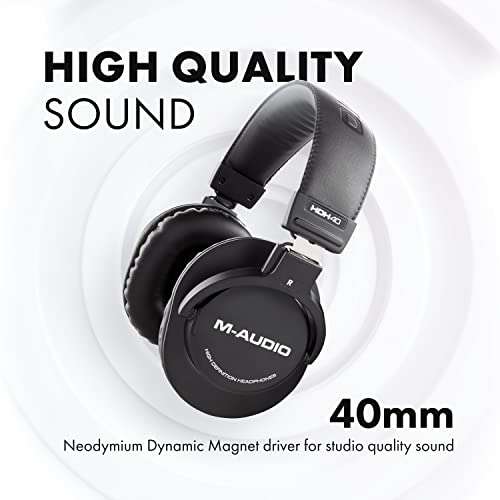
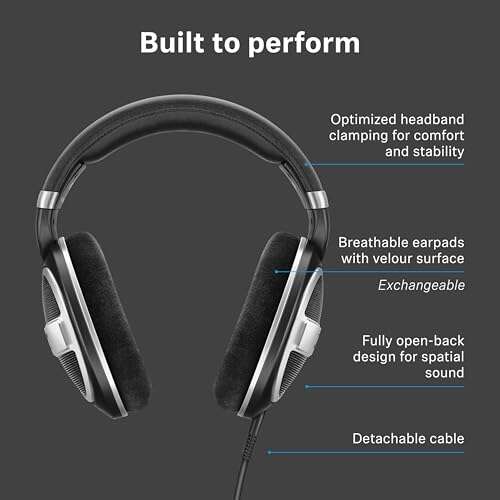
Know what type of headphone you have. Headsets come as 3.5mm analog, USB, wireless (proprietary), or Bluetooth. The Xbox One accepts some types natively and needs adapters for others. Also check your Xbox One model. Older and newer models differ in ports and firmware.
Essential items
- Xbox One controller with a 3.5mm jack or the older controller plus a stereo adapter.
- Stereo headset adapter if your controller lacks a built-in jack.
- USB headset or official Xbox wireless headsets for plug-and-play.
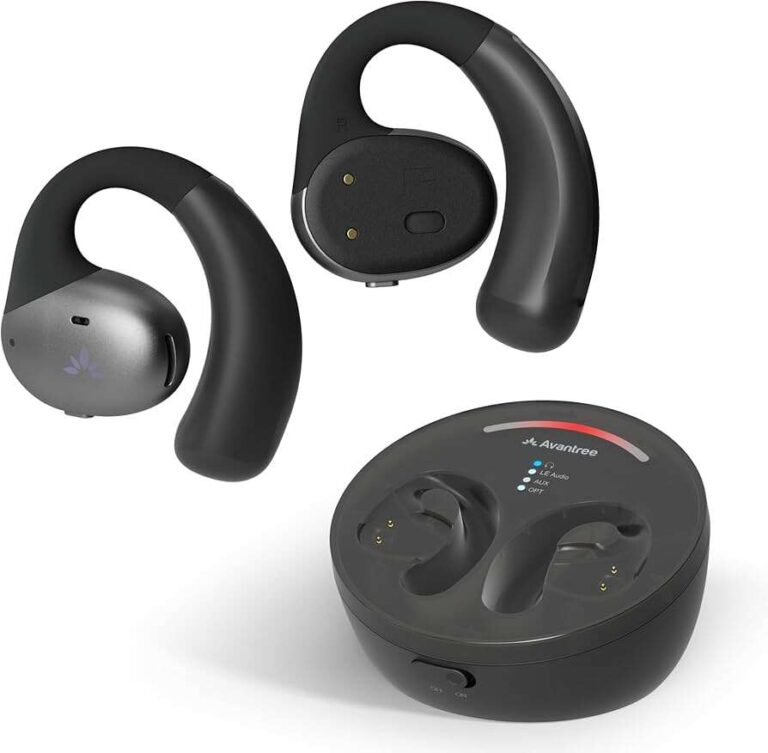
- Optional: Bluetooth transmitter, optical cable, or USB sound card for special setups.
Why this matters
- The right gear saves time.
- It prevents audio lag and mic issues.
- It keeps your chat and game audio balanced.

Method 1 — Plug into the Xbox One controller (fastest way)
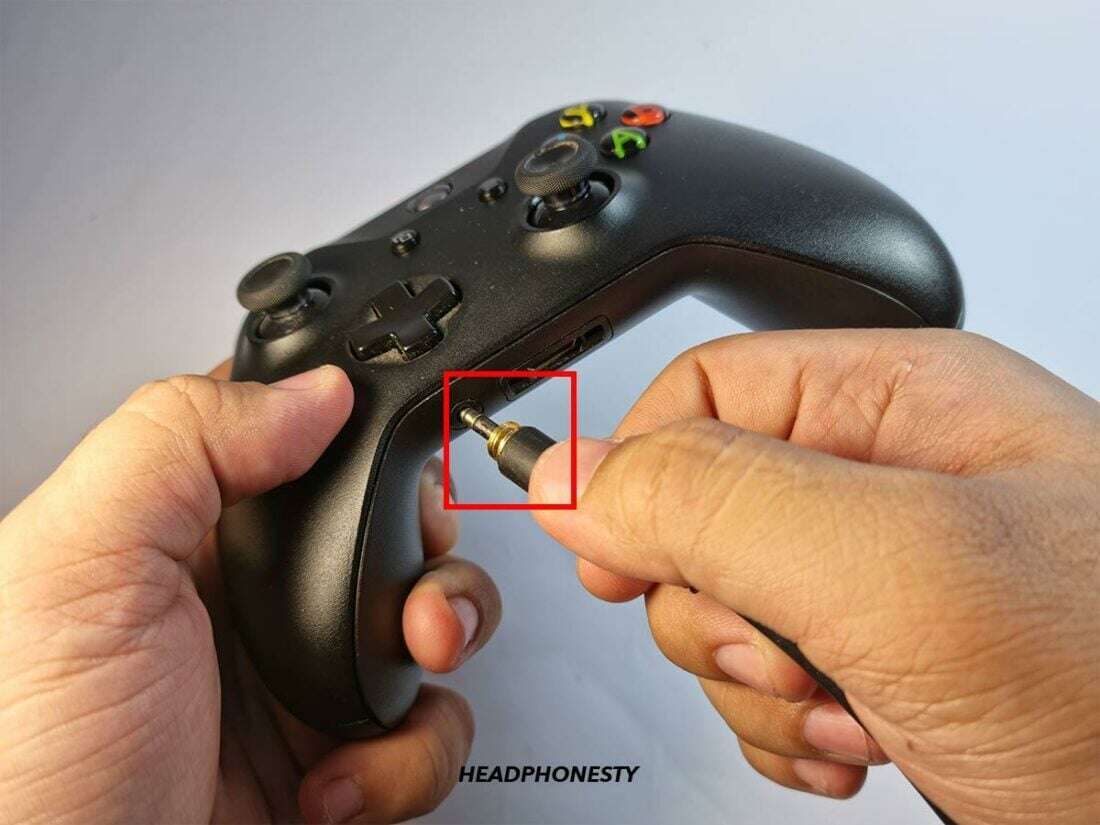
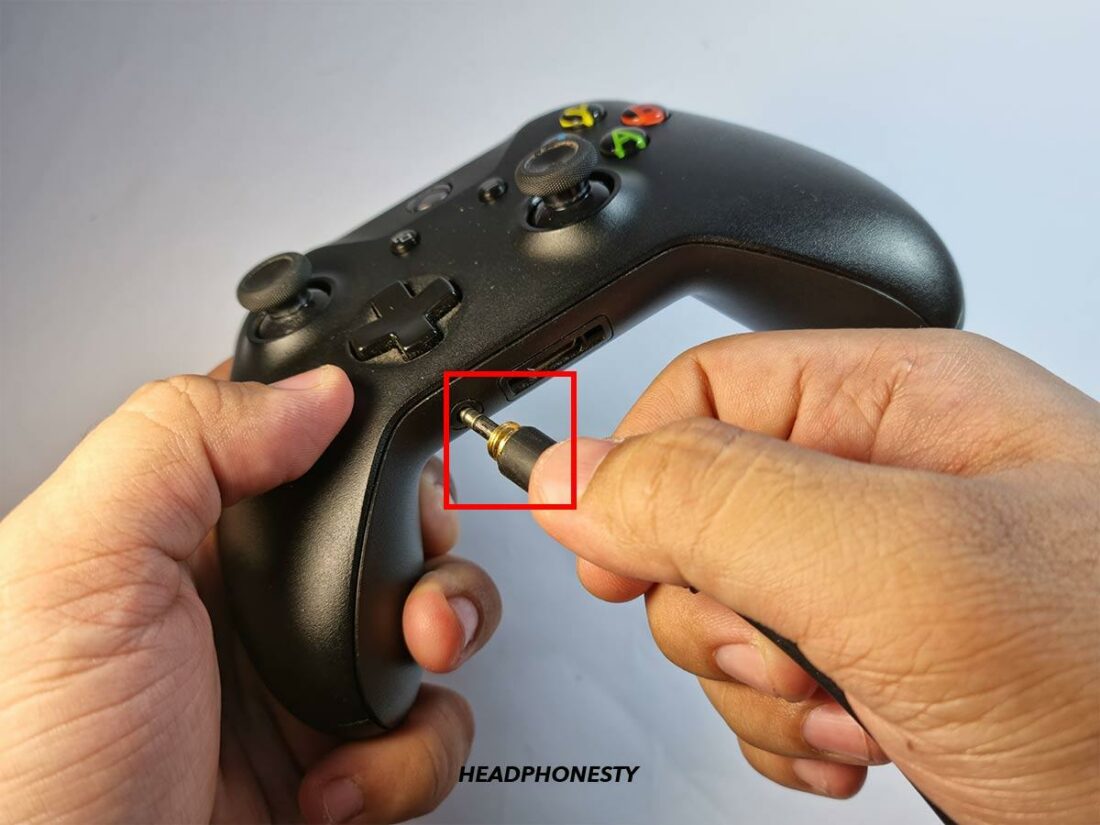
This is the most common way to add headphones to Xbox One. Most modern controllers have a 3.5mm jack. The controller sends both game and chat audio to the headset.
Steps
- Power on your Xbox One and sign in.
- Plug the 3.5mm headphone jack into the controller.
- Press the Xbox button to open Guide.
- Go to Profile & system > Settings > Devices & connections > Accessories.
- Adjust volume and chat mixer under Audio. Test the mic in a party or game.
Tips
- Use a TRRS cable for headsets with mic and audio on one plug.
- If you hear only game audio, check controller firmware updates.
Method 2 — Use the Xbox One Stereo Headset Adapter or Chat Adapter
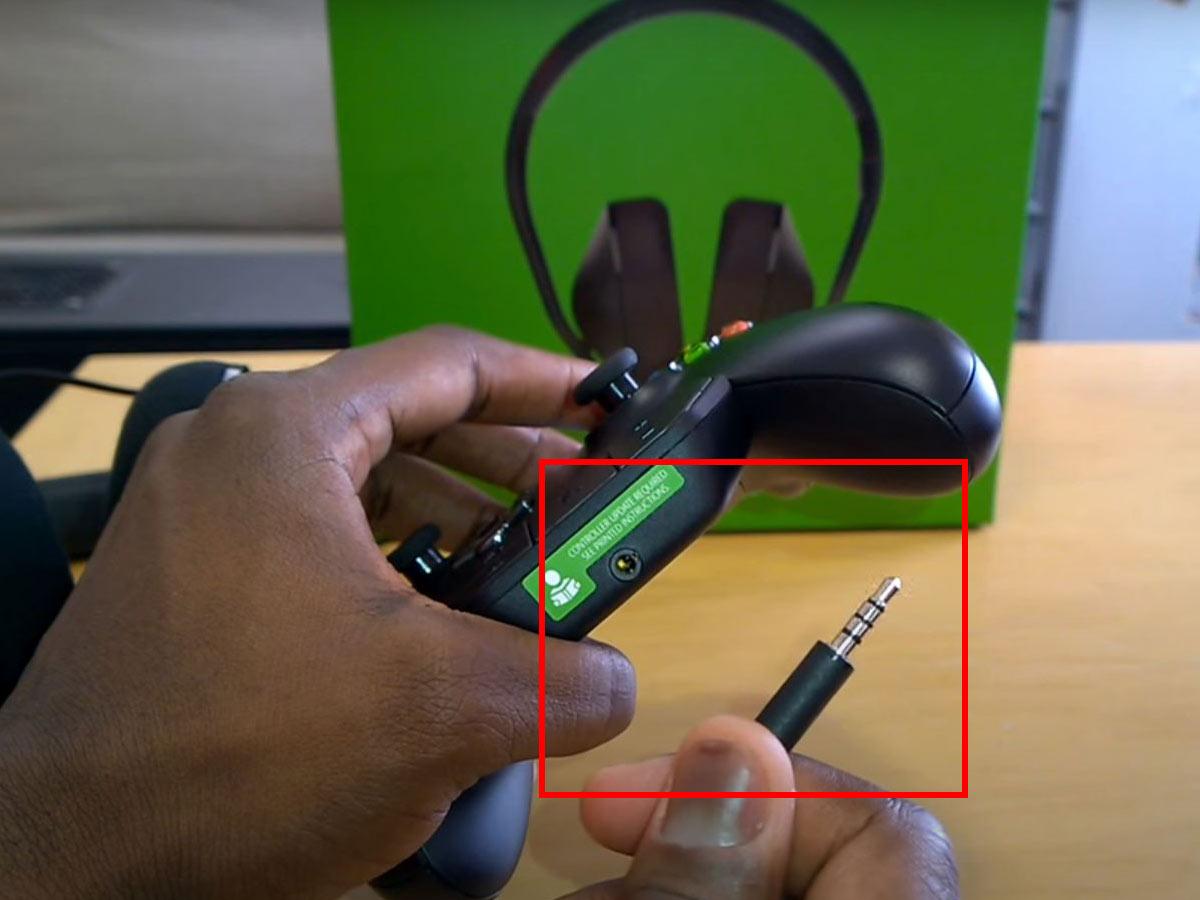
If your controller lacks a built-in jack, use the official stereo headset adapter. This adapter gives a dial for volume and chat mix.
Steps
- Remove the battery cover and connect the adapter to the bottom of the controller.
- Plug your 3.5mm headset into the adapter.
- Use the adapter dials to set chat vs game volume.
- Update the controller firmware if prompted.
Why use it
- It works with older controllers.
- It gives quick control of chat and game audio without the console menu.

Method 3 — USB headsets and official wireless headsets
Some USB headsets work directly when plugged into the Xbox One USB port. Official Xbox wireless headsets pair with the console using Xbox Wireless.
USB headset steps
- Plug the headset into any USB port on the Xbox One.
- The console should recognize it. Adjust chat/game mix in settings.
- If not recognized, try a different USB port or a powered USB hub.
Wireless headset steps
- Turn on the headset and put it in pairing mode.
- Press the Pair button on the Xbox One and then on the headset.
- Follow on-screen prompts to finish pairing.
- Set the audio mix and mic level in Settings.
Real-world note
- Some USB headsets only carry chat. Test both game and chat audio before relying on them in a party.
Method 4 — Bluetooth and workarounds
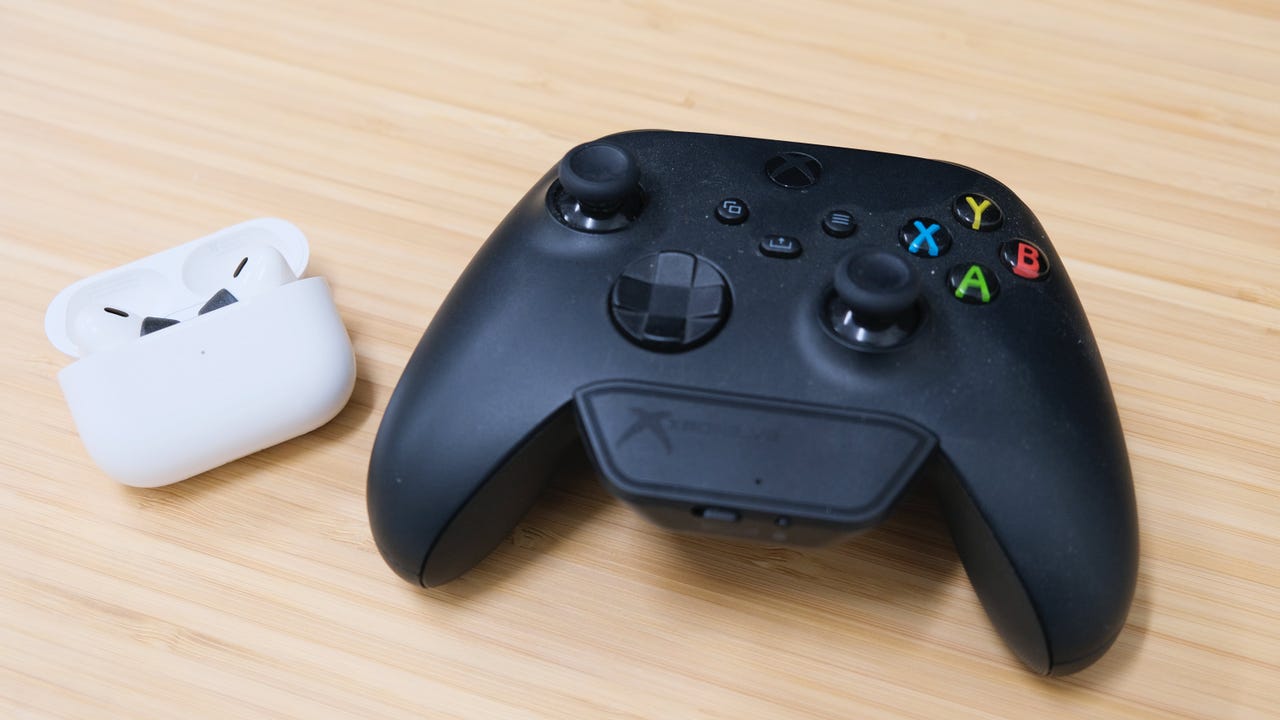
Xbox One does not support standard Bluetooth audio for headsets. You can still use Bluetooth with workarounds, but expect limits.
Options
- Use a Bluetooth transmitter that plugs into the controller’s 3.5mm jack. Latency and mic support may be poor.
- Use a PC or phone as a bridge: run Xbox app streaming, connect headset to that device, then play via app. This adds complexity and may add audio delay.
- Use a USB Bluetooth dongle that specifically supports Xbox One; these are rare and not guaranteed.
When to use this
- Use workarounds only if you lack wired or Xbox Wireless options. They are best for casual play.

Troubleshooting common problems
Mic not working
- Check headset mute switch and cable.
- Test mic on another device to confirm it works.
- Update your controller and console firmware.
Only game sound, no chat
- Ensure the headset plug is fully inserted and is TRRS.
- Open Settings > Display & sound > Volume and audio output to check chat mixer.
- Try the stereo headset adapter if the controller jack is old.
Audio lag or low quality
- Wired headsets reduce lag.
- For wireless, choose official Xbox Wireless models to cut latency.
- For USB headsets, try another USB port or a different cable.
Controller not detecting headset
- Update controller firmware via Accessories app.
- Try another controller to isolate the issue.
- Clean the jack gently to remove debris.
My personal tip
- I keep a cheap TRRS splitter and a small USB sound card in my kit. They save long troubleshooting sessions when traveling. Small backups fix many audio issues fast.

Best practices and setup tips
Optimize chat vs game audio
- Use the chat mixer in Settings to balance levels.
- Lower in-game voice volumes if one player is too loud.
Keep firmware updated
- Update both console and controller regularly. This fixes many headset bugs.
Test before big sessions
- Join a quick party and test both mic and audio before raids or ranked matches.
Cables and adapters
- Buy a good-quality TRRS cable for fewer dropouts. Cheap cables can cause cutouts.
Frequently Asked Questions of how to add headphones to xbox one
How do I add headphones to Xbox One using the controller?
Plug a 3.5mm TRRS headset into the controller’s jack. Then open Settings and adjust chat and game audio levels.
Can I use Bluetooth headphones with Xbox One?
Not directly. Xbox One does not support standard Bluetooth audio. Use a transmitter or stream through another device as a workaround.
Why can’t my Xbox One detect my USB headset?
Try a different USB port and update the console. Some USB headsets are not compatible with Xbox audio functions.
How do I fix no mic input on my headset?
Check that the headset isn’t muted, test on another device, and update controller firmware. Replace the cable if it still fails.
Do wireless Xbox headsets work with all Xbox One models?
Official Xbox Wireless headsets pair with most Xbox One models. Older consoles may need a firmware update to pair properly.
Can I split audio between TV speakers and headphones on Xbox One?
The Xbox mixes audio to one output at a time. Use TV or console audio settings to route sound. A mixer or optical solutions can split audio externally.
Conclusion
You can add headphones to Xbox One in multiple ways. Plugging into the controller is the fastest and most reliable. USB and Xbox Wireless headsets give clean results. Bluetooth workarounds exist but have limits. Update firmware, test gear, and keep a spare adapter to avoid hiccups. Try the steps above and pick the method that fits your gear and budget. If this helped, try one setup at a time, leave a comment with your headset model, or subscribe for more clear, practical guides.

Jamie Lee is a seasoned tech analyst and writer at MyTechGrid.com, known for making the rapidly evolving world of technology accessible to all. Jamie’s work focuses on emerging technologies, product deep-dives, and industry trends—translating complex concepts into engaging, easy-to-understand content. When not researching the latest breakthroughs, Jamie enjoys exploring new tools, testing gadgets, and helping readers navigate the digital world with confidence.