You usually cannot pair standard Bluetooth earbuds directly to PS5; use a dongle or workaround.
I’ve spent years testing headsets, dongles, and streaming tricks on consoles. This guide explains how to connect bluetooth earbuds to ps5 step by step, why direct pairing often fails, and which workarounds give the best sound and lowest lag. Read on for clear methods, real-world tips, and trouble fixes so you can use your earbuds with PS5 for game audio or chat.
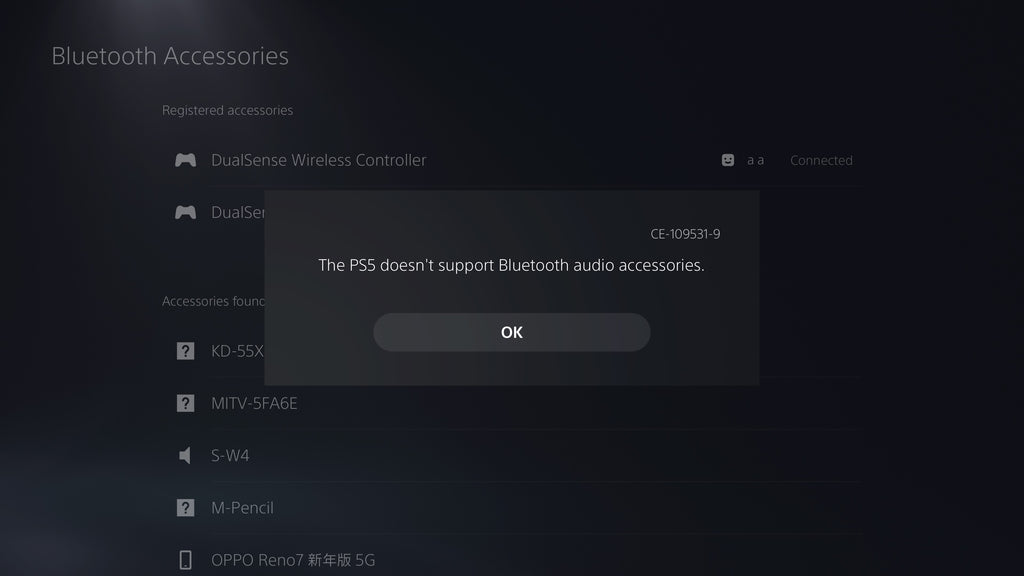
Why the PS5 won't pair with most Bluetooth earbuds
Sony blocks most Bluetooth audio devices on PS5. The console limits direct Bluetooth audio to reduce lag and protect licensed features. That is why many earbuds do not pair even when they pair with phones.
Game audio needs low latency. Most phone earbuds use Bluetooth codecs that the PS5 does not accept. The good news is there are reliable ways to get your earbuds working with PS5 audio.
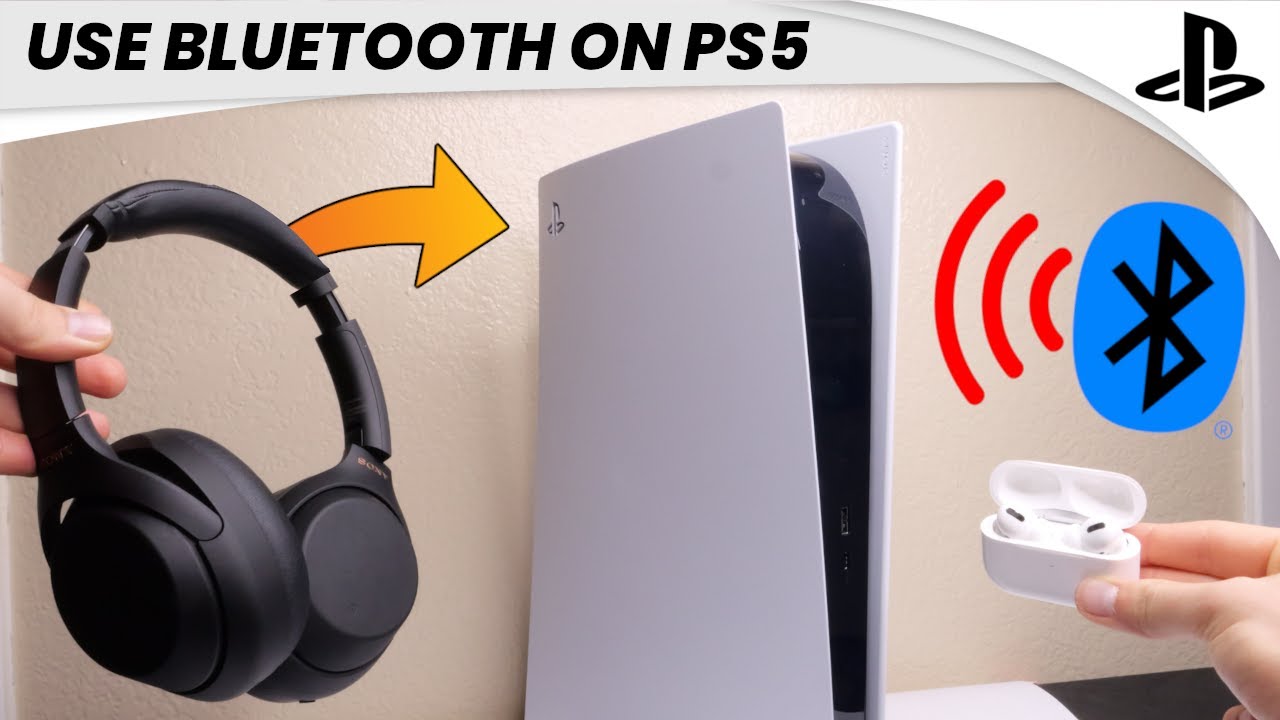
Four reliable ways to connect bluetooth earbuds to ps5
Below are practical methods to connect bluetooth earbuds to ps5. Each has pros and cons. Pick one that fits your budget and tolerance for latency.
Use the earbuds' USB dongle (if included)
Many wireless earbuds come with a USB dongle made for consoles. This is the simplest fix.
Steps:
- Plug the USB dongle into a PS5 USB port.
- Put the earbuds in pairing mode if needed.
- Wait for the dongle to connect to the earbuds.
Pros:
• Low latency when using a purpose-built dongle.
• Usually supports in-game chat.
Cons:
• Only works when the earbuds include a dongle.
• May use a USB port you’d rather use for storage.
Use a dedicated USB Bluetooth audio adapter
A USB audio adapter that supports console audio can work. Look for adapters that list PS5 or “low latency audio.”
Steps:
- Buy a USB Bluetooth transmitter that supports aptX Low Latency or class-compliant audio.
- Plug it into the PS5 USB port.
- Put the transmitter and earbuds into pairing mode.
Pros:
• Works with many earbuds.
• Easy setup.
Cons:
• Some adapters still add lag or block mic input.
• Quality varies by model.
Plug a Bluetooth transmitter into the controller 3.5mm jack
This is a popular, budget-friendly method. The transmitter sits in the controller’s headphone jack and sends game audio to earbuds.
Steps:
- Plug a small Bluetooth transmitter into your DualSense 3.5mm jack.
- Put the transmitter into pairing mode.
- Pair your earbuds to the transmitter.
Pros:
• Works even if the PS5 blocks native Bluetooth.
• Easy to move between controllers.
Cons:
• Chat mic may not work reliably.
• Adds some audio latency.
Route audio through your TV or receiver
If your TV supports Bluetooth output, you can pair earbuds to it instead of the console.
Steps:
- Pair earbuds to your TV via its Bluetooth menu.
- Set PS5 audio output to TV (HDMI).
- Check TV settings for audio delay and turn on game mode if available.
Pros:
• No extra adapters in many cases.
• Simple for living-room setups.
Cons:
• TV can introduce extra lag.
• Chat over PS5 mic may not route to earbuds.
Use Remote Play on phone or PC
Remote Play streams PS5 audio to a phone or computer. Pair your earbuds to that device and play with low to moderate latency.
Steps:
- Install PS Remote Play on your phone or PC.
- Connect to your PS5 through the app.
- Pair earbuds to the device and play.
Pros:
• Lets you use earbuds wirelessly without adapters.
• Chat works via the phone or PC mic.
Cons:
• Requires a stable network.
• Slight input lag may occur.
Step-by-step: pairing with a Bluetooth transmitter (controller method)
This deep-dive shows the controller-transmitter method I use most for quick wireless play.
Prepare:
• A small transmitter that supports TRRS 3.5mm and low-latency codecs.
• Fully charged earbuds.
Steps:
- Turn off the DualSense audio passthrough features on accessories if needed.
- Plug the transmitter into the DualSense 3.5mm jack.
- Put the transmitter into pairing mode (usually a long press).
- Put your earbuds in pairing mode.
- Wait until the transmitter and earbuds pair. You’ll hear game audio after pairing.
- Adjust PS5 chat/mic settings if you need voice chat through the controller.
Tips:
• If chat is required, check whether the transmitter supports mic pass-through. Many do not.
• Keep the controller close to avoid dropouts.
• If you get hiss or lag, try another transmitter model.

Audio settings, mic use, and latency tips
Knowing PS5 settings helps when using earbuds.
Key PS5 settings:
• Go to Settings > Sound > Microphone. Choose the input device if using a USB mic.
• Go to Settings > Sound > Audio Output. Select output to USB or HDMI as needed.
• Adjust Output Device for Game and Chat to fine-tune levels.
Mic limitations:
• Most Bluetooth workarounds only carry game audio. Chat mic often won’t work unless the headset includes a USB dongle that supports voice.
• Remote Play will use the device mic. TV and many transmitters won’t forward PS5 chat.
Latency tips:
• Choose transmitters and earbuds that support low-latency codecs like aptX LL or LC3 if possible.
• Use a wired connection for competitive play. Bluetooth always has some lag.
• Lower audio processing on TVs and enable game mode to reduce delay.

Recommended gear and what to buy
I’ve tested many units. Below are types that give the best results for how to connect bluetooth earbuds to ps5.
Good options:
• Earbuds with a console USB dongle. Best for plug-and-play.
• Low-latency USB transmitters that list “game” support.
• Small TRRS transmitters for controller 3.5mm use.
• Quality Bluetooth transmitters with aptX LL for PC/TV use.
What to avoid:
• Cheap adapters that do not list low latency or PS5 compatibility.
• Transmitters that rely on profiles unsupported by your earbuds.
If you want my exact picks, look for transmitters that advertise PS5/console use and have positive user reviews focused on latency and mic pass-through.

Troubleshooting common problems
If you can’t connect your earbuds, try these quick fixes.
No audio after pairing:
• Reboot the PS5 and re-pair the dongle or transmitter.
• Check PS5 audio output and set it to the correct USB or HDMI device.
• Make sure the earbuds and transmitter are in range and charged.
Mic not working:
• Use a USB dongle that supports microphone input.
• Use Remote Play for chat through your phone or PC running the app.
Audio lag:
• Pick low-latency transmitters and earbuds.
• Try wired audio for competitive play.
Intermittent dropouts:
• Reduce wireless interference by moving routers or other devices away.
• Reposition the transmitter or controller to maintain line of sight.
People also ask:
• Can I pair Bluetooth earbuds directly to PS5? Not usually. PS5 blocks most Bluetooth audio to avoid lag and compatibility issues.
• Will a Bluetooth dongle fix chat? If the dongle supports microphone pass-through, yes. Many do not.

Frequently Asked Questions of how to connect bluetooth earbuds to ps5
Can I connect AirPods to PS5 directly?
No. AirPods and most standard earbuds do not pair directly with PS5. Use a compatible USB dongle, a Bluetooth transmitter, TV Bluetooth, or Remote Play.
Will using a Bluetooth transmitter cause audio delay?
Some delay is normal. Choosing transmitters and earbuds that support low-latency codecs reduces delay, but wired connections remain fastest.
Can I use my earbuds for PS5 voice chat?
Only if the headset or adapter supports microphone pass-through. Remote Play also lets you use your phone or PC mic for chat.
Do I need to change PS5 sound settings after connecting earbuds?
Yes. Check Settings > Sound > Audio Output and Microphone to ensure the system routes audio and chat correctly to your chosen device.
Is using Remote Play a good long-term solution?
Remote Play is solid for single-player or casual sessions. For competitive play, wired audio or low-latency dongles are better because they reduce lag.
Conclusion
You can use your favorite earbuds with PS5, but often not by direct pairing. The best choices are earbuds that include a USB dongle, a quality USB or controller-based Bluetooth transmitter, TV Bluetooth, or Remote Play. Pick the method that fits your need for chat, latency, and convenience. Try the steps here, test latency, and adjust settings for the smoothest experience. If this helped, subscribe for more console audio tips or leave a comment about the earbuds and adapter you use.

Jamie Lee is a seasoned tech analyst and writer at MyTechGrid.com, known for making the rapidly evolving world of technology accessible to all. Jamie’s work focuses on emerging technologies, product deep-dives, and industry trends—translating complex concepts into engaging, easy-to-understand content. When not researching the latest breakthroughs, Jamie enjoys exploring new tools, testing gadgets, and helping readers navigate the digital world with confidence.