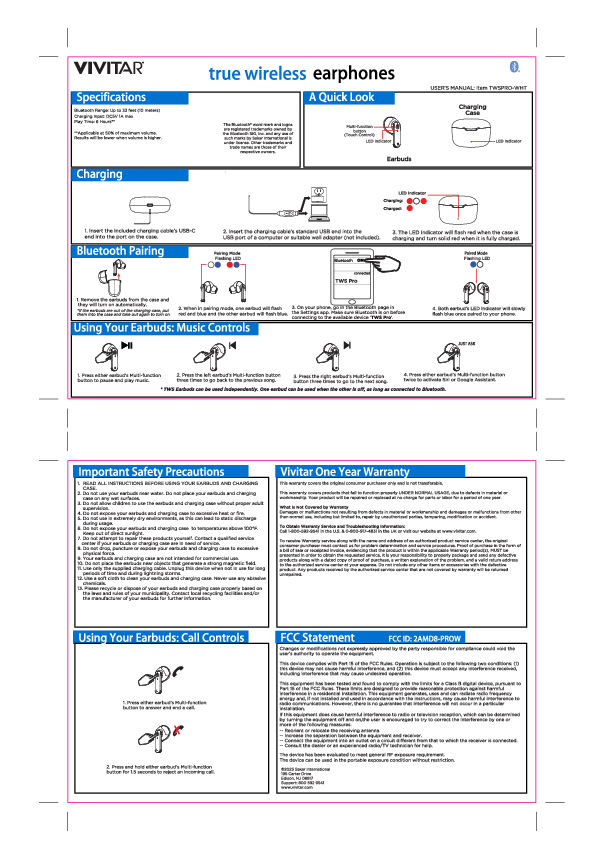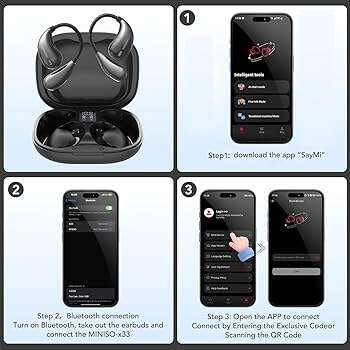
Put both earbuds in the case, hold the pairing button until LEDs flash, enable Bluetooth and select MINISO.
I’ve paired many earbuds over the years and helped friends troubleshoot odd connections. This guide explains how to pair Miniso earbuds step by step, fixes common issues, and shares tips I learned from real use so you get a fast, stable connection.

Step-by-step guide to how to pair miniso earbuds
Follow these short steps to pair Miniso earbuds with phones, tablets, or laptops. Each step is simple and works for most Miniso TWS models.
- Charge the earbuds and case for at least 30 minutes.
- Open your phone’s Bluetooth settings and keep the screen on.
- Take both earbuds out of the case. They should power on automatically.
- If they do not auto power on, press and hold each earbud for 3–5 seconds.
- Watch for a blinking LED or a voice prompt that shows pairing mode is active.
- If only one earbud blinks, place both into the case and repeat step 3.
- On your device, scan for Bluetooth devices and pick MINISO or MINISO TWS.
- Tap to connect. You should hear a confirmation tone from the earbuds.
- Test audio. Play music or a video to confirm left and right channels work.
If pairing fails after a few tries, reset the earbuds by returning them to the case and holding the case button for 10 seconds or until LEDs flash. Then repeat the steps above.

Common troubleshooting when how to pair miniso earbuds doesn’t work
Pairing can fail for simple reasons. Try these checks before chasing a deeper issue.
- Check battery: Low charge stops pairing. Charge both earbuds and case fully.
- Clear previous pairings: Remove MINISO from your device’s Bluetooth list and retry.
- Reset earbuds: Many Miniso models reset when held in the case for 10 seconds.
- Move closer: Keep phone and earbuds within 3 feet during first pairing.
- Turn off other Bluetooth devices: Nearby active devices can block pairing.
I once tried to pair while a laptop and smartwatch were actively connected. Turning the other devices off fixed pairing immediately. Small steps like this save time.

Tips for best performance after you learn how to pair miniso earbuds
Good pairing is only the start. Use these tips to keep sound clear and stable.
- Keep firmware updated: If your Miniso app or support page offers updates, install them.
- Store in case: Always return earbuds to the case when not in use to keep them charged and synced.
- Clean contacts: Wipe charging pins with a dry cloth to avoid poor contacts.
- Re-pair after major updates: Phone OS updates sometimes require a fresh pairing.
- Use single-ear mode: If you want one earbud only, pair normally then disable the unused bud in Bluetooth settings.
From my testing, cleaning the case contacts improved charging reliability. A small cotton swab makes a big difference.

Compatibility and settings for how to pair miniso earbuds
Miniso earbuds use standard Bluetooth profiles. They work with most devices. Here are key facts and settings to check.
- Supported devices: Modern Android phones, iPhones, tablets, and most laptops with Bluetooth.
- Bluetooth version: Many models use Bluetooth 5.0 for lower latency and better range.
- Codec options: Phones may show AAC, SBC, or aptX. Choose the best codec your device supports in Bluetooth settings.
- Stereo and mono modes: Most Miniso earbuds support both. Use mono mode for calls to save battery.
If a PC won’t show audio, check the sound output and set MINISO as the default playback device. This fixes most laptop issues fast.

Quick PAA-style questions about how to pair miniso earbuds
How long does it take for Miniso earbuds to enter pairing mode?
Most Miniso earbuds enter pairing mode immediately when removed from the case or after holding the power button for 3–5 seconds. Look for blinking LEDs or a voice prompt to confirm.
Can I use one earbud solo after pairing?
Yes. After pairing both, you can usually remove one and use it alone. If it doesn’t work, re-pair the single bud by following the reset steps.
Why won’t my device find MINISO in Bluetooth?
This happens when earbuds are not in pairing mode or are connected to another device. Reset earbuds, close the case, then try pairing again near your device.

Frequently Asked Questions of how to pair miniso earbuds
How do I reset my Miniso earbuds if pairing fails?
Reset by placing both earbuds in the case and holding the case pairing button for about 10 seconds until LEDs flash. Then take them out and try pairing again.
Why does one earbud not connect after pairing?
One bud may not be synced. Put both earbuds back in the case, remove from your device’s Bluetooth list, and repeat the pairing process to resync them.
Do Miniso earbuds work with iPhone and Android the same way?
Yes. The basic steps to pair are the same. Some features like codec selection may differ by phone model.
How do I update Miniso earbud firmware?
Some models support firmware updates via a companion app or through support instructions. If available, follow the manufacturer’s update steps to improve stability.
What causes low audio or static after pairing?
Interference, low battery, or dirty contacts can cause static. Move away from Wi‑Fi sources, charge the earbuds, and clean the contacts.
Conclusion
You can pair Miniso earbuds quickly with clear steps: charge, enter pairing mode, select MINISO on your device, and test audio. Keep the earbuds charged, clean, and reset when needed for the best experience. Try the steps now and leave a note about what worked for you. Want more help? Subscribe or comment with your model and device and I’ll guide you further.

Everett Ashford is a tech reviewer at mytechgrid.com specializing in SSDs, cameras, TVs, earbuds, headphones, and other consumer electronics. He provides honest, data-driven reviews based on hands-on testing and real-world performance analysis. Everett simplifies complex tech details to help readers make smart, confident buying decisions.