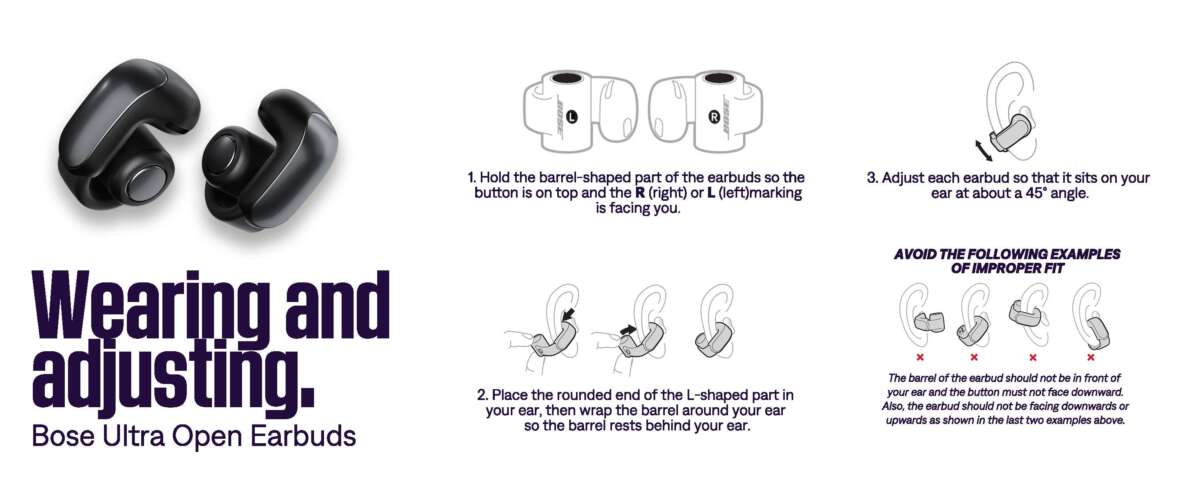
Put the Open Earbuds into pairing mode, open Bluetooth on your device, and select "Bose Open Earbuds".
If you want a clear, reliable walk-through on how to pair bose open earbuds, you’re in the right place. I’ve paired these earbuds with phones, laptops, and tablets many times and tested fixes for the common hiccups. This guide covers step-by-step pairing for iPhone, Android, macOS, and Windows, plus troubleshooting, tips, and real-world lessons I learned while pairing these earbuds. Read on and you’ll be connected in minutes.

What are Bose Open Earbuds and why pairing matters
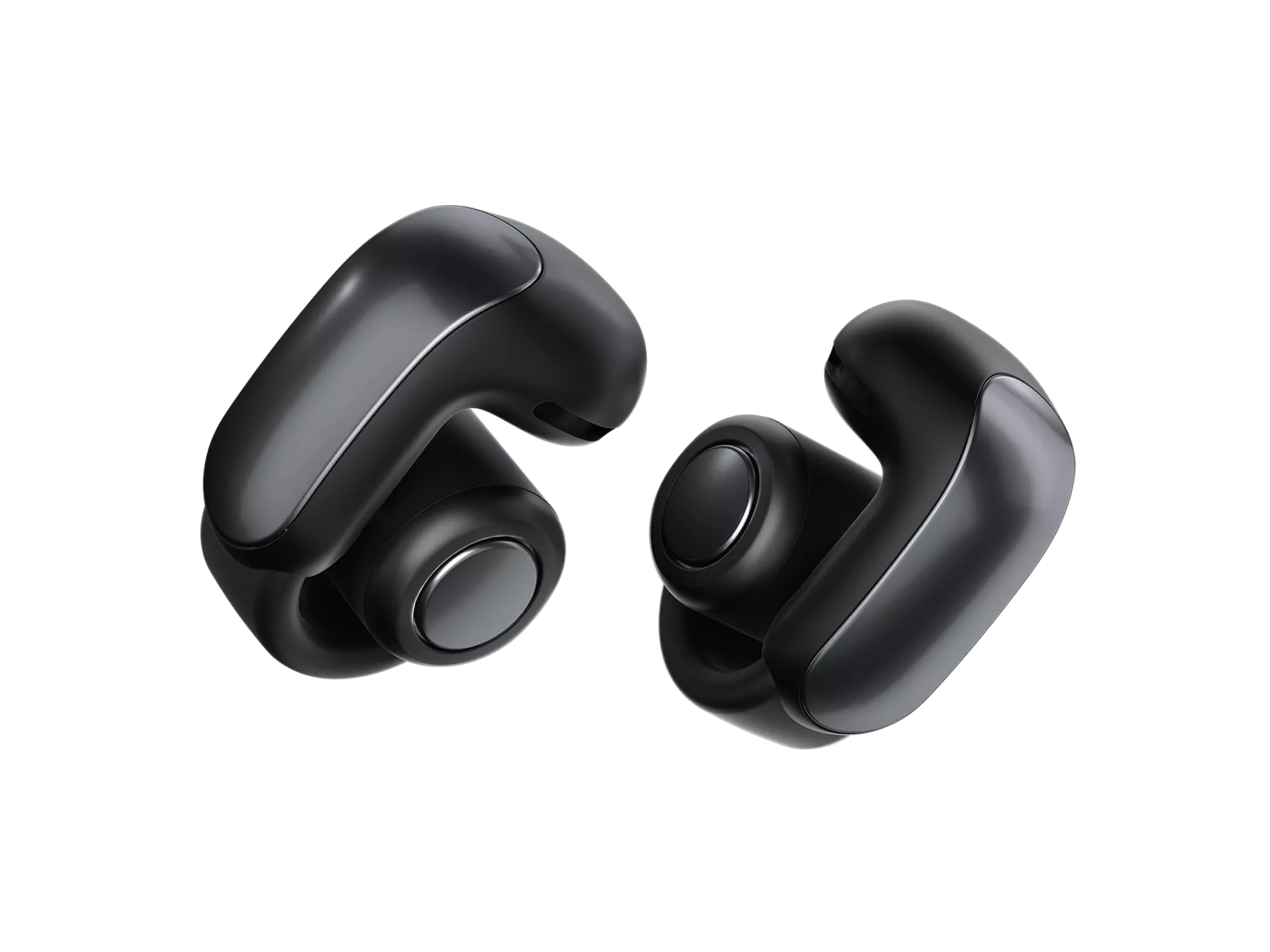
Bose Open Earbuds are wearable speakers that sit near your ears rather than sealing them. They let you hear music and your surroundings at the same time. Pairing links the earbuds to a single device’s Bluetooth so audio can stream wirelessly.
Knowing how to pair bose open earbuds helps you get clear sound fast. Proper pairing reduces dropouts, speeds reconnection, and enables firmware updates through the Bose Music app. If you use multiple devices, pairing habits save time and avoid frustration.
Before you begin: quick checklist
Follow this checklist before you learn how to pair bose open earbuds. It saves time and prevents common issues.
- Charge both earbuds and the charging case so pairing isn’t interrupted.
- Turn on Bluetooth on your phone, tablet, or computer and move the device within 3 feet.
- Install the Bose Music app for firmware updates and guided setup if you prefer.
- Close other Bluetooth connections or temporarily disable other nearby Bluetooth devices to reduce interference.
These steps make learning how to pair bose open earbuds smooth and predictable.
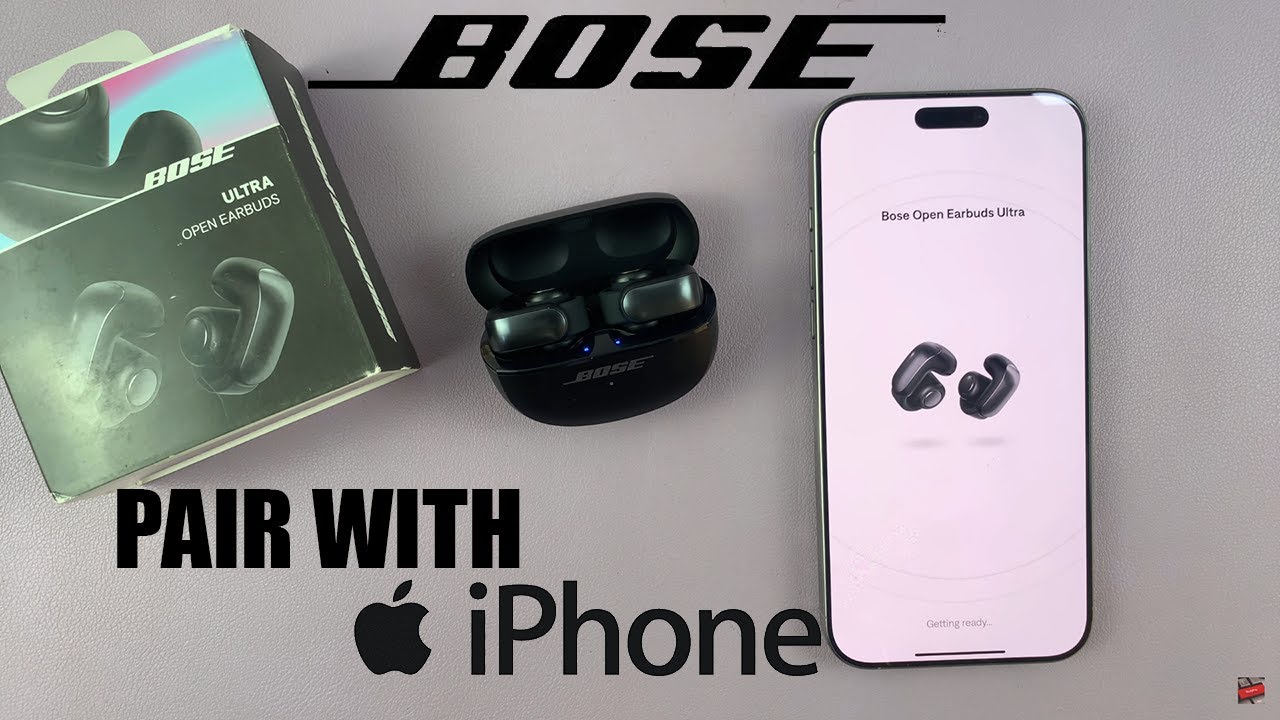
Step-by-step: how to pair bose open earbuds (iPhone, Android, and computers)
The basics are the same across devices: put the earbuds into pairing mode, open Bluetooth, and select the earbuds. Below are clear steps for each platform.
-
Prepare the earbuds
- Remove the earbuds from the case. They should power on automatically.
- If they don’t enter pairing mode, press and hold the touch or power control on either earbud for about 3 seconds until the LED flashes blue.
-
Pair with iPhone or iPad
- Open Settings > Bluetooth and make sure Bluetooth is on.
- Look for "Bose Open Earbuds" in the device list and tap to connect.
- If prompted, accept the pairing request.
-
Pair with Android
- Open Settings > Connections > Bluetooth and enable Bluetooth.
- Tap the earbuds name "Bose Open Earbuds" when it appears and connect.
- If Android requests permission for notifications or contacts, allow only what you need.
-
Pair with macOS
- Open System Settings > Bluetooth (or System Preferences > Bluetooth) and enable it.
- Click Connect next to "Bose Open Earbuds" when shown.
-
Pair with Windows
- Open Settings > Bluetooth & devices > Add device > Bluetooth.
- Choose "Bose Open Earbuds" from the list.
-
Use Bose Music app (recommended)
- Open the Bose Music app and follow the on-screen setup for guided pairing.
- The app installs updates and shows battery levels.
If a device was previously paired, you may need to select the earbuds from the Bluetooth list to reconnect. These steps explain how to pair bose open earbuds across major platforms with minimal fuss.

Troubleshooting common pairing problems
If pairing fails, try these quick fixes. They usually resolve most issues when learning how to pair bose open earbuds.
-
Device not visible
- Turn Bluetooth off and on, then scan again.
- Restart both the earbuds and your phone or computer.
-
Only one earbud works
- Put both earbuds in the case, close and open the lid, and try again.
- If that fails, perform a full reset (steps below).
-
Earbuds won’t enter pairing mode
- Make sure they are charged and press and hold the button longer (7–10 seconds).
- Use the Bose Music app to force a factory reset if available.
-
Frequent dropouts or poor audio
- Move away from Wi-Fi routers, microwaves, or other Bluetooth devices.
- Update firmware via the Bose Music app.
These quick checks solve most pairing headaches when you’re figuring out how to pair bose open earbuds.

Reset and advanced fixes
A reset often clears persistent pairing issues. Use these steps if standard troubleshooting fails when trying to pair bose open earbuds.
-
Soft reset
- Place earbuds in the case, close the lid, wait 10 seconds, then remove them.
- Try pairing again.
-
Factory reset (common method)
- Place both earbuds in the case.
- Press and hold the case button or follow the app’s reset instructions for about 10–15 seconds until the LED flashes a specific pattern.
- Re-attempt pairing from scratch.
-
Update firmware
- Open Bose Music and check for updates. Install them before pairing again.
A factory reset clears stored pairings and often fixes issues when you need to start fresh.

Advanced tips, pro tricks, and personal notes
Here are practical, real-world tips from my experience pairing these earbuds and using them daily.
- Use the Bose Music app for the first pair. It simplifies setup and handles firmware updates automatically.
- If you switch devices often, “forget” the earbuds on the device you won’t use and keep them paired only to frequent devices.
- When connecting to two devices, some models support quick switching; others require reconnecting. If switching is slow, turn off Bluetooth on the device you’re not using.
- I once fixed a stubborn pairing bug by fully charging the case and earbuds, then reinstalling Bluetooth drivers on my laptop. Small things help.
These practical tips make the pairing process for bose open earbuds less finicky and more reliable.

PAA-style quick questions
What if the earbuds show up but won’t connect?
- Try forgetting the device from your phone’s Bluetooth list, then re-pair. If that fails, reset the earbuds via the Bose Music app.
Can I pair the earbuds to two devices at once?
- Some Bose models support limited multipoint pairing, but behavior varies. If multitasking across devices is critical, test switching between your devices.
How long does pairing take?
- Most pairings finish in 10–30 seconds once the earbuds are in pairing mode and your device finds "Bose Open Earbuds".
Frequently Asked Questions of how to pair bose open earbuds
How do I put my Bose Open Earbuds into pairing mode?
Press and hold the earbuds’ touch or power control for about 3 seconds until the LED flashes blue. If they are new, removing them from the case often triggers pairing mode automatically.
Why won’t my phone find the earbuds?
Ensure the earbuds are in pairing mode and Bluetooth is on. Move the phone closer, disable other Bluetooth devices, and restart both devices if needed.
What do I do if only one earbud connects?
Place both earbuds back in the case and remove them again to resync. If that doesn’t work, reset the earbuds using the Bose Music app or the factory reset method.
Do I need the Bose Music app to pair?
No, you don’t strictly need the Bose Music app, but the app makes setup, firmware updates, and battery checks easier. I recommend it for the first-time pairing.
How can I update the earbuds’ firmware?
Open the Bose Music app, connect to the earbuds, and follow prompts for available updates. Keeping firmware current reduces pairing issues and improves performance.
Will my laptop and phone switch automatically between audio?
Automatic switching depends on the device and the earbuds’ software. If automatic switching is inconsistent, manually select "Bose Open Earbuds" on the device you want to use.
How long do the earbuds stay discoverable?
Most earbuds stay discoverable for several minutes while in pairing mode. If not found, exit pairing mode and re-enter by repeating the hold/press steps.
Conclusion
Learning how to pair bose open earbuds gets easier with a step-by-step plan: charge, enter pairing mode, open Bluetooth, and select the earbuds. Use the Bose Music app for guided setup and firmware updates, and reset only when needed. Try the tips here and you’ll cut pairing time and avoid common issues.
Take action now: charge your earbuds, open the Bose Music app, and follow the pairing steps. If you found this guide useful, leave a comment or share your pairing story so others can learn from your experience.

Jamie Lee is a seasoned tech analyst and writer at MyTechGrid.com, known for making the rapidly evolving world of technology accessible to all. Jamie’s work focuses on emerging technologies, product deep-dives, and industry trends—translating complex concepts into engaging, easy-to-understand content. When not researching the latest breakthroughs, Jamie enjoys exploring new tools, testing gadgets, and helping readers navigate the digital world with confidence.