Turn on Bluetooth, reset the earbuds, then hold the JLab earbuds’ buttons to enter pairing mode.
I’ve paired many JLab earbuds with Android phones, and this guide walks you through every step. You’ll learn how to pair JLab earbuds to Android, fix common pairing issues, update firmware, and use features like multipoint and voice assistants. Read on for clear steps, troubleshooting tips, and real‑world advice from hands‑on experience.

Quick step-by-step pairing guide
Follow these quick steps to pair JLab earbuds to Android. Keep the earbuds charged and your phone nearby.
- Charge both earbuds and the case for at least 15 minutes.
- Turn on Bluetooth on your Android phone. Open Settings > Bluetooth.
- Remove the earbuds from the case. They should power on automatically.
- If they don’t enter pairing mode, press and hold the touchpad or button on both earbuds for 3–5 seconds until the LED blinks or you hear a voice prompt.
- Watch your Android’s Bluetooth list. Tap the JLab device name (for example, "JLab JBuds" or the model name).
- Accept any prompts. Wait for “Connected” or a voice cue.
- Test audio by playing music or a video.
If the earbuds don’t appear, try resetting the earbuds (see troubleshooting). These steps cover most JLab models and common Android phones. This process answers the basic need for how to pair jlab earbuds to android in a few clear steps.

Prepare your Android and JLab earbuds
A little prep makes pairing smooth. Do these first.
- Check Android Bluetooth: Ensure Bluetooth is on and the device is discoverable.
- Update Android: Install the latest OS updates if possible for best compatibility.
- Charge devices: Low battery can block pairing or cause drops.
- Check earbuds model: Know if your JLab are true wireless buds, wired buds with Bluetooth dongles, or Bluetooth headphones.
- Close other Bluetooth apps: Stop interference from other paired devices.
From my experience, cleaning the earbuds’ contacts and restarting the phone helps when pairing acts up. Knowing the model name makes it easier to follow exact steps for your earbuds.

How to enter pairing mode for common JLab models
Different JLab models use slightly different controls. Here are the usual methods.
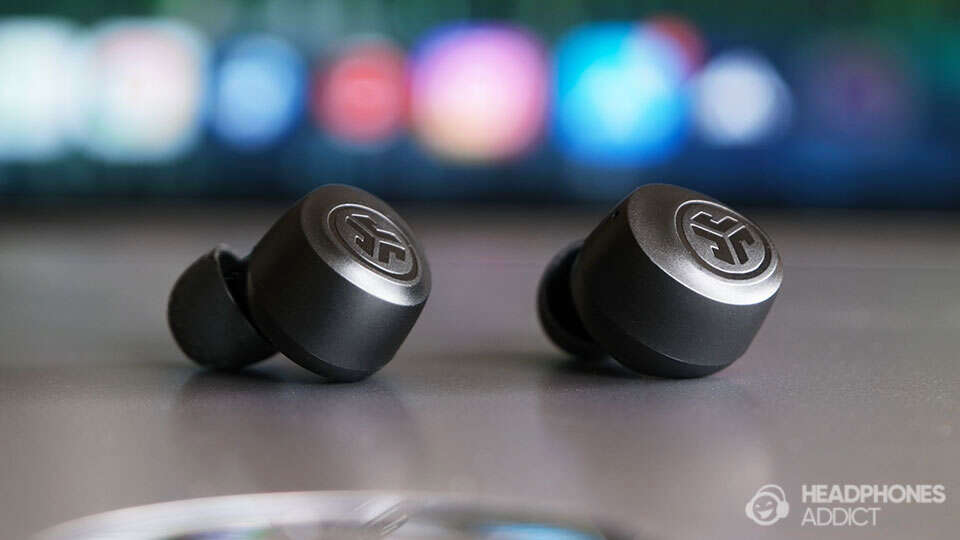
- True wireless JLab earbuds (Air, JBuds, Go Air): Remove from case. Press and hold the touchpads on both buds for 3–6 seconds until LEDs flash or voice says “Pairing.”
- JLab Epic or Rewind style (single unit): Hold the power button for 5–7 seconds until LED flashes blue/white.
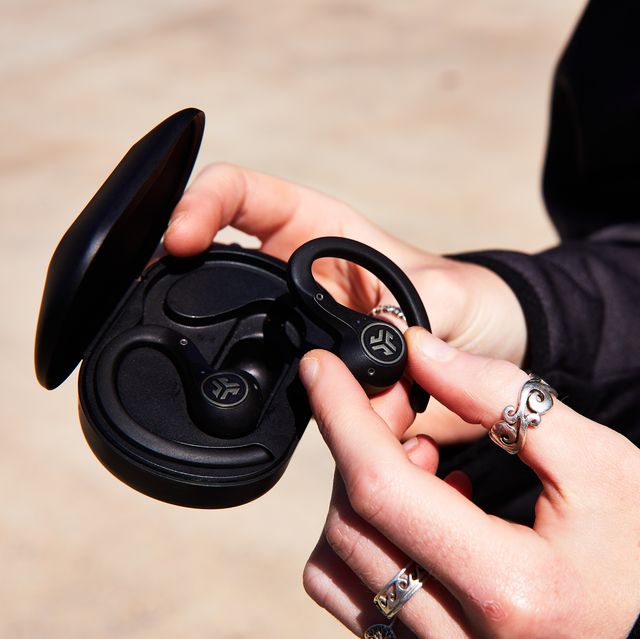
- JLab with a pairing button on case: With earbuds out, press the case button for 2–4 seconds.
- If your earbuds auto-pair to last device: Turn off that device’s Bluetooth first to force the earbuds to enter pairing mode.
Remember the phrase how to pair jlab earbuds to android always starts with getting the earbuds into pairing mode first. That is the key step.

Troubleshooting: common issues and fixes
If pairing fails or audio drops, use these fixes. I’ve tested most of them in real use.
- Earbuds not showing on phone
- Restart Bluetooth on Android. Turn it off for 10 seconds, then on.
- Reset the earbuds. Most JLab models reset by holding both buttons or the power button for 10–15 seconds.
- Forget previous pairing: In Android Bluetooth settings, tap the device and choose “Forget” or “Unpair,” then try again.
- One earbud not working
- Place both buds in the case, close it for 10 seconds, then remove and try again.
- Re-pair from scratch if resetting doesn’t help.
- Connection cuts out
- Move closer to phone. Remove obstacles and other Bluetooth devices.
- Check for app conflicts or battery saver modes on Android.
- Low audio volume or poor call quality
- Check media and call volumes separately.
- Enable high-quality codecs if supported (Settings > Developer options > Bluetooth audio codec).
- Firmware issues
- Use the JLab app or website to update firmware when available.
These steps are essential when learning how to pair jlab earbuds to android and when things go wrong. Patience helps—most issues resolve in a few minutes.

Advanced tips and useful features
Once paired, explore these features to get more from your JLab earbuds.
- Multipoint pairing: Some JLab models support connecting to two devices. Pair to one device, then enable pairing mode again to add a second.
- Voice assistant: Assign a touch control to launch Google Assistant on Android.
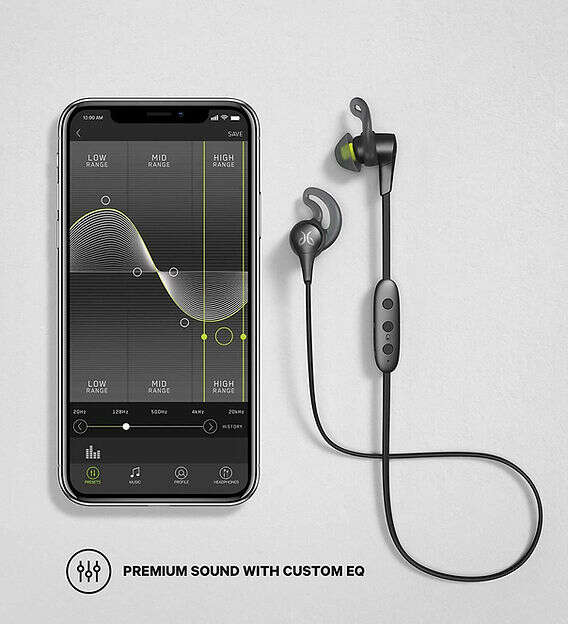
- EQ and app controls: Use the JLab app to change EQ, toggle ANC, and change touch controls if your model supports it.
- Firmware updates: Update firmware for bug fixes and better stability. Firmware can fix pairing quirks that affect how to pair jlab earbuds to android.
- Use a wired backup: If your earbuds have a wired option, use it for critical calls.
I once avoided a long meeting meltdown by switching to wired mode when Bluetooth failed. Keep a small cable handy.
Maintenance, battery care, and best practices
Good care extends battery life and keeps pairing reliable.
- Keep contacts clean: Wipe charging pins with a dry cloth.
- Store in case: Always return buds to the case between uses to avoid accidental pairing to other devices.
- Avoid extreme heat or cold: Batteries degrade faster in harsh temps.
- Charge regularly: Don’t let batteries sit dead for long periods.
- Replace ear tips: Proper fit improves sound and reduces the need to increase volume.
These habits make future attempts to pair how to pair jlab earbuds to android faster and more reliable.

Frequently Asked Questions of how to pair jlab earbuds to android
How do I put JLab earbuds into pairing mode on Android?
Most JLab earbuds enter pairing mode by holding the touchpad or power button for 3–6 seconds until an LED flashes or you hear “Pairing.” Then open Android Bluetooth settings and select the device name.
Why won’t my Android find my JLab earbuds?
Your earbuds may be paired to another device or not in pairing mode. Turn off other Bluetooth devices, reset the earbuds, and make sure Bluetooth is enabled on your Android.
How do I reset JLab earbuds before pairing?
Reset methods vary by model. Commonly, hold both earbud buttons for 10–15 seconds or place buds in the case and press the case button. Check your model’s quick start guide for exact steps.
Can I pair JLab earbuds with two Android devices?
Some JLab models support multipoint. Pair to the first device, then enable pairing mode and connect to the second device. Check your model’s specs for multipoint support.
How do I update JLab firmware on Android?
Use the official JLab app or follow firmware instructions for your model. Updating often fixes connection issues and improves performance.
Conclusion
You now have clear, practical steps for how to pair jlab earbuds to android, plus fixes, tips, and real experience to keep connections stable. Start by charging devices and entering pairing mode, then use reset and firmware updates if needed. Try the tips above and you’ll get fast, reliable pairing every time.
Take action: pair your earbuds now, test the sound, and leave a comment about which JLab model you use or any problems you solved.

Jamie Lee is a seasoned tech analyst and writer at MyTechGrid.com, known for making the rapidly evolving world of technology accessible to all. Jamie’s work focuses on emerging technologies, product deep-dives, and industry trends—translating complex concepts into engaging, easy-to-understand content. When not researching the latest breakthroughs, Jamie enjoys exploring new tools, testing gadgets, and helping readers navigate the digital world with confidence.