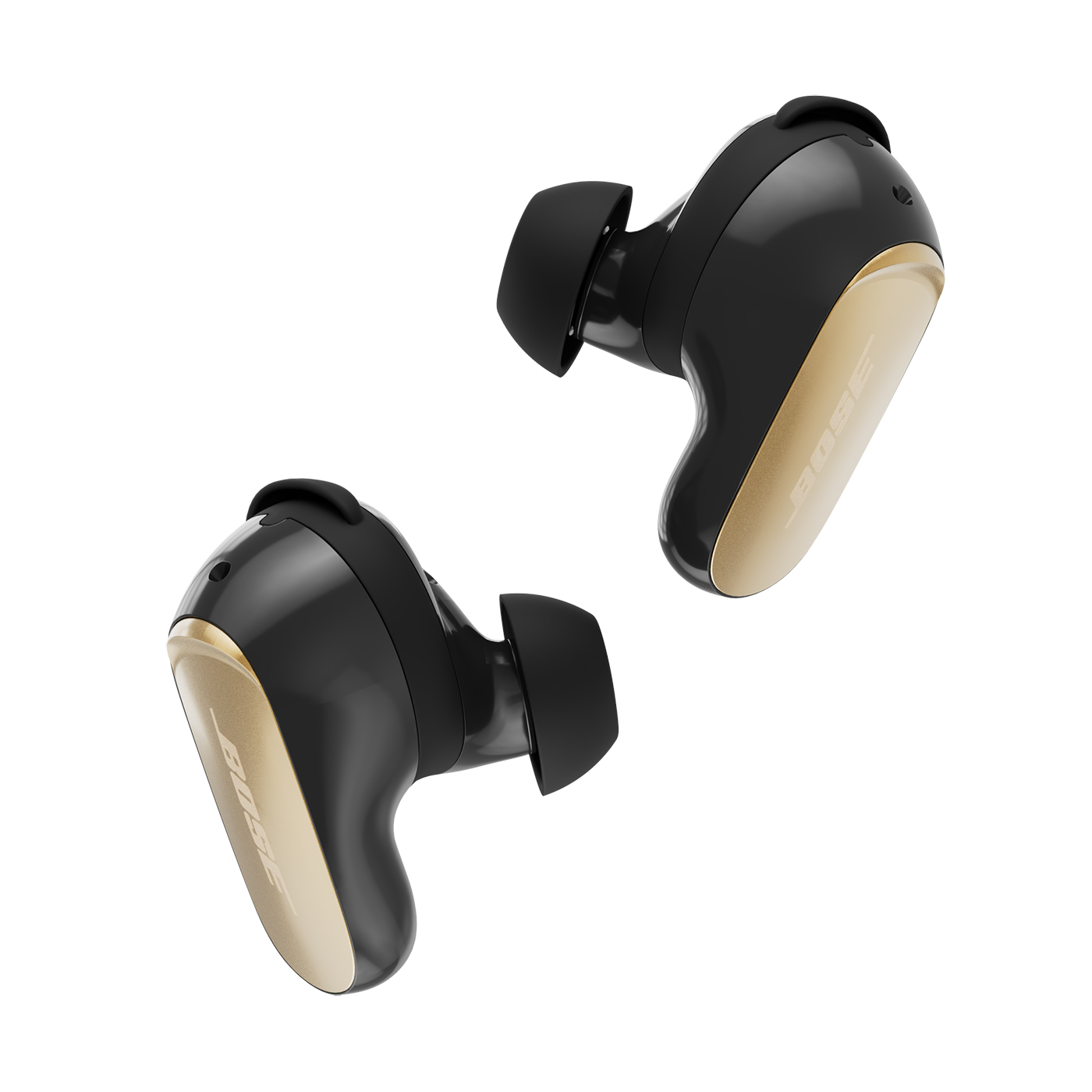
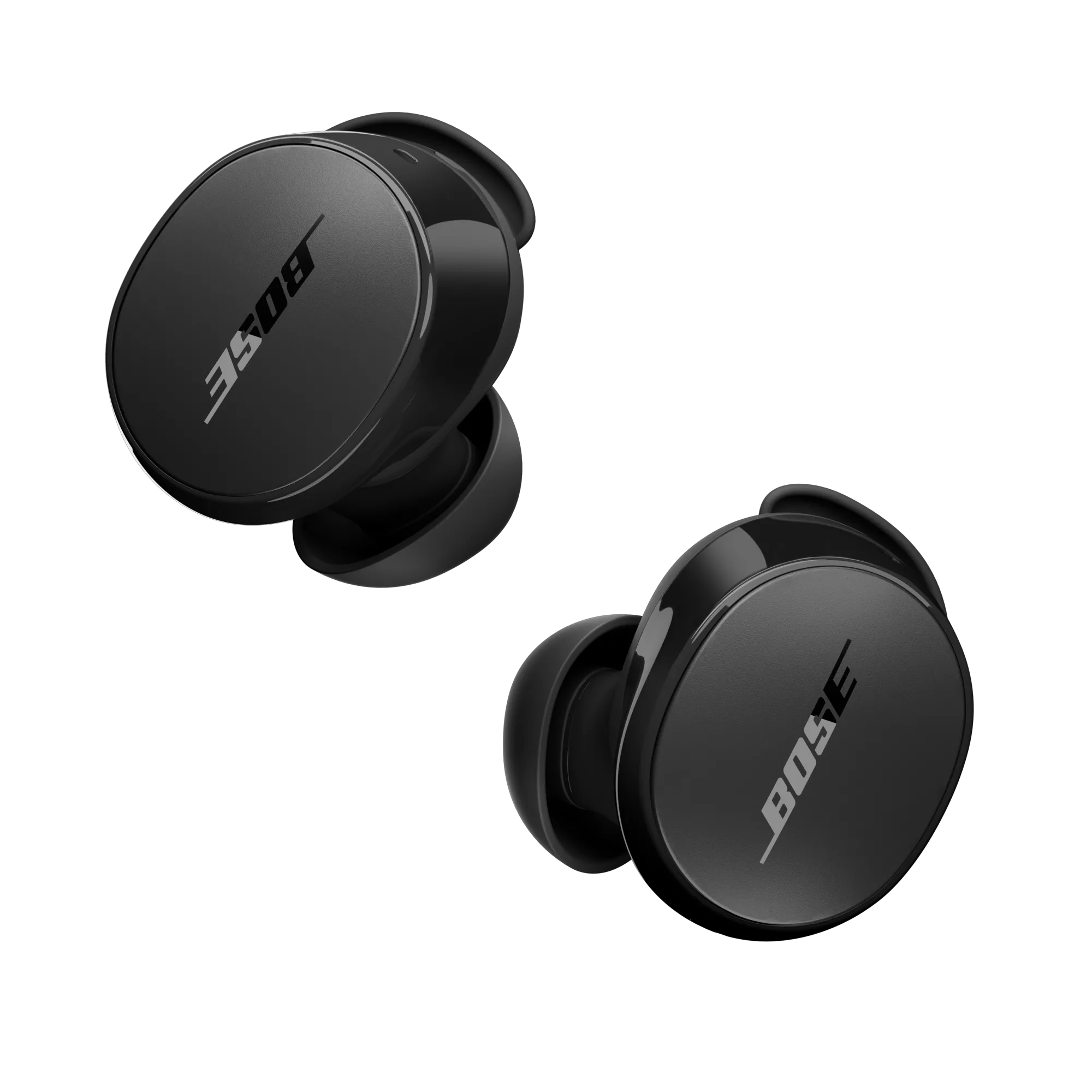
Hold down the earbud power button, enable Bluetooth on Android, and select your Bose earbuds from the device list.
I’ve paired dozens of headphones and earbuds across many Android phones, and I’ll walk you through exactly how to connect Bose earbuds to Android with clear, tested steps. This guide covers everything from initial setup and app use to troubleshooting and advanced settings. You’ll get practical tips I learned from real-world pairing, plus simple fixes for common problems, so you can enjoy music and calls quickly and reliably.
Why pairing matters for sound and stability
Pairing your earbuds properly is the first step to good sound and a steady connection. If you know how to connect Bose earbuds to Android the right way, you avoid dropouts, audio lag, and missed calls. Proper pairing also allows your Android phone to use the best Bluetooth settings and codecs your earbuds and phone support.
- Correct pairing ensures call quality and microphone routing.
- Proper setup lets firmware and app features work.
- Good pairing prevents multiple-device conflicts.

Before you start: what you need and quick checks
Prepare these items before you pair. Doing so saves time and stops confusion while you learn how to connect Bose earbuds to Android.
- Bose earbuds charged at least 20 percent and in the case if they require it.
- Android phone with Bluetooth turned on and updated to the latest system version.
- Bose Music app or Bose Connect app installed if your model uses an app.
- Close other Bluetooth devices to avoid accidental pairing.
Quick checks:
- Turn off airplane mode and enable Do Not Disturb only if you want to silence notifications.
- If you previously paired the earbuds to another device, unpair or turn off Bluetooth on that device.

Step-by-step: how to connect Bose earbuds to Android
Follow these short steps to pair most Bose true wireless earbuds to an Android phone. Steps are simple and repeatable.
- Turn on Bluetooth on your Android
- Open Settings > Connected devices > Connection preferences > Bluetooth. Toggle Bluetooth on.
- Put your Bose earbuds in pairing mode
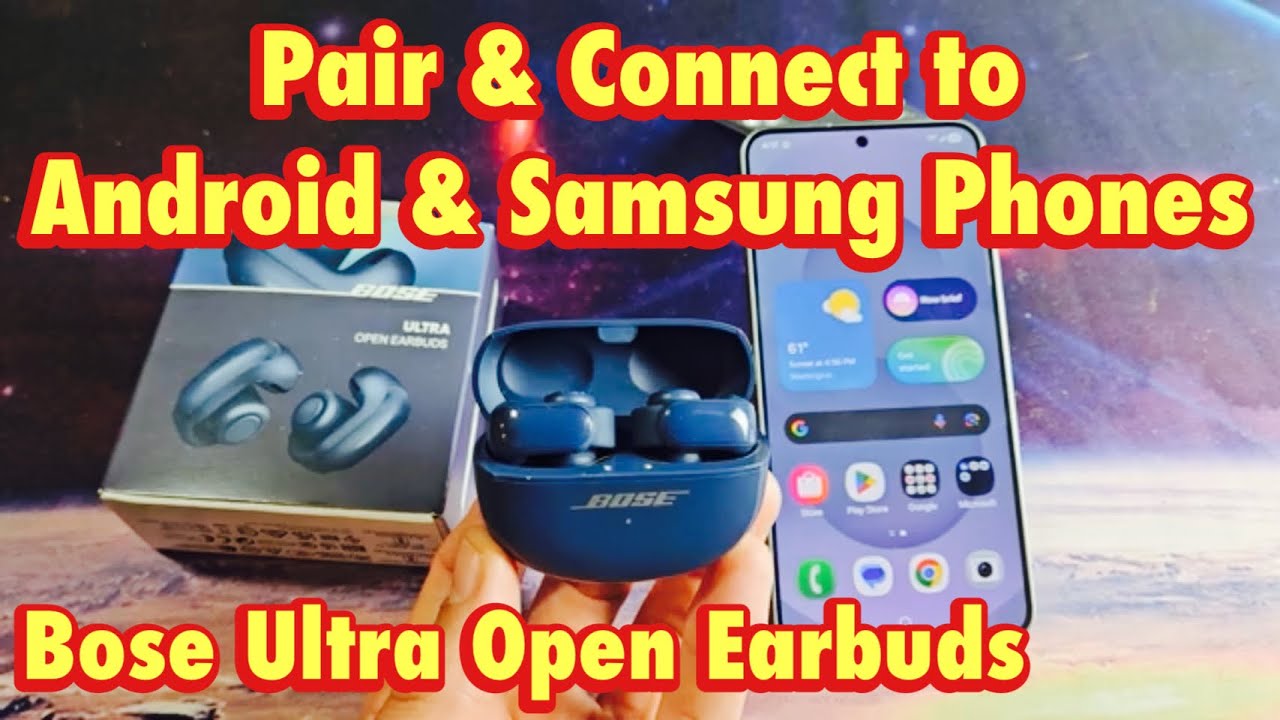
- Remove earbuds from the case or hold the power button on each earbud for a few seconds. For many Bose models, an LED flashes and voice prompts say “Ready to pair.”
- Scan for devices on Android
- In Bluetooth settings, tap “Pair new device” or wait for available devices to appear.
- Select your Bose earbuds from the list
- Tap the earbuds name (for example, “Bose QC Earbuds”) to pair. Accept pairing prompts if shown.
- Confirm successful connection
- Android will show “Connected” and the earbuds will play a sound or voice prompt. Test audio by playing music or a video.
If your model needs the Bose app:
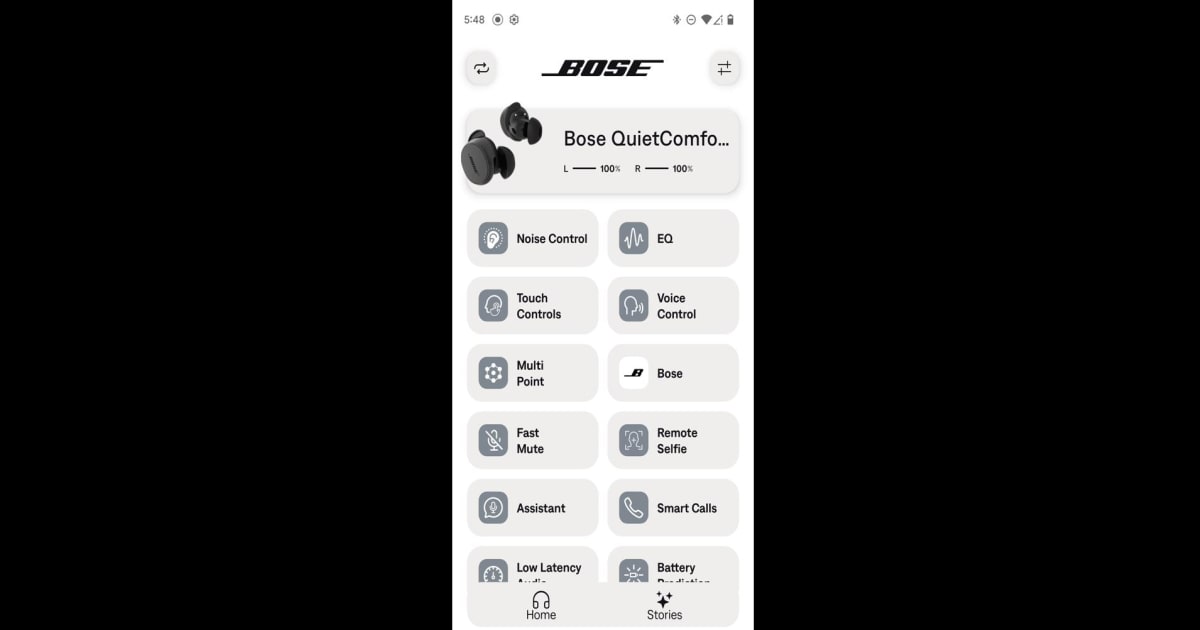
- Open Bose Music or Bose Connect and follow on-screen instructions for registration and firmware updates.
How to connect Bose earbuds to Android repeatedly:
- Reopen Bluetooth settings, choose the previously paired earbuds, and tap to connect.
Troubleshooting common issues when connecting Bose earbuds to Android
Problem: Android does not detect the earbuds
- Make sure earbuds are in pairing mode and not already connected to another device. Turn Bluetooth off and on on your phone and retry.
Problem: One earbud won’t connect
- Place both earbuds in the charging case and close it. Wait 10 seconds and take them out to force re-sync. If needed, reset the earbuds (steps below).
Problem: Poor audio or dropouts
- Move closer to the phone and remove obstacles. Turn off Wi-Fi 2.4 GHz temporarily to see if interference is the issue. Update firmware via the Bose app.
Problem: Microphone not working during calls
- Check Android app permissions: Settings > Apps > [App] > Permissions > Microphone. Ensure the app has microphone access and that the headset is selected as the audio device during the call.
Resetting and re-pairing steps (works for many Bose models):
- Turn off Bluetooth on your Android.
- Place earbuds in the charging case and close it for 30 seconds.
- Open the case and put earbuds in pairing mode.
- Turn Bluetooth on and pair again.
Advanced tips, settings, and features
Use these tips to get more from your setup and refine how you connect Bose earbuds to Android.
- Firmware updates: Always use the Bose Music or Bose Connect app to update firmware. Updates improve stability and features.
- Codec considerations: Android uses SBC by default, while some phones support AAC or aptX. Codec support depends on both earbuds and phone, and choosing the best codec can reduce latency or improve fidelity.
- Multipoint and multi-device: Some Bose models support multipoint. To enable, follow the model’s instructions in the Bose app and pair sequentially. If multipoint is unstable, disconnect other devices.
- Mono mode: If you want single-ear use, remove one earbud and pair; many models automatically route audio to the single earbud.
- Customize controls: Use the Bose app to assign touch or button controls for play/pause, voice assistant, and noise cancellation.
Personal tip from my experience:
- I once had a Pixel phone that kept switching to an old Bluetooth headset. Removing the old device from the paired list fixed the problem instantly. If you have weird reconnect behavior, clean up your paired device list.
Safety, privacy, and performance notes
- Privacy: Allow only trusted apps microphone access while connected. Some apps request permissions unnecessarily.
- Battery life: Bluetooth streaming uses battery. Use mono mode for longer single-ear listening, and enable power-saving modes if your phone supports them.
- Noise controls: Use noise cancellation or transparency modes carefully while walking or commuting to stay aware of your surroundings.
PAA-style quick questions
Will any Bose earbuds work with Android?
- Most Bose earbuds support standard Bluetooth profiles that work with Android. Specific features like advanced app control or codecs may vary by model.
Do I need the Bose app to connect my earbuds?
- Basic Bluetooth pairing usually works without the app. The Bose app adds firmware updates, customization, and advanced controls for supported models.
How do I reset Bose earbuds for a fresh connection?
- Put the earbuds in their case, close it, wait 30 seconds, then follow the model-specific reset steps in the Bose app or manual to clear paired devices.
Can I use two Android phones with my Bose earbuds?
- If your Bose earbuds support multipoint, you can pair with two phones simultaneously. Behavior varies by model and may require app setup.
What if firmware update fails during pairing?
- Retry on a stable Wi-Fi network and keep the earbuds charged. If problems persist, contact support or try updating with a different phone.
Frequently Asked Questions of how to connect bose earbuds to android
How do I put Bose earbuds into pairing mode on Android?
Most Bose earbuds enter pairing mode by holding down the power or Bluetooth button for several seconds until an LED blinks and a voice prompt says “Ready to pair.” Then select the earbuds from Android’s Bluetooth list.
Why won’t my Android phone find my Bose earbuds?
Your earbuds may be connected to another device or not in pairing mode. Turn off Bluetooth on other devices, reset the earbuds, then scan again from the Android Bluetooth settings.
Do I need the Bose Music app to use advanced features on Android?
Yes. The Bose Music or Bose Connect app unlocks firmware updates, EQ adjustments, and control customization for models that support those features.
How can I fix audio lag when gaming or watching video?
Enable any “low latency” or aptX Adaptive codec if both your phone and earbuds support it. Otherwise, use the Bose app’s settings or a wired option if available for the lowest delay.
Can I use only one Bose earbud with my Android phone?
Yes. Many Bose models support single-earbud use. Remove one earbud and it will typically connect by itself. Check the manual for model-specific behavior.
Conclusion
You now have a clear, practical path for how to connect Bose earbuds to Android, from first-time pairing to advanced tuning and troubleshooting. Start by putting your earbuds in pairing mode, use the Bose app for updates, and follow simple reset steps if things go wrong. Try the tips here and you’ll save time and get better sound and stability.
Take action: pair your earbuds now, update firmware, and leave a comment about your model and results so others can learn from your experience.

Everett Ashford is a tech reviewer at mytechgrid.com specializing in SSDs, cameras, TVs, earbuds, headphones, and other consumer electronics. He provides honest, data-driven reviews based on hands-on testing and real-world performance analysis. Everett simplifies complex tech details to help readers make smart, confident buying decisions.