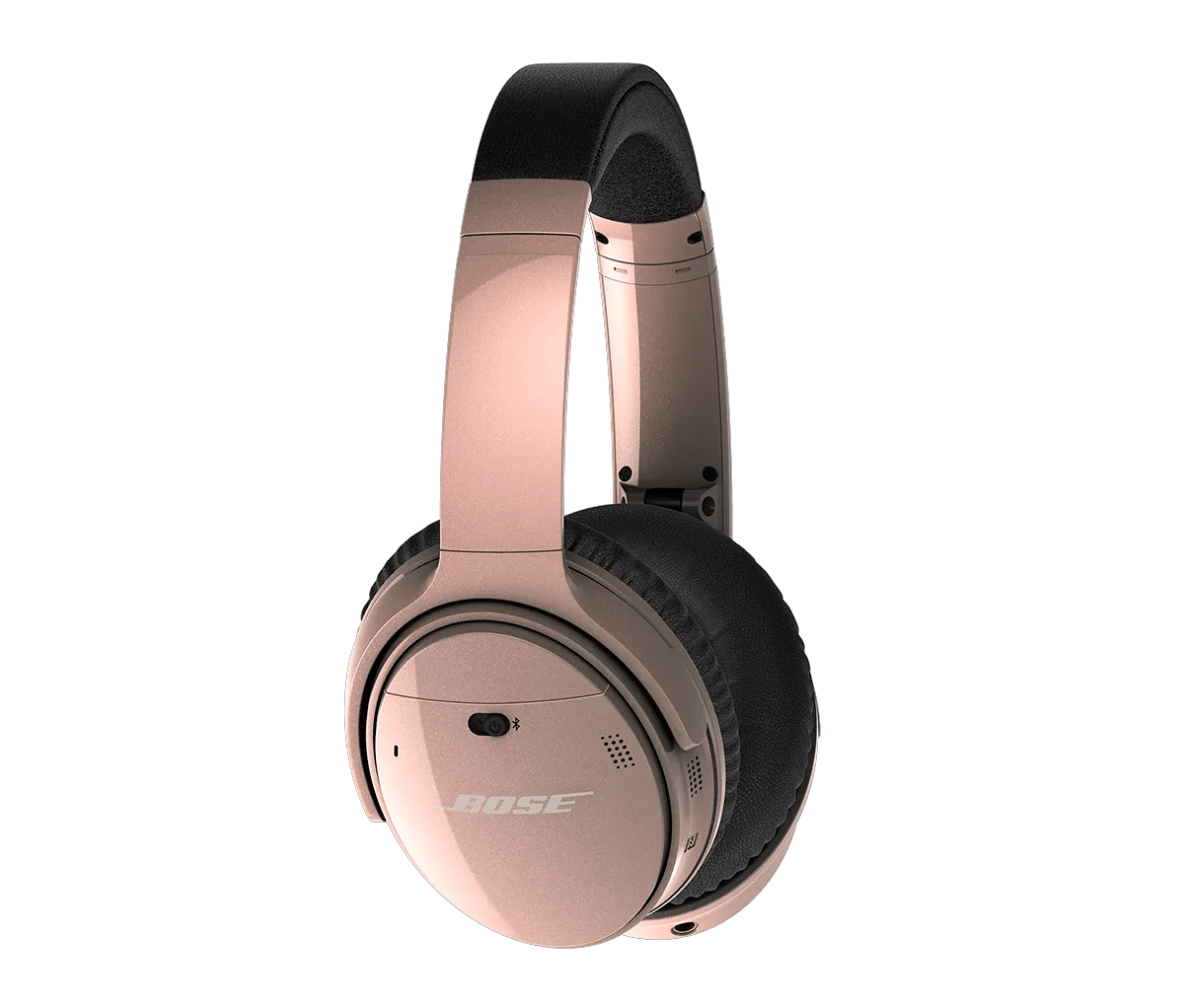
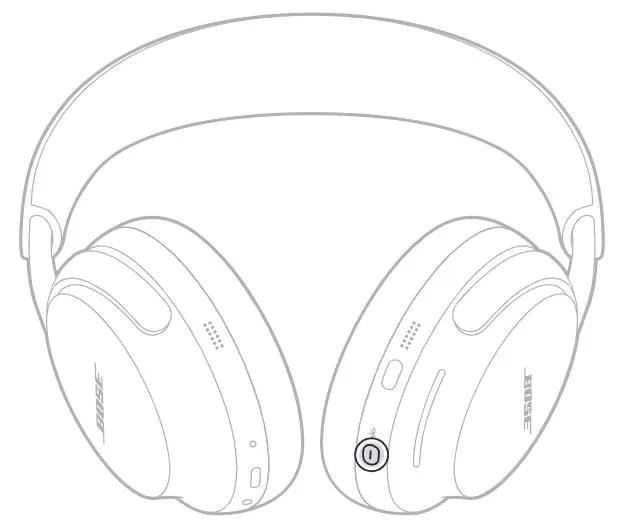
Hold the Bose Bluetooth button and choose "Disconnect" or "Forget" in your device's Bluetooth settings.
I’ve fixed dozens of headphone pairing hiccups and tested many Bose models. In this guide I’ll show exactly how to disconnect bose headphones from a device, step by step, for phones, tablets, and computers. You’ll get clear actions, troubleshooting tips, and real-world advice so you can stop unwanted audio, free your Bluetooth slot, or switch devices fast.
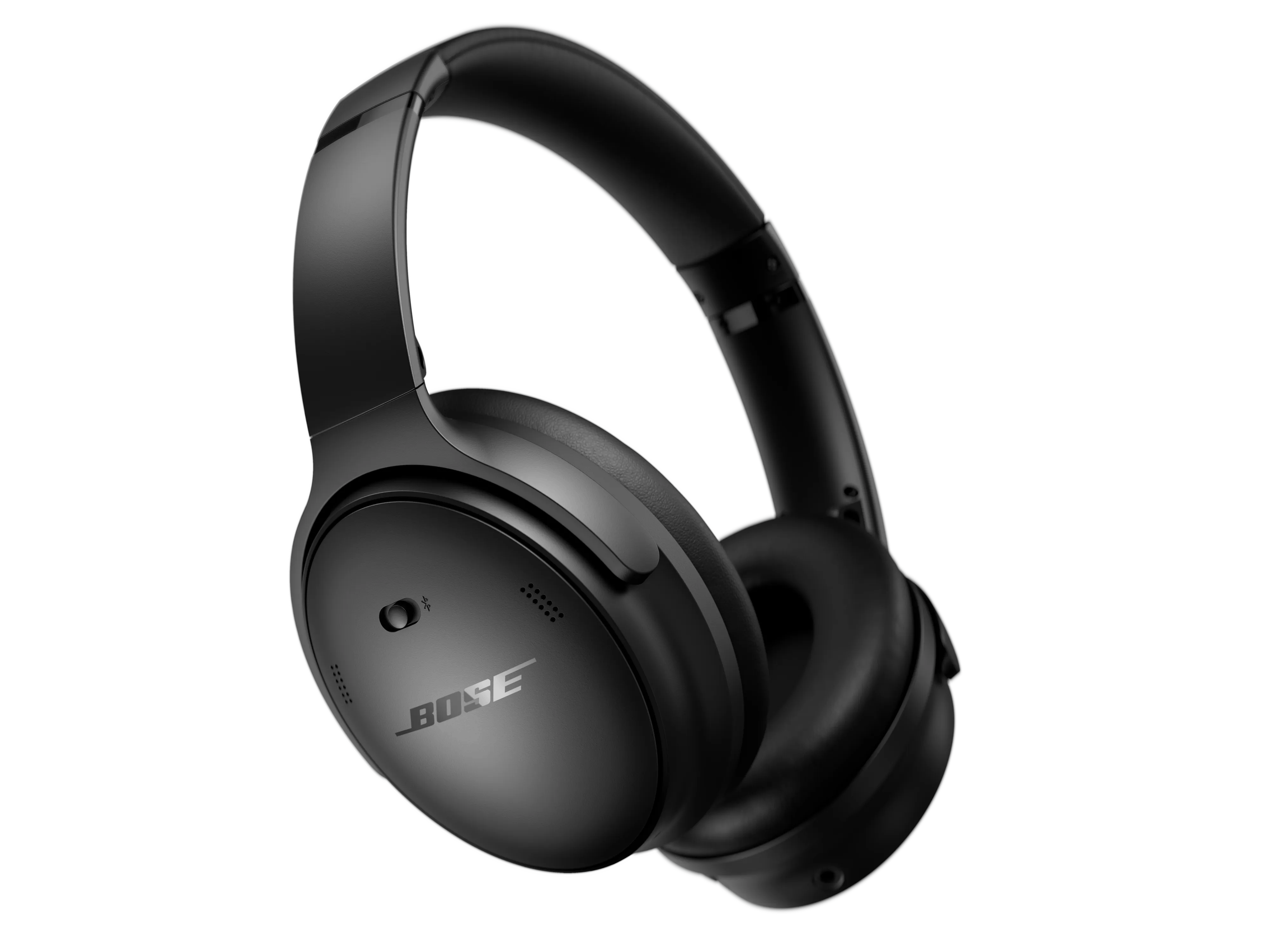
Why you might need to disconnect your Bose headphones from a device
Disconnecting is more than turning sound off. It frees the headphones to pair with another gadget. It avoids accidental audio playback when you don't want it. It can also fix pairing glitches and reduce battery drain.
Common reasons to disconnect:
- You want to connect the headphones to a different phone or computer.
- The headphones auto-connect at the wrong time.
- You are troubleshooting poor audio or connection drops.
- You plan to give the device to someone else or sell it.
Understanding why to disconnect helps you choose the right method and avoid repeat problems. Knowing how to disconnect bose headphones from a device saves time and prevents frustration.
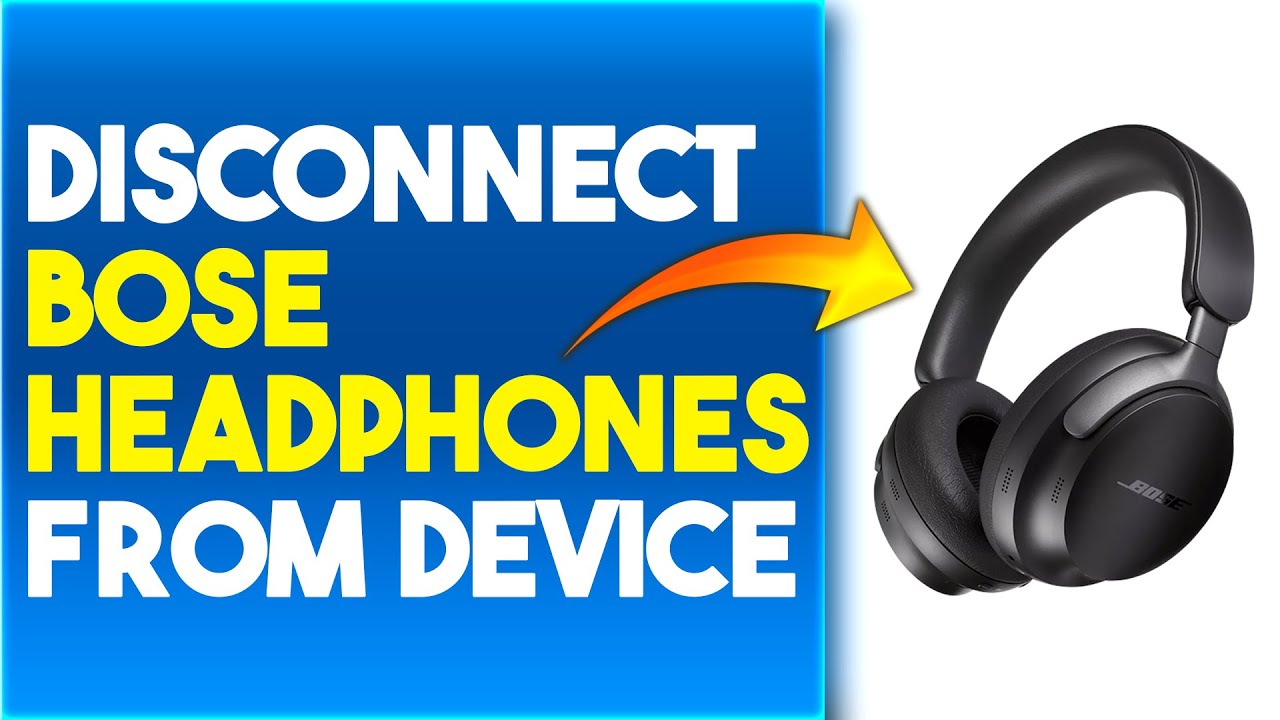
Simple quick methods to disconnect
There are a few fast ways to disconnect the headphones. Each works in different situations and for different Bose models. Try the simplest method first and move to other options if needed.
Quick ways to disconnect:
- Turn off the headphones. Power off cuts the Bluetooth link instantly.
- Turn off Bluetooth on the connected device. This forces a disconnect.
- Use your device’s Bluetooth menu to select Disconnect or Forget Device.
- Use the Bose Connect or Bose Music app to disconnect or manage paired devices.
- Put the headphones into pairing mode to interrupt the current connection.
If you need to permanently remove a pairing, choose Forget Device in your phone or computer. That prevents automatic reconnection until you pair again. Learning how to disconnect bose headphones from a device in these ways gives you control over what connects and when.
Step-by-step: iPhone and iPad
These steps work on iPhones and iPads running modern iOS. They are quick and reliable.
- Open Settings and tap Bluetooth.
- Find your Bose headphones in the device list.
- Tap the info button (i) next to the name.
- Tap Disconnect to stop audio temporarily.
- Tap Forget This Device to remove the pairing permanently.
- Confirm when prompted.
If Disconnect doesn’t appear, turn the headphones off and back on, then try again. Using the Bose Connect or Bose Music app also lets you view active connections and disconnect there. Knowing how to disconnect bose headphones from a device on iPhone keeps your audio private and your phone free to connect to other gear.
Step-by-step: Android
Android menus vary by manufacturer, but the steps are similar across most phones and tablets.
- Open Settings and go to Connections or Bluetooth.
- Locate your Bose headphones in the paired devices list.
- Tap the gear icon or the device name.
- Select Disconnect to stop the current session.
- To remove pairing, choose Forget or Unpair.
If your phone auto-reconnects, turn Bluetooth off briefly or remove the device from the list. Some phones show a three-dot menu with Disconnect or Forget options. Practicing how to disconnect bose headphones from a device on Android prevents accidental audio playback and frees Bluetooth for other devices.
Step-by-step: Windows and Mac
Disconnecting on a computer is easy. Follow the platform steps below.
Windows:
- Click the Bluetooth icon in the taskbar or open Settings > Devices > Bluetooth & other devices.
- Find the Bose headphones and choose Disconnect or Remove device.
- Confirm Remove if you want to unpair.
Mac:
- Click the Bluetooth icon in the menu bar or open System Settings > Bluetooth.
- Hover over the headphones and click Disconnect.
- To unpair, control-click and choose Remove.
If the device keeps reconnecting, turn off Bluetooth on the computer briefly or power cycle the headphones. Learning how to disconnect bose headphones from a device on desktop systems helps when you switch audio sources while working.

Using Bose apps and device-specific tips
Bose offers apps for newer models. These apps show active connections and give extra control.
What the apps let you do:
- View which device is currently connected.
- Disconnect or switch devices supported by the model.
- Update firmware that may fix persistent issues.
- Manage multiple paired devices and rename headphones.
Some Bose models let you switch active connections by pressing and holding buttons. Check the model-specific guide if you have Bose 700, QuietComfort, or Sport models. The app is useful when standard Bluetooth menus don’t show a clear Disconnect option. Knowing how to disconnect bose headphones from a device from the app is handy for advanced control and firmware fixes.
Troubleshooting common problems
Sometimes disconnecting fails or the headphones reconnect unexpectedly. These fixes address common issues.
Try these steps:
- Power-cycle both the headphones and the device. Simple reboots fix many errors.
- Remove the pairing on both ends and re-pair if needed.
- Update firmware using the Bose app to clear bugs.
- Reset the headphones to factory settings if other steps fail.
If someone else’s device keeps connecting, have them Forget the headphones. If audio still plays, check app-level audio routing in music or call apps. Practicing a disciplined routine for how to disconnect bose headphones from a device prevents recurring pairing headaches.

Personal experience, mistakes to avoid, and pro tips
I once spent an hour trying to stop a client’s Bose headphones from auto-connecting. The real issue was an old paired laptop nearby. Turning off Bluetooth there fixed it. That taught me to check all nearby paired devices first.
Lessons and tips:
- Check every paired device when a disconnect won’t stick.
- Use Forget Device if you want a permanent break.
- Keep firmware current to reduce odd behavior.
- Carry a small checklist: power off, disable Bluetooth, forget, factory reset.
- Label headphones in your Bluetooth list so you don’t disconnect the wrong gadget.
My experience shows that methodical checks save time. Learn how to disconnect bose headphones from a device the right way and you’ll stop guessing and start controlling your audio.
Frequently Asked Questions of how to disconnect bose headphones from a device
How do I temporarily disconnect my Bose headphones?
Open your device's Bluetooth settings and tap Disconnect. This stops audio but keeps the pairing for easy reconnection.
How do I permanently remove Bose headphones from my device?
In Bluetooth settings choose Forget or Remove device for your Bose headphones. This deletes the pairing and prevents auto-reconnect.
What if my Bose headphones won’t disconnect?
Power cycle both the headphones and the connected device. If that fails, remove the pairing on both devices and re-pair or perform a factory reset on the headphones.
Can I disconnect Bose headphones using the Bose app?
Yes. The Bose Connect or Bose Music app shows active connections and can disconnect or manage paired devices for supported models.
Will turning off Bluetooth on my phone disconnect Bose headphones?
Yes. Turning off Bluetooth on the phone severs the link immediately. The headphones may still be paired and will reconnect when Bluetooth is enabled again.
Conclusion
You now have practical, step-by-step ways to manage connections and control how to disconnect bose headphones from a device. Use quick disconnects for short breaks, Forget Device for permanent removal, and the Bose app for advanced control. Start with simple steps, then move to resets or firmware updates if problems persist. Try these tips today, and leave a comment with your model and issue if you need further help — I’ll respond with a tailored fix.

Everett Ashford is a tech reviewer at mytechgrid.com specializing in SSDs, cameras, TVs, earbuds, headphones, and other consumer electronics. He provides honest, data-driven reviews based on hands-on testing and real-world performance analysis. Everett simplifies complex tech details to help readers make smart, confident buying decisions.