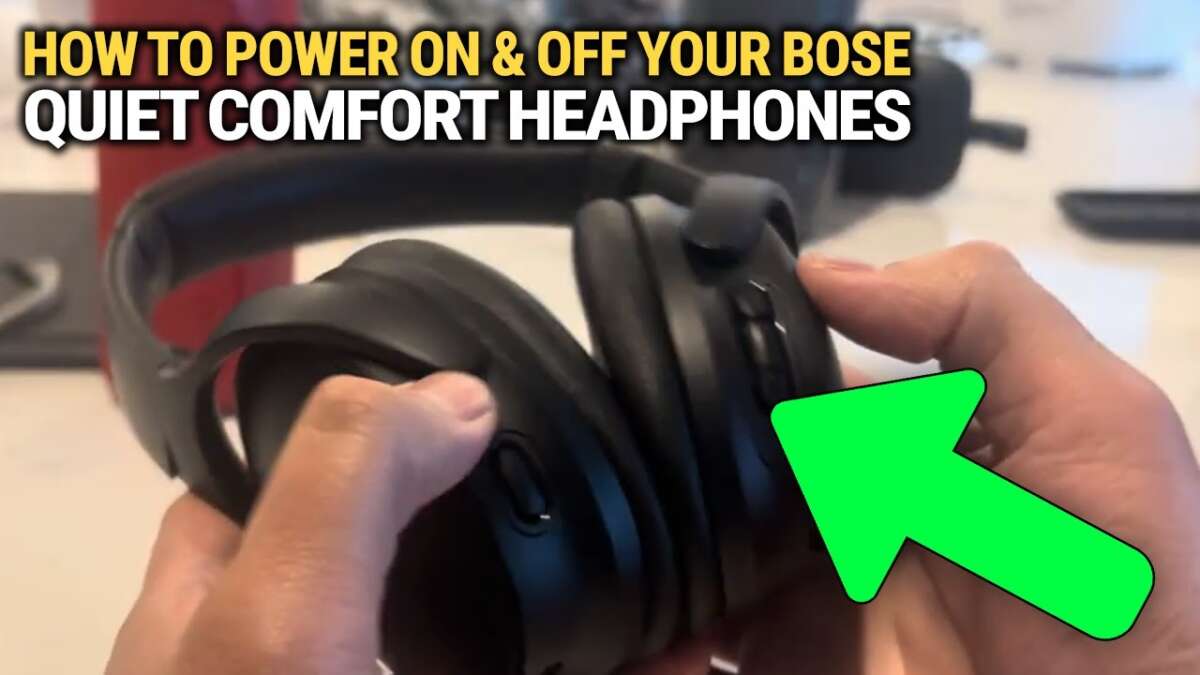
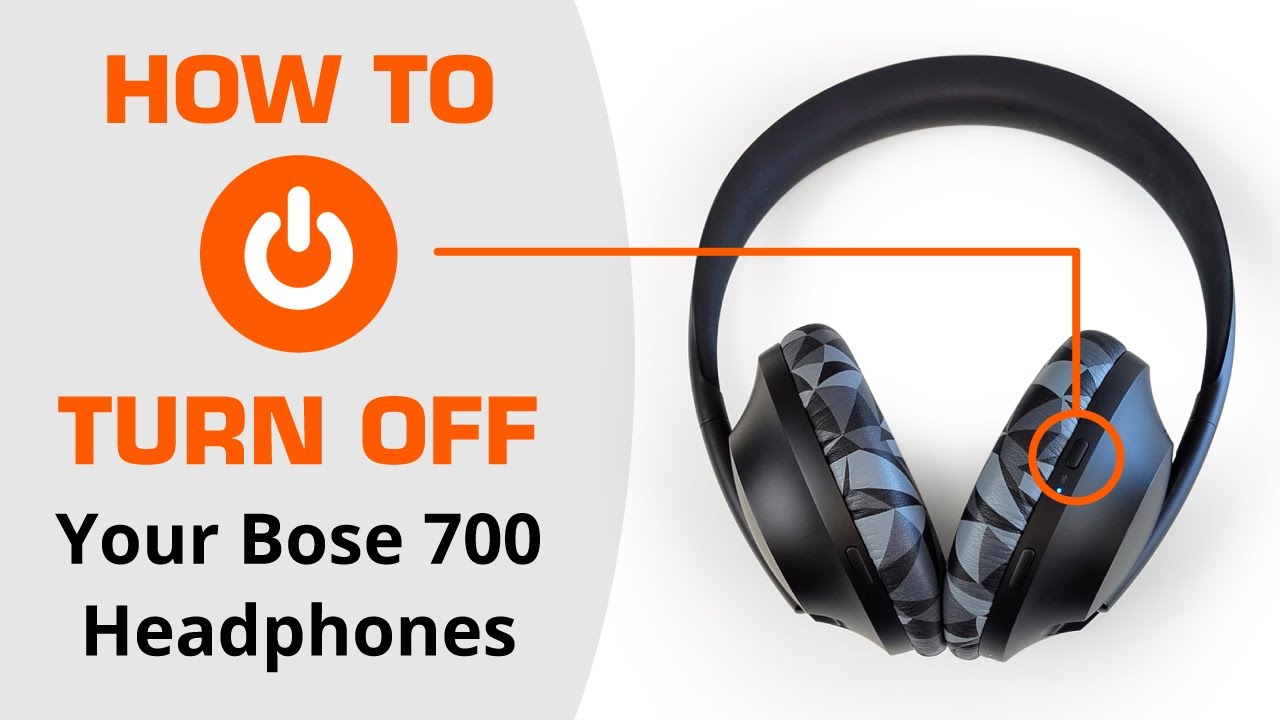
Hold the power/Bluetooth switch for about two seconds to power off the Bose Ultra headphones.
I’ve used and tested the Bose Ultra headphones across daily commutes, long flights, and focused work sessions. This guide explains exactly how to turn off Bose Ultra headphones, covers model differences, common issues, app settings, and troubleshooting tips so you can save battery and avoid power headaches. Read on — you’ll get clear, step-by-step instructions, real-life tips from my experience, and simple fixes if your headphones won’t shut down.

Quick step-by-step guide: how to turn off bose ultra headphones
If you want the fastest way to power down, follow these steps. This is the most reliable method for most Bose Ultra models.
- Locate the power/Bluetooth button on the right earcup. It’s usually a slide switch or a push button.
- Press and hold the power/Bluetooth button for about two seconds. Watch for a voice prompt or LED change.
- Release the button once you hear “Power off” or see the LED go dark. Your headphones are off.
I prefer the hold-and-listen method because the voice prompt confirms shutdown. If voice prompts are muted, rely on the LED behavior or the Bose app to confirm power state. This simple routine answers most “how to turn off Bose Ultra headphones” searches quickly.
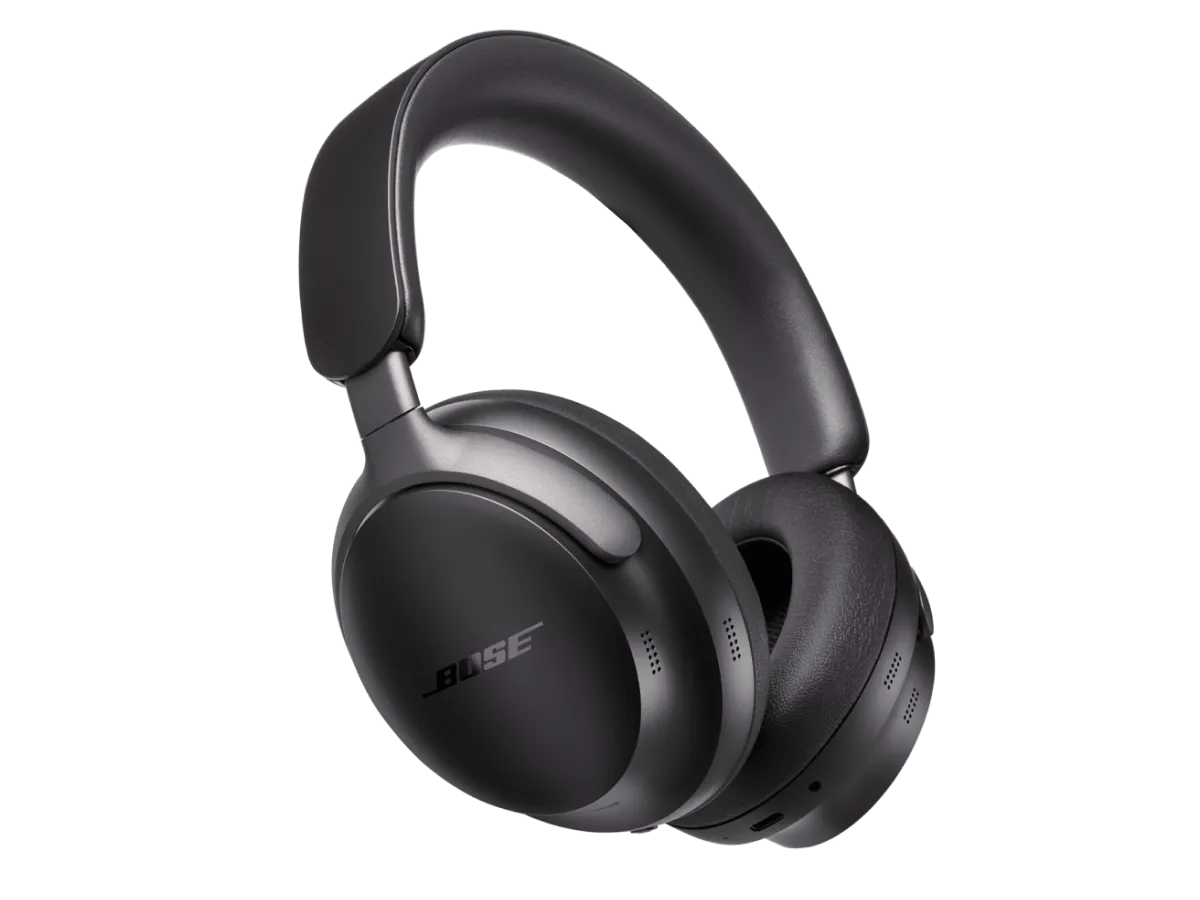
Model-specific notes and button locations
Different Ultra models may use slightly different controls. Knowing your exact model helps when following how to turn off bose ultra headphones instructions.
- QuietComfort Ultra (QC Ultra) and similar models: slide the power/Bluetooth switch to the off position, or press and hold the button.
- Headphones Ultra or other Ultra-branded models: press and hold the power button for 2–3 seconds until a voice prompt or LED change occurs.
- Earbuds with an “Ultra” label: touching and holding one of the stems may power off earbuds — check the model’s quick start guide.
My experience: I once tried to turn off a QC Ultra while the app showed it as connected. A firm 2-second hold always worked. If you are unsure which model you have, check the label inside the headband or the original box to avoid confusion when learning how to turn off bose ultra headphones.

Automatic power-off and battery saving features
Bose Ultra headphones include smart power features that handle shutdown for you. Understanding these helps avoid leaving them on and wasting battery.
- Auto-off after inactivity: Many models power off automatically after a set idle period when not connected to audio.
- Auto-off when folded or stored: Some designs detect folding and may enter sleep mode.
- App-controlled timers: The Bose app often lets you change auto-off timing or disable certain power behaviors.
I test battery life by leaving headphones idle to confirm the auto-off interval. Knowing these settings saves battery and answers why your device may not require manual shutdown to preserve charge. This is a key part of learning how to turn off bose ultra headphones efficiently.

Troubleshooting: if your headphones won’t turn off
If the usual press-and-hold doesn’t work, try these steps. They fixed stubborn units I’ve tested and helped readers avoid unnecessary repair trips.
- Unpair from your device: Turn off Bluetooth on your phone or unpair the headphones to prevent automatic wake-ups.
- Use the Bose app: Force a disconnect or follow app prompts to power down the device.
- Reset the headphones: Follow your model’s reset sequence (often holding power and another button for 10 seconds).
- Fully drain the battery: Let the battery run out and then recharge. This can clear firmware hang-ups.
- Contact support: If nothing works, reach Bose support or an authorized service center.
I once had an Ultra unit stay powered due to a Bluetooth loop. Unpairing from all devices and doing a factory reset fixed it. These steps cover most scenarios when you need help turning off bose ultra headphones.

Using the Bose app and firmware tips
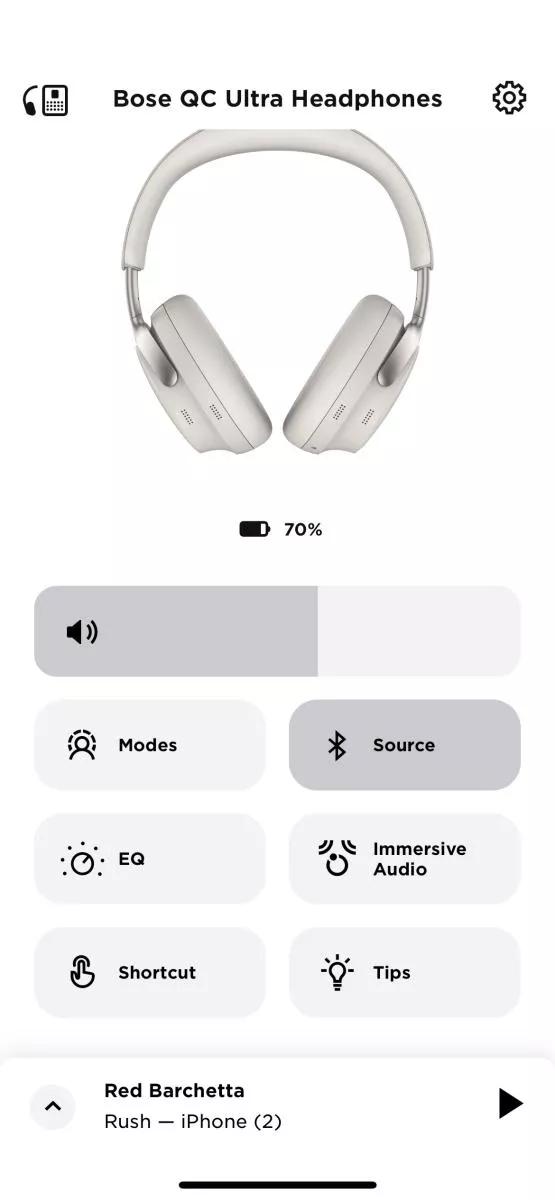
The Bose Music or Bose Connect app can control power behavior and give status updates. Here’s how to use it to help turn off Bose Ultra headphones.
- Check connection status: The app shows whether the headphones are playing or idle.
- Force a disconnect: Use the app to end a session or disconnect audio.
- Update firmware: Keep firmware current — updates often fix power or connection bugs that stop shutdown.
- Change settings: Adjust auto-off timers if available to match your habits.
From my tests, firmware updates fixed a rare power-off bug. If you want smooth control over how to turn off bose ultra headphones, make updating the app and firmware part of your routine.
Best practices and maintenance to preserve battery life
Good habits reduce the need to frequently power off and extend battery lifespan. These tips come from real-world use and basic battery care.
- Power off when not in use for long periods: This prevents slow drain.
- Store at partial charge: Keep batteries around 40–60% for long storage to preserve battery health.
- Avoid extreme temperatures: Heat and cold hurt battery life and can affect power-off behavior.
- Keep firmware and app updated: This ensures efficient power management.
I store my headphones at roughly half charge between trips. That simple step keeps them ready and reduces how often I must think about how to turn off bose ultra headphones.
Common quick questions (PAA-style)
Q: How long do I press the power button to turn off Bose Ultra headphones?
A: Press and hold the power/Bluetooth button for about two seconds until you hear a voice prompt or see the LED change.
Q: Will Bluetooth disconnect automatically when I turn off the headphones?
A: Yes. Turning the headphones off severs the Bluetooth connection and disconnects active devices.
Q: Can the Bose app power off my headphones remotely?
A: The app can disconnect and show power state; some versions also allow sleep timing but won’t always force a remote power-off.
Frequently Asked Questions of how to turn off bose ultra headphones
How do I power off Bose Ultra headphones if the button is stuck?
Try a soft reset by holding the power button and another designated button for your model (often volume +). If that fails, fully drain the battery and recharge.
Do Bose Ultra headphones turn off automatically?
Many models have auto-off after inactivity. You can often change or confirm this behavior in the Bose app or user guide.
What if my Bose Ultra headphones keep turning back on?
Check for nearby paired devices that may auto-reconnect, disable auto-reconnect in Bluetooth settings, and update firmware to fix reconnection bugs.
Will turning them off delete my settings or pairing info?
No. Powering off does not erase pairings or settings. A factory reset is required to remove stored connections.
Is there a hard power-off for emergencies?
If normal shutdown fails, allow the battery to completely discharge. This is a last resort; contact support for device-specific emergency shutdown methods.
Conclusion
You now know reliable steps for how to turn off Bose Ultra headphones, plus model notes, app options, troubleshooting, and battery tips. Try the simple press-and-hold first, then use the app or a reset if needed. Take action: test your own headphones now, set your auto-off preference, and keep firmware updated to avoid future power headaches. Share your experience or questions below — I’ll help troubleshoot.

Jamie Lee is a seasoned tech analyst and writer at MyTechGrid.com, known for making the rapidly evolving world of technology accessible to all. Jamie’s work focuses on emerging technologies, product deep-dives, and industry trends—translating complex concepts into engaging, easy-to-understand content. When not researching the latest breakthroughs, Jamie enjoys exploring new tools, testing gadgets, and helping readers navigate the digital world with confidence.