To pair Shokz earbuds, turn on Bluetooth, open pairing mode, select Shokz, and confirm the connection.
If you searched for how to pair shocks earbuds, you likely mean Shokz earbuds or headphones. Shokz products use Bluetooth, but the exact steps can differ between OpenRun, OpenFit, and other models. This guide explains the process in simple steps, covers common pairing problems, and shares practical tips that help you connect faster.
How to pair Shokz earbuds for the first time
The first pairing usually takes less than two minutes. Keep the earbuds near your phone, tablet, or computer during setup. Bluetooth works best when the devices are close and free from heavy wireless interference.
Before you begin, check these points:
• Charge the Shokz earbuds and their case, if your model has one.
• Turn off Bluetooth on nearby devices that may connect automatically.
• Remove the earbuds from the case if they are true wireless models.
• Keep your phone within about 3 feet of the earbuds.
Follow these steps to learn how to pair shocks earbuds with most phones:
- Open Settings on your phone.
- Select Bluetooth.
- Turn Bluetooth on.
- Put the Shokz earbuds into pairing mode.
- Look for the Shokz name in the list of available devices.
- Tap the model name.
- Wait for the status to change to Connected.
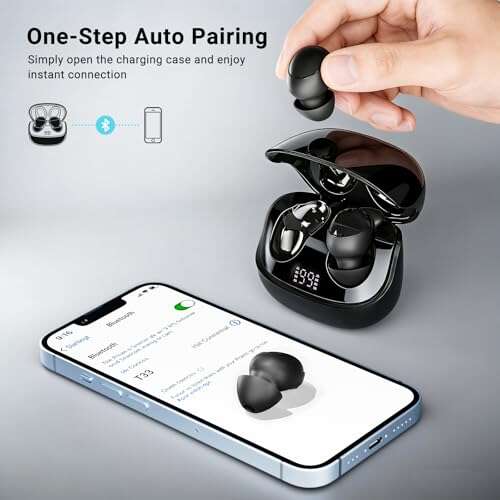
Most Shokz models enter pairing mode by holding the power or volume-up button for several seconds. Many models announce “pairing,” and an LED may flash red and blue. On OpenFit models, placing both earbuds in the charging case and opening the case may start pairing mode. If it does not, use the case button or the model’s control method.
The name shown may look like “OpenRun by Shokz,” “OpenFit,” or another model name. Select the device that matches your product rather than a nearby headset with a similar name.

How to pair Shokz earbuds with an iPhone
Pairing Shokz earbuds with an iPhone is usually quick because iOS shows nearby Bluetooth devices in one clear menu. Make sure your earbuds are not already connected to another phone, laptop, or smartwatch.
Here is how to pair shocks earbuds with an iPhone:
- Open the Settings app.
- Tap Bluetooth.
- Switch Bluetooth on.
- Press and hold the Shokz power button until pairing mode starts.
- Find your Shokz model under Other Devices.
- Tap the model name.
- Check that it appears under My Devices as Connected.
If the earbuds do not appear, close and reopen the Bluetooth screen. You can also move away from other Bluetooth devices. In my experience helping people set up wireless audio, the most common mistake is tapping the device before it enters pairing mode. The phone cannot find earbuds that are only powered on but not ready to pair.
For OpenFit earbuds, keep both earbuds in or near the charging case while you open the lid. If the case has a pairing button, press it until the indicator flashes. Then select the earbuds on your iPhone.
After pairing, music should play through the earbuds. If sound still comes from the iPhone speaker, open Control Center, tap the audio output icon, and choose your Shokz earbuds.

How to pair Shokz earbuds with an Android phone
Android menus can vary by brand, but the Bluetooth process is much the same. Samsung, Google Pixel, Motorola, OnePlus, and other Android phones all use a Bluetooth device list.
To learn how to pair shocks earbuds with Android, use these steps:
- Open Settings.
- Tap Connected devices, Connections, or Bluetooth.
- Select Pair new device if needed.
- Put the Shokz earbuds into pairing mode.
- Tap the Shokz model in the available devices list.
- Approve the pairing request if one appears.
Some Android phones show a Fast Pair pop-up. If you see one, tap Connect and follow the on-screen instructions. If no pop-up appears, use the normal Bluetooth menu.
Android may ask for permission to access nearby devices. Allowing this permission helps the phone scan for Bluetooth products. It does not mean the earbuds can read your personal files.
If you previously paired the earbuds with another Android phone, turn Bluetooth off on that old phone for a moment. Otherwise, the Shokz earbuds may reconnect to it before your new phone can complete setup.
How to pair Shokz earbuds with a computer
Shokz earbuds can connect to Windows PCs, Mac computers, and some Chromebooks. This is useful for video calls, online classes, music, and gaming. Audio delay may vary by computer, app, and Bluetooth version.
Windows
- Open Settings.
- Select Bluetooth & devices.
- Turn Bluetooth on.
- Click Add device.
- Choose Bluetooth.
- Put the Shokz earbuds into pairing mode.
- Select the Shokz model.
After pairing, click the speaker icon in the Windows taskbar. Choose the Shokz earbuds as the sound output device. For calls, also check the microphone input in your meeting app.
Mac
- Open the Apple menu.
- Select System Settings.
- Click Bluetooth.
- Turn Bluetooth on.
- Put the Shokz earbuds in pairing mode.
- Click Connect beside the Shokz model.
If a Mac shows separate options for input and output, choose the Shokz product for both when you want to use its microphone. Some computers display a headset mode during calls. That mode may reduce sound quality, but it allows two-way communication.
Chromebook
- Select the status area in the lower-right corner.
- Turn Bluetooth on.
- Choose Bluetooth.
- Select the Shokz earbuds from the list.
- Follow the pairing prompt.
When learning how to pair shocks earbuds with a computer, remember that pairing and audio selection are separate steps. A computer can say Connected while still sending sound through its built-in speakers.

How to put different Shokz models into pairing mode
Shokz makes several types of earbuds and headphones. The button used for pairing may differ by model. Always check the quick-start guide for your exact product if the steps below do not work.
OpenRun and other open-ear headphones
- Turn the headphones off.
- Press and hold the volume-up button.
- Continue holding it until the voice prompt says pairing.
- Select the Shokz device on your phone.
The volume-up button often controls power and pairing on open-ear models. Do not release it as soon as the headphones turn on. Keep holding it until pairing mode begins.
OpenFit true wireless earbuds
- Place both earbuds in the charging case.
- Open the case.
- Press the case pairing button if your model has one.
- Wait for the indicator to flash.
- Select OpenFit in your device’s Bluetooth menu.
Some OpenFit versions use touch controls or a case button. The indicator pattern can vary, so the product guide is the best source for model-specific details.
Older Shokz models
Older products may use a multifunction button instead of a volume button. Hold the main button while the headphones are off until the LED flashes and the voice prompt announces pairing.
The basic idea remains the same: power the product off, hold the correct button, wait for pairing mode, and then select the product from Bluetooth settings.
How to pair Shokz earbuds with a second device
Many Shokz products support multipoint pairing. This feature lets the earbuds remember two devices and switch between them, such as a phone and a laptop. However, multipoint behavior depends on the model and firmware.
Use this process:
- Pair the Shokz earbuds with the first device.
- Disconnect them from that device without removing the saved Bluetooth entry.
- Put the earbuds into pairing mode again.
- Pair them with the second device.
- Reconnect the first device.
Some models need multipoint turned on in the Shokz app. Others support it directly. If both devices play audio at the same time, the earbuds may pause one source or follow the device that started playback first.
A helpful example is using a laptop for a video call while keeping your phone connected for calls. The earbuds may switch to the phone when a call arrives. This feature is convenient, but it is not always seamless with every computer or app.
If you are learning how to pair shocks earbuds with multiple devices, avoid pairing them with too many products at once. A long list of saved devices can make automatic connection less predictable.

How to fix Shokz earbuds that will not pair
Pairing problems are usually caused by an old connection, low battery, incorrect pairing mode, or wireless interference. Try the fixes below in order.
Restart both devices
Turn the earbuds off and restart your phone or computer. Then try how to pair shocks earbuds again from the beginning. A simple restart often clears a temporary Bluetooth error.
Forget the old Bluetooth connection
On your phone, open the Bluetooth device list and tap the settings icon beside the Shokz product. Choose Forget, Unpair, or Remove device. Put the earbuds back into pairing mode and connect again.
This step is especially useful when the phone says “Could not connect” or connects without producing sound.
Turn off nearby Bluetooth devices
A previously paired laptop, tablet, or phone may claim the earbuds first. Turn Bluetooth off on nearby devices, then repeat the pairing process with your preferred device.
Charge the earbuds
A low battery can prevent pairing or cause the connection to drop. Charge both earbuds and the case, if included, before trying again.
Reset the earbuds
A reset removes saved connections and returns the earbuds to a fresh setup state. The reset method varies by model, so use the official guide for your product. On some Shokz headphones, you hold several buttons together for a few seconds. On some true wireless models, the reset uses the charging case.
Do not reset the product as your first step. It removes saved devices, so you will need to pair everything again.
Check software and firmware
Update your phone or computer when practical. If your Shokz model works with the Shokz app, check for a firmware update there. Updates can improve compatibility, stability, and control functions, although they cannot fix every Bluetooth problem.
Bluetooth technology is designed for short-range connections. Walls, crowded wireless spaces, and some USB devices can affect performance. The Bluetooth SIG describes Bluetooth as a short-range wireless standard, so keeping the earbuds near the source remains one of the simplest fixes.
Common pairing mistakes to avoid
Many setup problems come from small errors rather than defective earbuds. Watch for these common issues:
• Selecting the wrong device: Nearby headphones may appear with similar names.
• Skipping pairing mode: Turning on the earbuds is not always enough.
• Keeping the old device active: Another phone may connect first.
• Pairing one earbud only: With true wireless models, both earbuds usually need to be in the case during setup.
• Ignoring audio output: A connected computer may still use its built-in speakers.
• Resetting too soon: A reset erases saved connections and adds extra work.
• Standing too far away: Start within a few feet of the phone or computer.
In real-world setups, the biggest lesson is to slow down and watch the indicator light or voice prompt. Pairing mode is like opening a front door. If the door is closed, your phone can search all day and still find nothing.
How to improve the Bluetooth connection
A successful pairing does not guarantee perfect sound in every location. You can improve reliability with a few simple habits.
Keep the phone or computer on the same side of your body as the earbuds when possible. Your body can partly block radio signals, especially when the source is in a back pocket or bag.
Avoid covering the earbuds with thick clothing or placing the phone inside a metal container. Large crowds, Wi-Fi equipment, and other wireless devices may also create a busy radio environment.
Keep the earbuds clean and dry according to the product instructions. Dirt will not usually affect Bluetooth pairing, but it can affect charging, touch controls, microphones, and sound quality.
For calls, select the Shokz microphone in the meeting app. Apps such as Zoom, Microsoft Teams, and Google Meet may use a different microphone even when the earbuds are connected.
Pairing, connection, and sound problems explained
These three terms describe different stages:
• Pairing means the earbuds and device exchange information for the first time.
• Connection means the saved devices link again after pairing.
• Audio output means the device sends sound to the earbuds.
For example, your phone may show Shokz as Connected, but music may still play from the phone speaker. That is an audio output issue, not a pairing failure.
If only one earbud plays, place both earbuds in the case, close the lid, and try again. Check the left and right battery levels in the phone or Shokz app. If the problem continues, reset the earbuds using the instructions for that model.
If audio cuts out during movement, test the earbuds near the phone while standing still. If the connection remains stable nearby but fails at a distance, range or interference is more likely than a pairing problem.
Frequently Asked Questions About How to Pair Shokz Earbuds
How do I put Shokz earbuds into pairing mode?
Turn the earbuds off, then press and hold the power, volume-up, case, or multifunction button used by your model. Release it when the LED flashes or the voice prompt says pairing.
Why are my Shokz earbuds not showing up on Bluetooth?
They may not be in pairing mode, may be connected to another device, or may have a low battery. Turn off Bluetooth on nearby devices, restart the earbuds, and try how to pair shocks earbuds again.
How do I pair Shokz earbuds after forgetting the device?
Open your phone’s Bluetooth settings and search for new devices. Put the earbuds into pairing mode, then select the Shokz model when it appears.
Can I pair Shokz earbuds with two devices?
Many Shokz models support multipoint connections, but the feature depends on the model. Pair each device separately and turn on multipoint in the Shokz app if your product requires it.
How do I reset Shokz earbuds?
The reset method depends on the model. Check the official instructions for your exact Shokz product, because some models use several buttons while others use the charging case.
Why are my Shokz earbuds connected but have no sound?
Your phone or computer may be using another audio output. Open the sound or media output menu and choose the Shokz earbuds manually.
Do Shokz earbuds work with iPhone and Android?
Yes, most Shokz Bluetooth earbuds work with both iPhone and Android devices. Some app features may differ between operating systems.
Conclusion
Learning how to pair shocks earbuds is simple once you know the pattern: charge the product, activate pairing mode, open Bluetooth settings, and select the correct Shokz name. If the connection fails, forget the old device, restart both products, and check that another phone is not connecting first.
Take a minute to identify your exact Shokz model before resetting it. Then try the steps above and enjoy a cleaner, more reliable wireless connection. If this guide helped, share your model and pairing experience in the comments.

Everett Ashford is a tech reviewer at mytechgrid.com specializing in SSDs, cameras, TVs, earbuds, headphones, and other consumer electronics. He provides honest, data-driven reviews based on hands-on testing and real-world performance analysis. Everett simplifies complex tech details to help readers make smart, confident buying decisions.