Connect it, open the drive, copy your files, and safely eject it when you finish.
Learning how to use SanDisk Extreme Portable SSD is simple, but a few setup choices affect speed, safety, and long-term reliability. This guide explains how to connect, format, use, protect, and troubleshoot the drive on Windows, Mac, iPhone, iPad, Android, and game systems.
What Is a SanDisk Extreme Portable SSD?
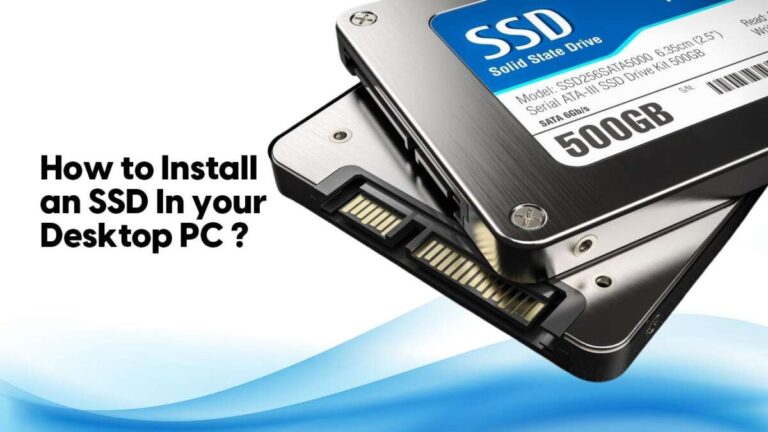
A SanDisk Extreme Portable SSD is a small external solid-state drive. It stores files on flash memory instead of using spinning disks, so it is quiet, light, and usually much faster than a traditional portable hard drive.
People use it for:
• Photo and video storage
• Computer backups
• Moving large files between devices
• Editing media from an external drive
• Expanding laptop storage
• Storing game files and project folders
The exact speed depends on your SanDisk model, USB port, cable, file type, and computer. Some Extreme models support faster USB standards than others. The drive cannot reach its advertised speed if you connect it to a slower port.
A useful way to think about the SSD is as a fast travel bag for your files. It can move a lot of data, but it still needs careful handling. A portable SSD is not a complete backup unless your files also exist in another place.

What You Need Before Using SanDisk Extreme Portable SSD
Before learning how to use SanDisk Extreme Portable SSD, check the items below:
• The SSD and its USB cable
• A computer, phone, tablet, or compatible game console
• A USB port that matches the cable or adapter
• Enough power for the connected device
• A second storage location for important backups
Most SanDisk Extreme Portable SSD packages include a USB-C cable and a USB-C to USB-A adapter. Use the original cable when possible. A low-quality cable may cause slow speeds, disconnects, or failed file transfers.
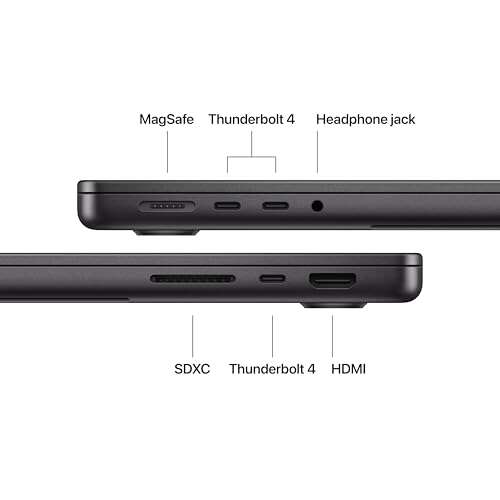
Check the ports before you connect the drive. USB-C describes the shape of the connector, not always the speed. A USB-C port may support USB 3.2, Thunderbolt, USB 2.0, or charging only.
For a phone or tablet, you may also need:
• A USB-C to USB-C cable
• A Lightning to USB adapter for some iPhones
• A powered hub if the device cannot supply enough power
• Enough free battery power for a long transfer
Do not assume every USB-C cable supports fast data. Some cables are made mainly for charging. For the best result, use a certified data cable that supports the speed required by your SSD.
How to Connect SanDisk Extreme Portable SSD
The first step in how to use SanDisk Extreme Portable SSD is connecting it correctly.
-
Turn on your computer or mobile device.
-
Plug the USB-C cable into the SSD.
-
Connect the other end to a compatible USB port.
-
Wait a few seconds for the drive to appear.
-
Open the drive in your file manager.
On Windows, open File Explorer and select the drive under “This PC.” On a Mac, open Finder and look under “Locations.” The SSD may appear with a name such as “Extreme SSD” or “Untitled.”
If the drive does not appear, do not format it immediately. First, try another port and cable. Then test the SSD on another computer. Formatting can erase files, so it should not be your first troubleshooting step if data is already on the drive.
The drive may include setup files or a digital user guide. You can keep them, copy them elsewhere, or remove them after confirming that the SSD works. Do not delete files if you are unsure whether they are needed for a bundled security tool.

How to Use SanDisk Extreme Portable SSD on Windows
Windows usually recognizes the SanDisk Extreme Portable SSD without extra drivers. Once it appears in File Explorer, you can use it like any other storage drive.
To copy files:
-
Open File Explorer.
-
Open the folder that contains your files.
-
Select the files or folders.
-
Right-click and choose “Copy.”
-
Open the SanDisk drive.
-
Right-click inside the drive and choose “Paste.”
You can also drag files into the SSD window. For large folders, copying may take several minutes. Keep the computer awake during the transfer, and avoid moving the cable.
Windows may show a progress window. Wait until it says the transfer is complete. Do not unplug the drive while the progress bar is active.
To create a backup, copy important folders instead of randomly dragging individual files. For example, you might create folders named:
• Documents
• Photos
• Videos
• Work Projects
• Computer Backup
A clear folder system saves time later. I recommend adding the date to major backup folders, such as “Laptop Backup March 2026.” This makes it easier to find an older version after an accidental deletion.
How to Format SanDisk Extreme Portable SSD on Windows
Formatting removes everything on the drive. Copy any important files to another location before starting.
-
Open File Explorer.
-
Right-click the SSD.
-
Select “Format.”
-
Choose a file system.
-
Give the drive a name.
-
Select “Quick Format” if appropriate.
-
Start the process.
Choose exFAT if you want the drive to work with both Windows and macOS. Choose NTFS if the drive will mainly stay with Windows. NTFS supports Windows features, but Mac computers may only read it without extra software.
Use FAT32 only when a specific device requires it. FAT32 has a maximum single-file size of about 4 GB, which can be a serious problem for modern video files and disk images.

How to Use SanDisk Extreme Portable SSD on a Mac
Mac computers can use a SanDisk Extreme Portable SSD for storage, backups, and media work. Connect the SSD, then open Finder and select it under “Locations.”
To copy files on a Mac:
-
Open Finder.
-
Find the file or folder.
-
Drag it to the SSD.
-
Wait for the copy to finish.
-
Check that the file opens from the SSD.
If the SSD is formatted as NTFS, your Mac may read the files but may not allow you to save new files. Reformat the drive as exFAT for broad Windows and Mac compatibility. Use APFS if the drive will stay with Macs and you need the best fit for macOS features.
To format the drive:
-
Open Disk Utility.
-
Select “View” and choose “Show All Devices.”
-
Select the physical SanDisk drive.
-
Click “Erase.”
-
Choose APFS or exFAT.
-
Enter a name.
-
Confirm the erase process.
Be careful to select the external SSD, not your Mac’s internal drive. Selecting the wrong disk can erase your computer.
Using the SSD for Time Machine
A Mac can use an external SSD with Time Machine. Connect the drive and select it in Time Machine settings when macOS offers the option. macOS may ask to erase or reformat the drive for backup use.
Time Machine is helpful for recovering older files, but it should not be your only copy of irreplaceable photos or work. A second backup, such as cloud storage or another external drive, gives better protection against theft, damage, or drive failure.

How to Use SanDisk Extreme Portable SSD With iPhone or iPad
Newer iPhones and iPads with USB-C ports can often access an external SSD through the Files app. Devices with Lightning ports may require a compatible Apple adapter and enough power.
To use the drive:
-
Connect the SSD to the device.
-
Unlock the iPhone or iPad.
-
Open the Files app.
-
Tap “Browse.”
-
Look under “Locations.”
-
Select the SanDisk drive.
You can copy photos from the Photos app to the SSD by choosing photos, tapping Share, and selecting “Save to Files.” Choose the SanDisk drive as the destination.
For high-resolution video, external storage can be useful because it frees space on the phone. Some iPhone models can record certain professional video formats directly to external storage, but the required speed and file system depend on the model and recording mode.
If the SSD does not appear, try these steps:
• Unlock the device before connecting the drive
• Use a short, high-quality data cable
• Charge the phone or tablet
• Use a powered adapter or hub
• Check whether the drive needs a compatible format
• Test the SSD on a computer
An iPhone may not provide enough power for every portable SSD. A powered USB hub or adapter can solve this issue.

How to Use SanDisk Extreme Portable SSD With Android
Many modern Android phones and tablets support USB On-The-Go, often called USB OTG. With the right USB-C cable, the device may show the SSD in its file manager.
Connect the drive, open the file manager, and look for external storage. The exact menu differs by brand. Samsung, Google Pixel, OnePlus, and other phones may use different names for the same feature.
Use exFAT when you need to move large files between Android, Windows, and Mac. Android support for external drives varies by device, operating system version, and manufacturer.
If the drive does not appear:
• Check that the phone supports USB OTG
• Try another cable
• Restart the phone
• Connect the SSD after unlocking the phone
• Use a powered hub
• Confirm that the drive has a supported format
Always copy a file to the phone and open it before deleting the original from the SSD. This simple check helps prevent loss from an incomplete transfer.
How to Use SanDisk Extreme Portable SSD for Backups
The safest way to use SanDisk Extreme Portable SSD is to treat it as one part of a backup plan. The 3-2-1 backup method is widely recommended:
• Keep three copies of important data
• Store the copies on two different types of media
• Keep one copy in another location or in the cloud
For example, your photos might exist on your computer, the SanDisk SSD, and a trusted cloud service. This protects you if your laptop fails and the SSD is lost at the same time.
A backup should be easy to repeat. Set a schedule, such as once a week or after every major project. Copy only changed files if your backup software supports that feature.
After a backup, open several files directly from the SSD. Check photos, videos, documents, and project files. A backup that has never been tested is only a hope, not a proven recovery plan.
One mistake I often see in portable storage workflows is moving the only copy of a file onto the SSD. That frees computer space, but it does not create a backup. Keep the original until you confirm that the SSD copy works and that another backup exists.

How to Safely Eject SanDisk Extreme Portable SSD
Safe ejection helps prevent file corruption. The computer may still be writing data even after a copy window disappears.
On Windows:
-
Close files stored on the SSD.
-
Close any File Explorer window using the drive.
-
Select the USB icon in the taskbar.
-
Choose “Eject” for the SanDisk drive.
-
Wait for the safe removal message.
On Mac:
-
Close files from the SSD.
-
Open Finder.
-
Click the eject icon beside the drive.
-
Wait until the drive disappears.
On a phone or tablet, use the system’s eject or unmount option if it provides one. If no option appears, close all files and apps using the drive before disconnecting it.
Never remove the cable while the activity light is blinking during a transfer. If the drive refuses to eject, close video editors, photo apps, file windows, and backup tools. Waiting a few seconds is safer than forcing removal.

How to Get the Best SanDisk Extreme Portable SSD Speed
The advertised speed is a maximum under specific test conditions. Real-world speeds can be lower. Small files, encrypted folders, older ports, background tasks, and nearly full storage can all reduce performance.
For better results:
• Connect directly to the computer instead of using a slow hub
• Use the supplied or certified high-speed cable
• Choose a USB 3.x or Thunderbolt port when supported
• Keep the computer plugged in during large transfers
• Close apps that use heavy disk activity
• Leave some free space on the SSD
• Update your operating system and SSD firmware when recommended
Video editing performance also depends on the video format and software. An SSD may play several compressed video files smoothly but struggle with many high-bitrate streams at once.
The drive can become warm during long transfers. Mild warmth is normal for a compact SSD. If it becomes unusually hot, slows sharply, or disconnects, stop the transfer and let it cool. Keep the drive on a hard surface, not under clothing or inside a closed bag.

SanDisk Extreme Portable SSD Security and Care
Many SanDisk Extreme Portable SSD models include password protection or encryption features through supported software. Availability can depend on the model and operating system. Check the current product documentation before relying on a security feature.
For sensitive files, use device encryption, encrypted archives, or a trusted backup system. A password on the SSD does not protect files from every type of loss. If you forget the password or lose the recovery information, access may not be possible.
Use these care practices:
• Keep the drive away from extreme heat and moisture
• Avoid bending the cable
• Protect the USB port from dust
• Do not place heavy objects on the drive
• Use a padded case during travel
• Keep a second copy of important files
Some SanDisk Extreme portable SSDs are designed to resist water, dust, or drops under stated test conditions. That does not make the drive waterproof or indestructible. The removable port cover must be closed when required, and real-world accidents may exceed laboratory limits.
It is also wise to check the manufacturer’s support page for firmware updates and model-specific notices. Certain older portable SSD models have had reported reliability concerns, so keeping backups and checking official guidance is especially important.

Common SanDisk Extreme Portable SSD Problems
The SSD is not detected
Try a different USB port, cable, and computer. If it works elsewhere, the problem may be the original port, adapter, or operating system.
On Windows, check Disk Management. On Mac, check Disk Utility. If the drive appears there but not in the file manager, it may need a drive letter, mounting action, or compatible format.
The SSD keeps disconnecting
A weak cable, loose connector, low power, or overheating can cause repeated disconnects. Avoid hubs during testing and connect the SSD directly to the computer.
File transfers are slow
Confirm that the cable and port support high-speed data. Also check whether the source drive is slow, because the transfer cannot run faster than the slower device.
The SSD asks to be formatted
Do not format it if it contains important files. Test another cable and computer first, then use professional data recovery help if the files cannot be accessed.
The drive is full
Delete only files you have backed up elsewhere. Emptying the recycle bin or trash may be necessary before the space becomes available again.
Files cannot be copied
The drive may use NTFS on a Mac, lack free space, or contain a file larger than the selected file system allows. Check the format and available capacity before changing anything.
Best Practices for Long-Term Use
A few simple habits make learning how to use SanDisk Extreme Portable SSD much safer.
-
Name the drive clearly so you do not select the wrong disk.
-
Create folders before filling the drive with loose files.
-
Label backups with dates.
-
Test copied files before deleting originals.
-
Eject the SSD before unplugging it.
-
Keep at least one backup away from the SSD.
-
Check the drive from time to time for errors.
-
Update firmware only through trusted official tools.
-
Avoid using the SSD as your only archive.
-
Replace the cable if it becomes loose or damaged.
Do not fill a portable SSD to its absolute limit. Keeping free space can help with normal file management and temporary work files. The ideal amount varies by operating system and workload, but leaving a reasonable buffer is a practical habit.
If you use the SSD for video editing, keep active projects on the drive and archive completed work elsewhere. This prevents the SSD from becoming a crowded mix of current files, old exports, cache folders, and duplicate footage.
Frequently Asked Questions About How to Use SanDisk Extreme Portable SSD
How do I use SanDisk Extreme Portable SSD for the first time?
Connect the SSD with the supplied cable and open it in File Explorer or Finder. If it is empty, format it as exFAT for Windows and Mac compatibility, then copy files to it and safely eject it.
Does SanDisk Extreme Portable SSD work with Mac?
Yes, it works with Mac when the file system is supported. Use exFAT for Windows and Mac sharing, or APFS if the drive will remain dedicated to Mac computers.
Can I connect SanDisk Extreme Portable SSD to an iPhone?
Many USB-C iPhones can access the SSD through the Files app. Some phones may need a suitable cable, adapter, or powered hub because the device may not provide enough power.
Should I format my SanDisk Extreme Portable SSD?
Format it only when needed, such as when changing compatibility or preparing a new drive. Formatting erases the stored data, so back up files first.
Why is my SanDisk Extreme Portable SSD not showing up?
Try another cable, USB port, and computer before formatting the drive. Also check Disk Management on Windows or Disk Utility on Mac to see whether the system detects the SSD.
How do I safely remove SanDisk Extreme Portable SSD?
Close files and apps that use the drive, then choose Eject in Finder or Safely Remove in Windows. Wait for the confirmation before disconnecting the cable.
Can I use SanDisk Extreme Portable SSD as a backup?
Yes, you can copy computer, photo, or video files to it. For better protection, keep another copy on a separate drive or in secure cloud storage.
Conclusion
Learning how to use SanDisk Extreme Portable SSD comes down to four habits: connect it with a proper data cable, use a suitable file system, copy files carefully, and eject it safely. The SSD is excellent for fast storage and file transfers, but it should not be your only copy of important data.
Start by connecting the drive, creating a clear folder structure, and testing a small file transfer. Then build a regular backup routine and check the manufacturer’s support information for your exact model. If this guide helped, share your setup or explore more storage and backup tips for your devices.

Everett Ashford is a tech reviewer at mytechgrid.com specializing in SSDs, cameras, TVs, earbuds, headphones, and other consumer electronics. He provides honest, data-driven reviews based on hands-on testing and real-world performance analysis. Everett simplifies complex tech details to help readers make smart, confident buying decisions.