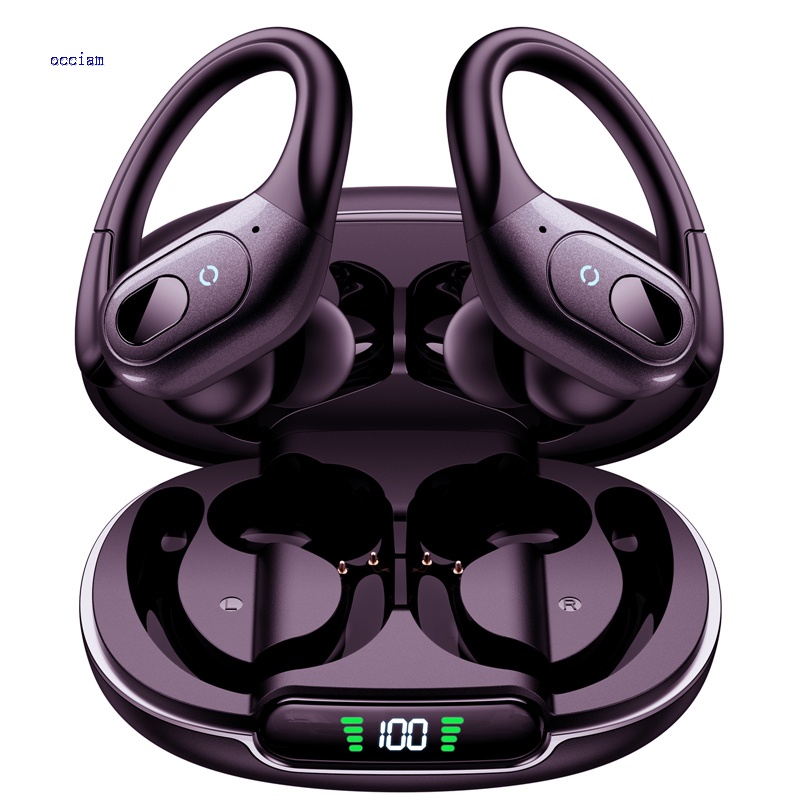
To pair Occiam earbuds, open the case, enable Bluetooth, select “Occiam,” and confirm the connection.
Learning how to pair Occiam earbuds is usually quick, but the exact steps can vary by model. This guide explains the first-time setup, automatic pairing, manual pairing, single-earbud use, common fixes, and simple ways to keep your connection stable.

How to pair Occiam earbuds for the first time
Most Occiam wireless earbuds use Bluetooth pairing. Before you begin, charge the earbuds and charging case for a few minutes. A low battery can prevent the earbuds from entering pairing mode or cause the connection to drop.
Follow these steps to pair Occiam earbuds with an iPhone, Android phone, tablet, or computer:
- Place both earbuds inside the charging case.
- Open the case lid.
- Remove both earbuds.
- Wait for the LED lights to flash. Flashing lights usually mean the earbuds are ready to pair.
- Open the Bluetooth settings on your device.
- Turn Bluetooth on.
- Look for a device name such as “Occiam,” “Occiam T17,” “Occiam T20,” or a similar model name.
- Tap the Occiam device name.
- Select Pair, Connect, or OK if your device asks for confirmation.
- Play audio to test the connection.
The first connection may take a few seconds. After successful pairing, most Occiam earbuds reconnect automatically when you remove them from the case.
If you see two separate Occiam names, do not connect to both at once. Put the earbuds back in the case, close the lid, wait a few seconds, and try again. In many cases, the earbuds need to link with each other before they connect to your phone.
How to pair Occiam earbuds with an iPhone
The iPhone pairing process is simple. Apple devices show Bluetooth accessories in a clear list, so you can usually connect Occiam earbuds in less than a minute.
- Open Settings on your iPhone.
- Tap Bluetooth.
- Turn Bluetooth on.
- Open the Occiam charging case.
- Remove both earbuds.
- Wait for “Occiam” to appear under Other Devices.
- Tap the Occiam name.
- Wait until the status changes to Connected.
Once paired, the earbuds should appear under My Devices. You can tap the information icon beside the device name to forget the earbuds, change settings, or check the connection.
If the Occiam earbuds do not appear, keep the Bluetooth screen open while the earbuds are outside the case. Also move away from other Bluetooth devices. Crowded wireless areas, such as airports and gyms, can make the correct device harder to find.

How to pair Occiam earbuds with an Android phone
Android menus differ slightly by phone brand, but the main process remains the same. These steps work on many Samsung Galaxy, Google Pixel, Motorola, OnePlus, and similar devices.
- Open Settings.
- Tap Connected devices, Connections, or Bluetooth.
- Choose Pair new device if needed.
- Take both Occiam earbuds out of the case.
- Wait for the earbuds to enter pairing mode.
- Tap the Occiam model name when it appears.
- Approve the pairing request.
Some Android phones show a pop-up as soon as they detect the earbuds. If that happens, tap Connect. You may also see options for calls, media audio, or contact sharing. Media audio should be enabled if you want to listen to music and videos.
If your Android phone asks for a PIN, try 0000 or 1234. Most modern Occiam models do not need a PIN, so a PIN request may indicate an old saved connection or a pairing error.

How to pair Occiam earbuds with a Windows computer
Occiam earbuds can work with many Windows laptops and desktop computers that support Bluetooth. The steps may differ between Windows 10 and Windows 11, but the idea is the same.
Windows 11
- Open Settings.
- Select Bluetooth & devices.
- Turn Bluetooth on.
- Click Add device.
- Choose Bluetooth.
- Remove the Occiam earbuds from the case.
- Select the Occiam model from the list.
- Click Done after the connection is complete.
Windows 10
- Open Settings.
- Choose Devices.
- Select Bluetooth & other devices.
- Turn Bluetooth on.
- Click Add Bluetooth or other device.
- Choose Bluetooth.
- Select the Occiam earbuds.
Windows may list the earbuds as “Headphones,” “Earbuds,” or their model name. After pairing, select the speaker icon in the taskbar and choose Occiam as the output device.
A laptop may connect to the earbuds for calls but still play sound through its built-in speakers. Checking the Windows sound output is an important step that many users miss.
How to pair Occiam earbuds with a Mac
To connect Occiam earbuds to a MacBook or iMac, use the Bluetooth menu in System Settings.
- Open the Apple menu.
- Select System Settings.
- Click Bluetooth.
- Turn Bluetooth on.
- Open the Occiam case and remove both earbuds.
- Find the Occiam model in the list of nearby devices.
- Click Connect.
On older macOS versions, Bluetooth is located in System Preferences. After connecting, open the Control Center and choose the Occiam earbuds under Sound if your Mac does not switch audio automatically.
For a better call experience, confirm that the Mac uses Occiam for both input and output. You can check this under System Settings, Sound, and Input.

How automatic pairing works
After the first successful connection, Occiam earbuds usually remember the device. The next time you open the case and remove the earbuds, they should reconnect to the last phone, tablet, or computer used.
Automatic pairing can fail when the earbuds are still connected to another device. For example, your earbuds may connect to a tablet in your bedroom while you are trying to use them with your phone.
Before pairing Occiam earbuds with a new device, try these steps:
• Turn Bluetooth off on devices you used with the earbuds before.
• Keep the new phone or computer close to the earbuds.
• Remove the earbuds from the case at the same time.
• Check that the charging case has enough power.
• Forget the old Occiam connection if the device keeps reconnecting elsewhere.
Bluetooth devices can store several connection records, but many earbuds actively connect to only one device at a time. This is why turning off Bluetooth on nearby devices often solves the problem quickly.
How to pair only one Occiam earbud
Many Occiam models support single-earbud use. This can help when you want to hear traffic, talk with someone, or extend battery life.
To use one earbud:
- Put both earbuds in the charging case.
- Turn off Bluetooth on devices that may connect automatically.
- Remove only the left or right earbud.
- Open Bluetooth settings on your phone.
- Select the Occiam device name.
- Test sound through the single earbud.
Some models pair the left and right earbuds as one stereo set. Other models may show a separate name for one earbud after a reset. If only one earbud works when you remove both, reset the pair and connect again.
Single-earbud behavior depends on the model’s firmware. The controls, microphone quality, and volume balance may also differ between the left and right earbud.
How to reset Occiam earbuds before pairing again
Resetting is useful when only one earbud produces sound, the earbuds appear as two Bluetooth devices, or your phone refuses to connect. A reset removes the old wireless relationship and gives the earbuds a fresh start.
The reset method can vary by Occiam model, but this common process works for many true wireless earbuds:
- Forget or remove Occiam from your phone’s Bluetooth menu.
- Turn Bluetooth off on the phone.
- Place both earbuds in the charging case.
- Leave the case open.
- Touch and hold both earbuds for about 10 to fifteen seconds, or until the lights flash.
- Close the case.
- Wait several seconds.
- Remove both earbuds.
- Turn Bluetooth back on.
- Pair Occiam earbuds again.
Some models use the case button instead of the touch controls. Others require several taps while the earbuds are in the case. Check the manual for your exact model before repeating the reset.
A reset does not repair a damaged battery, blocked charging contact, or broken Bluetooth chip. It only clears pairing data and restores the earbuds to a new connection state.
Occiam earbuds not pairing: common fixes
When Occiam earbuds will not pair, the cause is often simple. Work through the checks below in order.
Check the battery
Charge both earbuds and the case. Make sure the earbuds sit correctly on the charging pins. If the LED does not light up, clean the metal contacts with a dry cotton swab.
Forget the old Bluetooth connection
Open Bluetooth settings and remove every saved Occiam entry. A damaged or outdated pairing record can block a new connection.
Restart the phone
Turn the phone off and on again. This clears temporary Bluetooth errors without changing your personal files or settings.
Move closer
Keep the phone within a few feet of the earbuds during setup. Walls, metal objects, Wi-Fi equipment, and other wireless accessories can interfere with discovery.
Turn off nearby Bluetooth devices
A tablet, laptop, smartwatch, or family member’s phone may claim the connection first. Disable Bluetooth on these devices for a moment.
Reset the earbuds
If the steps above fail, reset the earbuds and start over. This is especially helpful when the left and right earbuds do not link to each other.
Update the phone
Install available system updates. Bluetooth compatibility improves through operating system updates, although updates may not fix a hardware fault.
In my experience helping people troubleshoot wireless earbuds, the most common mistake is pairing before both earbuds have synchronized. Users often tap the first name they see, then wonder why one side is silent. Putting both earbuds back in the case and resetting the connection usually fixes this pattern.
How to improve the Bluetooth connection
Pairing Occiam earbuds is only the first step. Good placement and basic care can make the connection more reliable.
• Keep your phone on the same side of your body as the main earbud when possible.
• Avoid placing the phone inside a thick bag or metal container.
• Keep the earbuds and charging case away from strong heat and moisture.
• Clean earbud charging contacts often.
• Keep the Bluetooth device list organized by removing accessories you no longer use.