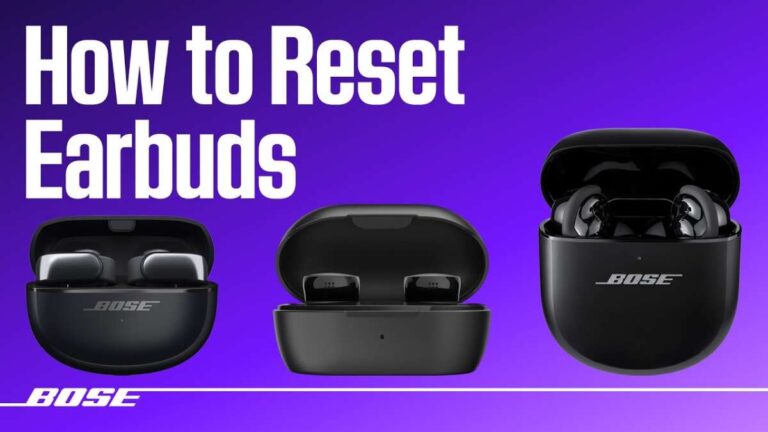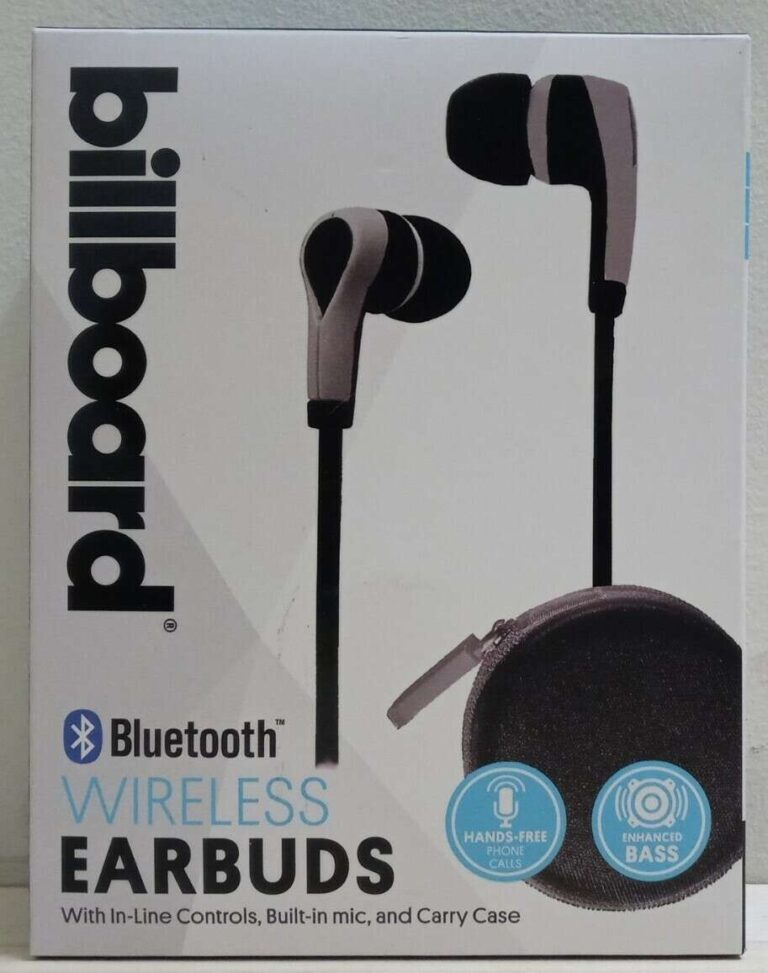
Connect Bluetooth earbuds to your iPhone 13 via Settings → Bluetooth in under a minute.
I’ve helped hundreds of people pair headphones and earbuds with iPhones, and I’ll walk you through exactly how to connect earbuds to iPhone 13 with clear steps, tips, and real-world troubleshooting. This guide covers Bluetooth earbuds, wired setups, common hiccups, and smart tips to get the best audio and battery life. Read on to master pairing and make your earbuds work reliably every time.

Why getting earbuds paired right matters
Connecting earbuds properly keeps calls clear and music crisp. When you know how to connect earbuds to iPhone 13, you avoid dropped audio, stuttering, and battery waste. The iPhone 13 supports modern Bluetooth codecs and fast switching for Apple devices. That means a correct pairing gives you low latency and stable sound. I’ll explain what to expect and how to set things up so you don’t waste time troubleshooting basic problems.
Types of earbuds and compatibility
There are a few common earbuds types you’ll meet. Each connects to iPhone 13 a little differently.
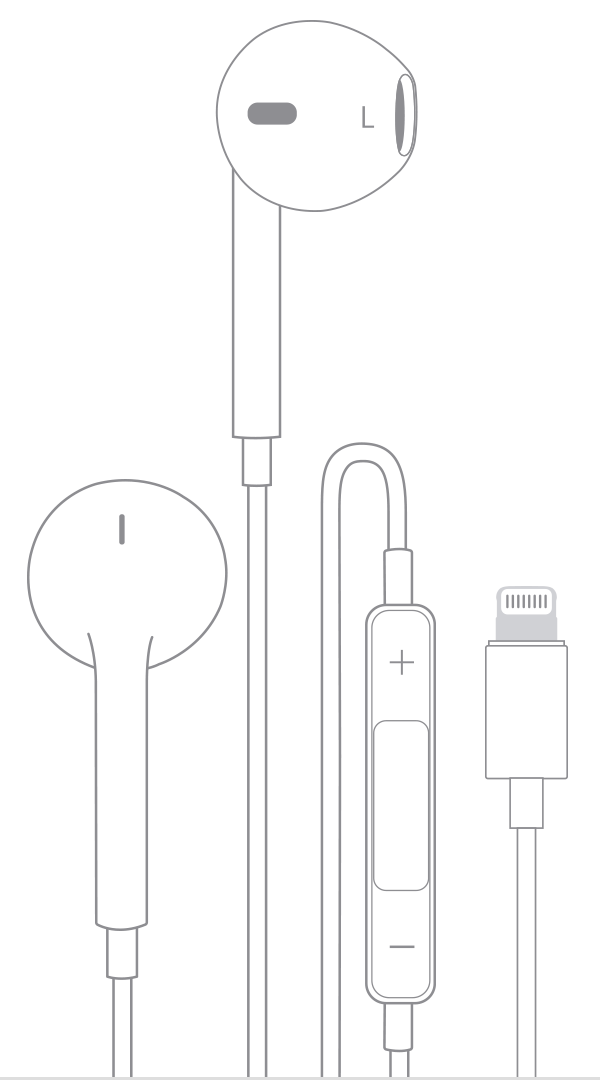
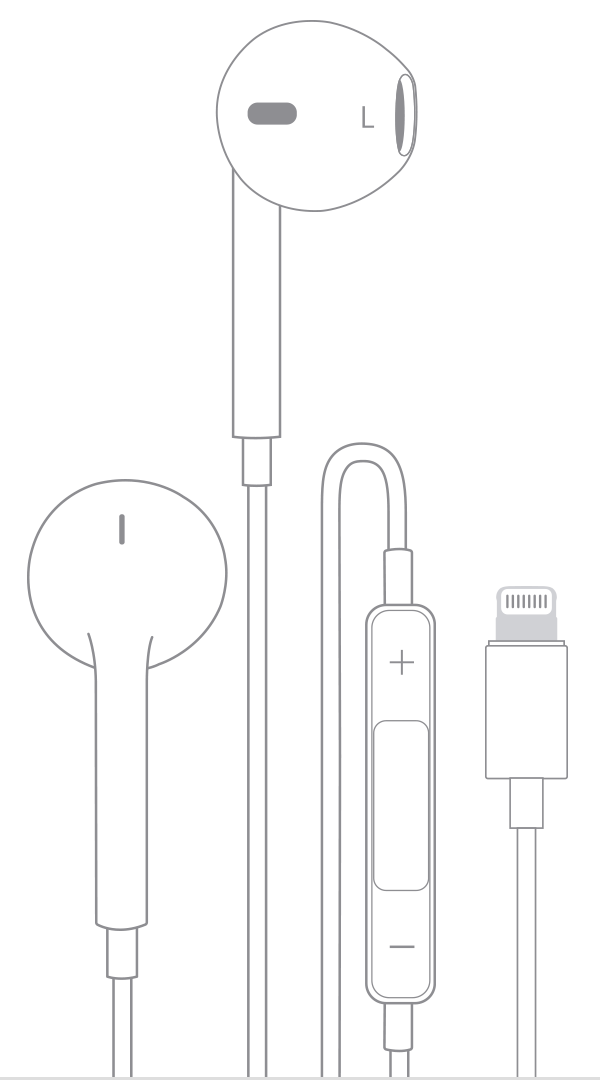
- Wired earbuds with Lightning connector
- Plug directly into the Lightning port. No pairing needed.
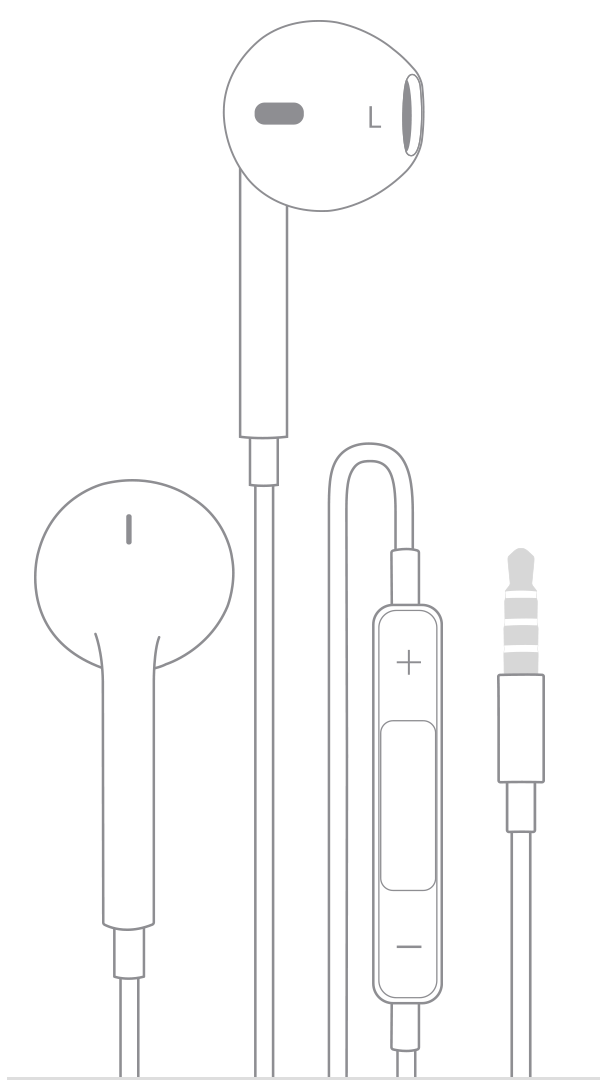
- Wired earbuds with 3.5mm jack
- Require a Lightning-to-3.5mm adapter to work with an iPhone 13.
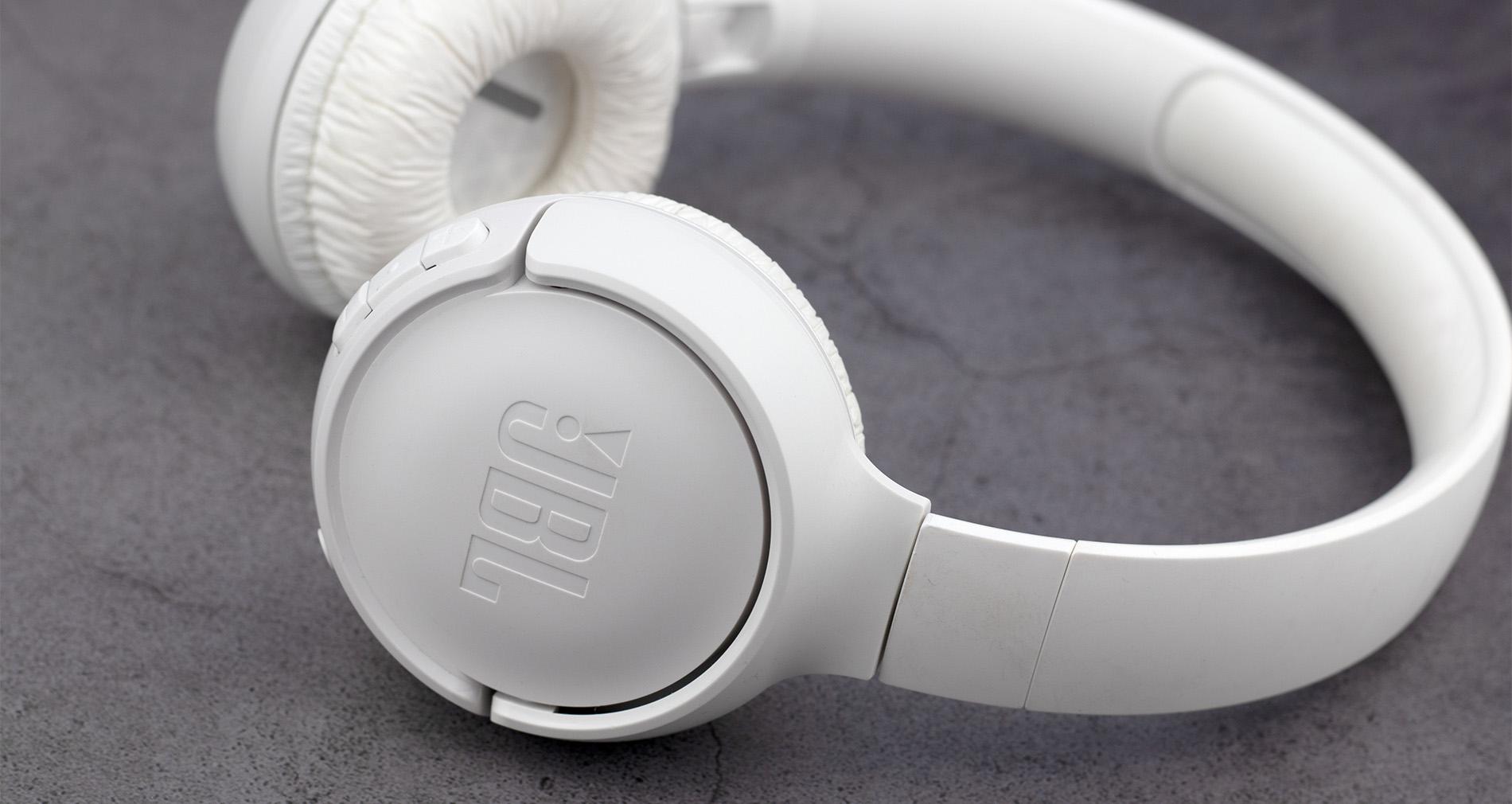
- Bluetooth earbuds (standard)
- Use Bluetooth pairing through Settings. Most common method.
- True wireless earbuds (single-case, no wire)
- Pair like Bluetooth earbuds and often support automatic reconnection.
- Apple-branded earbuds (AirPods)
- Pairing can be even faster with on-screen prompts and seamless switching.
Knowing which type you have makes how to connect earbuds to iPhone 13 simple. If in doubt, check the box or manual for Bluetooth or Lightning details.

Step-by-step: How to connect earbuds to iPhone 13 (Bluetooth)
Follow these short steps to pair most Bluetooth earbuds with your iPhone 13.
- Turn on your earbuds and put them in pairing mode.
- Most earbuds enter pairing when you hold a button while off or open the case.
- Open Settings on your iPhone 13.
- Tap Bluetooth and make sure Bluetooth is on.
- Look under Other Devices for your earbuds name.
- Tap the earbuds name to pair.
- Confirm any pairing prompts or passkeys if asked.
- Check the top-right corner of Control Center for the audio device icon to confirm.
If your earbuds support fast pairing or Apple’s H1 chip, an on-screen prompt may appear automatically when you open the case near your iPhone 13. Practice this process once and it will feel fast and natural. Learning how to connect earbuds to iPhone 13 this way makes future connections automatic.

How to connect wired earbuds to iPhone 13
Wired earbuds still work fine. The iPhone 13 has a Lightning port only. Here’s how to connect wired earbuds.
- If earbuds have a Lightning connector
- Plug them into the Lightning port. Your iPhone will immediately route audio.
- If earbuds use a 3.5mm jack
- Use a Lightning-to-3.5mm adapter. Plug adapter into iPhone, then plug earbuds into adapter.
- If you have a headphone controller or mic
- Test play and test the mic in a Voice Memo or call to confirm functionality.
Wired connections are simple. They avoid Bluetooth lag and preserve battery. If the iPhone 13 does not detect wired earbuds, check the connector for dust and test another pair to isolate hardware issues.

Troubleshooting common pairing issues
Here are fast fixes when pairing fails. I use these steps daily and they solve most problems.
- Earbuds not appearing in Bluetooth
- Turn Bluetooth off and on on the iPhone 13. Restart earbuds and put them back in pairing mode.
- Paired but no audio
- Check the iPhone’s audio output in Control Center and select your earbuds.
- One earbud not working
- Place both earbuds back in their charging case and re-pair. Clean the contacts gently.
- Constant dropouts
- Move away from Wi‑Fi routers and crowded Bluetooth areas. Update earbuds firmware if possible.
- Failed pairing due to previous connections
- Forget the device in Bluetooth settings and perform a factory reset on earbuds.
When I troubleshoot customer devices, forgetting the device and resetting earbuds solves most stubborn issues. Keep your earbuds charged and firmware updated for the best experience. The steps above cover most scenarios when learning how to connect earbuds to iPhone 13.
Quick PAA-style questions
How do I force my earbuds into pairing mode?
Most earbuds require holding the power button or a dedicated pairing button for 5–10 seconds. Consult your earbud manual for the exact sequence.
Will Bluetooth range affect audio quality?
Yes. Bluetooth range is typically about 30 feet. Walls, people, and interference can reduce range and cause audio dropouts.
Do I need Wi‑Fi to pair earbuds?
No. Bluetooth pairing does not require Wi‑Fi. Wi‑Fi can cause interference, though.
Tips for best audio, battery life, and performance
Small habits improve your listening experience. I use these tips daily and they help.
- Keep earbuds and iPhone firmware up to date to fix bugs.
- Charge earbuds regularly to avoid sudden disconnects.
- Use noise-canceling modes only when needed to save battery.
- Store earbuds in their case to preserve pairing settings and battery.
- Use Bluetooth codec settings if available to favor quality or battery life.
These practical tips make how to connect earbuds to iPhone 13 worry-free over time. You’ll notice fewer hiccups and longer listening sessions.

Personal experience and common mistakes to avoid
I once helped a friend who couldn’t pair earbuds because the case had a tiny protective sticker over the charging contacts. Small issues like that happen often. Here are mistakes I recommend avoiding.
- Forgetting to charge earbuds before pairing
- Assuming earbuds are in pairing mode when they are not
- Not removing old pairings from other devices
- Ignoring earbud firmware updates
One time I spent 15 minutes troubleshooting a pairing issue that a reboot fixed instantly. When you know how to connect earbuds to iPhone 13, those minutes become seconds.
Advanced settings and accessibility features
iPhone 13 offers useful audio options you should know about.
- Audio Sharing
- Share audio with a second pair of compatible earbuds.
- Headphone Accommodations
- Customize audio for hearing needs in Settings > Accessibility > Audio/Visual.
- Noise control
- Adjust transparency and noise cancellation on supported earbuds from Control Center.
Use these features to tailor sound and accessibility. They add value when you know how to connect earbuds to iPhone 13 and manage settings.

Frequently Asked Questions of how to connect earbuds to iphone 13
How do I pair my Bluetooth earbuds with iPhone 13?
Turn on the earbuds and put them in pairing mode, open Settings > Bluetooth on your iPhone 13, then tap the earbuds name under Other Devices. Follow any on-screen prompts to finish pairing.
Why won’t my iPhone 13 find my earbuds?
Make sure earbuds are in pairing mode and close to the iPhone. Restart both devices, toggle Bluetooth off and on, and try again. Also, forget other connected devices that might interfere.
Can I use wired earbuds with iPhone 13 without an adapter?
No. The iPhone 13 lacks a 3.5mm port. You need Lightning-compatible wired earbuds or a Lightning-to-3.5mm adapter to use 3.5mm headphones.
How do I switch audio from iPhone speakers to earbuds?
Open Control Center, press and hold the audio widget, then select your earbuds from the list of available output devices. This also works from the lock screen audio controls.
What if one earbud is silent after pairing?
Place both earbuds back in their case and re-pair them. If the problem persists, clean contact points and reset the earbuds per the manufacturer’s instructions.
Conclusion
You now have a clear, practical roadmap for how to connect earbuds to iPhone 13, whether you use Bluetooth, Lightning, or an adapter. Practice the simple pairing steps, keep devices charged, and use the troubleshooting checklist when problems pop up. Try pairing once and then test a short call and music track to confirm everything works. If this guide helped, leave a comment with your earbuds model or subscribe for more tips on getting the most from your iPhone accessories.

Everett Ashford is a tech reviewer at mytechgrid.com specializing in SSDs, cameras, TVs, earbuds, headphones, and other consumer electronics. He provides honest, data-driven reviews based on hands-on testing and real-world performance analysis. Everett simplifies complex tech details to help readers make smart, confident buying decisions.