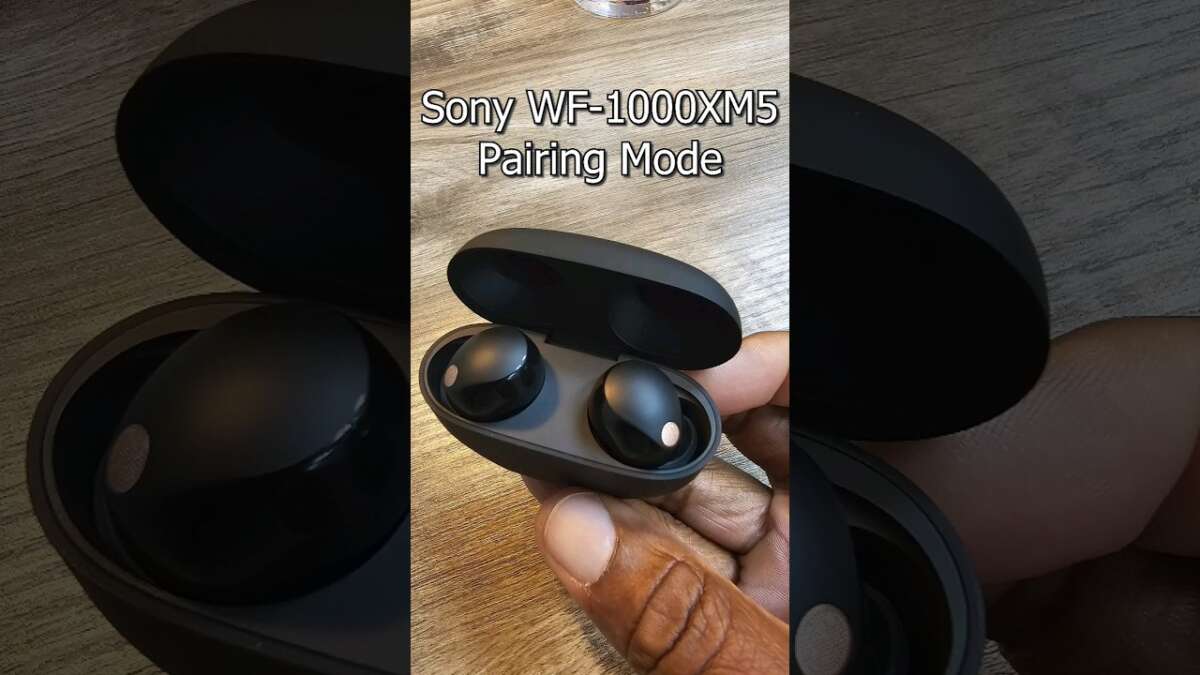
To pair Sony XM5 earbuds, open the case, enter pairing mode, and select them in your device’s Bluetooth settings.
Learning how to pair Sony XM5 earbuds is simple once you know the correct button-free steps. The Sony WF-1000XM5 uses touch controls, Bluetooth pairing, and the Sony | Sound Connect app, so a few small details can make the first setup smooth or frustrating. This guide explains how to pair Sony XM5 earbuds with Android phones, iPhones, Windows PCs, and Macs, plus what to do when pairing fails.
How to pair Sony XM5 earbuds for the first time
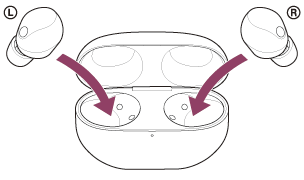
The first pairing process usually takes less than two minutes. Keep both earbuds inside the charging case, and make sure the case has enough battery.
Follow these steps:
- Open the charging case.
- Leave both earbuds inside the case.
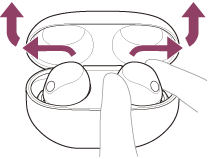
- Touch and hold both earbuds for about five seconds.
- Wait for the blue indicator to flash on the earbuds.
- Open the Bluetooth settings on your phone, tablet, or computer.
- Select “WF-1000XM5” from the list of available devices.
- Confirm the connection if your device asks for permission.
The earbuds enter pairing mode when you touch and hold both touch sensors. You do not need to remove the earbuds from the case. If the name does not appear, close the case, open it again, and repeat the process.
When learning how to pair Sony XM5 earbuds, remember that the earbuds may connect to the last device they used. Turn Bluetooth off on that device if your earbuds connect somewhere else.

How to pair Sony XM5 earbuds with an Android phone
Android phones use the standard Bluetooth menu for pairing. The menu names can vary slightly between Samsung Galaxy, Google Pixel, OnePlus, and other devices, but the process is nearly the same.
- Open the charging case with the earbuds inside.
- Touch and hold both earbuds for about five seconds.
- On your Android phone, open Settings.
- Tap Connected devices, Connections, or Bluetooth.
- Turn Bluetooth on.
- Tap Pair new device or scan for nearby devices.
- Choose “WF-1000XM5.”
- Tap Pair or Connect.
After the connection works, Android should show the earbuds as connected for calls and media. You can then install the Sony | Sound Connect app to adjust noise canceling, sound settings, touch controls, and firmware updates.
Some Android phones display a fast-pair pop-up. If it appears, tap Connect and follow the on-screen steps. The pop-up is convenient, but you can always use the regular Bluetooth menu.
A useful tip from hands-on setup checks is to keep the phone close to the open case. Bluetooth pairing works best at short range, especially during the first connection.

How to pair Sony XM5 earbuds with an iPhone
Pairing the Sony WF-1000XM5 with an iPhone is also quick. The key is to place the earbuds in pairing mode before opening the Bluetooth menu.
- Put both earbuds in the charging case.
- Open the lid.
- Touch and hold both earbuds for about five seconds.
- On your iPhone, open Settings.
- Select Bluetooth.
- Make sure Bluetooth is on.
- Look under Other Devices.
- Tap “WF-1000XM5.”
The earbuds should move to the My Devices section after they connect. Your iPhone may also ask whether you want to allow notifications or share contact details. These choices do not affect basic music playback.
If the earbuds do not appear, stay on the Bluetooth screen for a few seconds. You can also close and reopen the case, then repeat the pairing steps. Keep other nearby Bluetooth devices away if your phone keeps selecting the wrong product.
For the best control, download Sony | Sound Connect from the App Store. The app can help you manage adaptive sound control, equalizer settings, speak-to-chat, and multipoint connections.

How to pair Sony XM5 earbuds with a Windows PC
Windows 11 and Windows 10 can connect to the earbuds through Bluetooth. Before starting, place the earbuds in pairing mode.
- Open the charging case.
- Touch and hold both earbuds for about five seconds.
- On your Windows PC, open Settings.
- Select Bluetooth & devices.
- Turn Bluetooth on.
- Click Add device.
- Choose Bluetooth.
- Select “WF-1000XM5.”
Windows may show separate options for audio and calls after pairing. Choose the WF-1000XM5 as your output device if sound continues through the computer speakers.
You can change the sound output by selecting the speaker icon on the Windows taskbar. Pick the earbuds from the list of available audio devices.
If your PC does not have Bluetooth, use a compatible USB Bluetooth adapter. Some older adapters support basic audio but may not handle newer Bluetooth features well. This can affect connection quality, microphone performance, or multipoint use.
When testing Bluetooth earbuds with laptops, one common mistake is leaving the phone connected nearby. Turn off Bluetooth on the phone for a moment if Windows cannot find the earbuds.
How to pair Sony XM5 earbuds with a Mac
A Mac can pair with the Sony WF-1000XM5 through System Settings or System Preferences, depending on your macOS version.
- Put both earbuds inside the open case.
- Touch and hold both earbuds for about five seconds.
- On your Mac, click the Apple menu.
- Open System Settings.
- Select Bluetooth.
- Find “WF-1000XM5” in the list.
- Click Connect.
On older macOS versions, open System Preferences, select Bluetooth, and click Connect next to the earbuds.
If the earbuds connect but the Mac uses its built-in microphone, open the Control Center and select the WF-1000XM5 for sound output. You can also check Sound settings to choose the earbuds for both input and output.
Mac computers may switch between high-quality music mode and a lower-quality call mode. This is normal Bluetooth behavior. It happens because the microphone and stereo audio may use different Bluetooth profiles.

How to pair Sony XM5 earbuds with a second device
The WF-1000XM5 supports multipoint connections. This lets the earbuds stay connected to two devices at the same time, such as a phone and a laptop.
To add a second device:
- Connect the earbuds to the first device.
- Open the Sony | Sound Connect app.
- Select the System tab.
- Turn on Connect to 2 devices simultaneously.
- Put the earbuds into pairing mode.
- Connect them to the second device through its Bluetooth menu.
The exact app layout may change after a firmware update, but the setting is usually found under system or connection options.
With multipoint enabled, the earbuds can play music from your computer and switch to your phone when a call arrives. You may need to pause media on the first device before audio starts on the second one.
Multipoint can use more battery because the earbuds maintain two wireless connections. It can also create confusion if both devices send audio alerts. For a simple setup, turn multipoint off when you only use one device.
Knowing how to pair Sony XM5 earbuds with two devices can save time at work or school. You will not need to disconnect and reconnect every time you move from a laptop to a phone.

How to use the Sony | Sound Connect app
The Sony | Sound Connect app is not required for basic Bluetooth pairing. However, it gives you more control over the earbuds.
After pairing, the app can help you:
• Check the battery level of each earbud and the case
• Install available firmware updates
• Adjust the equalizer
• Control noise canceling and ambient sound
• Change touch sensor actions
• Manage speak-to-chat
• Enable or disable multipoint
• Choose sound-quality and connection settings
Firmware updates can improve performance and fix known issues, but they can take time. Keep the earbuds inside the case or follow the app’s instructions during an update. Do not close the app or move too far from your phone.
Sony’s support guidance also recommends using the official app for supported settings and updates. Avoid unofficial apps that ask for broad permissions or promise features the earbuds do not support.
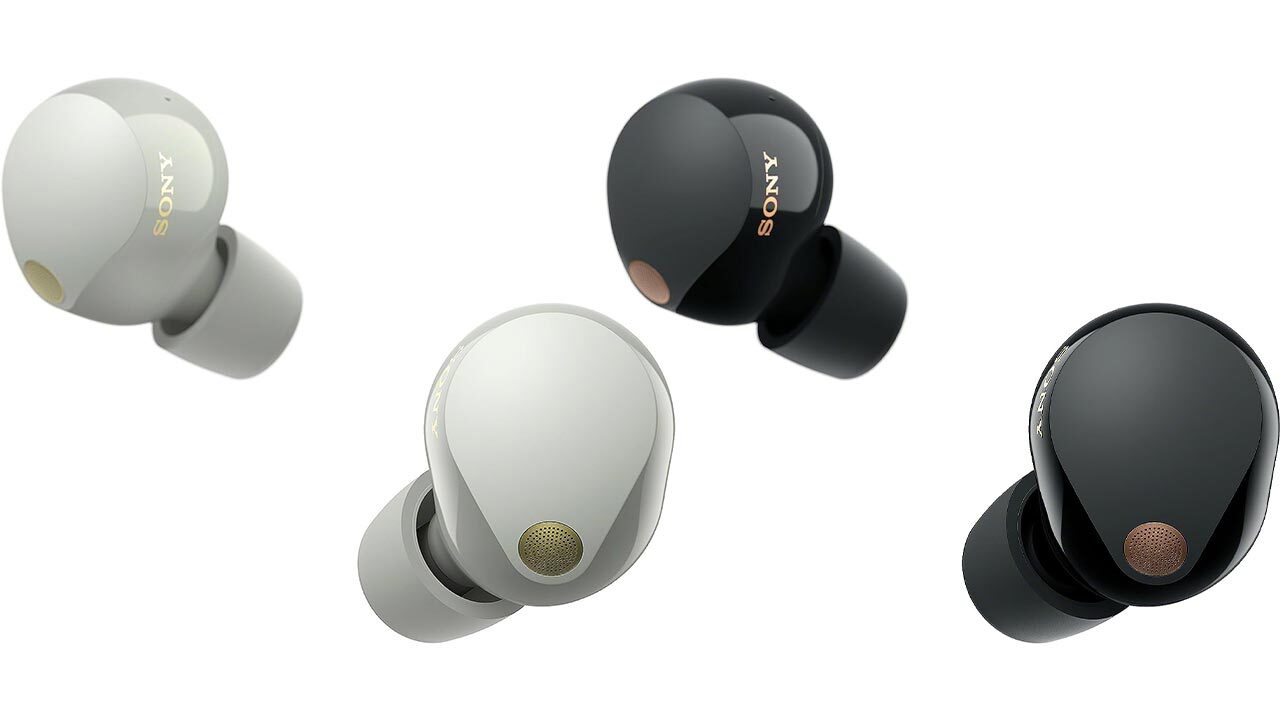
What to do when Sony XM5 earbuds will not pair
Pairing problems are usually caused by an old Bluetooth record, low battery, pairing mode errors, or another nearby device taking the connection.
Try these fixes in order:
- Charge the case and earbuds for at least a few minutes.
- Turn Bluetooth off and on again on your device.
- Move away from other phones, tablets, and laptops.
- Forget “WF-1000XM5” in your device’s Bluetooth settings.
- Put both earbuds in the case and close the lid.
- Open the lid and enter pairing mode again.
- Restart your phone or computer.
- Try pairing with another device.
To forget the earbuds on an iPhone, tap the information icon next to WF-1000XM5 and choose Forget This Device. On Android, open the device settings and select Forget or Unpair. Windows and macOS also provide a Remove or Forget option.
A frequent mistake is removing only one earbud from the case before pairing. Keep both earbuds inside the case while entering pairing mode. Also check that the charging contacts are clean, because an earbud that does not charge may not enter pairing mode correctly.
How to reset Sony XM5 earbuds
A reset can help when the earbuds fail to pair with any device or behave strangely. Resetting removes some connection data and returns the earbuds to their original settings.
For a reset, use the current instructions in the official Sony Help Guide because the exact touch sequence can depend on the model and firmware. In general, both earbuds must be placed in the charging case, and the case must have enough battery.
After resetting:
• Remove WF-1000XM5 from your phone or computer’s Bluetooth list
• Restart the device you want to use
• Open the case