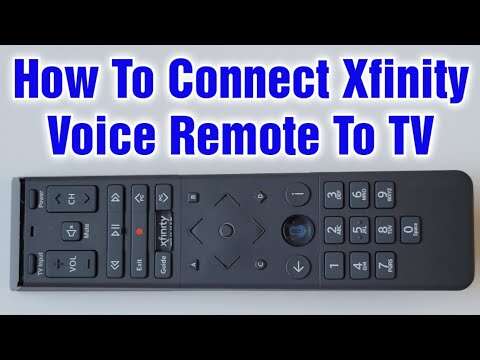
Use your Cox remote’s automatic code search to find and save the correct TV code.
Learning how to program Cox Contour remote to TV without code is easier than it sounds. Most Contour remotes can scan for the right TV command set, so you do not need to search for a four-digit code first. This guide explains the button sequence, common remote models, troubleshooting steps, and ways to confirm that programming worked.
What “program without code” means
Programming a Cox Contour remote without code means using its automatic code search feature. The remote tests stored TV codes one at a time until your television responds.
The remote may test the power, volume, mute, and input commands. When the TV turns off or responds correctly, you save that code inside the remote.


This method is useful when:
• You lost the TV manual.
• You do not know the TV brand code.
• Your TV has several possible codes.
• You are unsure which Cox remote model you have.
The process is not the same as pairing the remote with a Cox cable box. Your Contour remote may already control the cable box while still needing setup for the TV.


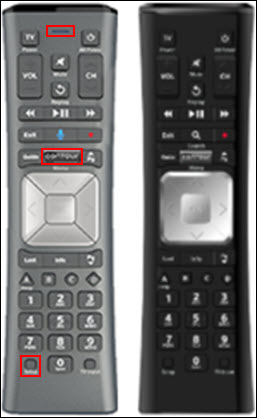
Check your Cox Contour remote first
Before learning how to program Cox Contour remote to TV without code, identify the remote style. Cox has used several Contour and universal remote models over the years.
Look for these signs:
• An AUX, TV, or CBL button near the top.
• A SETUP button.
• A microphone button on newer Contour voice remotes.
• A small LED light near the top.
• A button labeled MUTE, POWER, or INPUT.
Older universal remotes often use the SETUP and 991 search process. Some newer voice remotes use an on-screen setup menu or pair automatically with the Contour box.
Make sure the remote has fresh batteries. Weak batteries can make the LED flash but prevent the scan from working. Also turn on the TV manually before starting.
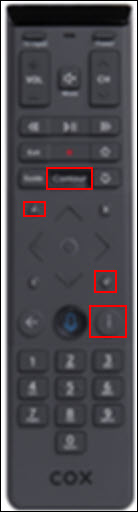
How to program Cox Contour remote to TV without code
The following method works with many Cox universal and Contour remotes. Button names can vary slightly, but the idea stays the same.
Automatic code search method
-
Turn on your TV using its original remote or the button on the TV.
-
Point the Cox remote toward the TV.
-
Press the
TVbutton once. -
Press and hold
SETUPuntil the TV or mode button blinks twice. -
Enter
9-9-1using the number buttons. -
Press
CH+slowly, one press at a time. -
Stop when the TV turns off.
-
Press
SETUPonce to save the code. -
Press
POWERto turn the TV back on. -
Test
VOL+,VOL−,MUTE, andINPUT.


The scan may take several minutes. Press CH+ only once every second or two. If you press it too quickly, the remote may skip the correct code.
If the television turns off, do not keep pressing CH+. The remote may move past the correct code. Save the setting right away with SETUP.
This is the core answer to how to program Cox Contour remote to TV without code. You are not entering a brand code. You are allowing the remote to search its internal code list.

A second method for some Cox Contour remotes
Some Cox remotes use a slightly different automatic search sequence. If the first method does not work, try this process:
-
Turn on the television.
-
Hold
TVandMUTEtogether. -
Release both buttons when the mode light stays on.
-
Press
CH+repeatedly until the TV turns off. -
Press
MUTEto test and save the code. -
Press
TVorSETUP, depending on the remote, to lock the result.


This sequence is common on certain universal remote designs, but it is not supported by every Cox Contour model. If the LED does not respond, stop and use the SETUP, 991 method instead.
Never force a button or hold several buttons at once for a long time. A remote may leave programming mode if no button is pressed within about 20 to 30 seconds.
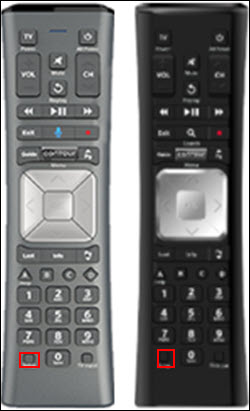
How to program a Cox Contour voice remote
Newer Cox Contour voice remotes can work in two ways. They may pair with the Contour receiver through radio signals, while TV power and volume may still use infrared signals.
To try voice remote setup:
-
Turn on the TV and the Cox Contour receiver.
-
Press the
Abutton or the voice button on the remote. -
Open
Settingson the TV screen. -
Select
Remote SettingsorRemote Control Setup. -
Choose the option to set up the remote for the TV.
-
Follow the on-screen instructions.
-
Test the volume and power buttons.


Menu names may differ by receiver software and region. If you do not see a remote setup option, use the manual automatic search method.
A voice remote can control the Cox box even when it is not programmed for the TV. That can make the remote seem partly functional. Test the TV power and volume buttons separately.
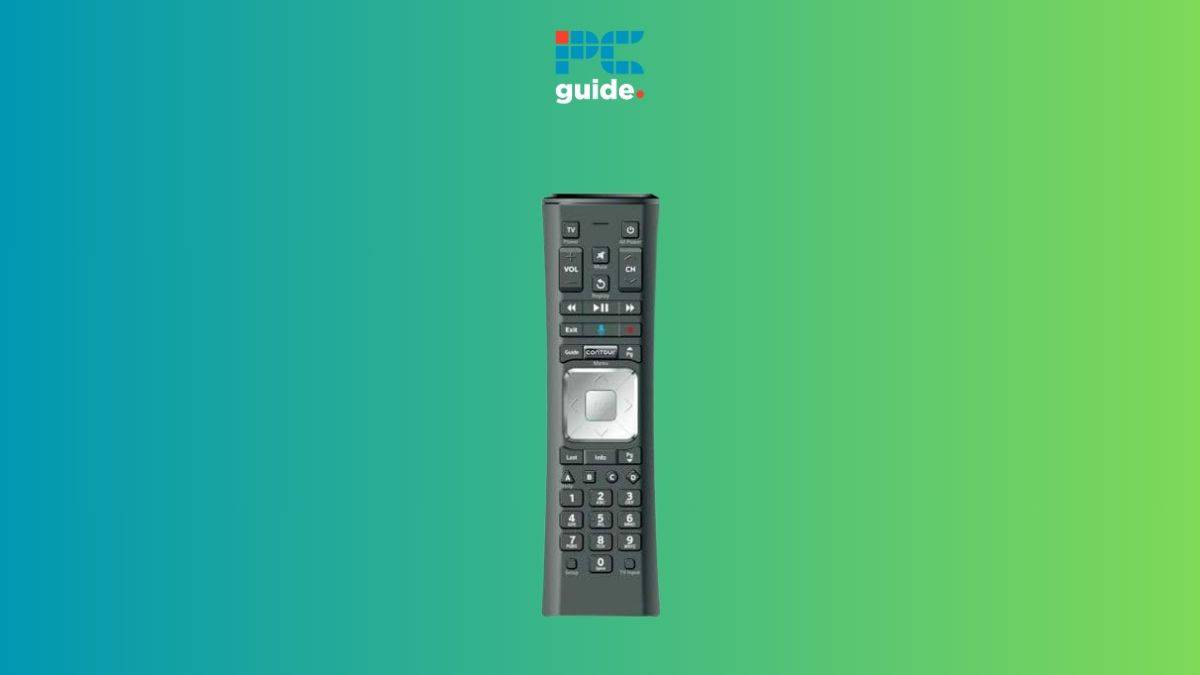
How to save the correct TV code
Finding the code is only half of how to program Cox Contour remote to TV without code. You must also save the code before leaving setup mode.
When the TV turns off during the scan:
• Stop pressing CH+.
• Press SETUP once.
• Wait for the mode light to blink twice or turn off.
• Turn the TV back on.
• Test several commands.
If the power button works but volume does not, the remote may have stopped on a partial or incorrect code. Restart the scan and continue testing until you find a code that controls the functions you use most.
On some remotes, pressing MUTE after the TV shuts off saves the code. The correct save button depends on the model. The remote’s manual or label is the best authority when the buttons behave differently.

How to test the remote after setup
A successful setup should do more than turn the TV off. Test the main commands that you use every day.
Try these buttons:
• POWER to turn the TV on and off.
• VOL+ and VOL− to adjust sound.
• MUTE to silence the TV.
• INPUT to switch between HDMI ports.
• Number buttons, if you use the TV’s built-in tuner.
• TV to confirm that the remote is in TV mode.
If the Cox receiver changes channels when you press CH+, the remote may be in cable mode. Press TV before testing TV commands.
If volume control changes the receiver instead of the TV, the remote may be using the wrong device mode. Some remotes also support volume lock, which sends volume commands to one selected device.

What to do if the automatic search fails
If how to program Cox Contour remote to TV without code does not work on the first attempt, do not assume the remote is broken. Most failures come from timing, mode selection, batteries, or model differences.
Try these fixes:
• Replace both batteries with fresh ones.
• Stand within 10 feet of the TV.
• Point the remote at the TV sensor.
• Confirm that the TV is on before scanning.
• Press TV before entering 991.
• Press CH+ slowly.
• Keep the TV’s original remote away during the scan.
• Repeat the search from the beginning.
Some TVs do not show a visible response until the correct power command is sent. Watch the screen closely and listen for the TV to shut down.
If the LED never flashes, the remote may not support automatic programming. If the remote flashes but the TV never responds, the TV brand may not be included in the remote’s code library, or the infrared sensor may be blocked.
Reset the Cox remote and start again
A reset can help when the remote has stored the wrong code or appears stuck in setup mode. However, resetting may remove TV programming and other custom settings.
On many Cox universal remotes, you can reset the device by holding SETUP until the mode light blinks twice, then entering 9-8-1. The light may blink twice again to confirm the reset.
After resetting:
-
Turn on the TV.
-
Press
TV. -
Hold
SETUP. -
Enter
9-9-1. -
Search with
CH+. -
Save the working code.
The exact reset sequence can vary. If 981 does not work, check the label on the remote or the guide for your specific Cox model.
Common mistakes to avoid
When I test universal remotes, the most common mistake is rushing the channel search. People press CH+ repeatedly, miss the correct code, and then believe the remote cannot control the TV.
Avoid these errors:
• Do not press CH+ rapidly.
• Do not press SETUP before the TV turns off.
• Do not aim the remote away from the TV.
• Do not assume the remote controls every TV feature.
• Do not scan while the TV is in a menu that blocks power commands.
• Do not use old batteries during setup.
• Do not reset the remote unless you are ready to program it again.
Another common issue is confusing the TV’s input button with the Cox box input. If the TV remains on the wrong HDMI port, the cable service may seem unavailable even though the remote is programmed correctly.
Limits of programming a Cox remote without code
Automatic programming is convenient, but it has limits. A remote may control basic functions while missing smart TV menus, streaming shortcuts, voice commands, or special picture settings.
The remote usually sends standard infrared commands. It does not gain access to every feature built into a modern smart TV.
You may still need the original TV remote for:
• Wi-Fi setup.
• App installation.
• Advanced picture settings.
• Bluetooth pairing.
• Firmware updates.
• Manufacturer-specific menus.
A code search also cannot fix a damaged TV sensor or a blocked infrared receiver. Remove soundbars, decorations, or other objects that may sit in front of the sensor during testing.
When to contact Cox support
Contact Cox if the remote will not enter setup mode, the LED does not work with fresh batteries, or the remote controls the cable box but never sends TV commands.
Have these details ready:
• The model number printed inside the battery compartment.
• The TV brand and model.
• The Cox receiver model.
• The buttons that work.
• The steps you already tried.
Support can confirm whether your remote supports automatic code search. They can also help replace a faulty remote or explain model-specific pairing steps.
For a TV that responds to its original remote but not the Cox remote, the issue is usually compatibility or programming. For a TV that responds to no remote, test the TV itself before blaming the Cox remote.
Frequently Asked Questions
Can I program a Cox Contour remote without knowing the TV code?
Yes. Many Cox universal remotes support an automatic search using the 991 sequence. The remote cycles through stored codes until the TV responds.
How do I program Cox Contour remote to TV without code if there is no SETUP button?
Try the on-screen remote setup through the Cox Contour receiver. Newer voice remotes may use an A button or voice button instead of a physical SETUP button.
Why does my Cox remote turn off the TV but not control the volume?
The remote may have saved an incomplete code, or volume lock may be sending commands to the cable box. Run the automatic scan again and test volume before saving the code.
How long does automatic code search take?
It can take several minutes because the remote may test many stored codes. Press CH+ slowly and stop as soon as the TV responds.
Can I use the Cox remote with a smart TV?
Usually, yes, for basic functions such as power, volume, mute, and input. You may still need the original smart TV remote for apps, Wi-Fi, Bluetooth, and advanced settings.
What should I do if the TV does not turn off during the scan?
Check the batteries, point the remote at the TV sensor, and confirm that the remote is in TV mode. If the scan still fails, try the alternate TV and MUTE search method or use the TV’s original remote.
Will resetting the Cox remote erase the TV programming?
Usually, yes. A full reset often removes stored TV codes and custom settings, so you will need to program the remote again.
Conclusion
How to program Cox Contour remote to TV without code usually comes down to automatic code search. Turn on the TV, select TV mode, use the 991 search sequence, press CH+ slowly, and save the code as soon as the TV responds.
Test power, volume, mute, and input before finishing. If the method fails, check the remote model, replace the batteries, try the alternate search sequence, or use the on-screen setup for a newer voice remote. Follow these steps carefully, and your Cox remote should become a simple control center for everyday TV use. Share your remote model or setup experience in the comments, and explore the correct Cox guide for your device if you need model-specific help.

Everett Ashford is a tech reviewer at mytechgrid.com specializing in SSDs, cameras, TVs, earbuds, headphones, and other consumer electronics. He provides honest, data-driven reviews based on hands-on testing and real-world performance analysis. Everett simplifies complex tech details to help readers make smart, confident buying decisions.