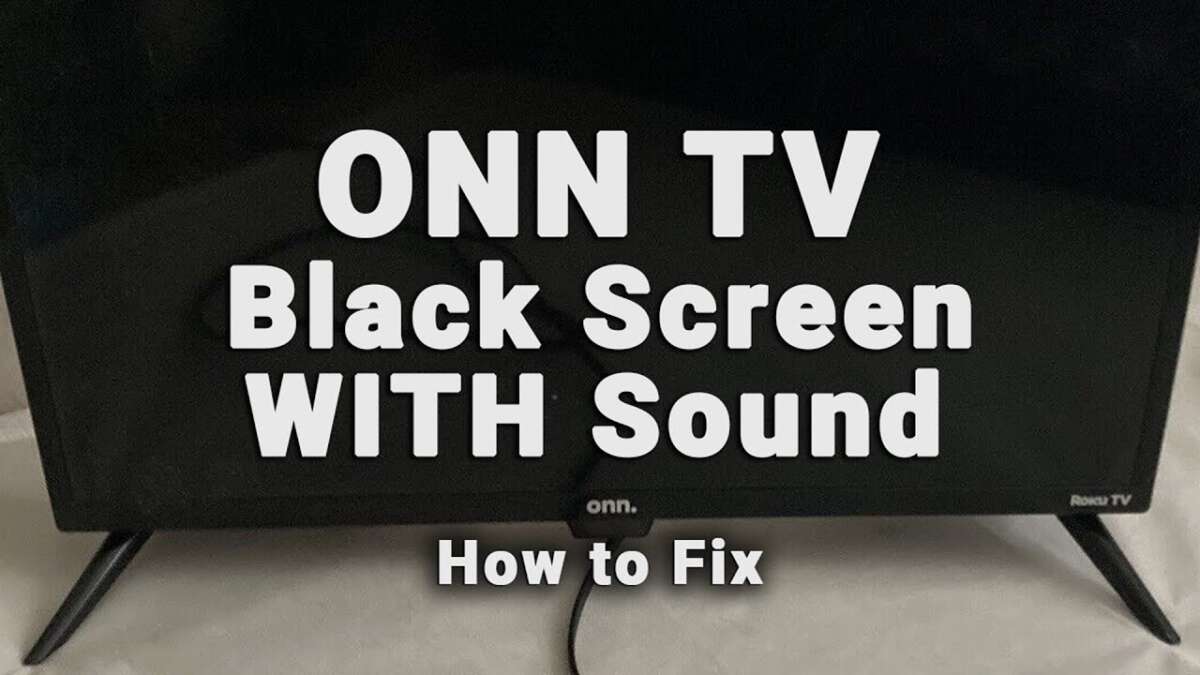
To reset an onn TV with a black screen, unplug it, hold the power button, then use the reset button if needed.
A black screen can come from a frozen Roku system, a bad input, loose cable, power issue, or failed backlight. Knowing how to reset onn TV with black screen problems helps you start with safe steps before trying a full factory reset. This guide explains each method clearly, including what to do when you cannot see the menu.
Why Your onn TV Has a Black Screen
A black screen does not always mean the TV is broken. Sometimes the TV is on, but it is showing the wrong input or waiting for a device that is not sending a signal.
Common causes include:
• A frozen Roku TV system
• A loose HDMI or power cable
• The wrong input source
• A failed streaming device
• A temporary power surge
• A damaged HDMI port
• A failed LED backlight
• A faulty power board or main board
Start by checking the TV’s status light. If the light responds when you press the remote, the TV may still have power. If you hear sound but see no picture, the problem may be the backlight or display panel rather than the software.
A reset can fix software freezes, but it cannot repair a damaged screen, failed power board, or broken backlight. This distinction can save you time and prevent repeated resets that do not address the real problem.

Before You Reset Your onn TV
Before learning how to reset onn TV with black screen symptoms, check a few simple items. These checks often solve the issue without erasing your apps, settings, and Wi-Fi information.
Check the power connection
Make sure the power cord fits firmly into the TV and wall outlet. If your model uses a detachable cord, remove it and reconnect it securely.
Plug the TV directly into a wall outlet instead of a power strip. A weak or failed surge protector can prevent the TV from starting correctly.
Check the input source
Press the Input or Source button on the onn remote. Move through the available sources, such as:
• HDMI 1
• HDMI 2
• HDMI 3
• AV
• Live TV
• Roku home screen
If the screen returns after changing the input, the TV itself may be fine. The problem may be a cable, game console, cable box, or streaming stick.
Disconnect external devices
Remove all HDMI devices from the TV. This includes game consoles, Blu-ray players, soundbars, cable boxes, and streaming sticks.
Then unplug the TV for about 60 seconds. Reconnect only the TV and try turning it on. External devices can sometimes send a faulty signal or cause an HDMI control conflict.
Test for sound
Press the volume buttons and listen carefully. If you hear menu sounds or a program, the TV is likely running even though the picture is missing.
This often points to an input problem, display setting, or backlight fault. A factory reset may not fix a hardware-based black screen.

How to Power Cycle an onn TV With a Black Screen
A power cycle is the safest first step. It clears temporary memory and gives the TV’s internal boards a fresh start. It does not remove your apps or personal settings.
Follow these steps:
-
Turn off the onn TV if it responds to the remote.
-
Unplug the TV from the wall outlet.
-
Disconnect every HDMI, USB, antenna, and audio cable.
-
Wait at least 60 seconds.
-
Press and hold the physical power button on the TV for 15 to 30 seconds.
-
Release the button.
-
Plug the TV directly into the wall.
-
Press the TV’s power button once.
-
Wait up to two minutes for the Roku system to load.
The physical power button may be under the screen, on the back, or along the side panel. On some onn Roku TV models, it may be a small button that is difficult to see.
Do not press the power button repeatedly during startup. Roku TVs can take longer to display an image after a full power loss, especially when they are installing an update or reconnecting to a network.
In many cases, this process solves how to reset onn TV with black screen problems without requiring a factory reset.

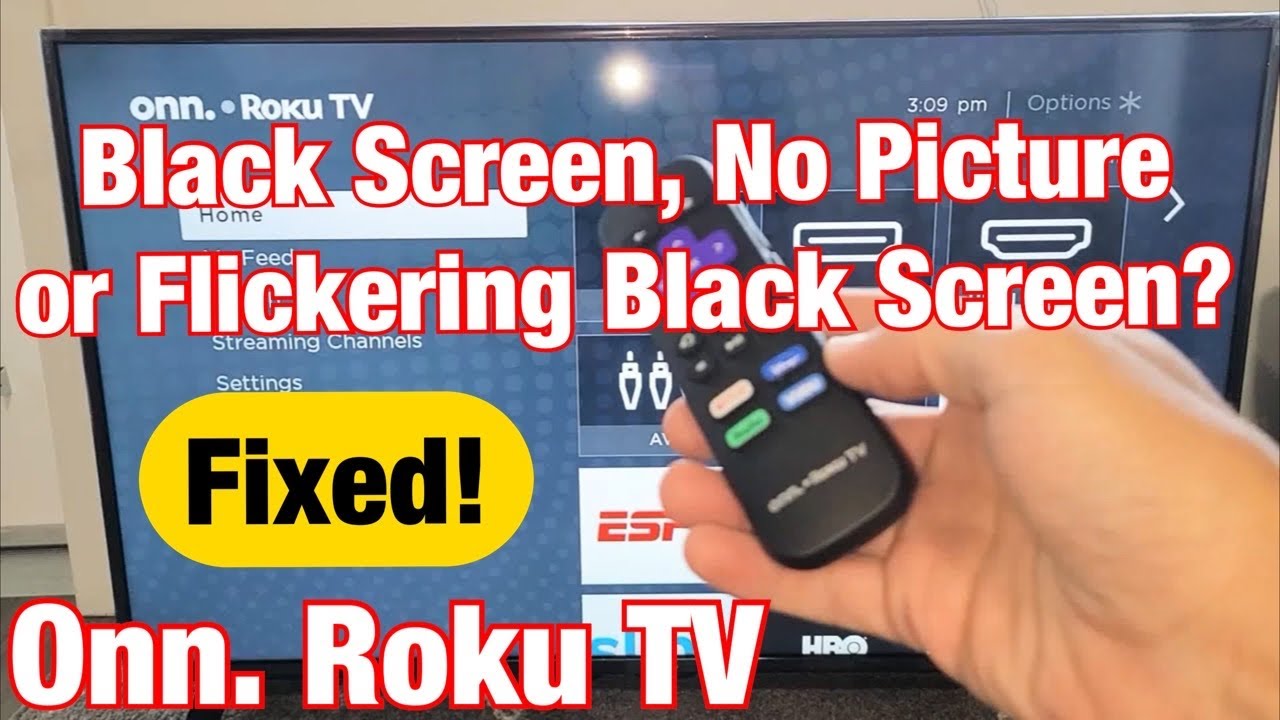
How to Reset onn TV With Black Screen Using the Reset Button
Many onn Roku TVs include a physical reset button. It may be a small pinhole button near the ports, power input, or back panel. Some models use a standard button instead of a pinhole.
Before using it, understand what it does. Holding the reset button usually starts a factory reset. This removes installed channels, saved settings, Wi-Fi details, picture settings, and the TV’s Roku account connection.
Steps for a hardware reset
-
Turn on the TV if possible.
-
Find the reset button on the back or side of the TV.
-
Use a straightened paper clip only if the button is inside a pinhole.
-
Press and hold the button for about 10 seconds.
-
Release it when the status light changes or begins to blink.
-
Wait several minutes while the TV restarts.
-
Complete the setup process with the remote.
The exact reset time can vary by model. If nothing happens after 10 seconds, unplug the TV, wait one minute, plug it back in, and try again while the TV has power.
Do not push hard into the pinhole. You should feel a small button click. Forcing a sharp object too far can damage the switch or nearby components.
If the reset button does not work, the TV may not be receiving power, or the hardware may have a deeper fault. In that case, continue with the diagnostic steps below.
How to Factory Reset an onn Roku TV Without Seeing the Screen
If the remote still controls the TV but the screen stays black, you may be able to use a blind reset sequence. This method is not equally reliable on every onn Roku TV model, so use it only after checking power and cable connections.
Try this sequence:
-
Press the Home button five times.
-
Press the Up button once.
-
Press the Rewind button twice.
-
Press the Fast Forward button twice.
-
Wait for the TV to respond.
On compatible Roku TV software, this may open a system reset or restart screen. If the TV asks for confirmation, you may need to press the appropriate navigation and OK buttons without seeing the menu.
Because you cannot see the screen, this method carries a risk of selecting the wrong option. The physical reset button is usually safer when the screen remains completely dark.
If your remote does not respond, replace the batteries. You can also try the Roku mobile app, but the TV and phone must already be connected to the same Wi-Fi network. The app will not help if the TV has lost network access or has not completed startup.

Use a Flashlight to Check for a Failed Backlight
A flashlight test can help you tell the difference between a software problem and a display hardware problem. This is useful before deciding how to reset onn TV with black screen symptoms.
Turn on the TV and play a channel or start a connected device. Darken the room, then shine a bright flashlight at an angle against the screen.
Look closely for faint shapes, menus, or moving images. If you can see a very dim picture, the TV may have a failed LED backlight or backlight power circuit.
A backlight problem is not normally fixed by a factory reset. Repair requires opening the TV, which can expose you to sharp parts and stored electrical energy. Unless you have proper repair training, professional service is the safer choice.
If you see no faint image, the issue may still be software, power, the main board, or the display panel. The flashlight test is helpful, but it is not a complete diagnosis.
What to Do If the Reset Does Not Fix the Black Screen
If resetting the onn TV does not restore the picture, work through the problem in a logical order. This avoids repeating the same reset and helps identify whether the issue is external or internal.
Try another wall outlet
Test a different outlet in another room. Avoid using an extension cord during testing. If the TV works from another outlet, the original outlet or surge protector may be the cause.
Test another HDMI cable
If the picture appears only with a certain device, replace its HDMI cable. Use a short, undamaged cable and connect it directly to the TV.
Try another HDMI port as well. A single damaged port does not mean the entire TV has failed.
Remove USB devices
Unplug USB drives and other USB accessories. A damaged or unsupported device can sometimes interfere with startup.
Restart the TV with only the power cord connected. Add other devices one at a time after the picture returns.
Check the remote
Press the power button on the TV itself. If the physical button works but the remote does not, replace the batteries or pair a compatible remote.
A remote problem can make the TV appear frozen when it is actually waiting for a command.
Look for status light behavior
The indicator light can provide useful clues:
• No light may suggest a power issue.
• A steady light may mean the TV is in standby.
• A blinking light may indicate startup activity or a fault.
The meaning of the light varies by model. Use the model number on the back label to find the correct onn support instructions.

When a Factory Reset Is the Right Choice
A factory reset is useful when the TV starts but remains stuck, repeatedly restarts, or shows a black screen after a software change. It can remove corrupted settings and return the Roku system to its original setup state.
Consider a factory reset when:
• The TV responds to buttons but never loads the home screen.
• The TV worked before a software or settings change.
• The screen appears briefly, then goes black.
• The TV repeatedly freezes during startup.
• You are preparing the TV for another owner.
A factory reset is not the best first choice when:
• The TV has no power light.
• You smell burning or hear buzzing.
• The screen is cracked.
• A flashlight reveals a faint image.
• The TV has physical water or impact damage.
A reset erases software data, but it cannot replace failed parts. Think of it as cleaning the TV’s instructions, not repairing its physical body.

Important Mistakes to Avoid
Troubleshooting a black screen can be frustrating. A few common mistakes make the process harder.
• Do not press random remote buttons for several minutes. You may change inputs or settings without knowing it.
• Do not unplug the TV during a firmware update if the screen or status light shows activity.
• Do not hold the reset button repeatedly. Give the TV time to restart.
• Do not use metal tools inside the TV cabinet.
• Do not assume every black screen needs a factory reset.
• Do not open the TV while it is plugged in.
• Do not keep using a power strip that smells hot, clicks, or shows damage.
One mistake I often see in real-world TV troubleshooting is replacing cables too soon while ignoring the outlet and input source. Start with power, remove external devices, and test the TV by itself. This simple order prevents many false diagnoses.

How to Prevent Future Black Screen Problems
Once you restore the picture, a few habits can reduce future problems.
Keep the TV connected to a reliable surge protector. Choose one designed for home electronics and replace it if it shows heat damage or stops working properly.
Use quality HDMI cables and avoid sharply bending them behind the TV. Label each cable so you can quickly identify the correct input later.
Allow Roku updates to finish. Do not unplug the TV when it is restarting or installing an update. Updates can improve performance, fix bugs, and address security issues, although they cannot prevent every hardware failure.
Keep ventilation areas clear. Do not place the TV tightly against a wall or cover its vents with decorations. Heat can shorten the life of electronic parts.
Write down your Roku email address and Wi-Fi password. If you must perform a factory reset, setup will be much easier.
How to Reset onn TV With Black Screen: Key Safety Notes
The safest reset order is simple:
-
Check the outlet and power cord.
-
Disconnect all external devices.
-
Change the input source.
-
Perform a 60-second power cycle.
-
Hold the TV’s physical power button.
-
Use the hardware reset button if necessary.
-
Consider professional repair if the screen remains black.
This order protects your data and avoids an unnecessary factory reset. It also helps separate a frozen Roku system from a failed backlight or power board.
The biggest limitation is that onn TV models can differ. Button locations, reset behavior, indicator lights, and Roku software versions are not identical. Always check the model label and use instructions that match your exact TV.
Frequently Asked Questions About How to Reset onn TV With Black Screen
Can I reset my onn TV if I cannot see the screen?
Yes. You can power cycle the TV and use its physical reset button without viewing the menu. If your model supports it, a blind Roku remote sequence may also work, but the physical reset button is more dependable.
Will resetting an onn TV delete my apps?
A factory reset deletes installed apps, Wi-Fi information, picture settings, and account details. A basic power cycle does not normally erase this information.
Why does my onn TV have sound but no picture?
Sound with no picture often points to a failed backlight, display setting, HDMI issue, or display circuit. Shine a flashlight at the screen in a dark room; a faint image may indicate a backlight problem.
How long should I unplug my onn TV before resetting it?
Unplug the TV for at least 60 seconds. Holding the physical power button for 15 to 30 seconds while it is unplugged can help discharge temporary power and clear a frozen state.
Where is the reset button on an onn Roku TV?
The reset button is commonly on the back or side of the TV, near the ports or power connection. It may be a small button or a pinhole, and its location varies by model.
What if my onn TV has no power light?
Try another wall outlet and check the power cord. If there is still no light or response, the issue may involve the power board, internal fuse, or another hardware component rather than a software reset.
Conclusion
Learning how to reset onn TV with black screen problems starts with simple checks, not a rushed factory reset. Confirm the power source, remove external devices, test the input, and complete a careful power cycle first. If the screen remains dark, use the physical reset button and consider a flashlight test for a possible backlight failure.
A reset can solve frozen software, but it cannot repair damaged hardware. Follow the steps in order, protect your settings when possible, and seek qualified service if the TV shows no power or signs of internal damage. If this guide helped, share it with someone troubleshooting a black onn TV or explore more practical TV repair guides.

Everett Ashford is a tech reviewer at mytechgrid.com specializing in SSDs, cameras, TVs, earbuds, headphones, and other consumer electronics. He provides honest, data-driven reviews based on hands-on testing and real-world performance analysis. Everett simplifies complex tech details to help readers make smart, confident buying decisions.