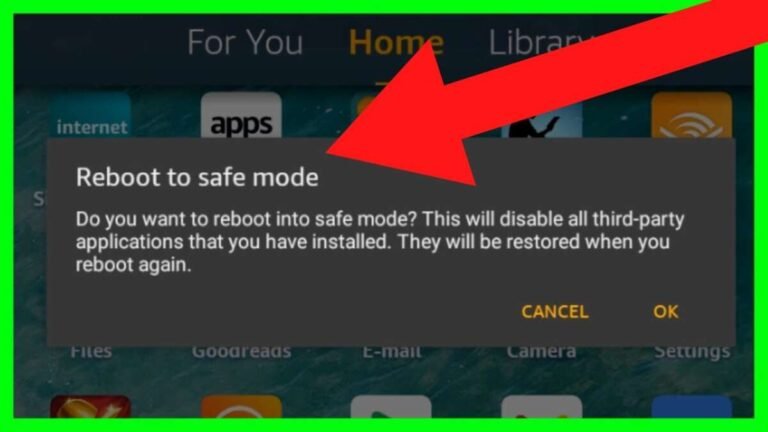
To screen mirror on an Insignia TV, connect both devices to Wi-Fi and use AirPlay, Miracast, or a streaming adapter.
Learning how to screen mirror on Insignia TV is simple once you know which operating system your television uses. Insignia models may run Fire TV, Roku TV, or a basic smart TV system, and each one uses a slightly different method. This guide explains the safest steps for iPhone, Android, Windows, Mac, and older Insignia TVs, along with fixes for common connection problems.
 mirroring”
style=”max-width: 100%; height: auto; border: 2px solid black; border-radius: 10px; display: block; margin: 0 auto;”
loading=”lazy”
/>
Check your Insignia TV before screen mirroring
Before learning how to screen mirror on Insignia TV, identify the software on your television. Look at the home screen or remote to see whether it says Fire TV, Roku, or Insignia Smart TV.
You can usually check this by pressing the Home button and reviewing the menu style. The model number is also helpful. It is often printed on the back of the TV or shown under Settings.


Use these quick clues:
• Fire TV models show an Amazon-style home screen and an Apps section.
• Roku TV models show a purple Roku interface and a left-side menu.
• Older Insignia smart TVs may have a simpler menu and may not support wireless screen mirroring.
• A non-smart Insignia TV needs an external device, such as a Chromecast, Roku stick, Fire TV Stick, or HDMI adapter.
The TV model matters because not every Insignia television supports every mirroring standard. AirPlay works with compatible Apple devices, while Miracast is common on Android and Windows devices. Some phones also use Google Cast, which is different from Miracast.


Prepare both devices for screen mirroring
A few simple checks prevent most screen mirroring problems. Connect your phone, tablet, or computer and the Insignia TV to the same Wi-Fi network.
Do not connect one device to a guest network and the other to your main network. Some routers block communication between devices on guest networks. Also, turn off a VPN during setup because it can hide the TV from your phone.
Before you start how to screen mirror on Insignia TV, check the following:
• Turn on the TV and keep it near the Wi-Fi router if possible.
• Install pending software updates on the TV and mobile device.
• Restart the TV, phone, tablet, or computer.
• Keep Bluetooth on if your device asks for it during setup.
• Close apps that use a lot of network data.
• Confirm that your phone is not using cellular data instead of Wi-Fi.
In my experience helping people connect TVs, the same Wi-Fi network solves more issues than any advanced setting. A TV may show the same network name as a phone but still sit on a different band or guest connection. Restarting the router can also refresh the connection.

How to screen mirror on Insignia Fire TV
Insignia Fire TV models may support AirPlay, Miracast, or both, depending on the model and software version. Some Fire TV models include a screen mirroring option in the quick settings menu.
To open the mirroring screen, follow these steps:
-
Turn on the Insignia Fire TV.
-
Press and hold the Home button on the Fire TV remote.
-
Select Mirroring, Display Mirroring, or a similar option.
-
Keep the TV on this screen while connecting your device.


If you do not see a mirroring option, open Settings and look under Display & Sounds. Search for Display Mirroring, AirPlay & HomeKit, or a related setting.
Mirror an Android phone to Insignia Fire TV
Android phones use different names for screen mirroring. Your phone may call it Cast, Smart View, Wireless Display, Screen Cast, or Smart Mirroring.
Try these steps:
-
Open Quick Settings by swiping down from the top of the screen.
-
Tap Cast, Screen Cast, Smart View, or Wireless Display.
-
Select your Insignia Fire TV from the device list.
-
Enter a PIN if the TV displays one.
-
Wait a few seconds for your phone screen to appear.
Samsung Galaxy phones usually use Smart View. Google Pixel phones often use Google Cast, which may require a compatible receiver or Chromecast. This is an important limitation: not every Android phone can mirror directly to every Fire TV.
Mirror an iPhone to Insignia Fire TV
If your Insignia Fire TV supports AirPlay, first enable it:
-
Open Settings on the TV.
-
Select Display & Sounds.
-
Choose AirPlay & HomeKit.
-
Turn AirPlay on.


Then mirror your iPhone:
-
Connect the iPhone and TV to the same Wi-Fi network.
-
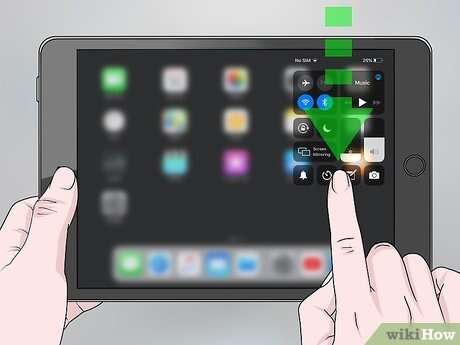
Open Control Center on the iPhone.
-
Tap Screen Mirroring.
-
Choose the Insignia TV.
-
Enter the code shown on the TV if asked.
If AirPlay is missing, your TV may not support it. In that case, use an Apple TV, a compatible Roku device, a Lightning-to-HDMI adapter, or another supported receiver.

How to screen mirror on Insignia Roku TV
Many Insignia Roku TVs support screen mirroring for compatible Android and Windows devices. Some models also support AirPlay and HomeKit after a software update.
Mirror Android to Insignia Roku TV
First, enable screen mirroring on the Roku TV:
-
Press the Home button on the Roku remote.
-
Open Settings.
-
Select System.
-
Choose Screen mirroring.
-
Select Prompt or Allow.


The Prompt option gives you control each time a device tries to connect. The Allow option accepts compatible devices without asking each time.
Now connect the Android phone:
-
Open the phone’s Quick Settings panel.
-
Tap Cast, Smart View, Screen Cast, or Wireless Display.
-
Select the Roku TV.
-
Accept the connection request on the television.
Some Android phones do not support Roku’s screen mirroring feature. If the TV does not appear, use the Roku mobile app for supported content or connect a Chromecast device.
Mirror iPhone to Insignia Roku TV
For an iPhone, enable AirPlay on the Roku TV:
-
Press Home on the Roku remote.
-
Open Settings.
-
Select Apple AirPlay and HomeKit.
-
Set AirPlay to On.
Then use these iPhone steps:
-
Connect the iPhone and Roku TV to the same Wi-Fi network.
-
Open Control Center.
-
Tap Screen Mirroring.
-
Choose the Insignia Roku TV.
-
Enter the AirPlay passcode if one appears.
If you only want to show a photo or video, tap the Share or AirPlay icon inside that app. This may work even when full-screen mirroring is not available.
How to screen mirror on Insignia TV from Windows
Windows laptops and tablets can often mirror to an Insignia TV through Miracast. This works best when the computer and TV both support wireless display technology.
To connect a Windows computer:
-
Turn on the Insignia TV and open its screen mirroring feature.
-
Press Windows key + K on the computer.
-
Select the Insignia TV from the list.
-
Approve the request on the TV if prompted.
You can also press Windows key + P and choose Duplicate. The Duplicate option shows the same screen on both devices. Extend creates a second desktop, which is useful when you want to keep working privately on the laptop.
If the TV does not appear, the computer may not support Miracast. Older laptops may need a Microsoft Wireless Display Adapter or an HDMI cable. A wired connection is often more stable for presentations, work calls, and gaming.

How to screen mirror on Insignia TV from Mac
Mac screen mirroring depends on AirPlay support. Newer Insignia Fire TV and Roku TV models may support AirPlay, but not every model does.
To mirror a Mac:
-
Connect the Mac and Insignia TV to the same Wi-Fi network.
-
Open Control Center from the menu bar.
-
Select Screen Mirroring.
-
Choose the Insignia TV.
-
Enter the code shown on the TV if required.
You can also open System Settings, select Displays, and choose the TV as an AirPlay display. Select mirroring if you want the TV to show the same image as the Mac.
For older TVs without AirPlay, use an HDMI cable. A MacBook may need a USB-C-to-HDMI adapter. An HDMI connection usually offers lower delay and fewer interruptions than wireless mirroring.

How to mirror an iPhone or iPad without built-in AirPlay
Not every Insignia TV supports AirPlay. If you have an iPhone or iPad, you still have several options.
Use an HDMI adapter
An Apple Lightning Digital AV Adapter works with many Lightning-port iPhones and iPads. Newer USB-C iPads and iPhones may use a USB-C-to-HDMI adapter.
Connect the equipment in this order:
-
Plug the adapter into the iPhone or iPad.
-
Connect the HDMI cable to the adapter.
-
Plug the other end into the Insignia TV.
-
Change the TV input to the matching HDMI port.
This method does not require Wi-Fi. It is a good choice for travel, classrooms, and places with weak internet.
Use a streaming device
A Roku, Apple TV, Chromecast, or Fire TV Stick can add wireless features to an older Insignia TV. Choose a device that supports your phone’s operating system and preferred casting method.
Avoid cheap, unknown adapters that promise every type of mirroring. Some only show photos, while others do not support protected video content.

Screen mirroring versus casting
Screen mirroring and casting are related but not identical.
Screen mirroring copies your entire device display. If you open a text message or change apps, the TV shows those actions. This is useful for photos, presentations, video calls, and mobile games.
Casting sends selected content to the TV. The TV plays the video or music itself while your phone acts as a remote. Casting often uses less battery and may provide smoother playback.
For example, tapping the Cast icon in YouTube sends the video directly to the TV. Tapping Screen Mirroring copies the whole phone screen. When possible, casting is usually better for movies because it reduces delay and keeps notifications off the TV.

Fix Insignia TV screen mirroring problems
If screen mirroring fails, work through these fixes in order. Start with the simple steps before changing advanced router settings.
The TV does not appear
• Confirm that both devices use the same Wi-Fi network.
• Turn AirPlay, Miracast, or Roku screen mirroring on.
• Restart the TV and mobile device.
• Disable a VPN or private relay temporarily.
• Move both devices closer to the router.
• Update the TV software and phone operating system.
• Check whether the phone supports the TV’s mirroring standard.
The connection drops
A weak wireless signal can interrupt mirroring. Move the TV or router, reduce heavy downloads, and disconnect devices that are not in use.
Microwave ovens, thick walls, and crowded apartment networks can also affect Wi-Fi performance. For long viewing sessions, use an HDMI cable or a streaming device with a stronger connection.
The picture appears but there is no sound
Check the volume on both the phone and the TV. Then open the TV’s audio settings and make sure the correct speaker output is selected.
Some apps block audio or video mirroring because of copyright rules. A black screen or missing sound does not always mean the TV is broken. Try using the app’s built-in Cast or AirPlay button instead.
The picture has delay
Wireless mirroring naturally adds some delay. This is most noticeable during games, video calls, and fast sports.
Reduce the delay by using a strong 5 GHz Wi-Fi network, moving closer to the router, closing background apps, or switching to HDMI. A wired connection is the best choice when timing matters.
Common mistakes to avoid
The most common mistake is assuming that every Insignia TV supports the same features. Fire TV, Roku TV, and older smart TV models can have different menus and wireless standards.
Avoid these errors:
• Searching for AirPlay on a model that does not support AirPlay.
• Using a guest Wi-Fi network.
• Selecting the wrong HDMI input.
• Confusing Chromecast with Miracast.
• Expecting protected apps to mirror normally.
• Leaving screen mirroring enabled on a shared or public network.
Privacy also matters. Screen mirroring can display notifications, messages, passwords, and other private information. Turn on Do Not Disturb before mirroring personal content in a meeting or public setting.
A practical lesson from troubleshooting home TV setups is to test with a simple photo first. If a photo mirrors correctly, the network and connection work. The problem may then be limited to a particular streaming app.
Which method should you use?
Choose the method that matches your device and TV.
• Use AirPlay for an iPhone, iPad, or Mac with a compatible Insignia TV.
• Use Miracast or Smart View for a compatible Android phone.
• Use Windows key + K for a Windows computer with wireless display support.
• Use an HDMI adapter for the most reliable iPhone, iPad, or Mac connection.
• Use a Roku, Chromecast, Apple TV, or Fire TV Stick for an older Insignia television.
• Use app-based casting when you want smooth video and longer battery life.
Wireless mirroring is convenient, but it is not always perfect. HDMI remains the most dependable option for low delay, stable sound, and protected content.
Frequently Asked Questions About How to Screen Mirror on Insignia TV
Can I screen mirror to an Insignia TV without Wi-Fi?
Yes, but your options are limited. An HDMI cable and the correct phone or computer adapter can mirror content without Wi-Fi. Some devices may also create a direct wireless connection, but compatibility varies by model.
Why is my Insignia TV not showing on my phone?
The TV and phone may be on different networks, or the television may not support your phone’s mirroring standard. Confirm that AirPlay, Miracast, or Roku screen mirroring is enabled, then restart both devices.
Can I mirror an iPhone to every Insignia TV?
No. The Insignia TV must support AirPlay, or you must use an Apple TV, compatible streaming device, or HDMI adapter. Check the TV settings for AirPlay & HomeKit before trying to connect.
Can I mirror an Android phone to an Insignia Fire TV?
Some Android phones can connect through Miracast or a similar wireless display feature. Other phones, including many Google Pixel models, may need Chromecast or another compatible receiver.
Does screen mirroring work with Netflix and other streaming apps?
It depends on the app and connection method. Some services block full-screen mirroring, so use the app’s built-in Cast or AirPlay button when available.
How do I stop screen mirroring on an Insignia TV?
On your phone or computer, open the screen mirroring or casting controls and select Stop Mirroring, Disconnect, or Stop Casting. You can also switch the TV to another input.
Conclusion
Learning how to screen mirror on Insignia TV starts with identifying whether your model uses Fire TV, Roku TV, AirPlay, or another system. Keep both devices on the same Wi-Fi network, enable the correct mirroring feature, and choose AirPlay, Miracast, casting, or HDMI based on your device.
If wireless mirroring fails, do not assume the television is defective. Check compatibility, restart the devices, update the software, and use a wired adapter when you need a stable connection. Try the method that fits your Insignia TV today, and share your model number or setup in the comments if you need more help.

Everett Ashford is a tech reviewer at mytechgrid.com specializing in SSDs, cameras, TVs, earbuds, headphones, and other consumer electronics. He provides honest, data-driven reviews based on hands-on testing and real-world performance analysis. Everett simplifies complex tech details to help readers make smart, confident buying decisions.