To pair TOZO A1 earbuds, open the case, enter pairing mode, and select “TOZO-A1” in your device’s Bluetooth settings.
Learning how to pair TOZO A1 earbuds is simple once you know the correct order. The earbuds usually connect in seconds, but old Bluetooth records, low battery, or a failed reset can cause trouble. This guide explains the setup process, fixes common pairing errors, and shares practical tips for keeping your TOZO A1 connection stable.
How to Pair TOZO A1 Earbuds for the First Time
The TOZO A1 earbuds use Bluetooth to connect with phones, tablets, laptops, and other compatible devices. Before you begin, charge both earbuds and place them near the device you want to use.
Follow these steps to pair TOZO A1 earbuds:
- Remove both earbuds from the charging case.
- Turn on Bluetooth on your phone, tablet, or computer.
- Open the Bluetooth settings menu.
- Wait for “TOZO-A1” to appear in the list of available devices.
- Tap or click “TOZO-A1.”
- Confirm the connection if your device asks for permission.
- Play audio to test the earbuds.
The earbuds usually enter pairing mode automatically when removed from the case for the first time. Their indicator lights may flash while they search for a device.
If “TOZO-A1” does not appear, place both earbuds back in the case. Close the lid, wait a few seconds, and remove them again. This often restarts the pairing process.
How to Pair TOZO A1 Earbuds With an iPhone
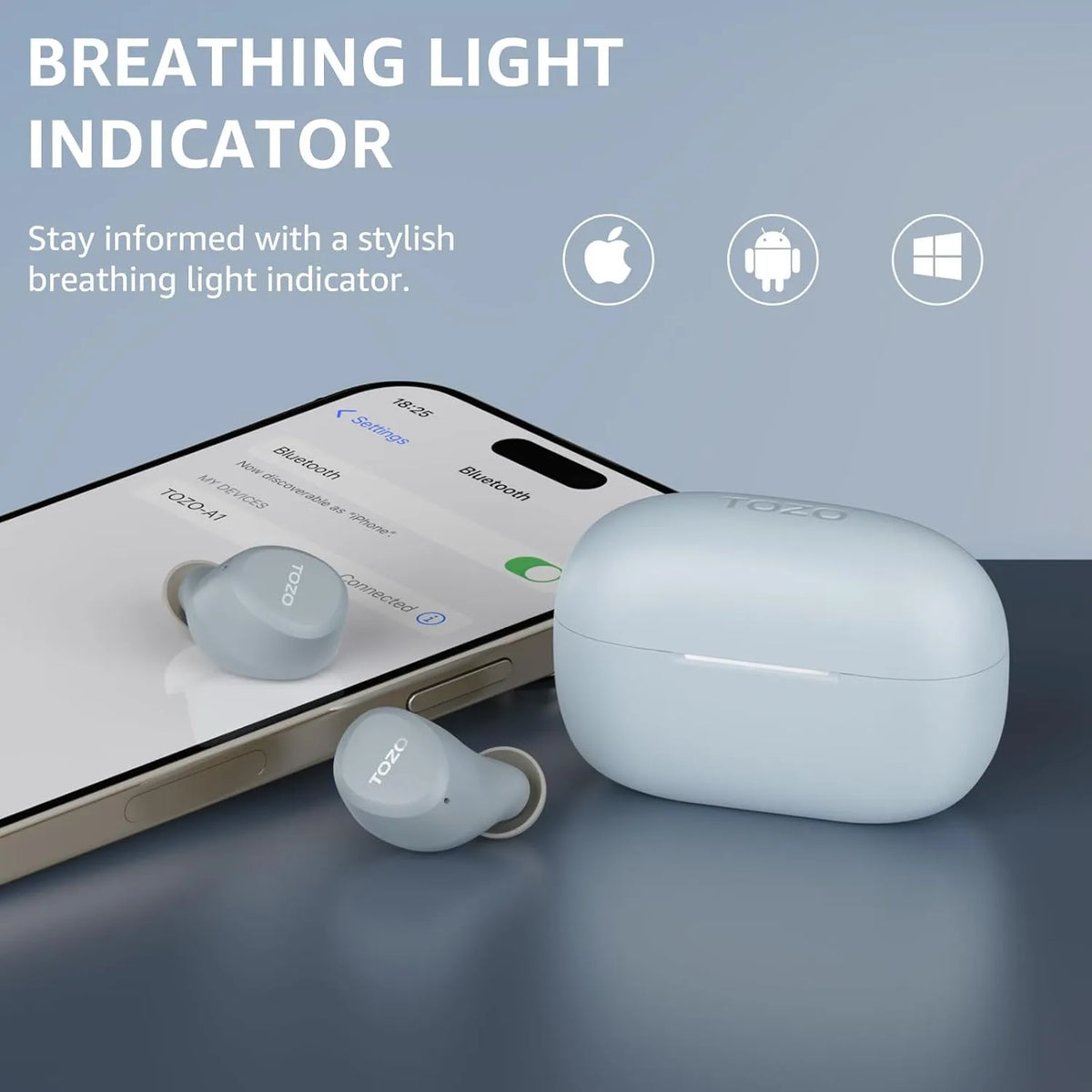
Pairing TOZO A1 earbuds with an iPhone takes less than a minute in most cases. Keep the earbuds close to your iPhone and make sure no other phone is trying to connect to them.
- Open the Settings app on your iPhone.
- Tap Bluetooth.
- Turn Bluetooth on.
- Remove the TOZO A1 earbuds from the charging case.
- Look under Other Devices.
- Tap TOZO-A1.
- Wait until the status changes to Connected.
Once connected, the earbuds should work for music, videos, calls, and other audio. You can check the battery level from the Bluetooth menu or through your iPhone’s battery widget, depending on the iOS version.
If the iPhone shows “Not Connected,” tap the device name again. If that fails, turn Bluetooth off, wait about five seconds, and turn it back on.
A common mistake is searching for the earbuds while they are still inside the case. The TOZO A1 must be active and available before the iPhone can find it.
How to Pair TOZO A1 Earbuds With Android Phones
The steps for Android phones are similar, although menu names can differ by brand. Samsung, Google Pixel, Motorola, OnePlus, and other phones may use slightly different Bluetooth menus.
To pair TOZO A1 earbuds with Android:
- Open Settings.
- Tap Connected devices, Connections, or Bluetooth.
- Turn Bluetooth on.
- Choose Pair new device if that option appears.
- Remove both earbuds from the case.
- Select TOZO-A1 from the available devices list.
- Tap Pair or Connect.
Some Android phones display a Bluetooth pairing pop-up. If you see one, select Pair to finish the setup.
If the earbuds connect to one side only, do not pair each earbud separately. The TOZO A1 earbuds are designed to work as a left and right pair. Remove both earbuds from the case at the same time and reset them if they remain separate.
Android may also save an old connection record. Removing that record before pairing again often solves connection problems.

How to Pair TOZO A1 Earbuds With a Windows PC
You can use TOZO A1 earbuds with a Windows laptop or desktop that supports Bluetooth. The exact menu may vary between Windows 10 and Windows 11, but the basic process is the same.
Windows 11
- Open Settings.
- Select Bluetooth & devices.
- Turn Bluetooth on.
- Click Add device.
- Choose Bluetooth.
- Remove the TOZO A1 earbuds from the case.
- Select TOZO-A1.
- Click Done after the connection completes.
Windows 10
- Open Settings.
- Select Devices.
- Click Bluetooth & other devices.
- Turn Bluetooth on.
- Select Add Bluetooth or other device.
- Choose Bluetooth.
- Click TOZO-A1.
- Select Done.
After pairing, click the speaker icon on the Windows taskbar. Choose TOZO-A1 as the sound output device if audio still comes from the computer speakers.
For calls, Windows may show two audio options. The stereo option normally provides better music quality, while the headset option may activate the earbud microphones for calls.

How to Pair TOZO A1 Earbuds With a Mac
Pairing TOZO A1 earbuds with a Mac is also straightforward. The Mac must have Bluetooth enabled and should be close to the earbuds.
- Open the Apple menu.
- Select System Settings or System Preferences.
- Click Bluetooth.
- Turn Bluetooth on.
- Remove both TOZO A1 earbuds from the case.
- Find TOZO-A1 in the device list.
- Click Connect.
You can select the earbuds as the sound output device from the Control Center or Sound settings. If the Mac connects but produces no sound, check the output menu before trying a reset.
Older Mac computers may show Bluetooth under System Preferences. Newer versions of macOS place it under System Settings. The labels are different, but the pairing method remains nearly the same.
How to Pair TOZO A1 Earbuds With Another Device
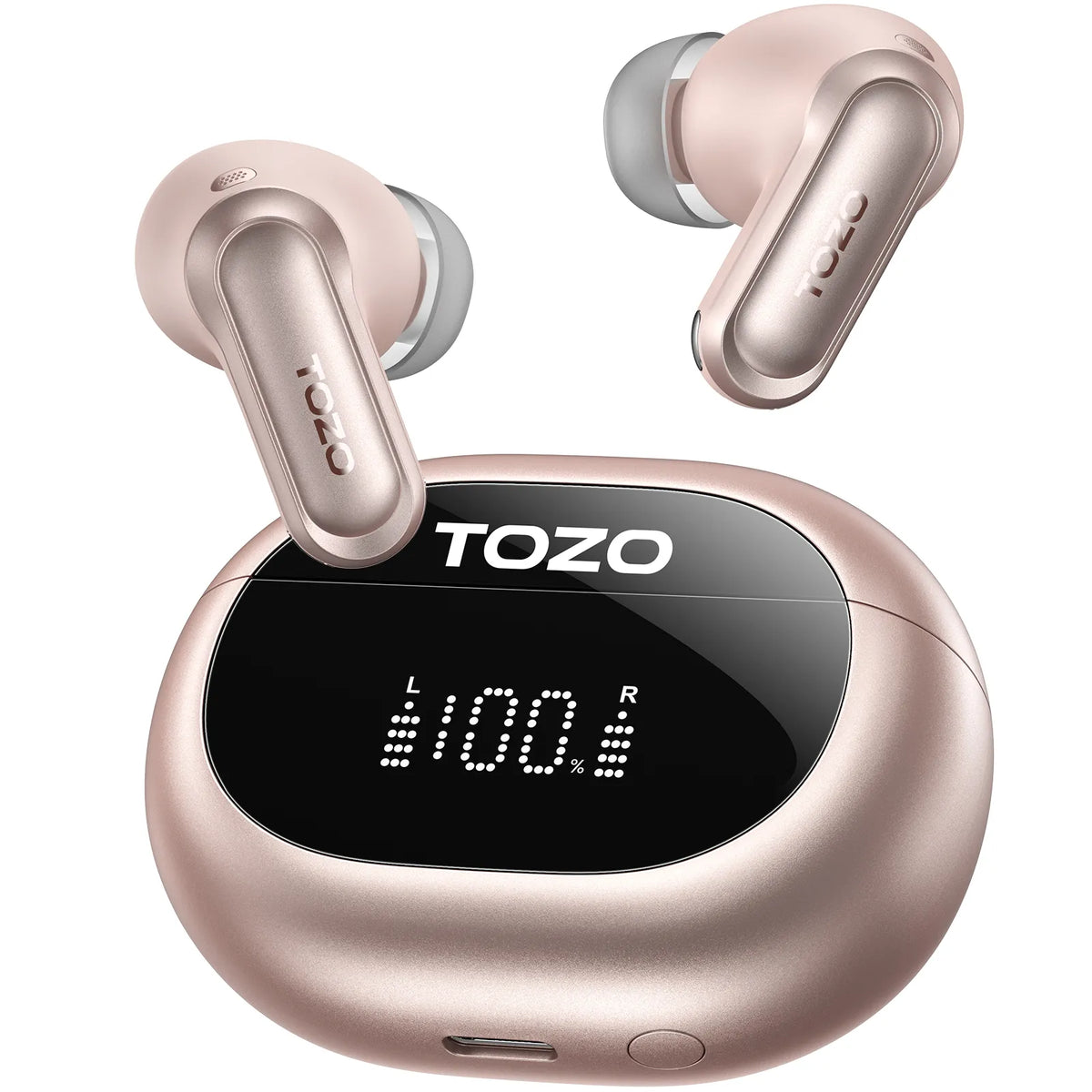
The TOZO A1 can pair with several types of Bluetooth devices, but it generally connects to one active source at a time. This means the earbuds may automatically reconnect to the last phone or computer they used.
To pair TOZO A1 earbuds with a new device:
- Turn off Bluetooth on the device they previously used.
- Put both earbuds in the charging case.
- Close the lid briefly.
- Remove the earbuds.
- Open Bluetooth settings on the new device.
- Select TOZO-A1.
- Confirm the connection.
If the old device remains nearby with Bluetooth enabled, it may capture the connection first. Turning Bluetooth off on that device is often faster than repeatedly trying to connect the new one.
This is especially useful when switching between a work laptop and a personal phone. Think of the earbuds like a small door with one active key. The old device may still hold that key until Bluetooth is turned off or the saved connection is removed.

What to Do When TOZO-A1 Does Not Appear
If TOZO-A1 does not appear in your Bluetooth list, check the simple causes first. Most pairing failures come from power, distance, or a saved connection.
Try these steps:
• Charge the case and both earbuds.
• Keep the earbuds within a few feet of your device.
• Turn Bluetooth off and on again.
• Close nearby Bluetooth settings on other devices.
• Restart your phone, tablet, or computer.
• Place the earbuds in the case, close the lid, and remove them again.
• Forget any old TOZO-A1 entry before searching again.
The indicator lights can also provide useful clues. Flashing lights usually mean the earbuds are searching for a connection. No light may indicate that an earbud is not charged, is not seated correctly, or needs a reset.
Bluetooth works best with a clear path and short distance. Walls, crowded wireless areas, and many nearby Bluetooth devices can sometimes make discovery slower.
How to Reset TOZO A1 Earbuds
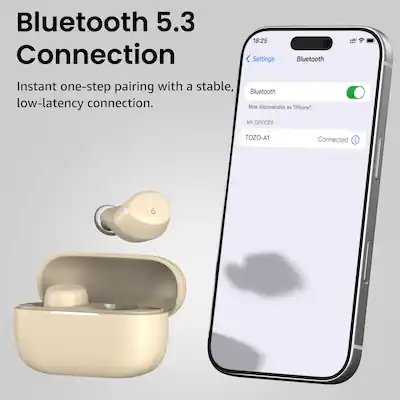
A reset removes old pairing information and helps the earbuds create a fresh connection. It is useful when only one earbud works, the earbuds connect to the wrong device, or TOZO-A1 appears but will not connect.
TOZO A1 reset instructions can vary slightly by production version. The common reset process is:
- Remove TOZO-A1 from your device’s Bluetooth list.
- Turn off Bluetooth on nearby devices.
- Place both earbuds in the charging case.
- Remove both earbuds.
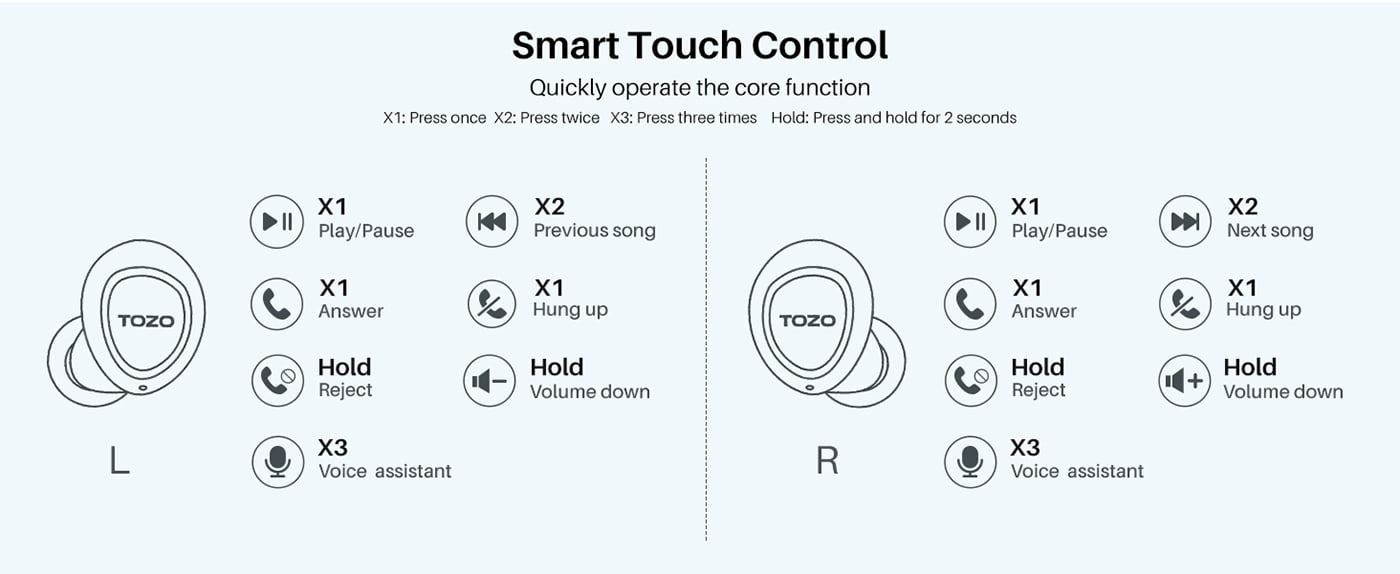
- Touch and hold the control area on each earbud for several seconds to turn them off.
- Touch and hold both earbuds again until their indicator lights flash or the earbuds restart.
- Place both earbuds back in the case.
- Remove them together.
- Turn Bluetooth on and search for TOZO-A1 again.
If this method does not work, check the instruction manual supplied with your exact TOZO A1 version. Firmware and hardware revisions can change the button timing.
After resetting, do not connect one earbud alone first. Remove both earbuds together and wait for them to link with each other before selecting TOZO-A1 on your phone.
How to Fix TOZO A1 Pairing Problems
Pairing problems are usually easy to solve when you test one cause at a time. Avoid changing several settings at once, because it becomes harder to know which step fixed the issue.
The earbuds connect but have no sound
Check the active audio output on your device. Your phone or computer may still send sound through its built-in speaker.
Also raise the media volume. Bluetooth connection volume and media volume can sometimes act separately.
Only one earbud works
Place both earbuds in the case and confirm that they charge. Clean the charging contacts with a dry cotton swab, then remove both earbuds at the same time.
If one side still fails, forget TOZO-A1, reset the earbuds, and pair them again as a set.
The earbuds keep disconnecting
Keep the earbuds close to the device and remove objects that block the signal. Charge the case and earbuds fully, since very low power can cause unstable behavior.
You should also disconnect the earbuds from devices you no longer use. A nearby tablet or laptop may repeatedly attempt to reconnect.
TOZO-A1 asks for a PIN
Most devices should pair without a PIN. If a PIN prompt appears, cancel it, forget the device, restart Bluetooth, and try again.
Avoid entering random codes. A fresh reset and a new pairing attempt are safer.
The earbuds connect to the wrong device
Turn Bluetooth off on the unwanted device. Then place the TOZO A1 earbuds in pairing mode and connect them to the device you want.
This is a common issue in homes with several phones, tablets, and laptops. Managing saved Bluetooth connections prevents repeated confusion.