Most smart TV no-signal problems come from the wrong input, a loose cable, or a device that needs a reset.
A “No Signal” message can feel serious, but it often points to a simple connection problem. This guide explains how to fix no signal on smart TV models from Samsung, LG, Sony, TCL, Hisense, Vizio, and other brands. You will learn how to check the input, test HDMI devices, restore an antenna signal, and tell when the TV itself may need service.
What “No Signal” Means on a Smart TV
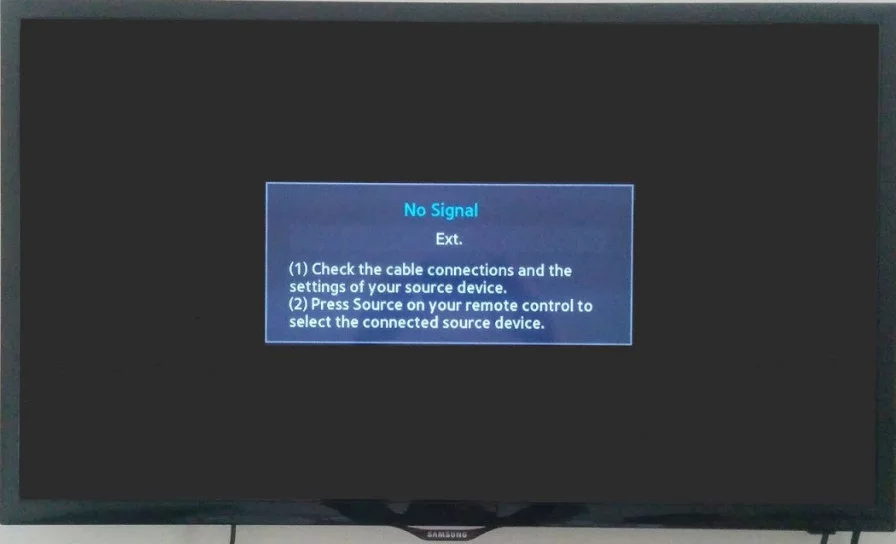
A no-signal message means the TV is not receiving a usable picture from the selected source. The screen may work correctly, but the connected device, cable, antenna, or input port is not sending video.
Your smart TV has several possible sources, such as:
• HDMI 1, HDMI 2, or HDMI 3
• A cable or satellite box
• A game console
• A streaming stick
• An over-the-air antenna
• A media player or Blu-ray player
• Built-in smart TV apps
The TV may show “No Signal” when it is set to HDMI 2 while your device is plugged into HDMI 1. It can also appear when a cable box is asleep, an HDMI cable is damaged, or an antenna channel scan is outdated.
Think of the TV as a mailbox. The screen is ready to receive a message, but it is checking the wrong mailbox. Choosing the right input usually solves the problem quickly.

How to Fix No Signal on Smart TV: Start With These Quick Checks
Before changing advanced settings, try the basic steps below. These checks solve many no-signal problems in just a few minutes.
-
Press the Input, Source, or Home button on the TV remote.
-
Select the input that matches your device. For example, choose HDMI 1 if the device is plugged into HDMI 1.
-
Make sure the connected device is powered on.
-
Check that the device is not in sleep mode. Press a button on the cable box, console, or streaming device.
-
Unplug the TV and the connected device from the wall.
-
Wait at least 60 seconds.
-
Plug the TV back in first, then turn on the external device.
-
Select the correct input again.
A full power cycle is more useful than pressing the remote power button once. Many TVs stay in a low-power standby state, so removing power gives the system a cleaner restart.
If the screen still shows no signal, continue with the cable and port checks below. Do not buy a new TV until you test these simple causes.

Check the TV Input and Source
The wrong source is one of the most common reasons for a no-signal message. This often happens after someone moves a cable, changes a game console, or uses a different HDMI port.
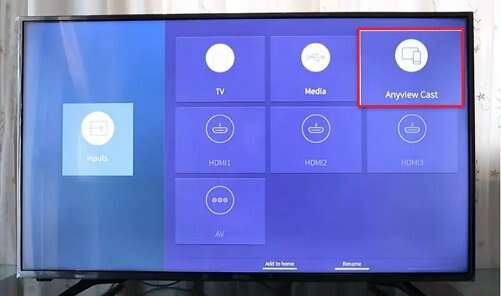
Use the TV remote to open the source menu. Depending on your brand, the button may say:
• Input
• Source
• TV/Video
• External Input
• HDMI
Select each active source for a few seconds. If your cable box is connected to HDMI 1, choose HDMI 1. If your game console uses HDMI 2, choose HDMI 2.
Some smart TVs hide inactive inputs. You may need to open Settings, choose Connection or External Devices, and enable the input. The exact menu name varies by brand and software version.
If you use an antenna, select TV, Live TV, Antenna, or Broadcast instead of an HDMI source. Choosing HDMI while expecting antenna channels will produce a no-signal message.

Inspect and Reseat Every Cable
A loose cable can interrupt the picture even when it looks connected. HDMI plugs must sit firmly in both the TV and the external device.
Follow these steps:
• Turn off the TV and the connected device.
• Remove the HDMI, coaxial, or composite cable from both ends.
• Look for bent pins, cracked plastic, frayed wires, or dirt.
• Reconnect the cable firmly.
• Turn on the external device and then the TV.
• Select the correct input.
For an antenna or cable service, check the round coaxial connector. Twist it clockwise until it feels secure, but do not force it. A loose coaxial connection can reduce signal strength or stop the channel feed completely.
For older devices, check the red, white, and yellow composite cables. The yellow plug carries video. If it is connected to the wrong jack, the TV may show no signal or a black screen.
In my troubleshooting experience, people often replace the TV before checking the cable behind a cabinet. Always test the cable path first. It is the least expensive and fastest part of the system to fix.

Test a Different HDMI Port and Cable
HDMI ports can fail from wear, dust, power surges, or accidental pressure. A damaged port may stop sending a picture even though the TV works normally.
Move the device to another HDMI port. For example, if HDMI 1 does not work, connect the device to HDMI 2 and choose HDMI 2 on the TV.
Then test with another HDMI cable if one is available. Use a short, known-good cable when possible. Avoid testing with a cable that already has loose connectors or visible damage.
A helpful test is to connect a different device to the same port:
• If both devices work, the original device or cable may be the problem.
• If neither device works, the HDMI port or TV settings may be the problem.
• If one port works and another does not, use the working port and consider service for the damaged port.
Some 4K TVs also label ports with features such as ARC, eARC, 4K, or 120 Hz. These labels usually describe added features, but the port should still accept a standard HDMI signal. If a device fails on one special port, test another port.

Restart the TV and Connected Device Correctly
A normal restart may not clear a temporary HDMI handshake error. An HDMI handshake is the process that lets the TV and external device identify each other and agree on a video format.
To perform a deeper restart:
-
Turn off the TV and external device.
-
Unplug both power cords.
-
Disconnect the HDMI cable from the TV and device.
-
Wait one full minute.
-
Plug in the TV.
-
Turn on the TV and select the correct HDMI input.
-
Plug in and turn on the external device.
This order helps the TV start before the source device sends a video signal. It can fix a no-signal problem caused by a temporary communication error.
If you use a soundbar, AV receiver, or HDMI switch, connect the source directly to the TV for testing. Extra equipment adds more points where the signal can fail.

Fix No Signal From a Cable Box or Satellite Receiver
When a cable or satellite box shows no signal on the TV, the problem may be between the box and TV rather than with the service itself.
First, check whether the box has power. Look for a display, status light, or response from its remote. If the box does not respond, unplug it for one minute and reconnect it.
Next, check the HDMI cable and TV input. If the box uses HDMI 1, the TV must also be set to HDMI 1.
If the box has a picture on another TV, your original TV, cable, or input may be at fault. If the box has no picture on any TV, contact the service provider or check the incoming cable connection.
Satellite systems have extra equipment, including an outdoor dish and signal receiver. Heavy rain, snow, tree growth, or dish movement can affect service. If the receiver reports a satellite signal error, restarting the TV alone will not solve it.

Fix No Signal From a Game Console or Streaming Device
Game consoles and streaming sticks can produce a no-signal message when they are powered off, set to an unsupported resolution, or connected through a faulty adapter.
Try these steps:
• Confirm that the console or streaming device is on.
• Connect it directly to the TV.
• Remove HDMI splitters, capture cards, and AV receivers during testing.
• Try another HDMI cable.
• Test another HDMI port.
• Restart the device.
A console may save a display setting that your TV cannot show. If the console powers on but remains blank, use its display reset process. The exact button combination differs by PlayStation, Xbox, and Nintendo models, so check the device manual for the correct method.
Streaming sticks also need power. A USB port on the TV may not provide enough power for some devices. If the stick repeatedly disconnects, use its wall power adapter instead.
The internet connection affects streaming content, but it does not usually cause the TV to display “No Signal” on an HDMI input. “No Signal” usually means the TV cannot see the device at all. A loading screen or network error points to an internet issue instead.

Fix No Signal When Using an Antenna
If you use an antenna, the TV must be set to the correct tuner mode and must have a recent channel scan.
Check the antenna connection first. Make sure the coaxial cable runs from the antenna to the TV’s ANT IN, RF IN, or CABLE/ANTENNA port.
Then run a new channel scan:
-
Open the TV Settings menu.
-
Select Channels, Broadcasting, or Live TV.
-
Choose Auto Program, Auto Tuning, Channel Scan, or Auto Channel Search.
-
Select Antenna or Air, not Cable, if you use an over-the-air antenna.
-
Start the scan and wait for it to finish.
Channel names vary by TV brand. The scan can take several minutes, and the TV may not display channels until the process ends.
Antenna position also matters. Move the antenna near a window and keep it away from large metal objects, thick walls, and other electronics. Signal strength depends on distance from broadcast towers, terrain, building materials, and local interference.
If the TV finds zero channels, the antenna, coaxial cable, tuner mode, or local signal may be the cause. Try the antenna on another TV if possible. This separates an antenna problem from a TV problem.
Check the Resolution and Display Settings
An external device may send a resolution or refresh rate that the TV cannot display. This can cause a blank screen or a no-signal warning.
For example, an older TV may not support a device set to 4K, 120 Hz, or a special HDR mode. Newer TVs can handle more formats, but compatibility still depends on the model and HDMI port.
If you can access the device through another TV, lower its output settings:
• Choose 1080p instead of 4K.
• Choose 60 Hz instead of 120 Hz.
• Turn off unusual HDR or color settings for testing.
• Use automatic display detection if available.
Then reconnect the device to your smart TV. If the picture returns, change settings one at a time to find the unsupported option.
Avoid changing several settings at once. A slow, controlled test makes the cause much easier to identify.
Update the TV and Reset External Connections
Smart TV software can contain bugs that affect HDMI detection, channels, or external devices. If the TV has another working input or internet connection, check for a software update.
Open Settings and look for Support, System, About, or Software Update. Install updates only when the TV has stable power and internet access.
You can also reset external device settings. Look for options such as:
• HDMI device control
• Anynet+ on Samsung TVs
• SIMPLINK on LG TVs
• Bravia Sync on Sony TVs
• CEC control on many other brands
These features let devices control one another. They are useful, but a communication error can sometimes prevent proper detection. Turn the feature off temporarily to test the connection.
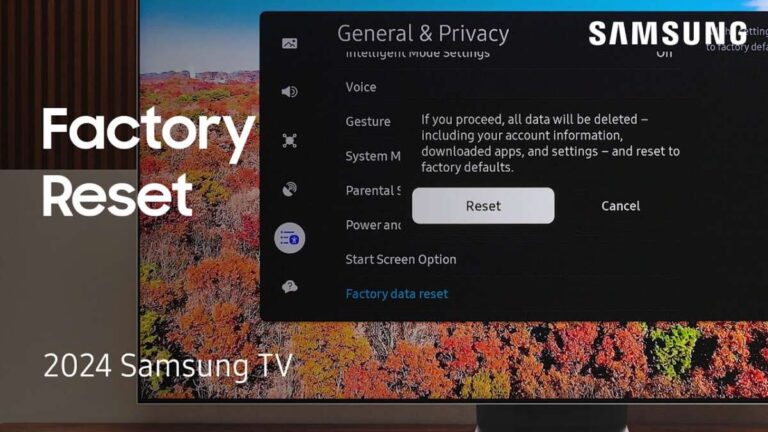
A factory reset should be a last resort. It erases apps, accounts, picture settings, and saved channels. Before using it, write down your Wi-Fi password and confirm that the issue is not just a bad cable or incorrect input.
Identify Whether the TV or Device Is at Fault
A few simple tests can isolate the failing part.
Use this pattern:
• Test the same external device on another TV.
• Test a different device on the problem TV.
• Test the original device with a different HDMI cable.
• Test every HDMI port on the TV.
• Try the TV’s built-in apps or menu.
If the TV menu and built-in apps work, the screen and main system are probably functioning. The issue is more likely the external device, cable, port, or source selection.
If every HDMI port shows no signal with several known-good devices, the TV may have an internal HDMI board or mainboard problem. If the antenna also fails and the TV menu behaves strangely, professional service becomes more likely.
Do not open the TV yourself unless you are trained to work with electronics. TVs can contain parts that hold dangerous voltage even after they are unplugged.
Common Mistakes to Avoid
Many no-signal problems last longer because people skip basic tests or change too many things at once.
Avoid these mistakes:
• Buying a new TV before testing another HDMI cable.
• Choosing HDMI 1 when the device is connected to HDMI 2.
• Running an antenna channel scan in Cable mode.
• Connecting a streaming stick to a weak USB power source.
• Testing through a receiver or splitter instead of directly to the TV.
• Assuming a black screen always means a broken display.
• Unplugging only the TV while leaving the source device frozen.
• Performing a factory reset before recording account and network details.
One mistake I see often is replacing a working HDMI cable with another untested cable. Use a cable that is known to work with another device. That small step gives you useful evidence instead of creating another unknown.
When to Contact a Professional
You can usually solve a no-signal problem at home when the cause is an input, cable, power cycle, or channel scan. Professional help may be needed when the problem remains after careful testing.
Contact the TV manufacturer, service provider, or a qualified technician if:
• All HDMI ports fail with known-good devices.
• The TV repeatedly loses signal after warming up.
• You smell burning or see sparks.
• The HDMI port is loose or pushed into the TV.
• The screen has lines, flashing areas, or physical damage.
• The antenna tuner finds no channels on a known-good antenna.
• A cable or satellite receiver reports an outside service fault.
Before contacting support, record the TV model, device model, input used, cable type, and tests you completed. Clear details help the technician avoid repeating basic steps.
If the TV is under warranty, do not open the case or attempt board repairs. Unauthorized repairs can create safety risks and may affect warranty coverage.
How to Prevent Future No-Signal Problems
A few habits can reduce repeat problems.
• Label each HDMI cable and TV input.
• Keep the TV and connected devices well ventilated.
• Avoid bending HDMI cables sharply behind the TV.
• Use a surge protector for the TV and major devices.
• Keep streaming devices on their recommended power adapters.
• Update TV software when stable updates are available.
• Rescan antenna channels after moving the antenna or changing locations.
• Disconnect devices carefully instead of pulling cables at an angle.
• Use direct connections when troubleshooting.
Surge protection cannot prevent every failure, and it does not repair a damaged port. Still, good cable care and stable power can reduce avoidable connection problems.
Frequently Asked Questions About How to Fix No Signal on Smart TV
Why does my smart TV say no signal when everything is plugged in?
The TV may be set to the wrong input, or the connected device may not be sending a video signal. Select the matching HDMI source, restart both devices, and test another cable or HDMI port.
How do I fix no signal on smart TV with an HDMI cable?
Unplug the TV and device, remove the HDMI cable, and wait one minute. Reconnect the cable firmly, choose the correct HDMI input, and test a different port or known-good cable if the issue continues.
Why does my TV say no signal but the cable box is on?
The cable box may be connected to a different HDMI port than the one selected on the TV. Check the cable connection, restart the box, and select the correct source using the TV remote.
How do I fix no signal on smart TV with an antenna?
Connect the antenna to the TV’s ANT IN or RF IN port, choose the Live TV or Antenna source, and run an automatic channel scan. If no channels appear, reposition the antenna and test the coaxial cable.
Can bad internet cause a no-signal message on a smart TV?
Bad internet usually causes buffering, app errors, or a loading screen rather than “No Signal.” A no-signal message most often relates to the selected input, HDMI connection, antenna, or external device.
Should I reset my smart TV if it says no signal?
A factory reset should not be your first step. Try the correct input, a power cycle, another cable, another port, and a channel scan before erasing your TV settings.
Why does my TV lose signal after a few minutes?
The external device may be overheating, losing power, or failing to maintain an HDMI connection. Improve ventilation, use the correct power adapter, test another cable, and check whether the issue affects every input.
Conclusion
The best way to fix no signal on smart TV is to work from simple checks to deeper tests. Confirm the input, reseat the cable, restart both devices, try another HDMI port, and run a new antenna scan when needed.
Test one change at a time so you can identify the real cause. If every source fails with known-good cables and devices, stop troubleshooting inside the TV and contact the manufacturer or a qualified technician. Use these steps today, and share your TV model and connection setup if you need more targeted help.

Everett Ashford is a tech reviewer at mytechgrid.com specializing in SSDs, cameras, TVs, earbuds, headphones, and other consumer electronics. He provides honest, data-driven reviews based on hands-on testing and real-world performance analysis. Everett simplifies complex tech details to help readers make smart, confident buying decisions.