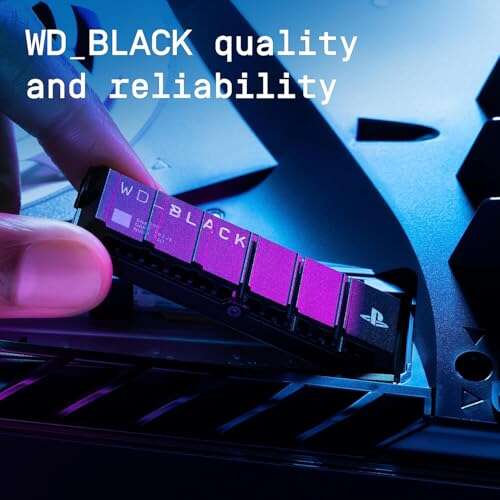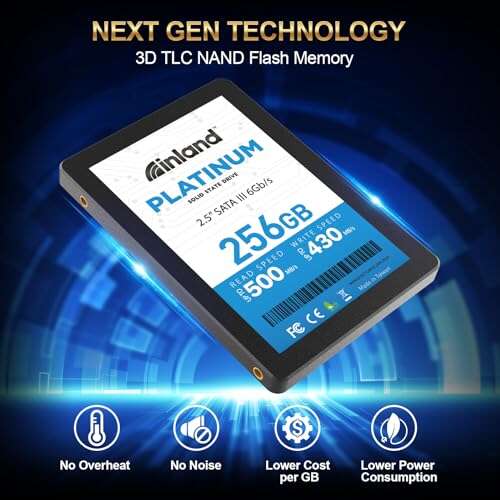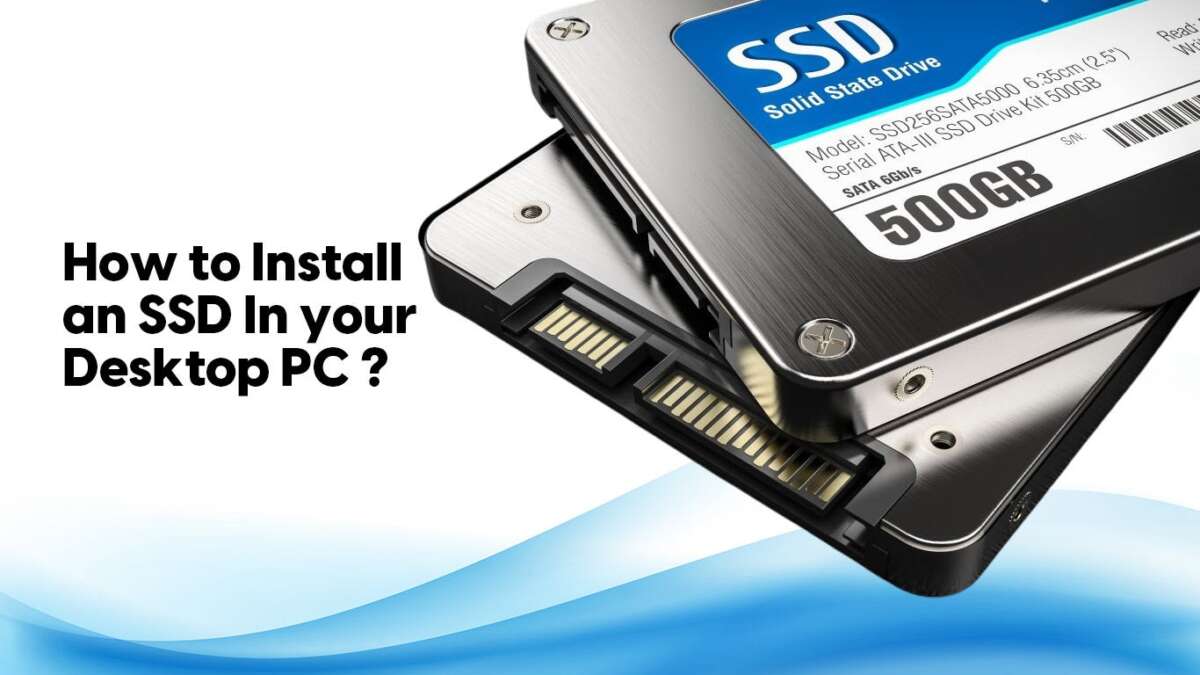
Most PCs support a 2.5-inch SATA SSD or an M.2 SSD, but your motherboard decides which one fits.
Finding what ssd is compatible with my pc starts with three checks: the drive slot, the connection type, and the physical size. An SSD can make an old computer feel new, but the wrong model may not fit, connect, or boot. This guide explains how to check compatibility with confidence, avoid common buying mistakes, and choose the best SSD for your desktop or laptop.

What determines SSD compatibility?
The answer to what ssd is compatible with my pc depends on your computer’s motherboard, storage bay, and firmware. SSDs are not universal. They come in different shapes and use different interfaces.
The main compatibility factors are:
- Physical form factor
- Connection interface
- Supported PCIe generation
- Drive thickness and length
- BIOS or UEFI support
- Available mounting hardware
- Operating system support
Think of an SSD like a key. Its speed does not matter if its shape or connection does not match the lock in your PC.
Most modern computers use one of these SSD types:
- 2.5-inch SATA SSD
- M.2 SATA SSD
- M.2 NVMe SSD
- PCIe add-in card SSD
A 2.5-inch SATA SSD is often the safest upgrade for an older desktop or laptop. An M.2 NVMe SSD is usually the fastest and most compact option for a newer computer.
Check your PC before buying an SSD
Before searching for what ssd is compatible with my pc, identify your exact computer model or motherboard model. This step takes only a few minutes and can prevent an expensive return.
For a Windows laptop or desktop
Use these methods to find your system details:
- Press Windows + R.
- Type
msinfo32. - Press Enter.
- Check the system model and manufacturer.
You can also open Command Prompt and enter:
wmic baseboard get product,manufacturer,version
On newer Windows versions, PowerShell may be more useful:
Get-CimInstance Win32_BaseBoard | Select Manufacturer, Product, Version
For a desktop, shut down the PC and inspect the motherboard. Look for labels such as:
- SATA
- M.2
- PCIe
- NVMe
- SATA3
- M2_1 or M2_2
Do not open a laptop unless you feel comfortable doing so. Check the service manual first. Some laptops have a removable bottom panel, while others require special tools and careful cable removal.
Check the current drive
Windows can show whether your current drive is a hard disk or SSD.
- Press Ctrl + Shift + Esc.
- Open the Performance tab.
- Select Disk.
- Check the drive type and model.
The model number can reveal the current form factor. A drive labeled “2.5-inch SATA” is different from an “M.2 NVMe” drive, even if both are SSDs.
If you want more detail, use a trusted hardware tool to view:
- Interface type
- Link speed
- Drive temperature
- Firmware version
- PCIe lane count
- SMART health data
In my experience, checking the exact motherboard manual is more reliable than relying on a store filter. Store filters sometimes list drives that physically fit but use an unsupported interface.
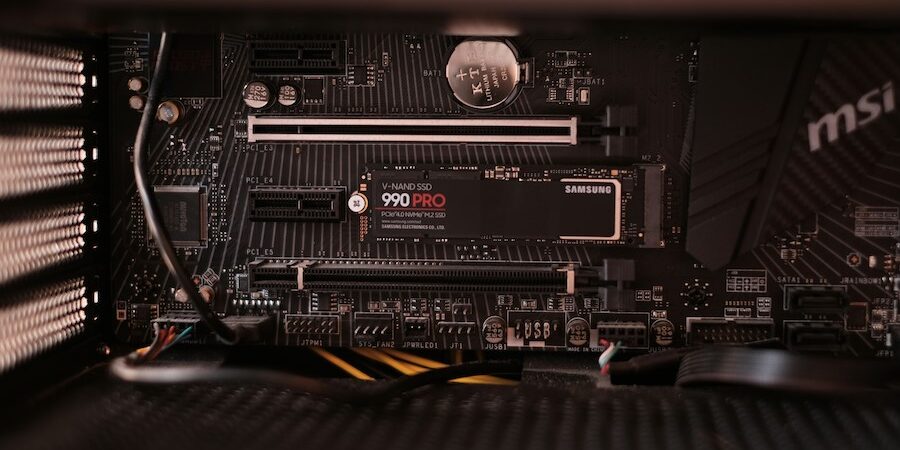
The main SSD types explained
Understanding SSD types makes it easier to determine what ssd is compatible with my pc.
2.5-inch SATA SSD
A 2.5-inch SATA SSD looks like a small flat rectangle. It connects with a SATA data cable and a SATA power cable in a desktop. In a laptop, it usually slides into the same bay used by a 2.5-inch hard drive.
Important details include:
- Uses the SATA III interface
- Offers speeds near the SATA limit
- Fits many older computers
- Usually needs a mounting bracket in a desktop
- Requires both power and data connections
SATA III has a theoretical limit of 6 gigabits per second. Real-world sequential speeds often reach about 500 to 560 megabytes per second.
This is still a major improvement over a mechanical hard drive. Windows may start much faster, apps can open with less delay, and the system feels more responsive.
M.2 SATA SSD
An M.2 SATA SSD is a small stick-shaped drive. It fits into an M.2 slot but communicates through SATA rather than PCIe.
This distinction matters. An M.2 SATA drive may not work in an M.2 slot designed only for NVMe. Some M.2 slots support both types, but you must confirm this in the manual.
M.2 SATA drives often use a B+M key notch. However, the notch alone does not prove compatibility. The motherboard must support the drive’s communication method.
M.2 NVMe SSD
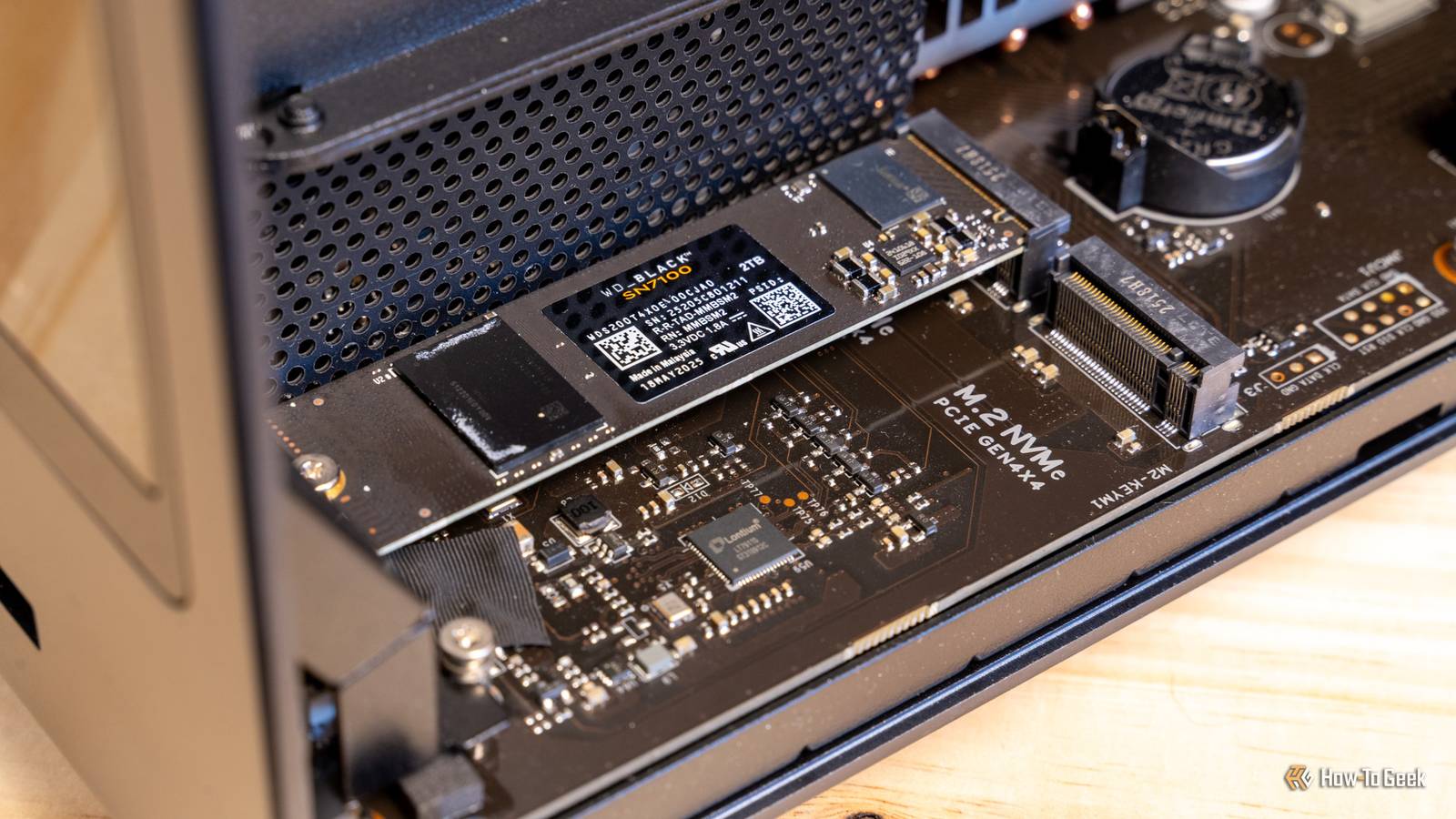
M.2 NVMe drives are common in newer laptops and desktops. They use the PCIe bus and the NVMe protocol, which was designed for fast solid-state storage.
Common versions include:
- PCIe 3.0 NVMe
- PCIe 4.0 NVMe
- PCIe 5.0 NVMe
An M.2 NVMe drive is normally identified by its M-key notch. Common sizes include:
- 2230
- 2242
- 2260
- 2280
The number describes the dimensions. For example, a 2280 drive is 22 millimeters wide and 80 millimeters long. The 2280 size is the most common in desktop computers and many laptops.
PCIe add-in card SSD
A PCIe add-in card SSD plugs into a full-size PCIe slot. It may be useful when a desktop has no M.2 slot or when you need several high-speed drives.
These drives can work well in desktops, but boot support depends on the motherboard firmware. Older systems may store data on the drive but fail to boot from it without a firmware update or special boot support.

SATA versus NVMe: Which should you choose?
When people ask what ssd is compatible with my pc, they often also want to know whether SATA or NVMe is better. The right choice depends on your hardware and your work.
Choose a 2.5-inch SATA SSD when:
- Your PC has no M.2 slot
- Your laptop uses a 2.5-inch drive bay
- You want a simple upgrade
- Your motherboard is older
- You mainly browse, write documents, or stream video
Choose an M.2 NVMe SSD when:
- Your motherboard supports NVMe
- You edit video or large photos
- You transfer large files often
- You play modern games
- You want a compact, cable-free installation
For everyday tasks, the difference between SATA and NVMe may feel smaller than benchmark numbers suggest. Both can make a computer feel much faster than a hard drive.
NVMe provides much higher bandwidth and lower latency. Still, a faster SSD does not automatically improve every task. A web browser, office app, or game may be limited by the processor, memory, or software design.
I once helped upgrade an older office PC with an NVMe drive that the motherboard could not boot from. The drive appeared in Windows after installation, but it was not available as a startup device. A SATA SSD would have been the better choice for that system.

How to match an M.2 SSD to your motherboard
M.2 compatibility can seem confusing because the slot, key, protocol, and size must all match.
Check these four items:
M.2 slot type
The manual may describe the slot as:
- M.2 SATA
- M.2 PCIe
- M.2 NVMe
- M.2 PCIe x2
- M.2 PCIe x4
- M.2 SATA and PCIe combo
A slot labeled PCIe usually supports NVMe. A slot labeled SATA may support only M.2 SATA. A combo slot may support both.
M.2 key
The notch on an M.2 drive is called a key. It helps prevent incorrect installation, but it is not the only compatibility check.
- B-key drives may support SATA or PCIe x2
- M-key drives usually support PCIe x4 NVMe
- B+M-key drives may fit more slot designs
- A physical fit does not guarantee electrical compatibility
Never force an M.2 drive into a slot. If the screw hole does not line up or the connector feels wrong, stop and check the manual.
M.2 length
The drive must match the mounting point on the motherboard. A 2280 SSD will not fit in a laptop designed only for a 2230 or 2242 drive.
Some laptops use a 2280 drive but have a small thermal shield or bracket above it. Check the available space before buying a drive with a large heatsink.
PCIe generation
PCIe generations are usually backward compatible. For example, a PCIe 4.0 NVMe SSD can often work in a PCIe 3.0 slot. However, it will operate at the older slot’s speed.
The same pattern applies to PCIe 5.0 drives in PCIe 4.0 systems. Compatibility may work, but the drive cannot reach its maximum rated performance.
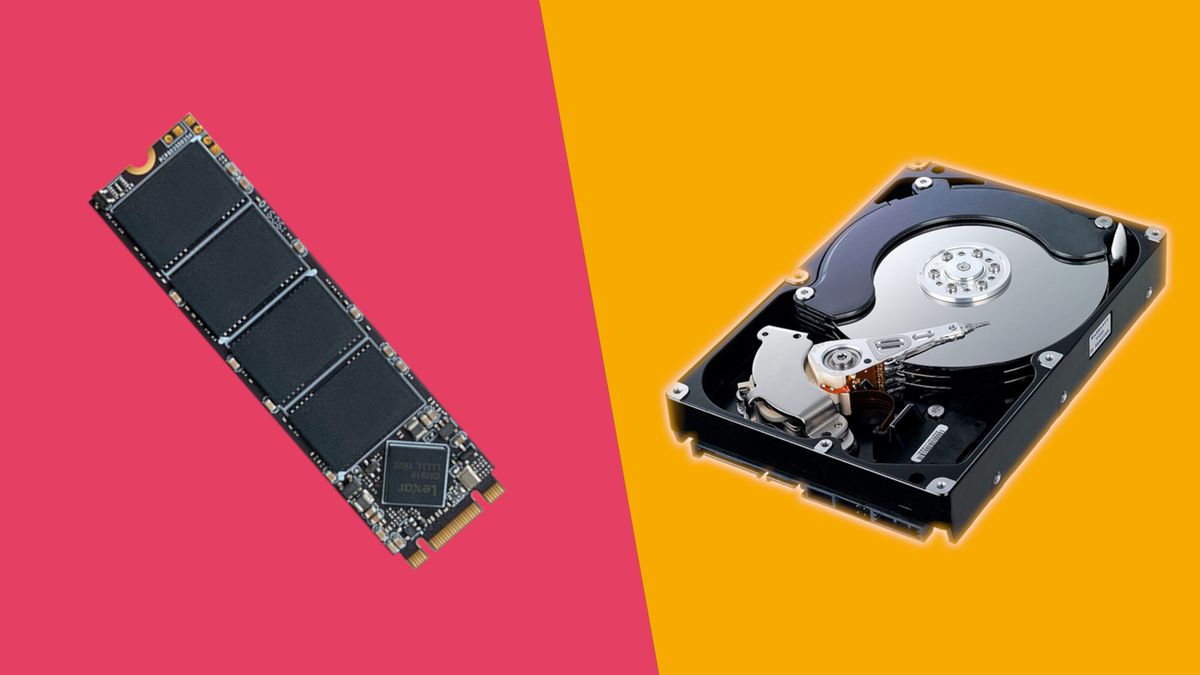
Laptop SSD compatibility
Laptop upgrades need more care than desktop upgrades. Space is limited, and some laptops have storage designs that cannot be changed.
Before choosing what ssd is compatible with my pc, check whether your laptop has:
- A 2.5-inch SATA bay
- An M.2 2280 slot
- An M.2 2242 or 2230 slot
- A removable storage drive
- Soldered storage
- A second storage slot
- A manufacturer-specific connector
Some thin laptops use soldered storage. In that case, you may not be able to replace or expand the internal drive.
Laptop cooling is another concern. A high-performance NVMe SSD may run hot under long workloads. A drive with a thin heatsink or no heatsink may be safer, especially if the laptop has limited airflow.
Also check battery and power limits. Some high-end SSDs use more power than basic models. That can increase heat and reduce battery life during heavy transfers.
Before opening the laptop:
- Back up important files.
- Shut down the system completely.
- Disconnect the charger.
- Use an anti-static surface if possible.
- Follow the service manual.
- Keep track of every screw.
A small screw placed in the wrong hole can damage a laptop cover or motherboard. Patience matters more than speed.
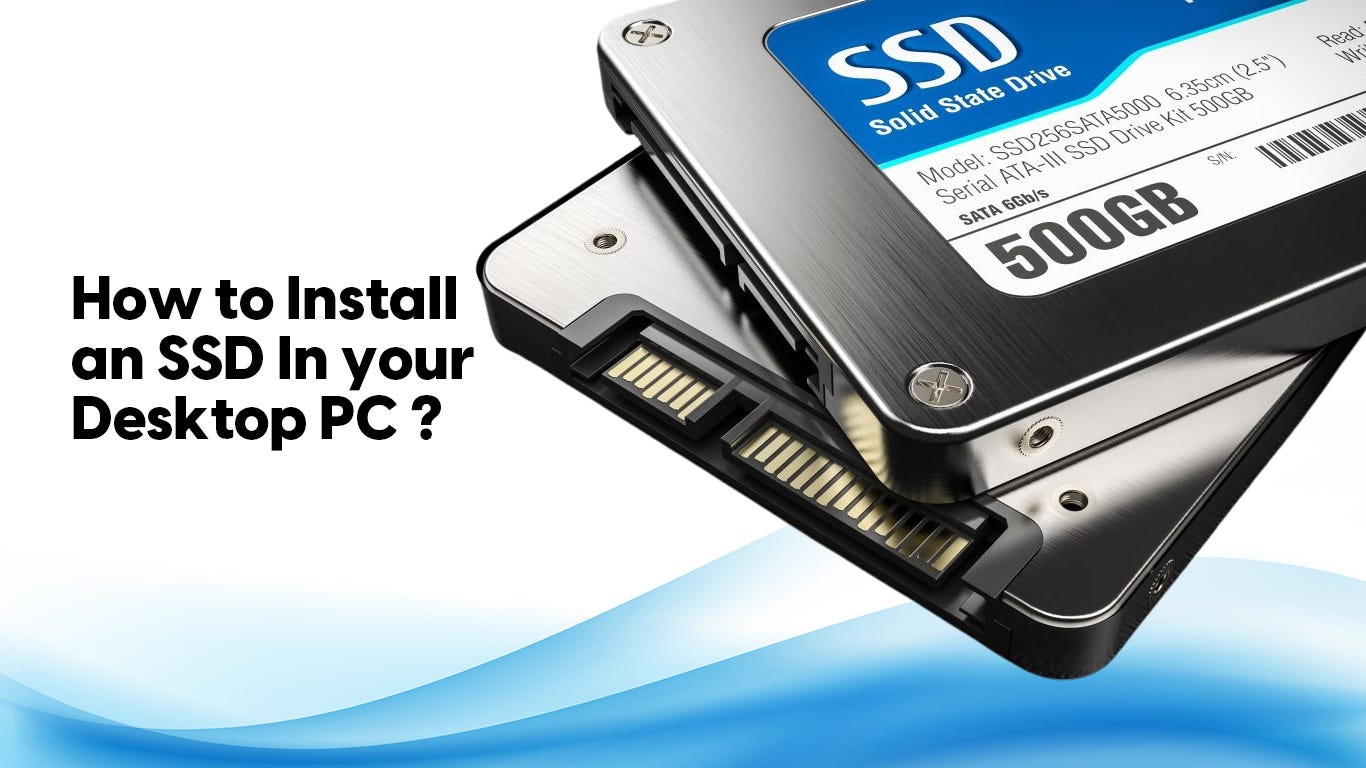
Desktop SSD compatibility
Desktop computers usually offer more upgrade choices. You may have several SATA ports, one or more M.2 slots, and unused PCIe slots.
For a 2.5-inch SATA SSD, check whether you have:
- A free SATA data cable
- A free SATA power connector
- A 2.5-inch mounting location
- A 3.5-inch adapter bracket if needed
Many computer cases include 2.5-inch mounting points. If yours does not, an inexpensive adapter can secure the drive.
For an M.2 SSD, check whether the motherboard includes:
- The correct M.2 slot
- A mounting screw
- A standoff in the right position
- Support for the drive length
- A heatsink that fits properly
Some motherboards disable one or more SATA ports when an M.2 slot is used. This is normal and is explained in the motherboard manual. Plan your cable connections before installing the drive.
A desktop can also use a PCIe adapter card for an M.2 SSD. This works well for storage, but boot support varies on older motherboards.
Does SSD capacity affect compatibility?
Capacity usually does not prevent an SSD from working. A motherboard that supports a 1TB NVMe drive may also support a 2TB or 4TB model. However, older systems can have firmware limits.
Check the manual if you plan to install:
- A drive larger than 2TB
- Several NVMe drives
- A high-capacity SATA drive
- An SSD as a boot drive in an old system
For most users, a 1TB SSD offers a good balance of price and space. A 500GB drive works for basic use, but modern games and media files can fill it quickly.
Avoid filling an SSD completely. Keeping roughly 10% to 20% free space can help the drive maintain performance and provide room for background storage management. The exact amount varies by model and workload.
SSD compatibility with Windows and BIOS
A compatible SSD may still need setup before Windows can use it.
After installation, enter the BIOS or UEFI by pressing a key such as Delete, F2, or F12 during startup. The correct key depends on the computer manufacturer.
Check whether the drive appears in:
- Storage information
- NVMe configuration
- SATA configuration
- Boot device options
If the drive appears in BIOS but not in Windows, initialize it through Disk Management. Use GPT for most modern UEFI systems. MBR may be needed for very old computers.
If the SSD does not appear in BIOS:
- Reseat the drive
- Check the power and data cables
- Try another SATA port
- Confirm the M.2 protocol
- Update the motherboard firmware
- Check whether another slot disables it
- Test the drive in another compatible system
Do not update BIOS without reading the manufacturer’s instructions. A failed firmware update can leave a motherboard unusable.
How to move Windows to a new SSD
After deciding what ssd is compatible with my pc, you can either install Windows fresh or clone your existing drive.
A fresh installation is best when:
- The old system has malware or software problems
- You want a clean start
- You are changing from legacy BIOS to UEFI
- The old drive has years of unused files
Cloning is useful when:
- You want to keep your apps and settings
- The current Windows installation works well
- You want a faster upgrade with less setup time
Before cloning:
- Back up your important files.
- Confirm the new SSD is detected.
- Check that the new drive has enough capacity.
- Use reliable cloning software.
- Shut down and test the new drive after cloning.
- Keep the old drive untouched until the new system works.
A common mistake is cloning only the Windows partition while leaving behind the EFI or recovery partitions. The computer may then fail to boot. Use a disk-cloning method that copies all required system partitions.
Common SSD compatibility mistakes to avoid
Many installation problems come from simple oversights rather than defective hardware.
Avoid these mistakes:
- Buying M.2 SATA when the slot supports NVMe only
- Buying NVMe when the slot supports SATA only
- Ignoring the M.2 drive length
- Forgetting a SATA data cable
- Installing an SSD without a mounting screw
- Covering an M.2 heatsink with a thick label or pad
- Assuming every PCIe slot supports booting
- Failing to check laptop storage limits
- Skipping backups before cloning
- Buying the fastest drive without checking cooling
A product page may say “M.2 SSD,” but that phrase alone is incomplete. Always look for the interface, protocol, size, and key type.
When I compare drives, I treat the manufacturer’s motherboard manual as the final authority. Retailer listings are useful for shopping, but the manual explains exactly what each slot supports.
How to choose the best SSD for your PC
Once you know what ssd is compatible with my pc, compare practical features rather than chasing the highest advertised speed.
Look for:
- A trusted brand with clear warranty terms
- A capacity that suits your files and apps
- Good endurance for your workload
- Reliable firmware support
- Suitable operating temperatures
- A compatible heatsink design
- Independent reviews with real testing
Drive endurance is often listed as TBW, or terabytes written. A higher TBW rating may matter for video editing, database work, or frequent large file transfers. It matters less for light home use.
TLC NAND is often a strong choice for general users. QLC NAND can offer more capacity at a lower price, but sustained write speeds may drop after its cache fills. This does not make QLC bad; it simply makes it better suited to the right workload.
For a family PC, school laptop, or office desktop, a dependable 1TB SSD is usually a sensible choice. For gaming, prioritize enough capacity and stable performance. For professional editing, consider endurance, sustained write speed, cooling, and backup plans.
Frequently Asked Questions
What ssd is compatible with my pc if it has an M.2 slot?
Check whether the M.2 slot supports SATA, NVMe, or both. Also confirm the drive length, such as 2280, and the supported PCIe generation in the motherboard manual.
Can I use an NVMe SSD in a SATA M.2 slot?
Usually, no. An NVMe SSD needs PCIe support, while an M.2 SATA slot communicates through SATA; the drive may fit physically but still fail to work.
Can I install a 2.5-inch SATA SSD in any computer?
You need a free SATA data connection, SATA power, and enough physical space. Most desktops support this with the right cables, while laptops must have a removable 2.5-inch drive bay.
Will a PCIe 4.0 SSD work in a PCIe 3.0 computer?
In many systems, yes. It will normally run at PCIe 3.0 speeds, so it will not reach its full PCIe 4.0 performance.
Does my SSD need a heatsink?
Basic SATA SSDs usually do not need a heatsink. High-speed NVMe drives may benefit from one, especially during long transfers, gaming installs, or video work.
How do I know if my computer supports a 2TB SSD?
Check the motherboard or laptop manual for storage capacity limits and firmware requirements. Most newer computers support 2TB drives, but older systems may need updates or a different partition setup.
Conclusion
Finding what ssd is compatible with my pc becomes simple when you check the form factor, interface, size, and motherboard support first. A 2.5-inch SATA SSD suits many older computers, while an M.2 NVMe SSD offers excellent speed in compatible modern systems.
Do not rely on appearance alone. Confirm the exact slot type, read the manufacturer’s manual, back up your files, and plan the installation before buying. Use these steps to choose the right SSD with confidence, then explore your PC manual or share your computer model in the comments for more upgrade guidance.

Everett Ashford is a tech reviewer at mytechgrid.com specializing in SSDs, cameras, TVs, earbuds, headphones, and other consumer electronics. He provides honest, data-driven reviews based on hands-on testing and real-world performance analysis. Everett simplifies complex tech details to help readers make smart, confident buying decisions.