Yes. Roku cameras need Wi-Fi to connect to the Roku Smart Home app, send alerts, stream live video, and provide remote access. They also need power and, for most cloud features, an active internet connection.
A Roku camera may still save video to a supported microSD card when the internet is down, but this depends on the model, settings, and local network status. Without Wi-Fi, you generally cannot complete setup or view the camera from your phone.
This guide explains what Roku cameras need, what happens when Wi-Fi fails, and how to choose the right setup for a home in the United States.

What does a Roku camera need to work?
A Roku camera needs three things:
- A power source
- A compatible Wi-Fi network
- The Roku Smart Home app
The camera connects to your home router. The Roku Smart Home app then uses that connection to show video, send alerts, and let you change settings.
Wi-Fi and internet are related, but they are not the same.
- Wi-Fi is the wireless link between the camera and your router.
- Internet access lets the camera reach Roku’s cloud services and your phone when you are away from home.
A camera can have a Wi-Fi connection but still lose internet access. For example, your router may remain on while your internet service is down. In that case, the camera may still communicate with devices on your home network, but remote viewing and cloud features may stop working.
Do Roku cameras connect to a Roku TV?
Usually, no. A Roku camera does not normally connect directly to a Roku TV like a game console or antenna.
The camera connects to Wi-Fi and is managed through the Roku Smart Home app. Some Roku TVs may offer smart home features or camera-related viewing options, but availability depends on the exact Roku TV, camera model, software version, and region.
Do not assume that owning a Roku TV removes the need for Wi-Fi. The camera still needs a network connection for setup and normal smart features.
Do Roku cameras use 2.4 GHz or 5 GHz Wi-Fi?
Many smart cameras support the 2.4 GHz Wi-Fi band, and some models may also support 5 GHz. The exact requirement varies by Roku camera model.
The 2.4 GHz band often works better over longer distances and through walls. The 5 GHz band can offer faster local speeds but usually has a shorter range.
Before setup, check the camera’s current product page or user guide. If the camera only supports 2.4 GHz, connect your phone to the 2.4 GHz network during setup when required.

What can a Roku camera do with Wi-Fi?
With a working Wi-Fi and internet connection, a Roku camera can usually provide its main smart features.
These may include:
- Live video in the Roku Smart Home app
- Motion or sound alerts
- Two-way audio
- Video recording through a supported cloud plan
- Remote access while you are away from home
- Camera settings and firmware updates
- Shared access for approved household members
The exact features depend on the camera model and the service plan linked to it. Some features may require a subscription, while others may work without one.
Roku’s product documentation should be the final source for model-specific details. Features can change through software updates, and not every Roku camera offers the same storage or detection tools.
What happens if Wi-Fi goes out?
If your Wi-Fi network stops working, the camera will lose its normal connection to the Roku Smart Home app.
You may see one or more of these results:
- The live video feed will not load.
- Your phone will not connect to the camera.
- Motion alerts may not arrive.
- Cloud recordings may stop.
- Two-way talk may not work.
- The camera may show as offline in the app.
If the internet service fails but your router stays online, local communication may continue in limited cases. However, cloud access and viewing from outside your home will usually be unavailable.
Can a Roku camera record without internet?
Some Roku camera models support local recording with a compatible microSD card. If so, the camera may continue saving clips or recordings when cloud access is unavailable.
This is not the same as full offline operation. You may still need Wi-Fi to:
- Configure the camera
- Change recording settings
- View the camera remotely
- Receive alerts
- Access recordings through the app
- Upload footage to cloud storage
Local recording also has limits. A camera needs power, storage space, and a functioning local connection to save video correctly. A full, damaged, incorrectly formatted, or unsupported card can prevent recording.
Check the instructions for your exact model before relying on local storage for security footage.

How to set up a Roku camera on Wi-Fi
You need the camera, its power adapter, a compatible phone, the Roku Smart Home app, and a working Wi-Fi network.
Follow these steps:
-
Install the Roku Smart Home app.
Download the official app for your iPhone or Android phone. Sign in or create the account requested by the app. -
Power the camera.
Plug the camera into its approved power adapter. Wait for the status light or voice prompt that indicates setup mode. -
Add the camera in the app.
Open the app, select the option to add a device, and choose the correct camera type. -
Enter your Wi-Fi details.
Select your home network and enter the password carefully. Use the band supported by your camera. -
Scan or follow the pairing instructions.
Some cameras use a QR code shown on your phone. Hold the phone at the distance shown in the app. -
Name the camera.
Choose a clear name such as “Front Door” or “Living Room.” This helps when you have more than one camera. -
Install the camera in its final spot.
Test the video feed before mounting it. Check that the camera still has a strong connection after moving it.
Signs that setup worked
Setup is complete when:
- The camera appears online in the Roku Smart Home app.
- You can view live video.
- The status light matches the instructions.
- Motion alerts arrive during a test.
- Two-way audio works, if included.
- The camera remains online after several minutes.
Test the camera from the same room first. Then test it from another part of the home and, if needed, from a cellular connection away from the home network.
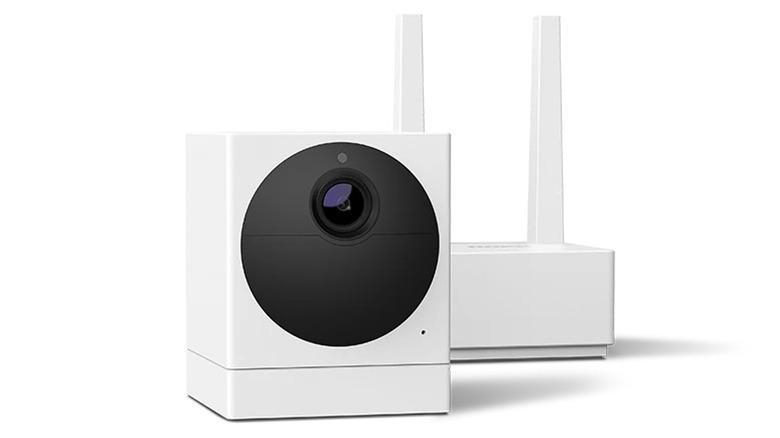
What should you do if the Roku camera will not connect?
Start with the simplest and safest checks. Do not reset the camera until you have recorded its current settings and confirmed that you know the Wi-Fi password.
1. Check power
Make sure the cable is fully inserted and the outlet works. If the camera has a removable cable or adapter, inspect it for damage.
Do not use a damaged power cable. For an outdoor camera, use only the power equipment and installation method approved for that model.
2. Check the Wi-Fi band
Your camera may not support every Wi-Fi band. If setup fails after you select your network, check whether the camera requires 2.4 GHz Wi-Fi.
Some modern routers combine 2.4 GHz and 5 GHz under one network name. That can work, but band steering may confuse older or limited smart-home devices. If needed, temporarily separate the network names or ask your router maker for help.
3. Move the camera near the router
Place the camera close to the router during setup. Thick walls, metal, appliances, and long distances can weaken the signal.
If the camera works near the router but fails in its planned location, the issue is likely coverage rather than the camera itself. A better router position or a compatible mesh system may help.
4. Check the password
Wi-Fi passwords are case-sensitive. Confirm that you selected the correct network and entered the password without an extra space.
Guest networks may also block device-to-device communication. Use the main home network unless the camera’s instructions say that a guest network is supported.
5. Restart the network
Unplug the router for about 30 seconds, then power it back on. Wait for the internet and Wi-Fi lights to return before trying the camera again.
If other devices also cannot connect, the problem may be with the router or internet service rather than the camera.
6. Update the app and phone
Install the latest version of the Roku Smart Home app available for your phone. Also check for phone system updates.
During setup, allow the app to use the permissions it needs for Bluetooth, local network access, location, or the camera, depending on the phone platform and setup method.
7. Reset the camera only as a last step
A factory reset can remove the camera from its current network and account settings. Use the reset procedure in the model’s instructions.
After the reset, add the camera again as a new device. If it still fails, record the exact error message and contact Roku support.
Can Roku cameras work without Wi-Fi?
A Roku camera cannot provide its normal smart-camera experience without Wi-Fi. It may still have power and show a status light, but that does not mean it can send video or alerts.
Here is the practical difference:
| Situation | Likely result |
|---|---|
| Camera has power but no Wi-Fi | No app connection or live view |
| Wi-Fi works but internet is down | Remote and cloud features may fail |
| Internet works but camera has no power | Camera is offline |
| Wi-Fi and internet work | Normal app and cloud features are available |
| Supported camera has local storage | Some recordings may continue during an outage |
A camera is not a self-contained security system simply because it has a memory card. Local storage may reduce dependence on cloud recording, but it does not remove the need for power and a working local network.
For a location with no home internet, consider a camera designed for cellular service or a system built for local recording without Wi-Fi. Confirm the device’s requirements before buying it.
How much Wi-Fi speed does a Roku camera need?
Roku does not generally require a very fast internet plan for one camera, but the connection must be stable enough to upload video.
The amount of bandwidth depends on:
- Video resolution
- Frame rate
- Number of cameras
- Cloud recording settings
- Other devices using the network
- Upload speed, not just download speed
A home may have fast downloads but weak uploads. That can cause delayed alerts, failed cloud clips, or a low-quality live stream.
If you use several cameras, stream video on a TV, work from home, and upload large files at the same time, the network may become crowded. Place the router in an open, central area and reduce unnecessary traffic when testing the camera.
Do not judge the connection only by a speed-test result. Test the camera in its actual location at the times you expect to use it.
Do Roku cameras need a subscription?
A subscription is separate from Wi-Fi. Wi-Fi is needed for the camera to connect, while a subscription may be needed for certain cloud features.
Depending on the model and current Roku Smart Home service terms, paid features may include extended cloud video history, advanced detections, or other enhanced tools.
A camera may still offer basic functions without a paid plan, but the exact limits can vary. Check:
- The camera’s product page
- The current Roku Smart Home plan details
- The app’s storage settings
- The model’s user guide
Do not buy a camera based only on the advertised hardware price. Include possible subscription fees, a memory card if supported, replacement power supplies, and any network equipment needed to reach the installation site.
Common mistakes to avoid
These mistakes often make a working camera appear faulty:
- Trying to pair the camera directly with a Roku TV
- Using a Wi-Fi band the camera does not support
- Installing the camera too far from the router
- Entering the wrong Wi-Fi password
- Using a guest network that isolates smart devices
- Assuming cellular phone service replaces home Wi-Fi
- Forgetting that cloud video needs internet access
- Treating a status light as proof that live viewing works
- Resetting the camera before checking power and network settings
- Relying on local storage without checking card support and recording settings
If the camera is outdoors, test it indoors first. This separates setup problems from range, weather, and mounting problems.
Also avoid placing a camera where it records areas where people expect strong privacy. Tell household members and guests about cameras when appropriate, and check applicable federal, state, and local recording rules before using audio recording. Audio laws can differ by state.
Roku camera Wi-Fi decision guide
Use this quick guide before you buy or install one:
| Your situation | What to look for |
|---|---|
| You have reliable home internet | A standard Wi-Fi Roku camera may fit |
| You want remote viewing | Wi-Fi plus internet is required |
| You want recording during internet outages | A model with supported local storage |
| You have weak signal outdoors | Better router placement or a mesh network |
| You have no home internet | Consider a cellular or local-only camera |
| You want no ongoing cloud fee | Check local storage and no-subscription limits |
| You use a combined 2.4/5 GHz network | Confirm the camera’s band support first |
The main trade-off is simple: Wi-Fi cameras are convenient and often easy to manage, but they depend on your home network. Local storage can improve resilience, yet it does not guarantee access during every outage.
Frequently asked questions
Can I use a Roku camera with a phone hotspot?
Possibly, but it may not be a good permanent setup. A hotspot can work during testing if the camera supports the hotspot’s Wi-Fi band and security settings. It may use a large amount of mobile data, disconnect when the phone sleeps, or prevent remote access because of carrier network limits.
Can I view a Roku camera when I am away from home?
Yes, when the camera has power, Wi-Fi, internet access, and an active connection to the Roku Smart Home service. If your home internet or camera Wi-Fi fails, remote viewing will normally stop.
Will a Roku camera work with a mesh Wi-Fi system?
It may. Mesh systems can improve coverage, but some cameras have trouble during setup when the system combines network bands or moves devices between access points. Follow the camera instructions and test the camera at its final location.
Can I use a Roku camera without the Roku Smart Home app?
The app is normally needed for setup and management. A Roku camera is not usually designed to operate as a standard webcam that connects directly to any video app.
Does a Roku camera work during a power outage?
Only if the camera and router continue to receive power. A battery backup or uninterruptible power supply may keep equipment running, but the internet provider’s equipment and local outage conditions can still affect service. Use only power equipment that is safe and suitable for your setup.
Conclusion
Roku cameras need Wi-Fi for setup, app control, live viewing, alerts, and most smart features. They also need internet access for remote viewing and cloud services.
Some models may continue local recording with a supported microSD card during an internet outage, but this does not make them fully offline cameras. Before installation, confirm the model’s Wi-Fi band, storage options, subscription limits, and power needs.
The best next step is to check your exact Roku camera manual, test the Wi-Fi signal where you plan to mount it, and verify that live video and alerts work before relying on the camera.

Everett Ashford is a tech reviewer at mytechgrid.com specializing in SSDs, cameras, TVs, earbuds, headphones, and other consumer electronics. He provides honest, data-driven reviews based on hands-on testing and real-world performance analysis. Everett simplifies complex tech details to help readers make smart, confident buying decisions.