Open-ear bone-conduction headphones sit near your ears instead of covering them. They send sound through vibrations in the bones beside your ear. To use them, charge the headset, pair it with your phone, place the transducers just in front of your ears, set a safe volume, and test music, calls, and controls before you go outside.
This guide is written for people in the United States who want to use open-ear headphones for work, exercise, travel, or daily listening. It explains setup, fit, sound limits, safety, cleaning, and common fixes.
Introduction
Open-ear bone-conduction headphones let you hear audio while your ear canals stay uncovered. This can help you remain aware of traffic, coworkers, alarms, and other sounds around you.
They do not create a private listening bubble. People nearby may hear some sound, especially at high volume. They also cannot make outdoor activity risk-free. Keep your attention on your surroundings, follow local traffic laws, and lower the volume when you need to hear what is happening around you.
What Are Open-Ear Bone-Conduction Headphones?
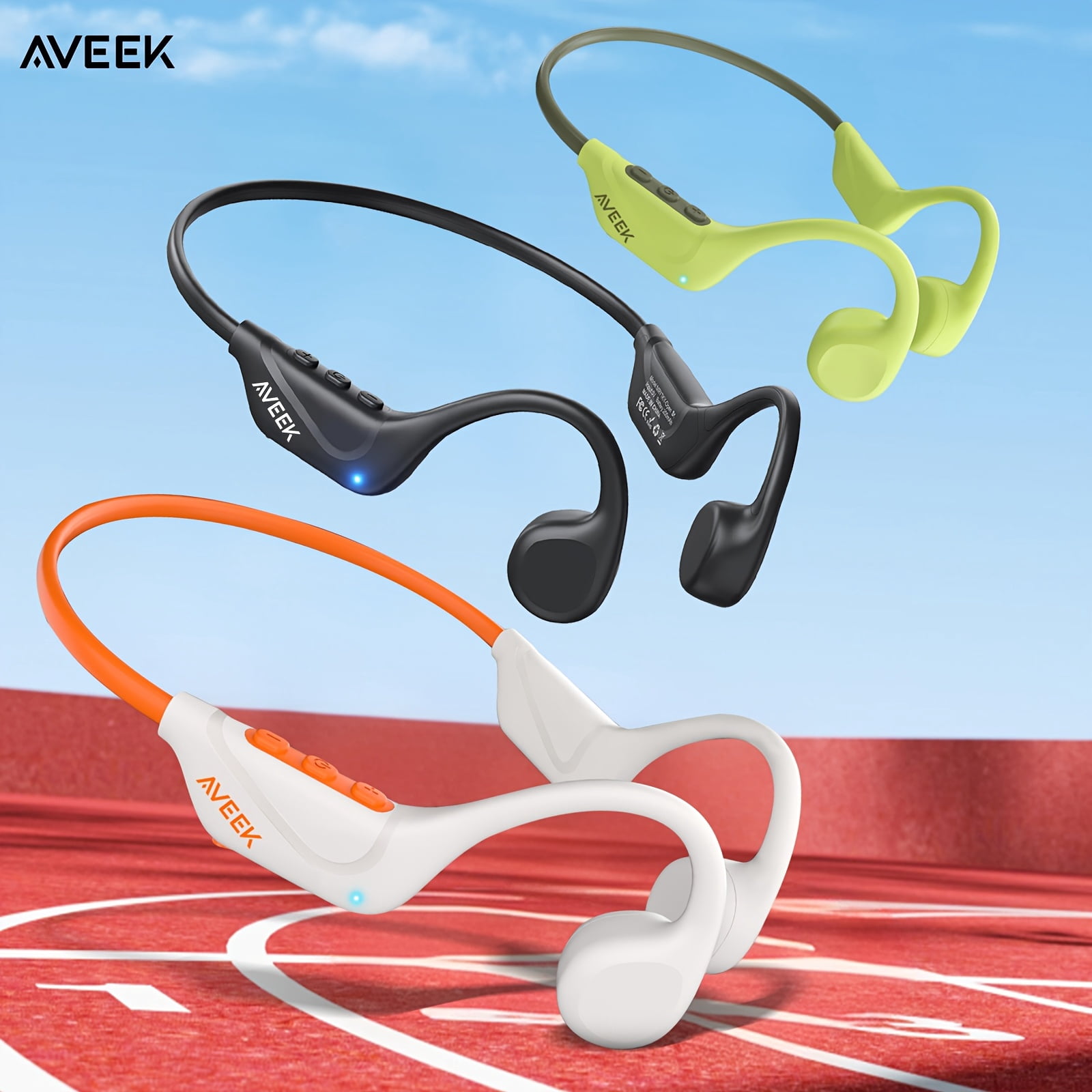
Open-ear bone-conduction headphones use small transducers that rest on the skin near your cheekbones. The transducers vibrate. Your inner ear detects those vibrations and turns them into sound signals for your brain.
The design does not fully block the ear canal. That is the key difference from standard earbuds and over-ear headphones.
Bone conduction is not the same as ordinary earbuds
Traditional earbuds send sound through the air and into the ear canal. Bone-conduction headphones send much of the sound through the bones around the ear.
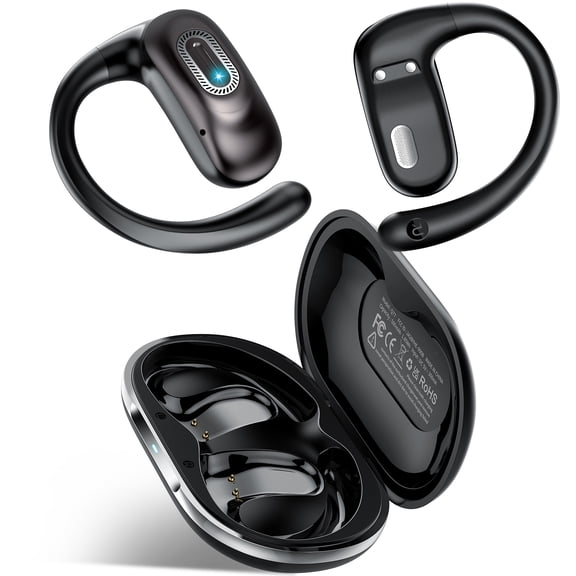
Some products marketed as “open-ear” use a small speaker that points toward the ear but does not enter the ear canal. These are open-air headphones, not true bone-conduction headphones. Both designs leave the ears open, but they work in different ways.
Check the product manual if you need to know which type you own. The setup steps are similar, but the sound and fit can differ.
What open-ear headphones can and cannot do
They can:
- Keep your ear canals open.
- Let you hear music, podcasts, navigation, or calls.
- Reduce the plugged-up feeling caused by sealed earbuds.
- Help you stay more aware of nearby sounds.
- Work well for many walking, cycling, office, and outdoor tasks.
They cannot:
- Guarantee that you will hear every warning sound.
- Provide complete privacy.
- Match the deep bass of well-sealed headphones in every setting.
- Replace hearing protection in loud workplaces.
- Correct every type of hearing loss.
- Make it safe to ignore traffic, machinery, or other hazards.
Bone conduction may bypass parts of the outer and middle ear, but the inner ear and hearing nerve still need to work. If you have hearing loss, tinnitus, ear pain, or dizziness, ask an audiologist whether this type of device fits your needs.
How to Set Up Open-Ear Bone-Conduction Headphones
Set up the headset at home before you use it during exercise or travel. This gives you time to learn the buttons and fix pairing problems without distractions.
1. Charge the headset
Use the included cable or charging dock. Many models use magnetic charging pins, while others use USB-C.
Before charging:
- Check that the charging contacts are clean and dry.
- Make sure the cable is fully seated.
- Look for a charging light or battery symbol.
- Read the manual for the expected charge time.
- Do not charge a wet headset.
A first charge may take longer than later charges. Do not assume the headset is broken if it does not turn on while connected to a charger. Some models disable playback during charging.
2. Turn on Bluetooth on your phone
On an iPhone, open Settings > Bluetooth and turn Bluetooth on.
On most Android phones, open Settings > Connected devices or Settings > Connections, then select Bluetooth.
Keep the phone close to the headset during the first pairing. Remove the headset from other phones if it has already connected elsewhere.
3. Enter pairing mode
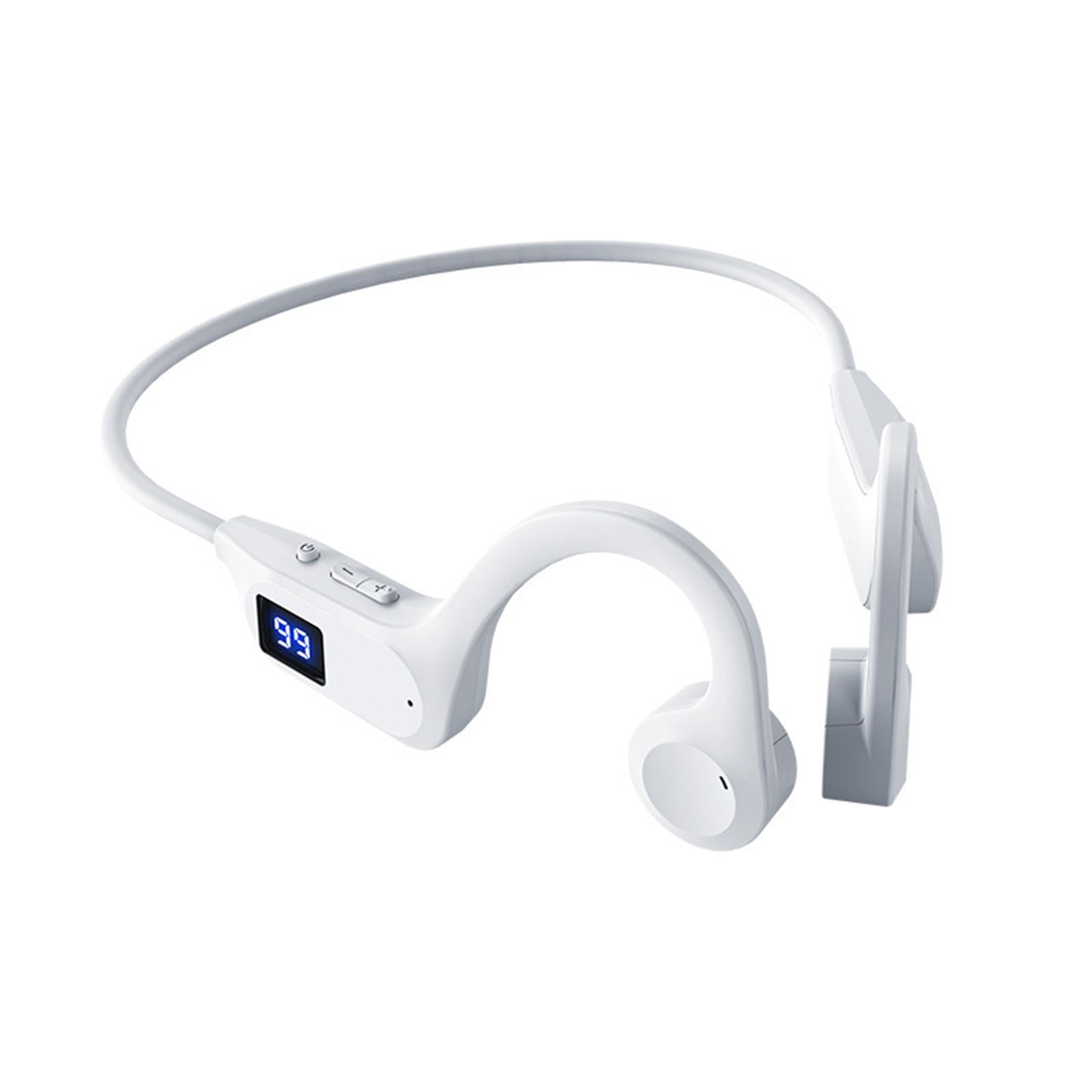
Turn on the headphones. Then hold the power or multifunction button until the status light flashes or the headset says it is ready to pair.
The exact button and timing vary by model. Use the manual rather than holding every button at random.
4. Select the headset from the Bluetooth list
Tap the headset name on your phone. It may appear as a brand name, model number, or short product code.
If the phone asks for a code, check the manual. Many current Bluetooth devices pair without one.
After pairing, play a short audio clip. Confirm that sound comes from the headset and not the phone speaker.
5. Check permissions and connection settings
Some headsets use a companion app for firmware updates, battery status, equalizer controls, or multipoint pairing. An app is not always required for basic Bluetooth playback.
Review permissions before granting them. A headset app may request access to Bluetooth, notifications, location, contacts, or the microphone. Give only the access needed for the feature you plan to use.
6. Test the controls
Learn these functions before leaving home:
- Power on and off
- Play and pause
- Volume up and down
- Skip or replay
- Answer and end calls
- Activate your phone’s voice assistant
- Enter pairing mode
Button layouts differ. Some models use physical buttons. Others use touch controls or swipes.
How to Wear Bone-Conduction Headphones Correctly
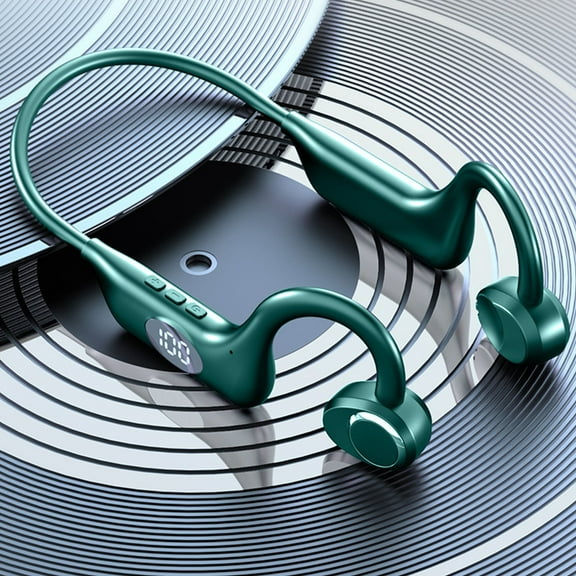
Fit matters more than many new users expect. The transducers should rest on the bone in front of your ears, not directly inside the ear opening.
Follow these steps:
- Place the band behind your head or neck, as the design requires.
- Put the left and right transducers in front of the ears.
- Keep the flat vibrating surfaces in contact with your skin.
- Center them on the cheekbone area.
- Make sure the band does not press painfully against your head.
- Move the headset slightly until voices and music sound clear.
- Turn your head, walk, and smile to check that it stays in place.
A correct fit should feel secure but not tight. You should not need to press the transducers hard against your skin.
How to tell if the fit is wrong
The fit may need adjustment if:
- One side sounds much louder than the other.
- Voices sound weak or distant.
- Bass disappears when you move.
- The headset rattles or buzzes.
- Your skin becomes sore.
- The band slips during normal movement.
- You hear strong sound leakage at a moderate volume.
Small position changes can make a large difference. Move each transducer a few millimeters at a time.
Glasses, helmets, hats, masks, earrings, and long hair can affect comfort. Try the headset with the gear you normally wear. A fit that works indoors may fail under a bicycle helmet.

How to Adjust Volume Safely
Start at a low volume and increase it only until speech and music are clear. Do not use maximum volume to overcome traffic, gym noise, aircraft noise, or machinery.
Open-ear headphones can sound quieter in noisy places. That may tempt you to raise the volume too much. Instead, pause the audio, move to a quieter area, or use hearing protection when the environment is loud.
The National Institute on Deafness and Other Communication Disorders explains that repeated or long exposure to loud sound can damage hearing. The CDC also identifies loud noise as a cause of hearing loss. Headphone output varies by device, fit, and recording, so a phone’s volume percentage is not a reliable decibel reading.
Use these practical checks:
- You can hear nearby speech without shouting.
- You do not notice ringing after listening.
- Your ears do not feel dull or blocked afterward.
- You can still detect important environmental sounds.
- You lower the volume in quiet places.
If you notice ringing, muffled hearing, pain, or sound sensitivity after listening, stop using the headset and give your ears time to recover. Repeated symptoms deserve medical advice.
Open-ear headphones are not hearing protection. At a construction site, shooting range, airport ramp, factory, or other loud workplace, use hearing protection approved for that setting. Do not place bone-conduction headphones under or over protective equipment unless the equipment maker allows that combination.
How to Use Them for Music, Podcasts, and Navigation
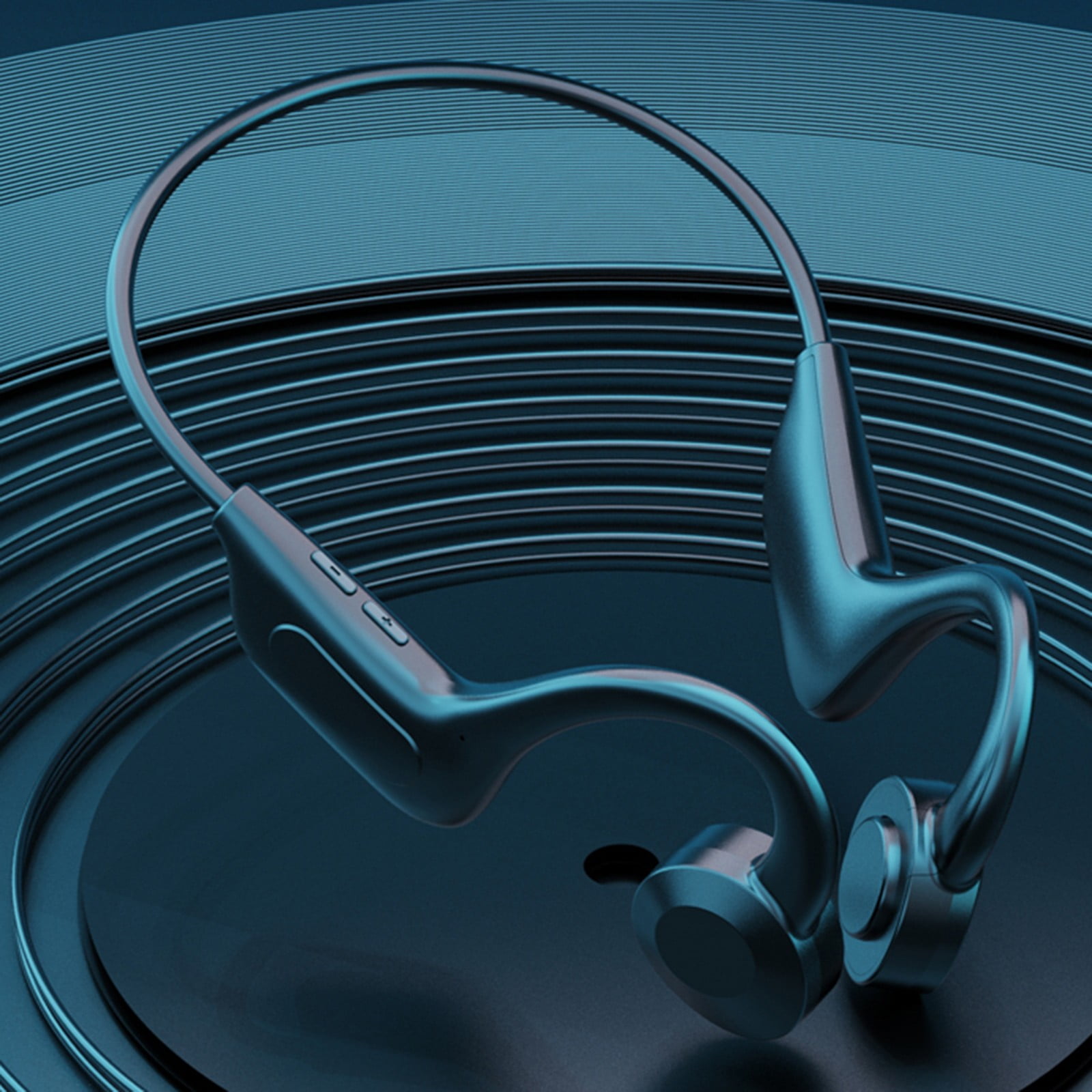
Once the headset fits and pairs correctly, use it like other Bluetooth headphones.
For music and podcasts
Open your preferred audio app and start playback. Adjust volume from the headset or phone.
The sound may change when you:
- Move the transducers.
- Put on a hat or helmet.
- Enter a windy area.
- Walk near heavy traffic.
- Change the recording.
- Turn on an equalizer or sound mode.
Bone-conduction models often provide clear speech and podcasts. Deep bass may feel lighter than it does with sealed earbuds because the ear canal is open and outside noise remains present.
For turn-by-turn directions
Start navigation on your phone before moving. Confirm that voice directions play through the headset.
If music covers navigation prompts, lower the music volume or enable audio ducking in the navigation app. Keep the phone mounted where you can see it without holding it.
Do not interact with the phone while driving. In the United States, distracted-driving rules vary by state. A hands-free headset does not remove the need to follow your state’s laws or your vehicle’s safety guidance.
For calls
Answer a call with the headset button or your phone. Speak toward the headset’s microphone, not toward the transducers near your ears.
Wind can reduce call quality. If the other person cannot hear you:
- Move away from strong wind.
- Check that the microphone openings are not covered.
- Disconnect other Bluetooth devices.
- Confirm that the phone is using the headset for call audio.
- Restart the call.
- Test the headset with another phone if possible.
Some models support multipoint Bluetooth. This lets one headset connect to two devices, such as a phone and a laptop. Multipoint behavior varies. A second device can also cause unexpected audio switching, so turn the feature off if connections become confusing.

How to Clean and Maintain Them
Clean the headset after workouts or heavy sweating. Sweat, skin oil, dust, and sunscreen can build up on the transducers and charging contacts.
Use this routine:
- Turn the headset off.
- Wipe it with a soft, dry cloth.
- Use a slightly damp cloth only if the manual permits it.
- Clean charging contacts gently.
- Let the headset dry fully before charging.
- Store it in a cool, dry place.
Do not use alcohol, bleach, abrasive cleaners, or sharp tools unless the manufacturer specifically approves them. Do not place the headset under running water unless its water-resistance rating and manual allow that use.
Water resistance is not the same as waterproofing. A rating may cover sweat or splashes but not swimming, salt water, soap, or high-pressure water. Charging a wet headset can damage it and may create a safety risk.
Inspect the band, buttons, seals, and charging cable. Stop using the headset if the battery swells, becomes unusually hot, leaks, smells odd, or shows visible damage. Contact the manufacturer or follow local battery-recycling guidance. Do not puncture or open a lithium battery.

Troubleshooting Open-Ear Bone-Conduction Headphones
Use the safest and simplest checks first. Change one thing at a time so you know which fix worked.
| Problem | Likely causes | What to try |
|---|---|---|
| Headset will not turn on | Empty battery, wet contacts, locked controls | Charge it, dry the contacts, then hold the power button as stated in the manual |
| Phone cannot find it | Not in pairing mode, connected to another device | Turn Bluetooth off and on, enter pairing mode, and disconnect old devices |
| No sound | Wrong audio output, low volume, paused app | Select the headset as the output and test another app |
| Sound is weak | Poor transducer position, wind, noisy surroundings | Move the transducers slightly and test indoors |
| One side is louder | Uneven fit, debris, damaged hardware | Reposition both sides and clean them gently |
| Audio cuts out | Distance, interference, low battery, multipoint switching | Keep the phone nearby and disable multipoint temporarily |
| Calls sound poor | Covered microphone, wind, wrong call route | Clear the microphone and select the headset in call audio settings |
| Headset hurts | Band too tight or transducers misplaced | Reposition it or stop using it if pain continues |
| Battery drains quickly | High volume, old battery, app or firmware issue | Lower volume, check for updates, and contact support if the issue persists |
Resetting the Bluetooth connection
If pairing fails, remove the old connection from your phone:
- Open Bluetooth settings.
- Tap the headset name.
- Select Forget, Unpair, or Remove device.
- Turn Bluetooth off and back on.
- Put the headset into pairing mode.
- Pair it again.
A factory reset may erase paired devices and custom settings. Use it only after normal pairing steps fail and only with the model’s instructions.
When to stop troubleshooting
Stop using the headset if it becomes hot, produces a burning smell, causes skin injury, or shows battery damage. For persistent hearing symptoms, seek advice from a qualified health professional rather than trying to solve the problem with a different volume setting.
Open-Ear Headphones and Hearing Loss
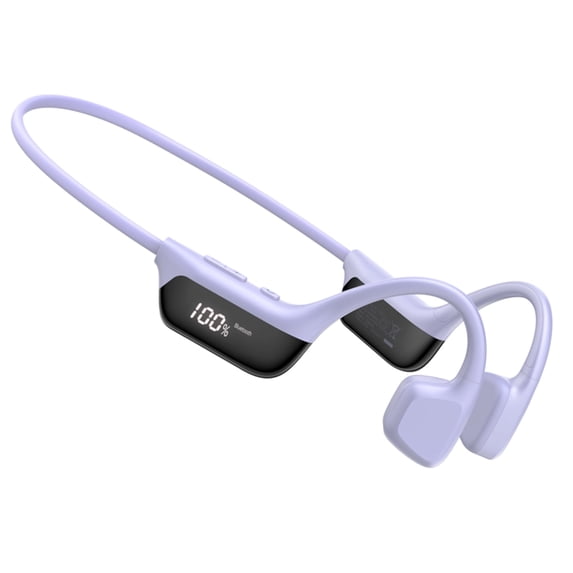
Open-ear bone-conduction headphones may help some people hear audio without blocking the ear canal, but they are not a universal hearing solution.
Their usefulness depends on the type and degree of hearing loss. A person with outer- or middle-ear problems may experience a different result from someone with inner-ear or nerve-related hearing loss. Loudness, speech clarity, and comfort also vary by model.
Do not use ordinary consumer headphones as a substitute for hearing aids. If speech is hard to understand, one ear hears differently from the other, or you have sudden hearing loss, arrange an evaluation with an audiologist or physician.
Sudden hearing loss, severe dizziness, ear drainage, or sudden one-sided symptoms need prompt medical attention.
Common Mistakes to Avoid
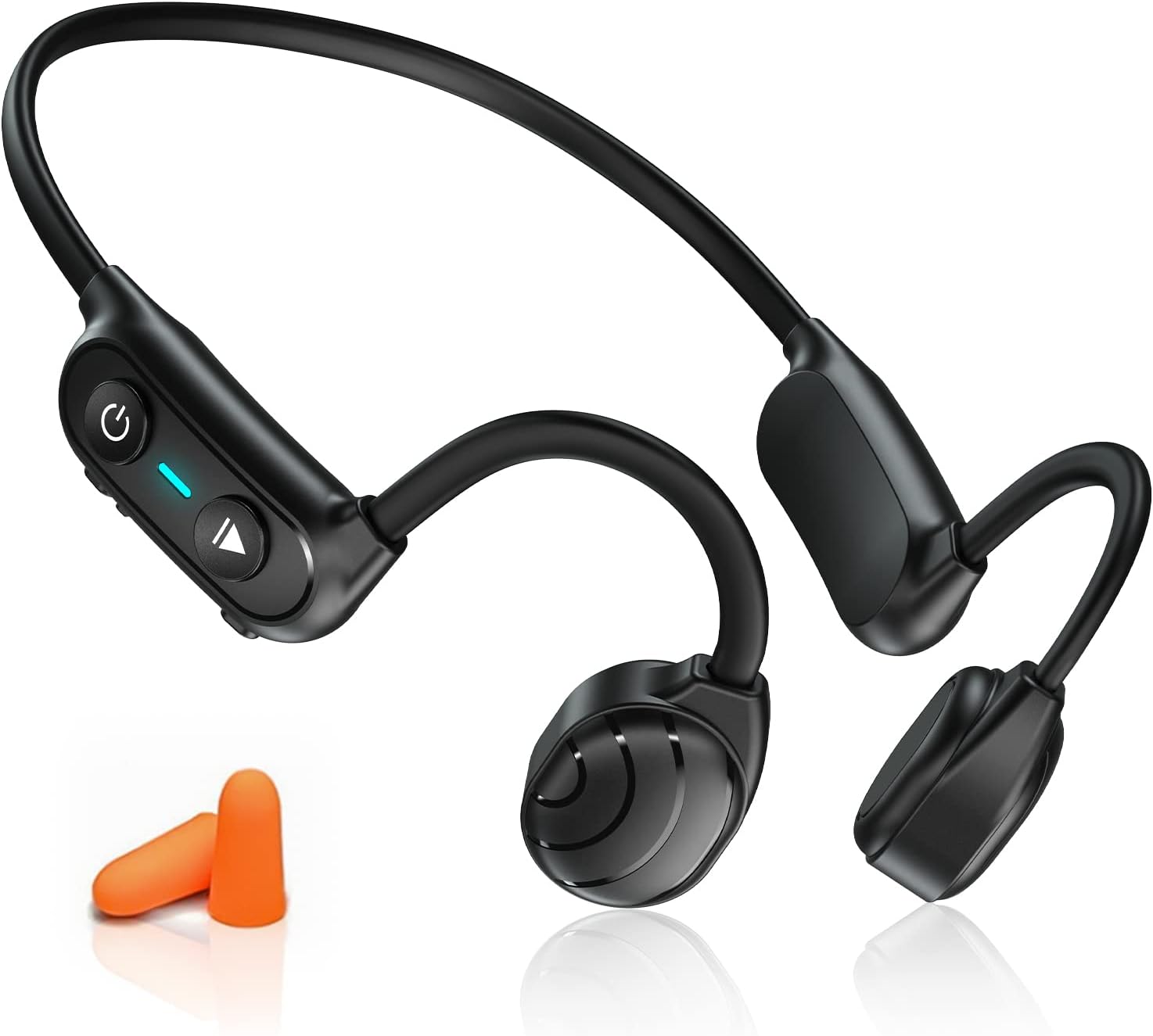
Avoid these habits:
- Wearing the transducers over the ear opening instead of in front of it.
- Turning the volume up to mask traffic or machinery.
- Assuming open-ear means safe at any volume.
- Charging the headset while it is wet.
- Using it as hearing protection.
- Wearing it in traffic without looking and listening carefully.
- Pairing it with several devices without learning how multipoint works.
- Cleaning it with harsh chemicals.
- Continuing to use it after pain, ringing, or muffled hearing.
- Expecting strong bass in a windy or very noisy environment.
The biggest mistake is treating environmental awareness as a guarantee. Open ears improve access to outside sound, but they do not replace attention.
Key Takeaways
- Charge the headset fully and pair it with your phone through Bluetooth.
- Place the transducers on the cheekbones just in front of your ears.
- Start with low volume and raise it only as needed.
- Use the headset for awareness, not as hearing protection.
- Keep it dry, clean, and away from harsh cleaners.
- Re-pair the headset if Bluetooth audio fails.
- Stop using it if you experience pain, ringing, muffled hearing, heat, or battery damage.
- Ask an audiologist about fit if you have hearing loss.
FAQs
Do bone-conduction headphones go inside your ears?
No. True bone-conduction headphones rest on the bones in front of your ears. They should not enter the ear canal.
Can other people hear bone-conduction headphones?
Yes. Some sound may be audible to people nearby, especially at high volume or in a quiet room. The amount depends on the model, fit, volume, and environment.
Can I use bone-conduction headphones while driving?
Do not assume they make driving safe or legal. Follow your state’s distracted-driving rules and your vehicle’s instructions. Keep your eyes on the road and never handle your phone while driving.
Are bone-conduction headphones safe for hearing?
They can still expose your ears to loud sound. Open-ear design does not remove the risk from excessive volume or long listening sessions. Use the lowest clear volume and take breaks.
Can I swim with bone-conduction headphones?
Only if the exact model is designed and rated for swimming. Sweat or splash resistance does not prove that a headset is safe for submersion. Check the manual for the model’s water rating and limits.
Why do my headphones sound quiet outdoors?
Wind and traffic mask audio, and open-ear designs do not seal out background noise. Move to a quieter location, reposition the transducers, or pause listening instead of raising the volume to an unsafe level.
Do bone-conduction headphones work with all phones?
Most Bluetooth models work with current iPhones, Android phones, tablets, and computers that support the headset’s Bluetooth profiles. Compatibility can vary for multipoint pairing, app features, voice assistants, and call controls.
Conclusion
To use open-ear bone-conduction headphones well, focus on three things: correct placement, moderate volume, and awareness of your surroundings. Pair the headset at home, place the transducers in front of your ears, test the controls, and adjust the fit before using it outdoors.
If sound remains weak, check the fit and Bluetooth output before increasing volume. If you have hearing loss, pain, tinnitus, or dizziness, get personal advice from an audiologist or physician.

Everett Ashford is a tech reviewer at mytechgrid.com specializing in SSDs, cameras, TVs, earbuds, headphones, and other consumer electronics. He provides honest, data-driven reviews based on hands-on testing and real-world performance analysis. Everett simplifies complex tech details to help readers make smart, confident buying decisions.