Yes. A PC can run without an SSD if it has another bootable storage device, such as a hard disk drive (HDD), USB drive, optical disc, or network boot system. A computer can also power on and enter its BIOS or UEFI firmware with no storage device at all, but it cannot load Windows or another operating system without access to boot files.
For a typical PC in the United States, the simplest SSD-free setup is a hard drive with Windows installed. It will work, but apps may open more slowly, Windows may take longer to start, and the system can feel less responsive than a modern SSD-based computer.

What an SSD Does in a PC
An SSD is a storage device. It holds the operating system, apps, games, documents, photos, and other files. Unlike system RAM, an SSD keeps data when the PC is turned off.


A PC does not need an SSD specifically. It needs:
- A compatible power supply
- A working motherboard
- A processor
- Memory, such as RAM
- A graphics solution, if required
- A bootable storage device
- An operating system, unless you only need BIOS or UEFI access
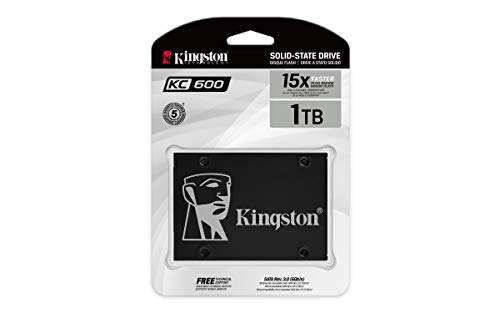
A hard disk drive performs the same basic storage role as an SSD. It uses spinning magnetic platters instead of flash memory. SATA SSDs, NVMe SSDs, HDDs, and some USB drives are all different types of storage that may hold an operating system.
The key difference is speed and responsiveness, not the basic ability to run a computer.

What Happens If a PC Has No SSD?
If your PC has no SSD but contains a bootable HDD, it can start normally. The motherboard finds the operating system on the HDD, and the computer loads it.
If the PC has no storage device at all, several different outcomes are possible:


| Situation | Likely result |
|---|---|
| No SSD, but a bootable HDD is installed | Windows or another OS can load |
| No internal drive, but a bootable USB is connected | A compatible OS or installer may load |
| No storage, but network boot is configured | The PC may boot from a network server |
| No bootable device anywhere | BIOS or UEFI may open, followed by an error |
| No drive, but you only need firmware settings | The PC can enter BIOS or UEFI |
Common messages include:
- “No boot device found”
- “Operating system not found”
- “Insert boot media”
- “Reboot and select proper boot device”
These messages do not always mean the PC needs an SSD. They mean the firmware cannot find a usable operating system.

Can Windows Run From an HDD Instead of an SSD?
Yes. Windows can run from an HDD if the drive meets the operating system’s storage and hardware requirements and contains a valid installation.
The main drawback is performance. An HDD usually has much slower random access than an SSD. Windows performs many small read and write tasks during startup and while opening apps, so an HDD can make the system feel slow even when the processor is capable.
You may notice:
- Longer startup times
- Slower sign-in
- Delayed app launches
– More waiting during Windows updates - Longer game loading screens
- More disk activity when several apps are open
- A temporary freeze when the HDD is busy
The PC should still perform tasks such as web browsing, writing documents, watching videos, and using office software. Performance depends on the drive’s condition, speed, capacity, interface, and the rest of the hardware.
Windows requirements can change by version. Before installing Windows, check Microsoft’s current requirements for the exact edition you plan to use. The storage requirement does not automatically mean that the device must be an SSD.

Can a PC Run From a USB Drive Without an SSD?
Yes, but the result depends on the USB drive, operating system, and boot setup.
A USB device can serve several roles:
-
Windows installation media
This starts the Windows setup program. It does not normally provide a complete everyday Windows installation by itself. -
A Linux live USB
Many Linux distributions can run from a USB drive without installing to an internal drive. Changes may disappear after shutdown unless persistent storage is configured. -
A portable operating system
Some systems can be installed on an external USB drive and used as a boot device. Compatibility and performance vary. -
External storage for files or apps
A USB drive can store data while the operating system remains on another drive.


To boot from USB, the motherboard must support USB booting. You may need to open the boot menu or change the boot order in BIOS or UEFI. On many PCs, common boot-menu keys include F12, F11, F8, Esc, or a manufacturer-specific key, but the correct key varies.
A USB drive is not always a good permanent replacement for an internal drive. It can be easier to disconnect, may have lower performance, and may wear out with heavy write activity. Use a reliable drive and keep a backup of important files.
Can a PC Boot Without Any Internal Storage?
Yes. A PC can boot without an internal SSD or HDD if it has another valid boot source.
Possible alternatives include:
A bootable external drive
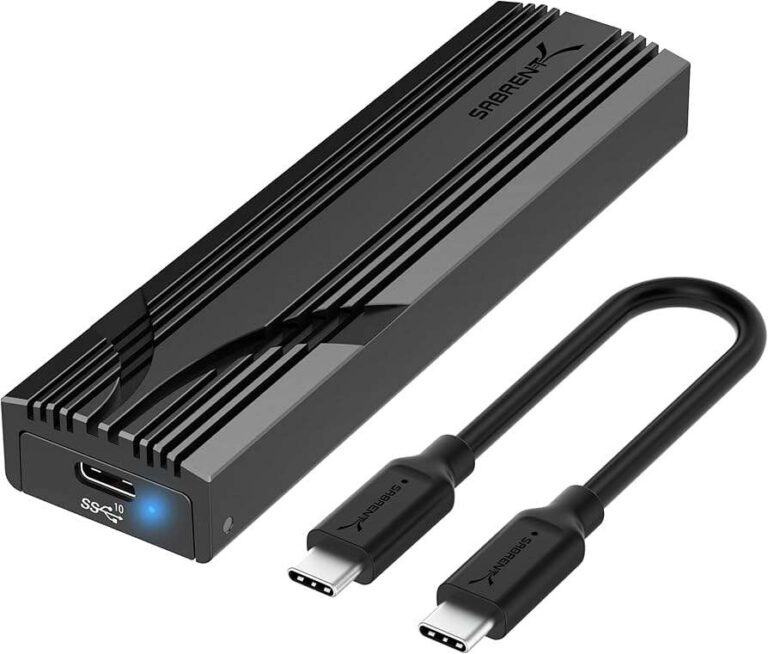
An external SSD or HDD connected by USB can hold an operating system. The PC must support booting from that device, and the installation must be configured correctly.
A live Linux USB
A live Linux USB can provide a temporary desktop. This is useful for testing hardware, recovering files, or checking whether a PC works without installing an operating system.
Network boot
Some business and enterprise computers can boot from a network server using PXE or a similar system. This requires a correctly configured network environment. It is not usually practical for a home PC unless you already manage a boot server.
Optical media
Older systems may boot from a DVD. This option is less common because many current PCs do not include an optical drive.
Without one of these options, the PC can still complete its early hardware checks and open BIOS or UEFI. It just cannot load a full operating system.

How to Start a PC That Has No SSD
Use this process if the computer turns on but has no SSD installed.
1. Confirm that another boot device exists
Check whether the PC has:
- A SATA HDD
- An M.2 drive
- An external USB drive
- A bootable USB installer
- A live Linux USB
- A configured network boot source
Some users say “no SSD” when they mean “no visible drive.” A computer may still contain an HDD or a second storage device.
2. Check BIOS or UEFI
Turn on the computer and open the firmware menu. The key varies by manufacturer. Look for a message on screen, or check the PC or motherboard manual.


In BIOS or UEFI, check:
- Whether the HDD or external drive is detected
- Whether USB boot is enabled
- The boot order
- UEFI or Legacy boot mode
- Secure Boot settings, if relevant
- SATA controller mode
Do not change SATA mode at random. A Windows installation configured for one mode may fail to boot after the mode changes.
3. Select the correct boot device
Use the one-time boot menu when possible. Select the device that contains Windows, Linux, or the installer.
If the internal HDD appears but does not boot, the issue may be:
- Damaged boot files
- A failed drive
- An incorrect boot mode
- A missing operating system
- A disconnected data or power cable
- A wrong boot order
4. Install an operating system if needed
If the computer has no operating system, create installation media on another working computer. Use official instructions from Microsoft or the publisher of the operating system.
During installation, choose the intended drive carefully. A clean installation can delete existing files and partitions.
5. Test the result
A successful setup should:
- Reach the operating system login screen
- Detect the keyboard, mouse, network, and display
- Open basic apps
- Show the correct boot drive in system settings
- Restart without requiring the installation USB
Remove the installer USB after setup if the PC keeps returning to the installation screen.

SSD vs. HDD: What Changes?
The main trade-off is speed versus cost and capacity.
| Feature | SSD | HDD |
|---|---|---|
| Moving parts | None | Spinning platters and moving heads |
| Startup speed | Usually faster | Usually slower |
| Small file access | Very responsive | Much slower |
| Noise | Silent | May produce noise |
| Shock resistance | Generally better | More sensitive to impact while running |
| Cost per gigabyte | Often higher | Often lower |
| Heat and power use | Usually low | Varies by model and use |
| Basic operating system support | Yes | Yes |
These are general design differences, not a guarantee for every model. A slow, nearly full, or failing SSD may perform worse than a healthy HDD in some tasks. Likewise, an older HDD can be much slower than a newer one.
For a desktop PC used mainly for storage, an HDD may still be practical. For the drive that holds Windows and frequently used programs, an SSD usually provides a more responsive experience.
A common compromise is to use a smaller SSD for Windows and apps, then use a larger HDD for documents, media, backups, or games that do not need fast loading.

Why a PC May Feel Slow Without an SSD
A PC without an SSD often feels slow because the operating system repeatedly accesses many small files. HDDs are strongest at some sequential tasks, but small random reads require the drive head to move between locations on the platter.


Other causes can add to the delay:
- Low RAM, which causes more paging to disk
- Too many startup programs
- A nearly full drive
- Malware or unwanted software
- File-system errors
- An aging or failing HDD
- Background updates or antivirus scans
- Thermal throttling from an unrelated hardware issue
Do not assume every slow PC needs an SSD. First check Task Manager in Windows. If Disk usage remains near 100% while the system is idle or doing simple tasks, inspect the drive’s health and background processes.
Back up important files before testing a drive that makes clicking sounds, disappears from Windows, reports errors, or causes repeated crashes. A failing drive can stop working without much warning.

Troubleshooting: PC Turns On but Does Not Boot
Start with the safest and most useful checks.
If the screen says “No boot device”
Check whether the intended drive appears in BIOS or UEFI. If it does not appear, shut down the PC and, after disconnecting power, check the drive’s connections if you are comfortable working inside the case.
For a SATA drive, check both:
- The SATA data cable
- The power cable
For an M.2 drive, make sure it is installed in a compatible slot and secured correctly. Some M.2 slots support only NVMe drives, while others support SATA-based M.2 drives. The motherboard manual is the reliable source for that distinction.
If the drive appears but Windows will not load
Possible causes include:
- Corrupted boot files
- A damaged Windows installation
- A changed boot mode
- A failing drive
- An incorrect boot entry
- A failed update
Use Windows recovery media or the built-in recovery environment. Do not format the drive before confirming that your files are backed up.
If the USB installer will not boot
Try a different USB port, recreate the installer using the operating system publisher’s instructions, and confirm that the firmware detects the USB device. Some older systems behave better with a USB 2.0 port, but this depends on the hardware.
If the PC opens BIOS every time
The firmware may not find a bootable device. Check the boot order and confirm that the selected drive contains an operating system. If the drive is missing from the hardware list, treat the issue as a detection or connection problem rather than a Windows problem.

Common Mistakes to Avoid
Confusing RAM with storage
RAM helps the processor work with active data. It does not replace a drive. A PC cannot normally install and retain Windows using RAM alone.
Assuming “no SSD” means “no storage”
A computer may use an HDD, a USB drive, or another storage device. Check BIOS or UEFI before buying parts.
Changing firmware settings without recording them
Write down existing settings before changing boot mode, storage mode, or Secure Boot. An incorrect change can make an existing installation unbootable.
Installing Windows on the wrong drive
If more than one drive is connected, verify the drive’s capacity and partitions before deleting anything. Installation can permanently remove files.
Treating an external drive as a backup
A USB drive used as the main system drive is not automatically a backup. Keep a second copy of important documents in a separate location.
Continuing to use a failing HDD
Slow performance alone does not prove failure. Clicking, repeated disconnections, file corruption, or diagnostic warnings are stronger warning signs. Back up data before troubleshooting further.

Frequently Asked Questions
Can a gaming PC run without an SSD?
Yes. A gaming PC can run games from an HDD if the operating system and games are installed there. However, game startup and level loading may take longer. Some newer games may also list an SSD as a requirement or recommendation, so check each game’s current system requirements.
Can a PC run with only an HDD?
Yes. An HDD can hold the operating system, programs, and personal files. The computer will usually be slower to start and less responsive during file-heavy work than a similar PC with an SSD.
Can a PC turn on without a hard drive or SSD?
Yes. It can power on, run hardware checks, and open BIOS or UEFI. It cannot load Windows unless it finds a bootable operating system on another device.
Can I install Windows without an SSD?
Yes. Windows can be installed on a compatible HDD or another supported storage device. The exact hardware requirements depend on the Windows version, so check Microsoft’s official requirements before installation.
Is an SSD required for Windows 11?
An SSD is not universally required simply because Windows 11 is installed. Microsoft’s requirements specify storage capacity and other hardware conditions, while the computer’s manufacturer or a specific program may impose additional requirements. An SSD is strongly preferred for speed, but verify the current requirements for your exact setup.
Conclusion
A PC does not need an SSD to run. It needs a bootable storage device, and that device may be an HDD, USB drive, external drive, optical disc, or network source.
If your PC has a working HDD, install or repair the operating system on that drive and set it as the boot device. If there is no storage at all, use a bootable USB or another supported source. For everyday Windows use, an SSD is usually worth considering because it reduces startup and loading delays, but it is not a basic requirement for the computer to function.

Everett Ashford is a tech reviewer at mytechgrid.com specializing in SSDs, cameras, TVs, earbuds, headphones, and other consumer electronics. He provides honest, data-driven reviews based on hands-on testing and real-world performance analysis. Everett simplifies complex tech details to help readers make smart, confident buying decisions.