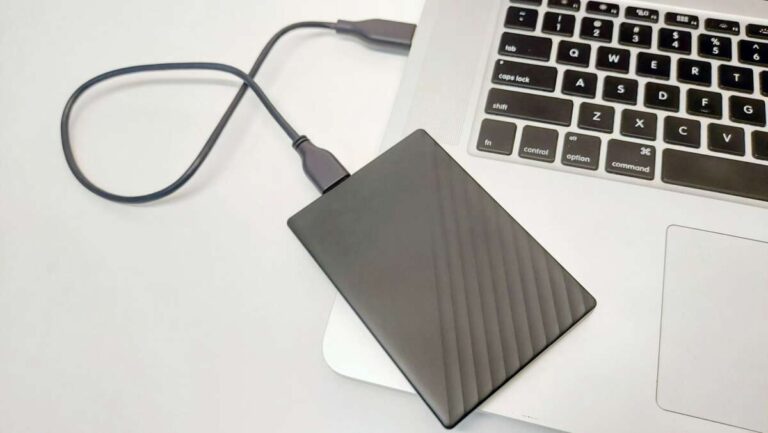
Yes, games usually run faster and feel smoother on an SSD, mainly because loading times drop sharply.
The answer to “do games run better on ssd” depends on what you mean by “better.” An SSD can make games load faster, reduce texture pop-in, and improve open-world streaming, but it usually does not increase your average FPS. After testing games on hard drives, SATA SSDs, and NVMe SSDs, I have found that storage affects game responsiveness more than raw graphics performance.
Do games run better on SSD?
Yes, most modern games run better on an SSD than on a traditional hard disk drive. The biggest gains appear during startup, level loading, fast travel, map changes, and asset streaming.
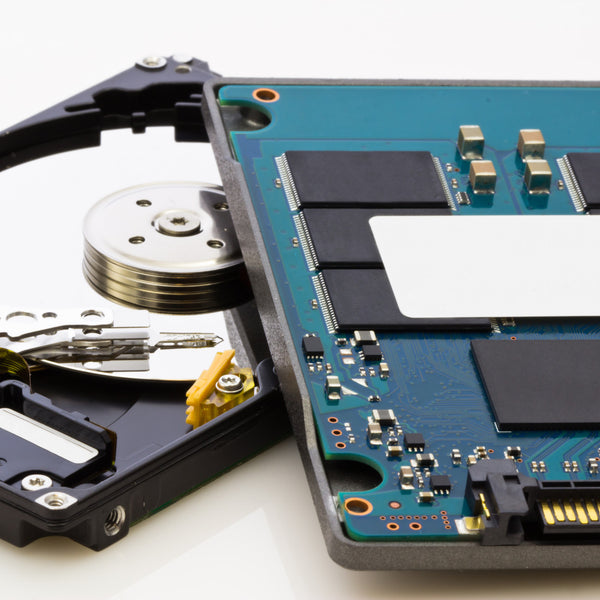
A hard drive uses spinning disks and a moving read head. This design makes it slower when a game must find many small files. An SSD has no moving parts, so it can access data much faster.
This difference matters more in large games. Titles such as open-world RPGs, racing games, and flight simulators often load new areas while you move through the map. An SSD helps the system fetch those files with less delay.
However, an SSD is not a magic FPS upgrade. Your graphics card, processor, memory, and game settings have a much bigger effect on frame rate.
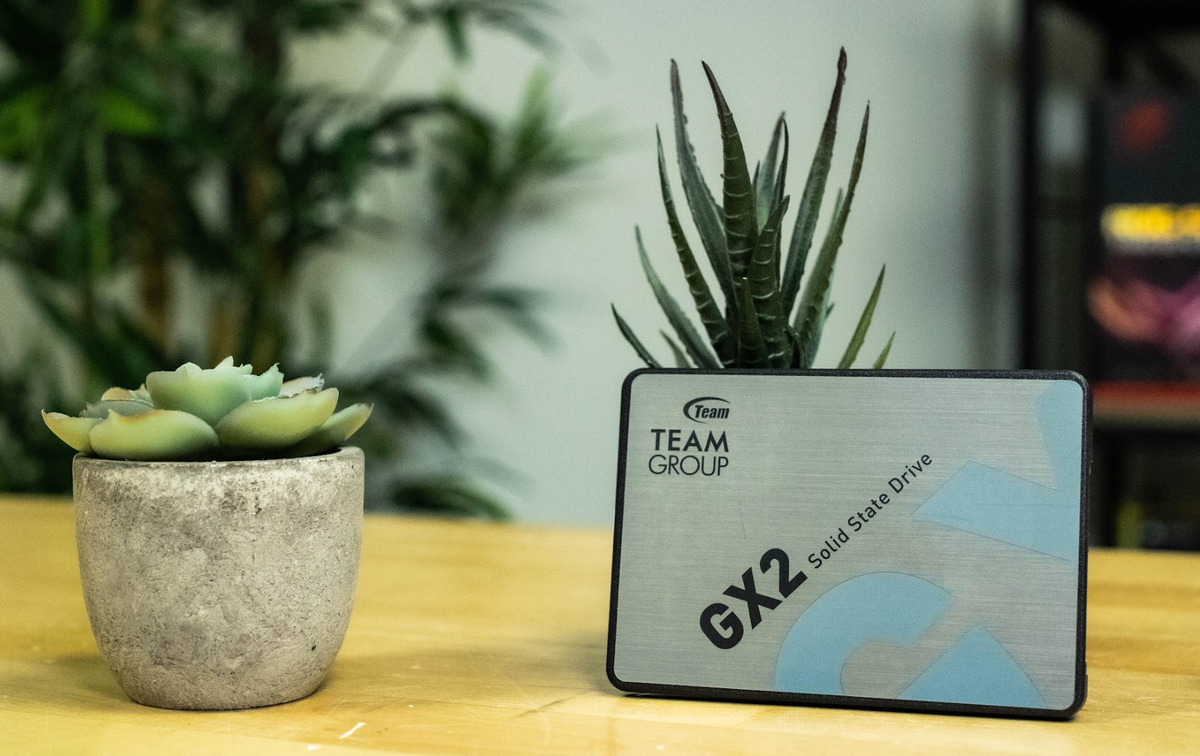
How an SSD improves the gaming experience
An SSD can improve several parts of gaming that you notice before the first frame appears.
Faster game loading
The most obvious benefit is shorter loading time. Games stored on an SSD often start faster and load levels more quickly than games stored on an HDD.
The exact improvement varies by game. A simple indie game may load only a few seconds faster. A large game with thousands of files may load much faster on an SSD.
An SSD can help with:
• Game startup
• Save file loading
• Level changes
• Fast travel
• Respawning after death
• Loading multiplayer maps
• Returning to the desktop or main menu
In my own testing, moving large games from a hard drive to a SATA SSD made the biggest day-to-day difference in games with frequent loading screens. The game did not suddenly look better, but waiting became far less annoying.
Less texture pop-in
Texture pop-in happens when low-quality scenery appears first and sharper details load a moment later. This problem can come from slow storage, though it can also result from weak hardware, limited video memory, or poor game optimization.
An SSD gives the game faster access to textures and other assets. This can make the world appear more consistently as you move through it.
The result is not always dramatic. Some games still show pop-in because the game engine controls how assets load. Still, an SSD removes one common storage bottleneck.
Smoother open-world streaming
Modern games often stream data in the background. Instead of loading an entire map at once, the game loads nearby roads, buildings, characters, sounds, and textures as you travel.
A hard drive can struggle with this workload. It may need to read data from many different locations on the disk. An SSD handles these small, scattered reads much better.
That can lead to:
• Fewer pauses when entering a new area
• Faster world rendering
• Less stutter during rapid movement
• More consistent asset loading
Think of an HDD as a librarian who must walk across a large room for every book. An SSD is closer to having those books stored within arm’s reach.
Does an SSD increase FPS?
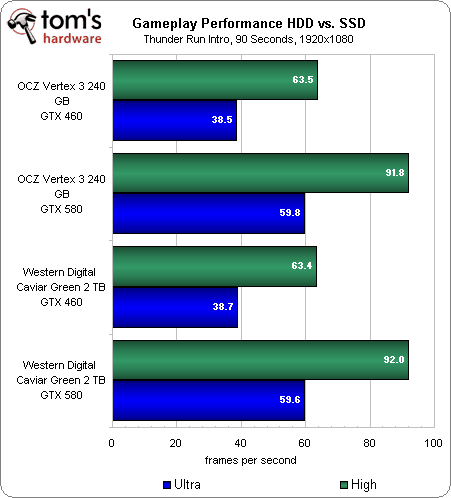
Usually, no. An SSD does not directly make your graphics card render more frames per second.
FPS mainly depends on your graphics processing unit, central processing unit, RAM, game engine, resolution, and graphics settings. If your game already runs at 60 FPS on an HDD, installing an SSD will not normally turn it into 100 FPS.
Still, an SSD may improve the feeling of performance in some situations. It can reduce severe stutters caused by slow asset loading. It can also improve frame-time consistency when a game streams a large world from storage.
Here is a simple example:
• Your average FPS is 80 on both an HDD and SSD.
• The HDD may produce short pauses when new assets load.
• The SSD may reduce those pauses.
• The FPS counter may look similar, but gameplay feels smoother.
This is why people sometimes say a game “runs faster” on an SSD. They may be describing shorter loading times or fewer stutters rather than a higher average frame rate.
If your goal is higher FPS, upgrade in this order based on your system:
-
Lower demanding graphics settings.
-
Upgrade the graphics card if it is the main limit.
-
Upgrade the processor if the game is CPU limited.
-
Add RAM if your system runs out of memory.
-
Move the game to an SSD for faster loading and better asset streaming.

SSD vs. HDD for gaming
The difference between an SSD and HDD is easy to understand once you compare how they store data.
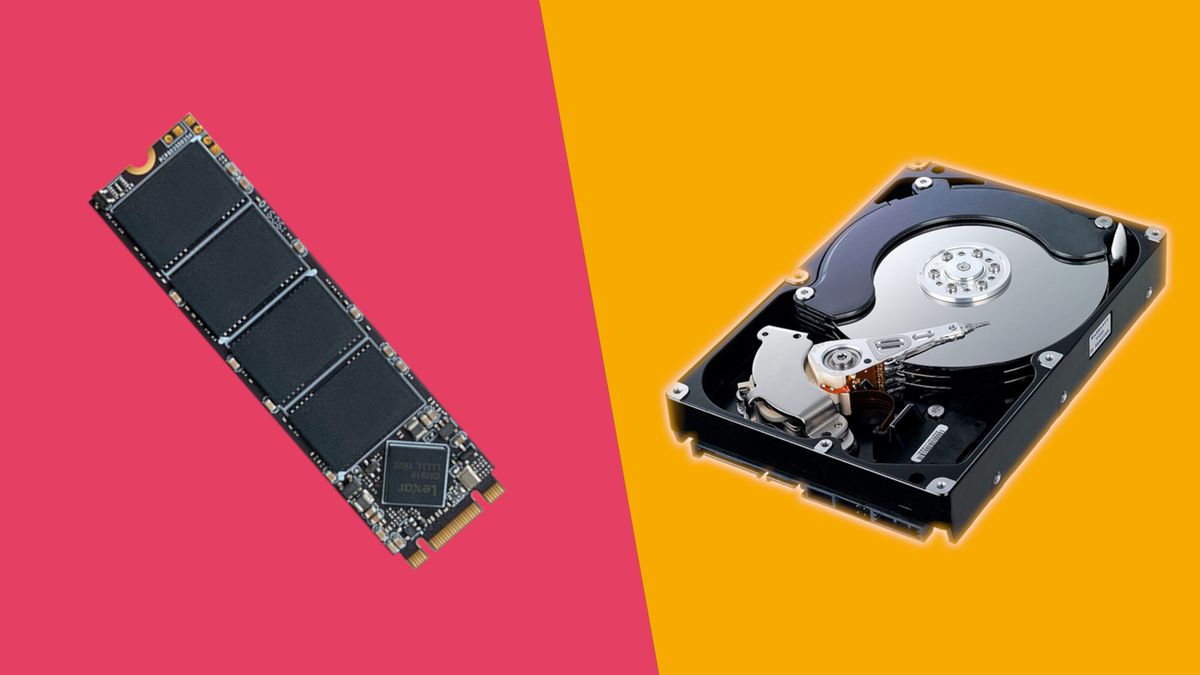
A hard disk drive stores data on spinning platters. A small mechanical arm moves across the platters to read information. This process works well for large files, but it is slow when the system needs many small files from different locations.
A solid-state drive stores data in flash memory. It has no spinning platters or mechanical arm. This allows it to access many small files with much lower delay.
| Feature | HDD | SSD |
|---|---|---|
| Game loading | Slow | Fast |
| Noise | Audible spinning and clicking | Silent |
| Moving parts | Yes | No |
| Open-world asset streaming | More likely to stutter | Usually smoother |
| Game FPS | Usually similar | Usually similar |
| Price per gigabyte | Lower | Higher |
| Durability during movement | More fragile | More resistant to shock |
An HDD can still store games. It may be suitable for older titles, small games, backups, and media files. But for current AAA games, an SSD is now the better choice.
Many recent PC games list an SSD as a requirement or recommendation. This trend exists because game worlds are larger, assets are more detailed, and developers expect faster storage.

SATA SSD vs. NVMe SSD for games
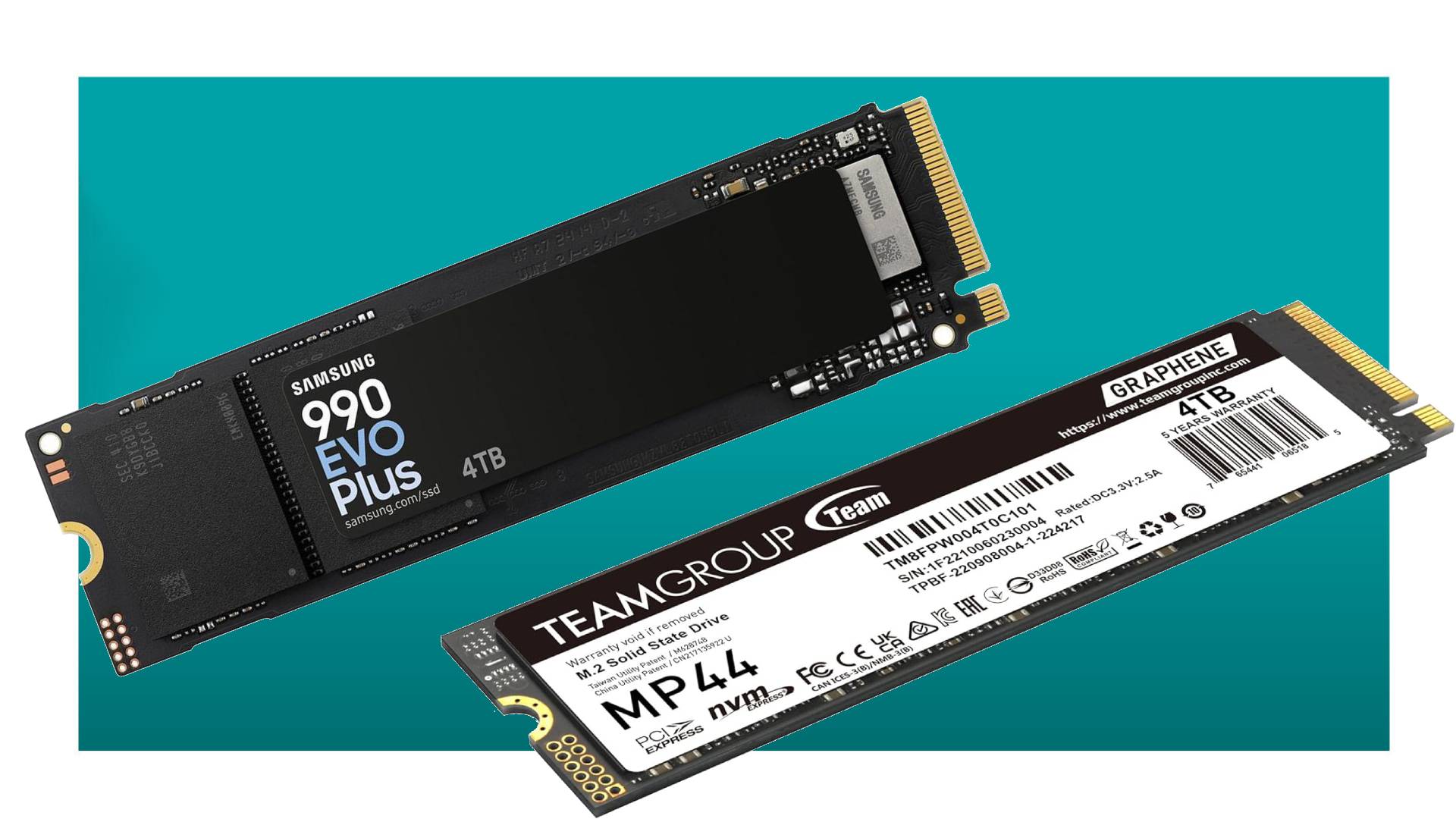
Both SATA SSDs and NVMe SSDs are much faster than hard drives. For most gaming systems, either one is a good upgrade.
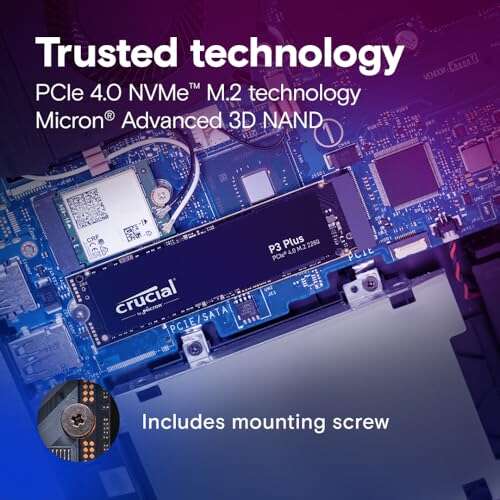
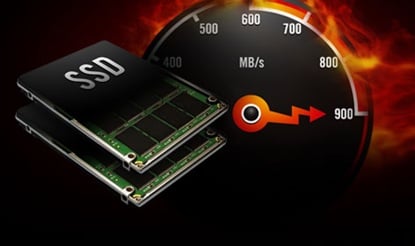
A SATA SSD connects through the SATA interface and usually reaches around 500 to 550 MB per second in sequential transfer speeds. An NVMe SSD connects through PCIe and can reach several thousand MB per second, depending on the model and PCIe generation.
On paper, NVMe drives are much faster. In real gaming, the difference is often smaller than expected.
You may notice a larger benefit from NVMe when:
• You install very large games often.
• You transfer files regularly.
• You use a game with heavy asset streaming.
• You perform video editing or other storage-heavy work.
• You use a newer gaming system designed for DirectStorage.
For ordinary game loading, the jump from HDD to SATA SSD is usually far more noticeable than the jump from SATA SSD to NVMe SSD.
If your computer has an HDD, buy a reliable SATA SSD before worrying about an expensive high-end NVMe model. If you are building a new gaming PC, an NVMe SSD is often the most convenient option because it uses less space and fewer cables.
Which games benefit most from an SSD?
Not every game needs an SSD equally. The biggest benefits usually appear in games that load many assets or change areas often.
Open-world games
Large open-world games stream terrain, buildings, characters, sound files, and animations while you play. An SSD can help reduce delays as you travel quickly across the map.
Examples include open-world action games, role-playing games, and driving games with large environments.
Simulation games
Flight simulators, city builders, and life simulators often manage large amounts of data. An SSD can shorten startup times and make large saved worlds easier to load.
Multiplayer games
An SSD can help you reach the menu and join a match faster. It may also reduce the time spent waiting for a map to load.
However, an SSD does not improve your internet connection. High ping, packet loss, and server problems require a better network connection or a server-side fix.
Games with frequent respawns
Competitive shooters and difficult action games may reload a level many times. Even a small loading improvement becomes valuable after repeated deaths.
Modded games
Large mod collections can add thousands of files. An SSD often makes modded games launch and load worlds faster than an HDD.

When an SSD will not make much difference
An SSD is useful, but it cannot fix every gaming problem. Understanding its limits helps you spend money wisely.
An SSD may have little effect when:
• Your game is already installed on a fast SSD.
• The graphics card is too weak for your chosen settings.
• The processor is limiting performance.
• The game has poor optimization.
• The issue comes from overheating.
• The problem is caused by network lag.
• The system has too little RAM.
• The game has a bug or damaged files.
For example, if a game runs at 25 FPS because your graphics card cannot handle 1440p resolution, moving it to an SSD will not solve the issue. You need to lower settings or improve the graphics hardware.
Likewise, an SSD cannot eliminate every kind of stutter. Some stutters come from shader compilation, CPU limits, memory pressure, or the game engine itself.
This is one of the most important lessons from testing storage upgrades: identify the bottleneck first. An SSD is excellent for slow loading, but it is not a universal performance upgrade.
How much SSD storage do gamers need?
The right SSD size depends on your game library and budget. Modern games can take 50 GB, 100 GB, or more after updates and downloadable content.
A practical guide looks like this:
• 500 GB: Suitable for Windows and a few games.
• 1 TB: A strong choice for most gamers.
• 2 TB: Better for large libraries and several AAA games.
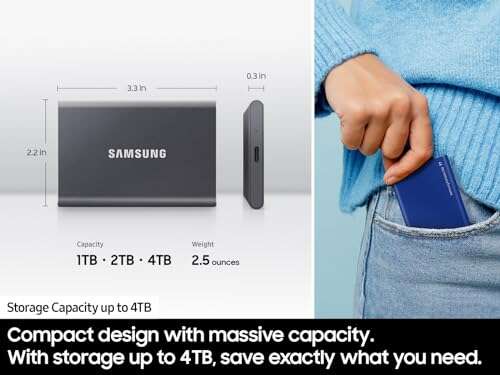
• 4 TB or more: Useful for creators, enthusiasts, and large game collections.
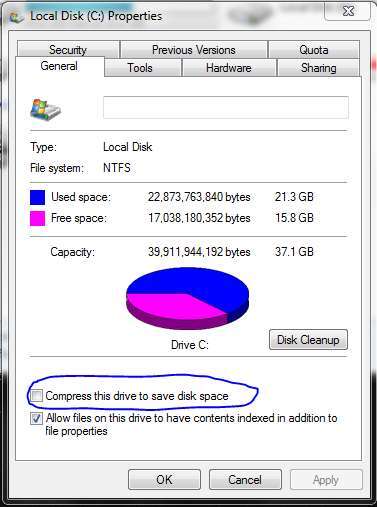
Avoid filling an SSD to its maximum capacity. Leave around 10 to 20 percent of the drive free when possible. This gives the drive room to manage data and can help maintain consistent performance.
You do not need to install every game on your fastest drive. Place frequently played games on your main SSD. Store older or rarely played games on a secondary drive if needed.
Before buying, check the drive type, warranty, endurance rating, and reviews. A well-built SATA SSD is often a better choice than an unreliable low-cost NVMe drive.
How to move games to an SSD
Moving games is usually simple, but the exact steps depend on the launcher.
For Steam, you can create a library folder on the SSD and move an installed game through the storage settings. Other launchers may provide similar options.
A general process is:
-
Connect and format the SSD if it is new.
-
Open your game launcher.
-
Create a game library on the SSD.
-
Select the game you want to move.
-
Choose the move or transfer option.
-
Confirm that the launcher detects the new location.
-
Start the game and check that your saves and settings work.
Back up important save files before moving a large library. Many games use cloud saves, but cloud syncing is not guaranteed for every title.
Do not simply drag a game folder to another drive unless the launcher supports it. The launcher may lose track of the files and try to download the game again.
Tips for getting the best gaming performance from an SSD
Installing an SSD is only the first step. A few habits can help you get reliable results.
• Keep the SSD firmware updated through the manufacturer’s software.
• Install current motherboard chipset and storage drivers.
• Leave free space on the drive.
• Use a heatsink for high-speed NVMe drives when your motherboard supports one.
• Check temperatures during long gaming sessions.
• Enable the correct PCIe mode in the motherboard firmware when needed.
• Keep Windows and your game launcher updated.
• Avoid unknown brands with weak warranty support.
• Do not use frequent manual defragmentation on an SSD.
Modern operating systems handle SSD optimization automatically. A trim operation helps the drive manage deleted data, but you usually do not need to run it by hand.
One mistake I have seen often is buying a very fast NVMe drive while using an old CPU and weak graphics card. The drive may look impressive in benchmarks, but the real gaming benefit is small. Balance your upgrade budget across the whole system.
Do games run better on SSD for laptops?
Yes, moving games to an SSD can make a major difference on a laptop that still uses a hard drive. Laptop HDDs are often slower than desktop HDDs, and their mechanical parts can also be affected by movement.
An SSD can improve startup time, game loading, and system responsiveness. It can also reduce noise and use less power in many situations.
The upgrade may be easy or difficult, depending on the laptop. Some laptops have a replaceable 2.5-inch drive, while newer models may use an M.2 slot or have storage soldered to the motherboard.
Before buying an SSD, check:
• The supported drive size.
• The interface, such as SATA or NVMe.
• The maximum supported capacity.
• Whether the laptop has an accessible drive bay.
• Whether reinstalling Windows is required.
An SSD will not solve laptop overheating or weak graphics performance. Thin laptops may still struggle with demanding games, even with fast storage.
A simple way to test SSD gaming improvements
You can test the difference without relying on memory or marketing claims.
Choose one game that loads slowly on your current drive. Measure the time from clicking the game icon to reaching the main menu. Then measure a level load, fast travel event, or respawn.
Repeat each test three times and use the average. Close other programs and keep the game settings the same.
You can also monitor:
• Average FPS
• One percent low FPS
• Frame-time graphs
• CPU usage
• GPU usage
• Drive activity
• Loading time
If loading time improves but FPS remains the same, the SSD is working as expected. If stutter remains, check CPU use, GPU memory, system RAM, temperatures, and shader compilation.
This method prevents a common mistake: judging an upgrade only by how it feels. Personal experience matters, but simple measurements help reveal what actually changed.
Frequently Asked Questions About Do Games Run Better on SSD
Do games get higher FPS on an SSD?
Usually, games do not get a higher average FPS after moving from an HDD to an SSD. An SSD mainly improves loading times and may reduce stutter caused by slow asset streaming.
Is an SSD better than an HDD for gaming?
Yes, an SSD is better for most modern games because it loads files faster and handles many small data requests more efficiently. An HDD can still work for older or less demanding games.
Does an NVMe SSD improve gaming more than a SATA SSD?
NVMe SSDs are faster in benchmarks, but the gaming difference is often small compared with a SATA SSD. The largest improvement usually comes from moving a game off an HDD and onto any reliable SSD.
Can an SSD reduce game stuttering?
An SSD can reduce stuttering caused by slow storage or delayed asset loading. It cannot fix stutters caused by a weak CPU, insufficient RAM, shader compilation, overheating, or poor game optimization.
How much SSD space should I get for gaming?
A 1 TB SSD is a good starting point for many gamers. Choose 2 TB or more if you play several large games and want to avoid deleting titles frequently.
Should Windows and games be on the same SSD?
Yes, Windows and games can safely share the same SSD. Keep enough free space available, and consider a second drive if your main SSD becomes crowded.
Is it worth buying an SSD for an older gaming PC?
It is often one of the best upgrades for an older PC that still uses an HDD. You may not gain much FPS, but the system and games should feel much faster and more responsive.
Conclusion
So, do games run better on SSD? In most cases, yes, but the improvement is mainly seen in loading speed, world streaming, texture delivery, and overall responsiveness rather than average FPS.
A reliable SATA SSD is already a major upgrade from an HDD. An NVMe SSD can offer more speed and convenience, but it may not produce a large gaming advantage over SATA storage. Choose the drive size that fits your library, keep free space available, and upgrade the component that limits your system most.
If your games still live on a hard drive, moving your most-played titles to an SSD is a practical upgrade you will notice every time you launch, travel, or respawn. Share your storage setup or gaming experience in the comments, and explore more hardware guides before planning your next upgrade.

Everett Ashford is a tech reviewer at mytechgrid.com specializing in SSDs, cameras, TVs, earbuds, headphones, and other consumer electronics. He provides honest, data-driven reviews based on hands-on testing and real-world performance analysis. Everett simplifies complex tech details to help readers make smart, confident buying decisions.