Open phone Settings, enable Instagram camera and microphone, then reopen the app.
If you want clean Stories, crisp Reels, and smooth video calls, you need the right permissions. I’ve helped creators, brands, and everyday users fix this in minutes. In this guide, I’ll show you how to allow instagram to access your camera and microphone on iPhone, Android, and desktop, plus how to fix common issues fast.
Why Instagram needs camera and microphone permissions
Instagram uses your camera for Stories, Reels, Live, and video calls. The microphone records voice, music, and live audio. Without these, you’ll see black screens, silent clips, or failed calls.
These permissions are safe when used right. Both iOS and Android show clear indicators when the camera or mic is active. You stay in control and can turn access off anytime.
If you came here to learn how to allow instagram to access your camera and microphone, you’re in the right place. Let’s set it up step by step.

Before you start: quick checklist
- Update Instagram to the latest version.
- Restart your phone to clear stuck prompts.
- Log into the right account and switch to the main profile.
- Try opening the Story or Reel camera to trigger the prompt again.
These small steps solve many issues fast. They also make it easier to follow how to allow instagram to access your camera and microphone without hiccups.
iPhone and iPad: allow camera and microphone (iOS 16/17/18)
There are two easy ways. Use either route.
Method A (Fast path):
- Open Settings.
- Scroll to Instagram.
- Turn on Camera.
- Turn on Microphone.
- Open Instagram and test the Story camera.
Method B (Privacy center):
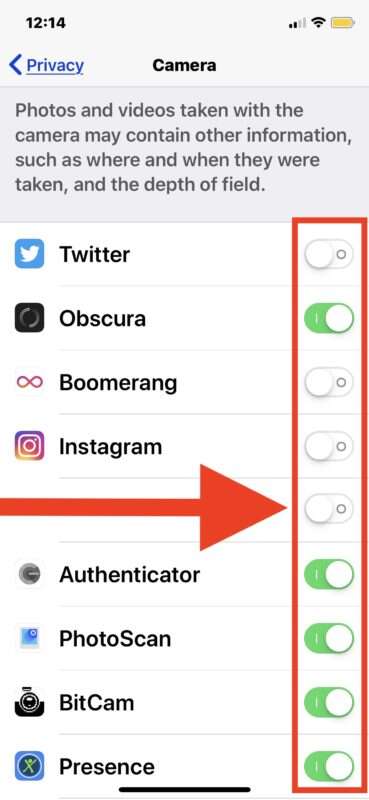
- Open Settings.
- Tap Privacy & Security.
- Tap Camera, then turn on Instagram.
- Go back, tap Microphone, then turn on Instagram.
- Open Instagram and try a Reel or Live.
Pro tip: In Settings, check Photos for Instagram. Choose All Photos or Selected Photos to upload from your library. This does not affect the camera, but it helps flow.
If you came to learn how to allow instagram to access your camera and microphone on iOS, this covers every step. If it still fails, see the fixes below.

Android: allow camera and microphone (Android 12/13/14)
Menus vary by brand. The idea is the same. Find Instagram in Apps, then set permissions.
General steps:
- Open Settings.
- Tap Apps.
- Find Instagram and open it.
- Tap Permissions.
- Tap Camera, then choose Allow while using the app or Allow.
- Tap Microphone, then choose Allow while using the app or Allow.
- Open Instagram and test Stories or Reels.
Extra checks:
- On some phones, also allow Nearby devices if you use Bluetooth mics.
- If you see Ask every time, switch to Allow while using the app.
These steps are the core of how to allow instagram to access your camera and microphone on Android. It works for Samsung, Pixel, OnePlus, and more.
Turn on permissions from inside Instagram
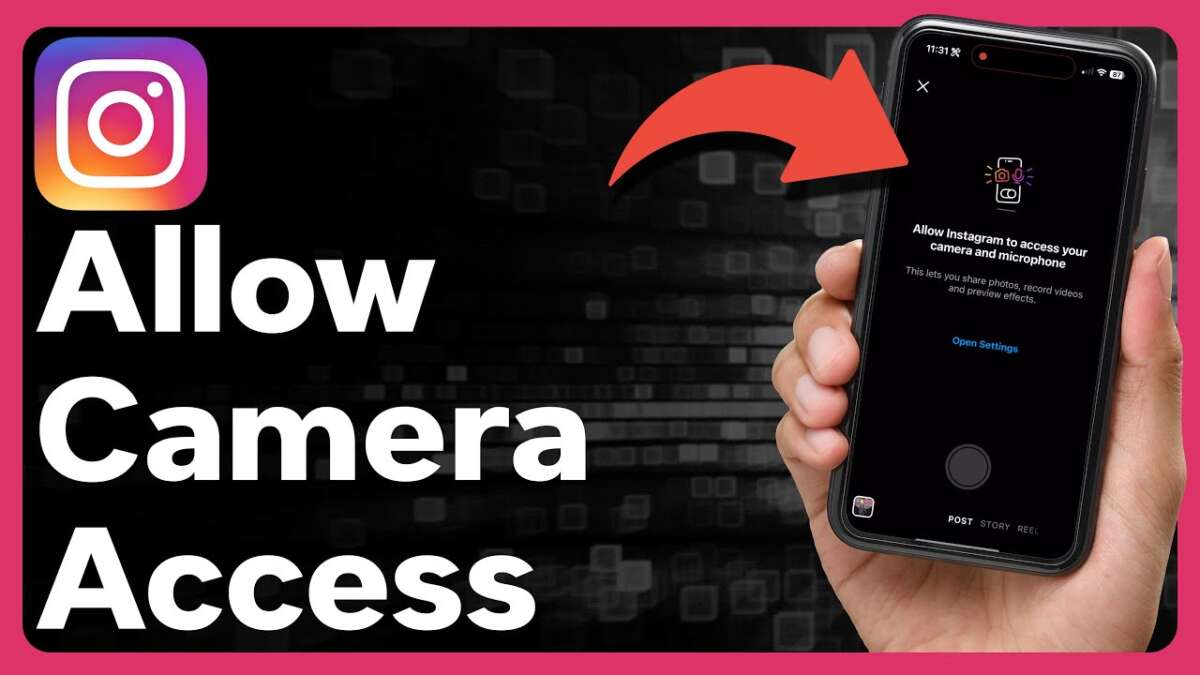
Instagram can link you to your phone settings. This is handy if the pop-up never shows.
- Open Instagram.
- Tap your profile, then the menu.
- Tap Settings and privacy.
- Tap App permissions or similar (varies by version).
- Follow the prompts to Camera and Microphone in your phone settings.
- Return to Instagram and try a Story.
This path is simple and helps many users understand how to allow instagram to access your camera and microphone without digging through menus.
Fix common permission problems
If toggles are missing on iPhone:
- Go to Settings > Screen Time > Content & Privacy Restrictions.
- Tap Microphone and Camera. Allow changes and enable Instagram.
- If managed by work or school, ask your admin. Profiles can block access.
If the prompt never appears on Android:
- Go to Settings > Apps > Instagram > Storage.
- Tap Clear cache. Do not clear data unless needed. It will log you out.
- Tap Permissions and set Camera and Microphone to Allow.
If the app still can’t use the camera:
- Restart your phone.
- Toggle the permission off, then on again.
- Update Instagram and your OS.
- On Android, Reset app preferences in Settings > Apps (menu).
If audio is muted in Reels:
- Check your phone volume and mute switch.
- In Instagram, confirm the mic icon is active.
- Some external mics need Nearby devices permission on Android.
These tips cover the tricky edge cases in how to allow instagram to access your camera and microphone. I use them when helping clients on shoots.

Privacy, safety, and smart settings
You can allow access only when needed. This is safe and helps battery life.
- iOS: Allow Camera and Microphone in Settings. Turn them off anytime. Watch for the green or orange status dot when active.
- Android: Choose Allow only while using the app. Use Ask every time if you want full control.
When you are done recording, close the Instagram camera. This lowers battery use. It also keeps you mindful about access.
Learning how to allow instagram to access your camera and microphone does not mean always-on. You stay in charge.

Features that need the camera and mic
Stories and Reels
- Need both camera and microphone for full effect.
- If you see a black screen or “Allow access,” follow the steps above.
Live video
- Requires stable camera and microphone access.
- Check network too. Poor signal can look like a permission error.
Video calls
- Needs both permissions and a strong data or Wi‑Fi signal.
- Headsets may need Nearby devices on Android.
If you are unsure how to allow instagram to access your camera and microphone for a specific feature, open that feature. Instagram will show what is missing.

Desktop and web: allow in your browser
Instagram on the web can use your camera and mic for posts, calls, and Lives. You must allow it in the browser and your system.
Chrome
- Open instagram.com and start a feature that needs the camera.
- Click the lock icon in the address bar.
- Set Camera and Microphone to Allow.
Safari on macOS
- With instagram.com open, go to Safari > Settings for This Website.
- Set Camera and Microphone to Allow.
- In macOS System Settings > Privacy & Security, allow Safari under Camera and Microphone if needed.
Edge
- Click the lock icon on instagram.com.
- Allow Camera and Microphone.
If you want a full cross-device setup for how to allow instagram to access your camera and microphone, do your phone first, then check the browser.
For parents, schools, or work phones
Parental controls and device policies can block the camera and mic.
- iOS Screen Time: Content & Privacy Restrictions can disable Camera or Microphone. Allow them and permit Instagram.
- Android Family Link: A parent may limit permissions. Ask them to allow Camera and Microphone.
- Work phones: Mobile device management (MDM) may block access. Contact IT for permission policy updates.
If policy blocks remain, no app fix will help. This is key to know when learning how to allow instagram to access your camera and microphone on managed devices.
Frequently Asked Questions of how to allow instagram to access your camera and microphone
Why can’t Instagram access my camera even after I allowed it?
Sometimes the app cache is stuck. Clear the cache, restart your phone, and toggle the permission off and on again.
How do I get the permission pop-up to show again?
Open the Story camera inside Instagram. If it does not show, go to your phone settings and allow the permissions manually.
Will allowing the microphone record me all the time?
No. iOS and Android only let the app use the mic when you open features that need it. You’ll see a status dot when it is active.
Do I need to allow Photos to use the camera?
No. Photos controls your library access. The camera needs the Camera permission. For uploads, set Photos to All Photos or Selected Photos.
Why is my audio still quiet in Reels?
Check the mic source, phone case, and volume. External mics may need Nearby devices on Android and the right input selected.
Can I allow access only while using the app?
Yes. On iOS and Android, choose Allow while using the app. This is a smart, privacy-friendly choice.
Does this work the same on tablets?
Yes. On iPad and Android tablets, the steps match phones. Menus may look wider, but the permissions are the same.
Conclusion
Now you know how to allow instagram to access your camera and microphone on iPhone, Android, and the web. You also know how to fix pop-up issues, manage privacy, and avoid common traps. Once set, your Stories, Reels, Lives, and calls will run smooth.
Take five minutes to follow the steps that match your device. Test a quick Story and a short Reel. If this helped, share it with a friend, subscribe for more quick fixes, or leave a comment with your setup.

Jamie Lee is a seasoned tech analyst and writer at MyTechGrid.com, known for making the rapidly evolving world of technology accessible to all. Jamie’s work focuses on emerging technologies, product deep-dives, and industry trends—translating complex concepts into engaging, easy-to-understand content. When not researching the latest breakthroughs, Jamie enjoys exploring new tools, testing gadgets, and helping readers navigate the digital world with confidence.