Restart, delete unused apps, or reinstall apps to clear Apple TV cache quickly and safely.
I’ve spent years troubleshooting streaming boxes and Apple TV. I’ll show you exactly how to clear Apple TV cache in practical steps that work. You’ll learn safe methods, quick fixes, and the best routine to keep Apple TV fast. Read on for step-by-step instructions, real-world tips, and mistakes to avoid.

Why clearing cache on Apple TV matters
Cache keeps streaming smooth but can slow things down when it grows or corrupts. Old app data can cause buffering, freezes, and login issues. Knowing how to clear apple tv cache helps you fix slow menus, playback glitches, and app crashes without a full reset.
Clearing cache can free storage and often restores speed without losing account settings. I use these steps regularly when apps misbehave, and they save time over full restores. Follow the steps below to fix most problems quickly.

How Apple TV cache works
Apple TV uses per-app caches, system caches, and streaming buffers. Apps store thumbnails, credentials, and playback buffers locally to load faster. Over time, these caches can become stale or corrupted and cause errors.
There is no single “clear cache” button on tvOS. Instead, you use app-specific actions, restarts, or removal to clear stored data. Understanding this helps you choose the right method for how to clear apple tv cache.

Safe methods to clear Apple TV cache
I recommend starting with non-destructive steps and moving to stronger actions only if needed. Below are trusted methods ordered from easiest to most powerful. Each method is safe when you follow the steps.
Restart Apple TV
Restarting clears temporary system caches and often fixes small issues. This is the fastest way to clear Apple TV cache for many problems.
- Via Settings: Go to Settings > System > Restart.
- Force restart: Press and hold Menu and TV (or Home) buttons on your Siri Remote until the status light flashes.
- Unplug the power cord for 10 seconds, then plug it back if a soft restart fails.
A simple restart fixed buffering for me more than once. Try this first before deleting apps or resetting.
Force quit an app
Force quitting clears that app’s memory and short-term cache. It is quick and preserves app data.
- Double-press the TV/Home button to open the app switcher.
- Swipe up on the touch surface or swipe the app card upward to close it.
- Reopen the app to see if performance improved.
This method works well for a single misbehaving app and is often the step I use several times a week.
Delete and reinstall apps
Deleting an app removes its stored data and cache. Reinstalling gives you a fresh app without leftover files.
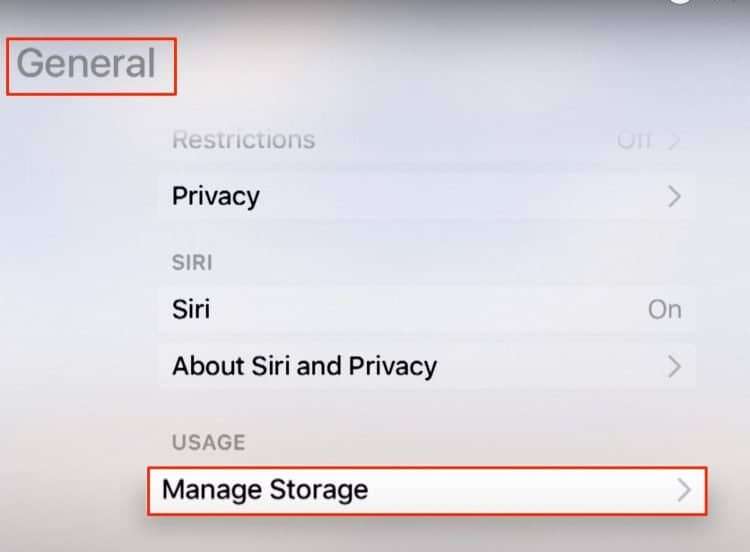
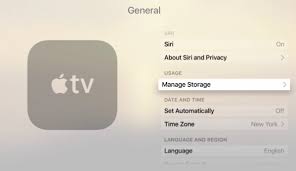
- Go to Settings > General > Manage Storage.
- Select the app you want to clear and choose Delete.
- Reinstall the app from the App Store and sign back in if needed.
This is the most reliable way to clear app-level cache when restarts don’t help. It also frees up storage space.
Sign out and clear app-specific history
Some apps let you clear history or sign out to reset stored data. This is useful for streaming apps.
- Open the app’s Settings or Account area.
- Choose options such as Sign Out, Clear Watch History, or Clear Cache (if available).
- Restart the app after signing back in.
Signing out restored playback quality in one of my apps without a reinstall. Check app settings before deleting.
Update tvOS
Updating can resolve bugs that cause cache-like problems. It won’t directly clear all cache but often removes behavior that leads to cache issues.
- Go to Settings > System > Software Updates > Update Software.
- Install any available updates and restart the Apple TV.
Keep tvOS current to reduce recurring cache issues and improve performance.
Reset Apple TV as a last resort
Resetting wipes everything and returns the device to factory settings. Use this only if other steps fail.
- Go to Settings > System > Reset.
- Choose Reset or Reset and Update to restore factory settings.
- Prepare to sign back into accounts and redo settings after the reset.
I only use reset when an app or system is irreparably broken. Back up credentials and be ready to spend time reinstalling apps.
Quick checklist: Step-by-step summary
Use this checklist when you need to clear cache fast.
- Restart Apple TV via Settings.
- Force quit the problematic app.
- Delete and reinstall the app if issues persist.
- Sign out and clear app history where possible.
- Update tvOS and restart.
- Reset Apple TV only if nothing else fixes the issue.
These steps follow a low-risk to high-impact path. They help you clear apple tv cache without unnecessary work.

Troubleshooting common problems after clearing cache
You might need to sign back into apps after deleting or reinstalling. Keep your account credentials handy to speed recovery.
If playback is still poor, test other devices on the same network to check for router or ISP problems. I once spent hours on app fixes only to find my router was limiting bandwidth; a router restart solved it.
If an app fails to reinstall, check available storage in Settings > General > Manage Storage. Low storage can block updates and new installs.

Best practices to prevent cache buildup
Set a simple routine to keep Apple TV running smoothly. Short, regular maintenance beats major cleanups later.
- Restart Apple TV once a week to clear temporary caches and free memory.
- Uninstall apps you no longer use to free space and reduce cache growth.
- Turn off automatic app updates if you want to control when changes happen.
- Keep tvOS up to date to avoid bugs that cause cache issues.
- Monitor Manage Storage occasionally to see which apps use the most space.
I follow these habits and rarely need a full reset. Preventive care saves time and keeps streaming stable.

Frequently Asked Questions of how to clear apple tv cache
How often should I clear cache on Apple TV?
You generally do not need to clear cache often. Restart weekly and delete unused apps monthly to avoid buildup.
Will resetting Apple TV delete my apps and settings?
Yes. Resetting restores factory settings and removes apps, accounts, and data. Keep credentials ready before you reset.
Can I clear cache without deleting apps on Apple TV?
Yes. Restarting, force quitting apps, and signing out may clear temporary caches without deleting the app. Deleting and reinstalling is the most thorough non-reset method.
Why is my Apple TV still slow after clearing cache?
Network issues, low storage, or a buggy app can cause continued slowness. Check your router, storage, and app updates if performance doesn’t improve.
Does updating tvOS clear the cache?
Updating does not explicitly clear all cache but fixes bugs that cause caching problems. It can improve performance and reduce future cache issues.
Is there a one-click clear cache option on Apple TV?
No. tvOS does not include a universal clear cache button. You clear cache with restarts, app deletion, reinstall, or a full reset.
Conclusion
Clearing Apple TV cache is a series of simple, safe steps. Start with a restart, force quit apps, then delete and reinstall problem apps if needed. Update tvOS and use reset only as a last resort.
Try these steps today and make a weekly habit of restarting and pruning unused apps. If this helped, share your experience or ask a question below — I’ll respond with tips tailored to your setup.

Everett Ashford is a tech reviewer at mytechgrid.com specializing in SSDs, cameras, TVs, earbuds, headphones, and other consumer electronics. He provides honest, data-driven reviews based on hands-on testing and real-world performance analysis. Everett simplifies complex tech details to help readers make smart, confident buying decisions.