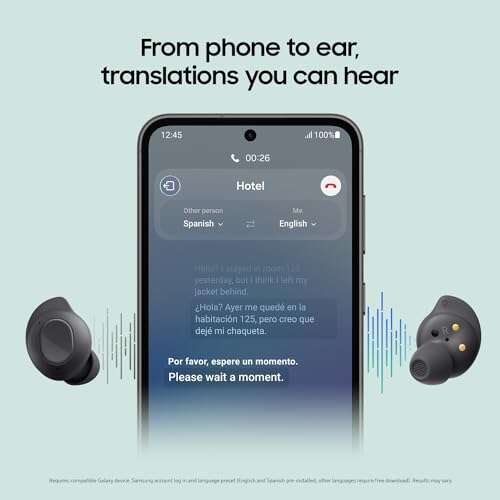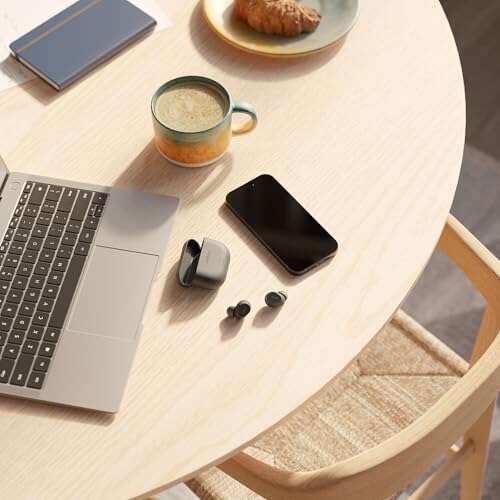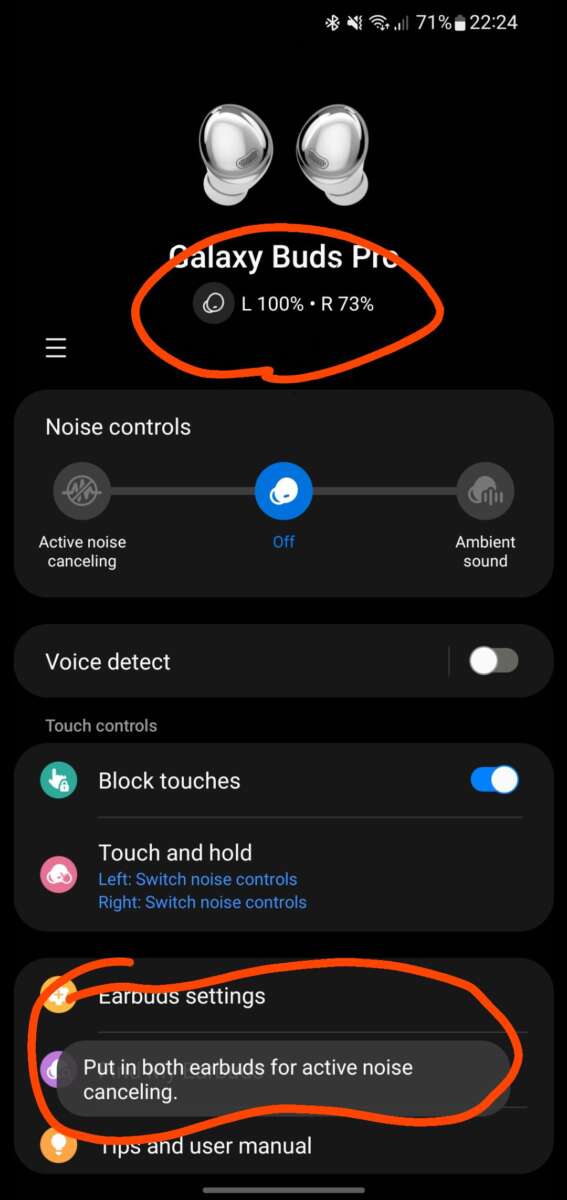
To activate noise cancellation on Samsung earbuds, open Galaxy Wearable and choose Active noise canceling.
Learning how to activate noise cancellation on Samsung earbuds is simple once you know where the setting lives. You can turn it on from the Galaxy Wearable app, the earbuds’ touch controls, or a connected Galaxy phone. This guide explains each method, shows how to fix common problems, and shares practical tips for clearer, safer listening.
What noise cancellation does on Samsung earbuds
Active noise cancellation, or ANC, uses tiny microphones to detect sounds around you. The earbuds then create an opposing sound wave that reduces steady background noise. Think of it as an audio shield that helps soften sounds such as airplane engines, air conditioners, buses, and office fans.
ANC works best with low and steady sounds. It may reduce engine noise very well, but it cannot remove every voice, car horn, or sudden sound. The microphones need time to detect outside noise, and sharp sounds can pass through before the system reacts.
Samsung calls this feature Active noise canceling in many device menus. The name may vary slightly by model, software version, or region.
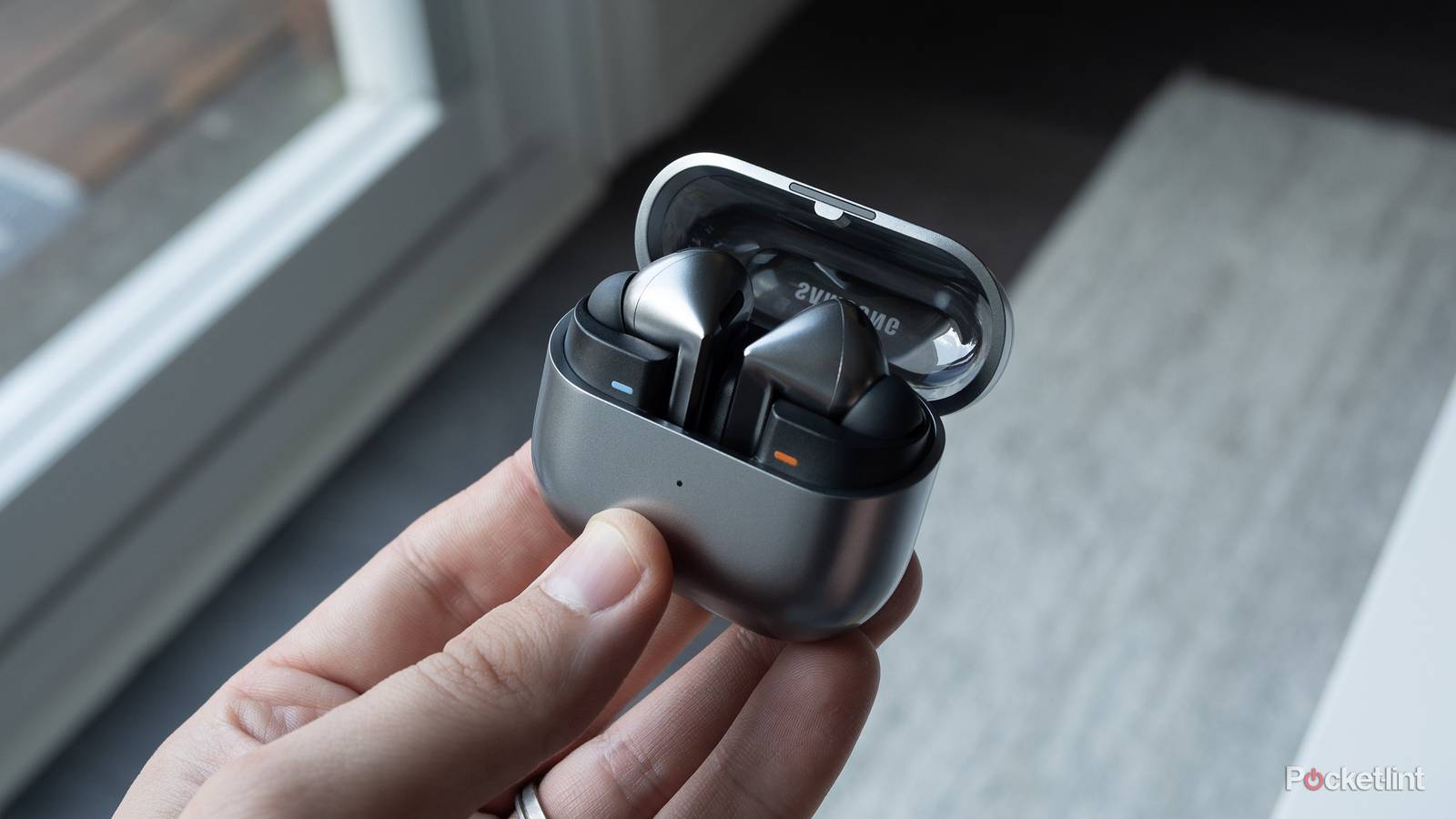
Samsung earbuds with ANC may include:
• Galaxy Buds2 Pro
• Galaxy Buds Pro
• Galaxy Buds2
• Galaxy Buds3 Pro
• Galaxy Buds3
• Galaxy Buds FE
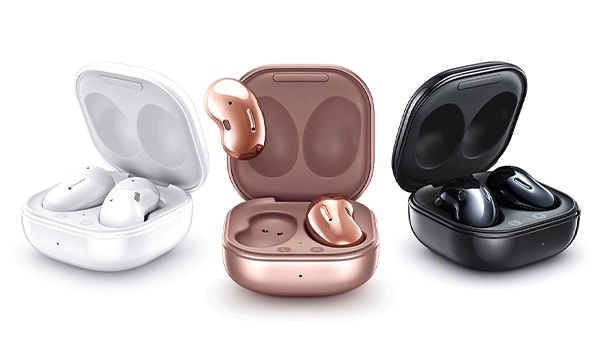
• Galaxy Buds Live
Not every Samsung earbud supports ANC. Standard Galaxy Buds models without ANC may offer only Off and Ambient sound modes. If you cannot find an Active noise canceling option, your model may not support the feature.

How to activate noise cancellation on Samsung earbuds with Galaxy Wearable
The Galaxy Wearable app is the most reliable way to control ANC. It also gives you access to extra settings, such as touch controls, voice detection, and the level of ambient sound.
Follow these steps:
-
Install or open the Galaxy Wearable app on your Android phone.
-
Turn on Bluetooth.
-
Place both Samsung earbuds in your ears.
-
Open the charging case if the earbuds are inside.
-
Select your earbuds in the Galaxy Wearable app.
-
Tap Earbuds controls, Touch controls, or a similar option.
-
Select Active noise canceling.
-
Adjust the noise control level if your model provides that option.
The exact menu can change after a software update. On some models, the control appears directly on the app’s main screen. On others, you must tap Earbuds controls first.
If the app shows Off, Ambient sound, Adaptive, or Active noise canceling, tap Active noise canceling. You should hear a short tone or notice an immediate drop in background noise.
For the best result, make sure both earbuds are connected. Some Samsung models allow noise control with one earbud, while others limit ANC when only one earbud is being used.
How to activate noise cancellation with the earbuds
You can often activate noise cancellation without touching your phone. This is useful on a train, during a walk, or when your phone is in a bag.
On many Galaxy Buds models, press and hold the touch area on either earbud. Keep holding until you hear a sound or voice prompt. The earbuds may switch between these modes:
• Ambient sound
• Active noise canceling
• Off
The default touch-and-hold action may not be set to noise control. To check it, open Galaxy Wearable and follow these steps:
-
Tap Earbuds controls or Touch controls.
-
Select Touch and hold.
-
Choose Left or Right earbud.
-
Select Switch noise controls.
-
Press and hold the selected earbud to cycle through the available modes.
Some newer Samsung earbuds use a pinch gesture instead of a simple touch. The Galaxy Buds3 series, for example, may use pinch or swipe controls based on the control layout. Check the control guide in Galaxy Wearable if a long press does not work.
In my testing, the touch method is quick but easy to trigger by mistake when adjusting an earbud. I prefer using the app when I am in a quiet room and the touch control when I am already moving.

How to activate noise cancellation on Samsung earbuds from a Galaxy phone
Samsung Galaxy phones may provide quick access to earbud controls through the Quick panel. This method can be faster than opening the full Galaxy Wearable app.
Try these steps:
-
Connect your Samsung earbuds to your Galaxy phone.
-
Swipe down from the top of the screen to open the Quick panel.
-
Swipe down again to expand all available controls.
-
Look for Media output, Bluetooth, or a connected-device control.
-
Select your Galaxy Buds.
-
Choose Active noise canceling.
The names and layout can differ between One UI versions. If you do not see an earbud control, open Galaxy Wearable instead.
You may also add a Galaxy Buds control to the Quick panel. Tap the pencil icon or menu button, then add the available device control. This makes it easier to switch noise modes without searching through settings.
The phone must remain connected to the earbuds for this method to work. If the earbuds are connected to a tablet, computer, or another phone, use that device’s Bluetooth connection or the touch controls on the earbuds.
How to get stronger ANC performance
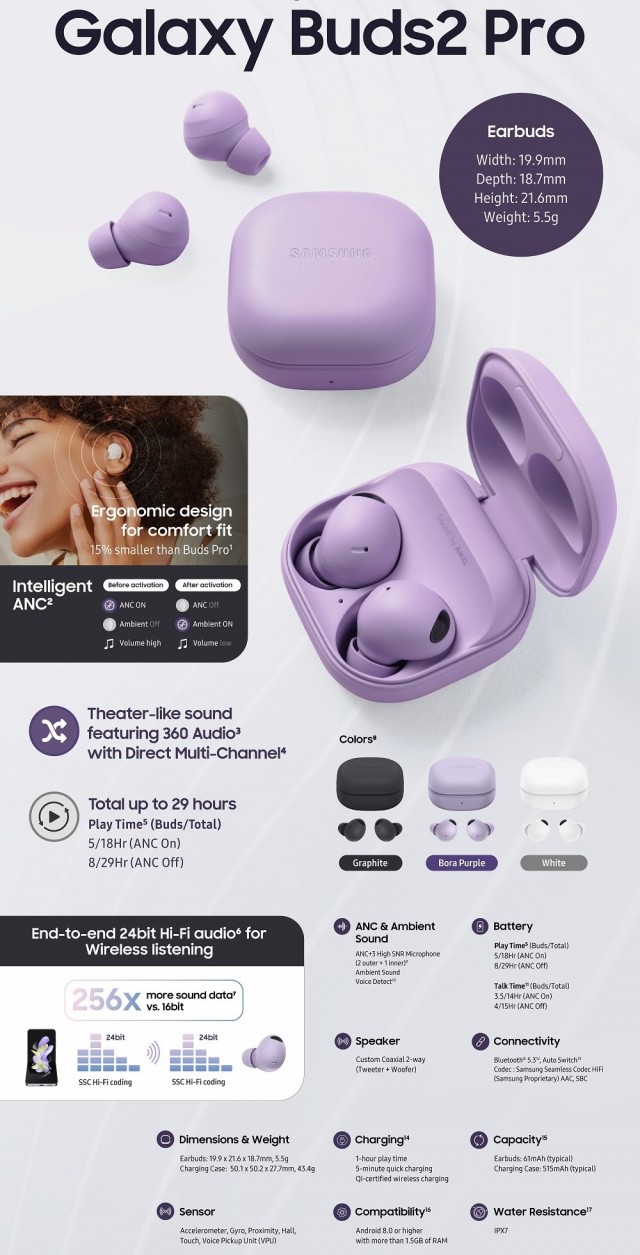
Knowing how to activate noise cancellation on Samsung earbuds is only part of the process. A poor ear tip seal can make ANC seem weak, even when the feature is working correctly.
Use these steps to improve performance:
• Choose the right ear tip size. Try small, medium, and large tips.
• Insert each earbud until it feels secure but not painful.
• Run the Earbud fit test if your model and app provide one.
• Clean the ear tips and microphone openings.
• Keep the earbuds updated through Galaxy Wearable.
• Make sure both earbuds sit evenly in your ears.
• Avoid covering the outside microphones with hair, hats, or fingers.
A good seal blocks sound much like a closed window. ANC then has less work to do. If the seal is loose, outside noise can enter around the ear tip, and the earbuds may seem unable to cancel it.
Silicone ear tips can collect skin oil, dust, and earwax. Wipe them with a dry, soft cloth. Remove the tips before cleaning them, and do not push liquid into the speaker or microphone openings.

How to activate noise cancellation on Samsung earbuds when the option is missing
If Active noise canceling does not appear, start with the model. Look at the name in Galaxy Wearable, the charging case, or the original box. Some Galaxy Buds models do not include active noise cancellation.
Next, check the connection. Put both earbuds in the case, close the lid for a few seconds, and open it again. Then reconnect them to your phone.
You can also try these fixes:
-
Update Galaxy Wearable from the Google Play Store or Galaxy Store.
-
Update the earbuds through Galaxy Wearable.
-
Restart your phone.
-
Charge the earbuds and case.
-
Remove the earbuds from Bluetooth settings and pair them again.
-
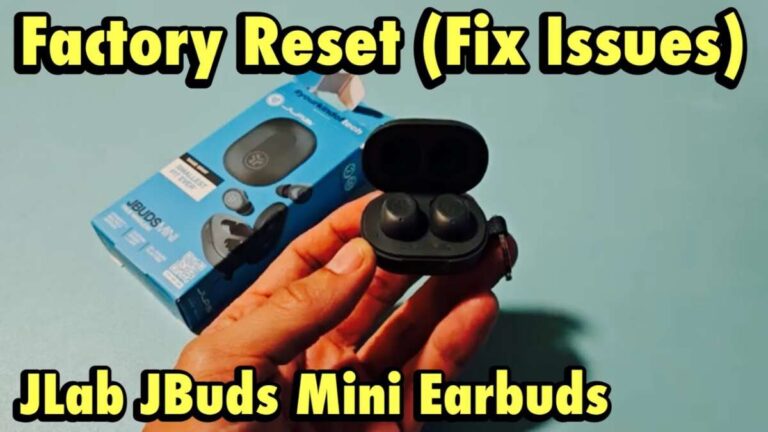
Reset the earbuds in Galaxy Wearable.
-
Test the earbuds with another compatible phone.
A software issue can hide or disable certain controls. Updates may also change the menu name. Samsung sometimes moves features between Earbuds controls, Noise controls, and Touch controls.
Resetting the earbuds should be a later step because it removes saved settings. Before resetting, note your preferred touch actions and equalizer settings.

Common ANC problems and practical fixes
ANC sounds weak
The most common cause is a poor fit. Try another ear tip size and rotate the earbuds slightly until they sit firmly. Also clean the microphones and ear tips.
You hear a hiss
A soft hiss can occur when ANC is active, especially in a quiet room. This is usually normal. If the hiss is loud, uneven, or present only in one earbud, update the software and test a reset.
One earbud sounds different
Check that both earbuds have the same noise mode. A blocked microphone, loose fit, or low battery in one earbud can also create an imbalance.
Touch controls do not work
The touch control may be disabled or assigned to another action. Open Galaxy Wearable, tap Touch controls, and set touch and hold to Switch noise controls.
ANC turns off by itself
Some earbuds switch modes when you remove one earbud. Others use voice detection or conversation mode, which lowers audio and activates ambient sound when you speak. Turn off these features if you want ANC to remain active.
In real-world use, conversation mode is often mistaken for a fault. I have seen users activate ANC, say a few words, and assume the earbuds stopped working when the earbuds were simply detecting their voice.

ANC, Ambient sound, and Adaptive sound explained
Active noise canceling reduces outside sound. It is useful on flights, buses, trains, and busy work areas. It can also help you hear music or podcasts at a lower volume.
Ambient sound does the opposite. It uses the earbuds’ microphones to bring outside sound into your ears. This mode helps you hear announcements, traffic, coworkers, or someone speaking nearby.
Adaptive sound changes the noise control mode based on your surroundings or activity. Availability depends on the model and software. Some earbuds may lower the music or increase ambient sound when you talk.
Use the modes like this:
• Choose Active noise canceling for steady background noise.
• Choose Ambient sound when you need to stay aware.
• Choose Adaptive sound when you want automatic changes.
• Choose Off when you want to save battery or hear the natural sound around you.
ANC is not hearing protection. It reduces some unwanted noise, but it does not make loud environments safe. In very noisy areas, use certified hearing protection and follow local safety guidance.
Battery use and sound quality
Active noise cancellation can use more power because the earbuds continuously process microphone and audio data. The exact battery difference depends on the Galaxy Buds model, volume, codec, calls, and other settings.
To extend battery life:
• Turn ANC off in quiet rooms.
• Use Ambient sound only when needed.
• Keep the charging case topped up.
• Lower the playback volume.
• Disable features you do not use, such as voice wake-up.
ANC does not always improve sound quality by itself. It may make music feel clearer because less outside noise competes with it. However, a poor ear tip seal can reduce bass and make the sound thin.
For calls, ANC usually affects what you hear. It does not always remove background noise from your voice for the person on the other end. Call noise reduction is a separate microphone and software feature.
Safe ways to use noise cancellation
ANC can make travel and work more comfortable, but awareness still matters. Do not use strong noise cancellation when crossing streets, cycling near traffic, or working around machines.
Follow these safety habits:
• Use Ambient sound near roads and public crossings.
• Keep the volume at a comfortable level.
• Pause audio when someone needs your attention.
• Check transit announcements in busy stations.
• Never rely on ANC to block emergency alarms.
A useful habit is to switch to Ambient sound before entering a parking lot or crossing a street. You can assign noise control to touch and hold, so the change takes only a second.
The World Health Organization recommends keeping personal audio at safe levels and taking breaks. If you notice ringing, pain, or muffled hearing, stop listening and consider speaking with a health professional.
Frequently asked questions about how to activate noise cancellation on Samsung earbuds
How do I turn on noise cancellation on Samsung earbuds?
Open the Galaxy Wearable app, select your earbuds, and tap Active noise canceling. You can also press and hold the touch area if touch and hold is assigned to Switch noise controls.
Why can’t I find Active noise canceling on my Samsung earbuds?
Your model may not support ANC, or the earbuds may not be connected correctly. Check the model name, update Galaxy Wearable, and reconnect both earbuds.
Can I activate ANC with only one Samsung earbud?
Some Galaxy Buds models support ANC with one earbud, while others require both. Check the Earbuds controls settings in Galaxy Wearable because this option varies by model and software version.
Does noise cancellation block all outside sound?
No. ANC works best with steady, low sounds such as engines and fans. Voices, alarms, traffic signals, and sudden sounds may still be heard.
How do I turn off noise cancellation on Samsung earbuds?
Press and hold the assigned earbud touch control to cycle to Ambient sound or Off. You can also open Galaxy Wearable and select Ambient sound or Off.
Does ANC drain the Samsung earbuds battery faster?
Active noise cancellation can use more battery than having noise control turned off. Battery life also depends on volume, calls, Bluetooth settings, and the specific Galaxy Buds model.
Conclusion
Learning how to activate noise cancellation on Samsung earbuds takes only a few taps. Open Galaxy Wearable, select your earbuds, and choose Active noise canceling, or assign noise controls to the touch-and-hold gesture for faster access.
A secure ear tip fit, clean microphones, updated software, and the right listening mode make the biggest difference. Use ANC for steady background noise, switch to Ambient sound when awareness matters, and keep the volume at a safe level. Try these steps with your earbuds today, and explore the Galaxy Wearable settings to create a setup that fits your daily routine.

Everett Ashford is a tech reviewer at mytechgrid.com specializing in SSDs, cameras, TVs, earbuds, headphones, and other consumer electronics. He provides honest, data-driven reviews based on hands-on testing and real-world performance analysis. Everett simplifies complex tech details to help readers make smart, confident buying decisions.