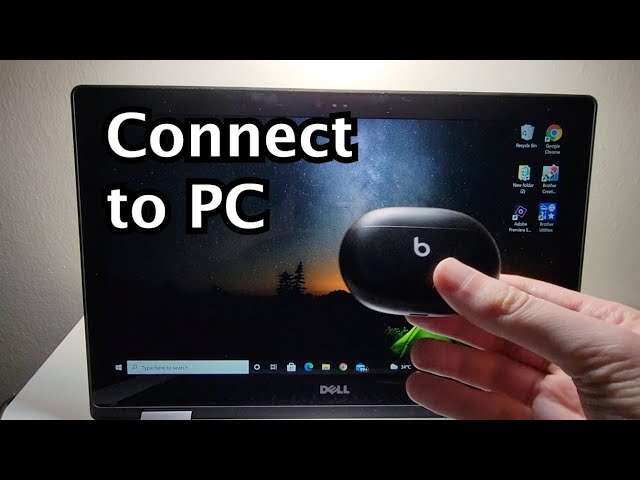
Hold the power button for about five seconds until the LED flashes, then select the earbuds on your device.
I’ve helped dozens of people pair Skullcandy earbuds across multiple models, and this guide gives clear, step-by-step instructions and real-world tips on how to put Skullcandy earbuds in pairing mode. You’ll learn general pairing steps, model-specific notes, troubleshooting fixes, and resets so pairing works the first time. Read on to get confident and fast at pairing your Skullcandy earbuds.
How pairing works and what to expect
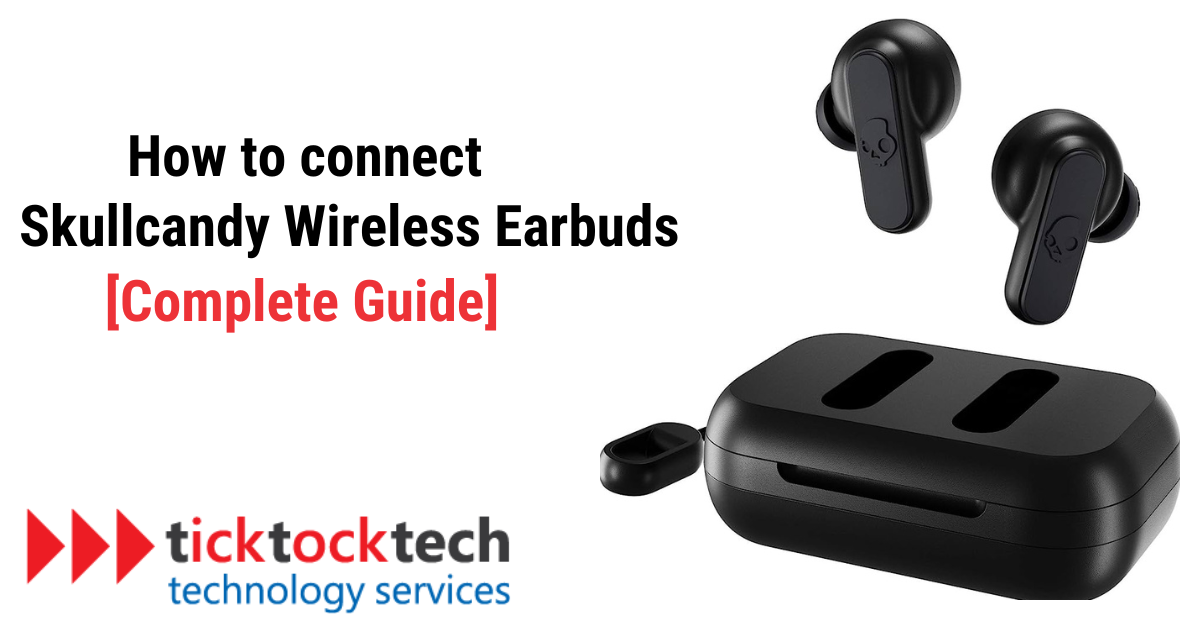
Pairing puts your earbuds into a discoverable state so another device can connect. Most Skullcandy earbuds use a hold-button or case-trigger method to enter pairing mode. The earbuds show pairing status through an LED flash pattern or voice prompts, and your phone or laptop will list them as a Bluetooth device name.
Common signals you’ll see when you put Skullcandy earbuds in pairing mode include:
- LED flashes rapidly on one or both earbuds to show discoverable state.
- A steady flash or alternating pattern that indicates successful pairing.
- A voice prompt such as “pairing” or “connected” on models with voice feedback.
Knowing these signs helps you confirm that you correctly put the earbuds in pairing mode and can move on to your device’s Bluetooth menu. If the earbuds don’t appear, the steps below will help diagnose the issue.
General step-by-step guide: how to put Skullcandy earbuds in pairing mode
These are the universal steps that work for most Skullcandy wireless earbuds. Follow them in order.
- Charge and power on
- Make sure the earbuds and their case are charged. Low battery can prevent pairing.
- Remove the earbuds from the case; many models auto-power on when taken out.
- Activate pairing mode
- If earbuds don’t auto-enter pairing, press and hold the main button on one or both earbuds for about five seconds.
- Watch for a flashing LED or hear a voice prompt. That confirms pairing mode.
- Find them on your device
- Open Bluetooth settings on your phone, tablet, or computer.
- Look for the Skullcandy device name (for example, “Skullcandy Sesh” or “Skullcandy Indy”) and tap to pair.
- Confirm and test
- When connected, you’ll usually see “Connected” on your device and a change in the earbuds’ LED or voice prompt.
- Play audio briefly to confirm left and right sound.
If pairing fails, re-run these steps or try the troubleshooting steps in the next section. These tips cover most pairing scenarios and simplify how to put Skullcandy earbuds in pairing mode for fast, reliable connections.
Model-specific notes and common variations
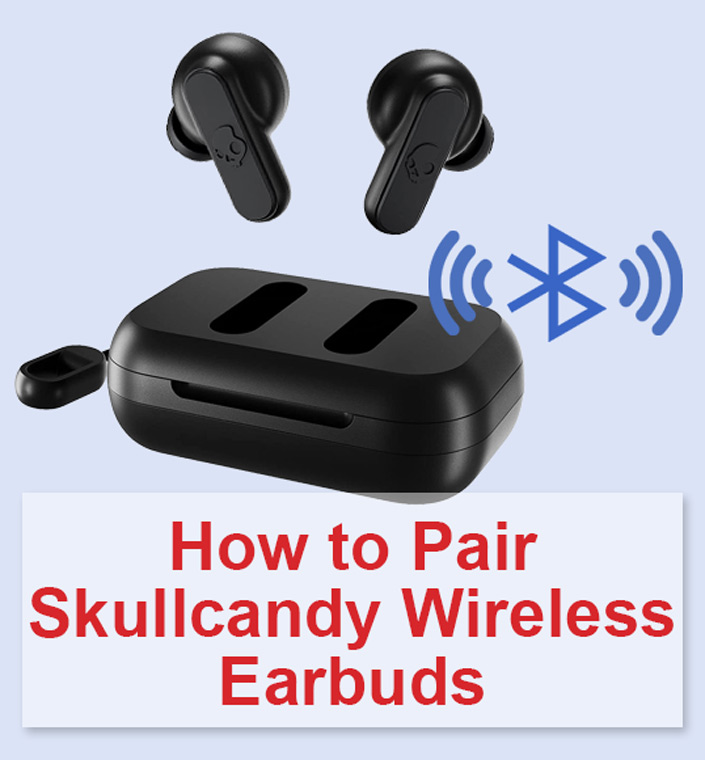
Different Skullcandy models can have slightly different pairing behaviors. Here are the typical variations and what to do for each.
-
True wireless earbuds that use a case
- Most models enter pairing the first time you remove them from the case.
- If they won’t pair, place them back, close the case, wait 10–15 seconds, then try again.
-
Earbuds with a single button per bud
- Press and hold that button for 3–7 seconds until the LED flashes to enter pairing.
- If one bud connects before the other, press and hold the second bud to force both into pairing mode.
-
Earbuds with a multi-function button or touch controls
- Tap patterns can vary; use a press-and-hold to trigger pairing mode.
- Touch-only controls may require a specific long-touch action; consult quick start guide if this fails.
-
Left-only or right-only pairing options
- Some models allow single-ear use. Put the desired earbud in pairing mode by pressing its button alone.
- For stereo pairing, ensure both earbuds are powered and in pairing mode simultaneously.
These model-specific tips help you understand subtle differences and make it easier to put Skullcandy earbuds in pairing mode regardless of which model you own.
Troubleshooting common pairing issues
If your earbuds don’t enter pairing mode or won’t appear on your device, try these fixes.
-
Confirm battery and power
- Charge the earbuds and case fully then try again. Low battery can block pairing.
-
Turn Bluetooth off and on
- Toggle Bluetooth on your phone or laptop to clear temporary connection problems.
-
Forget and re-scan
- If the earbuds were paired to the device before, tap “Forget” or “Remove” on the device’s Bluetooth list then re-scan.
-
Reduce interference
- Move away from Wi-Fi routers, microwaves, or other Bluetooth devices that may interfere with pairing.
-
Pair one earbud at a time
- Put one earbud into pairing mode, connect it, then power on the second and allow it to sync.
-
Update firmware
- If Skullcandy offers an app with firmware updates, install the update; firmware can fix pairing bugs.
These steps address the most common failures and ensure you can put Skullcandy earbuds in pairing mode and complete pairing successfully.
How to reset Skullcandy earbuds (when pairing fails repeatedly)
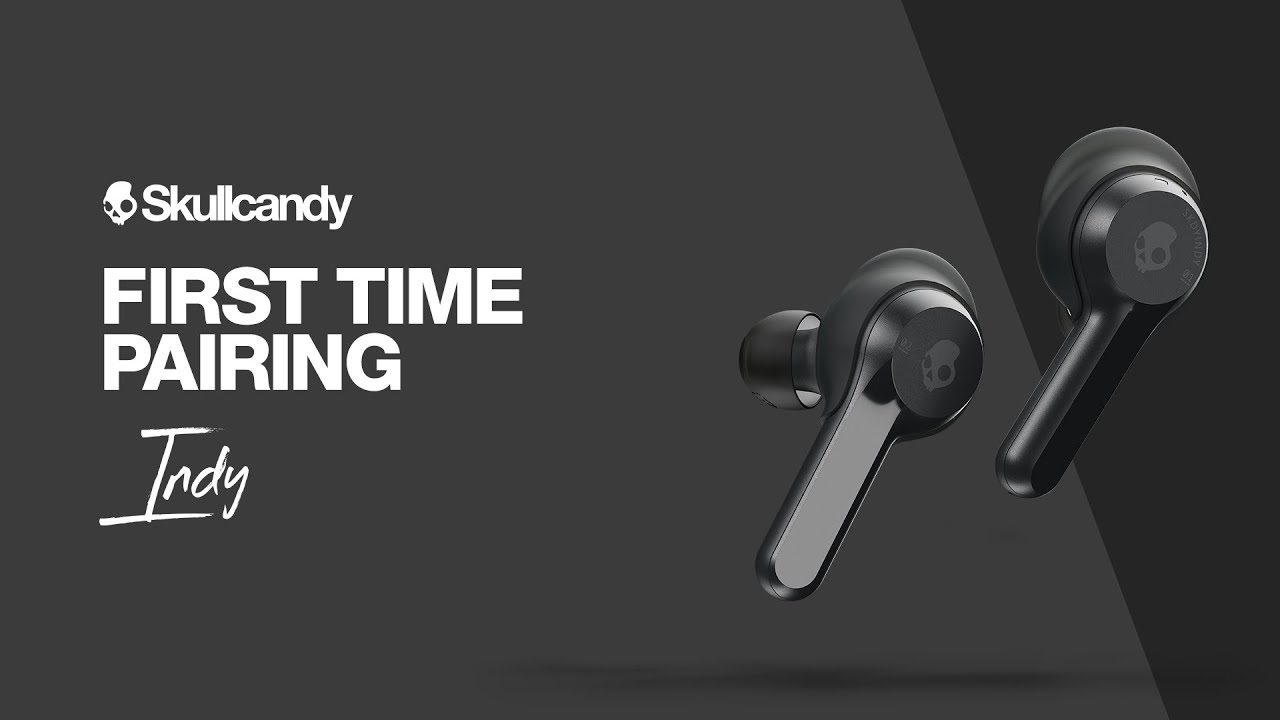
A reset clears pairing data and often fixes stubborn pairing problems. The exact reset method depends on the model, but these general reset steps work for many Skullcandy earbuds.
- Basic reset (common method)
- Place both earbuds in the charging case.
- Close the lid and wait about 30 seconds.
- Open the case and press-and-hold the earbuds’ buttons for 10 seconds until LEDs flash or a voice prompt confirms reset.
- Re-attempt pairing from your device.
- Alternate reset if basic method fails
- Turn off Bluetooth on your phone and power off the earbuds.
- Press and hold the buttons on both earbuds for 15 seconds.
- Power the earbuds back on and enter pairing mode.
Resetting is an effective way to clear old pairings and often restores the ability to put Skullcandy earbuds in pairing mode cleanly. If the reset steps don’t match your model, check the quick start guide for a model-specific reset.
Tips for smoother, faster pairing
Use these practical tips from experience to reduce frustration and speed up pairing.
- Keep the earbuds and device within 3 feet during initial pairing to ensure a strong signal.
- Remove other active Bluetooth devices during setup to avoid accidental connections.
- Restart your phone or laptop if scanning doesn’t show the earbuds.
- Store earbuds in a charged case to keep them ready and reduce pairing errors.
- Use the Skullcandy app (if available) to get firmware updates and device-specific instructions.
These small steps make it easier every time you put Skullcandy earbuds in pairing mode and improve reliability over the long term.
Frequently Asked Questions of how to put skullcandy earbuds in pairing mode
How long do I press the button to put Skullcandy earbuds in pairing mode?
Press and hold the main button for about five seconds in most models. Watch for a flashing LED or a voice prompt to confirm pairing mode.
Why won’t my Skullcandy earbuds show up in Bluetooth settings?
Common causes are low battery, previous pairings, or Bluetooth interference. Try charging, forgetting old pairings, and moving closer to your device.
Can I pair only one Skullcandy earbud at a time?
Yes, many Skullcandy models support mono mode. Put the single earbud into pairing mode by pressing its button and connect it alone.
How do I reset Skullcandy earbuds if they won’t pair?
Place earbuds in the case, close for 30 seconds, then press and hold the earbuds’ buttons for about 10–15 seconds until the LEDs flash. Try pairing again.
Do I need the Skullcandy app to put earbuds in pairing mode?
No, the app is not required for pairing. It can help with firmware updates and model-specific instructions, which can resolve pairing problems.
What if my earbuds connect to an old device automatically?
Disable Bluetooth on the old device or “forget” the earbuds in the old device’s Bluetooth settings to prevent automatic connections.
Conclusion
You now have a clear, step-by-step approach to put Skullcandy earbuds in pairing mode, from general methods to model-specific tips, resets, and troubleshooting. Try the basic press-and-hold method first, keep your earbuds charged, and use the reset steps if things go wrong. Take action now: try pairing with a fresh charge, and if you still have trouble, use the reset steps outlined above. Share your experience or questions in the comments, and consider subscribing for more concise, practical audio gear guides.

Everett Ashford is a tech reviewer at mytechgrid.com specializing in SSDs, cameras, TVs, earbuds, headphones, and other consumer electronics. He provides honest, data-driven reviews based on hands-on testing and real-world performance analysis. Everett simplifies complex tech details to help readers make smart, confident buying decisions.