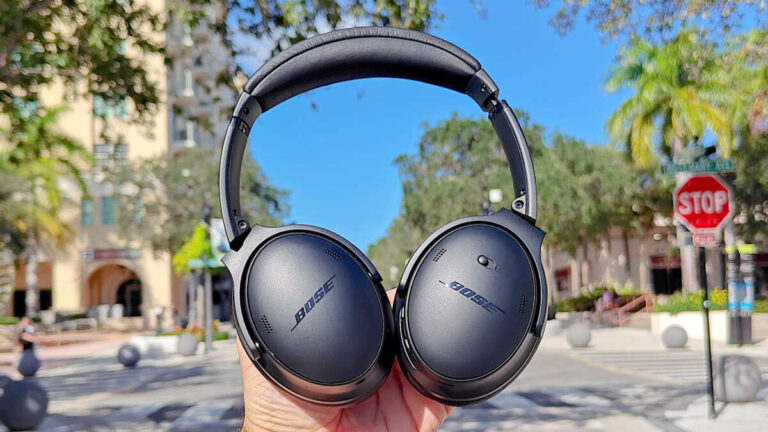
Pair Bose headphones to your PC via Bluetooth in Settings, or use USB/aux for a wired, low-latency connection.
I’ve helped dozens of people pair headphones and fixed connection quirks for a living, so you’re in good hands. This guide walks you through how to connect bose headphones to pc step-by-step, covers Bluetooth and wired options, troubleshooting tips, and real-world advice I learned testing Bose models. Read on to save time and get clean audio fast.
Why connect Bose headphones to PC?
Connecting Bose headphones to your PC gives you clear audio for calls, games, and media without messy cables. Many Bose models offer strong noise cancellation and good mic performance, which improves meetings and focus. Learning how to connect bose headphones to pc helps you pick the best method for low latency, better mic quality, or battery life.

What you need before you start
Prepare these items and checks before pairing. This reduces frustration and speeds up setup.
- Bose headphones fully charged or plugged in.
- A PC with built-in Bluetooth or a USB Bluetooth adapter.
- The correct cable for wired use: 3.5mm or USB-C to USB-A, depending on your model.
- Windows 10 or 11 updates installed and Bluetooth drivers up to date.
- Administrative access to change sound settings if needed.
Knowing how to connect bose headphones to pc before you begin saves time and avoids driver fights.

How to connect Bose headphones to PC via Bluetooth (Windows 10/11)
Follow these clear steps to pair wirelessly. If your PC lacks Bluetooth, skip to the wired section or use a USB Bluetooth dongle.
- Turn on your Bose headphones and enable pairing mode. For most Bose models, hold the power button or Bluetooth button until the LED flashes or you hear “Ready to pair.”
- On your PC, open Settings > Bluetooth & devices. Turn Bluetooth on.
- Click Add device, choose Bluetooth, and wait for your Bose model to appear.
- Select the Bose device name and click Connect. Windows will notify you when pairing completes.
- Open Sound settings and set your Bose headphones as the Default Output and Default Input device if you want mic use.
If pairing fails, remove the device from Windows’ paired list and retry. Many people overlook putting the headphones in pairing mode first, which stops discovery. For older Windows versions, use Control Panel > Devices and Printers to add a device.
how to connect bose headphones to pc over Bluetooth is straightforward once you confirm pairing mode and drivers.

How to connect Bose headphones to PC using a wired USB or 3.5mm cable
Wired connections remove latency and Bluetooth codec limits. Use these steps for wired audio.
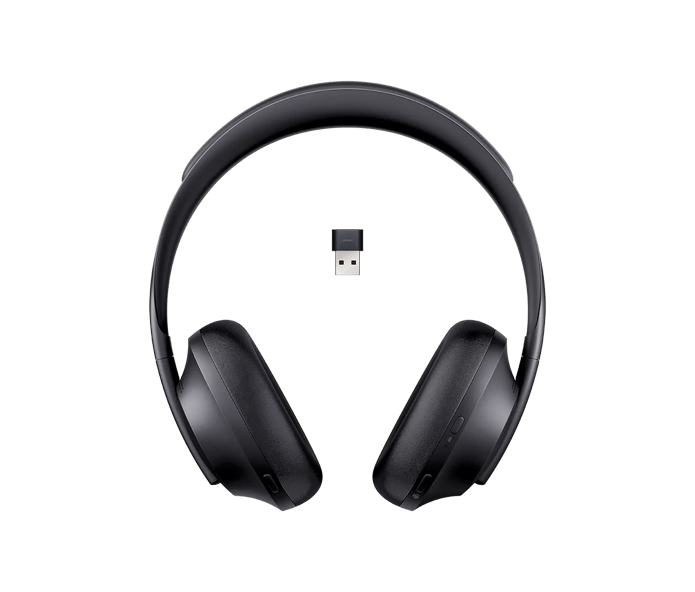
- For USB audio: Connect the headphone USB-C or USB-A cable to a free USB port. Windows usually installs drivers automatically and recognizes a USB audio device.
- For 3.5mm audio: Plug the cable into your headphone jack or line-in port on your PC. If your PC has a combined jack, ensure you use the headphone port or a TRRS cable for mic support.
- Set the headphone as Default Device in Sound settings. Open Sound > Choose output device and pick your Bose headphones.
- If the mic doesn’t work on 3.5mm, you may need a separate mic or a TRRS adapter.
Using a wired method is a reliable way to connect Bose headphones to PC when you need low latency or when Bluetooth is flaky.

Troubleshooting common connection issues
Problems happen. Here are quick fixes for common issues when learning how to connect bose headphones to pc.
- Headphones not found in Bluetooth list: Reboot headphones and PC, enable pairing mode again, or move closer to the PC.
- No audio after pairing: Open Sound settings and choose the Bose device for output. Also check app-specific audio settings (Zoom, Teams, etc.).
- Mic not working: In Sound > Input choose the Bose mic. If using Bluetooth, some headsets switch to low-quality hands-free mode; use USB or a wired connection for higher mic quality.
- Static or dropouts: Update Bluetooth adapter drivers or use a different USB port for a dongle. Interference from Wi-Fi or USB 3.0 devices can cause issues.
- Persistent pairing failures: Remove the headset from Windows’ paired devices, reset the Bose headphones (follow model-specific reset steps), then re-pair.
I once spent an hour troubleshooting a dropout issue that turned out to be a USB 3.0 port interfering with the Bluetooth dongle; switching ports fixed it immediately. That’s a common, easy-to-miss issue.

Optimizing audio quality and mic performance
After you connect, tweak a few settings to get the best sound and voice quality when you connect Bose headphones to PC.
- Choose the right connection: Use USB for lowest latency and best mic quality. Bluetooth is convenient but may use the hands-free profile that lowers audio fidelity.
- Set sample rate: Open Sound Control Panel > Properties > Advanced and set 44100 Hz or 48000 Hz for better clarity.
- Update firmware: For some Bose models, firmware updates fix bugs and improve connection stability. Use the official app on a phone to update headphones, then reconnect to your PC.
- Use a quality Bluetooth adapter: If your PC Bluetooth is old, a modern adapter with aptX or AAC support can improve audio (note Windows codec support may vary).
- Manage noise cancellation and EQ in the Bose app on your phone to set preferences before using with your PC.
Remember, codec limitations and Bluetooth profiles affect final sound. Matching your goals (music vs voice) to the right connection keeps audio crisp.
Personal tips, mistakes to avoid, and best practices
Here are lessons from my own experience to make your setup smooth.
- Charge first: I once tried pairing while the headphones had low battery and saw odd disconnects. Charge before pairing.
- Reset as a last resort: Only reset your Bose if other fixes fail, since it clears saved pairings.
- Label devices: Rename your headphones in Bluetooth settings so you pick the right device when multiple Bose items appear.
- Keep firmware up to date: Firmware updates fixed a buzzing issue for me on one model.
- Use wired for gaming: If you game on PC, use a wired connection to avoid audio lag and to keep mic quality stable.
These small steps save time and prevent repeat problems when you connect Bose headphones to PC.
Frequently Asked Questions of how to connect bose headphones to pc
How do I put my Bose headphones in pairing mode?
Most Bose models enter pairing by holding the power or Bluetooth button until an LED flashes or you hear “Ready to pair.” Check your model’s quick start guide for exact steps.
My PC won’t find the Bose headphones. What should I check?
Make sure the headphones are in pairing mode, Bluetooth is enabled on your PC, and the headphones are near the PC. Restart both devices and try again.
Why does audio switch to low quality during calls?
Bluetooth often uses the hands-free profile for calls, which lowers audio quality. Use a wired connection or USB audio for better music fidelity and mic performance.
Can I connect Bose headphones to multiple devices at once?
Some Bose models support multipoint pairing with two devices concurrently, but performance varies. Check your model’s spec and disconnect one device if you see issues.
Do I need special drivers to use Bose headphones on Windows?
Most modern Windows versions install drivers automatically. If you have issues, update your Bluetooth or USB drivers from the PC maker’s website.
Conclusion
You now have practical, tested steps to connect Bose headphones to PC using Bluetooth or wired methods, plus troubleshooting tips and optimization ideas. Try the method that fits your needs—Bluetooth for convenience, USB/wired for the best audio and mic quality—and update firmware for smoother performance. If you run into issues, follow the troubleshooting checklist and consider a USB adapter if your PC’s Bluetooth is old. Leave a comment with your model and problem if you want personalized help, and subscribe for more hands-on guides on audio setup.

Everett Ashford is a tech reviewer at mytechgrid.com specializing in SSDs, cameras, TVs, earbuds, headphones, and other consumer electronics. He provides honest, data-driven reviews based on hands-on testing and real-world performance analysis. Everett simplifies complex tech details to help readers make smart, confident buying decisions.