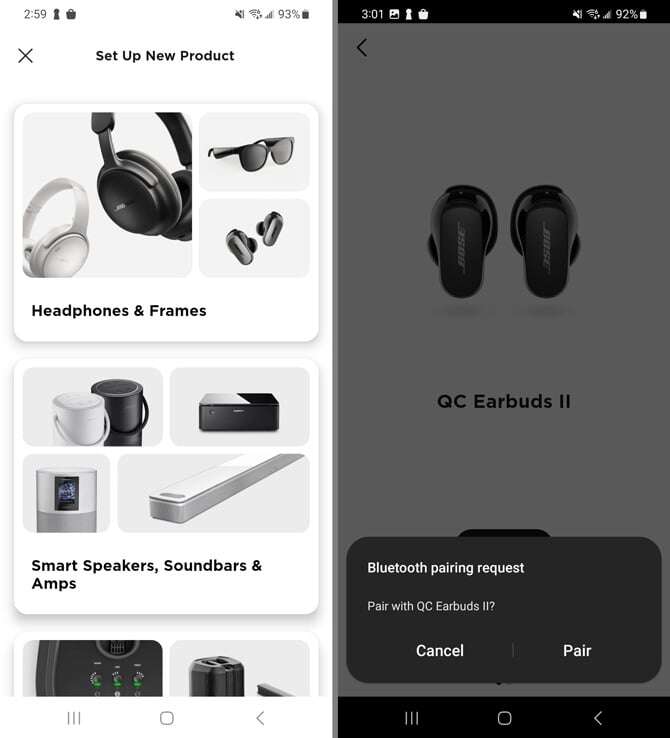
Put the headphones in pairing mode, enable Bluetooth on your device, and select the LG model.
I’ve spent years setting up audio gear and troubleshooting wireless headphones, so this guide will walk you through exactly how to pair LG headphones with phones, laptops, and TVs. You’ll get step-by-step instructions, model-specific tips, reset and troubleshooting steps, and real-world advice from hands-on experience to make pairing fast and reliable.
Quick step-by-step pairing guide for how to pair lg headphones
Follow these short steps to pair most LG Bluetooth headphones. The exact button names can vary by model, but the flow is the same.
- Charge the headphones fully
- A full charge avoids disconnections during pairing and ensures the device enters Bluetooth mode cleanly.
- Turn off any current Bluetooth connections
- On phones or laptops, disable other active Bluetooth audio to avoid confusion.
- Enter pairing mode on the LG headphones
- For many LG models, press and hold the power or multi-function button until the LED flashes blue and red or you hear a voice prompt.
- Open Bluetooth settings on your device
- On Android, iPhone, Windows, or Mac, go to Settings > Bluetooth and make sure Bluetooth is on.
- Select the LG model from the list
- Look for names like “LG Tone,” “LG HBS,” or the model number; tap to connect.
- Confirm pairing if prompted
- Accept any pairing pop-up. Some devices show a PIN; accept the default or 0000/1234 if requested.
Tips to speed up pairing
- Keep devices close, within 3 feet.
- Turn off Wi-Fi if the device struggles, then try again.
- Restart both the headphones and the device if pairing fails.

How to pair lg headphones with Android phones
Most Android phones pair quickly with LG headphones.
- Open Settings > Bluetooth and toggle Bluetooth on.
- Put the LG headphones in pairing mode.
- Tap the LG device name in the available devices list.
- Wait for “Connected” or a voice confirmation from the headphones.
Model notes
- LG Tone Free series uses a case. Open the case or press the touch area to start pairing.
- HBS series often require holding the power button for 5–7 seconds.
Personal tip: On older Android phones, clear previous Bluetooth device lists if the LG model won’t appear. This often resolves hidden pairing conflicts.
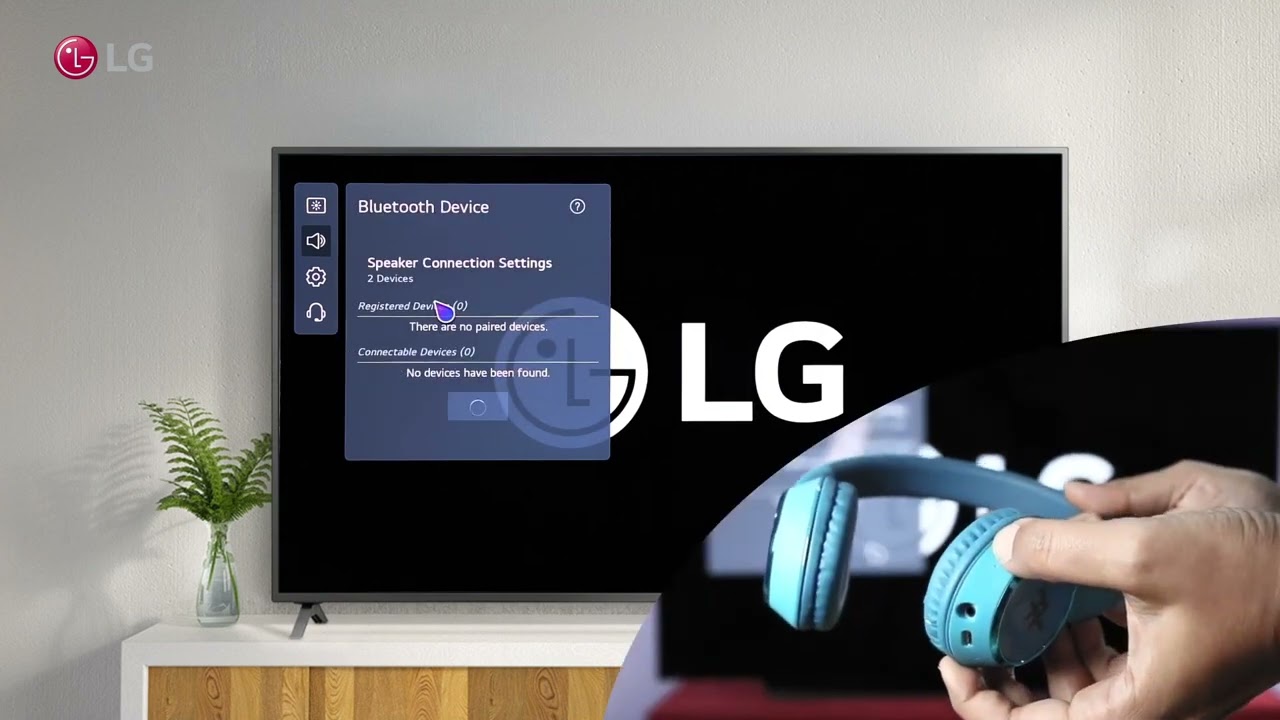
How to pair lg headphones with iPhone (iOS)
Pairing with an iPhone is usually seamless.
- Go to Settings > Bluetooth and enable Bluetooth.
- Put the LG headphones into pairing mode.
- Tap the LG model name when it appears under “Other Devices.”
- Wait for the status to change to “Connected.”
Practical note
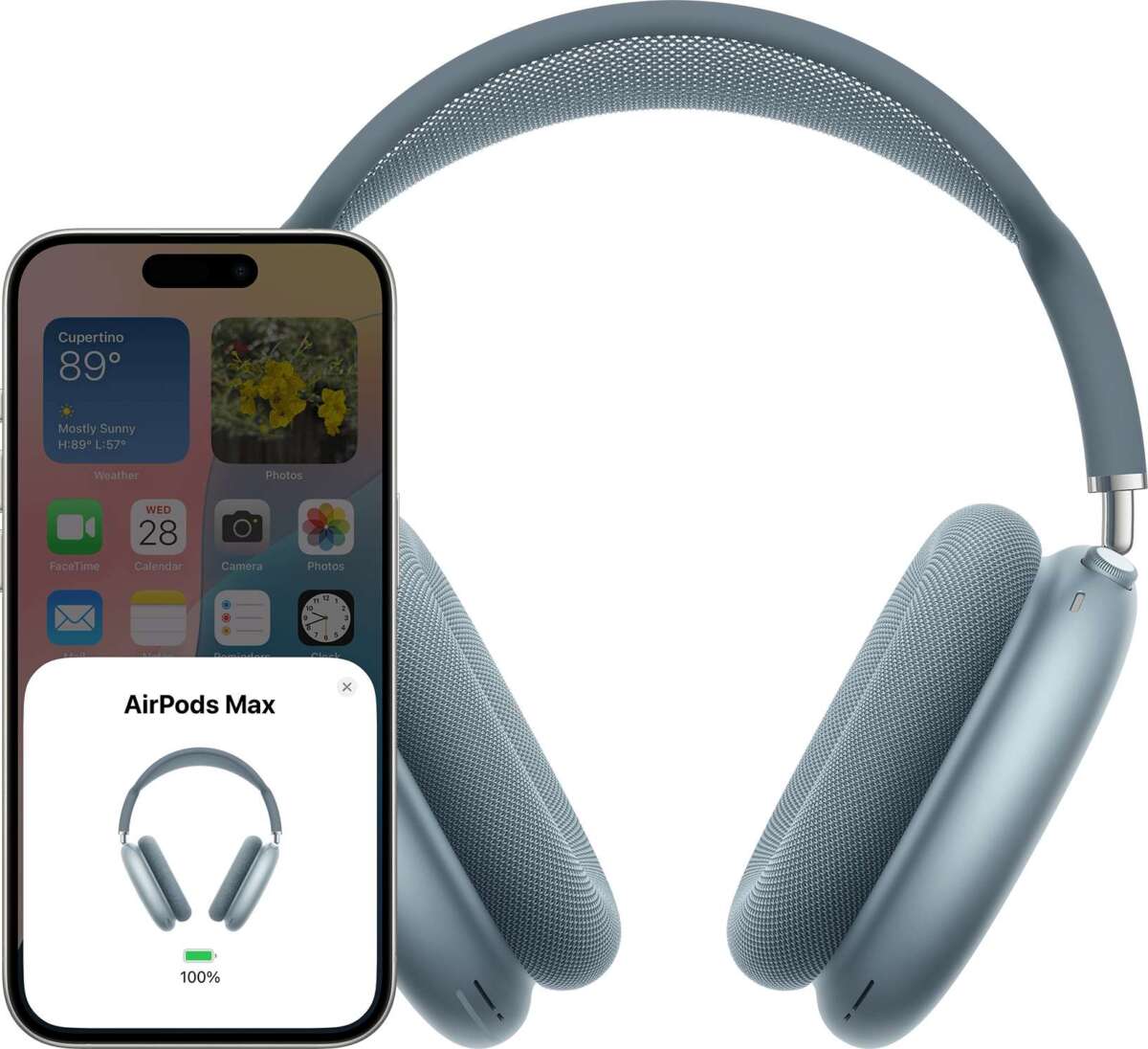
- If you don’t hear audio, check Control Center and select the LG headphones as the audio output.
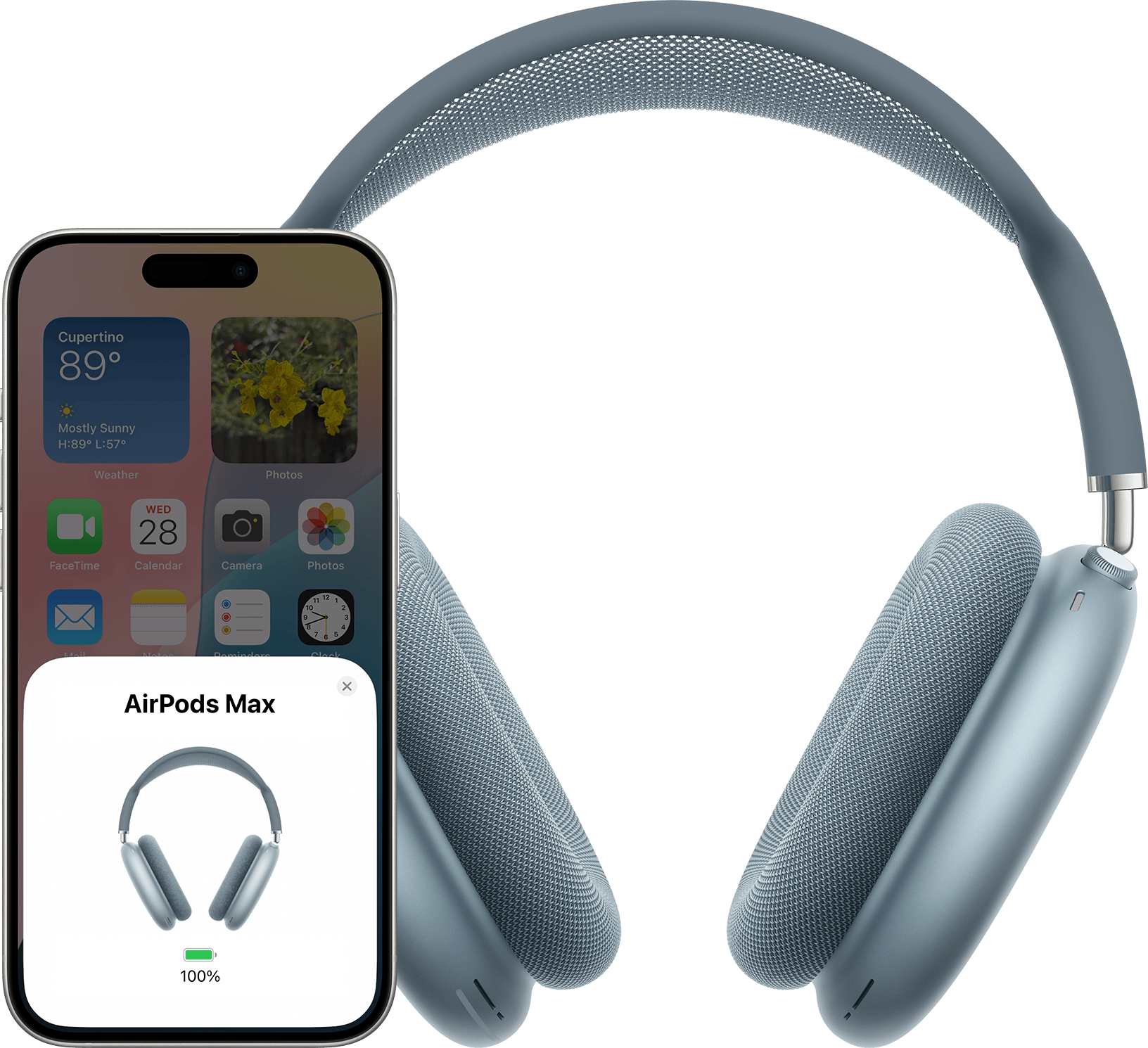
How to pair lg headphones with Windows and Mac computers
Windows 10/11 and macOS both support Bluetooth audio. Steps differ slightly.
Windows
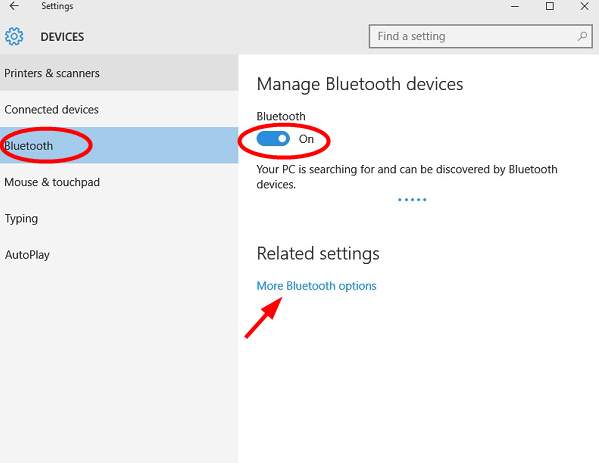
- Open Settings > Devices > Bluetooth & other devices.
- Click “Add Bluetooth or other device,” then choose Bluetooth.
- Put the LG headphones in pairing mode and select them from the list.
Mac
- Open System Settings > Bluetooth (or System Preferences > Bluetooth).
- Ensure Bluetooth is on and put the LG headphones in pairing mode.
- Click “Connect” next to the LG device.
Troubleshooting hint
- Update your Bluetooth drivers on Windows or install macOS updates for smoother connections.
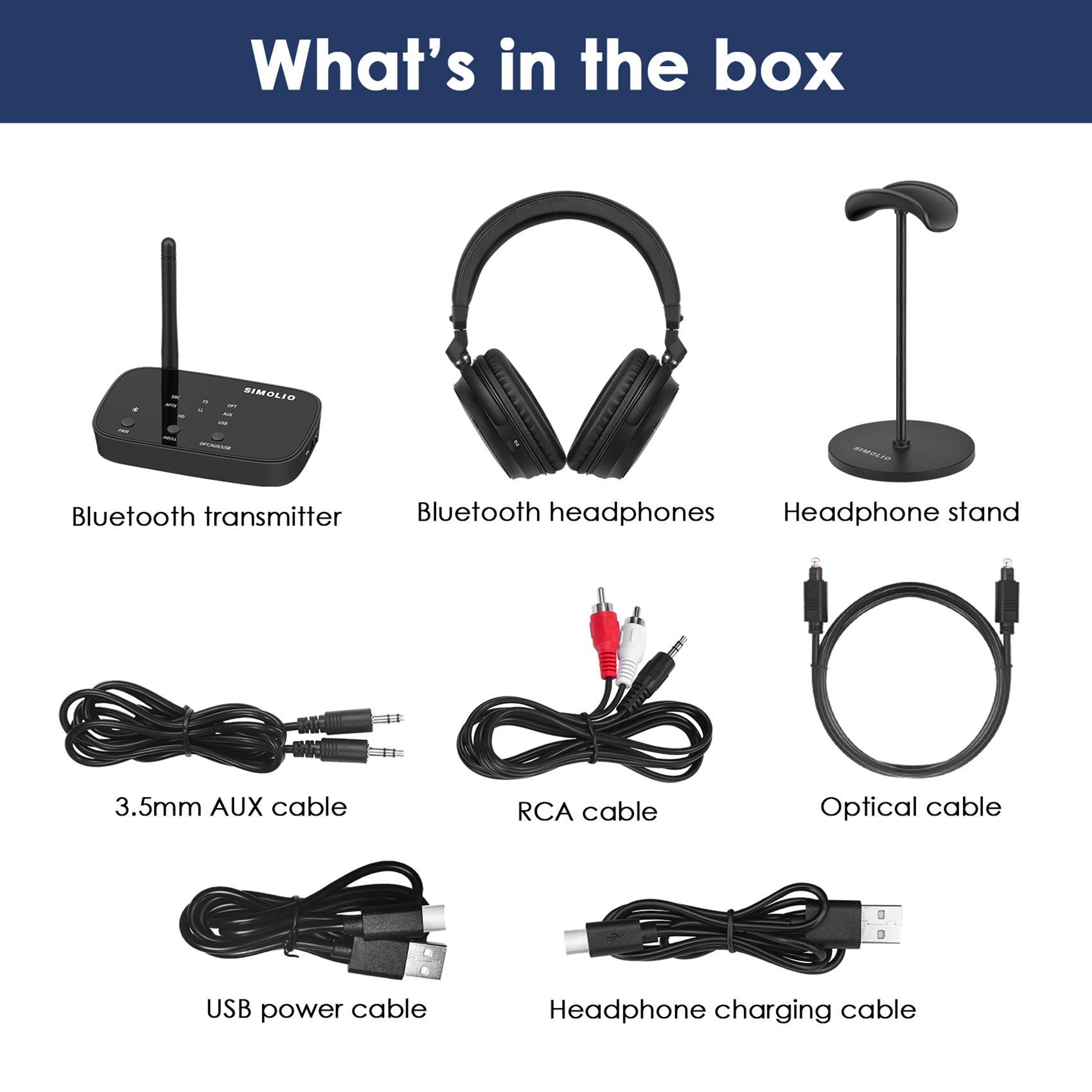
How to pair lg headphones with a TV or smart device
Many TVs and smart boxes support Bluetooth audio. Check model compatibility first.
- Open the TV’s settings and find Bluetooth or Sound settings.
- Put the LG headphones in pairing mode.
- Select the LG model from the TV’s device list.
- Adjust TV audio output to Bluetooth if needed.
Common issue
- Some TVs don’t support Bluetooth profiles for headphones. Use a Bluetooth transmitter plugged into the TV’s audio port if needed.

Resetting, troubleshooting, and common pairing problems
If pairing fails, follow these fixes in order.
Reset the headphones
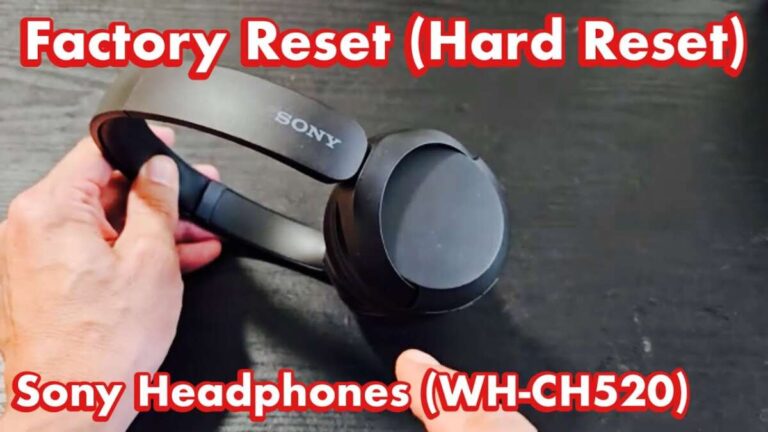
- Most LG models have a reset method: hold the power button for 10–15 seconds or consult the manual for a model-specific reset.
Forget and re-pair on your device
- On your phone or computer, remove the LG device from the Bluetooth list, then try pairing again.
Check battery and distance
- Low battery or long distance can prevent pairing. Keep devices close and charged.
Interference and compatibility
- Wi-Fi, microwaves, and multiple Bluetooth devices can interfere. Move to a quieter area and disable other Bluetooth devices temporarily.
When to update firmware
- Some LG headphones have firmware updates via an app. Updating can fix pairing bugs and improve stability.
Personal experience
- I once spent 30 minutes trying to pair LG Tone earphones with a smart TV. A quick reset followed by updating the phone’s Bluetooth cleared the issue. Lesson: try resets and updates early.
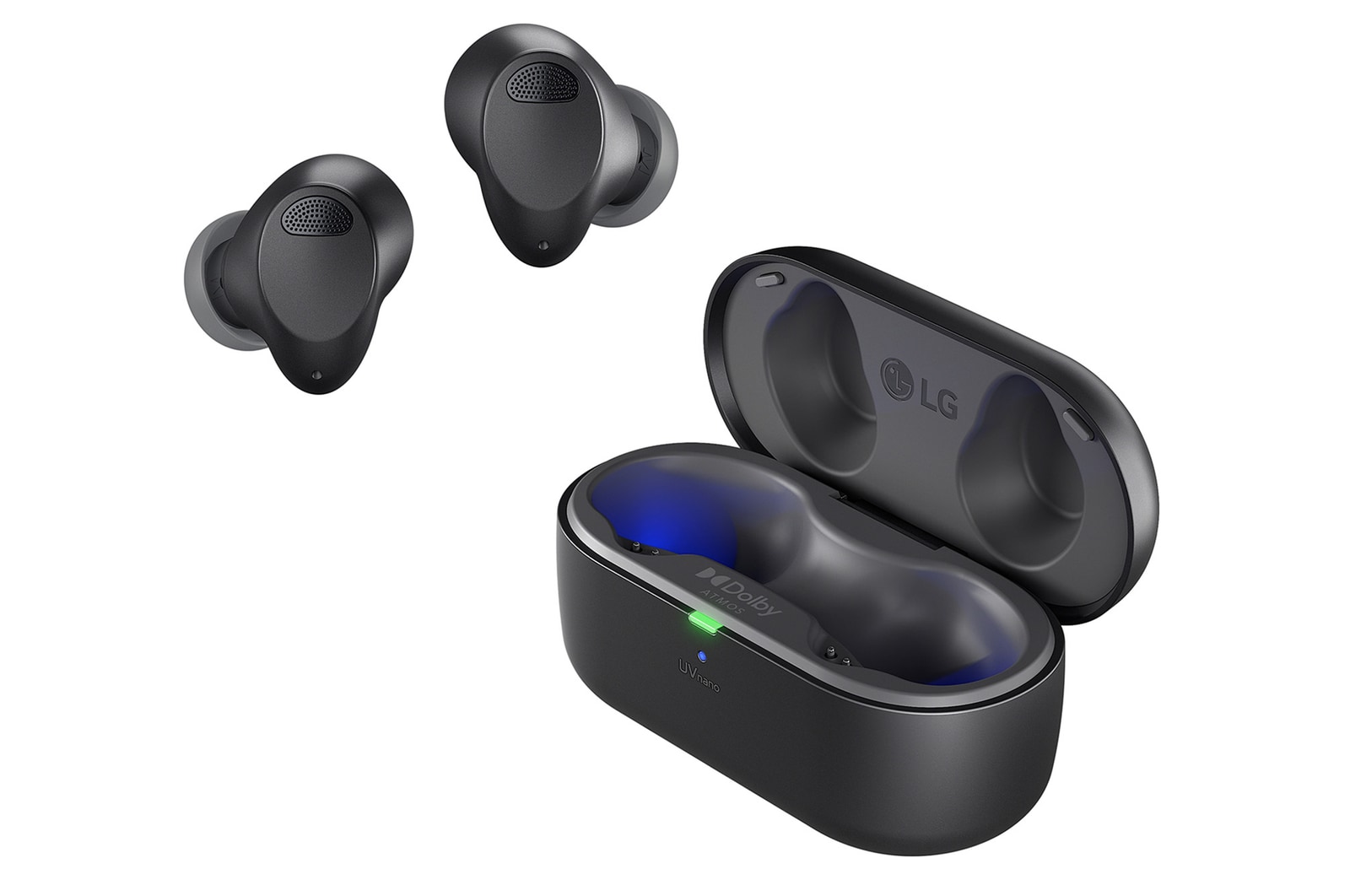
Model differences and special features to know when learning how to pair lg headphones
Different LG lines have small pairing quirks.
Tone Free earbuds
- Often pair automatically when the case is opened after first setup. Use the companion app for firmware and EQ.
HBS and older models
- Use a hold-on-power-button pairing method. LEDs indicate pairing state.
Over-ear wireless
- Some use a dedicated Bluetooth button; others use the power button. Check the manual for LED colors and prompts.
Multipoint and dual-device pairing
- Some LG models support multipoint so you can pair two devices at once. Check the specs if you need to connect a phone and laptop simultaneously.
Best practices for stable Bluetooth connections and battery care
Good habits reduce pairing problems and extend battery life.
- Keep firmware and device OS up to date to avoid bugs.
- Turn off headphones when not in use to save battery.
- Store earbuds in their case when not in use to protect battery and automatic pairing.
- Avoid extreme temperatures which reduce battery performance.
Real-world tip
- If you switch between devices often, create a reliable workflow: unpair old devices you no longer use, and keep your main two devices updated.
PAA-style quick questions about how to pair lg headphones
Why won’t my LG headphones enter pairing mode?
- Ensure they are powered off, then press and hold the power or pairing button until the LED flashes and you hear a prompt. If that fails, charge them fully and try again.
Can I pair LG headphones with two devices at once?
- Some LG models support multipoint pairing. Check your model specification. If supported, pair the first device, then pair the second device without removing the first.
What PIN do LG headphones use for pairing?
- Most LG headphones don’t require a PIN, but if prompted use 0000 or 1234. Check the manual if those do not work.
How far can I be from my device while using LG headphones?
- Typical Bluetooth range is about 30 feet (10 meters) in open space. Walls and interference reduce that.
Do LG headphones work with Bluetooth transmitters?
- Yes, many headphones will pair with transmitters for TVs or older audio sources. Use a transmitter that supports the right Bluetooth profile for best audio quality.
Frequently Asked Questions of how to pair lg headphones(make it h2 tag)
How do I enter pairing mode on LG Tone Free earbuds?
Put the earbuds in the case and open it, or press and hold the touch area on both earbuds until the LED or voice prompt indicates pairing mode. The companion app can show pairing status.
My LG headphones show “paired” but no sound — what do I do?
Check the device’s audio output and select the LG headphones as the audio device. Restart the app or device and reconnect if needed.
How do I reset my LG wireless headphones?
Hold the power or multi-function button for 10–15 seconds or follow the reset steps in the manual for your model. A reset clears old pairings and often fixes connection issues.
Can I update firmware on LG headphones?
Some LG models allow firmware updates through an LG app on Android or iOS. Updating can fix bugs and improve Bluetooth performance.
Why do my LG headphones disconnect randomly?
Random disconnects often come from low battery, interference, outdated firmware, or a weak Bluetooth signal. Charge the device, update firmware, and reduce interference.
Will LG headphones work with smart TVs without Bluetooth?
If the TV lacks Bluetooth, use a Bluetooth audio transmitter connected to the TV’s audio output. Ensure the transmitter supports the headphone’s audio profile for best results.
Conclusion
You now have a clear, practical roadmap for how to pair LG headphones with phones, computers, TVs, and more. Start with charging and entering pairing mode, then follow device-specific steps and use resets or firmware updates if needed. Try the troubleshooting tips I shared from hands-on experience to solve stubborn issues quickly. Give these steps a try, leave a comment about your model and results, and subscribe for more simple, expert audio guides.

Everett Ashford is a tech reviewer at mytechgrid.com specializing in SSDs, cameras, TVs, earbuds, headphones, and other consumer electronics. He provides honest, data-driven reviews based on hands-on testing and real-world performance analysis. Everett simplifies complex tech details to help readers make smart, confident buying decisions.