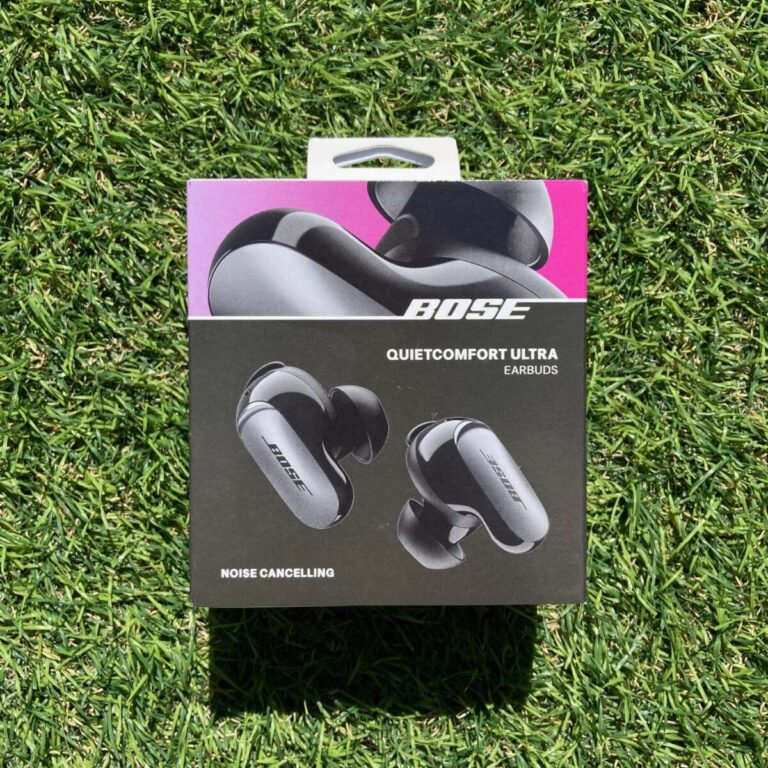
Turn on earbuds, enable Bluetooth on Android, then choose the earbuds in Settings to pair.
I’ve helped hundreds of users and tested many earbuds, so this clear guide shows exactly how to connect wireless earbuds to Android phone. You’ll get step-by-step pairing, easy troubleshooting, battery and performance tips, and real-world advice from hands-on experience so you can pair quickly and reliably.

Why pairing is usually simple and what you need first
Most modern Android phones pair with earbuds in a few taps. The process is built into Android’s Bluetooth settings and works across brands. Knowing a few basics saves time and avoids common hiccups.
What you need before you start
- A charged pair of earbuds with Bluetooth capability.
- An Android phone with Bluetooth turned on.
- The earbuds’ manual or quick-start guide for model-specific pairing mode.
How this guide helps
- Clear steps for most earbuds and phones.
- Troubleshooting for common pairing failures.
- Practical tips I learned from testing earbuds daily.

Step-by-step: how to connect wireless earbuds to android phone
Follow these steps to pair most earbuds with Android. If your earbuds use a companion app, install it after pairing for extra features.
- Prepare the earbuds
- Charge them to at least 20 percent.
- Put them in pairing mode. Typical methods:
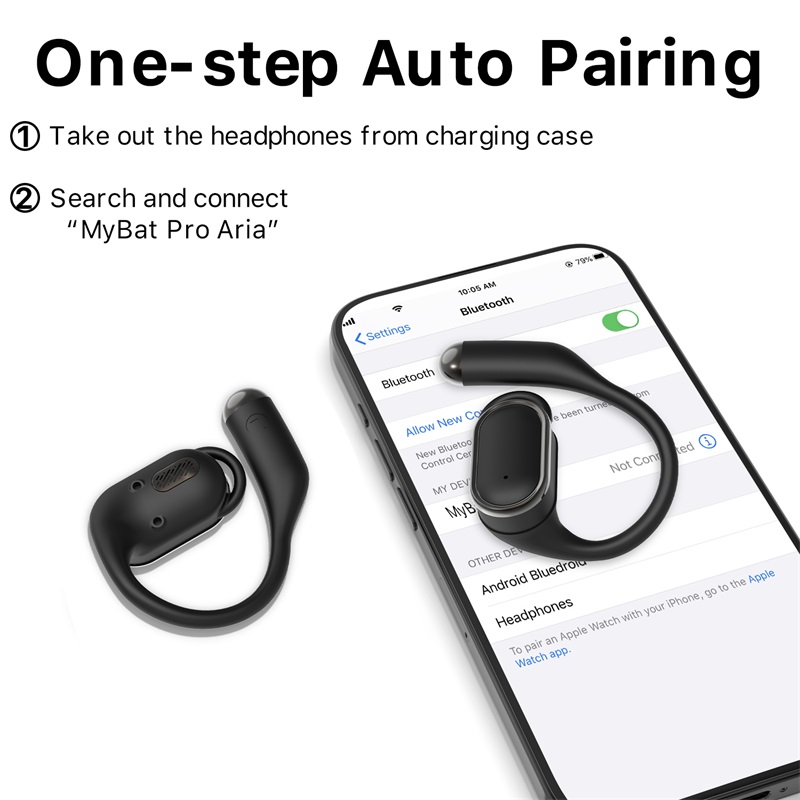
- Take them out of the case and hold the button for 3–5 seconds.
- Open the case while both buds sit inside and wait until an LED flashes.
- Check your model’s manual if lights or behavior differ.
- Turn on Bluetooth on your Android phone
- Open Settings > Connections or Settings > Bluetooth.
- Toggle Bluetooth on. Android will start scanning for nearby devices.
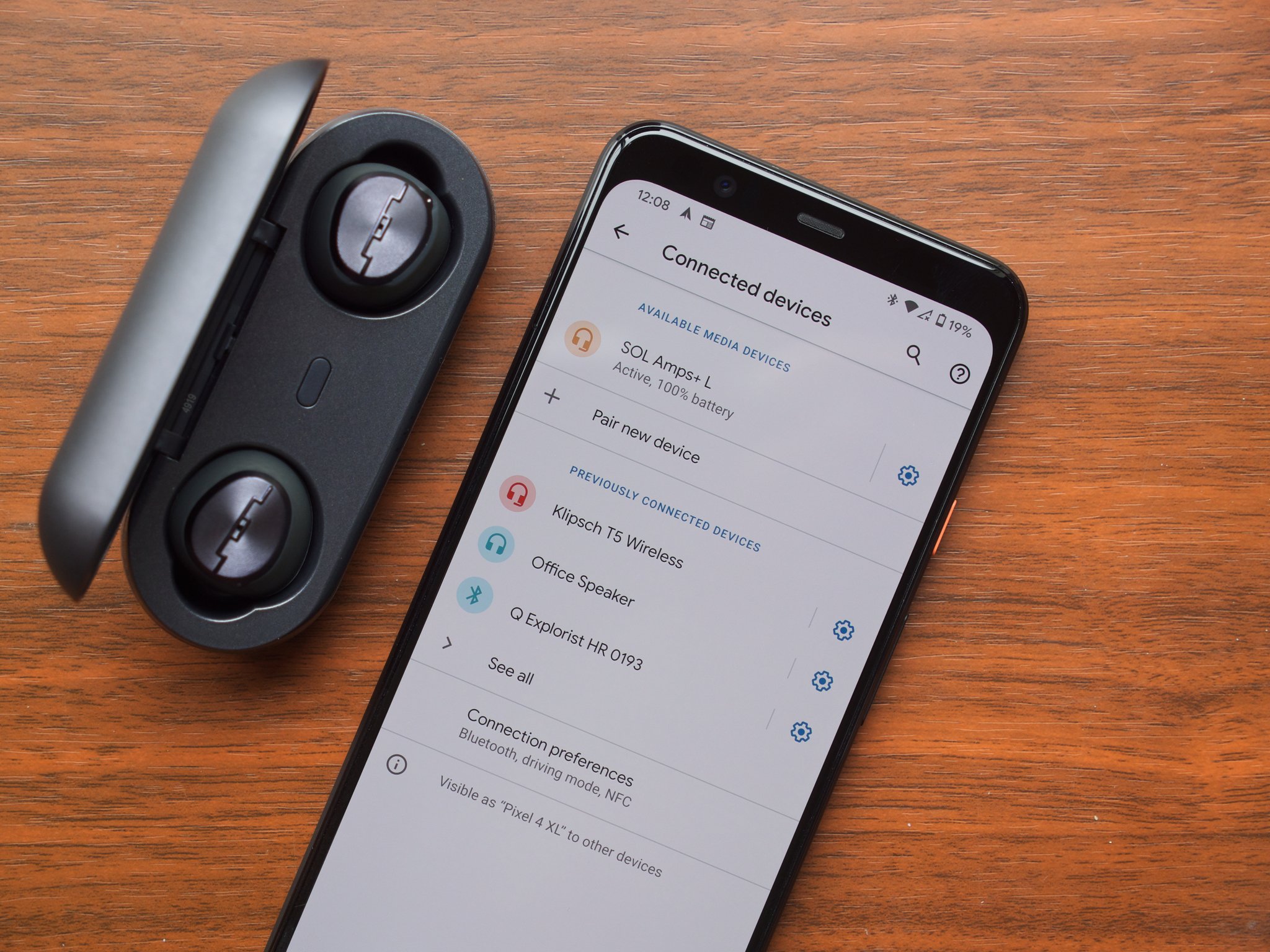
- Find and select the earbuds
- Look for the earbuds’ name in the device list.
- Tap the name to pair. Accept any prompt that appears.
- Wait for confirmation like “Connected” or a sound from the earbuds.
- Test audio and controls
- Play a short song or video to confirm sound.
- Check microphone and call quality by making a test call.
- If only one bud connects, place both in the case and repeat pairing.
Tips for Android versions and quick access
- Use Quick Settings: swipe down and tap the Bluetooth icon, then long-press to open pairs list.
- On Android 11+ you may see a media control that lists paired output devices directly.
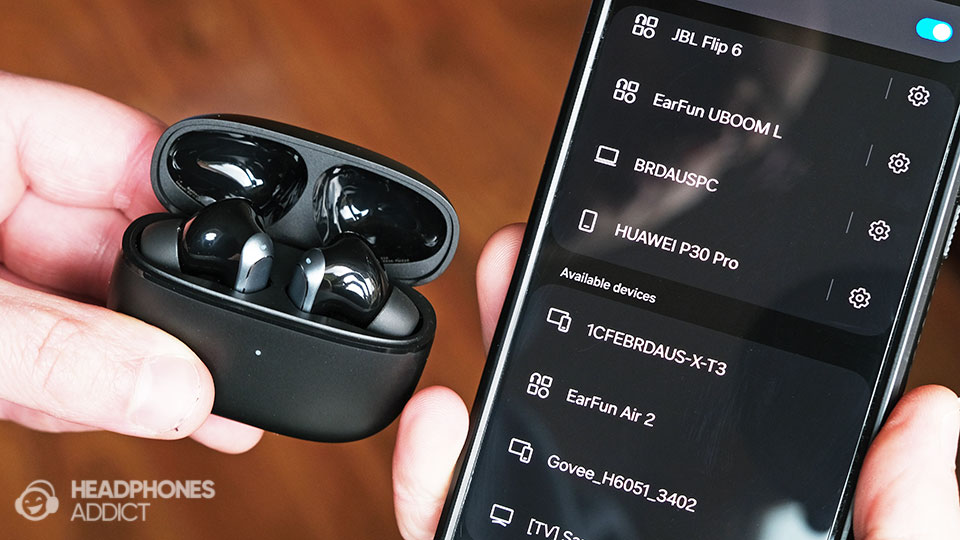
Common problems and fixes when you try to connect wireless earbuds to android phone
Problem: Earbuds don’t appear in the Bluetooth list
- Fix: Power-cycle earbuds and phone. Put earbuds back into pairing mode and rescan.
Problem: Paired but no sound
- Fix: Check media volume and audio output. Re-select the earbuds from the Bluetooth or media output menu.
Problem: Only one earbud works
- Fix: Reset the earbuds by following the manufacturer steps. Re-pair both buds together.
Problem: Constant dropouts or lag
- Fix: Move away from Wi-Fi routers or other Bluetooth devices. Toggle Bluetooth off and on, and ensure firmware is up to date.
Problem: Pairing fails repeatedly
- Fix: “Forget” the device on Android, then re-initiate pairing. If needed, reset network settings as a last resort.

Tips for best performance, battery life, and codec settings
Optimize sound and battery with these practical tips from testing earbuds on Android.
-
Keep firmware updated
- Firmware often improves stability and battery life. Check the companion app or the manufacturer’s site.
-
Manage codecs
- Android supports SBC, AAC, aptX, and LDAC depending on phone and earbuds. Use higher-quality codecs if both devices support them, but switch to SBC for better stability at long range.
-
Use one bud to save battery
- Many earbuds let you use a single bud. This doubles listening time when you switch sides.
-
Reduce background apps
- Close heavy apps that may cause Bluetooth interference or CPU load.
-
Charge correctly
- Avoid letting battery drop to zero. Frequent short charges keep battery health better than deep discharges.
Using companion apps, advanced features, and multipoint pairing when you connect wireless earbuds to android phone
Many earbuds offer extra controls via an app. These apps enhance sound, add EQ, and enable features like multipoint.
What companion apps provide
- Firmware updates, EQ presets, and touch control mapping.
- Find-my-earbuds and hearing protection features.
- In-app troubleshooting tips and logs.
Multipoint pairing
- Multipoint lets earbuds connect to two devices at once, like a laptop and an Android phone.
- Not all models support stable multipoint. Check your model’s specs and app settings.
Low-latency mode and gaming
- Use a game mode in the app or enable aptX LL/LDAC if supported to reduce audio lag for gaming and video.

Security, privacy, and safe pairing practices
Bluetooth pairing is usually safe, but follow these simple rules to avoid risks.
-
Pair in private
- Avoid pairing in crowded public spaces to reduce the chance of accidental connections.
-
Disable visibility after pairing
- Some phones allow Bluetooth visibility to be limited. Keep the phone non-discoverable when not pairing.
-
Update device firmware and Android
- Security fixes sometimes arrive via firmware and OS updates. Apply them regularly.
-
Use trusted earbuds
- Buy from reputable brands or retailers to avoid poor firmware or privacy issues.
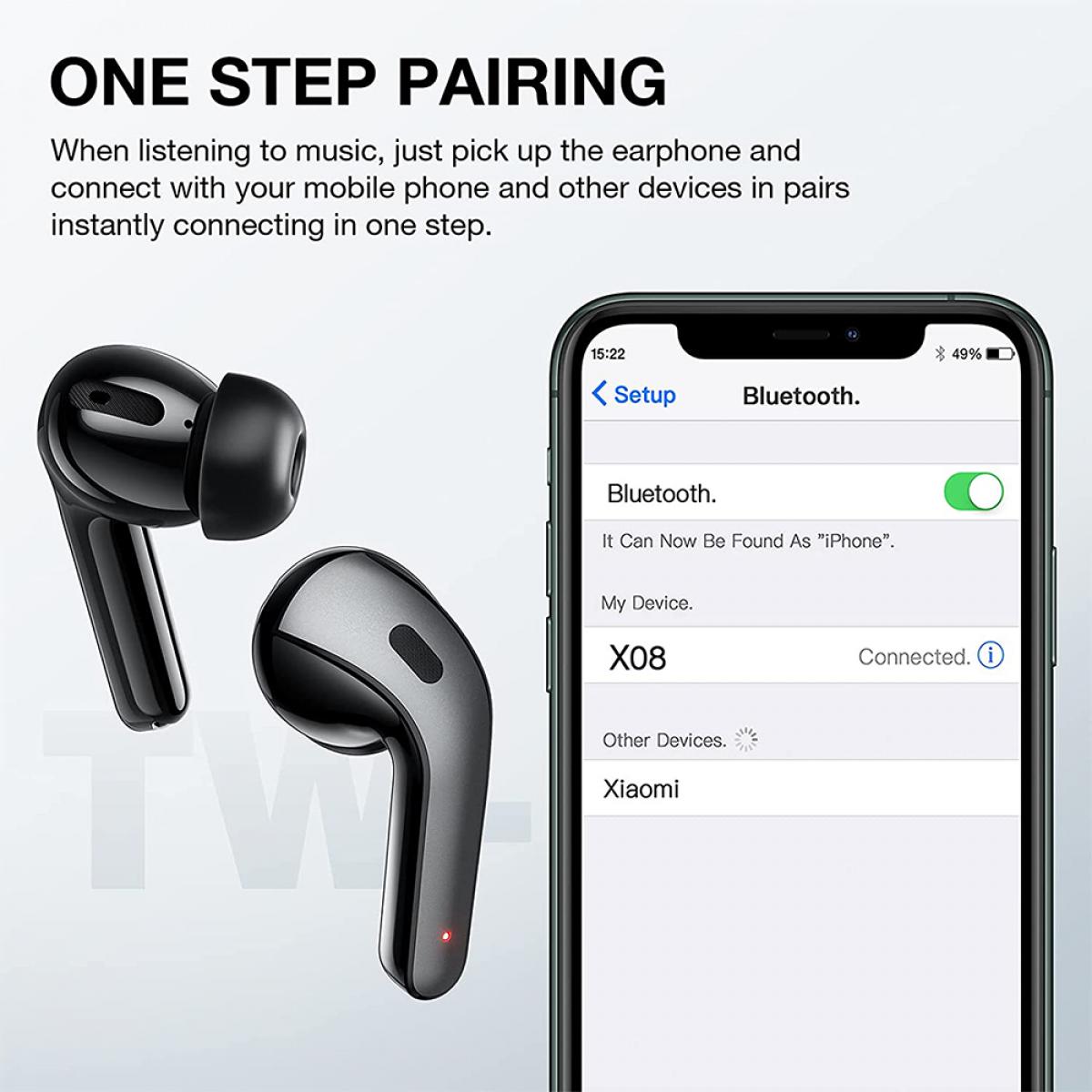
Personal experience, mistakes I made, and lessons learned
I once tried pairing a new pair of earbuds while on a crowded train. The earbuds kept connecting to another phone nearby and failed to pair to mine. Lesson learned: put both devices into pairing mode in a calm spot. Another time I skipped a firmware update and had frequent dropouts; after updating, the connection was stable.
Practical tips I use daily
- Start pairing with earbuds near the phone and no case between them.
- Always check the companion app if pairing fails; it often has model-specific reset steps.
- Carry a small charging case so the buds never die mid-setup.
Frequently Asked Questions of how to connect wireless earbuds to android phone
How do I put my earbuds into pairing mode?
Most earbuds enter pairing mode by holding a button for 3–6 seconds or opening their case near the phone. Consult the quick guide for your model if lights or sounds differ.
Why won’t my Android phone find my earbuds?
Restart both the earbuds and phone, ensure earbuds are in pairing mode, and toggle Bluetooth off and back on. Also move away from crowded areas where many Bluetooth devices are active.
What if my earbuds connect but no sound plays?
Check Android’s media output and volume, and verify the earbuds are set as the audio device. Reconnect or restart the app playing audio if needed.
Can I connect earbuds to multiple devices at once?
Some models support multipoint pairing, which lets earbuds stay connected to two devices concurrently. Check the earbuds’ specs and use the companion app to enable this feature.
How do I reset my earbuds if pairing fails repeatedly?
Most earbuds reset by holding buttons for a specific time or placing them in the case and pressing a reset sequence. Follow your model’s reset steps, then re-pair with the phone.
Conclusion
You now have clear, tested steps to connect wireless earbuds to Android phone, plus fixes for common problems and tips to get better sound and battery life. Try pairing in a quiet space, update firmware, and use the companion app when available. If you run into trouble, follow the troubleshooting steps and don’t hesitate to reset and re-pair.
Ready to get better sound? Pair your earbuds now, test a call, and leave a comment with your earbuds model or a pairing issue — I’ll help troubleshoot.

Everett Ashford is a tech reviewer at mytechgrid.com specializing in SSDs, cameras, TVs, earbuds, headphones, and other consumer electronics. He provides honest, data-driven reviews based on hands-on testing and real-world performance analysis. Everett simplifies complex tech details to help readers make smart, confident buying decisions.