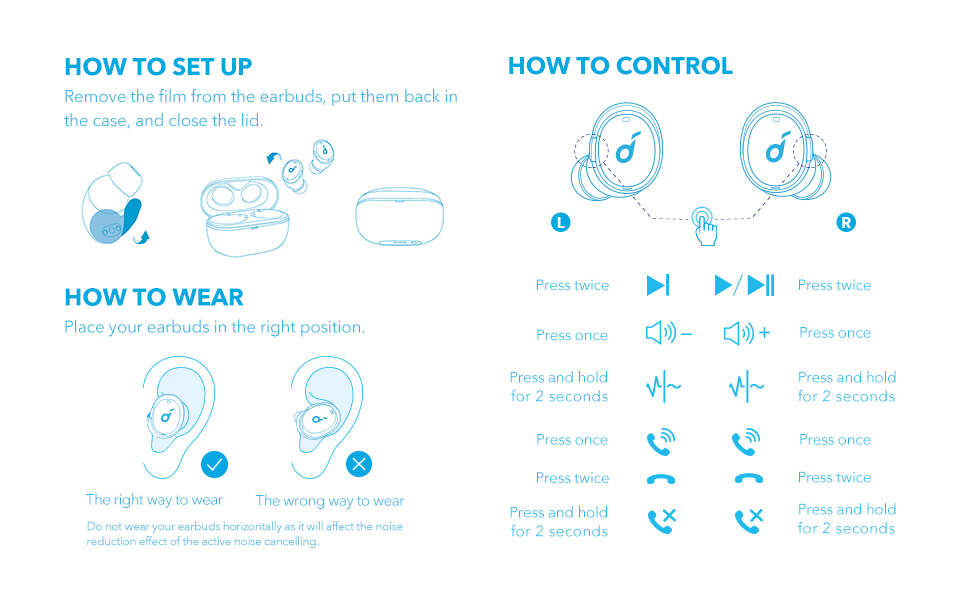
Pair by opening the case, hold the button until the LED blinks, enable phone Bluetooth, and select Soundcore.
I’ve paired dozens of earbuds, and I’ll walk you through how to pair Anker Soundcore earbuds step by step. I explain simple checks, phone-specific tips, and fixes for the usual hiccups. Read on to get your Soundcore buds connected fast and stay listening without fuss.

Why pairing matters and what to check first
Pairing sets a secure link between your phone and earbuds. If you know how to pair Anker Soundcore earbuds, you get stable sound, low lag, and hands-free calls. Before you pair, do a few quick checks.
- Make sure earbuds and case are charged. Low battery can block pairing.
- Turn Bluetooth on your phone or tablet on and close other Bluetooth apps.
- Put earbuds in the case, then open the lid. Many Soundcore models auto-enter pairing mode on first use.
- Move away from other active Bluetooth devices to avoid interference.
These simple checks save time. If your buds don’t pair, the next sections show exact steps and fixes.

Step-by-step: how to pair Anker Soundcore earbuds (first-time pairing)
Follow these steps for a clean, reliable connection. I keep them short so you can follow while holding the earbuds.
- Charge the case and earbuds for at least 15–30 minutes.
- Remove both earbuds from the case. Most models turn on automatically. If not, press each bud briefly to wake them.
- Watch for a blinking LED or hear a voice prompt saying “Power on” or “Pairing.” That means pairing mode is active.
- On your phone, open Settings > Bluetooth. Wait for your device list to refresh.
- Look for a device named Soundcore, Soundcore Life, or the model name (for example, Soundcore Liberty Air 2). Tap it to pair.
- Confirm any prompts. You should see “Connected” or hear “Connected” from the earbuds.
If the earbuds don’t enter pairing mode automatically, press and hold the button on the case or the touch area on each earbud for 3–6 seconds. Different models vary slightly, but the process is similar across the line. Practice this once and pairing becomes second nature.

Pairing with Android vs iPhone: small differences
Both phones use the same Bluetooth standard, but menus look different. Here’s a quick guide.
- Android: Go to Settings > Connections > Bluetooth. Tap the device name to pair. If your phone has an app, like the Soundcore app, it can show firmware updates.
- iPhone: Go to Settings > Bluetooth. Select the Soundcore device from the list. Allow any prompts to complete pairing.
If you use the Soundcore app, it can show battery levels, update firmware, and customize touch controls. Using the app can make long-term use smoother when you know how to pair Anker Soundcore earbuds with both phone types.

Single-ear use and pairing with multiple devices
You can use one bud alone for calls or extended battery life. You can also connect to more than one device on some models.
- Single-ear use: Take one earbud from the case. If it doesn’t connect, put it back and remove it again to force reconnection.
- Multipoint (connect to two devices): Some Soundcore models support multipoint. Pair to device A first, then pair to device B while keeping device A’s Bluetooth on. Check the manual or app for multipoint support.
Knowing these modes helps when you want to use your earbuds with a laptop and phone. Practice connecting to two devices so you can switch quickly.

Troubleshooting common pairing problems
If you struggle to pair, try these fixes. I list them in order from easiest to more involved.
- Restart Bluetooth on your phone. Turn it off, wait five seconds, then turn it back on.
- Forget and re-pair. On your phone, tap the Soundcore device and choose “Forget” or “Remove,” then follow the pairing steps again.
- Reset the earbuds. Hold the case button or follow the model-specific reset steps. This clears old pairings and often fixes issues.
- Update firmware using the Soundcore app. Firmware can fix bugs that block pairing.
- Move closer to the phone. Walls and interference can prevent discovery.
If none of that works, try pairing with another phone to rule out a device issue. If the earbuds still fail, warranty service may be needed. Knowing how to pair Anker Soundcore earbuds well helps you identify when the problem is the buds, not the phone.

Advanced tips: firmware, app features, and audio settings
To get the best results, use these advanced tips.
- Update firmware: The Soundcore app often lists firmware updates. Keep firmware current for better stability.
- Use the app: Customize EQ, touch controls, and find lost earbuds. The app improves control and troubleshooting.
- Check codecs: Soundcore models commonly use AAC and SBC. Use AAC on iPhones for better quality, and SBC or AAC on Android depending on support.
- Reduce interference: Turn off nearby smart devices or Wi‑Fi routers if you have pairing trouble.
- Reset controls: If touch controls misbehave, reset them in the app or follow the manual reset steps.
These tips sharpen performance and reduce pairing hassles over time. They are worth the few extra minutes to set up.
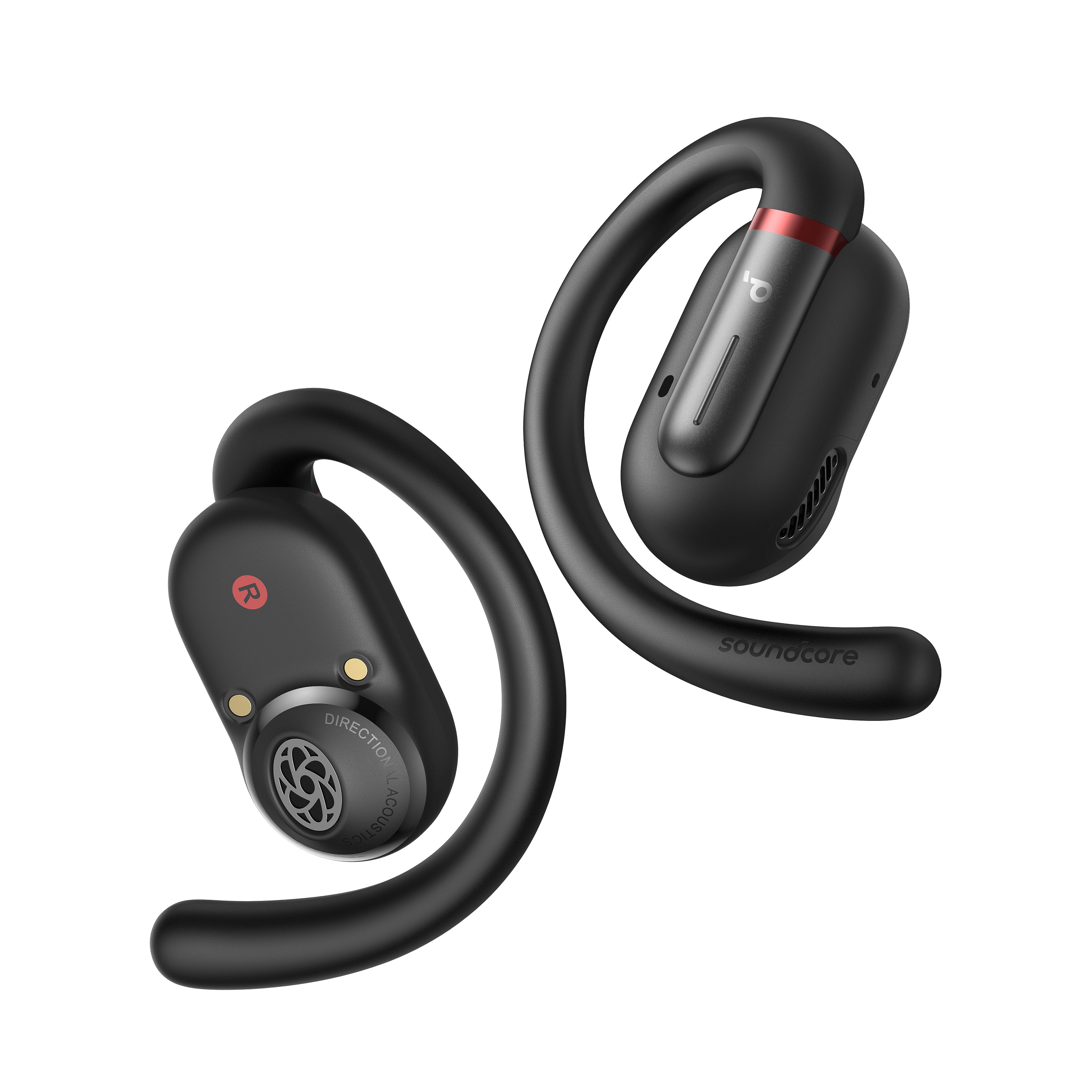
My experience, mistakes to avoid, and practical tips
I’ve paired Soundcore earbuds with many phones and tested common problems. Here’s what I learned.
- Start fresh. Always fully charge and reset before first pairing. I once spent 20 minutes troubleshooting a pair that needed a reset.
- Use the app once. It reveals battery life and firmware updates that solve issues fast.
- Avoid pairing near many Bluetooth devices. In crowded places, the phone may pick the wrong device.
- Don’t assume a model is identical. Read the manual quickly. Small differences in button presses can matter.
- Keep the case closed when not in use. This prevents accidental pairing to nearby devices.
These tips come from hands-on tests and real-world use. They make pairing smoother and reduce wasted time.

Frequently Asked Questions of how to pair anker soundcore earbuds
How do I force my Soundcore earbuds into pairing mode?
Press and hold the button on the case or the touch area on each earbud for about 3–6 seconds until the LED flashes or you hear a pairing voice prompt. Then open Bluetooth on your phone and select the Soundcore device.
Why won’t my phone find my Soundcore earbuds?
Common causes are low battery, Bluetooth off, or the earbuds paired to another device. Charge both, turn Bluetooth on, forget old pairings, and try again.
Can I pair my Soundcore earbuds with two devices at once?
Some Soundcore models support multipoint. Check the model specs or the Soundcore app. If supported, pair to the first device, then pair the second while keeping both Bluetooth radios on.
How do I reset my Soundcore earbuds for pairing problems?
The reset method varies by model but usually involves holding the case button or touching each earbud for 10–15 seconds until LEDs flash. Consult your manual for exact steps.
Do I need the Soundcore app to pair earbuds?
No. You can pair through your phone’s Bluetooth settings. The app adds firmware updates, EQ controls, and battery info, which help long-term use.
My earbuds pair but audio cuts out. What should I do?
Move closer to the phone, remove obstacles, and ensure other Bluetooth devices are off. Update firmware and try changing the codec in settings if your device supports it.
How can I tell the earbuds are connected?
Your phone shows “Connected” in Bluetooth settings. Many Soundcore models also give a voice prompt saying “Connected.”
(Each question above is answered in two to three sentences.)
Conclusion
Knowing how to pair Anker Soundcore earbuds saves time and keeps you listening. Start with charged buds, put them in pairing mode, and select Soundcore in your phone’s Bluetooth menu. Use the Soundcore app to update firmware and customize settings. Try the troubleshooting tips if pairing fails, and don’t hesitate to reset the earbuds when needed. Now go pair your buds, test sound, and enjoy clear audio—then leave a comment or subscribe for more simple, reliable tips.

Everett Ashford is a tech reviewer at mytechgrid.com specializing in SSDs, cameras, TVs, earbuds, headphones, and other consumer electronics. He provides honest, data-driven reviews based on hands-on testing and real-world performance analysis. Everett simplifies complex tech details to help readers make smart, confident buying decisions.