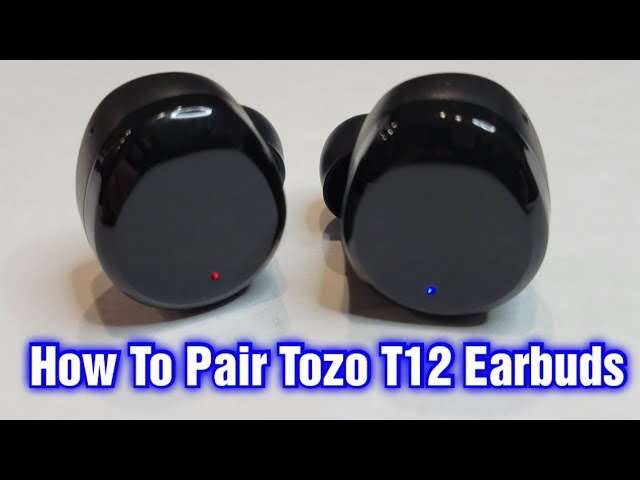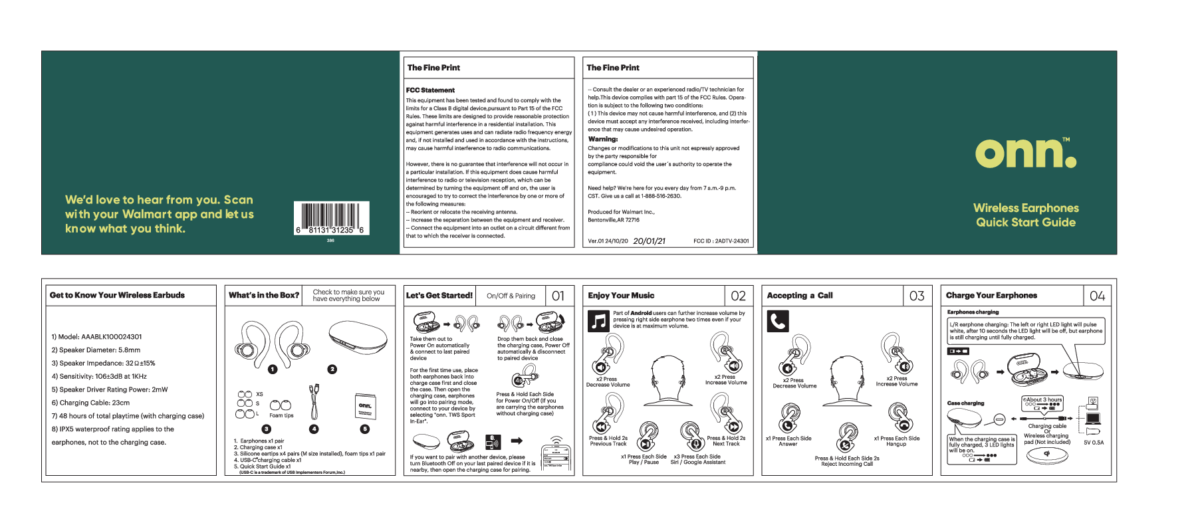
Put earbuds in their case, hold pairing button until LED blinks, then connect via device Bluetooth.
I have paired dozens of wireless earbuds and tested many models, so I know the small steps that make pairing painless. This guide explains how to pair onn earbuds clearly, from first-time setup to fixing trouble spots. Read on to get simple, reliable steps and real tips that work every time when you want to pair onn earbuds.

How to pair onn earbuds: step-by-step guide
Follow these short steps to pair onn earbuds for the first time. Keep the earbuds and your device close. Turn Bluetooth on your phone, tablet, or laptop before starting.
- Prepare the earbuds
– Charge both earbuds and the case. Low battery can stop pairing.
- Open the charging case with the earbuds inside. Many onn earbuds enter pairing mode automatically when opened.
- Enter pairing mode manually (if needed)
- Remove earbuds from the case and press and hold the touch area or button on both earbuds for about 5–10 seconds.
- Watch for a flashing LED or hear a voice prompt that says “pairing” or “ready to pair.” This indicates the earbuds are discoverable.
- Find the earbuds on your device
- On iPhone or iPad, open Settings > Bluetooth and look for the device named “onn” or “onn TWS.”
- On Android, open Settings > Connected devices > Pair new device, then tap the onn listing.
- Complete the connection
- Tap the onn entry in your device’s Bluetooth list. Wait until the status changes to “Connected.”
- If prompted for a PIN, enter 0000 or 1234; most onn earbuds do not require a code.
- Test audio and controls
- Play music or a video to confirm sound in both ears.
- Test the touch controls or buttons for pause, skip, and voice assistant.
I recommend repeating the manual pairing step if the earbuds pair one side only. If one earbud connects and the other stays silent, place both back in the case and repeat the steps. These simple checks solve most early pairing problems and are core to how to pair onn earbuds successfully.

Pairing onn earbuds with specific devices
Different devices have tiny differences in menus. The pairing basics stay the same. Below are clear steps for the main device types.
iPhone and iPad
- Turn on Bluetooth in Settings. Open the case or press the pairing button on the earbuds.
- Tap the onn device name when it appears. Allow any prompts for permissions.
- If the earbuds support the iOS quick pairing popup, follow the on-screen guide.
Android phones and tablets
- Open Settings > Bluetooth or Connected devices and enable Bluetooth.
- Tap Pair new device or Scan. Select the onn earbuds from the list to connect.
- If Android asks to allow contacts or call audio, allow as needed.
Windows 10 and 11
- Go to Settings > Bluetooth & devices and turn Bluetooth on.
- Click Add device > Bluetooth and choose the onn earbuds.
- Windows may show “Connected voice, music” once pairing finishes.
Mac
- Open System Settings or System Preferences > Bluetooth.
- Turn Bluetooth on and wait for the onn earbuds to appear. Click Connect.
- Check Sound settings to choose onn as the audio output.
Smart TV and Fire TV
- Open the TV’s Bluetooth settings or Accessories menu.
- Put the onn earbuds in pairing mode and select them from the TV.
- Note there may be slight audio lag on some TVs. Use TV audio settings to reduce delay.
These device-specific tips reflect common interfaces. If you know the menus on your device, pairing onn earbuds will be quick and repeatable.

Troubleshooting common pairing issues
If pairing fails, try these checks. I have used these steps many times and they fix most problems fast.
Check battery and charging
- Make sure earbuds and case are charged. Low power can block pairing.
- Clean charging contacts with a dry cloth if earbuds won’t charge.
Reset the earbuds
- Place earbuds in the case. Press and hold the case button or both earbud buttons for 10–15 seconds to reset.
- After reset, repeat the pairing steps to pair anew.
Clear Bluetooth list on your device
- Remove or forget the onn device from your phone or laptop Bluetooth list.
- Restart Bluetooth on your device and retry pairing.
Address single-earbud connection problems
- If only one earbud connects, put both back in the case and re-pair.
- Ensure left and right earbuds both power on together before pairing.
Reduce wireless interference
- Move away from Wi-Fi routers, microwaves, or crowded Bluetooth environments.
- Try pairing in a different room to rule out interference.
Update device software and firmware
- Update your phone, tablet, or computer to the latest software.
- If onn releases firmware updates via an app, install them to fix bugs.
If none of the above works, try pairing with a second phone. If earbuds won’t pair to any device, they may need warranty service. These steps cover the usual causes for failure and show how to pair onn earbuds even after hiccups.

Tips, best practices, and firmware updates
Small habits make pairing faster and more reliable. Here are my practical tips from experience.
Keep earbuds charged and stored in the case
- Storing earbuds in the case often triggers auto power-off and resets pairing timers.
- Regular charging prevents mid-usage dropouts during pairing.
Name your earbuds
- On many devices you can rename the onn earbuds in Bluetooth settings.
- A clear name helps you select the right device in crowded Bluetooth lists.
Use one device at a time for initial pairing
- Pair the earbuds first with the device you use most. This reduces confusion from multiple auto-pair attempts.
- After initial pairing, enable multipoint on supported models if you need to connect to more than one device.
Update firmware when possible
- Check for firmware updates in the onn app or manufacturer instructions.
- Firmware updates can fix pairing bugs and improve battery life.
Avoid common mistakes
- Do not press random buttons while pairing. Follow the pairing step precisely.
- Keep the case open if your model needs the case to enter pairing.
These practices come from testing and daily use. They help you pair onn earbuds faster and keep them paired longer.
Frequently Asked Questions of how to pair onn earbuds
Why won’t my onn earbuds appear in Bluetooth settings?
If the earbuds do not show, ensure they are in pairing mode and charged. Restart Bluetooth on your device and try moving closer to the earbuds.
How do I reset my onn earbuds to pair with a new device?
Reset by placing earbuds in the case and holding the reset or multi-function button for 10–15 seconds. After reset, repeat the pairing steps to pair onn earbuds to your device.
Can onn earbuds connect to two devices at once?
Some onn models support multipoint pairing but not all. Check your model’s manual; if supported, pair to device A first, then pair to device B.
What PIN do I enter when asked during pairing?
Most onn earbuds do not need a PIN. If asked, try 0000 or 1234. If that fails, consult the user guide for your exact model.
Why does one earbud play and the other stay silent?
This happens when earbuds lose sync. Place both in the case, power off, then power on and re-pair. Also ensure both earbuds have charge.
Conclusion
You can pair onn earbuds quickly by following clear steps: charge, enter pairing mode, select onn in Bluetooth, and test audio. Try simple fixes like resetting, forgetting devices, or updating firmware if pairing fails. Use the tips here to avoid mistakes and keep connections steady. Ready to take control of your audio? Try these steps now, leave a comment about your model, or subscribe for more practical guides on earbuds and Bluetooth gear.

Everett Ashford is a tech reviewer at mytechgrid.com specializing in SSDs, cameras, TVs, earbuds, headphones, and other consumer electronics. He provides honest, data-driven reviews based on hands-on testing and real-world performance analysis. Everett simplifies complex tech details to help readers make smart, confident buying decisions.