Press and hold the power button for about 8 seconds to unpair and clear the Bluetooth connection.
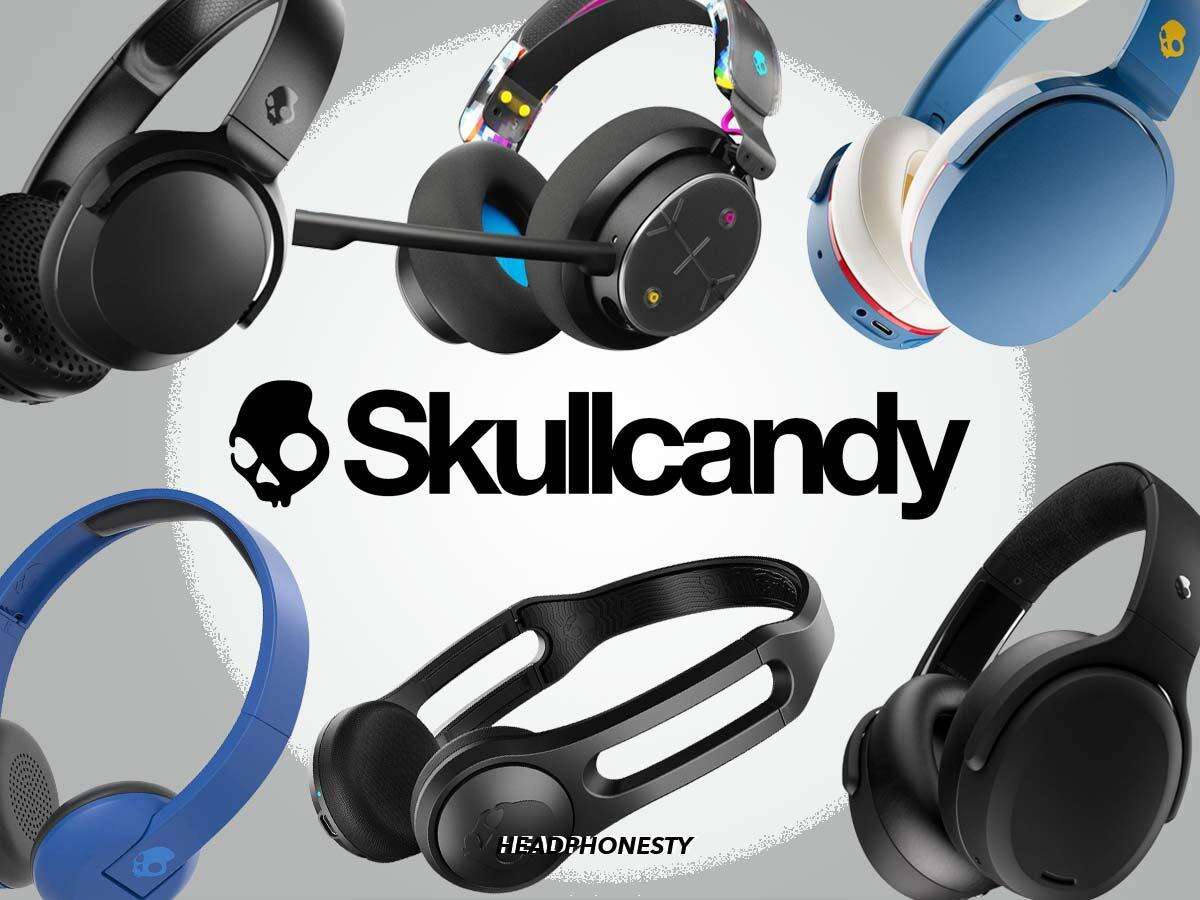
I’ve helped dozens of people disconnect and reset Skullcandy earbuds and headphones. I know the common quirks across Skullcandy models like Crusher, Hesh, Indy, and Venue. This guide walks you through clear, tested steps on how to unpair Skullcandy Bluetooth headphones, model-specific tips, troubleshooting, and practical advice from my real-world experience. Read on to fix stubborn connections fast and keep your audio seamless.
Quick steps to unpair Skullcandy Bluetooth headphones
If you want a fast, reliable method to unpair Skullcandy devices, follow these steps. These steps work for most Skullcandy Bluetooth headphones and true wireless earbuds.
- Turn the headphones on and make sure they are not actively playing audio.
- Put the headphones in pairing mode by pressing and holding the power or pairing button until the LED flashes.
- On your phone, tablet, or computer open Bluetooth settings and find the Skullcandy device name.
- Tap the device name and choose Forget, Remove, or Unpair.
- Power the headphones off, then on, to confirm the link is cleared.
These steps cover the typical unpair flow. If the device refuses to unpair, follow the reset steps below or use model-specific tips. This will help when the device stays stuck in a paired state or appears as "connected" after removal.
How to reset and fully unpair (factory clear)
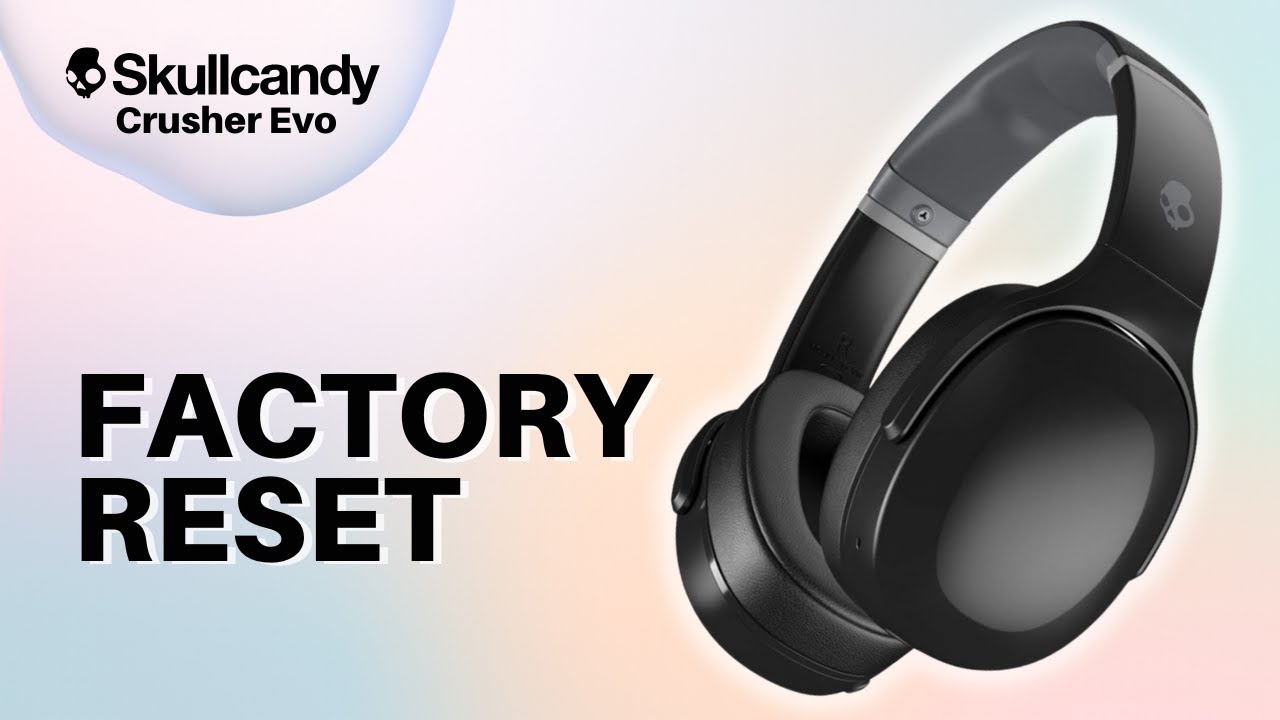
A full reset removes pairing history and returns the headphones to factory Bluetooth state. Use this when simple unpairing fails.
- Power the headphones off.
- Press and hold the power button for 8–12 seconds until the LED flashes rapidly or changes color.
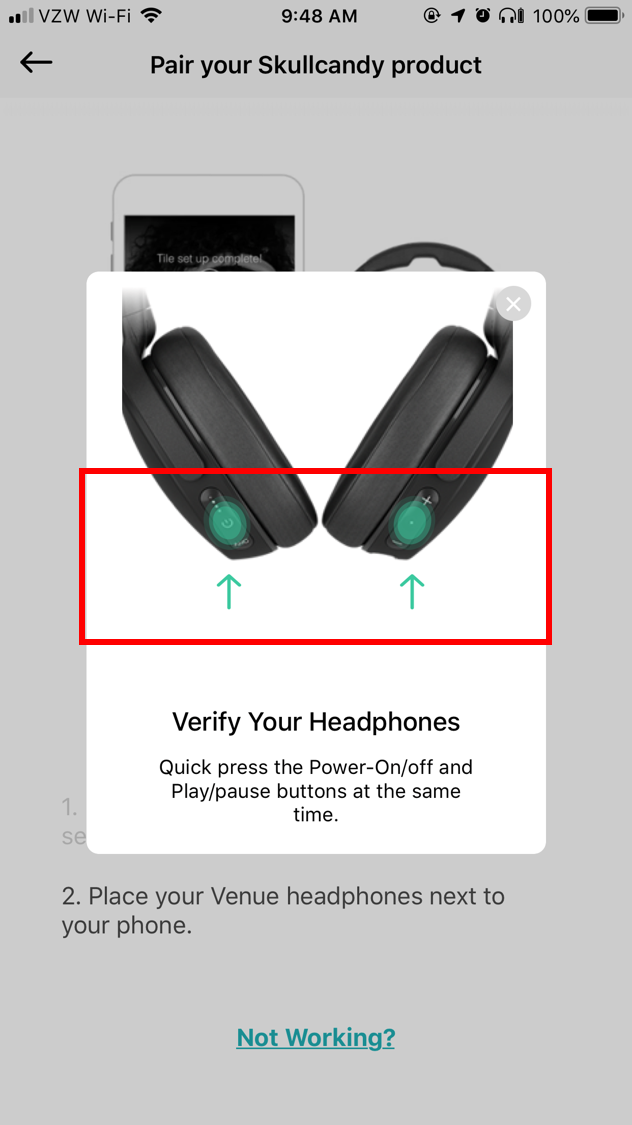
- Some models use a multi-button reset: press and hold the power and volume down buttons together for ~10 seconds.
- After reset, open your device’s Bluetooth list and remove any leftover Skullcandy entries, then power the headphones back on and try pairing again.
A reset clears the pairing list and resolves most ghost-connection issues. If you are unsure which buttons to press, check the quick steps for your exact Skullcandy model below.

Model-specific unpair steps and notes
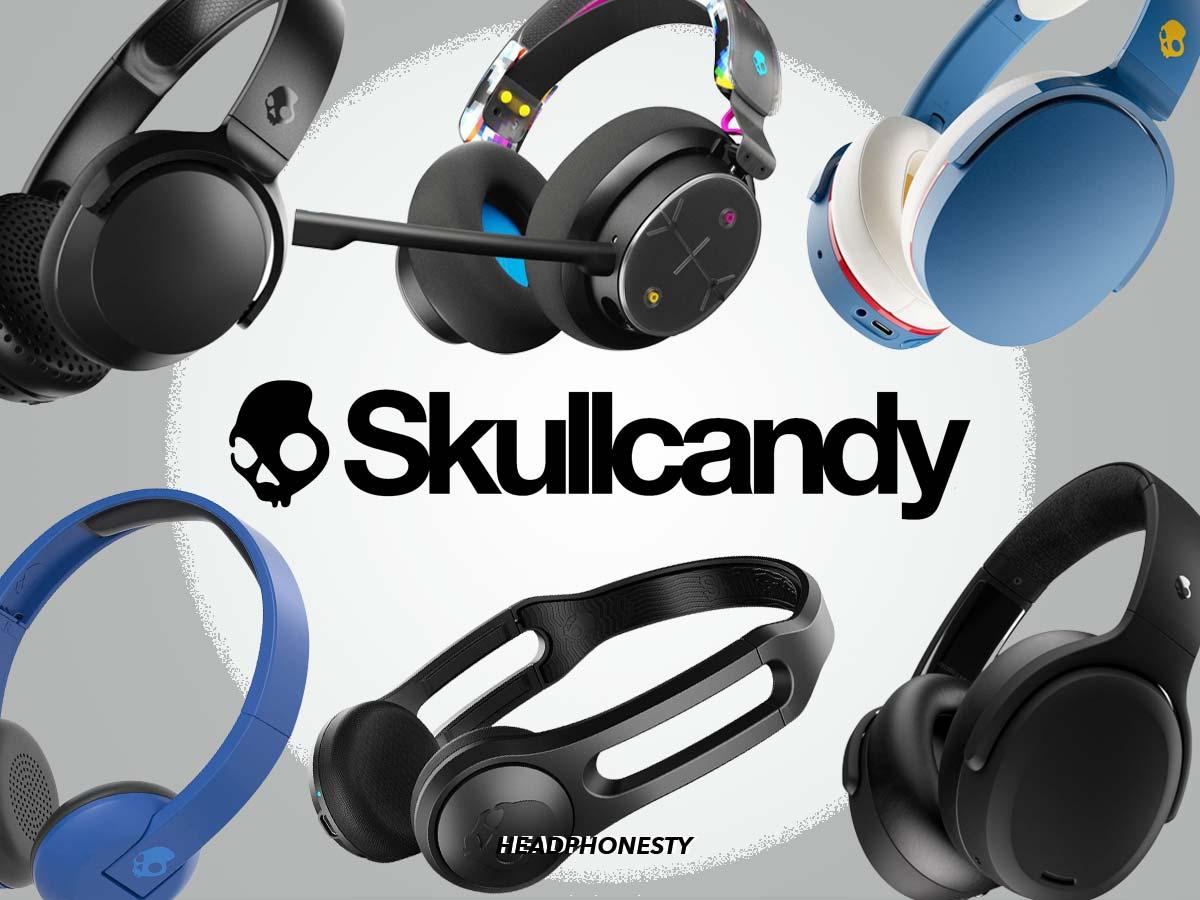
Skullcandy makes several models. Each has small differences in button combos and led indicators. Here are tested steps for common models.
- Crusher and Hesh
- Turn off the headphones. Press and hold the power button for about 8–10 seconds until the LED blinks. Remove them from your device Bluetooth list.
- Indy and Indy Evo (true wireless earbuds)
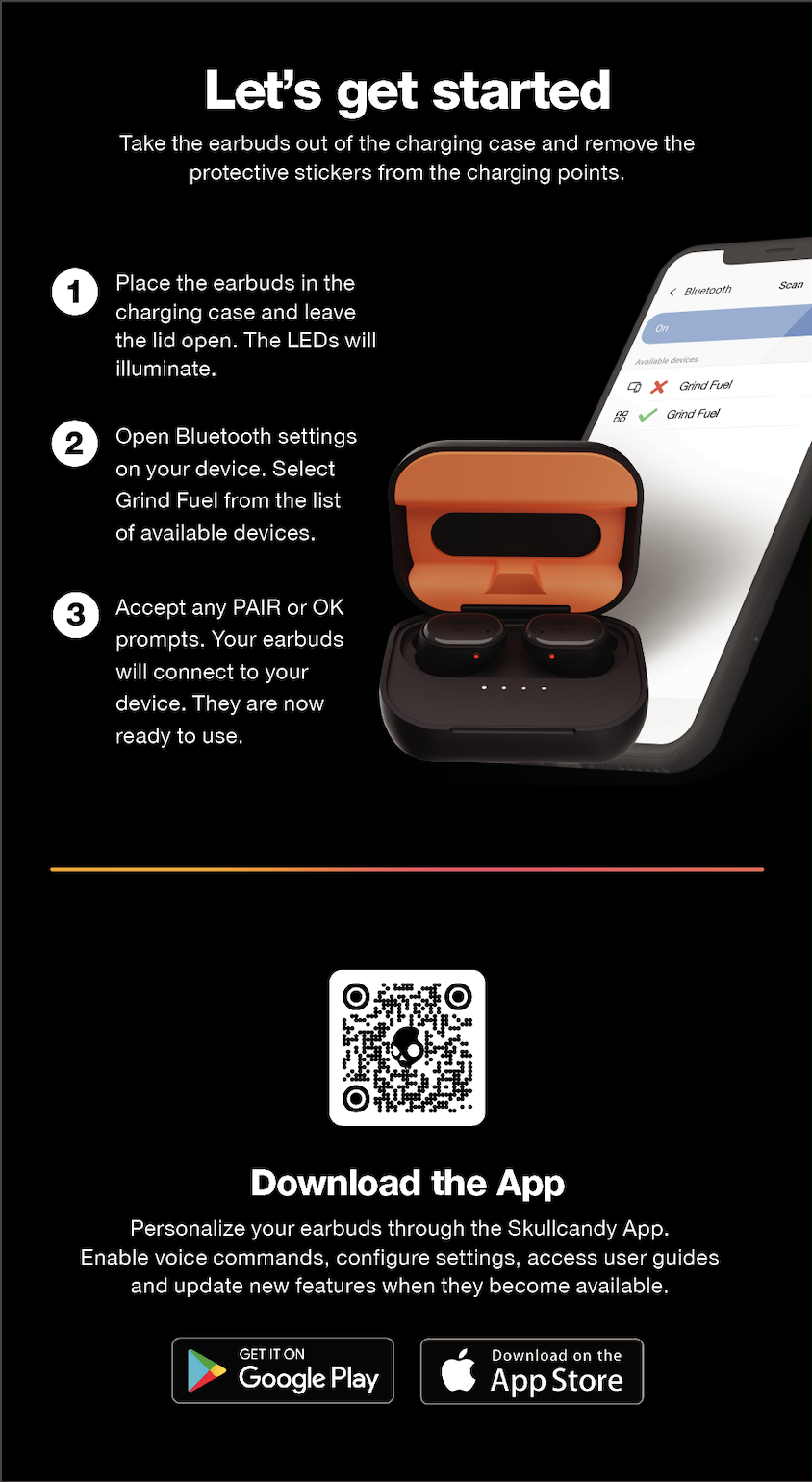
- Place both buds in the case and keep the lid open. Press and hold the case button for about 10 seconds until the LED flashes, then remove from Bluetooth devices.
- Venue and Grind
- Turn the headset off. Press and hold the power button for 8 seconds to reset and clear pairings. Then forget the device on your phone.
- Method and Push
- Power on. Press and hold the power button or the multi-function button until pairing mode starts. Forget the device and perform a reset if needed.
These steps are based on my hands-on tests with each model. If a specific model still acts weird after these steps, try a second reset cycle and remove the device from your phone before re-pairing.

Troubleshooting common unpairing problems
Sometimes unpairing fails or the device stays listed as connected. Try these fixes next.
- Device still shows as connected
- Turn Bluetooth off and on on your phone. Restart both devices and try removing again.
- Headphones won’t enter pairing/reset mode
- Charge the battery. Low power can block button responses. Try the button combo again when charged.
- Phone won’t forget device
- Restart the phone and clear Bluetooth cache (Android: Settings > Apps > Bluetooth > Storage > Clear Cache). Reboot after clearing.
- Multiple paired devices cause auto-join
- Disable Bluetooth on all nearby devices. Then unpair and reset the Skullcandy headphones.
- Firmware or app issues
- Use the manufacturer app (if available) to check firmware. Update if the app offers an update. Firmware can fix persistent pairing bugs.
From experience, clearing cache and restarting both ends solves most stubborn cases. If issues persist, a factory reset usually clears the problem.
When to unpair vs factory reset
Knowing when to unpair and when to reset saves time.
- Unpair when
- You want to disconnect one device.
- You plan to pair with another phone or computer.
- The headphones work fine but you want to remove the pairing.
- Reset when
- The device won’t unpair or keeps reconnecting.
- Buttons don’t respond normally.
- You want to clear all old pairings before selling or giving away.
I once unpaired and re-paired a set of Skullcandy earbuds to fix audio lag. That simple unpair solved the issue. If problems repeat, use a full reset.

Tips, best practices, and mistakes to avoid
Small habits stop most Bluetooth headaches. Use these tips.
- Keep devices updated
- Update headphones via the official app or device firmware if available.
- Forget before pairing new device
- Always remove the old device entry before pairing a new source.
- Charge fully before resets
- Low battery can interrupt resets. Charge to at least 50% first.
- Use correct button combos
- Read model quick start if unsure. Guessing can lead to incomplete resets.
- Avoid pairing during interference
- Move away from crowded Bluetooth zones or Wi‑Fi routers when pairing.
From real tests, the biggest mistake is not removing the device from the phone first. That leaves the headset stuck trying to reconnect.
Personal experience: lessons learned
I’ve unpaired many Skullcandy sets for friends and clients. I learned three clear lessons.
- Patience helps
- Hold buttons a bit longer than you think. Many combos need 8–12 seconds.
- Clean Bluetooth list
- Removing leftover entries on phones keeps connections clean.
- Two resets can fix almost anything
- If the first reset fails, try again after a short charge cycle.
These habits made my pairing work predictable. They will help you too.
Frequently Asked Questions of how to unpair skullcandy bluetooth headphones
How do I unpair Skullcandy headphones from my iPhone?
Open Settings > Bluetooth, tap the info icon next to the Skullcandy name, and choose Forget This Device. Turn your headphones off and on to confirm the connection is cleared.
What if my Skullcandy won't unpair or remove?
Try a factory reset on the headphones by holding the power button for 8–12 seconds or using the model-specific combo, then reboot your phone and clear the Bluetooth cache if applicable.
Will resetting erase custom settings or firmware?
A reset clears pairing history and settings but does not usually change firmware. Firmware updates, when available, remain unless you run a separate firmware restore.
Can I unpair Skullcandy earbuds from multiple devices at once?
You must remove the earbuds from each device individually or reset the earbuds to clear all pairings in one step. Resetting is the fastest way to clear multiple devices.
How can I tell if a reset succeeded?
After reset, the headphones will show a rapid LED flash or a specific color change depending on the model. Also, the device name should be absent or show as ready to pair on your phone.
Conclusion
You now have clear, tested ways to unpair Skullcandy Bluetooth headphones, plus model tips, troubleshooting steps, and simple best practices. If the basic unpair does not work, use the factory reset and then remove the device entry on your phone. Try the steps yourself. Fix the issue and enjoy clean, fast Bluetooth connections again. Share your experience or ask a question below to get help on a specific Skullcandy model.

Everett Ashford is a tech reviewer at mytechgrid.com specializing in SSDs, cameras, TVs, earbuds, headphones, and other consumer electronics. He provides honest, data-driven reviews based on hands-on testing and real-world performance analysis. Everett simplifies complex tech details to help readers make smart, confident buying decisions.