Use CrystalDiskInfo, manufacturer tools, or smartctl to read SMART attributes and percentage used.
I have checked dozens of SSDs in my IT work. I will show clear steps on how to check SSD health percentage in Windows. This guide covers simple built-in checks, trusted free tools, command-line methods, and how to read vendor-specific wear numbers. Read on to learn exact steps, what the numbers mean, and when to act to protect your data.

Why monitoring SSD health percentage matters
SSD health is not just a number. It signals how much life is left in the drive. Knowing how to check SSD health percentage in Windows helps you avoid sudden failures and protect files. It also helps plan upgrades and backup schedules.
Monitoring saves time and stress. You can catch a failing drive early. It lets you move data before loss happens. This section explains why regular checks are smart for home users and pros alike.
What SSD health percentage means
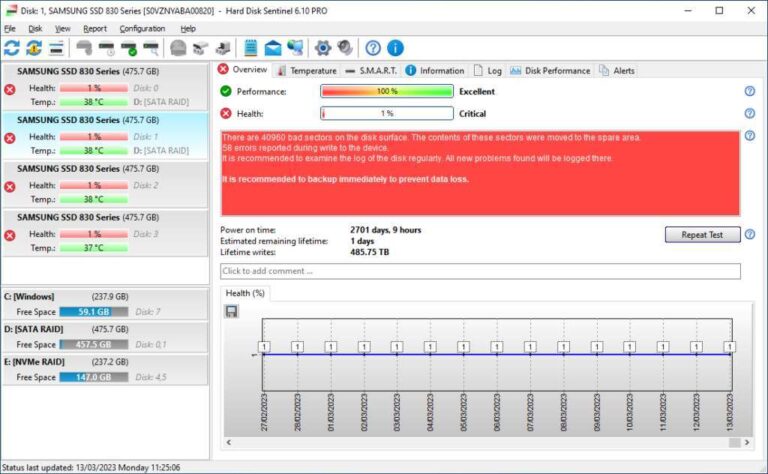
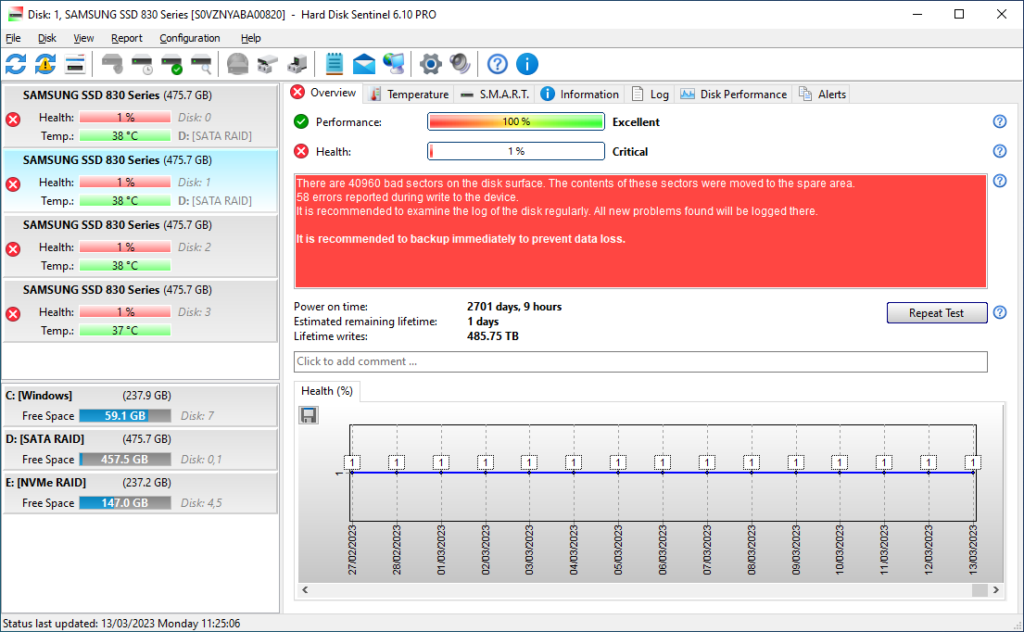
SSD health percentage is a vendor-calculated metric. It often draws on SMART attributes like "Percent Used," "Wear Leveling Count," or "Media Wearout Indicator." For NVMe drives, the SMART/Health log usually shows "Percentage Used" where 0% means new and higher percent means wear.
Different vendors use different scales. Some show "100% remaining" while others show "0% used." Always check the drive's documentation or the tool label to know the direction. The same health number on two drives can mean different things based on firmware.
PAA-style quick questions:
- What exact attribute gives the percentage? Many NVMe drives use the NVMe "Percentage Used" field; SATA drives may use "Media Wearout Indicator" or vendor-specific attributes.
- Is 100% always full life? No. Some tools show 100% as full life left, others show 100% used. Confirm with the tool or vendor label.
- Can SMART fail to warn? Yes. SMART is useful but not perfect. Back up critical data regardless of SMART values.
How to check SSD health percentage in Windows
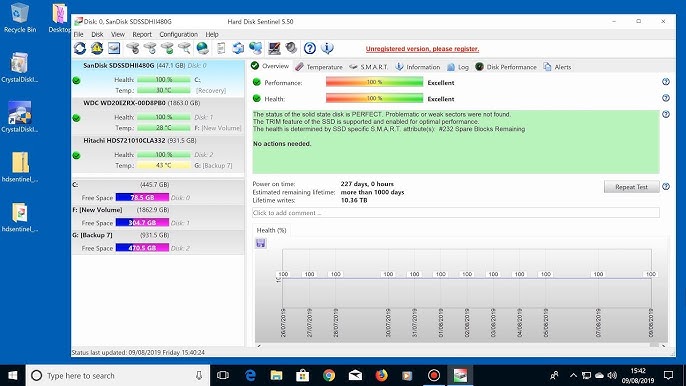
Below are reliable ways to check SSD health percentage in Windows. Use the method that fits your skill level and needs.
1) Use CrystalDiskInfo (easy, free GUI)
CrystalDiskInfo is a widely used free tool that reads SMART and shows health status and percentage used for many SSDs.
Steps:
- Download and install CrystalDiskInfo.
- Run the app. It lists each drive and a health status like Good, Caution, or Bad.
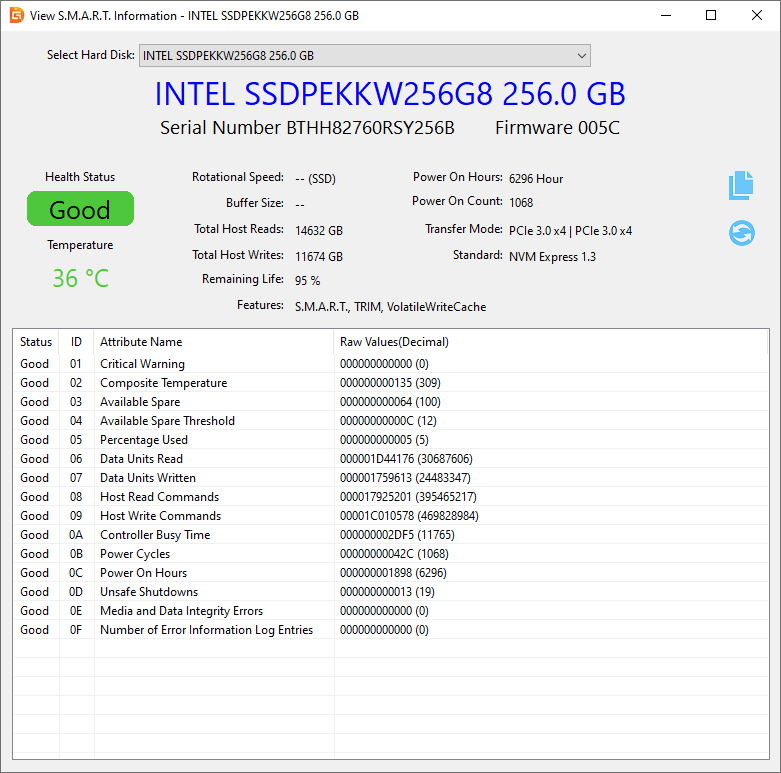
- Click the drive. Look for values labeled "Health Status," "Percentage Used," "Media_Wearout," or similar.
Notes:
- CrystalDiskInfo supports NVMe, SATA, and many vendor attributes. It often displays a clear percent or remaining life indicator.
2) Use the manufacturer's utility (recommended)
Many SSD makers offer their own software. Examples include Samsung Magician, Western Digital Dashboard, Kingston SSD Manager, and Crucial Storage Executive.
Steps:
- Install the official tool from the SSD vendor.
- Open the app and locate drive health or SMART info.
- Read the "Health" or "Wear Level" field for percentage metrics.
Notes:
- These tools know vendor-specific mappings. They are usually the most accurate for that brand.
3) Use smartctl from smartmontools (power user)
smartctl is part of smartmontools and works in Windows via a command-line executable. It exposes raw SMART entries and NVMe logs.
Steps:
- Download smartmontools for Windows and extract files.
- Open an elevated Command Prompt.
- Run a command such as:
- smartctl -a /dev/sda
- smartctl -a /dev/nvme0
- Look for attributes like "Percentage Used," "Media_Wearout_Indicator," or NVMe SMART log lines.
Notes:
- smartctl shows raw and normalized values. Read the attribute name and raw value for clarity.
4) Use Windows built-in checks (basic status only)
Windows has basic health info but not a precise percentage. Use these for a quick check:
- Open PowerShell and run Get-PhysicalDisk to see HealthStatus and OperationalStatus.
- Run wmic diskdrive get status for a simple OK/Pred fail line.
Notes: - These methods do not reliably give a wear percentage. They only flag obvious predicted failures.
After you try a method, compare numbers. If a third-party tool and the vendor app disagree, trust the vendor app. Keep documented screenshots if you must track changes over time.

Interpreting results and real examples
How you read numbers matters. Here are quick rules and a real example from my work.
Rules:
- If tool shows "Percentage Used" at 5% or 95% remaining, the drive is healthy.
- If "Percentage Used" is near 100% used or shows "Caution"/"Bad," plan to replace soon.
- Look at SMART reallocated sectors and uncorrectable errors. Those often predict failure.
Personal example:
I once had a NVMe drive showing 12% used but with rising uncorrectable errors. The percentage seemed fine, but error count rose steadily. I cloned the drive and replaced it. That saved two client machines from data loss.
Practical tip:
Track values weekly or monthly. Use the same tool each time for consistency.

Common mistakes and tips
Avoid these errors when checking SSD health percentage in Windows.
Common mistakes:
- Trusting a single tool blindly. Use at least one vendor tool and one general tool.
- Confusing percent used with percent remaining. Read labels.
- Ignoring SMART raw attributes like reallocated sectors or program/erase cycles.
Tips: - Back up before testing if you worry about a failing drive.
- Keep firmware up to date; firmware fixes can fix false warnings.
- Note that refurbished drives may report odd SMART values.
When to replace an SSD
Replace an SSD when multiple warning signs appear.
Signs to replace:
- Percentage used is very high and increasing fast.
- SMART shows many reallocated or uncorrectable errors.
- Drive shows frequent bad sectors, slowdowns, or blue screens.
If you store critical data, replace at the first serious SMART warning. If the drive is older than its rated TBW and approaching that number, plan replacement.

Frequently Asked Questions of how to check ssd health percentage in windows
How can I get a quick percent reading of SSD wear in Windows?
Use CrystalDiskInfo or your SSD vendor's utility. Those tools often show "Percentage Used" or "Health" in clear terms.
Does Windows Report SSD health percentage natively?
Windows built-ins show basic health status but not a detailed wear percentage. Use third-party tools or vendor apps for a percent reading.
Is the "percentage used" value the same across all SSD brands?
No. Vendors use different SMART attributes and scales. Check the vendor tool for the correct meaning of the number.
Can a low SSD health percentage be fixed by firmware updates?
Firmware updates can fix false readings and improve endurance, but they can't restore worn flash cells. If wear is real, replacement is the safe choice.
How often should I check SSD health percentage in Windows?
Check monthly for important drives and before big updates or backups. For servers, check weekly and enable alerts.
Conclusion
Regular checks of SSD health cut risk and help you plan upgrades. Use CrystalDiskInfo, vendor tools, or smartctl to read SMART and percentage used. Compare tools, watch error counts, and back up early if numbers move toward caution. Take action now: run a check on your SSD today, save results, and set a simple schedule to re-check. Leave a comment with your drive model if you want help reading its health numbers.

Everett Ashford is a tech reviewer at mytechgrid.com specializing in SSDs, cameras, TVs, earbuds, headphones, and other consumer electronics. He provides honest, data-driven reviews based on hands-on testing and real-world performance analysis. Everett simplifies complex tech details to help readers make smart, confident buying decisions.