Update firmware, use the right PCIe slot and driver, enable TRIM, set power to high performance.
I build and tune Windows PCs for a living, and I’ve spent years testing NVMe drives on Windows 11. This guide explains how to optimize Windows 11 for NVMe SSD performance with clear steps, practical tips, and real troubleshooting advice. You’ll learn BIOS settings, driver and firmware best practices, Windows tweaks, thermal fixes, and how to test gains. Read on and follow the checklists to get the most from your NVMe on Windows 11.
Why NVMe performance matters on Windows 11
NVMe SSDs deliver much higher speed than SATA SSDs. They use the PCIe bus to move data quickly. Windows 11 can feel snappier when an NVMe drive is tuned. Proper setup avoids throttling, latency, and wasted lifespan.
Pre-installation preparations
Do these checks before you install Windows 11 or migrate your system.
- Confirm motherboard support. Check M.2 slot placement and PCIe lanes. Some slots share lanes with GPUs or SATA ports.
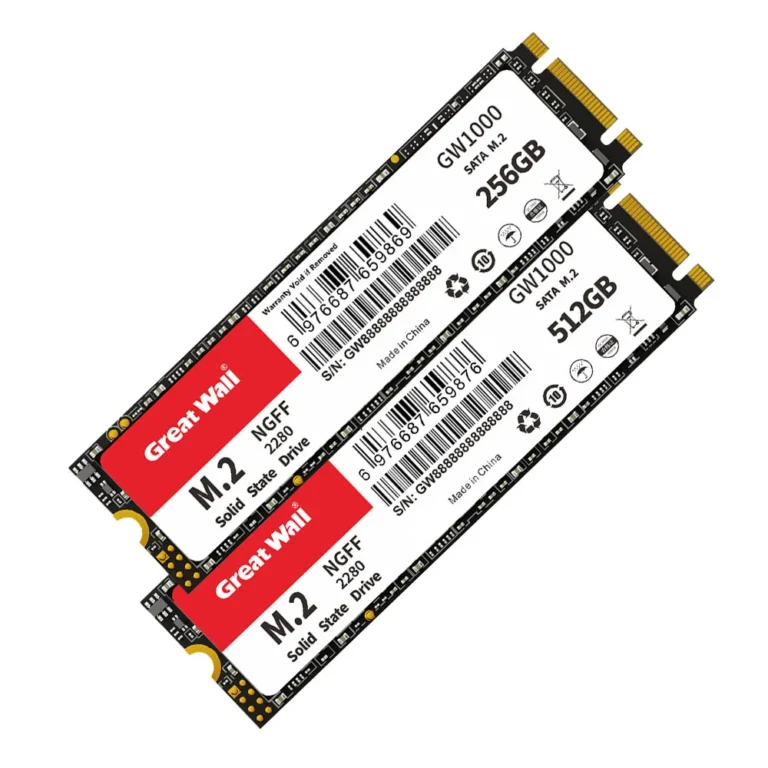
- Pick the right NVMe. Choose Gen3 x4 or Gen4 x4 depending on your board and budget. Faster drives need matching slots.
- Update firmware. Update NVMe and motherboard firmware before heavy use. Firmware updates often add stability and performance fixes.
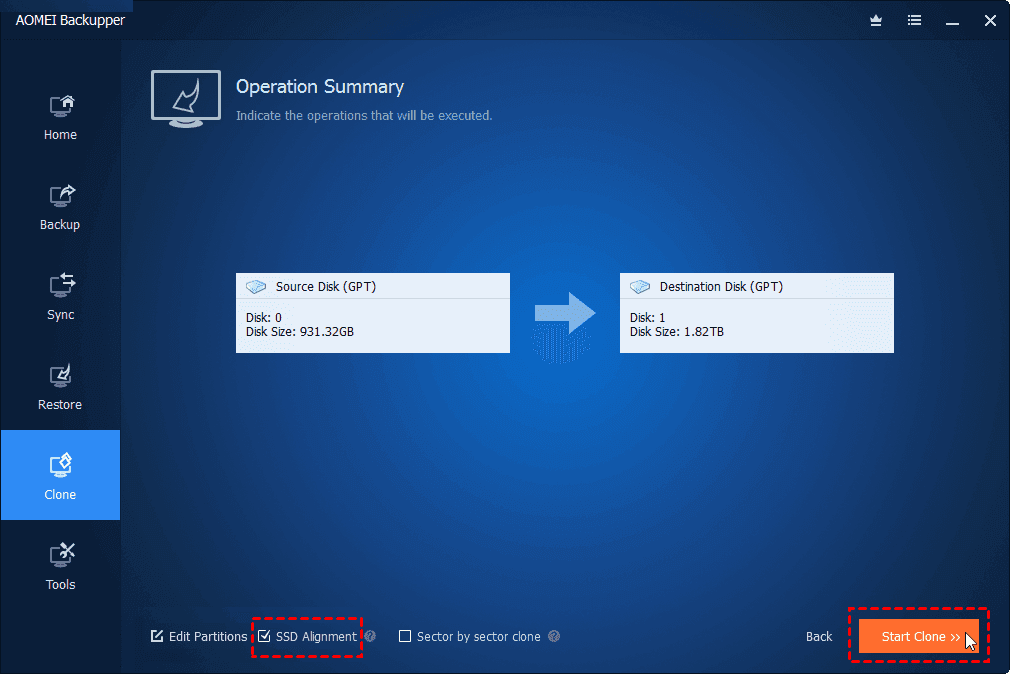
- Backup data. If you clone, backup first. Cloning tools can misalign partitions if done incorrectly.
I once moved my OS to a new NVMe without updating firmware. The drive hit thermal throttling badly until a firmware patch fixed power scaling.

BIOS / UEFI settings to maximize NVMe speed
Small BIOS changes produce big gains. Use these settings for best throughput and lowest latency.
- Enable UEFI boot. Windows 11 needs UEFI and GPT for Secure Boot and best NVMe support.
- Use the correct PCIe mode. Set the slot to PCIe x4 mode or Auto. Avoid legacy or forced Gen1/Gen2 limits.
- Disable legacy SATA mode if not used. If your board offers AHCI vs RAID, choose AHCI unless you need RAID features.
- Check M.2 thermal settings. Some UEFI offer M.2 cooling or performance modes. Enable them if present.
- Update BIOS. Keep motherboard BIOS current to fix NVMe compatibility and lane allocation bugs.
I learned to check which slot is wired to the CPU. Putting a Gen4 drive in a chipset-based slot reduced speed on my test rig until I moved it to the CPU lane.
Windows 11 configuration for NVMe drives
Windows settings matter. These tweaks are safe and often improve responsiveness.
- Keep Windows updated. Microsoft updates include storage stack and NVMe driver improvements.
- Use the vendor NVMe driver when recommended. Many manufacturers provide optimized drivers for their drives. Test both vendor and Microsoft drivers for best results.
- Verify TRIM is enabled. Run fsutil behavior query DisableDeleteNotify. A result of 0 means TRIM is on.
- Let Windows manage pagefile. For most systems, leaving pagefile on the NVMe is best for performance and stability.
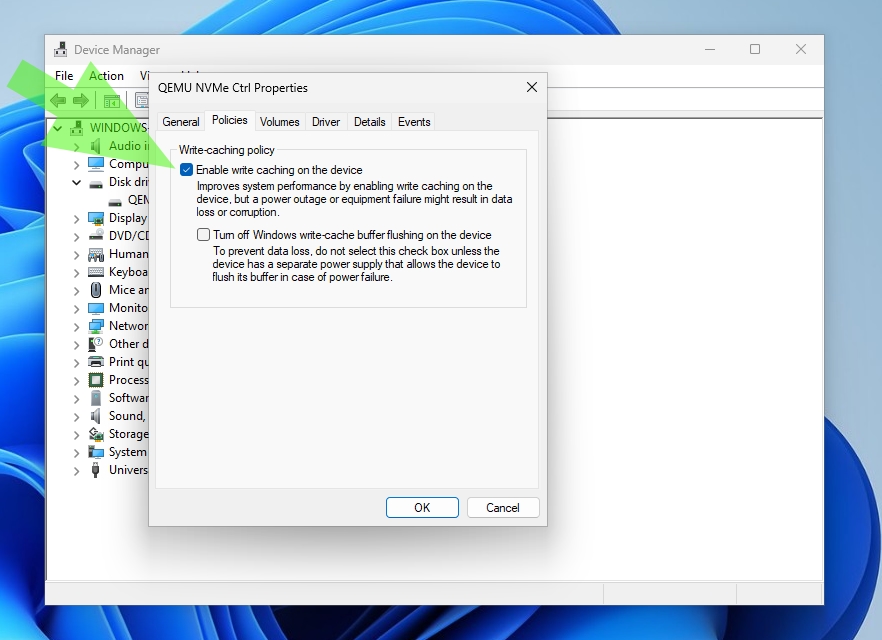
- Enable write caching policy cautiously. In Device Manager, check Policies for your drive. Write caching can boost speed but increases risk in power loss. Use a UPS if you enable it.
I switched from the generic driver to my drive maker’s NVMe driver and gained lower latency in heavy IO tasks. The install was simple and reversible.
Storage and file system optimization
File system and partition choices help performance and longevity.
- Use NTFS or ReFS properly. NTFS is the default and works best for most users. ReFS is for specific server or resilience needs.
- Ensure proper partition alignment. Windows installer aligns partitions correctly. For cloned drives, check alignment with diskpart or third-party tools.
- Avoid excessive small-file work on the NVMe. Use an HDD for large cold archives when possible. This reduces write cycles on the NVMe.
- Keep 10–20% free space. NVMe controllers rely on spare area for wear leveling and consistent speed.
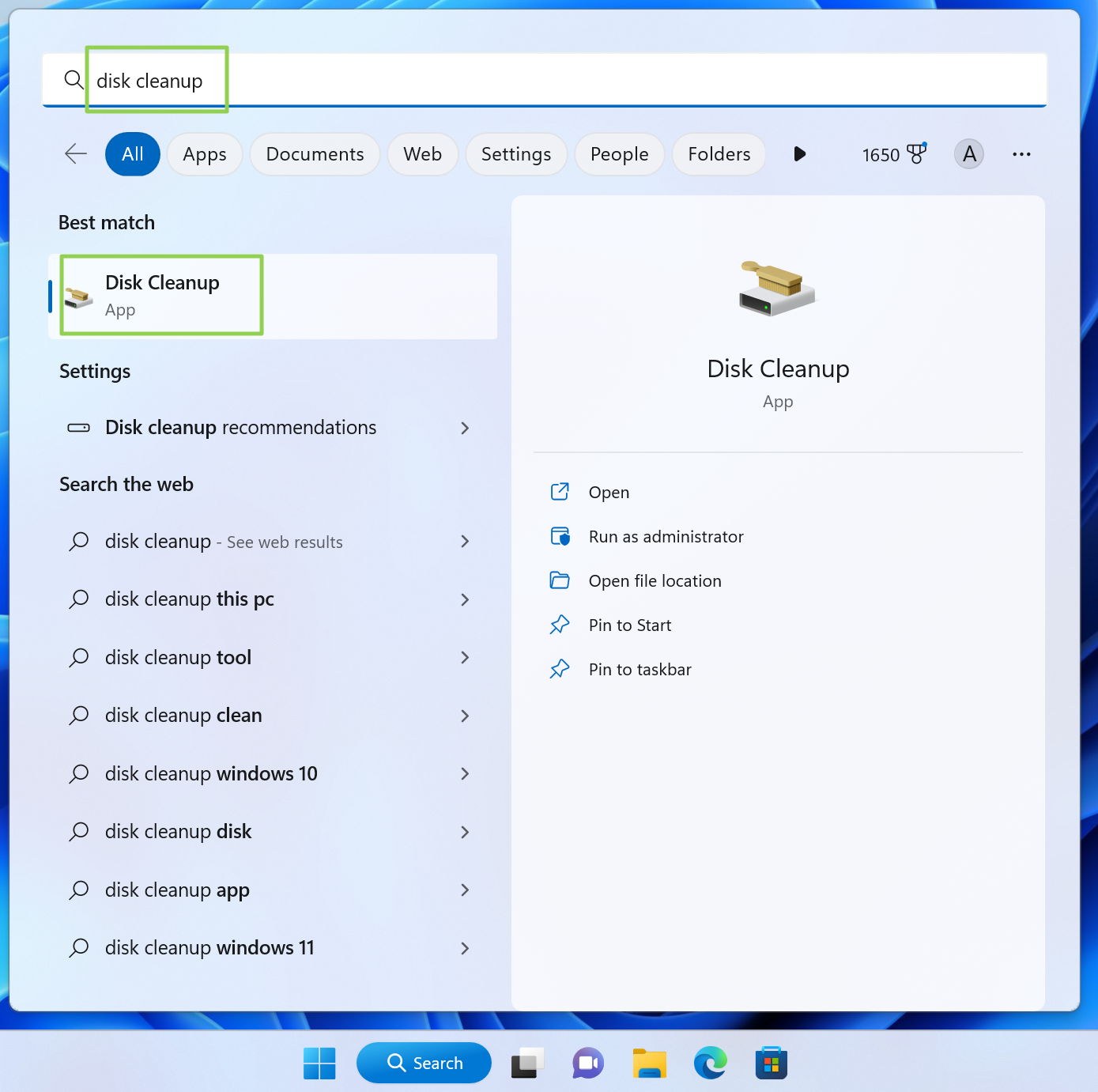
- Disable scheduled defrag for SSDs if necessary. Windows 11 handles SSD maintenance, but confirm "Optimize Drives" shows Retrim, not defrag.
On one system, I saw sustained write drop until I freed space to reach 20% free. Performance normalized afterward.
Power, thermal, and driver considerations
Thermal throttling is the most common real-world limiter of NVMe speed.
- Use an M.2 heatsink or the motherboard’s built-in shield. Small heatsinks cut throttling significantly.
- Improve case airflow. Direct a fan over the drive area. NVMe temperatures fall and speeds hold up better.
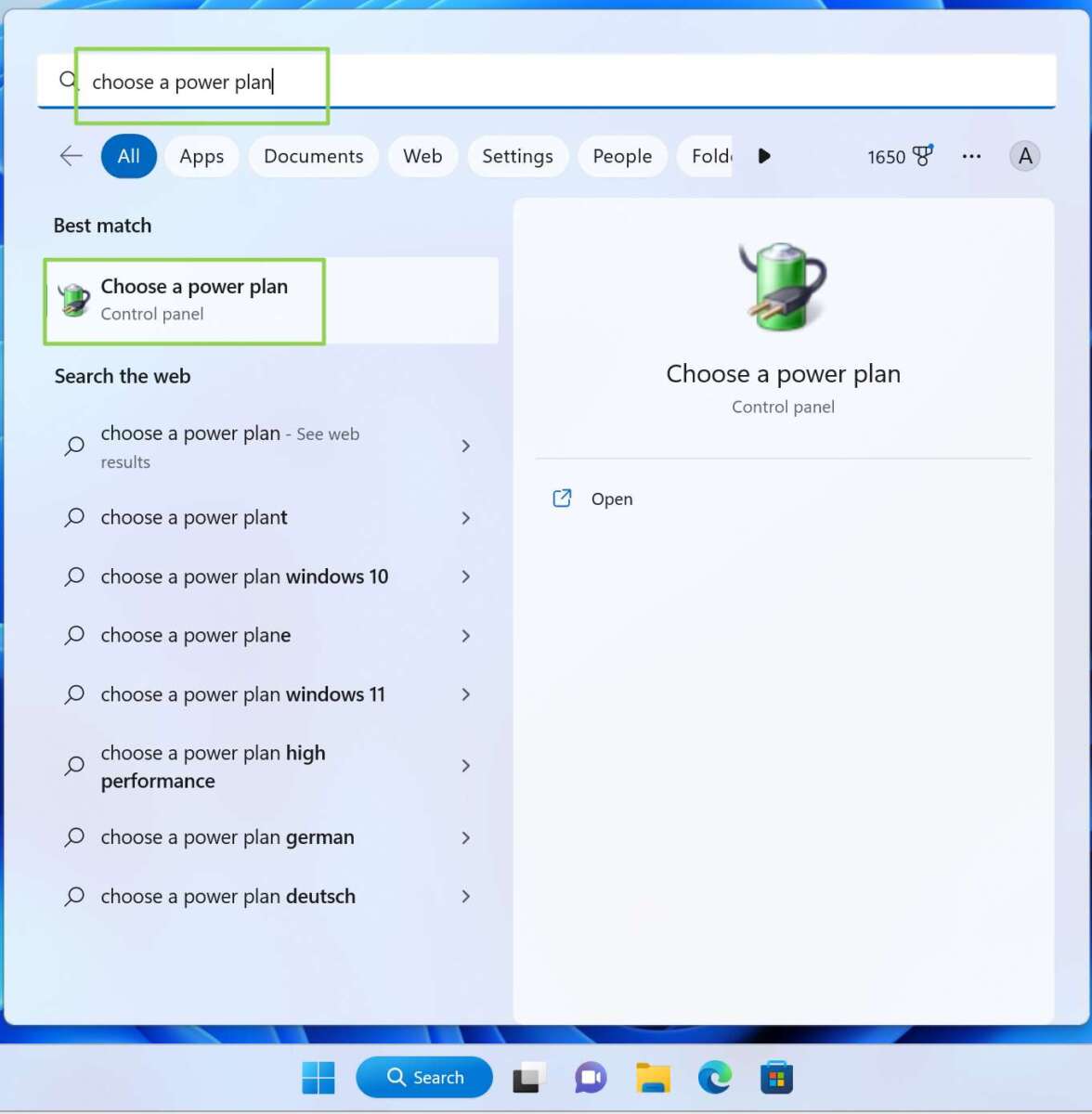
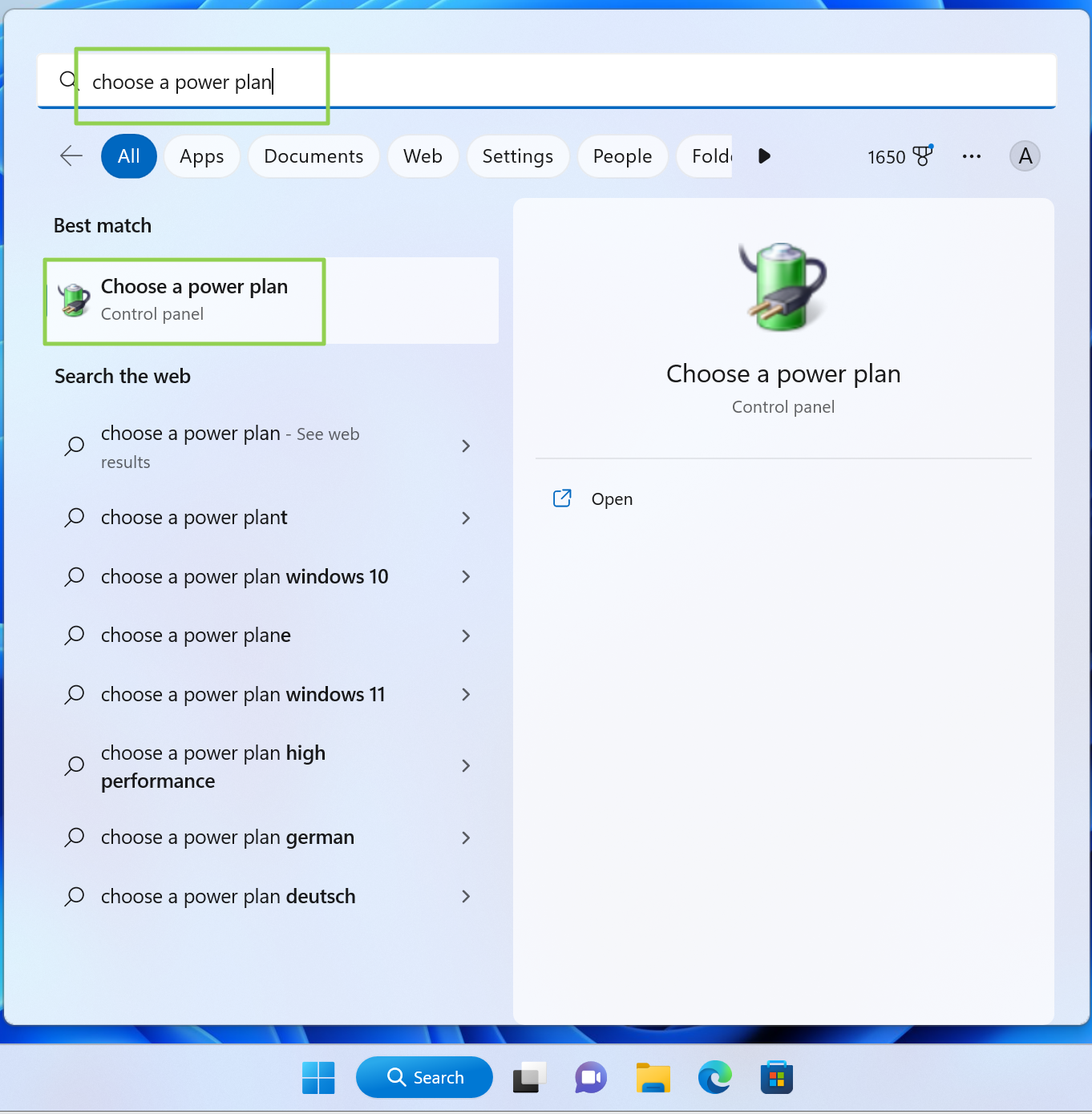
- Choose the right power plan. In Power Options, set the plan to High Performance or Balanced with PCIe Link State Power Management set to Off for consistent throughput.
- Monitor driver updates. Keep the NVMe driver current. New drivers improve latency and compatibility.
- Use a UPS for write caching. If you enable aggressive caching, protect against power loss.
I replaced a cramped case fan arrangement and added an M.2 heatsink. My sequential throughput stayed near peak for much longer during large file copies.
Monitoring and testing performance
Measure before and after to see gains. Use consistent tests and tools.
- Use CrystalDiskMark or AS SSD. These provide synthetic read/write metrics. Run multiple passes and record results.
- Use real-world tests. Copy mixed files and run application load tests. Real work shows practical gains.
- Check SMART data. Use utilities that read SMART NVMe attributes. Watch for high temperature or media errors.
- Use Windows Performance Monitor. Track disk queue length and latency during heavy tasks.
- Repeat tests after firmware and driver changes. This shows impact.
When I tuned a system, CrystalDiskMark jumps were obvious. Real file transfers also improved by 20–40% after cooling and driver updates.
Common mistakes and troubleshooting
Avoid pitfalls that waste time and reduce performance.
- Installing in legacy BIOS mode. That limits NVMe booting and can cause slowdowns. Use UEFI.
- Putting the drive in a shared-lane slot. Some slots share lanes with GPUs. This reduces bandwidth.
- Ignoring firmware updates. Old firmware can limit performance or cause stability issues.
- Disabling everything indiscriminately. Turning off Trim, SysMain, or indexing without testing can hurt responsiveness.
- Over-optimizing writes. Constantly moving or disabling system features to "save writes" often has negligible benefit on modern NVMe endurance.
I once disabled TRIM to "save writes." That caused steady slowdowns. Re-enabling TRIM fixed it quickly.
Real-life checklist: How to optimize Windows 11 for NVMe SSD performance
Follow this short checklist to apply changes quickly.
- Update BIOS and NVMe firmware.
- Install Windows 11 in UEFI/GPT mode.
- Place the NVMe in the correct M.2 slot (CPU lanes if possible).
- Install manufacturer NVMe driver if recommended.
- Verify TRIM is enabled and free space is at least 10–20%.
- Add an M.2 heatsink and improve airflow.
- Set Power Plan to High Performance and disable PCIe Link State Power Management.
- Test with CrystalDiskMark and real file transfers.
Use this list as a quick guide when you set up a new NVMe or migrate your OS.
Personal tips and lessons learned
I tune many machines for clients. A few practical notes I learned the hard way.
- Test before you change. Measure baseline performance first.
- Small thermal fixes help most. A heatsink or better airflow beats many software tweaks.
- Firmware sometimes fixes odd slowdowns. Don't ignore vendor updates.
- Be conservative with aggressive caching. Use a UPS if you enable it.
- Keep backups. Any storage work benefits from a solid restore plan.
One client saved hours after I moved their drive to the CPU-connected M.2 slot. It fixed mysterious slowdowns in consistent tasks.
SEO-friendly wrap-up of key concepts
This article shows how to optimize Windows 11 for NVMe SSD performance by covering BIOS, drivers, firmware, Windows settings, thermal control, and testing. Follow the checklists and test results to confirm gains. Small changes often yield the biggest benefits.
Frequently Asked Questions of how to optimize windows 11 for nvme ssd performance
How do I check if TRIM is enabled on Windows 11?
Run the command fsutil behavior query DisableDeleteNotify in an elevated command prompt. A result of 0 means TRIM is enabled, 1 means it is disabled.
Should I move the pagefile off my NVMe SSD?
No, for most users keeping the pagefile on the NVMe is best for performance and stability; Windows manages it well. Move it only for specific multi-drive setups or specialized tasks.
Do I need a special NVMe driver on Windows 11?
Windows 11 includes a built-in NVMe driver that works well. Use a vendor driver if the manufacturer recommends it or if you need specific optimizations.
Can NVMe drives overheat and slow down?
Yes, NVMe drives can throttle when hot. Use heatsinks and improve airflow to keep sustained performance high.
Is UEFI required for NVMe boot on Windows 11?
Yes, using UEFI with GPT is the correct setup for Windows 11 boot on NVMe drives and enables features like Secure Boot.
Conclusion
You can extract excellent speed and reliability from an NVMe drive on Windows 11 by updating firmware, using the proper M.2 slot, tuning BIOS and power settings, and controlling thermals. Start with the checklist, measure changes, and back up your data before big moves. Try the recommended tests and tweaks, then share results or questions below — your feedback helps refine real-world tips for everyone.

Everett Ashford is a tech reviewer at mytechgrid.com specializing in SSDs, cameras, TVs, earbuds, headphones, and other consumer electronics. He provides honest, data-driven reviews based on hands-on testing and real-world performance analysis. Everett simplifies complex tech details to help readers make smart, confident buying decisions.