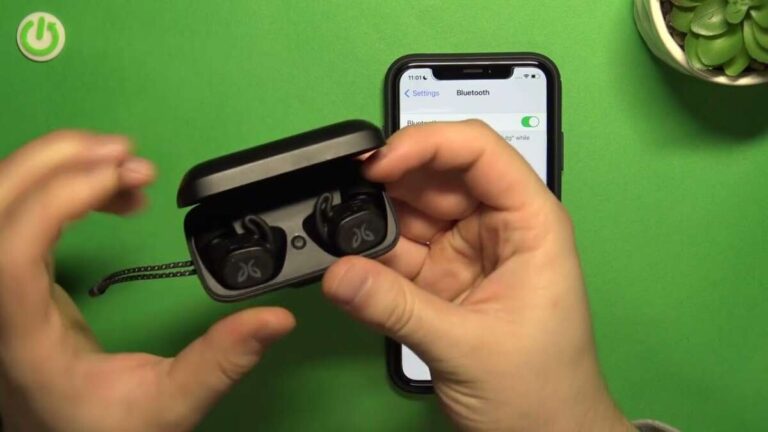
Turn on your Skullcandy earbuds, enable Bluetooth on your device, and select them to pair.
I’ve spent years fixing audio pairing problems for friends and clients, and syncing Skullcandy earbuds is a task I’ve done dozens of times. This guide walks you through clear steps, model specifics, troubleshooting tips, and smart habits so you can learn how to sync Skullcandy earbuds reliably every time. Read on for easy instructions, common fixes, and real-world tips from someone who’s tested these earbuds across phones, tablets, and laptops.
Why pairing can be tricky
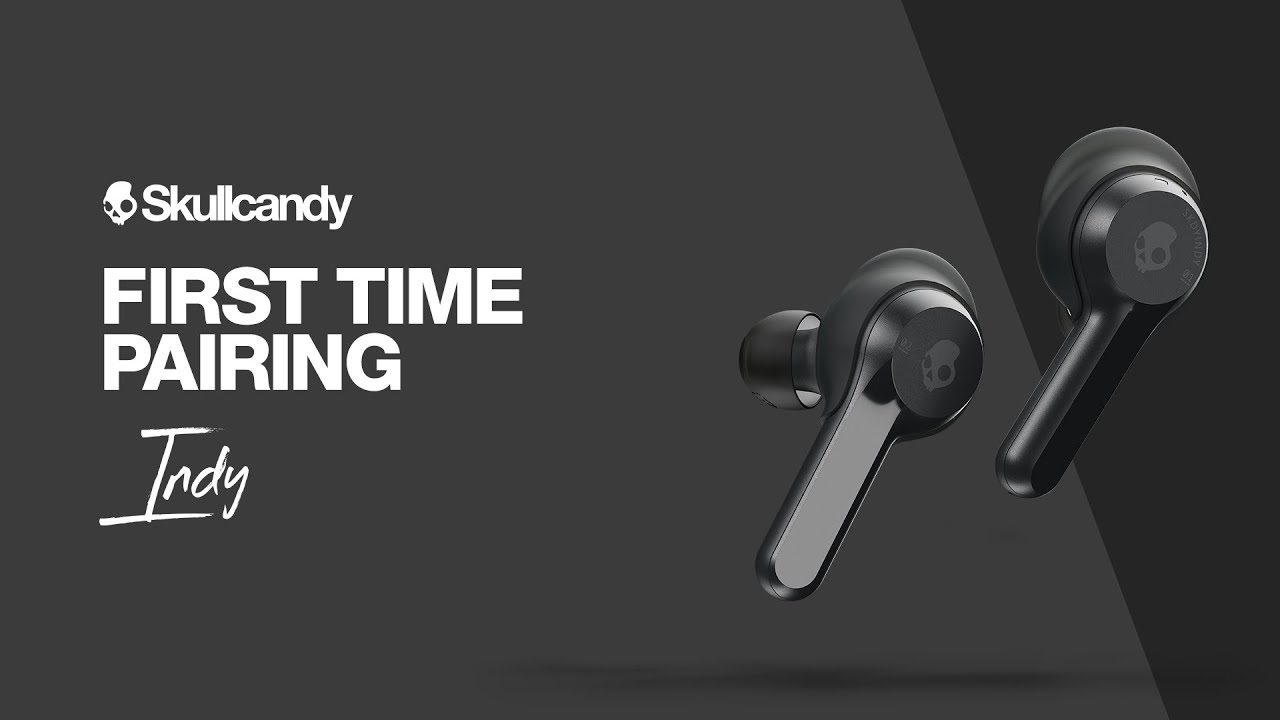
Pairing earbuds sounds simple. Yet small differences in model design, firmware behavior, and phone settings make it confusing. Skullcandy models use similar but not identical pairing flows. Some use single-earbud pairing. Others require both earbuds in the case. Phone Bluetooth caches old data and can block new connections.
I’ve seen users reset devices many times when a simple step was missed. Knowing the exact steps for your model removes guesswork. This article explains model-specific steps and shows what to try when pairing fails.
Step-by-step: How to sync Skullcandy earbuds
This section gives clear steps you can follow. Use the steps that match your Skullcandy model: true wireless buds, single-wire models, or Bluetooth headsets.
- Prepare your device
- Turn Bluetooth on in your phone, tablet, or computer.
- Close apps that use audio. They can interfere with pairing.
- Reset Bluetooth on your device if needed
- Toggle Bluetooth off, wait five seconds, then toggle it on.
- If problems persist, forget/delete any existing Skullcandy entry in the Bluetooth list.
- Put the earbuds into pairing mode
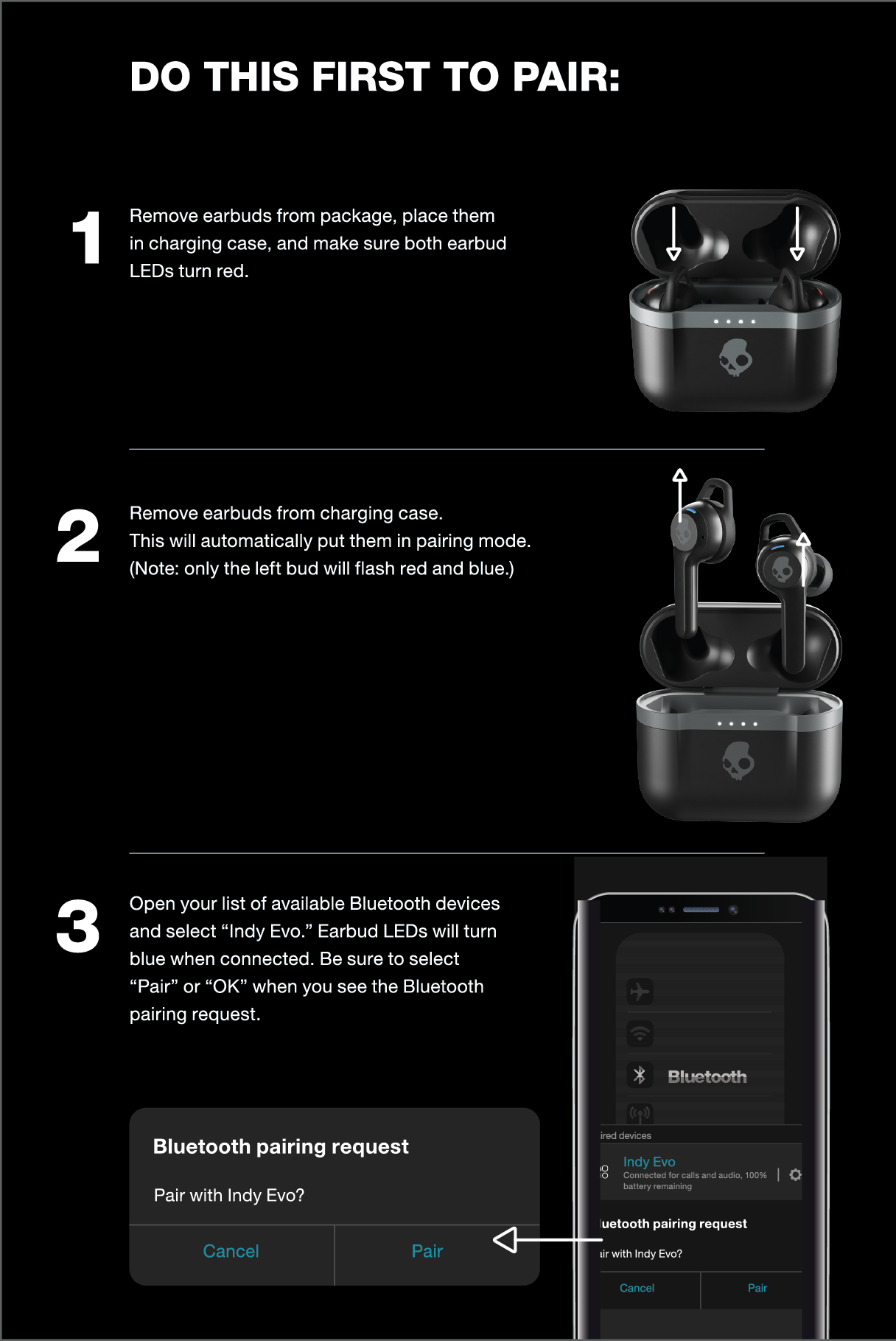
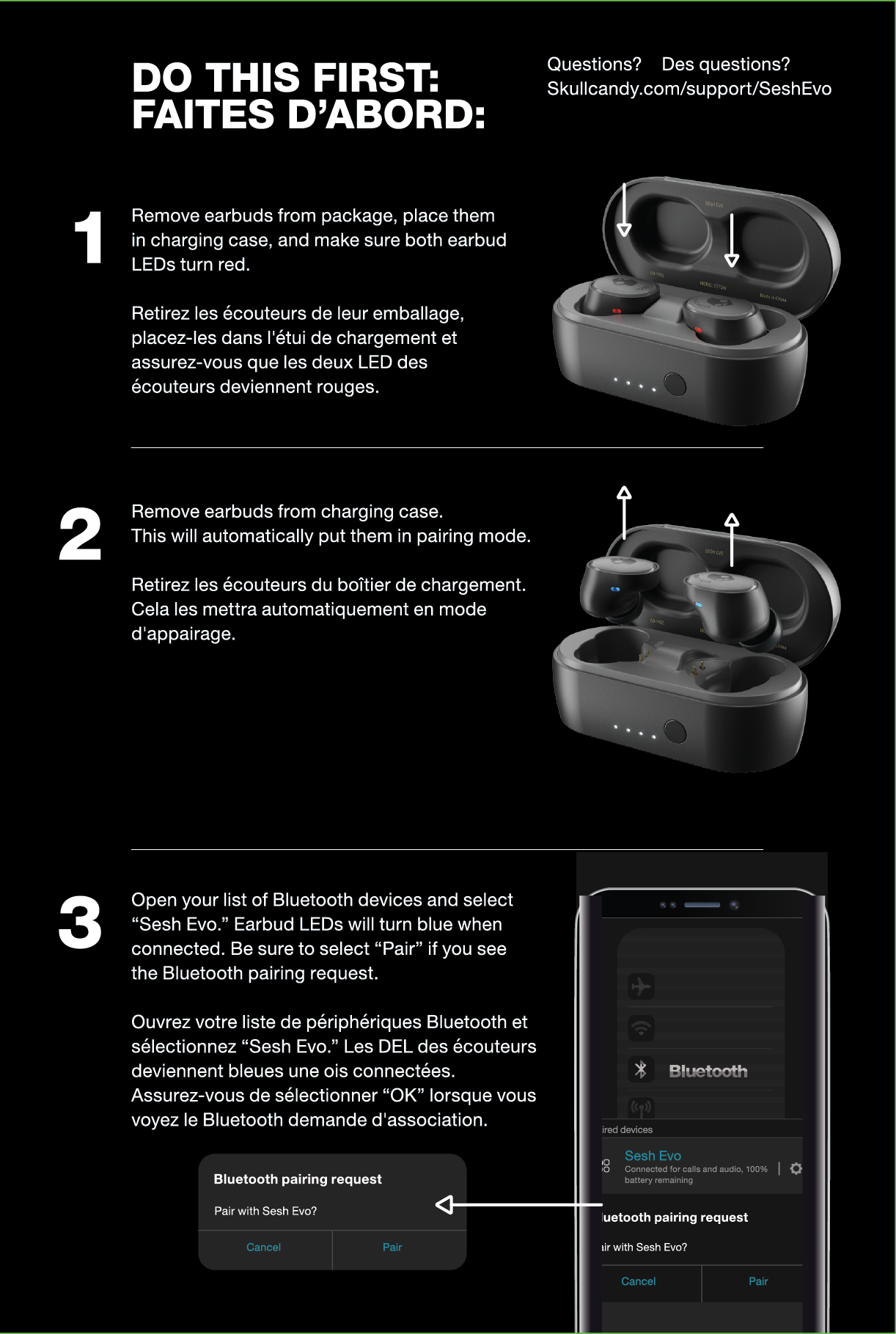
- For most true wireless Skullcandy earbuds, remove both earbuds from the case to power them up. They usually enter pairing mode automatically the first time.
- If they don’t, press and hold the button on each earbud for about five seconds until an LED flashes or you hear a voice prompt.
- For single-earbud pairing models, press and hold the main earbud button until the LED flashes red/blue or you hear "pairing".
- Select the earbuds on your device
- Look for a name like "Skullcandy Indy" or "Skullcandy Sesh" in the Bluetooth list.
- Tap to connect. You may see “Connected for calls and audio” once pairing completes.
- Confirm both earbuds are connected
- Play audio and check sound from both sides.
- If only one side plays, place earbuds back in case and repeat pairing or follow the reset steps below.
Personal tip: I carry a small notebook with model names and the exact press-hold timing. That cuts trial-and-error in half when I help others sync Skullcandy earbuds.

Model-specific quick notes
Skullcandy has several popular models. These quick notes reduce searching when you need model-specific help.
- Sesh/Indy series
- Remove both buds and wait for the voice prompt. If they were previously paired, use the case reset or touch/press both buds to re-enter pairing mode.
- Push/Push Active
- Use the multi-function button. Hold for 4–6 seconds until the LED blinks.
- Grind/Crusher Bluetooth
- For over-ear models, hold the power button until the LED cycles. Then select on your device.
- Method and Dime
- These often reconnect automatically. If they don’t, forget them in device Bluetooth and re-pair.
I learned these differences by testing each model after firmware updates. Small firmware changes can change button timing, so treat the notes as a shortcut, not a rule.
Troubleshooting common issues when you try to sync Skullcandy earbuds
If pairing fails, try these fixes in order. Each step is short and usually resolves the issue.
- No LED or sound from earbuds
- Charge the case and earbuds for 15–30 minutes. A drained battery often looks like a pairing problem.
- Device can’t find earbuds
- Move closer to the device. Turn off other Bluetooth devices nearby. Restart Bluetooth on your phone.
- Earbuds pair but only one side works
- Place both earbuds in the case to force a reset. Remove them and try pairing again. If that fails, perform a factory reset as per the manual.
- “Pairing failed” or “Authentication error”
- Forget the Skullcandy entry on your phone. Restart the phone and restart the earbuds pairing mode.
- Random disconnections
- Check for wireless interference. Update your phone OS and the earbuds’ firmware if an app supports updates.
Real experience: I once fixed repeated dropouts by switching my smartwatch’s Bluetooth off. Nearby devices can steal the connection unexpectedly.

How to reset Skullcandy earbuds (general method)
A reset often fixes stubborn pairing problems. Steps vary a bit across models, but this general method works for many true wireless Skullcandy earbuds.
- Place both earbuds in the charging case.
- Keep the case open.
- Press and hold the earbuds’ touch area or button for about 10 seconds.
- Watch for LED flashes or listen for a voice prompt indicating reset.
- Close the case, then reopen and attempt pairing again.
If that method doesn’t work, check the manual for your exact model. I recommend writing the reset steps on a sticker and keeping it with the case for quick reference.
Tips for better connection and battery care
Simple habits improve reliability and battery life. These tips come from routine use and testing.
- Charge regularly
- Don’t let the battery drop to zero often. Frequent shallow charges keep lithium batteries healthy.
- Keep firmware updated
- Use the Skullcandy app if available for your model. Firmware can fix pairing bugs.
- Store earbuds properly
- Always return them to the case. This keeps contacts clean and ensures they sleep correctly.
- Minimize interference
- Avoid crowded Wi-Fi or Bluetooth zones during pairing. Move to a quieter area if pairing fails.
From my experience, users who follow these habits pair their Skullcandy earbuds faster and have fewer dropouts.

Advanced features and multi-device tips
Many Skullcandy earbuds support quick switching and voice assistant activation. Knowing these features helps you use earbuds across devices.
- Multi-device switching
- Some models reconnect to the last device automatically. To switch, pause audio on the current source, then select the earbuds in the new device’s Bluetooth list.
- Voice assistant
- Press-and-hold commands usually launch your phone’s assistant. Check your model guide for exact gestures.
- Firmware and app
- Use the Skullcandy app for EQ adjustments, firmware updates, and locating lost buds. Updates fix bugs and improve pairing.
- Using with computers
- For laptops, pair via the OS Bluetooth settings. Use the audio settings to set the earbuds as the default playback device.
I tested multi-device switching between a laptop and phone. It worked well once I updated firmware and removed old pairings.
PAA-style questions (short answers)
-
Why won’t my Skullcandy earbuds pair with my phone?
- Often the phone still has a cached pairing. Forget the device in Bluetooth, restart both devices, and re-pair. Low battery can also block pairing.
-
How do I reset Skullcandy earbuds that won’t connect?
- Place them in the case, press and hold the buttons for about 10 seconds, watch for LED flashes, then re-pair. Check your model’s manual for exact steps.
-
Can I pair Skullcandy earbuds to two devices at once?
- Most models don’t support true simultaneous connections. They usually remember multiple devices and reconnect to the last one used.
-
Do firmware updates help pairing problems?
- Yes. Firmware can fix Bluetooth bugs and improve stability. Use the official app if your model supports updates.
-
Is a weak battery causing disconnection?
- Yes. Low battery often causes drops or failure to enter pairing mode. Charge earbuds and case before pairing.
Frequently Asked Questions of how to sync skullcandy earbuds
How do I put Skullcandy earbuds into pairing mode?
Most true wireless Skullcandy earbuds enter pairing mode when you remove both from the case. If not, press and hold the button or touch area until the LED flashes or you hear a voice prompt.
Why does only one earbud connect?
If only one earbud connects, the buds may be out of sync. Place both back in the case, reset them per the manual, and then try pairing again.
How long does syncing usually take?
Pairing typically takes 5–15 seconds after the earbuds enter pairing mode. If it takes longer, restart Bluetooth and repeat steps.
My phone finds the earbuds but won’t connect. What should I do?
Forget the earbuds in your phone’s Bluetooth list, restart Bluetooth, and put the earbuds back into pairing mode. If that fails, try a factory reset on the earbuds.
Can I update Skullcandy earbuds firmware myself?
Yes. Use the Skullcandy mobile app for supported models. Firmware updates are easy and often fix pairing issues and improve audio performance.
Do Skullcandy earbuds work with any Bluetooth device?
They work with devices that support standard Bluetooth audio profiles. Most phones, tablets, and laptops are compatible. Very old devices may not be supported.
How do I stop random disconnects?
Keep earbuds and phone close. Turn off other Bluetooth devices nearby. Update firmware and keep batteries charged for best stability.
Conclusion
You now have a clear path for how to sync Skullcandy earbuds, from basic pairing to resets and model-specific tips. Try the recommended steps in order: charge, enter pairing mode, forget old entries, and reset if needed. Use the Skullcandy app and firmware updates for long-term stability. Put these tips into practice the next time you pair, and you’ll save time and frustration. If this guide helped, leave a comment below, share your model and issue, or subscribe for more practical audio tips.

Everett Ashford is a tech reviewer at mytechgrid.com specializing in SSDs, cameras, TVs, earbuds, headphones, and other consumer electronics. He provides honest, data-driven reviews based on hands-on testing and real-world performance analysis. Everett simplifies complex tech details to help readers make smart, confident buying decisions.