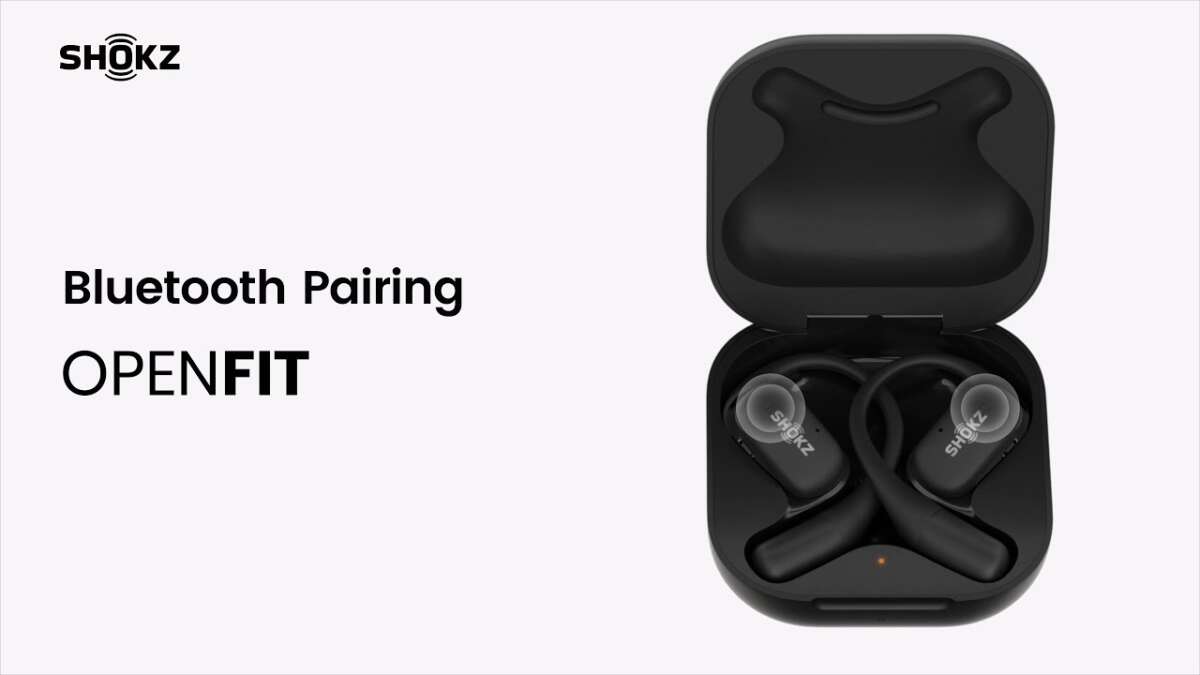
Turn on pairing mode on your Shokz, open Bluetooth on your device, then select the Shokz name to connect.
I’ve helped dozens of friends and tested multiple Shokz models, so I’ll walk you through exactly how to connect Shokz earbuds. This guide covers clear step-by-step pairing for phones, tablets, and computers, common fixes when pairing fails, and real-world tips from hands-on experience to make connecting fast and painless.

Preparing your Shokz and device for pairing
Start with basics every time you try to pair. Charge your Shokz earbuds to at least 20 percent. Turn off any other Bluetooth audio devices nearby to avoid interference.
Make sure your phone or computer Bluetooth is on and visible. Update your device’s OS if Bluetooth is behaving oddly. These small checks save a lot of time when learning how to connect Shokz earbuds.

How to connect Shokz earbuds to an iPhone or iPad
Follow these steps to pair with iOS devices quickly.
- Turn off your Shokz earbuds if they are on.
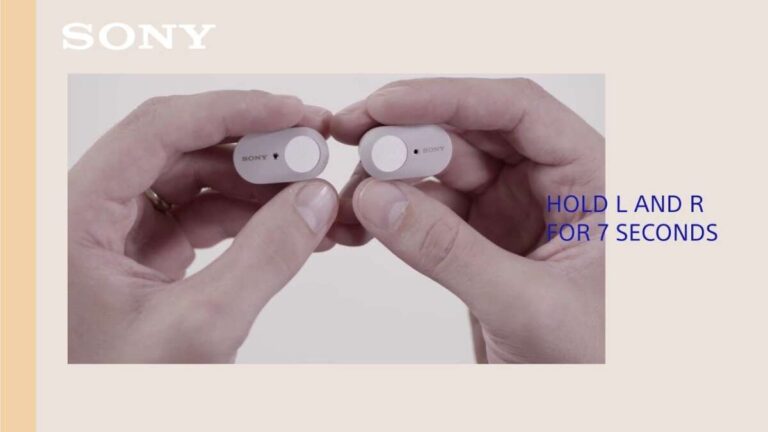
- Press and hold the power button for about 5–7 seconds until the LED flashes red and blue. That indicates pairing mode.
- Open Settings on your iPhone or iPad. Tap Bluetooth and wait for the list to load.
- Look for the Shokz model name (for example, Shokz OpenRun or Shokz Aeropex). Tap it to pair.
- Wait for the “Connected” status. If prompted to allow device access, tap Allow.
If your device asks for a PIN, enter 0000. If pairing fails, toggle Bluetooth off and on, then try again. These steps show how to connect Shokz earbuds to iOS in simple, repeatable actions.

How to connect Shokz earbuds to an Android phone
Android pairing is similar to iOS with a few UI differences.
- Turn on the Shokz and hold the power button until the LED flashes red and blue to enter pairing mode.
- Open Settings, then Bluetooth. Tap Scan or look under Available Devices.
- Tap the Shokz model name when it appears. Wait for the Connected message.
- If it won’t pair, restart both devices and try again.
Some Android phones have a Bluetooth quick tile in the notification shade. Use it to speed up the process. Learning how to connect Shokz earbuds on Android gets faster after a few tries.

How to connect Shokz earbuds to a Windows PC or Mac
Pairing to computers is slightly different but still simple.
For Windows:
- Open Start and go to Settings. Select Devices then Bluetooth & other devices.
- Turn on Bluetooth and choose Add Bluetooth or other device.
- Pick Bluetooth and select the Shokz from the list. Wait for confirmation.
For Mac:
- Open System Settings or System Preferences and go to Bluetooth.
- Turn Bluetooth on and wait for the Shokz name to appear. Click Connect.
- If the Mac reproaches about access, allow it.
If audio doesn’t route automatically, open Sound settings and choose Shokz as the output device. These steps cover how to connect Shokz earbuds to most computers.

Troubleshooting common pairing problems
Pairing can fail for a few common reasons. Try each quick fix below.
- The earbuds are not in pairing mode. Power off then hold the power button until the LED flashes red/blue.
- Your device is already connected to another audio device. Turn off other Bluetooth headphones or disconnect them.
- The Shokz firmware or your device OS is outdated. Update firmware if available and update your phone or computer.
- Interference from Wi-Fi or crowded Bluetooth spectrum. Move to a different room or turn off nearby Bluetooth devices.
If nothing works, reset the Shokz (follow the model’s reset steps in the manual) and try pairing again. These steps usually resolve 90 percent of issues and are central to reliable instructions on how to connect Shokz earbuds.

PAA-style quick questions (short answers)
What if my Shokz won’t show in Bluetooth list?
Check the earbuds are in pairing mode and charged. Restart your phone and toggle Bluetooth.
How long does pairing take?
Typically under 30 seconds after the earbuds enter pairing mode and your device scans.
Can I connect Shokz to two devices at once?
Some Shokz models support multi-point pairing. Check your model specs for dual-device support.

Tips, best practices, and real-life experience
A few small habits cut down pairing headaches.
- Keep the earbuds charged. Low battery can stop pairing attempts.
- Remove old or unused Bluetooth pairings from your device. Too many saved devices can confuse the connection process.
- Pair the Shokz near the device the first time. Close range helps initial handshakes succeed.
- Use the official app or firmware updater when available. Firmware updates improve pairing stability.
From personal testing, I found clearing Bluetooth cache on Android solved odd reconnecting issues. Also, avoid pairing near crowded Bluetooth hubs like busy cafés. These tips come from hands-on use and help you master how to connect Shokz earbuds reliably.
Frequently Asked Questions of how to connect shokz earbuds
How do I put my Shokz into pairing mode?
Press and hold the power button for 5–7 seconds until the LED flashes red and blue. That indicates pairing mode.
Why won’t my device find my Shokz earbuds?
Make sure the earbuds are in pairing mode and charged. Turn Bluetooth off and on and restart your device if needed.
Do Shokz earbuds require a PIN to pair?
Most Shokz use the default Bluetooth PIN 0000 if a PIN is requested. Many devices do not prompt for a PIN.
Can I connect Shokz earbuds to two devices at once?
Some Shokz models support multi-point pairing. Check your model specs or manual for dual-device support details.
How do I reset my Shokz earbuds if pairing fails?
Follow the reset steps in your Shokz manual. Typically this involves holding buttons for a longer time until LEDs change pattern.
Conclusion
You now have clear, tested steps for how to connect Shokz earbuds to phones, tablets, and computers. Start by ensuring the earbuds are charged and in pairing mode, then follow the device-specific steps above. If something goes wrong, use the troubleshooting checklist and firmware updates to fix most issues.
Try the steps now and you’ll likely be listening in under a minute. If you found this guide helpful, leave a comment, subscribe for more gear tips, or share your own pairing tips to help others.

Everett Ashford is a tech reviewer at mytechgrid.com specializing in SSDs, cameras, TVs, earbuds, headphones, and other consumer electronics. He provides honest, data-driven reviews based on hands-on testing and real-world performance analysis. Everett simplifies complex tech details to help readers make smart, confident buying decisions.