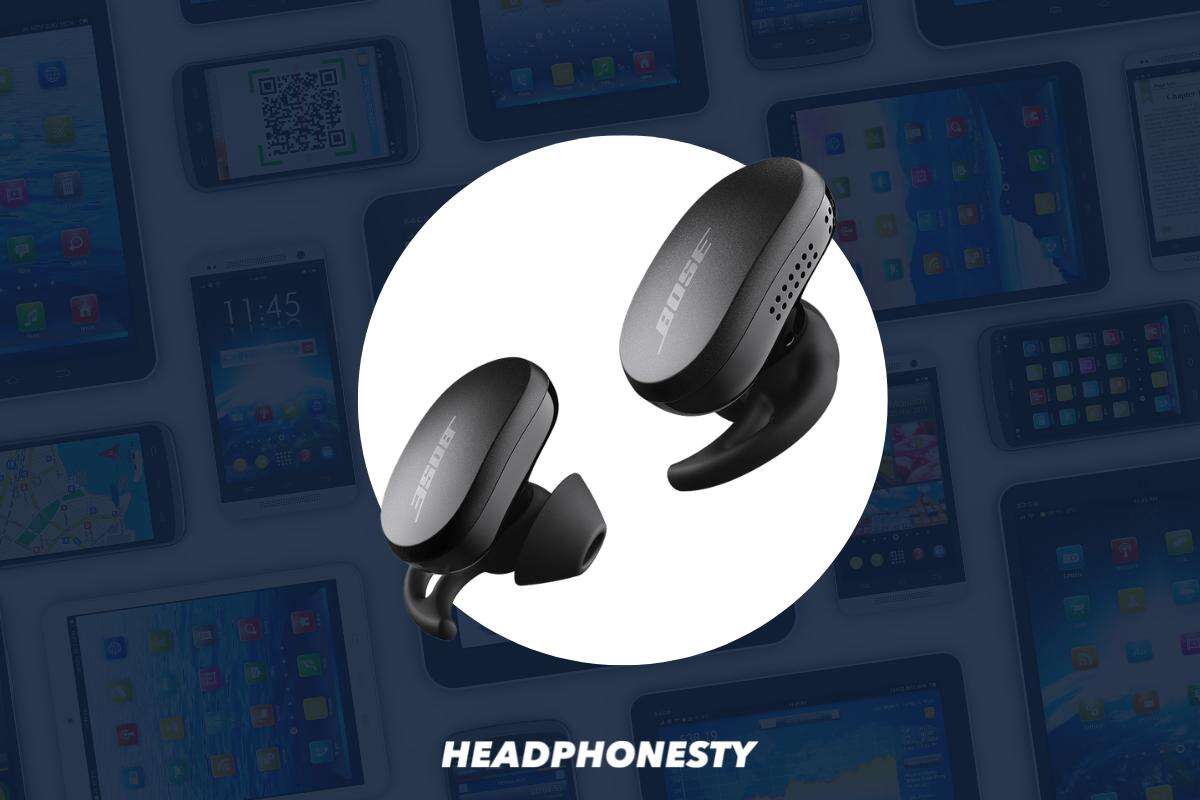
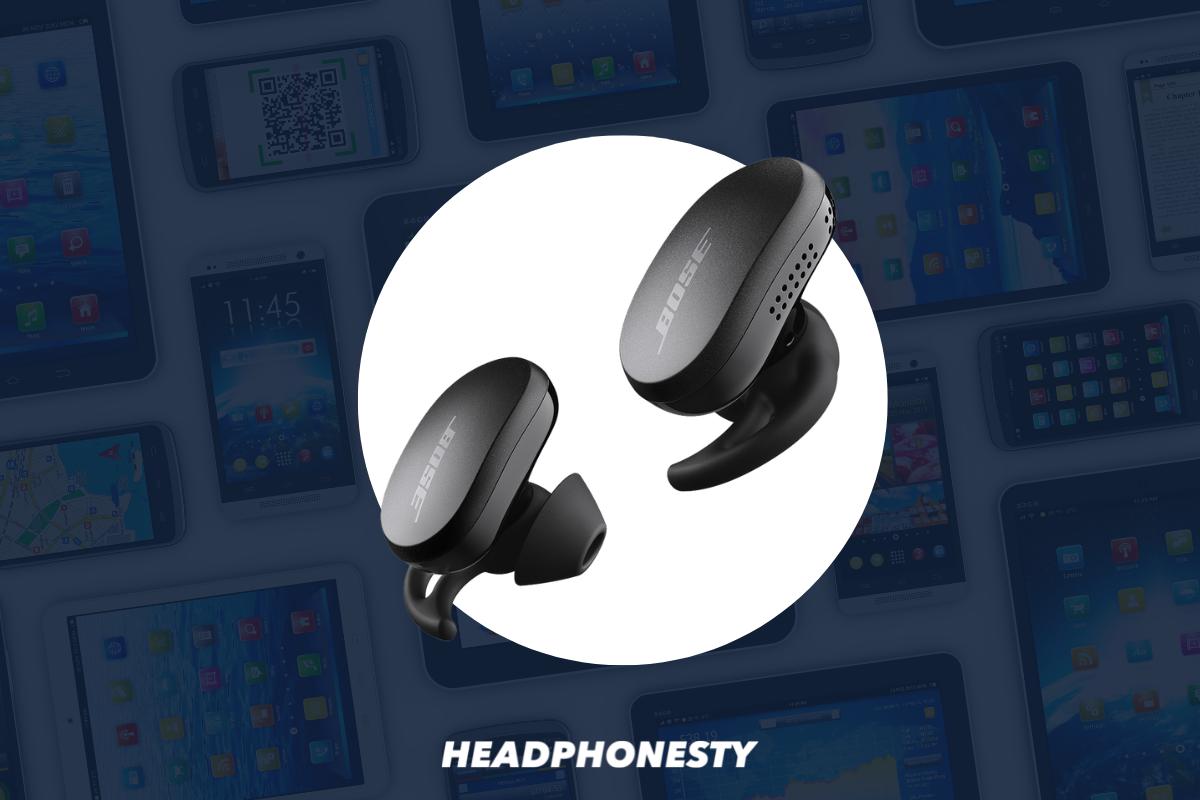
Put your Bose earbuds in pairing mode, open Bluetooth on your device, and select the earbuds from the list.
I’ve paired dozens of wireless earbuds across phones, tablets, and laptops, and I’ll walk you step-by-step through how to pair my Bose earbuds reliably. This guide covers general pairing, model-specific tips, common problems, fixes I’ve used in real life, and best practices so you can connect quickly and keep them connected.

Why pairing matters and what to expect
Pairing creates a secure Bluetooth link between your Bose earbuds and a device. Good pairing means stable audio, consistent controls, and access to firmware updates. Knowing the right steps saves time and frustration.
Pairing behavior can differ by model. Some Bose earbuds use the Bose Music app to manage pairing and updates, while true wireless models use a charging case and a physical pairing mode. I’ll show you how to handle all of these cases.
Before you start: preparation checklist
Follow this quick checklist so your pairing goes smoothly.
- Charge both earbuds and the case to at least 50 percent. Low battery can block pairing.
- Turn off Bluetooth on other nearby devices to avoid interference.
- Make sure your phone or computer supports the Bluetooth version for your earbuds.
- Install the Bose Music app if your model recommends it.
I always carry a small charging cable and the case when testing. That saved me from aborting pairing mid-process more than once.
How to pair my Bose earbuds — general step-by-step
These general steps work for most Bose earbuds. If you have a specific model, see the model-specific section below.
- Turn on your earbuds or open the charging case.
- Put the earbuds into pairing mode:
- For most models, hold the power button until the LED flashes blue or you hear a voice prompt.
- For true wireless earbuds, open the case with earbuds inside; many enter pairing mode automatically the first time.
- Open Bluetooth settings on your device and scan for new devices.
- Select the Bose earbuds name on your device. It may appear as "Bose QC Earbuds" or a similar label.
- Confirm pairing if prompted and allow permissions for contacts or audio if asked.
If your device asks for a PIN, try 0000 or 1234. I rarely see PIN prompts these days, but they still pop up on older laptops.

Model-specific pairing tips
Bose models differ. Here are targeted steps for common models and quirks I’ve encountered.
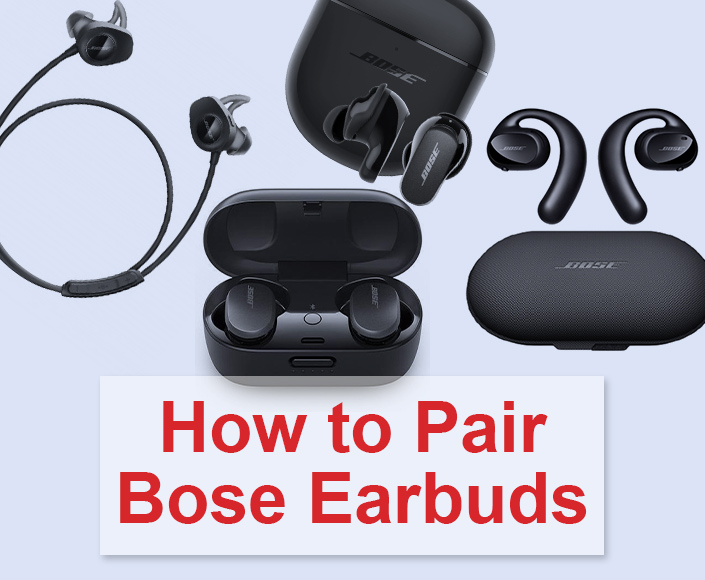
Bose QuietComfort Earbuds (1 & II)
- First-time pairing: open case near phone; follow on-screen prompts in Bluetooth settings or Bose app.
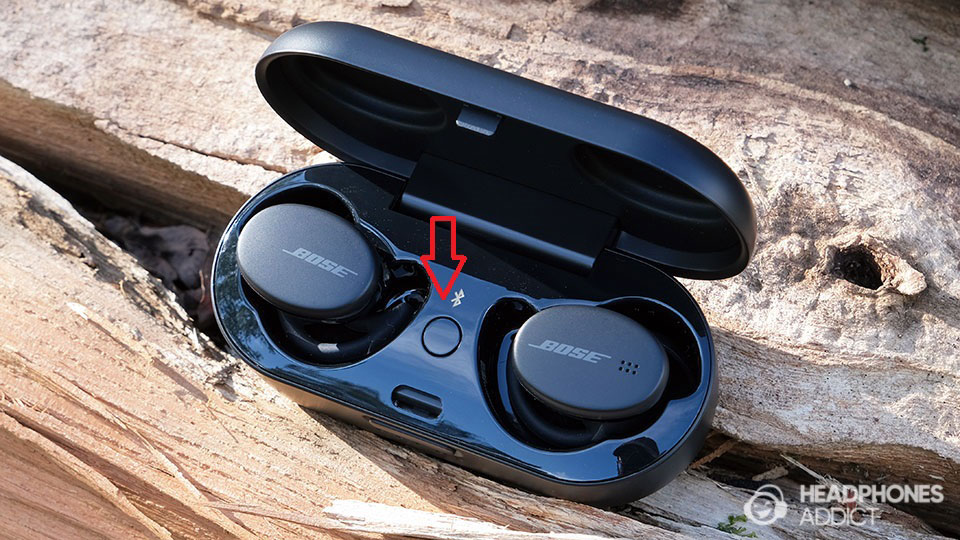
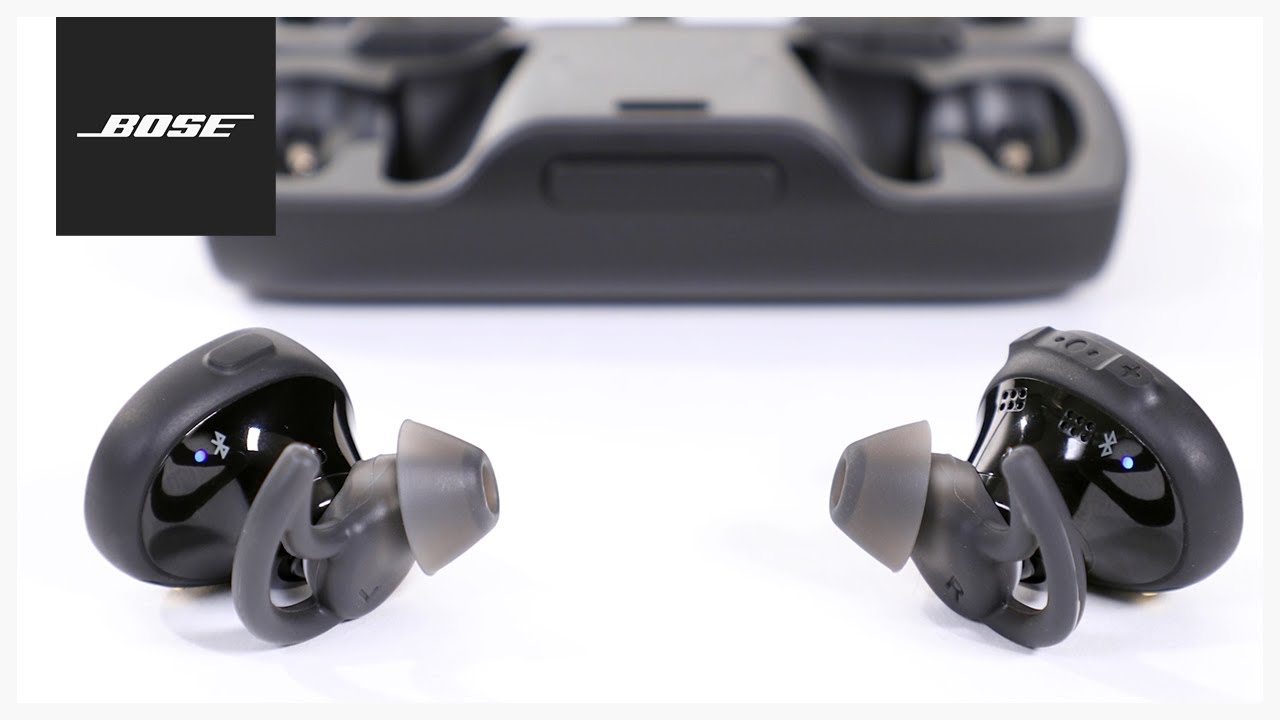
- Manual pairing: remove earbuds and press and hold the Bluetooth button on either earbud until the LED blinks blue.
Bose Sport Earbuds
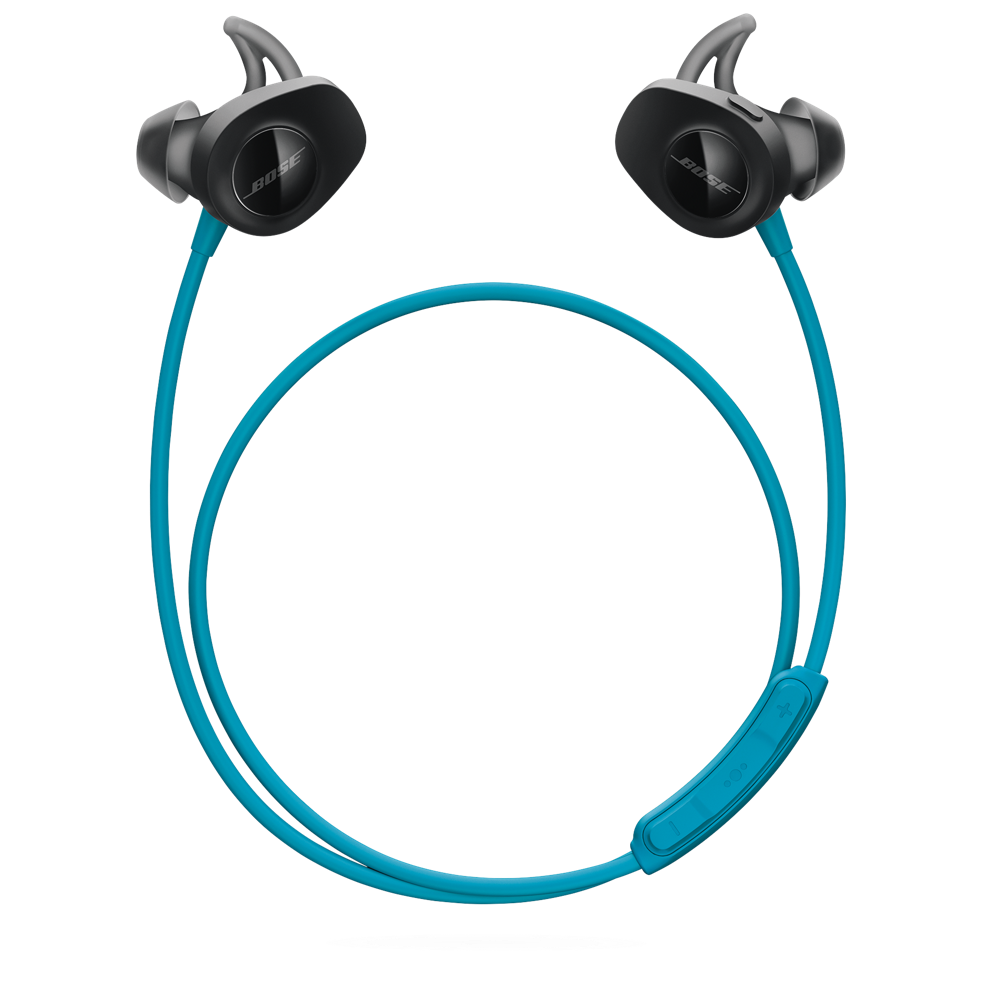
- Press and hold the button on both earbuds until they flash white and blue. Then pick them from the Bluetooth list.
- Use earbud touch controls only after pairing through the app to customize gestures.
Bose QuietComfort Earbuds SE and similar
- Some SE models need the Bose Music app for full pairing and updates. Open the app and follow the in-app pairing flow.
If your model supports the Bose Music app, I recommend using it. In my experience, the app simplifies pairing, firmware updates, and device switching.
Pairing with multiple devices and switching
Bose earbuds often pair with multiple devices, but only one can stream audio at a time. Here’s how to manage connections.
- To switch devices, stop audio on device A and start playback on device B. Many earbuds auto-switch.
- Use the Bluetooth settings on your device to disconnect one device if automatic switching fails.
- Keep the Bose Music app connected to manage and prioritize paired devices where supported.
I regularly pair my earbuds to a phone and laptop. Stopping playback on one device usually triggers a seamless switch.
Troubleshooting: common pairing problems and fixes
If pairing fails, try these clear fixes I use frequently.
-
Earbuds not discoverable
- Reset the earbuds: hold the power button for 10–20 seconds or follow model reset steps in the manual.
- Clear Bluetooth history on your phone and re-scan.
-
Intermittent connection
- Move away from Wi-Fi routers or microwaves and reduce the number of active Bluetooth devices nearby.
- Update firmware via the Bose Music app.
-
Only one earbud connects
- Place both earbuds in the case and close it. Reopen and re-pair. If needed, reset the earbuds.
-
Device says paired but no sound
- Make sure the earbuds are selected as the audio output in system settings.
- Restart the device and toggle Bluetooth off and on.
I once fixed a stubborn pairing issue by deleting the earbuds from my laptop’s Bluetooth list, resetting the earbuds, and re-adding them. It worked every time after.
Firmware, updates, and compatibility
Keeping firmware current helps avoid pairing bugs and improves stability.
- Use the Bose Music app to check for and install firmware updates.
- Updates can add features, fix Bluetooth bugs, and improve battery life.
- Check device compatibility if you use an older phone or laptop; firmware improvements can’t change hardware Bluetooth limits.
I recommend checking for firmware updates when pairing the earbuds for the first time.
Best practices and tips from real use
Small habits make pairing painless over time.
- Keep the charging case battery healthy by storing earbuds partly charged.
- Label your earbuds in Bluetooth settings if possible to avoid confusion with similar devices.
- Use mono mode for calls if one earbud has low battery.
- Remove old Bluetooth pairings from devices you no longer use.
One tip I learned: if you plan to use your earbuds across work and home devices, pair first with the device you use most frequently. That reduces accidental auto-switching.
Security and limitations
Bluetooth pairing is generally secure but has limits.
- Use private places when pairing to avoid nearby Bluetooth snooping.
- Bluetooth range is typically about 30 feet and drops with obstacles.
- Firmware updates often patch security improvements, so update regularly.
Be aware that older device Bluetooth stacks may cause pairing issues. Sometimes the limit is the phone or laptop, not the earbuds.
Frequently Asked Questions of how to pair my bose earbuds
How do I put my Bose earbuds in pairing mode?
Press and hold the power or Bluetooth button until the LED flashes blue or you hear a voice prompt. For many true wireless models, opening the case starts pairing automatically.
Why won’t my device find my Bose earbuds?
Ensure Bluetooth is on, the earbuds are in pairing mode, and other devices are not interfering. Try resetting the earbuds and clearing Bluetooth pairings on your device.
Do I need the Bose Music app to pair?
Some Bose models pair fine via system Bluetooth, but the Bose Music app makes pairing, updates, and device management easier for several models.
Can I pair Bose earbuds with multiple devices?
Yes, most Bose earbuds support multiple pairings but only one active audio connection at a time. Switch devices through your Bluetooth menu or by stopping and starting audio.
How do I reset my Bose earbuds?
Reset steps vary by model but usually involve holding the power or Bluetooth button for 10–20 seconds or placing earbuds back in the case and following a reset sequence. Check the app or manual for model-specific instructions.
Short PAA-style answers
Q: Will resetting erase saved settings?
A: Yes, resetting usually clears pairings and settings. You’ll need to re-pair devices.
Q: Can I use one earbud alone?
A: Many Bose earbuds support mono mode. Use the single earbud designated by your model for calls or shorter listening sessions.
Final troubleshooting checklist
If everything fails, follow this checklist in order.
- Charge earbuds and case fully.
- Remove earbuds from device Bluetooth list.
- Reset the earbuds.
- Reboot your phone or computer.
- Re-pair the earbuds through Bluetooth or the Bose Music app.
- Update firmware if prompted.
This step-by-step approach solved nearly every stubborn pairing problem I’ve faced.
Conclusion
You can master how to pair my Bose earbuds by following clear steps: prepare, enter pairing mode, select the earbuds on your device, and update firmware. My tested tips—resetting when needed, using the Bose Music app for supported models, and keeping a tidy Bluetooth list—will save you time.
Try the checklist above the next time you pair, and leave a note if you face a specific model issue. If this guide helped, subscribe for more hands-on tips or share your pairing experience below.

Everett Ashford is a tech reviewer at mytechgrid.com specializing in SSDs, cameras, TVs, earbuds, headphones, and other consumer electronics. He provides honest, data-driven reviews based on hands-on testing and real-world performance analysis. Everett simplifies complex tech details to help readers make smart, confident buying decisions.