For a home, office, or small business in the United States, a Wi-Fi digital camera uses your local wireless network to send photos or video to a phone, computer, memory card, or cloud service. The camera captures light with an image sensor, turns it into digital data, compresses the file, and sends it through Wi-Fi.
Some models record only when you open the app. Others stream live video, detect motion, store clips locally, or upload them to a cloud account. The camera still needs power, a working Wi-Fi signal, and a setup method such as a mobile app.

What Is a Wi-Fi Digital Camera?
A Wi-Fi digital camera is a camera with a built-in wireless network connection. It can connect to a home router without a USB cable or wired network cable.
The term covers several camera types:
- Compact digital cameras
- Mirrorless cameras
- DSLR cameras with Wi-Fi
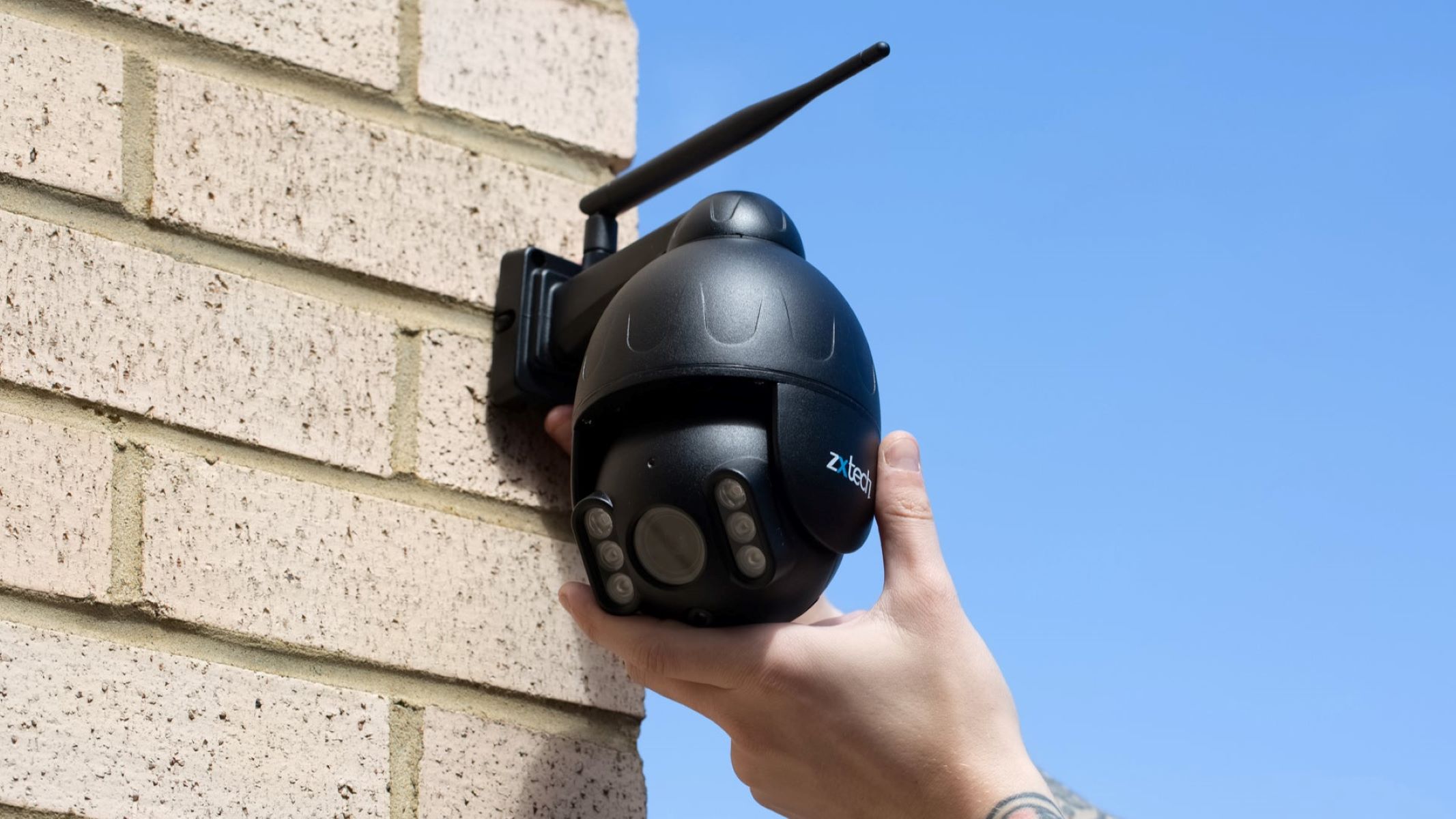
- Outdoor security cameras
- Indoor home-monitoring cameras
- Doorbell cameras
- Trail and wildlife cameras
- Baby monitors
- Professional network cameras
A regular digital camera stores images on a memory card. A Wi-Fi digital camera can do that too, but it adds wireless features. Depending on the model, it may let you:
- Send photos to a smartphone
- Transfer full-size video to a computer
- Control the shutter from an app
- Change camera settings remotely
- View a live stream
- Back up files to cloud storage
- Receive motion alerts
- Share selected photos online
Wi-Fi is not the same as the internet. Wi-Fi is the wireless link between devices. The router may then connect those devices to the internet, but a camera can use Wi-Fi inside your home even when the internet is down.
How Does a Wi-Fi Camera Work?
A Wi-Fi camera follows a simple chain:
Light → image sensor → image processor → storage or compression → Wi-Fi radio → phone, computer, recorder, or cloud service
Here is what happens at each stage.
1. The lens gathers light
The lens focuses light onto the camera’s image sensor. The sensor contains many tiny light-sensitive sites, often called pixels.
The sensor measures the light and color in the scene. The camera then creates a digital image from that data.
A larger sensor can often capture more light than a smaller one. However, image quality also depends on the lens, software, focus, exposure, and lighting.
2. The camera creates a digital file
The camera’s processor turns sensor data into a photo or video file.
Common photo formats include:
- JPEG: Small and widely compatible
- RAW: Larger and keeps more original sensor data
- HEIF or HEIC: Efficient, but not supported by every device
Common video formats include:
- H.264: Broad support
- H.265 or HEVC: Smaller files at similar quality, but may need newer hardware
- MJPEG: Simple, but usually uses more storage and bandwidth
The processor may also apply color correction, sharpening, noise reduction, and face or motion detection.
3. The camera stores or compresses the data
A still camera may save the image to an SD card before sending it. A security camera often compresses video as it records.
Compression matters because uncompressed video creates huge files. Compression makes the stream small enough to send over a wireless network.
The trade-off is clear: stronger compression uses less bandwidth and storage, but it can reduce fine detail. A very compressed image may show blocky areas, especially when a person moves or when the scene has low light.
4. The Wi-Fi radio sends the data
The camera’s Wi-Fi radio connects to a wireless access point. In many homes, the access point is part of the Wi-Fi router.
Most Wi-Fi cameras use one or both of these bands:
| Wi-Fi band | Main benefit | Common limit |
|---|---|---|
| 2.4 GHz | Longer range and better wall coverage | More crowding and lower real-world speed |
| 5 GHz | Higher speed and less crowding in some homes | Shorter range and weaker wall penetration |
Some newer routers and cameras also support 6 GHz Wi-Fi. That band can offer more open channels, but the camera and router must both support it. Range can also be more limited.
A camera does not need the fastest plan from an internet provider to work on the local network. It does need a stable wireless link between the camera and router.
5. The receiving device processes the data
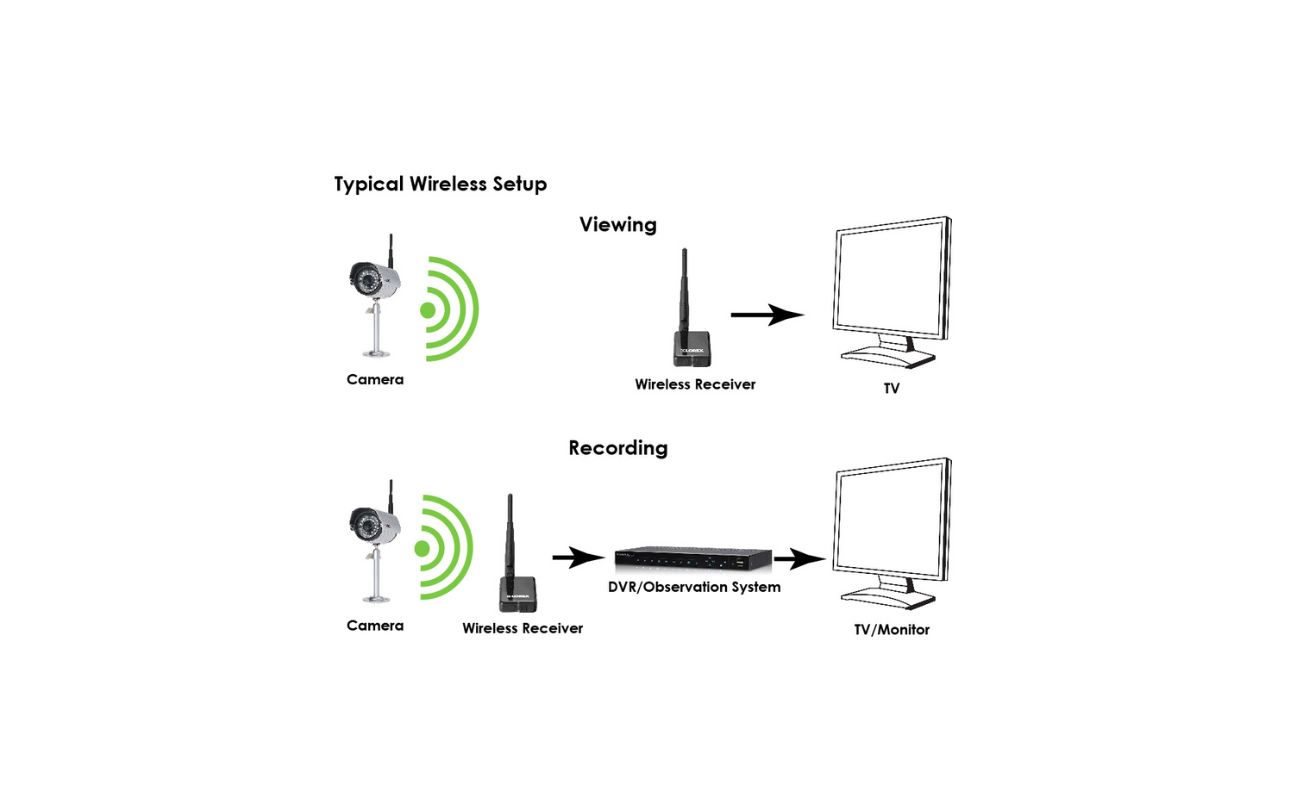
The data may go to one or more destinations:
- A phone app
- A computer
- A network video recorder
- A digital video recorder
- An SD or microSD card
- A manufacturer’s cloud server
- A photo-sharing service
For local transfer, the camera and phone may communicate through the same home network. For remote viewing, the camera usually sends data through the internet to an app or cloud system.
How Does Wi-Fi Photo Transfer Work?
Wi-Fi photo transfer usually starts when you select images in the camera menu or phone app. The camera then sends copies of the selected files over the wireless network.
A typical transfer works like this:
- Turn on the camera.
- Open the camera’s wireless menu.
- Connect the camera to your home Wi-Fi or create a direct camera connection.
- Open the maker’s app on your phone.
- Select photos or videos.
- Choose a size or quality setting.
- The app downloads the files to the phone.
Some cameras create their own temporary Wi-Fi network. This is often called Wi-Fi Direct, a direct connection, or an access-point mode. In that case, the phone connects to the camera instead of using the home router.
Full-size versus reduced-size transfers
Many camera apps offer more than one transfer size:
- Original size: Best for printing and editing, but slower
- Reduced size: Faster and uses less phone storage
- RAW file: Best for advanced editing, but very large
- JPEG preview: Fast to share, but contains less editing data
If a photo looks soft after transfer, check whether the app sent a smaller copy. The original file may still be on the memory card.
Why transfers can be slow
Transfer speed depends on more than the camera’s advertised Wi-Fi standard. Key factors include:
- Distance from the router or phone
- Walls and floors between devices
- Wireless interference
- File size
- Number of files
- Camera processor speed
- Phone storage speed
- Network traffic
- Whether the camera uses 2.4 GHz or 5 GHz
A 20-megapixel photo may be several megabytes. A long 4K video can be hundreds of megabytes or more. One large video can take much longer than many small photos.
How Do Wi-Fi Security Cameras Work?
A Wi-Fi security camera continuously captures video or records short clips when an event occurs. It then sends the video to local storage, cloud storage, or both.
The basic process is:
- The camera captures frames.
- Software checks for motion, sound, or another trigger.
- The camera compresses the video.
- It saves a clip or starts a live stream.
- The camera sends an alert to the app.
- The app displays the live view or recorded clip.
Some cameras analyze motion inside the camera. Others send video to a cloud server for analysis. The location of that processing affects privacy, speed, and whether the camera can detect events without an internet connection.
Local recording
A camera with a memory card can record without uploading every clip. This may reduce cloud fees and limit the amount of video leaving your home.
Local storage still has limits:
- A card can fill up.
- A damaged camera may take the card with it.
- A thief may remove the camera or card.
- The camera may overwrite older clips.
- Some models restrict playback or encryption to their own app.
A network video recorder can store video from compatible cameras on a separate device. Compatibility may depend on standards such as ONVIF, the exact camera model, and the recorder’s supported profiles. Check both manuals before buying.
Cloud recording
Cloud recording sends video to a remote server through your internet connection. It can make remote access easier and may protect clips if someone steals the camera.
Cloud systems may require:
- A paid subscription
- A user account
- A supported mobile app
- A constant internet connection
- A specific camera model or firmware version
A cloud plan can also change over time. Check the current terms, storage period, device limit, and cancellation rules before relying on it for important footage.
Internet outage behavior
A Wi-Fi camera may still record during an internet outage if it has local storage and power. Remote viewing and cloud uploads usually stop.
If the Wi-Fi router loses power, a camera that depends on that router may also lose its connection. A battery backup for the router and camera can help, but only if the camera supports operation during the backup period.
Wi-Fi Camera Setup: A Practical Step-by-Step Guide
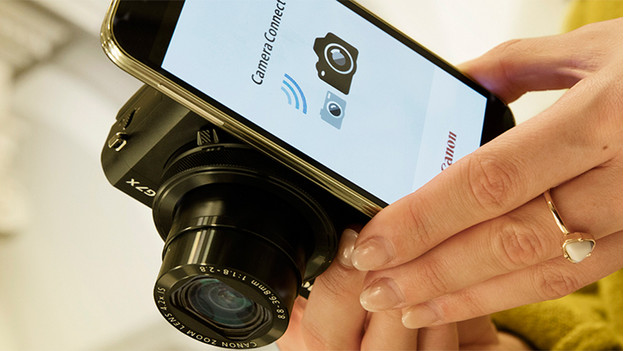
Before setup, confirm that you have the camera, power supply, current app, Wi-Fi password, and a phone with Bluetooth or location access if the app requests them.
Follow these steps:
-
Charge or power the camera.
Use the supplied battery, charger, or power adapter. For outdoor models, keep the camera dry during setup unless its instructions say otherwise. -
Install the official app.
Download it from the Apple App Store or Google Play. Avoid unofficial apps that request unusual permissions. -
Create or sign in to an account.
Some cameras work locally without an account. Others require an account for setup or remote access. -
Put the camera in pairing mode.
The manual may tell you to press a setup button, scan a QR code, or wait for a status light. -
Choose the correct Wi-Fi network.
Enter the password carefully. Many cameras do not support captive portal networks, enterprise Wi-Fi, or some special security modes. -
Allow only needed permissions.
The app may need local-network access, Bluetooth, location, a microphone, or notifications. The exact needs vary by platform and camera. -
Name the camera and set its location.
A clear name such as “Front Door” makes alerts easier to understand. -
Update the firmware.
Firmware is the camera’s built-in software. Updates may fix security problems, bugs, or connection issues. -
Set recording and alert rules.
Choose motion zones, recording times, sensitivity, and notification settings. Start with fewer alerts, then adjust. -
Test local and remote access.
View the live feed at home. Then test the app over cellular data, if remote access is part of your plan.
Signs that setup worked
Setup is likely complete when:
- The camera shows as online.
- Live video loads without repeated errors.
- The time and date are correct.
- A test photo or clip saves correctly.
- Motion alerts arrive when expected.
- The camera reconnects after a short power restart.
Do not aim the camera at a neighbor’s private area or record places where people reasonably expect privacy. In the United States, privacy rules can vary by state and situation. Audio recording can have stricter rules than video, so check the law that applies where the camera is used.
How Much Wi-Fi Does a Camera Use?
A Wi-Fi camera uses bandwidth in two different places:
- Local bandwidth: Data moving between the camera and devices in the home
- Internet bandwidth: Data uploaded to or downloaded from an outside service
A camera that records to a local card may use little internet data when nobody is viewing it. A cloud camera that uploads continuously can use much more.
A simple estimate for upload data is:
Data per day ≈ bitrate × recording seconds per day
For a hypothetical camera:
- Bitrate: 2 megabits per second
- Recording time: 24 hours
- Daily data: 2 × 86,400 megabits
- Approximate result: 21.6 gigabytes per day before overhead
This is only an estimate. Variable bitrates, motion recording, audio, scene detail, and cloud settings can change the result.
Use these practical rules:
- Use motion recording when continuous recording is not needed.
- Lower the resolution if the connection is weak.
- Place the camera closer to the access point.
- Use 5 GHz when the camera is near the router and supports it.
- Use 2.4 GHz when range matters more than speed.
- Check your internet provider’s data cap before enabling 24-hour cloud recording.

Why Is My Wi-Fi Camera Not Working?
Start with the simplest and safest checks. Do not reset the camera until you know the account password and understand what a reset will erase.
| Symptom | Likely causes | Useful first checks |
|---|---|---|
| Camera will not pair | Wrong password, unsupported band, old app | Check the manual, use the correct band, update the app |
| Live video keeps buffering | Weak signal, congestion, high resolution | Move the camera, test near the router, lower quality |
| Camera goes offline | Power loss, router restart, firmware issue | Check power, restart the router, update firmware |
| Alerts do not arrive | Notifications disabled, motion zone wrong | Check phone permissions and camera alert rules |
| Video will not save | Full card, failed card, subscription issue | Check storage, replace the card if supported, review the plan |
| Remote view fails | Internet outage, account issue, service outage | Test local view, check internet, sign in again |
| Night video looks poor | Reflections, dirty lens, low light | Clean the lens, move lights, avoid aiming through glass |
If the camera cannot find your Wi-Fi network
Check whether the camera supports the network’s band and security mode. Some older devices support only 2.4 GHz. Some may not work with newer security settings or networks that combine several bands under one name.
Move the camera near the router during setup. If pairing works there but fails in the final location, the problem is likely signal strength or interference.
If the camera often disconnects
Check power first. A loose cable or weak battery can look like a Wi-Fi problem.
Then check the signal at the camera’s location. Metal surfaces, concrete walls, appliances, and long distances can weaken the signal. A mesh access point may help, but place it between the router and camera rather than in the weak area itself.
If alerts are too frequent
Reduce the motion area, lower sensitivity, or create a schedule. Trees, headlights, pets, and shadows can trigger alerts.
Use person, vehicle, or package filters only if the camera supports them. These filters can reduce unwanted alerts, but they are not guaranteed to identify every event correctly.
Wi-Fi Camera Security and Privacy
A Wi-Fi camera should be treated like any other internet-connected device. A weak password or outdated firmware can expose your account or video.
Use these safeguards:
- Create a long, unique camera account password.
- Turn on multifactor authentication when available.
- Keep the camera firmware and app updated.
- Secure the home Wi-Fi network with a current security mode.
- Change the camera’s default password.
- Review which users can view or control the camera.
- Disable remote access if you do not need it.
- Use a separate guest or IoT network when practical.
- Avoid placing indoor cameras in bedrooms or other private areas.
- Check whether audio recording is enabled.
- Remove old users and revoke unused app access.
- Secure memory cards and recorded files.
A separate IoT network can limit what a compromised device can reach. It does not replace strong passwords or updates, but it can reduce the impact of a problem.
The National Institute of Standards and Technology provides U.S. cybersecurity guidance for IoT devices. The Federal Trade Commission also offers consumer guidance on securing connected products. Use the camera maker’s manual for model-specific settings.
Wi-Fi Camera Versus Bluetooth, Cellular, and Wired Cameras
Wi-Fi is only one way for a camera to send data.
| Connection type | Best fit | Main trade-off |
|---|---|---|
| Wi-Fi | Homes, offices, and places with a router | Needs a stable local network |
| Bluetooth | Short setup tasks and simple transfers | Short range and low speed |
| Cellular | Remote sites without local Wi-Fi | Needs coverage and a data plan |
| Ethernet | Reliable fixed installations | Requires a network cable |
| USB | Direct transfer to a computer | The camera must be physically connected |
A cellular security camera can work at a job site, farm, or vacation property without home Wi-Fi. It may cost more because it needs a cellular plan and sufficient signal.
A wired Ethernet camera can provide a steadier connection than Wi-Fi. Some models support Power over Ethernet, or PoE, which carries power and data on one network cable. Installation is less flexible, but reliability can improve.
Frequently Asked Questions
Can a Wi-Fi camera work without the internet?
Yes, sometimes. A camera may continue to record to a memory card or communicate with devices on the same local network. Cloud storage and remote viewing usually need internet access.
Does a Wi-Fi camera need to be close to the router?
Not always, but distance affects reliability. Walls, floors, metal, and interference can weaken the signal. A camera should have a stable connection at its final mounting location, not only during setup.
Can someone hack a Wi-Fi camera?
Any connected device can face security risks. A unique password, multifactor authentication, current firmware, secure Wi-Fi, and limited account access reduce the risk. No single setting can guarantee complete protection.
Do Wi-Fi cameras record all the time?
Some do, and some record only when motion or another event occurs. The answer depends on the model, power source, storage method, subscription, and settings.
Can I use a Wi-Fi camera with a different brand’s app?
Usually not. Most cameras depend on the maker’s app. Some security cameras support common standards, but compatibility must be confirmed for the exact model and software version.
Key Takeaways
- A Wi-Fi digital camera captures an image, processes it, and sends the file through a wireless network.
- It may transfer photos, stream video, send alerts, or upload recordings.
- Wi-Fi can work locally without internet, but cloud features usually need internet access.
- The best band depends on the distance: 2.4 GHz favors range, while 5 GHz favors speed at shorter range.
- Storage can be local, cloud-based, or both.
- Strong passwords, updates, multifactor authentication, and careful camera placement improve security and reliability.
Conclusion
Wi-Fi digital cameras work by combining a normal digital imaging system with a wireless radio and network software. The camera turns light into digital data, compresses that data, and sends it to a phone, computer, recorder, memory card, or cloud service.
For the best results, choose the right storage method, test the Wi-Fi signal where the camera will sit, update the firmware, and secure the account. If the camera fails, check power, signal strength, network compatibility, storage, and app settings in that order.

Everett Ashford is a tech reviewer at mytechgrid.com specializing in SSDs, cameras, TVs, earbuds, headphones, and other consumer electronics. He provides honest, data-driven reviews based on hands-on testing and real-world performance analysis. Everett simplifies complex tech details to help readers make smart, confident buying decisions.