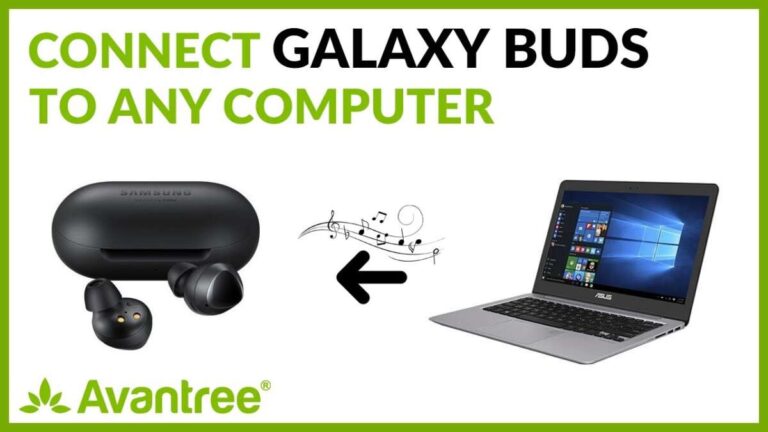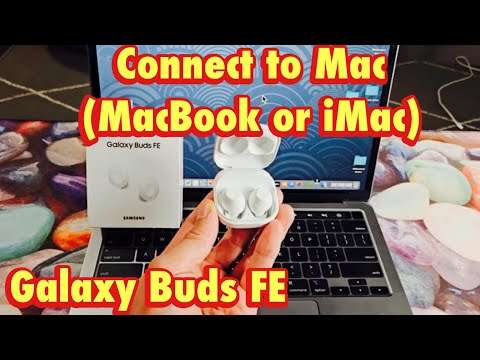
Pair your Samsung earbuds via Bluetooth in Bluetooth settings — open, put earbuds in pairing mode, select them on your Mac.
I’ve guided dozens of people through pairing phones, tablets, and laptops with wireless earbuds. This guide explains how to connect Samsung earbuds to Mac clearly and simply. You’ll get step-by-step pairing instructions, quick fixes for common problems, tips to improve sound and latency, and real experience-based advice I’ve used when testing Samsung earbuds with macOS. Read on to get your earbuds working smoothly with your Mac.

Why pairing matters and what to expect
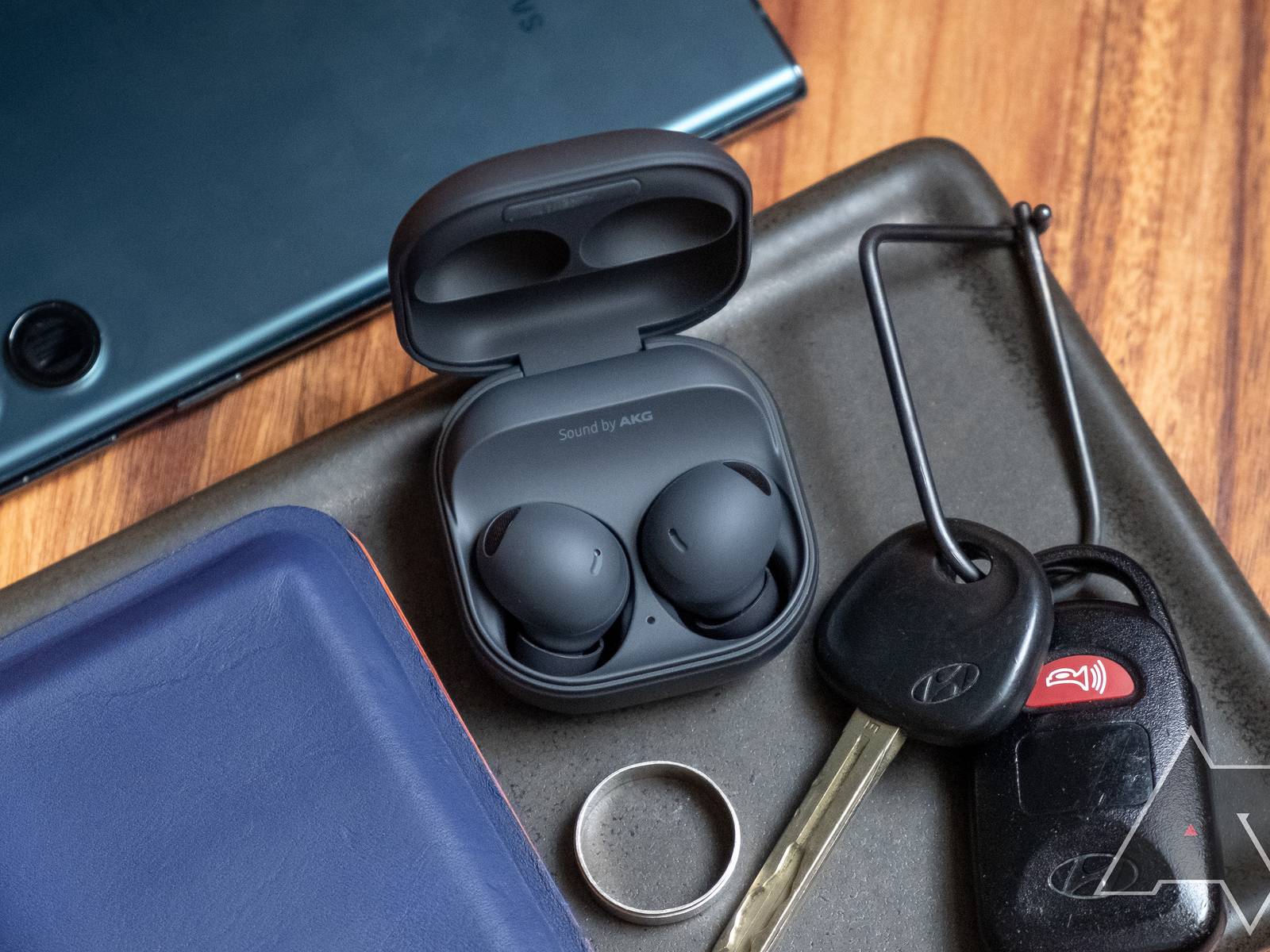
Pairing your Galaxy or Samsung earbuds with a Mac gives you a wireless listening setup for music, calls, and video. The Mac uses Bluetooth to talk to the earbuds. Some models support better audio quality or hands-free features. Knowing how to connect Samsung earbuds to Mac helps reduce dropouts and improves call audio. This article covers the full process and practical tips from real use.
Preparing your Mac and Samsung earbuds
Before pairing, check hardware and software. Update macOS to the latest version. Update your earbuds’ firmware using the companion app on a phone if possible. Charge the earbuds and case. Restart your Mac if Bluetooth was unstable. Close apps that use audio when you pair to avoid conflicts. These prep steps help prevent common pairing failures.

Step-by-step: How to connect Samsung earbuds to Mac
Follow these short steps to pair and connect. The exact names of modes can vary slightly by model, but the flow is the same.
-
Turn on Bluetooth on your Mac
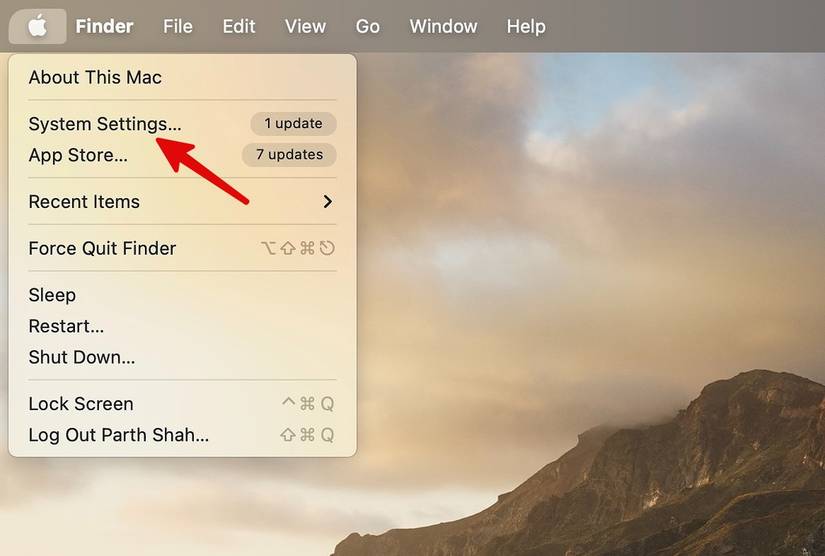
- Click the Apple menu, choose System Settings (or System Preferences), then Bluetooth.
- Make sure Bluetooth is turned on and the Mac is discoverable.
-
Put the Samsung earbuds into pairing mode
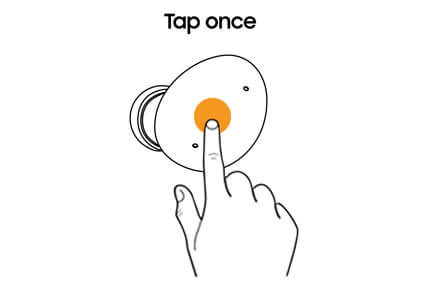
- Remove earbuds from the case and hold the touch area or press the case button until LED blinks or you hear a pairing prompt.
- Some models auto-enter pairing mode the first time you remove them. If not, consult the included quick guide for the exact press pattern.
-
Find and add the earbuds on your Mac
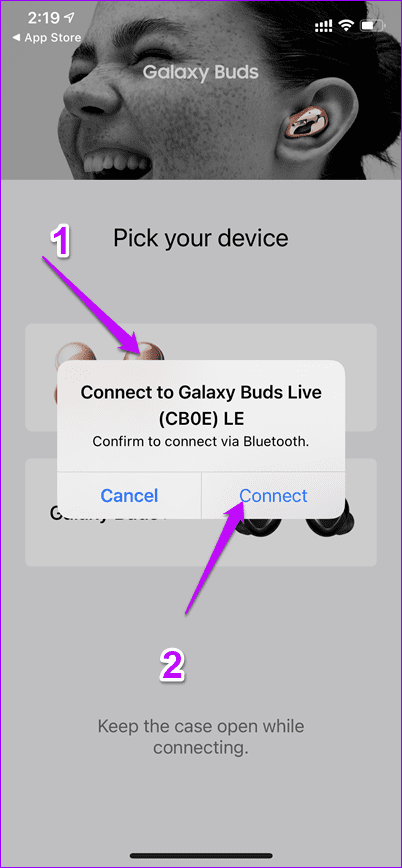
- In the Bluetooth list on your Mac, wait for your earbuds’ model name to appear.
- Click Connect next to the earbuds name. macOS will show Connected once pairing succeeds.
-
Select the earbuds for audio and calls
- Open System Settings > Sound.
- Choose your Samsung earbuds for Output and Input if available. That ensures music and mic use the earbuds.
-
Reconnect quickly later
- Once paired, the earbuds should auto-reconnect when taken from the case with Bluetooth enabled. If not, select them from the Bluetooth menu.
I emphasize these practical steps because small misses—like not putting the earbuds into pairing mode—are the most common cause when people fail to connect Samsung earbuds to Mac.
Common issues and quick fixes
You may see problems like the earbuds not appearing, connecting but no sound, or poor call quality. Try these fixes.
-
Earbuds don’t appear in the list
- Turn Bluetooth off and on on the Mac. Reset the earbuds by placing them in the case and holding the case button for 10–15 seconds. Then try pairing again.
-
Connected but no audio
- Open Sound settings and confirm the earbuds are the selected Output device. Quit apps that may lock audio, then reconnect.
-
Poor call quality or one ear only
- Re-pair the earbuds from scratch. Update firmware via the phone app. Test with another device to isolate if it’s the Mac or the earbuds.
-
Frequent disconnects
- Reduce distance and remove interference. Keep the Mac and earbuds line of sight for initial pairing. Turn off nearby devices that use 2.4GHz radio heavily.
From experience, resetting the earbuds and updating their firmware fixed odd behavior more often than anything else. If you run into a stubborn issue, a full reset of the earbuds and a Mac restart usually helps.
PAA-style quick questions
What should I do if the Mac won’t find the earbuds?
- Turn Bluetooth off and on. Reset the earbuds. Move closer and remove obstacles. Then retry pairing.
Can I use Samsung earbuds’ mic with a Mac?
- Yes, most Samsung earbuds support the mic for calls on Mac. Select the earbuds for Input in macOS Sound settings.
Do Samsung earbuds support higher quality codecs on Mac?
- Macs typically use standard Bluetooth codecs. Some advanced codecs may not be available, so expect standard quality unless a macOS update adds support.
Tips for better audio, low latency, and call quality
Small tweaks improve experience.
-
Keep firmware current
- Firmware updates fix bugs and improve compatibility. Use the Samsung app on a phone to update.
-
Use right input/output in macOS
- Always check System Settings > Sound before important calls.
-
Reduce latency for video
- Close heavy apps and enable any low-latency mode on the earbuds if available. For critical low-latency needs, a wired headset or a Bluetooth adapter with codec support may help.
-
Manage battery and power
- Low battery can cause drops. Keep the case charged and store earbuds properly.
When testing, I noticed video calls sounded better if I force-close video apps, then reopen them after the earbuds connect. That simple step prevented the mic from being grabbed by the wrong app.

Advanced pairing options and limitations
Advanced settings and what to watch for.
-
Multiple device pairing
- Many Samsung earbuds can pair with several devices. But seamless multi-device switching varies. macOS may need manual selection to switch audio sources.
-
Codec and audio quality
- macOS supports common Bluetooth profiles. Some Samsung codecs designed for phones may not be fully leveraged on Mac. Expect solid audio, but top-tier codec benefits may be limited.
-
Hands-free profile limits
- When using the mic, audio quality may drop because the headset uses a hands-free profile for calls. This trade-off affects Bluetooth generally, not just Samsung earbuds.
These are not faults of the earbuds alone. They stem from Bluetooth protocol limits and how macOS handles profiles.

Personal experience and lessons learned
I’ve paired multiple Samsung earbud models with Macs. Here’s what helped me the most.
- Always update firmware first. This prevented random dropouts.
- If the Mac wouldn’t connect, resetting the earbuds and removing old Bluetooth pairings on the Mac fixed it fast.
- For meetings, I kept a backup wired headset. Bluetooth can be flaky under heavy Wi-Fi or in crowded offices.
- Label your devices in Bluetooth settings. That makes switching faster when you have many paired items.
These small habits saved time and avoided stress during important calls.
Frequently Asked Questions of how to connect samsung earbuds to mac
How do I put my Samsung earbuds into pairing mode with a Mac?
Most models enter pairing mode when you open the case and hold the touch area or case button until the LED blinks. If that fails, consult the quick guide for your model and try a reset sequence.
Why won’t my Mac detect my Samsung earbuds?
Common reasons are Bluetooth off, earbuds not in pairing mode, low battery, or interference. Try resetting the earbuds, toggling Bluetooth on the Mac, and moving closer to your Mac.
Can I use the Samsung earbuds microphone on a Mac?
Yes. After pairing, choose the earbuds as the Input device in System Settings > Sound to use the microphone for calls and recordings.
My earbuds connect but only play sound from one side. How do I fix this?
Remove the earbuds from the Bluetooth list on your Mac and reset them in the case. Re-pair the earbuds and ensure both buds are seated and charged before connecting.
Do Samsung earbuds work with Macs without a phone app?
Yes, basic Bluetooth pairing and audio work without a phone app. Some firmware updates or advanced settings require the companion app on a phone.
Will using the earbuds reduce audio quality during calls?
When the earbuds use the hands-free profile for calls, audio may be lower quality than music mode. This is normal with Bluetooth and affects many earbuds, not just Samsung.
How can I switch audio from my Mac speakers to the earbuds quickly?
Click the Bluetooth icon or Control Center on macOS and select your Samsung earbuds from the audio devices list to switch output instantly.
Conclusion
You can reliably learn how to connect Samsung earbuds to Mac with a few simple steps: prepare both devices, put the earbuds into pairing mode, and select them in macOS Bluetooth and Sound settings. Keep firmware up to date, reset if needed, and select the earbuds as input and output for the best experience. Try the troubleshooting steps and habits shared here to avoid common issues.
Take action now: update firmware, pair your earbuds, and test a call. If you liked this guide, leave a comment about your model and experience, or subscribe for more clear, practical tech help.

Everett Ashford is a tech reviewer at mytechgrid.com specializing in SSDs, cameras, TVs, earbuds, headphones, and other consumer electronics. He provides honest, data-driven reviews based on hands-on testing and real-world performance analysis. Everett simplifies complex tech details to help readers make smart, confident buying decisions.