Pair your Samsung earbuds via Bluetooth from macOS Settings or the Control Center in seconds.
I’ve helped dozens of people pair Samsung earbuds with MacBooks, and I’ll walk you through every step clearly and confidently. This guide covers compatibility, exact step‑by‑step pairing for different macOS versions, advanced tips for reliable audio, troubleshooting common problems, and real-world advice from hands‑on experience. If you want a smooth, low‑latency connection and clear mic input when connecting Samsung earbuds to MacBook, read on — you’ll be set up in minutes.
Why connecting Samsung earbuds to a MacBook works and what to expect
Most Samsung earbuds use standard Bluetooth audio profiles. macOS supports these profiles, so pairing is straightforward. Expect stereo audio, mic support, and basic controls like play/pause. Advanced codec support depends on both your MacBook model and the earbud model.
What to expect when you connect Samsung earbuds to MacBook:
- Stereo audio for music and video playback.
- Mic and call support for meetings and apps.
- Possible codec limits (SBC/AAC versus low‑latency codecs).
- Occasional hiccups if the earbuds are already paired to another device.
Step-by-step: How to connect Samsung earbuds to MacBook (simple and fast)
Follow these clear steps to pair Samsung earbuds with macOS. I include both new and older macOS methods.
Before you start:
- Charge your earbuds and keep them in the case until pairing.
- Put the earbuds in pairing mode (usually by opening the case or long‑pressing the touch area; check your model’s quick guide).
Pairing using macOS Ventura and later (Control Center):
- Open Control Center from the menu bar.
- Click Bluetooth and choose “Devices” or click the Bluetooth icon.
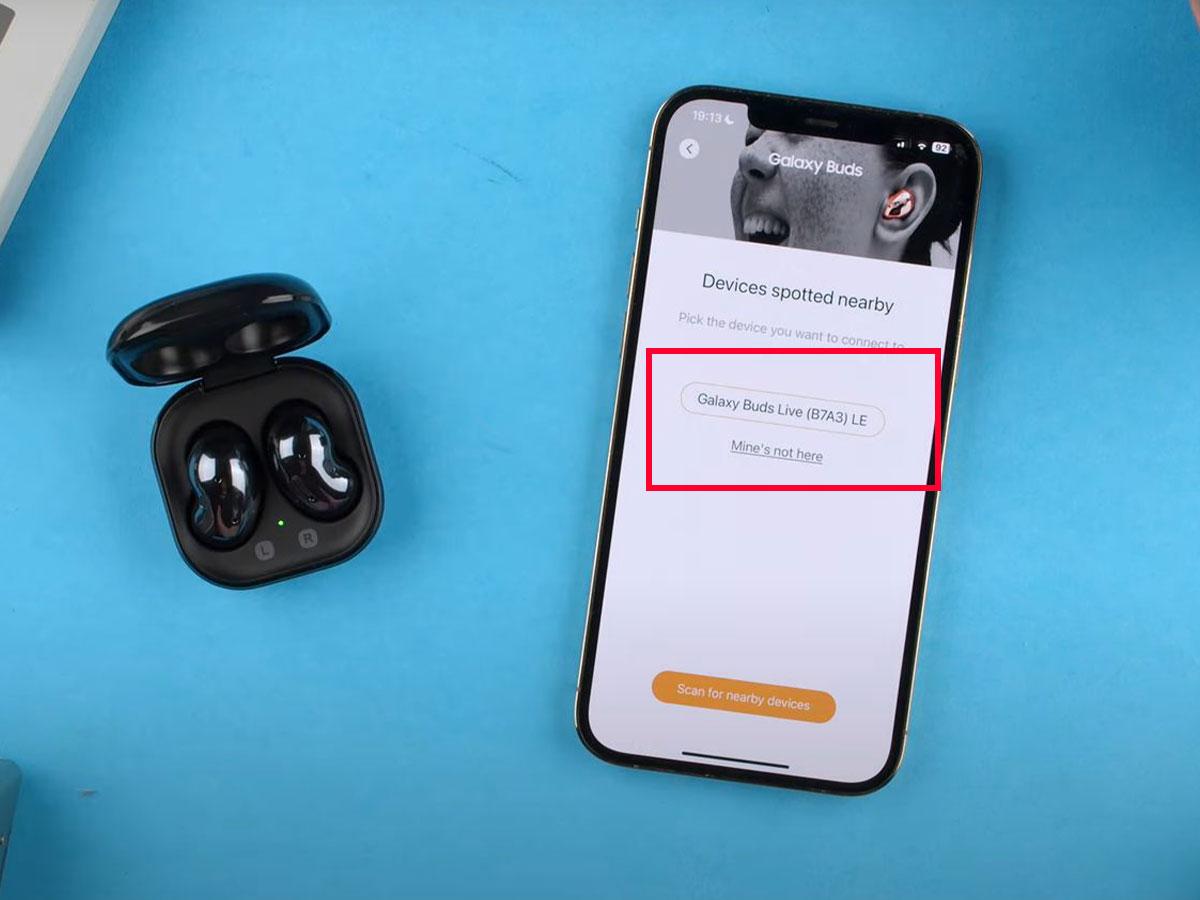
- Put your Samsung earbuds into pairing mode.
- Look for the earbud name, then click to connect.
- Once connected, select the earbuds as Output/Input in Sound settings if needed.
Pairing using macOS Monterey, Big Sur, Catalina (System Preferences):
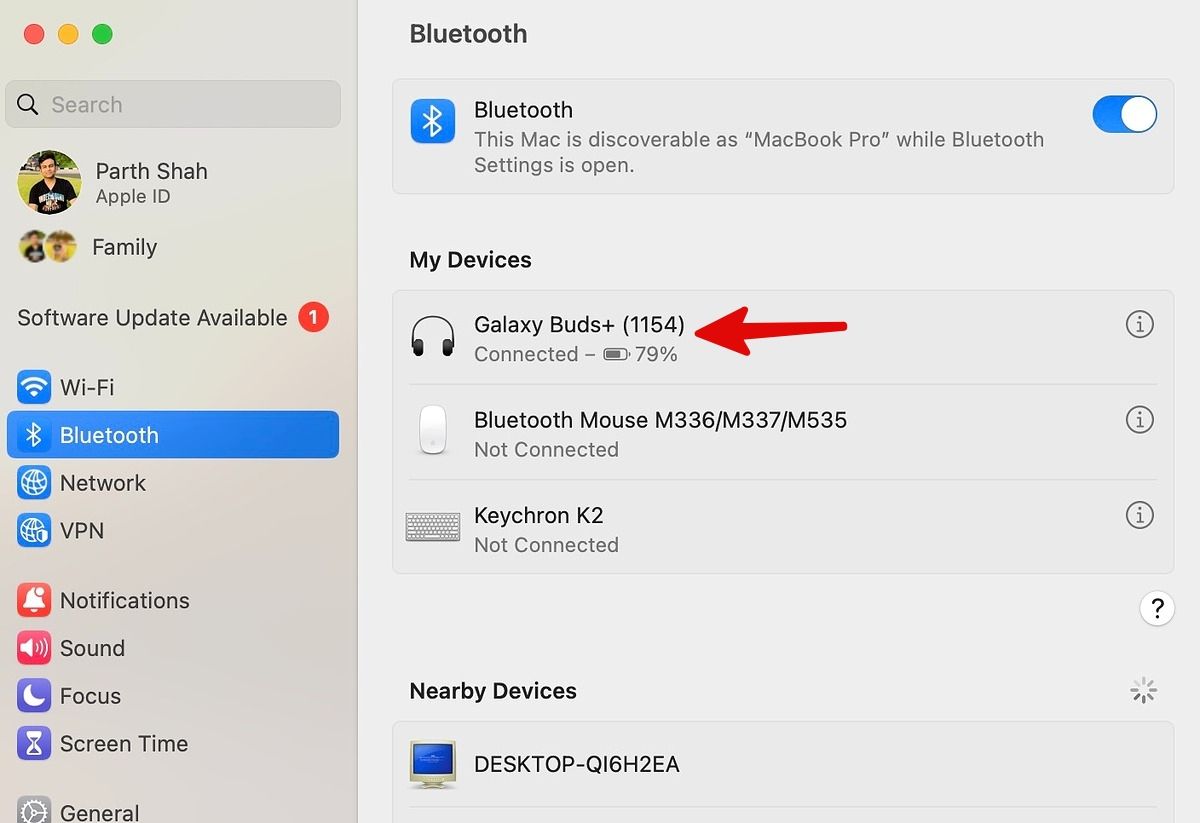
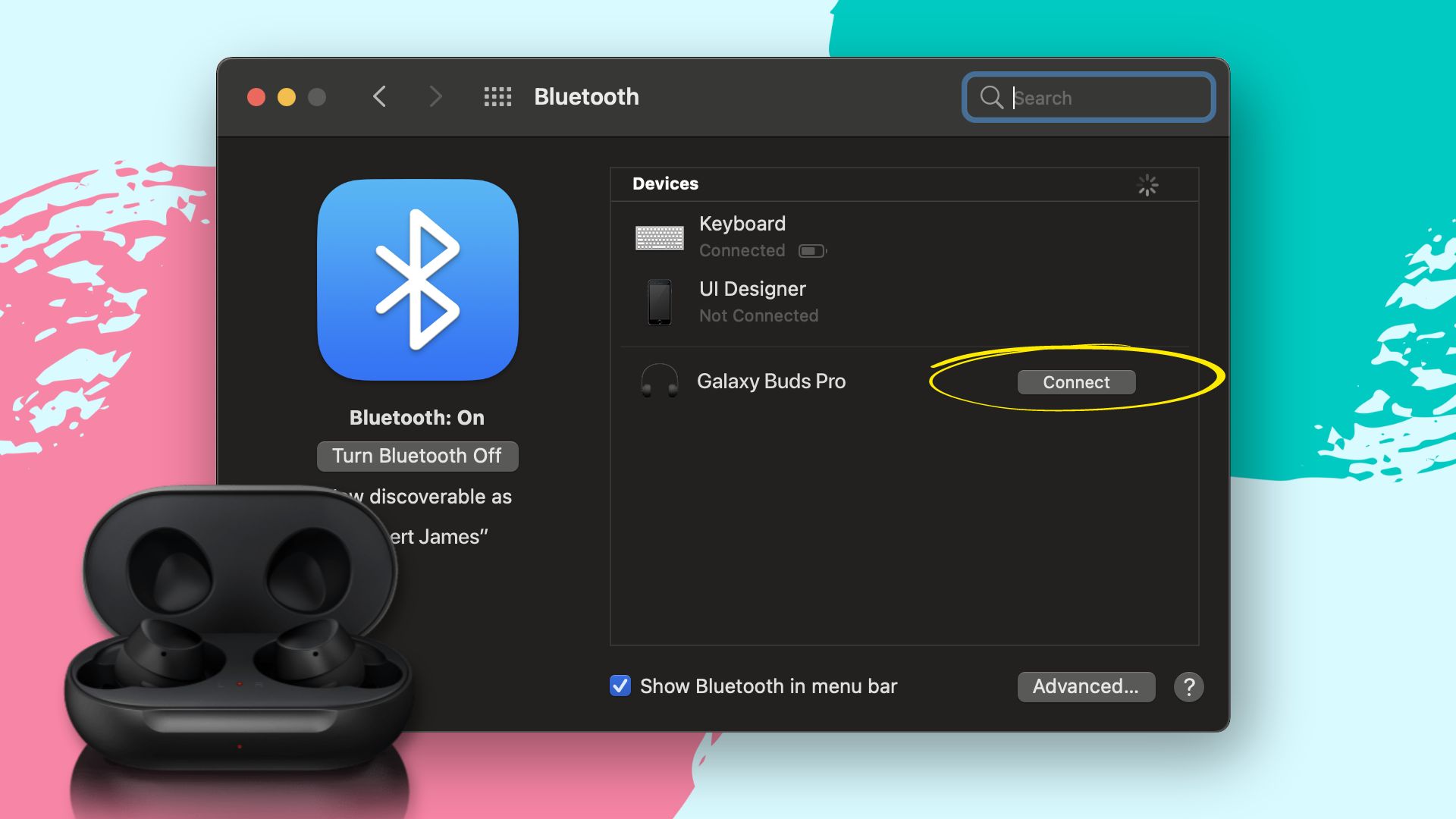
- Open System Preferences, then Bluetooth.
- Turn Bluetooth on if it’s off.
- Put the earbuds in pairing mode.
- When the earbud name appears, click Connect.
- Go to System Preferences > Sound to choose the earbuds for output and input.
If you use the menu bar Bluetooth icon:
- Click the Bluetooth icon.
- Put the earbuds in pairing mode.
- Select the earbuds from the list and click Connect.
Tips for putting Samsung earbuds in pairing mode:
- For many Samsung models, opening the case while earbuds are inside enables pairing.
- If already paired to a phone, disable Bluetooth on that phone or use the Samsung Wearable app to enable pairing mode.
- If pairing does not start, place earbuds back in case, close it, wait 10 seconds, then reopen.
Troubleshooting common pairing and audio problems
Here are common issues and quick fixes when learning how to connect Samsung earbuds to MacBook.
Problem: Earbuds don’t appear in macOS Bluetooth list
- Make sure they are in pairing mode and charged.
- Turn Bluetooth off and on in System Preferences.
- Move the earbuds closer to the MacBook and away from other Bluetooth devices.
Problem: Connected but no sound
- Open System Preferences > Sound and select the earbuds for Output.
- Some apps use their own audio output; check the app’s audio settings.
- Restart the app or quick‑restart Bluetooth.
Problem: Mic not working in calls
- In System Preferences > Sound, select earbuds as Input.
- In the call app (Zoom, Teams), choose the earbuds as microphone.
- Bluetooth headsets sometimes switch to a lower‑quality mode for mic use; expect reduced audio fidelity.
Problem: Frequent disconnects or poor range
- Reduce interference (move away from Wi‑Fi routers or USB 3.0 hubs).
- Ensure earbuds firmware and macOS are up to date.
- Reset the earbuds via the Samsung Wearable app or unpair and re‑pair.
Quick checks before calling IT:
- Restart your MacBook.
- Remove the earbuds from Bluetooth devices and pair again.
- Test earbuds with another device to isolate the problem.
Improve audio quality and reduce latency
If you care about music quality or need crisp sound for calls, these tweaks help when connecting Samsung earbuds to MacBook.
Select the right output and input:
- Go to System Preferences > Sound and pick the earbuds for Output and Input.
- For apps like Zoom, set the audio device inside the app.
Understand codecs and performance:
- macOS commonly supports AAC and SBC. AAC gives better quality on Apple devices.
- High‑resolution codecs may not be supported on all MacBook models or Samsung earbuds.
Minimize latency for video and gaming:
- Close background apps that use Bluetooth.
- If audio lag is a problem, prefer wired headphones for real‑time work or use low‑latency earbuds known to work well with macOS.
Use Audio MIDI Setup for advanced tweaks:
- Open Audio MIDI Setup (Applications > Utilities).
- Select your earbuds to inspect sample rate and channels.

Personal experience, tips, and mistakes to avoid
I’ve paired Galaxy Buds, Buds Live, and Buds Pro models with MacBooks over several years. Here are what I learned.
What worked best
- Turning off Bluetooth on my phone before pairing helped the MacBook detect earbuds reliably.
- Picking the earbuds in System Preferences > Sound after pairing fixed silent output issues.
- A firmware update on the earbuds solved odd disconnects.
Common mistakes I made
- Assuming pairing mode was active while earbuds were connected to another device.
- Forgetting to choose the earbuds as the audio source inside apps.
- Not resetting the earbuds after many failed attempts; a reset often fixed persistent issues.
Practical tips
- Keep a charger handy if you use earbuds for long calls.
- Label the earbuds in your Bluetooth list if you own multiple devices.
- Use the Samsung Wearable app on a phone to update firmware; macOS has no official Samsung app for earbuds.

Frequently Asked Questions of how to connect samsung earbuds to macbook
How do I put my Samsung earbuds into pairing mode for MacBook?
Most Samsung earbuds enter pairing mode when you open the case with earbuds inside or by long‑pressing the touchpad until a light blinks. If the earbuds were paired to another device, turn that device’s Bluetooth off first.
Why won’t my MacBook find my Samsung earbuds?
They might not be in pairing mode, be too low on battery, or be connected to another device. Turn Bluetooth off and on, ensure pairing mode is active, and move the earbuds close to the MacBook.
Can I use the microphone on Samsung earbuds with my MacBook?
Yes. After connecting, select the earbuds as the Input device in System Preferences > Sound and in your call app settings to use the mic.
My audio switches to low quality when I join calls. What’s happening?
macOS may switch to a headset profile that prioritizes the mic, which lowers audio quality. This is normal with Bluetooth headsets; use a dedicated mic for higher-quality calls if needed.
Do I need an app to update Samsung earbuds on a MacBook?
No official Samsung app exists for macOS. Use the Samsung Wearable app on an Android phone to update firmware. Keep macOS up to date for best compatibility.
Conclusion
You can reliably connect Samsung earbuds to MacBook by using macOS Bluetooth tools, selecting the earbuds as your audio device, and following a few simple troubleshooting steps. Take a moment to check pairing mode, sound settings, and firmware to avoid common hiccups. Try these steps now and you’ll have music and calls working smoothly — leave a comment if you hit a snag or want help with a specific model.

Everett Ashford is a tech reviewer at mytechgrid.com specializing in SSDs, cameras, TVs, earbuds, headphones, and other consumer electronics. He provides honest, data-driven reviews based on hands-on testing and real-world performance analysis. Everett simplifies complex tech details to help readers make smart, confident buying decisions.