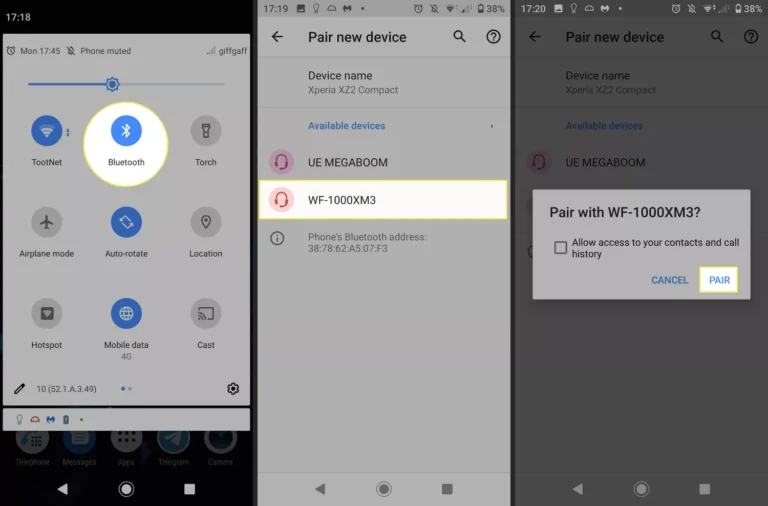
Connect your Sony wireless headphones to your iPhone by turning on Bluetooth, entering pairing mode on the headphones, and selecting them in iPhone Settings > Bluetooth.
I’ve paired Sony wireless headphones with many iPhones across models and iOS versions, so I’ll guide you through every step, common pitfalls, and settings that matter. This article explains how to connect Sony wireless headphones to iPhone with clear steps, troubleshooting, and practical tips from hands-on experience so you can get great sound fast.
Why pairing matters and what to expect
Pairing links your Sony wireless headphones and iPhone so audio, calls, and controls work together. Knowing how to connect Sony wireless headphones to iPhone helps you avoid connection drops, poor audio quality, or missing features like noise canceling and call microphone use.
Think of pairing like handing a key to your phone. If the key fits, everything works. If not, you’ll see problems that are usually easy to fix.

Step-by-step: How to connect Sony wireless headphones to iPhone
Follow these concise steps. Keep the headphones near the iPhone and ensure both devices have power.
-
Prepare the iPhone
- Open Settings on your iPhone. Tap Bluetooth and keep the screen open.
- Make sure Bluetooth is ON. Your iPhone will search for nearby devices.
-
Put your Sony headphones into pairing mode
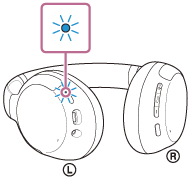
- Power on the headphones. For most Sony models, hold the power button until the indicator flashes blue and red or you hear “Bluetooth pairing.”
- If your model has a specific pairing button, press and hold that instead. Check the manual for model-specific actions.
-
Select the headphones on iPhone
- Under Available Devices in Settings > Bluetooth, tap the name of your Sony headphones.
- Wait briefly. The iPhone will show “Connected” when pairing succeeds.
-
Confirm audio and controls
- Play music or a video to test audio. Try the volume keys and the pause/play button if your model supports them.
- Make a quick call to verify the mic works and noise canceling functions as expected.
Tips for repeated use
- After the first pairing, your devices should auto-connect when Bluetooth is on and the headphones are on.
- If auto-connect fails, open Settings > Bluetooth and tap the headphones to reconnect.

Supported models and compatibility notes
Most modern Sony wireless headphones pair with iPhone. Popular models like WH-1000XM series, WF-series true wireless, and many mid-range Sony models use standard Bluetooth profiles and work well.
Compatibility checklist
- Ensure your Sony headphones support classic Bluetooth audio (A2DP and HFP). Nearly all do.
- iPhones support AAC and SBC codecs. Sony’s LDAC or aptX won’t be used by iPhone, though you still get solid AAC or SBC performance.
- Keep iOS up to date for best stability and bug fixes.
If you wonder whether a specific model works, the simple test is whether it appears in Bluetooth settings. If it does, you can pair it.

Common problems and quick fixes
Problems happen. Here are real solutions I’ve used.
-
Headphones don’t appear in Bluetooth list
- Put the headphones in pairing mode again. Restart Bluetooth on iPhone. If still not visible, restart both devices.
-
Headphones say “connected” but no sound
- Make sure the iPhone audio output is set to the headphones. Open Control Center and tap the audio card to select the Sony device.
- Check app-specific audio (some apps use internal players).
-
Frequent dropouts or low audio quality
- Move closer to the iPhone. Avoid crowded Wi-Fi or Bluetooth environments. Disable Wi-Fi temporarily to test interference.
- Update headphone firmware using the Sony Headphones Connect app.
-
Microphone not working on calls
- Confirm the iPhone is using the headphone mic. During a call, tap Audio and ensure the Sony headphones are selected.
- Reset the headphones’ Bluetooth pairing list if the mic still fails.
-
Pairing keeps failing after many attempts
- Delete the headphones from Bluetooth (tap the info icon and Forget This Device) and re-pair.
- Reset the headphones to factory Bluetooth settings per the Sony manual.
Optimizing sound and settings on iPhone
You can improve audio and features even after connecting.
-
Use the Sony Headphones Connect app
- The app offers firmware updates, EQ, and noise-cancel adjustments. Updating firmware can fix bugs and add features.
- Some personalization options work only through the app.
-
Understand codecs and what the iPhone uses
- iPhone uses AAC or SBC for Bluetooth audio. Expect excellent AAC performance.
- Sony’s LDAC provides higher-resolution audio but iPhone doesn’t support LDAC, so don’t expect LDAC-level streaming.
-
Enable features on the iPhone
- Check Settings > Accessibility > Audio/Visual for call audio options.
- Use Control Center to switch audio devices quickly when playing media.
Small settings that help
- Turn off Low Power Mode during long listening sessions to avoid Bluetooth behavior changes.
- Close apps with audio conflicts if playback stutters.

Personal experience, lessons learned, and practical tips
I’ve paired Sony headphones with older iPhones and new models. Here’s what I learned the hard way.
- Mistake: Trying to pair multiple times without resetting. Solution: I found that forgetting the device on the iPhone and resetting the headphones resolved stubborn pairing loops.
- Mistake: Expecting LDAC on iPhone. Solution: Accept AAC as the primary codec and lean on the Sony app for sound tuning.
- Pro tip: If you move between iPhone and other devices often, enable multipoint if your Sony model supports it. Multipoint keeps both connections ready and saves time.
- Pro tip: Always update firmware right after first pairing. I fixed a call-drop bug that way.
These small habits save time and prevent frustration.

PAA-style quick questions (short answers)
Q: Will my iPhone support advanced Sony codecs like LDAC?
A: No. iPhone supports AAC and SBC. LDAC and aptX are not used by iPhones, so expect AAC-quality audio.
Q: Why won’t my Sony headphones reconnect automatically?
A: Auto-reconnect can fail if the headphones are connected to another device, Bluetooth is off, or firmware is outdated. Forget and re-pair if needed.
Q: Can I use the Sony Headphones Connect app with iPhone?
A: Yes. The app provides firmware updates, EQ controls, and noise-cancel settings that improve the experience on iPhone.
Frequently Asked Questions of how to connect sony wireless headphones to iphone
How do I put my Sony headphones into pairing mode?
Most Sony headphones enter pairing mode by holding the power button until the LED flashes blue and red or until you hear a voice prompt saying “Bluetooth pairing.” Check your model’s manual for exact steps.
Why won’t my iPhone find my Sony headphones?
Often the headphones are not in pairing mode, Bluetooth is off, or the headphones are already connected to another device. Restart both devices and try pairing again.
How do I switch audio to my Sony headphones during playback?
Open Control Center while audio is playing, tap the audio output box, and select your Sony headphones from the list. This ensures the iPhone routes sound to the headphones.
Can I use noise canceling and other features with my iPhone?
Yes. Noise canceling and many features work with iPhone when the headphones are connected. Use the Sony Headphones Connect app for advanced controls and personalization.
My headphone mic sounds muffled on calls. How can I fix this?
Confirm the iPhone selected the headphone mic during the call. If the mic is still muffled, update firmware, reset the headphones, and test in a quiet setting to rule out wind or environmental noise.
Do I need the Sony app to pair with iPhone?
No. Pairing works through iPhone Bluetooth settings without the app. The app is helpful for updates, EQ, and extra features.
Conclusion
Pairing your Sony wireless headphones to your iPhone is usually quick and reliable when you follow the right steps: enable Bluetooth, put the headphones in pairing mode, and select them on the iPhone. Keep firmware updated, use the Sony app for fine-tuning, and remember simple fixes like forgetting and re-pairing when problems arise. Try these tips now: pair once, update firmware, and personalize sound through the app — then enjoy clearer calls and better music. If this guide helped, leave a comment with your model and iPhone version or subscribe for more practical tips.

Everett Ashford is a tech reviewer at mytechgrid.com specializing in SSDs, cameras, TVs, earbuds, headphones, and other consumer electronics. He provides honest, data-driven reviews based on hands-on testing and real-world performance analysis. Everett simplifies complex tech details to help readers make smart, confident buying decisions.