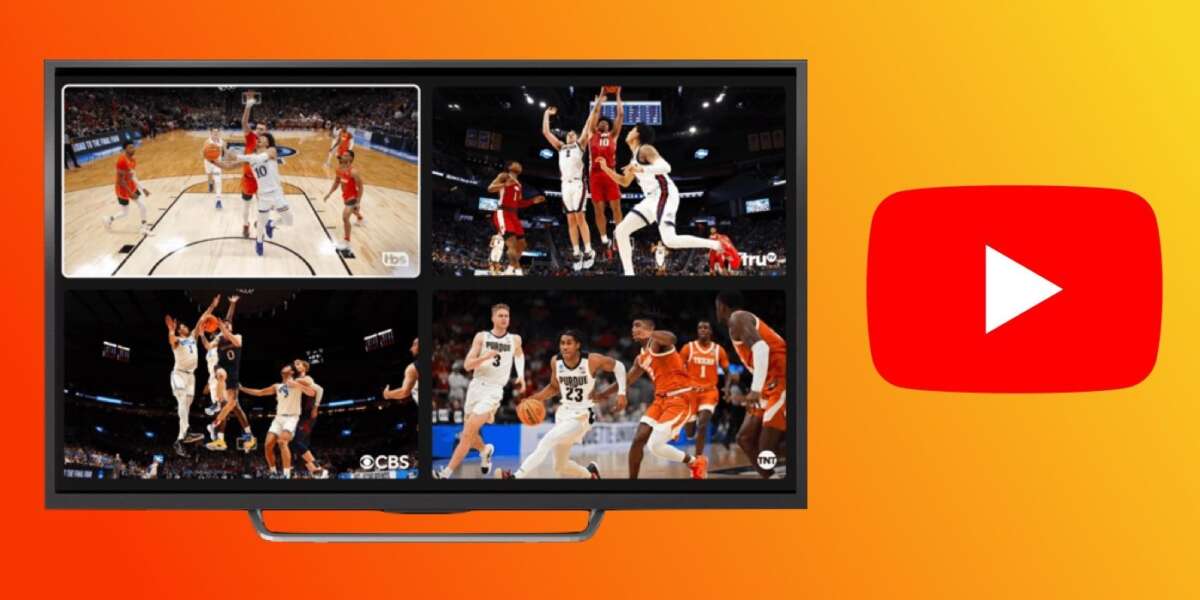
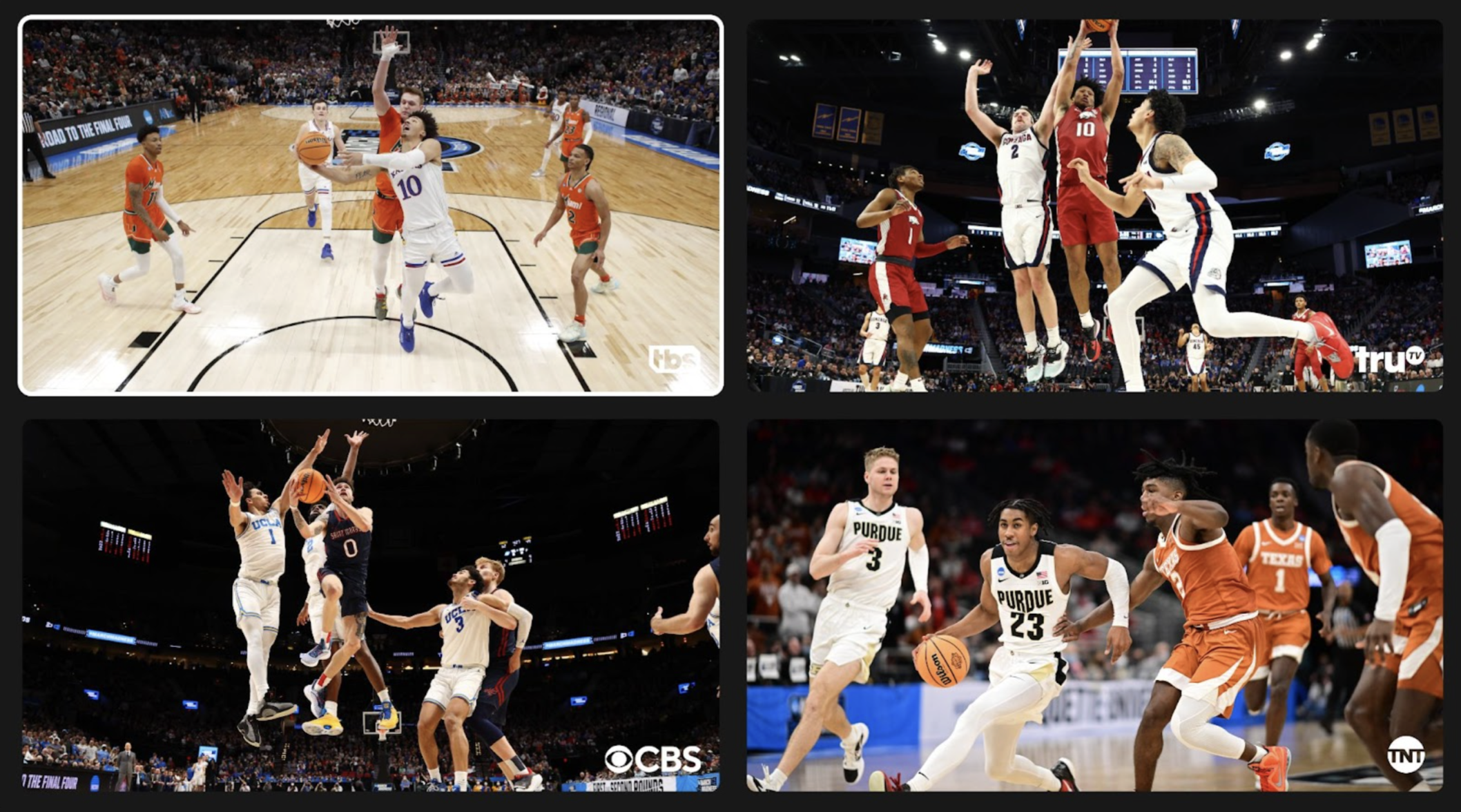
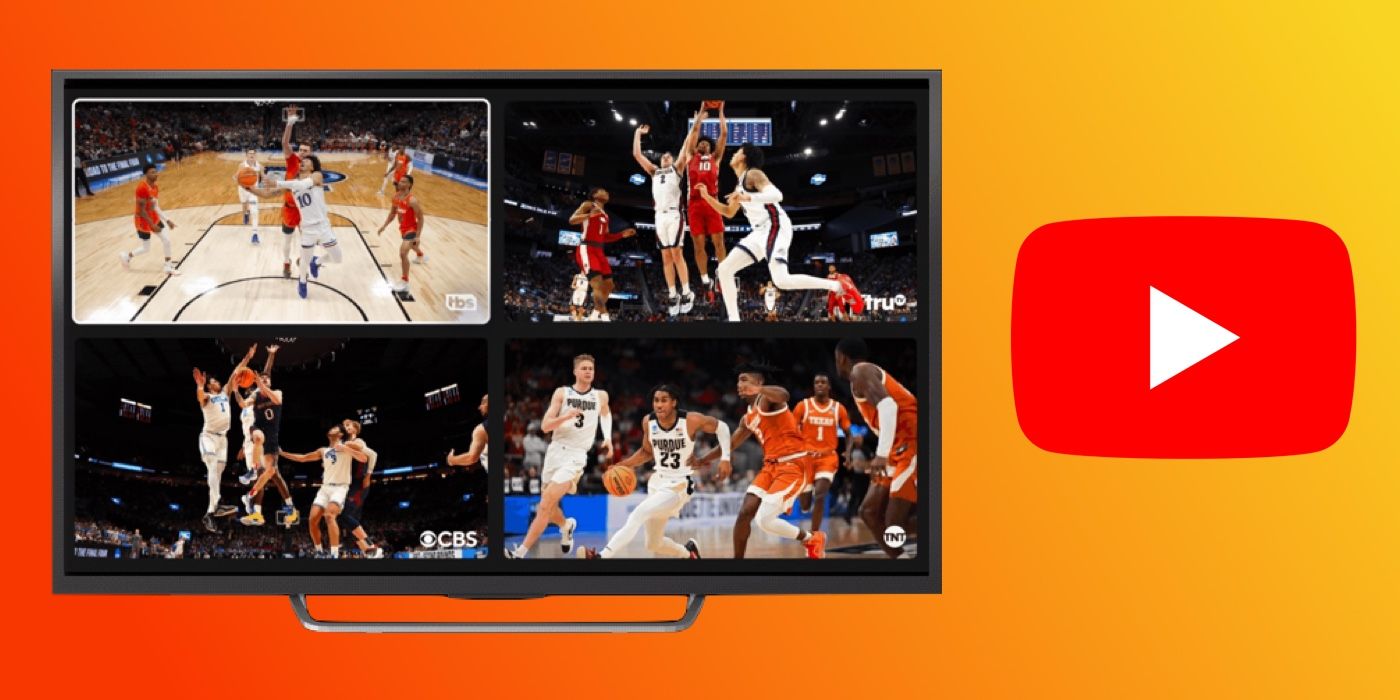
YouTube TV Multiview lets you watch up to four live streams on one screen at once.
Learning how to do multiview YouTube TV is simple once you know where to find the feature and which devices support it. This guide explains the exact steps, supported options, common problems, viewing tips, and limits so you can enjoy several games or live events without switching channels.

What Is YouTube TV Multiview?
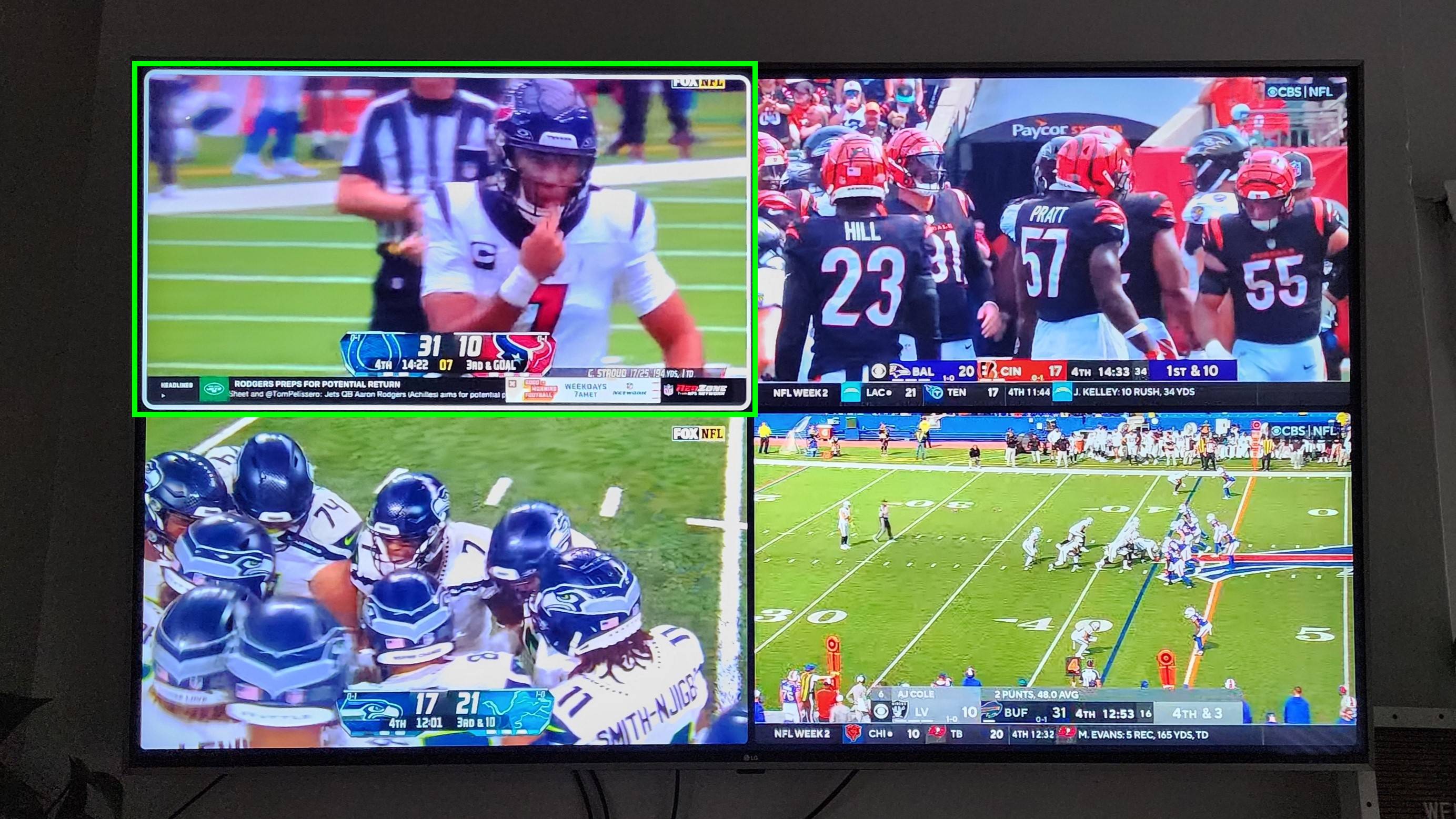
YouTube TV Multiview combines multiple live programs into one screen. In most cases, you can watch up to four channels at the same time. It is especially useful during busy sports days when several games happen at once.
For example, you may watch an NFL game, a college football game, a basketball game, and a news channel in one view. Each program appears in its own panel, while the audio comes from the stream you select.
YouTube TV usually offers prepared Multiview combinations. This means you may not always be able to place any four channels together. Available combinations depend on current events, broadcast rights, your location, and the device you use.
How to Do Multiview YouTube TV on a Smart TV
The easiest way to use YouTube TV Multiview is through a supported smart TV or streaming device. The menu names may differ slightly by device, but the process is usually the same.
- Open the YouTube TV app on your television.
- Sign in to the correct YouTube TV account.
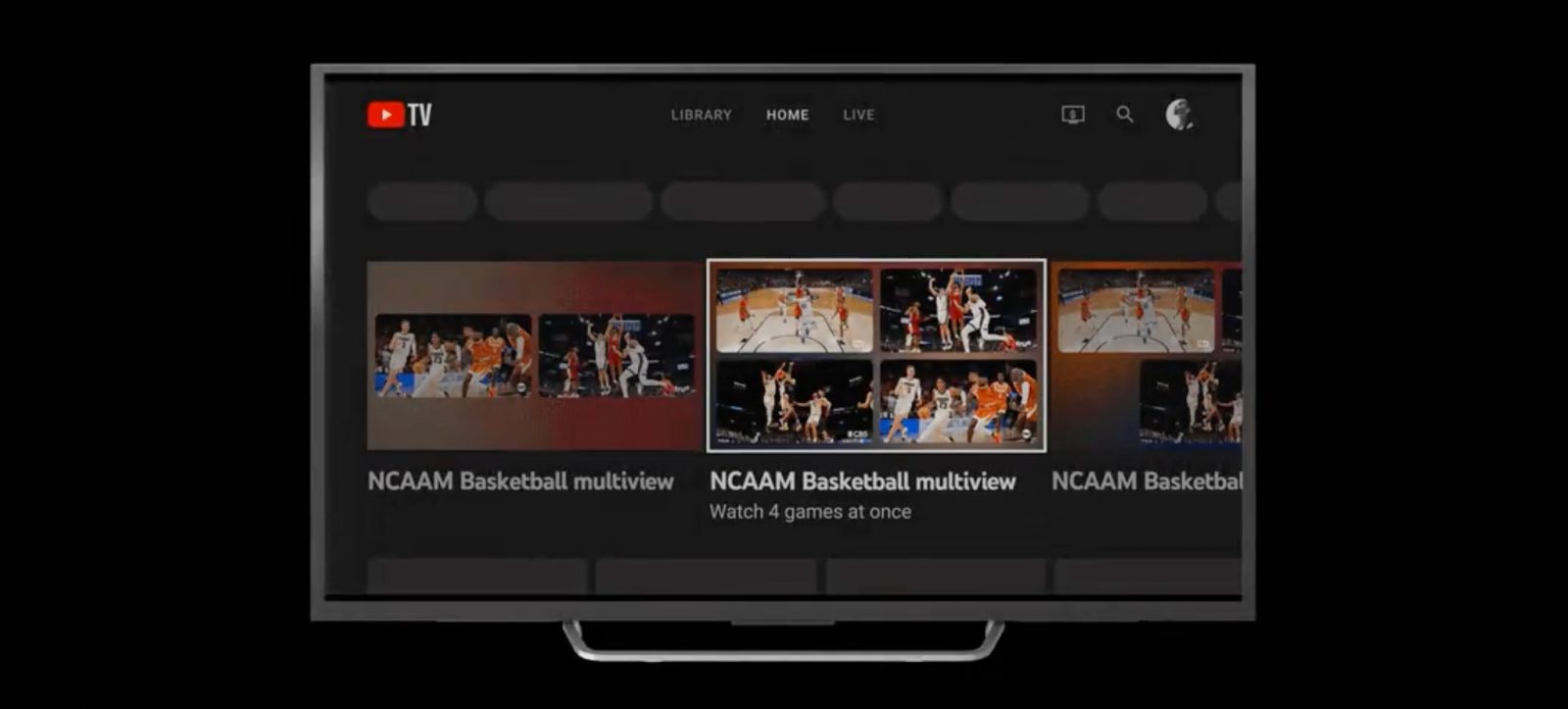
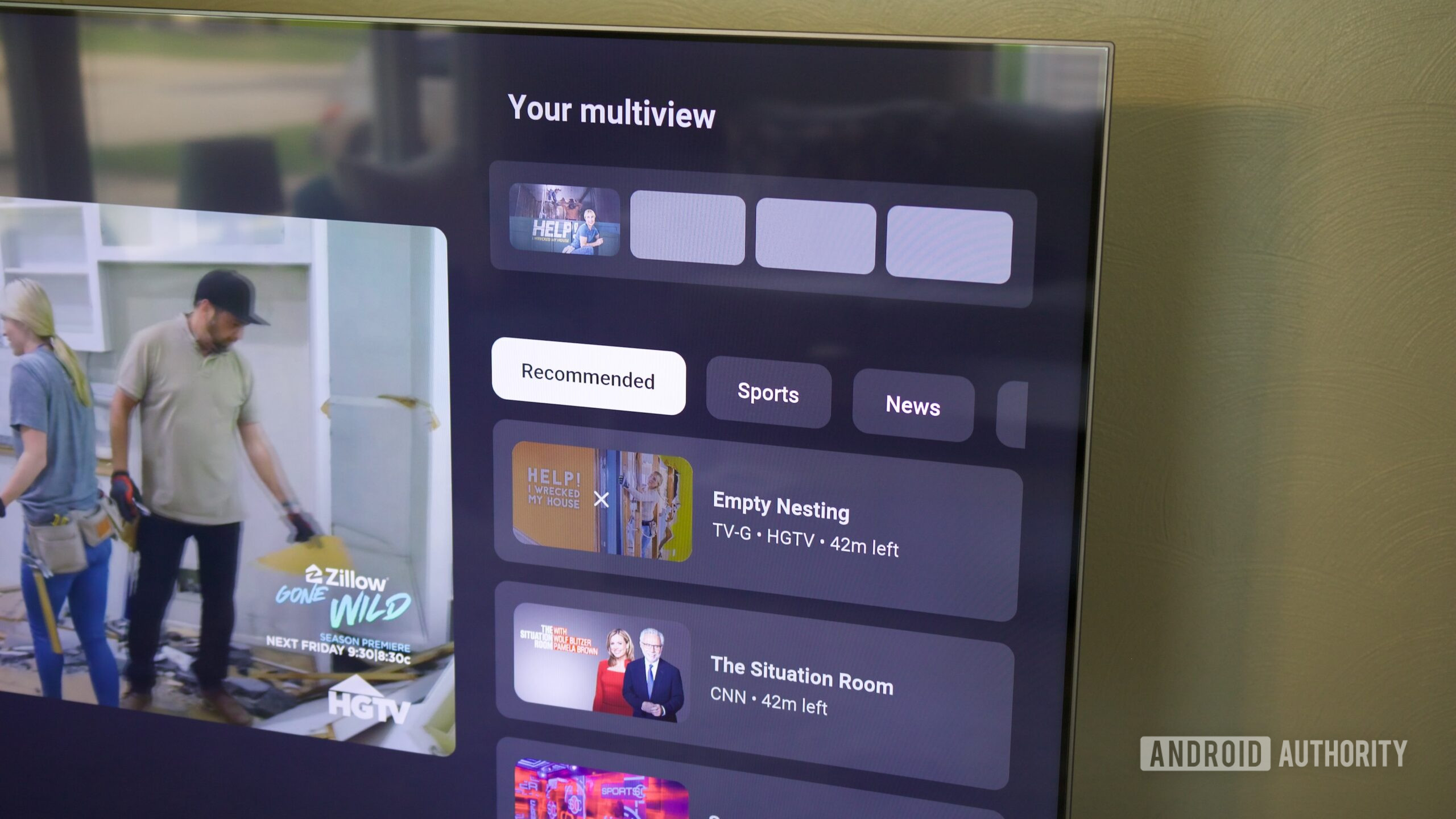
- From the home screen, look for a row called Multiview, Top Picks for You, or similar wording.
- Select the Multiview option that interests you.
- Choose Watch Multiview.
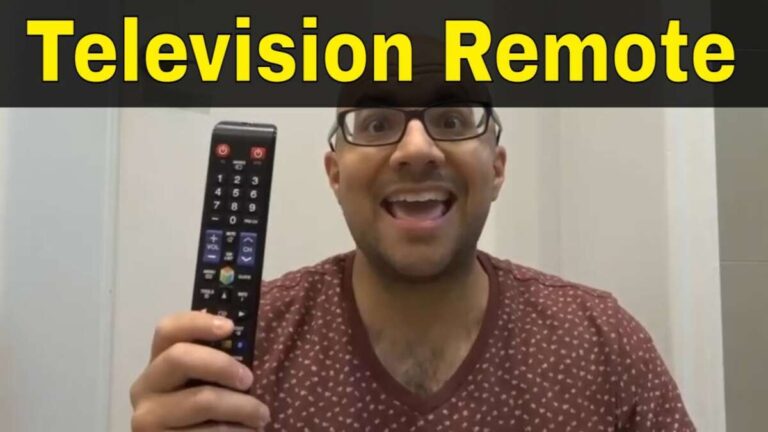
- Use your remote to move between the available panels.
- Press the select or OK button to change the active stream.
- Choose a full-screen option if you want to watch one channel by itself.
On some devices, Multiview options also appear in the Live tab or inside a sports section. If you do not see the feature on the main home screen, check those areas before assuming that your account has a problem.
When I tested how to do multiview YouTube TV on a living room television, the main lesson was simple: start with the event row instead of searching for each channel. YouTube TV builds Multiview around groups of live events, so searching channel by channel may not show the correct option.
How to Do Multiview YouTube TV on Roku, Fire TV, and Other Streaming Devices
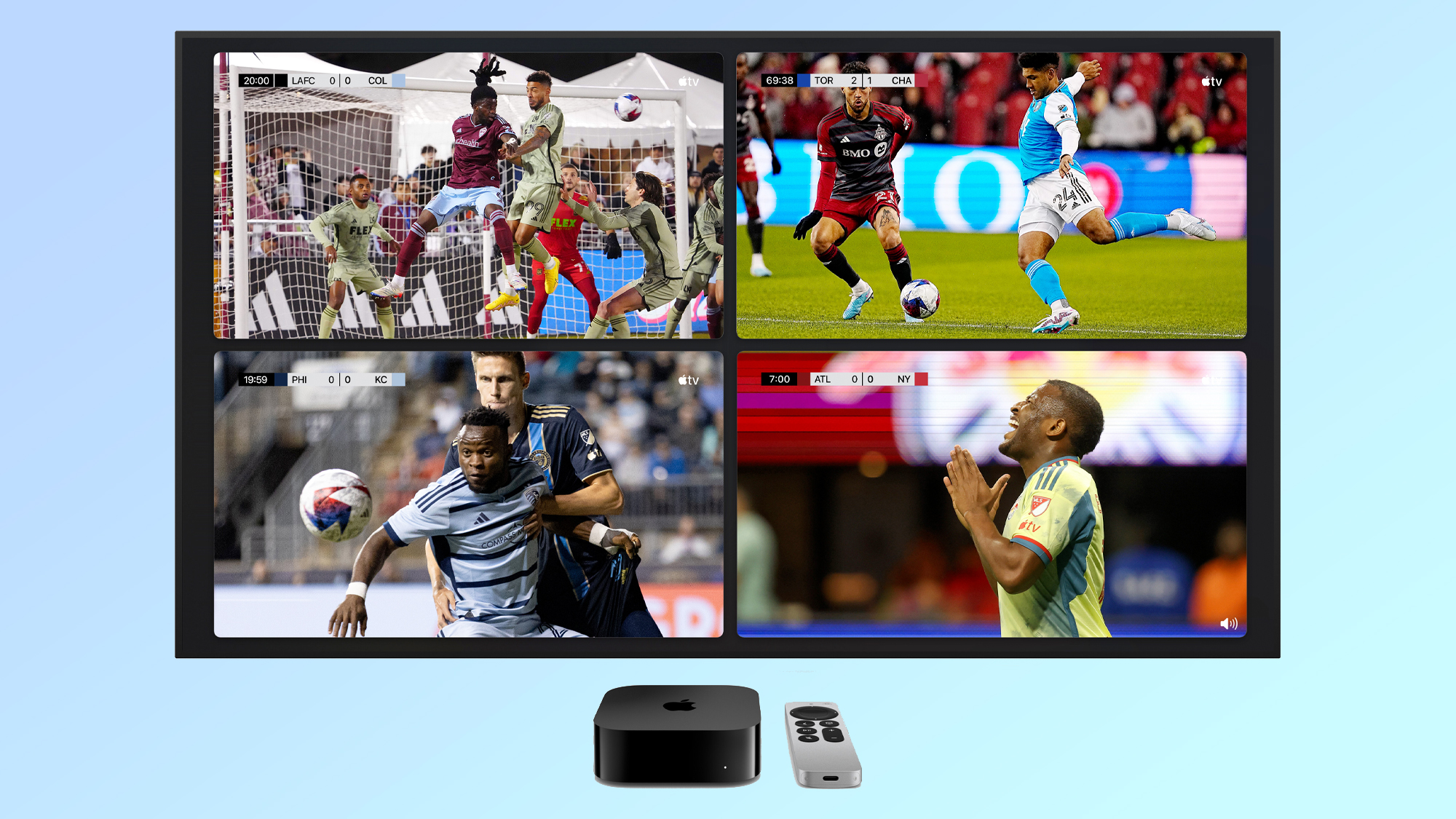
YouTube TV Multiview can work on many popular streaming platforms, including compatible Roku devices, Amazon Fire TV devices, Apple TV models, Google TV devices, and selected game consoles. Support can vary by model and software version.
To try it, follow these steps:
- Turn on your streaming device.
- Open the YouTube TV application.
- Update the app if an update is available.
- Go to Home, Live, or Sports.
- Find a card labeled Multiview.
- Select the event group you want to watch.
- Press OK, Select, or the equivalent button on your remote.
- Use the directional buttons to move across the screens.
Older streaming devices may not show every Multiview option. The feature needs more processing power than a normal single-channel stream. If the app feels slow, freezes, or displays only one panel, your device may need an update or may not fully support the feature.
A reliable fix is to restart both the streaming device and your home router. Then check for updates in the device settings and in the YouTube TV app.
How to Do Multiview YouTube TV on a Computer
The Multiview experience on a computer can differ from the television experience. YouTube TV has expanded access to more platforms over time, but availability may depend on the browser, event, account, and current rollout.
To check for Multiview on a computer:
- Open YouTube TV in a supported web browser.
- Sign in to your account.
- Visit the Home, Live, or Sports section.
- Look for a Multiview card or a group of live events.
- Click the card to open the combined view.
- Select a panel if you want to change the active audio.
- Use full-screen mode for a larger viewing area.
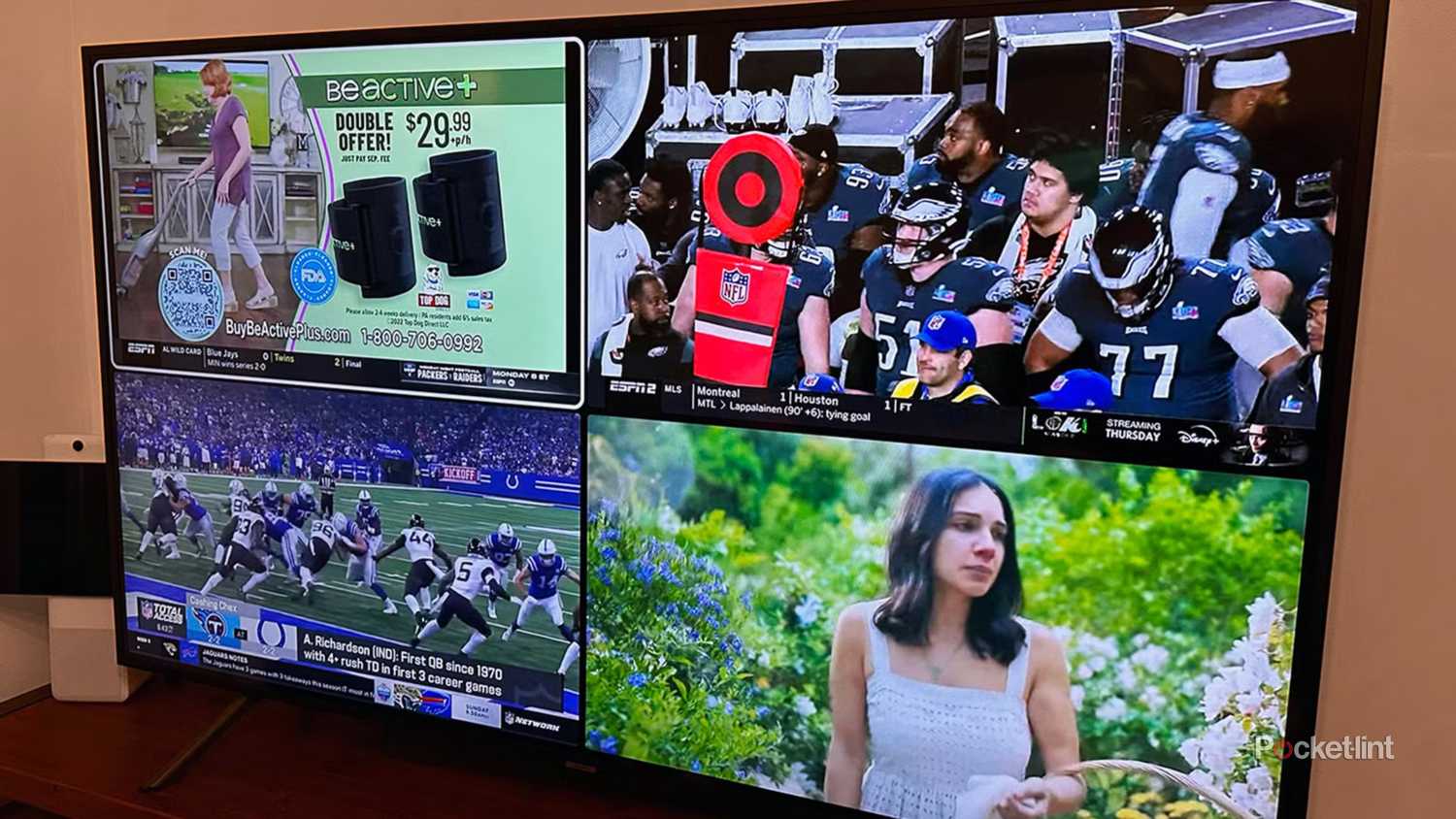
A computer screen can make four small panels hard to see. For the best result, use a large monitor, reduce unnecessary browser tabs, and keep the video window wide.
If Multiview does not appear on your computer, this does not always mean that the service is broken. Some Multiview packages are released first, or only, on supported television devices.
How to Do Multiview YouTube TV on a Phone or Tablet
Mobile support may be more limited than TV support. YouTube TV often designs Multiview for larger screens because four video panels can be difficult to view on a phone.
Still, you can check your mobile app:
- Open the latest YouTube TV app.
- Sign in to your account.
- Tap Home, Live, or Sports.
- Search for a Multiview card.
- Tap the event package if it appears.
- Rotate your phone sideways for a wider view.
If the option is missing, your mobile device, app version, or event may not support it. You can still cast a normal YouTube TV stream to a television, but casting does not always create a four-screen Multiview layout.
This is one of the most common points of confusion when people learn how to do multiview YouTube TV. Having YouTube TV on a phone does not guarantee that every television feature will appear on the phone.

How to Choose Channels in YouTube TV Multiview
YouTube TV Multiview does not always work like a blank grid where you freely add any channels. Instead, YouTube TV usually creates several preset groups based on live programming.
You may see combinations such as:
• Two, three, or four sports events
• Several games from the same league
• A mix of sports and news coverage
• Live election coverage or major national events
• Different broadcasts of a large tournament
To choose a group, open the Multiview card that best matches your interests. The available choices may change as games start, end, or move into overtime.
During my testing, I found that preset groups are helpful because they remove much of the setup work. The tradeoff is less control. If your favorite game is not included in a current group, you may need to watch it separately.
How to Control Audio in Multiview
Multiview normally plays audio from one panel at a time. This prevents the sound from becoming a confusing mix of several commentators and broadcasts.
Use your remote or controller to highlight the panel you want. Press the select button, or follow the on-screen prompt, to make that stream active. The highlighted panel usually shows which audio feed is playing.
You can also use captions, if they are available, through the playback controls. Caption support may differ between channels and programs.
For a better experience:
• Pick the game with the closest score for audio.
• Switch audio during timeouts or commercial breaks.
• Use captions when watching a quieter panel.
• Use headphones if other people in the room need a lower volume.
Knowing how to do multiview YouTube TV includes learning these controls. The video layout matters, but quick audio switching often makes the biggest difference.
How to Make One Multiview Panel Full Screen
Sometimes one game becomes more important than the others. You do not need to exit Multiview completely to focus on it.
Move the highlight to the panel you want to enlarge. Then select the full-screen, zoom, or watch option shown on your device. The exact command depends on your remote and platform.
To return to Multiview, press the back button once or look for a return-to-Multiview option. Avoid pressing the home button unless you want to leave the player.
If your device does not offer a visible full-screen button, select the panel and check the playback controls. Some platforms reveal extra options only after you press OK or move the cursor.
Which Devices Support YouTube TV Multiview?
YouTube TV Multiview is mainly intended for larger screens. Supported devices can include:
• Selected smart TVs
• Roku streaming players and televisions
• Amazon Fire TV devices
• Apple TV devices
• Google TV and Android TV devices
• Selected gaming consoles
• Some computers and mobile devices, depending on availability
Support changes over time. A newer device may receive features that an older model cannot handle. App updates, operating system versions, regional availability, and the type of live event can also affect access.
The most dependable method is to update the YouTube TV app and check whether a Multiview row appears. If it does not, review the current device support information in YouTube TV Help.
Why YouTube TV Multiview May Not Appear
There are several reasons why Multiview may be missing from your screen.
The event is not available in Multiview
YouTube TV does not offer every channel or program in a combined layout. The feature is most common for major sports events and selected live broadcasts.
Your device is not supported
Older smart TVs, streaming sticks, and game consoles may not have enough power to run multiple live streams. A device may support YouTube TV but still lack Multiview support.
The app needs an update
An outdated app can hide new features or cause playback errors. Check your device’s app store for an update.
Your location affects the available content
Local channels and sports rights vary by area. A Multiview package shown in one market may not appear in another.
The event has already ended
Multiview cards can disappear after games finish or after a live broadcast moves off the schedule.
Your internet connection is weak
Four video feeds require more data than one stream. A poor connection may cause buffering, reduced picture quality, or a failure to load the layout.
How to Fix YouTube TV Multiview Problems
If Multiview will not load, work through these steps in order:
- Close and reopen the YouTube TV app.
- Restart your smart TV or streaming device.
- Check for app and system updates.
- Restart your modem and router.
- Test another live channel.
- Move closer to the Wi-Fi router or use an Ethernet connection.
- Remove unused devices from the network for a short time.
- Sign out of YouTube TV and sign back in.
- Reinstall the app if the issue continues.
- Check YouTube TV Help for service outages or device limits.
Do not assume that a slow stream always means your internet plan is too small. Wi-Fi interference, an overloaded router, or a weak signal can cause problems even when your plan offers good download speeds.
In my experience, restarting the streaming device solves many temporary Multiview issues. If regular channels work but Multiview fails, the problem is more likely related to device support, app behavior, or the specific event.
Internet Speed Needed for YouTube TV Multiview
YouTube TV recommends a stable internet connection for live streaming. One high-quality stream uses less bandwidth than four streams, so Multiview places a greater demand on your home network.
A practical setup includes:
• A strong Wi-Fi signal near the television
• A modern router with updated firmware
• A wired Ethernet connection when possible
• Fewer large downloads during the game
• A reliable internet plan with enough capacity for all household users
If several people are streaming, gaming, or downloading files at the same time, Multiview may struggle. Lowering video quality on another device can help free network capacity.
Picture quality may also adjust automatically. This is normal adaptive streaming behavior. The service changes video quality to reduce buffering when the connection becomes unstable.
Benefits of YouTube TV Multiview
The main benefit is convenience. You can follow several events without opening multiple apps or switching between channels every few minutes.
Other advantages include:
• Easier sports tracking during busy schedules
• Less chance of missing a key play
• One subscription and one app for several live feeds
• Quick access to different games
• A useful layout for parties and group viewing
• Simple switching between active audio feeds
Multiview also helps when no single game has your full attention. You can keep several events visible and focus on the most important one as the action changes.
Limitations to Know Before Using Multiview
Multiview is useful, but it is not perfect. Understanding its limits can prevent frustration.
You may not be able to build a custom layout with any channels you choose. You may also find that some channels are missing because of licensing rules, local broadcast rights, or event availability.
Other limitations can include:
• Different support across devices
• Smaller video panels
• One audio stream at a time
• Higher network demand
• Limited mobile access
• No guarantee that every live event gets a Multiview option
• Picture quality changes during network congestion
Sports fans should also remember that local blackouts and regional restrictions can still apply. Multiview does not remove normal broadcast rules.
Tips for a Better YouTube TV Multiview Experience
Use these practical tips before a major game or live event:
• Open YouTube TV early so the app has time to load the available event groups.
• Update the app before game day.
• Use a wired connection if your Wi-Fi is unreliable.
• Place the television at a comfortable distance because each panel is smaller.
• Choose the most important game for audio.
• Use full-screen mode for close plays or detailed commentary.
• Keep your remote nearby because the active panel may change quickly.
• Check your local listings if a specific game is missing.
• Avoid running large downloads while watching four streams.
The biggest mistake is waiting until kickoff to test the setup. I recommend opening YouTube TV at least a few minutes early. That gives you time to update the app, restart the device, or choose another Multiview group.
YouTube TV Multiview Compared With Other Options
YouTube TV Multiview is different from using several separate televisions or streaming apps. With separate screens, you get more control, but you also need more equipment, power, and possibly more subscriptions.
A picture-in-picture feature usually shows one main program and one smaller window. Multiview is designed to show several live feeds with a more balanced layout.
Some televisions have built-in Multiview tools, but those features may work differently from YouTube TV Multiview. A TV may combine HDMI inputs, while YouTube TV combines streams inside its own app.
The right choice depends on your needs. If you follow several sports events, YouTube TV Multiview is convenient. If you need complete control over every channel, multiple screens may offer more flexibility.
Frequently Asked Questions About How to Do Multiview YouTube TV
How do I find Multiview on YouTube TV?
Open the YouTube TV app and check the Home, Live, or Sports section. Look for a card labeled Multiview, Top Picks for You, or a similar event group.
Can I choose any four YouTube TV channels?
Usually, no. YouTube TV generally provides preset Multiview combinations based on available live events, broadcast rights, and your location.
Why can’t I see Multiview on my device?
Your device may not support the feature, the app may need an update, or there may be no current Multiview event available. Device model, location, and program rights can all affect access.
Can I use YouTube TV Multiview on my phone?
Mobile availability can vary, and the feature is mainly designed for larger screens. Check the latest YouTube TV app and look in the Home, Live, and Sports sections.
Can I change the audio in Multiview?
Yes. Highlight the panel you want and select it with your remote or controller. The selected panel normally becomes the active audio source.
Does Multiview use more internet data?
Yes. Multiview loads several live feeds, so it generally uses more data and network capacity than watching one channel.
Can I watch YouTube TV Multiview in full screen?
You can usually select one panel and expand it to full screen. The exact button or command depends on your television, streaming device, or browser.
Conclusion
YouTube TV Multiview makes it easier to follow several live events on one screen. To use it, open the YouTube TV app, find a Multiview event group, select it, and use your remote to control the active panel and audio.
Remember that availability depends on your device, location, app version, internet connection, and the events currently offered. Update your app, test the feature before game time, and use a strong network for smoother playback.
Try how to do multiview YouTube TV during the next busy sports day, then explore the available viewing options and share your experience in the comments.

Everett Ashford is a tech reviewer at mytechgrid.com specializing in SSDs, cameras, TVs, earbuds, headphones, and other consumer electronics. He provides honest, data-driven reviews based on hands-on testing and real-world performance analysis. Everett simplifies complex tech details to help readers make smart, confident buying decisions.